
At 11 p.m., a consultant in a hotel room may have a finished 14-page proposal, a deadline in the morning, and no Microsoft Office installed on the laptop. The client needs a PDF, not a document that might reflow when opened on another device. Opening a browser and converting the Word file online can be the fastest route, but speed isn't the only issue. The PDF must preserve pagination, fonts, tables, links, and document structure, while confidential files must remain under your control.
PDF became broadly useful after Adobe introduced the Portable Document Format in 1993 and the format became ISO 32000-1:2008, an open standard for exchanging and viewing documents independently of software and hardware, as documented in this history of the PDF. Microsoft Word's built-in PDF export then made the workflow ordinary rather than specialized. Today, Microsoft 365, LibreOffice, and Google Docs still handle most authoring, but delivery, archival, and contract distribution commonly finish in PDF.
This guide covers single-file and batch conversion, layout fidelity, accessibility, privacy architecture, desktop and mobile use, troubleshooting, and the point where a browser workflow should hand off to an API. The practical question isn't only how to convert Word to PDF online. It's which workflow preserves the document and which converter gives you verifiable control over the file.
Table of Contents
- Why Converting Word to PDF Online Still Matters in 2026
- Converting a Single Word File in Your Browser
- Batch Converting Multiple Word Files
- Preserving Layout, Links, and Fonts
- What Actually Happens to Your Document
- Doing the Same Conversion on Desktop and Mobile
- Troubleshooting the Most Common Conversion Problems
Why Converting Word to PDF Online Still Matters in 2026
The hotel-laptop example captures the main advantage of online conversion: the browser becomes the document workstation. A user doesn't need an Office installation, administrator access, or a separate PDF application to turn a .docx into a fixed-layout file. That matters to consultants, students, contractors, and teams working across Windows, macOS, Linux, Chromebooks, and mobile devices.
The need is also large enough that online Word-to-PDF conversion is no longer a niche utility. One industry report estimates that more than 2.5 trillion PDFs exist worldwide and that over 290 billion new PDFs are created annually, with creation growing 12% year over year. Those figures come from Smallpdf's PDF statistics overview, and they explain why a short browser workflow can support everything from a single résumé to recurring business document production.
Practical rule: Treat PDF conversion as a delivery and preservation step, not as a cosmetic file-format change.
The wider document conversion software market was valued at $4.8 billion in 2025 and is projected to reach $11.2 billion by 2034. PDF conversion represented $1.67 billion, or 34.7% of market revenue, in 2025, according to the supplied market data. The scale reflects what organizations need from a PDF: stable pagination, universal viewing, dependable sharing, and an archival copy that doesn't depend on the recipient having the same authoring software.
The trade-off is that convenience can hide risk. A converter may upload the file to a server, substitute a font, flatten accessibility tags, or alter hyperlinks without making the failure obvious. Readers who want a fuller privacy framework can use this guide to assess whether online PDF tools are safe. By the end of the workflow, you'll know when a browser converter is appropriate, when local export is safer, and when an automated API is the better production path.
Converting a Single Word File in Your Browser
For a straightforward document, the browser path is short. Open the PDFWix Word-to-PDF page in Chrome, Edge, Safari, or Firefox. Drag the .doc or .docx file into the drop zone, or select it from local storage by clicking the browse control.
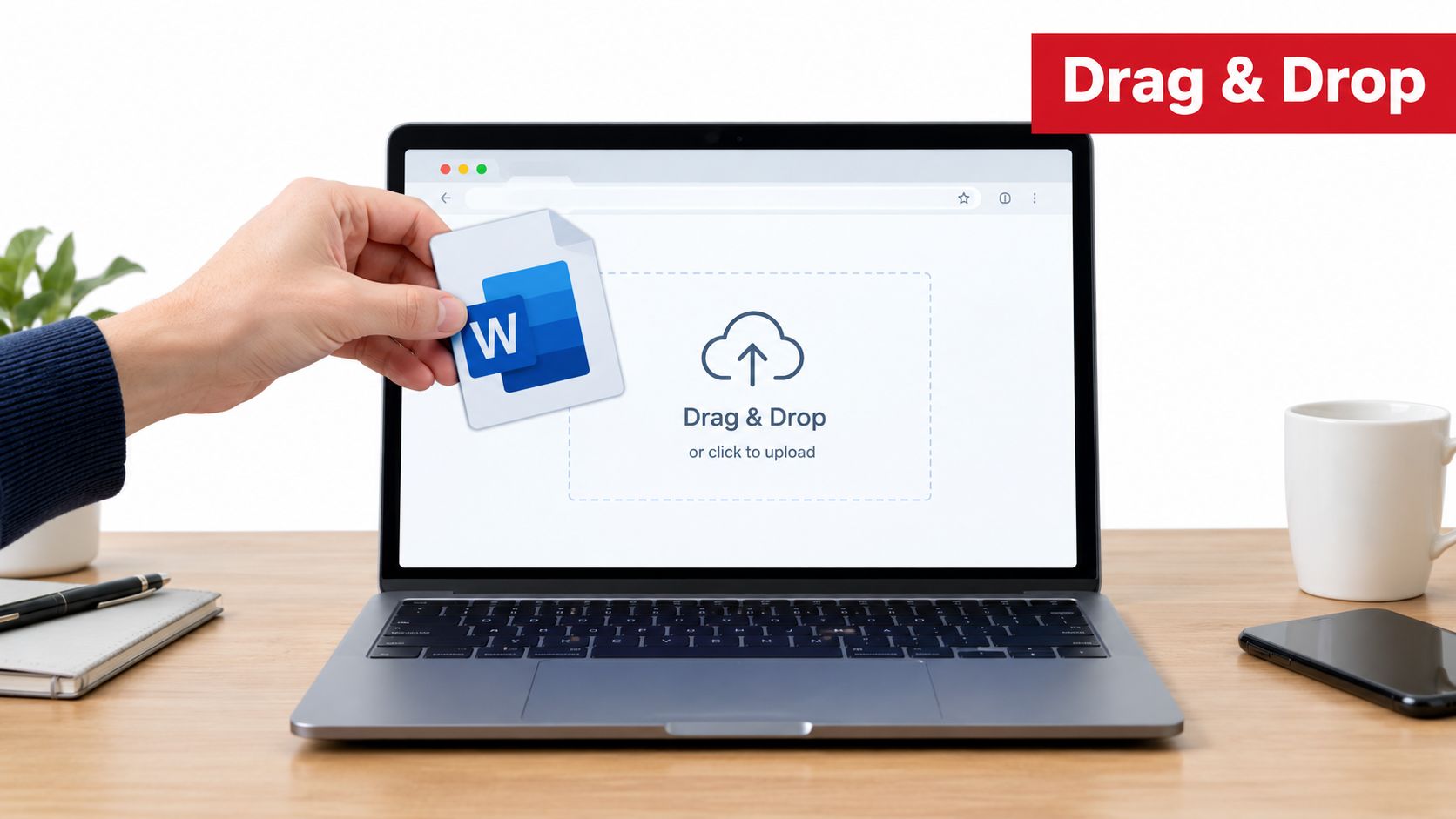
The important detail is processing location. 22 of PDFWix's 24 tools, including the Word-to-PDF tool, run client-side, so the document is processed inside the browser tab rather than uploaded for conversion. Small files generally finish in under three seconds, but treat that as a practical observation rather than a guarantee. Supported inputs include .doc and .docx, with .rtf available on some tools, and a sensible soft ceiling is 50 MB per file.
A reliable single-file sequence
-
Open the source file first. Accept tracked changes, review comments, headings, tables, and page breaks before conversion. A converter can preserve what exists, but it can't infer which revision a client should receive.
-
Drop the file into the conversion area. The browser reads the selected document and starts processing. If you need a more general walkthrough, the guide to changing a text document to PDF covers the same basic objective.
-
Wait for the completion state. Don't close the tab as soon as a preview appears. Let the conversion finish, then use the download control to save the PDF.
-
Inspect before sharing. Compare the PDF's page count with the Word file, scan the first page and the densest page, and click several links. If the document contains an embedded table of contents, confirm that it survived and that its entries point to the right locations.
A preview pane is useful for spotting pagination, but it isn't a substitute for opening the downloaded PDF in your normal viewer. For client work, save the original Word file beside the PDF so the editable source remains available for later corrections.
Batch Converting Multiple Word Files
Batch conversion is useful for monthly reports, departmental templates, training materials, and folders of related deliverables. The efficient approach is to switch the tool to batch mode, if available, or drop multiple files into the same upload area. The queue should show each filename, its size, and an individual status indicator.
Keep the queue manageable
Each file should convert independently. If one document is corrupt, the remaining files shouldn't have to restart, although a browser can still become unstable if the queue exceeds the device's available memory. A batch of 20 mixed reports will usually be easier for a modern laptop than 200 large manuals, especially when the files contain images, embedded fonts, or complex tables.
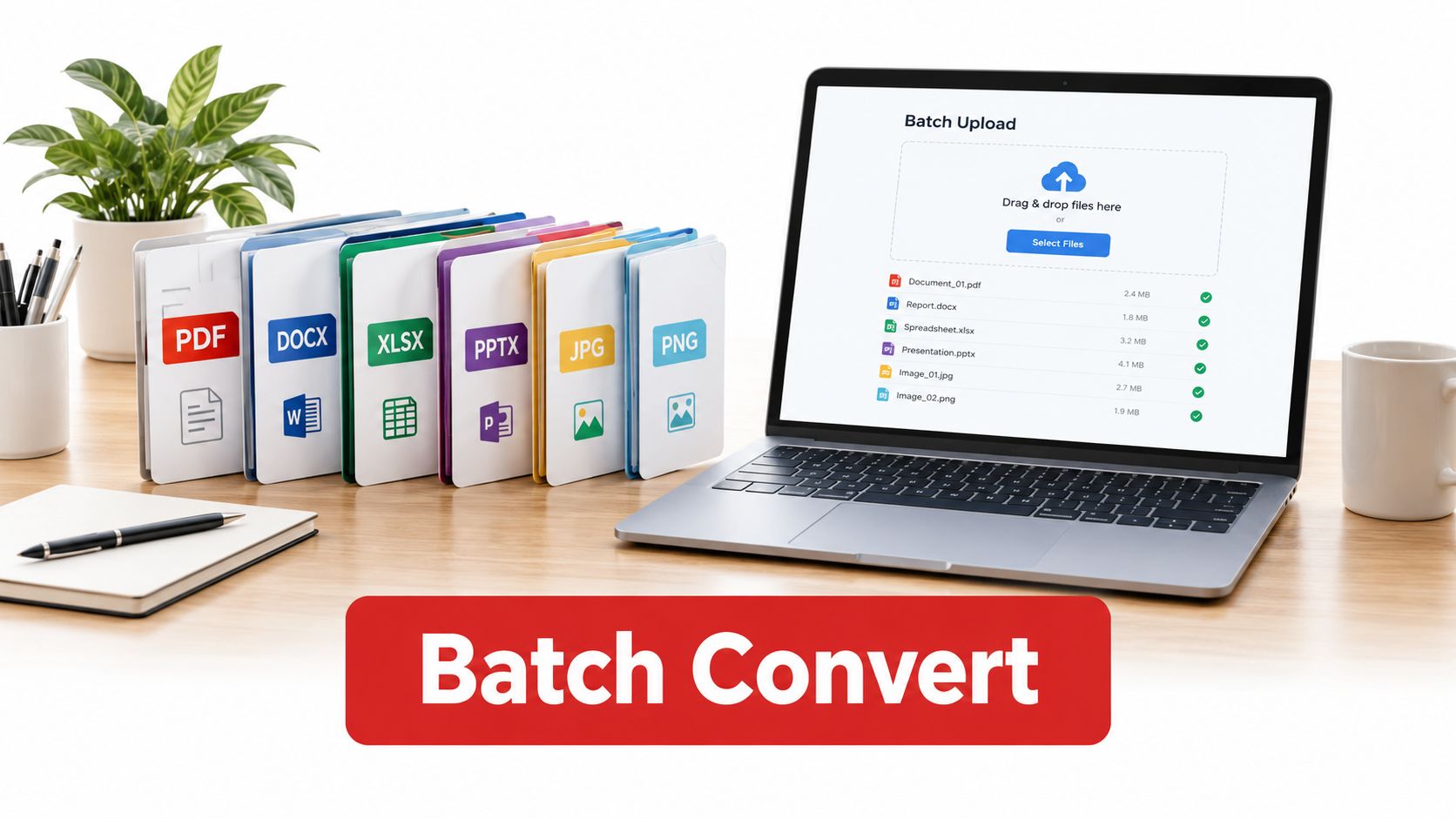
Watch the progress indicator rather than assuming the slowest file has failed. When processing finishes, download PDFs individually if each file needs separate distribution. Choose a combined ZIP archive when the output belongs in a project folder or must move to another system together. Filename preservation matters here. Original names should remain intact unless duplicate names are detected, in which case a numeric suffix prevents one output from overwriting another.
The browser's RAM, not an advertised task limit, is the practical ceiling. For uneven files, split the work by aggregate size, keeping each batch around 500 MB rather than pushing every file into one queue. Clear the completed queue before starting the next group so the browser can release memory and temporary object data.
Batching works best when you group by purpose, not just by filename. Convert one reporting period or client folder at a time, then verify that group before moving to the next.
For recurring jobs, avoid making a person repeat the same drag-and-drop routine indefinitely. A documented PDF automation workflow can define naming, storage, review, and handoff rules before the team moves to programmatic processing.
Preserving Layout, Links, and Fonts
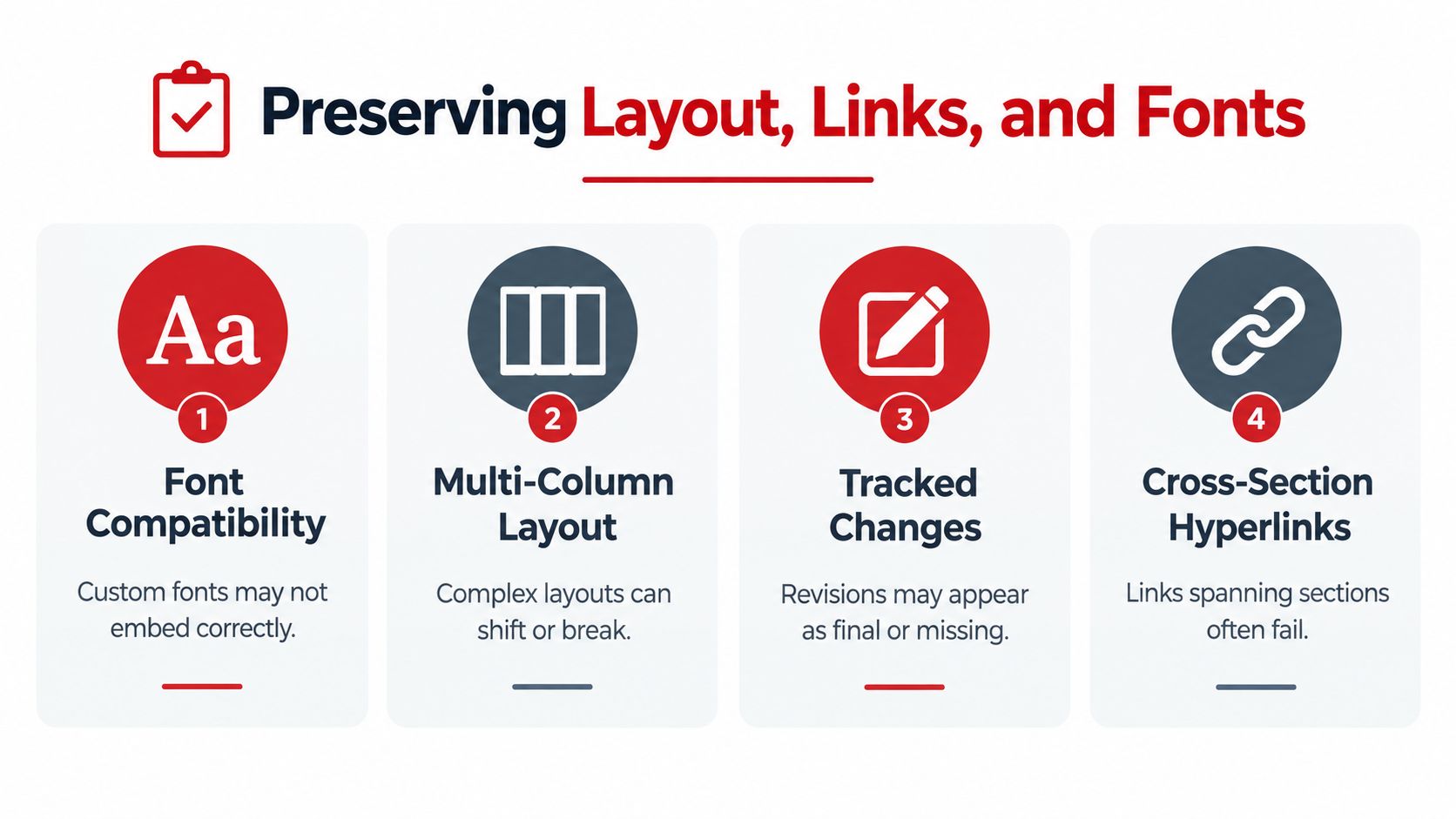
A PDF can look acceptable at a glance and still fail the strictest test. Custom fonts, multi-column pages, tracked changes, and hyperlinks crossing sections expose weak converters quickly. The most common visual failure is font substitution. A replacement font changes line breaks, which shifts paragraphs, pushes tables to another page, and can move a signature block away from its intended position.
Tables create a different problem. A converter may change column widths, especially when the source was designed around a particular page size. Tracked changes can appear as inline markup if they weren't accepted before export. Relative hyperlinks may lose their anchors when the converter doesn't carry Word field codes into the PDF.
Run a pre-flight comparison
Before trusting a document for client delivery, prepare a test copy and compare the output against the source:
- Embed fonts: In Word's save options, enable font embedding where licensing permits it.
- Resolve revisions: Accept or reject tracked changes and remove comments that shouldn't appear in the final file.
- Check hidden content: Decide whether hidden text, fields, and markup should be visible before exporting.
- Test a representative page: Choose a page with tables, images, footers, and links, not just the title page.
- Compare side by side: Use a PDF viewer and the source document to inspect line breaks, page boundaries, and link destinations.
PDFWix's browser workflow parses .docx document data rather than treating every page as a screenshot. That approach is better suited to carrying text frames, table grids, and field codes through conversion, but no online engine should be trusted without inspection when the file contains unusual layouts. For additional optimization guidance, see this explanation of what an optimized PDF is.
The strongest benchmark is structure plus visual fidelity. Tagged export can retain headings, bookmarks, document properties, and reflow behavior, while missing tags can produce accessibility checker failures involving title metadata, alt text, and reading order. W3C's PDF techniques for WCAG recommend accessibility and reflow during conversion and converting Word headings into PDF bookmarks.
What Actually Happens to Your Document
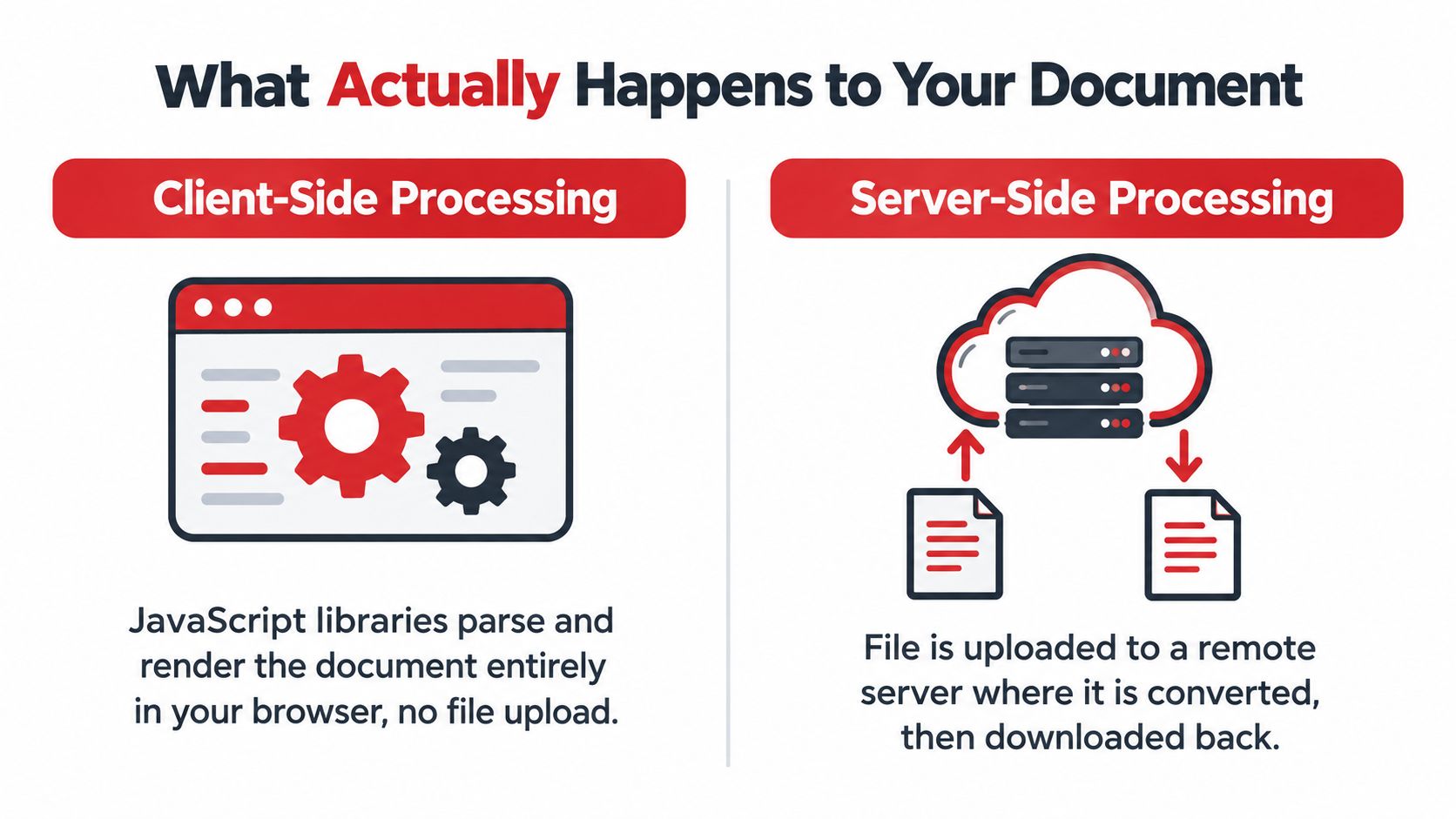
“No upload” is a technical claim, not a trust signal by itself. Online Word-to-PDF tools generally use one of two architectures, and the difference determines whether your document leaves the device.
Client-side processing loads JavaScript or WebAssembly into the browser. The browser parses the .docx, renders the content, and creates the PDF in the active tab. The file doesn't need to travel to a remote conversion server, so there is no upload wait and less exposure to server retention. The trade-off is local computing capacity. Very large or structurally complex documents can strain browser memory, and the browser may struggle with files around 500 MB.
Server-side processing sends the source file to a backend. The server converts it and returns a PDF or a download link. This model can support heavier workloads, OCR, and conversion engines that need substantial computing resources, but it means the operator handles confidential content during processing. Privacy depends on retention, logging, access controls, deletion behavior, and whether the provider's policy matches its implementation.
PDFWix states that 22 of its 24 tools run entirely client-side, including the Word-to-PDF path. That makes the architecture materially different from a conventional upload converter, but users should still verify behavior for themselves when handling sensitive material.
Verify the network behavior
Open your browser's Developer Tools before starting conversion and select the Network tab. Clear the existing entries, run the conversion, and look for requests carrying the document payload. A client-side workflow should load application resources without sending the source file as an upload request. This check won't prove every privacy detail, but it can reveal whether the central “no upload” promise matches the observed workflow.
For legal, medical, or financial documents, independent guidance still recommends avoiding free converter sites when confidentiality matters and preferring local conversion. The privacy and security comparison of Word-to-PDF converters is useful because it focuses on the gap between marketing language and verifiable file handling.
Doing the Same Conversion on Desktop and Mobile
A browser-based converter removes much of the old desktop-versus-mobile divide. On Windows, macOS, Linux, and Chromebook, open the converter URL, select the .docx, wait for processing, and download the PDF. You don't need a native Office installation, administrator rights, or an Acrobat license for the browser workflow.
On an iPhone or iPad, the file usually comes from the Files app, iCloud Drive, Google Drive, or a message attachment. Android Chrome offers a similar route through local storage, Drive, or a file manager. The conversion steps remain familiar, but selecting and saving the file requires more care because mobile operating systems manage downloads differently from desktop systems.
Mobile checks that prevent failed handoffs
- Choose the source deliberately: Confirm that you're opening the final Word version rather than a duplicate stored in a messaging app.
- Allow the download to finish: Keep Safari or Chrome open until the PDF appears in the Files or Downloads location.
- Check available memory: Large
.docxfiles can exceed mobile browser capacity around 150 to 200 MB, so move demanding jobs to a desktop when the device becomes sluggish. - Inspect the saved file: Open the PDF from its final storage location, not only from the browser preview.
iOS Safari can sometimes refuse to download generated PDFs until Download Manager is enabled in Settings. If the file appears to convert but doesn't save, check that setting before repeating the job. The same browser-based path works across devices because the conversion doesn't depend on a native application shell. For an iPhone-specific walkthrough, use this guide to convert Word to PDF on an iPhone.
Troubleshooting the Most Common Conversion Problems
Most failed Word-to-PDF jobs aren't mysterious. They usually come from a mismatch between the source document and the conversion engine, or from skipping the final inspection. Work through the failures in this order.
Layout drift
Columns reflow, margins widen, and headings move when the converter substitutes a font or calculates page breaks differently from Word. Start with the latest saved Word version, accept tracked changes, and export a local PDF from Word as a fidelity baseline. Compare that baseline with the online result. If the local version is correct and the browser version drifts, the problem is the conversion engine rather than the source.
Missing fonts
Any font that isn't embedded in the .docx may be replaced without warning. The replacement can look close while still changing line lengths and page count. Embed the required fonts where permitted, or replace unusual typefaces with fonts available in the target environment before conversion.
Broken hyperlinks
Links often fail when the converter strips Word field codes or doesn't preserve relationship data across sections. Re-adding links after conversion is unreliable, so inspect the source first and then test several destinations in the PDF. Check both visible link text and the actual target address.
Compressed images
Aggressive image downscaling turns charts, screenshots, and signatures into blurred blocks. Look for an image-quality option, or use a converter that preserves original bitmaps. If the source already contains oversized photographs, compress them in Word before conversion rather than trying to repair a degraded PDF afterward.
Oversized output
Large PDFs commonly contain high-resolution photos, duplicate font resources, or both. Re-save the Word source with images compressed to 150 dpi before converting, then compare readability and file size. Don't optimize a legal exhibit or technical diagram so aggressively that important details disappear.
A compact troubleshooting table makes the decision easier:
| Problem | Typical Cause | One-Line Fix |
|---|---|---|
| Layout drift | Font substitution or different page-break logic | Embed fonts and compare with a local Word export |
| Missing fonts | Fonts aren't embedded in the source | Embed permitted fonts or choose a widely available replacement |
| Broken hyperlinks | Field codes or relationship data were stripped | Verify links in Word before conversion and test the PDF |
| Blurry images | The converter downscaled source bitmaps | Preserve original image quality or adjust conversion settings |
| Oversized output | High-resolution photos or duplicated fonts | Compress source images to 150 dpi and reconvert |
The repeatable workflow
Use this sequence for routine work:
- Open the converter in a current browser.
- Drop the
.docor.docxfile into the conversion area. - Wait for client-side processing to finish when the tool uses browser processing.
- Download the PDF and save it beside the editable Word source.
- Compare three pages with the source, including the most complex page.
- Test links, tables, images, and page count before sending the file.
For batch jobs, select all files together, watch browser memory, and download a single archive when that matches the downstream process. If a PDF won't open after conversion, this guide to troubleshooting PDFs with Cloudvara offers a useful next diagnostic path, including checking whether the file is incomplete or malformed.
Manual browser conversion stops scaling when the same task must run unattended on a schedule, inside an application, or across hundreds of files per day. PDFWix's API provides the handoff, with 250 free monthly operations for small integrations before a team commits to a paid tier. The browser tool is the sandbox for testing inputs and fidelity. The API is the production path once the document rules are stable.
Use PDFWix to convert Word files in the browser without signup or watermarks, while keeping the Word-to-PDF workflow focused on layout checks and file handling. Start with a representative document, verify the downloaded PDF, and move repeatable batch work to the API when manual conversion no longer fits your process.