
An HR manager has a polished onboarding packet, but employees still print it, scan it, and email back blurry pages. A freelancer has a client agreement ready, yet the signature line isn't interactive. A registrar receives a PDF that looks perfect on screen, but keyboard users can't reach the fields in a sensible order.
To create a PDF form properly, you need to do more than draw boxes over a document. You need to choose a sound source, define usable fields, preserve the AcroForm structure, test validation and signing, and verify that screen readers and keyboards can operate the result. PDF forms became a standard part of the format in 1996 with PDF 1.2, when Adobe introduced AcroForms with radio buttons, checkboxes, and fill-in elements, marking the move from static viewing to structured data capture (History of PDF).
Table of Contents
- Why You Need to Create a PDF Form Today
- Choosing Your Starting Source
- Adding and Configuring Form Fields
- Field Properties, Validation, and AcroForm Structure
- Testing, Saving, E-Signature, and Security
- Making the Form Accessible and Compliant
- Final Checklist and Choosing the Right Workflow
Why You Need to Create a PDF Form Today
A contract may look polished on screen yet fail when a client opens it in a browser. An HR packet may contain visible blanks but force employees to print, scan, and email it back. A registrar may receive a form whose fields exist, but whose tab order and labels make keyboard completion difficult.
PDFs remain practical for contracts, applications, HR packets, approvals, and consent documents because they preserve layout across platforms and print consistently. They also have a defined interactive model. PDF 1.7 defines an interactive form as an AcroForm dictionary in the document structure, so fillable fields are structured objects, not merely visual boxes placed over a page (PDF 1.7 specification).
That structure affects every delivery method. Recipients may use Acrobat, a browser viewer, a mobile reader, or assistive technology. Clear field names, usable appearance streams, logical tab order, tooltip labels, and accurate AcroForm metadata help the same file support completion and reliable data export. Missing details can cause incomplete submissions, misplaced entries, or abandonment.
The hidden cost of a visually correct form
The most expensive failures often stay hidden in the authoring window. An email field may have no meaningful tooltip. A checkbox may sit beside the right label but export an unusable value. A PDF may contain annotations while its /Fields array is empty or missing, producing a structural mismatch that confuses PDF processors (PDF.js AcroForm issue).
Accessibility problems affect hiring, healthcare, education, and public-sector workflows. A review reported that as few as 2.4% of PDF documents were accessible, while its examination of 856 PDF forms found about 1% were completely scanned images, making them effectively unfillable (PDF form accessibility study). Build accessibility into tags, labels, reading order, and field behavior before distribution.
Use an optimized PDF guide when the source is large, image-heavy, or likely to circulate widely. Treat the work as a document workflow: select the source, design fields, configure properties, inspect AcroForm structure, test accessibility, sign, and distribute under control.
Choosing Your Starting Source
The starting file determines how much cleanup you'll do later. I usually compare four options before opening a form editor: a blank canvas, a Word or HTML export, a scanned paper form, and an existing PDF.
| Source | Best For | Risk | Prep Needed |
|---|---|---|---|
| Blank canvas | Simple forms designed from scratch | Layout work takes longer if the form grows | Define sections, labels, and field positions |
| Word or HTML export | Documents with existing written content | Heading hierarchy and fonts may export poorly | Check tags, reading order, and selectable text |
| Scanned paper | Legacy forms with no digital original | OCR can create noisy text layers | Clean the scan, run OCR, inspect recognition |
| Existing PDF | Documents already prepared for digital use | Untagged or damaged files can hide structural problems | Confirm tags, text selection, and accessibility |
A blank canvas is efficient when the form is small and the layout is straightforward. My decision rule is simple: start blank for under five fields, convert from Word or HTML when the content already exists, use OCR only when no digital source survives, and edit an existing PDF only when it is already accessibility-clean.
What saves time and what creates rework
Word and HTML preserve the writing and branding you already have, but conversion can change heading hierarchy, substitute fonts, and complicate later tagging. Before adding fields, inspect the exported PDF with keyboard navigation and a tag viewer. If headings, paragraphs, and labels have collapsed into decorative fragments, fix the source or retag the PDF before proceeding.
Scanned paper is a last-resort source, not a shortcut. OCR can recover selectable text, but the result needs visual comparison against the original, especially around dates, names, checkboxes, and small print. A clean existing PDF is faster, but “looks editable” isn't the same as “has a reliable structure.”
For practical background on converting source files, see how to change a text document to PDF. If you're reviewing document-production providers or related business services, the An Forme business profile on Wispra can also provide useful context when comparing workflow resources.
Adding and Configuring Form Fields
A form works when every field has a job, a stable identity, and instructions that make sense without relying on nearby visual text. Add fields in the order a person completes the document, then configure their properties before copying them. Copying an unfinished field is a reliable way to reproduce bad names, missing tooltips, and incorrect defaults.
Configure the core field types
Text fields need more than a rectangle. Give each one an exact, meaningful name such as employee_full_name or invoice_date, rather than accepting an auto-generated label. Set the tooltip to describe the expected input, choose single-line or multi-line behavior deliberately, define a default only when it helps the user, and use a date-oriented input pattern where the viewer supports it.
Checkboxes suit independent choices, such as “Send me a copy” or “I agree to the terms.” Give every checkbox a unique export name and verify its on-state symbol at normal print size. If several boxes represent separate selections, don't force them into a radio group.
Radio buttons are for mutually exclusive choices. Place them under one parent field name and assign distinct export values, such as monthly, annual, and custom. That structure lets the user select only one valid option and gives downstream systems a clean result.
Dropdown lists work well for controlled values, including departments, regions, or document types. Pre-populate every option, select a sensible default only when one exists, and check that the longest item fits inside the field. A list that truncates critical choices creates data quality problems even when the underlying field is valid.
Signature fields belong after the information being approved. Give the field a clear tooltip, leave enough room for the signing interface, and confirm that it is connected to the document's AcroForm structure so viewers can recognize it as a signature field rather than a decorative line.

Use the PDF form fields guide as a property checklist, then complete a field-by-field pass. Ask whether a user can identify the field, understand the required format, reach it from the keyboard, and export the entered value without ambiguity.
Practical rule: Never duplicate a field until its name, tooltip, export value, and appearance are correct.
Field Properties, Validation, and AcroForm Structure
A field can look correct and still fail after export. The AcroForm dictionary, field tree, widget annotations, appearance streams, and behavior flags control how browsers and third-party viewers render, identify, and process it. Check those structures alongside the page appearance. The PDF.js structural guidance illustrates why visible annotations alone do not prove that a form is correctly built.
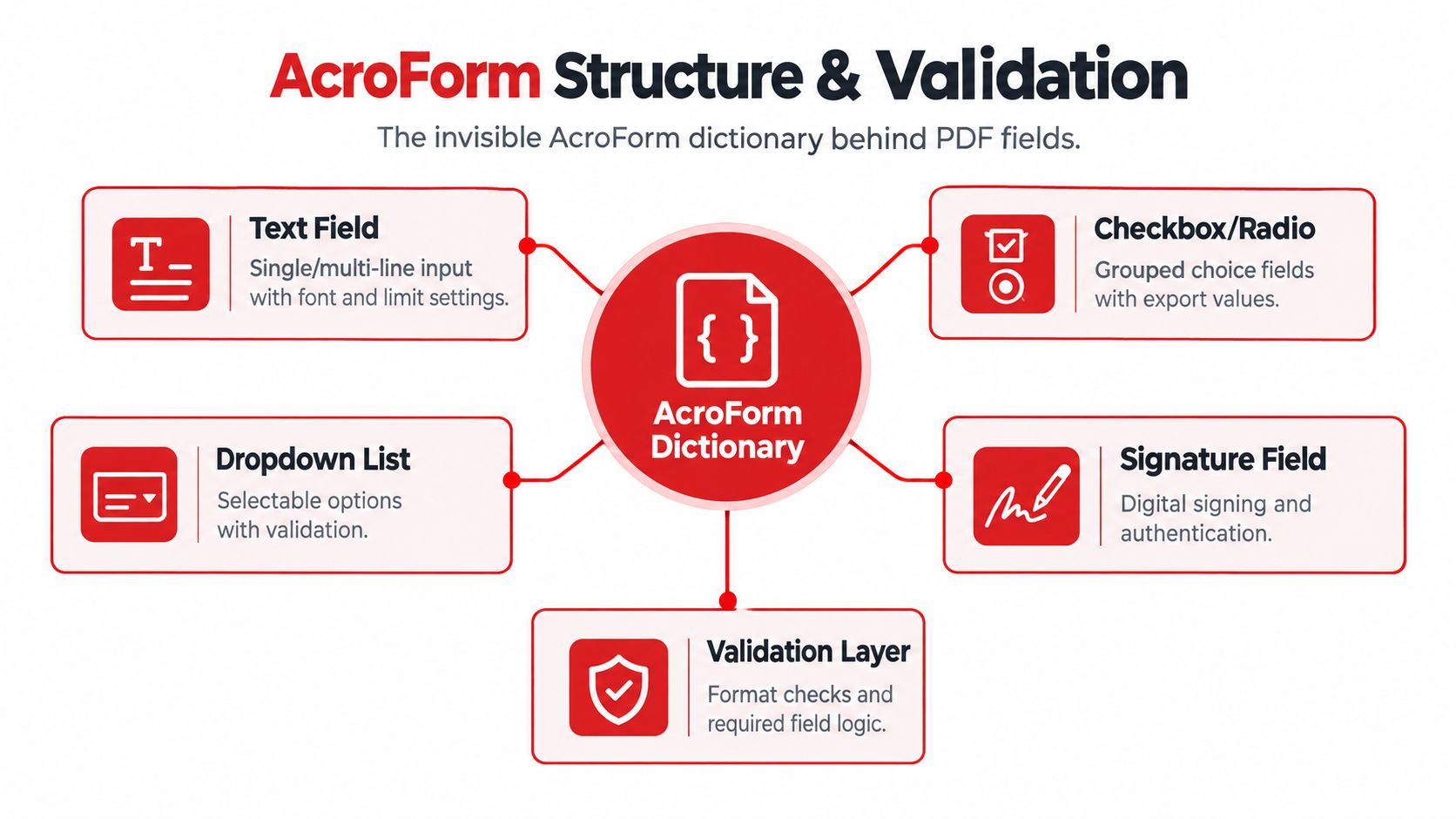
Give the field tree a logical shape
Field names become export keys in CSV files, databases, and document-processing systems. Shared names are useful when several widgets represent one value, but accidental duplicates from copy-paste can merge unrelated responses. Name fields by logical section, then use parent-child relationships for repeated groups such as addresses, dependents, and approval blocks.
Add a tooltip that states what each field requires. A visible label may be clear to sighted users while a screen reader receives only “Text Field.” Keep tooltip wording specific, and make sure the field's accessible name matches its purpose rather than its position on the page.
Set tab order to follow the visual and logical sequence, from identification and details through declarations and signature. Two-column layouts often produce an unexpected keyboard path unless the order is defined explicitly.
Validate before submission
Mark only required information as required. Apply numeric limits to amounts, date formats to dates, controlled values to dropdowns, and patterns to identifiers with a known format. Calculations should reference stable field names. Conditional fields need tested rules for both showing and hiding.
JavaScript can handle calculations and conditional behavior, but viewer support varies. Test scripts where recipients will open the file, then inspect encoding, field flags, appearance streams, and /NeedAppearances behavior. Missing metadata or inconsistent flags can leave values visible in one viewer and blank or garbled in another. Review the AcroForm structure after duplication or conversion, not only after initial field placement.
Testing, Saving, E-Signature, and Security
Save a working copy before you add restrictions or signatures. Once a PDF is locked, encrypted, or signed, later edits can invalidate the signature or make troubleshooting harder. Keep a clear source version, a test version, and a release version so you can identify what changed.
Test the completed form in real viewers
Open the saved file in desktop Acrobat, a browser's built-in viewer such as Chrome, and a mobile reader. The point isn't to prove that the form opens. Test each field, move through the document with the keyboard, trigger validation errors, save entered values, reopen the file, and export the data through the method your team will use.
Look for practical differences:
- Rendering: Check fonts, borders, icons, calculated values, and field placement.
- Input behavior: Confirm that text, checkboxes, radio groups, dropdowns, and multiline fields accept the intended content.
- Persistence: Close and reopen the file to verify that entered values remain visible.
- Submission: Inspect the exported data for stable names, correct values, and empty fields that should remain empty.
- Mobile use: Test touch targets, zoom behavior, signature placement, and scrolling around dense sections.
A form isn't ready because it passes one desktop preview. It's ready when the target workflow survives the viewers and devices your recipients use.

Choose the signing method deliberately
A lightweight drawn signature may be sufficient for an internal acknowledgement, while a certificate-based signature provides a stronger identity and integrity model for contracts or regulated records. Capture the signer's name and signing date where the process requires an audit trail, and confirm whether your signature provider records additional metadata such as an IP address.
The guide to signing PDF documents covers the practical signing workflow. Standards continue to evolve too. The 2025 to 2026 ETSI PAdES update shows that digital-signature requirements are not static, while government oversight reporting in 2025 described limited progress with electronic-signature adoption in some public-sector settings (oversight report). Treat signature validation and acceptance as part of the workflow, not an optional field property.
Add security in the right order
Redact sensitive static text before applying permissions. Then use password or permission controls to limit editing, certificate-based encryption for confidential forms, and watermarks for drafts. Browser-based handling can reduce exposure when files contain personal information. PDFWix states that most of its browser tools run locally through WebAssembly, while its Protect PDF and Unlock PDF tools process files in server memory without writing them to disk. Desktop tools, by contrast, may leave temporary files in local storage, so include device cleanup in your operating procedure.
Making the Form Accessible and Compliant
A PDF can look easy to complete while remaining unusable with a keyboard or screen reader. Accessibility depends on how visible labels, field names, tags, reading order, and tab sequence work together. Adobe recommends tagging form fields, placing them in the document structure, and adding a text description in each field's Tooltip property (Adobe PDF accessibility guidance).
Build the accessibility controls together
Start with the tag structure and reading order. In the Tags panel, or an equivalent structure editor, arrange headings, instructions, labels, fields, and error messages in the sequence users need. The W3C's PDF techniques explain how recognized form fields support keyboard access and identify Acrobat Pro and LiveCycle Designer as tools for adding or editing fields (W3C PDF23 technique).
Then configure the accessible name for every control. A label such as “Name” may be sufficient in a short internal form, while “Employee legal name” or “Billing contact email address” gives users and assistive technology clearer guidance. Set the same purpose in the Tooltip property, without replacing a visible label with vague text such as “field” or “input.” You can also review the PDF accessibility guide for tagging and reading order techniques before finalizing the structure.
Set tab order to follow the reading order, including grouped radio buttons and related controls. Check contrast for field borders and required indicators. Give instructional images meaningful alt text, and do not communicate required status through color alone. A sighted review will not reliably reveal a control that keyboard users cannot reach.
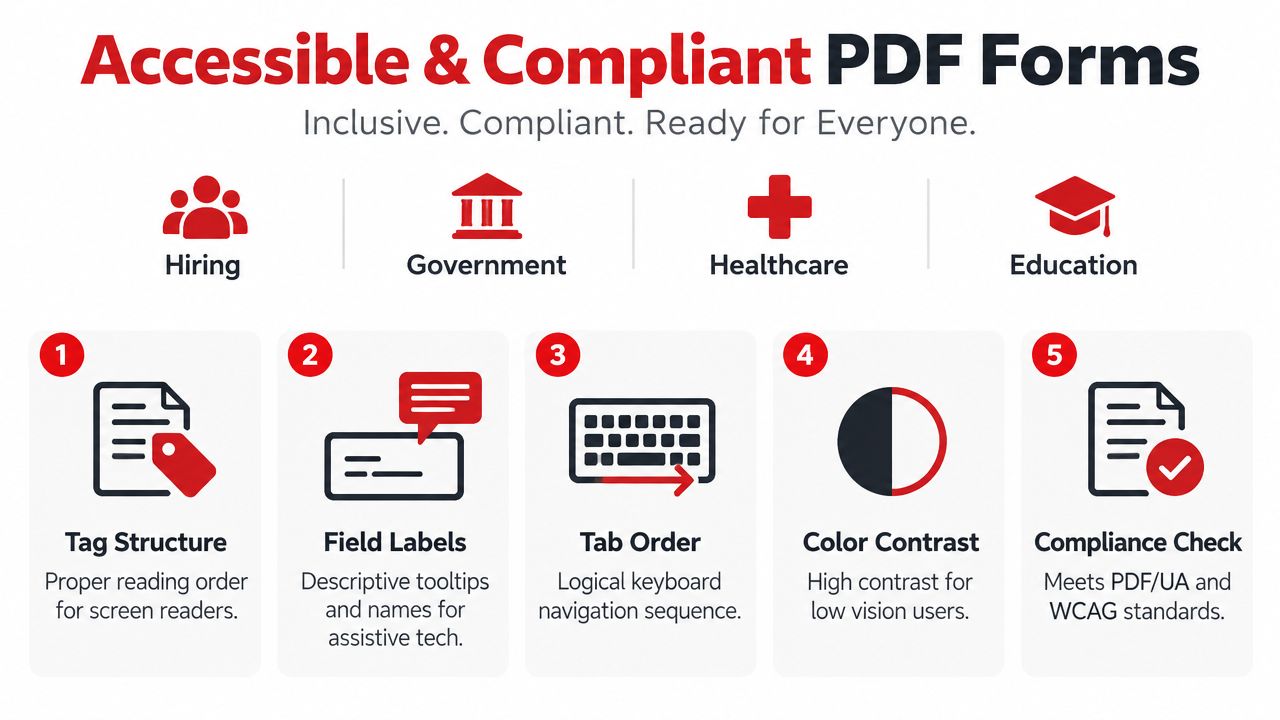
Run a pre-publish accessibility review
Run Acrobat's accessibility checker or a comparable tool, then perform manual keyboard and screen-reader tests. Automated checks can identify missing tags or alt text, but they cannot confirm that instructions make sense, focus is visible, or validation messages explain how to correct an error.
Use this review:
- Are headings, instructions, labels, fields, and error messages tagged?
- Does spoken reading follow the intended order?
- Does each field have a descriptive tooltip?
- Can a keyboard user reach and identify every control?
- Is focus visible during tab navigation?
- Do validation messages describe both the problem and correction?
- Do images have useful alt text, or are decorative images marked appropriately?
- Do contrast and required indicators remain clear without color perception?
Claims of WCAG, PDF/UA, or Section 508 compliance require evidence rather than visual approval. Retain checker results, manual test notes, and the released file version with the project record.
Final Checklist and Choosing the Right Workflow
Before distribution, run this 12-point checklist:
- Field names: Every export key is intentional and unique where required.
- Field groups: Radio buttons and related controls use the correct parent structure.
- Tab order: Keyboard movement follows the form's logical reading sequence.
- Validation: Formats, ranges, calculations, and conditional logic behave correctly.
- Required flags: Only necessary fields are marked required.
- Tooltips: Every field has a clear accessible description.
- Tags: Fields and surrounding content are included in the document structure.
- Reading order: Screen readers encounter instructions before the controls they explain.
- Appearance streams: Values and widgets display consistently after saving and reopening.
- Signature placement: The signing field is positioned after the content being approved.
- File control: Size, security settings, and version metadata are appropriate for distribution.
- Viewer testing: Acrobat, a browser viewer, and a mobile reader have all been checked.
Choose the workflow using three signals: install tolerance, field complexity, and volume. Acrobat Pro is sensible for complex calculations, XFA conversion, or legally regulated templates. A browser editor such as PDFWix fits teams that need no installation and quick sharing. A developer API is the better route when a data source must generate many form variations.
Common review failures include missing appearance streams, duplicate names after copy-paste, and empty tooltips that produce poor screen-reader output. Distribute the finished file through a direct PDF link, email attachment, or an embedded workflow that preserves interactivity. Printing to PDF, flattening, or exporting through an image-based process can remove the fields you worked to create.
Use PDFWix to fill interactive AcroForm fields, add signatures, and handle routine PDF preparation in a browser-based workflow. Test your completed form across viewers, complete the accessibility checks, and use PDFWix when its browser tools match your privacy and distribution requirements.