
A contract arrives in your inbox while you're between meetings. An offer letter needs approval before the end of the day. A client sends a PDF, asks for a signature, and expects the completed file back without a print, scan, or round trip through a desktop application.
For most everyday documents, you can electronically sign a PDF in a browser by uploading it, adding a signature, placing it in the right location, and downloading the finished copy. The important part is choosing the right workflow before you begin. Signing your own document, asking someone else to sign, and applying a certificate-backed digital signature are related tasks, but they don't provide the same controls or evidence.
This guide separates those paths clearly. It covers a quick electronic signature overlay for routine approvals, a request-signature workflow for contracts with multiple people, and a certificate-backed digital signature when document integrity and signer authentication require stronger assurance. It also covers the step many short guides skip, verifying the result and locking or certifying the PDF before you send it.
PDFWix is one browser-based option for this work. It lets users add a signature by typing, drawing, or uploading an image, then place it on the document and download the signed PDF. The service requires no account, adds no watermark, and provides browser tools for desktop and mobile use. The practical roadmap is simple: decide which signing job you have, prepare the PDF, place the right fields, sign or route it, verify the finished file, and preserve the final record.
Table of Contents
- Introduction to Electronically Signing PDFs Without the Hassle
- Understanding Electronic Signatures and Digital Signatures for PDFs
- How to Electronically Sign a PDF Yourself in Your Browser
- How to Request Signatures and Track Signing Progress
- Legal Validity and Security When You Electronically Sign a PDF
- Verifying Locking and Troubleshooting Your Signed PDF
Introduction to Electronically Signing PDFs Without the Hassle
The fastest way to choose a PDF signing method is to identify who needs to act. If you're the only signer, you need a self-signing workflow. If a client, colleague, employee, or supplier must sign too, you need a request-signature workflow with routing and progress tracking. If the document needs cryptographic proof of identity and later integrity checks, you need a certificate-backed digital signature.
These distinctions matter in ordinary work. Sales teams send agreements, HR departments circulate offer letters, freelancers approve proposals, and legal teams exchange signed PDFs. A browser workflow usually removes the most irritating parts of the old process: printing, scanning, installing software, and trying to reconstruct which version was signed.
Practical rule: Don't start by choosing a signature style. Start by deciding whether you're signing, collecting signatures, or certifying the document.
A typed name, drawn mark, or signature image can be appropriate when the document records a person's intent to approve or agree. That's an electronic signature overlay. It's quick and familiar, but it shouldn't be confused with a certificate-backed digital signature, which uses a certificate and creates a verifiable relationship between the signer and the PDF.
The legal foundation for electronic signing is well established in major markets. The United States passed the ESIGN Act in 2000, while the European Union adopted eIDAS in 2014, with the regulation becoming applicable in 2016. These frameworks helped move signed electronic documents from an exception to a routine business method. Adobe's 2021 Document Cloud e-signature survey reported that 50% of respondents had electronically signed a document during the previous two years, and about half of the documents people signed were already signed electronically on average.
You don't need to understand public-key cryptography to complete a normal signing task. You do need to know where the signature belongs, whether another person must sign, how the final file will be checked, and whether the recipient expects a certificate rather than a visual signature.
Understanding Electronic Signatures and Digital Signatures for PDFs
The terms sound interchangeable, but they describe different layers of the process. An electronic signature is the broad concept. It can be a typed name, a drawn signature, an uploaded image, or another electronic action attached to a record and performed with the intent to sign.
A digital signature is a specific technical form of electronic signature. It uses a certificate and cryptographic controls to bind the signer to the document and help a PDF reader detect changes made after signing. Adobe's comparison of electronic and digital signatures is useful when a recipient has specified a particular signature standard.
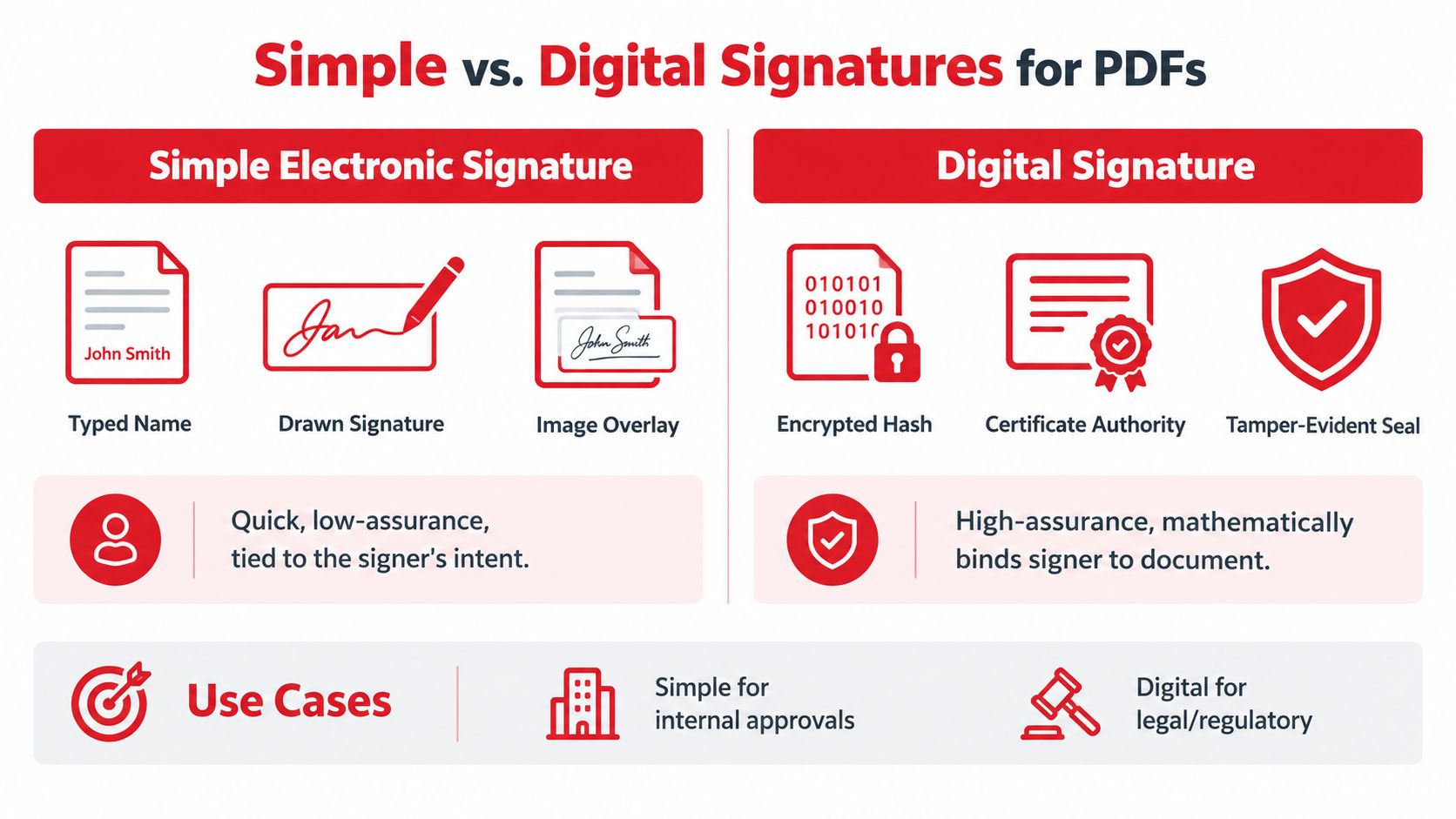
Choose the path that matches the document
| Feature | Electronic Signature Overlay | Certificate-Backed Digital Signature |
|---|---|---|
| What it adds | A typed, drawn, or image-based signature appearance | A signature field linked to a digital certificate |
| Main evidence | Signer intent and the surrounding transaction record | Certificate identity, document integrity, and validation status |
| Typical fit | Internal approvals, routine forms, everyday agreements | Higher-assurance contracts, controlled workflows, and documents with specific certificate requirements |
| User experience | Usually quick and browser-friendly | May require Acrobat or Reader, a certificate, and a password |
| Main risk | A visual mark can be mistaken for stronger authentication | Certificate availability, trust, and software compatibility can interrupt signing |
A signature image isn't automatically weak or invalid. The important question is the complete record around it. Who received the document? Did that person intend to sign? Was the signed file preserved? Can the parties show what happened during the transaction?
Digital signatures solve a different problem. Adobe's documented Acrobat signing process requires the signer to open the PDF in Acrobat or Reader, select a digital-signature field, choose or create a certificate, enter the certificate password, and sign. The certificate can then be reused from the Sign As menu when configured.
Why the field matters
A PDF can contain interactive form elements called AcroForms, a long-standing PDF mechanism for entering information. A dedicated signature field tells the signer and the PDF reader exactly where authentication belongs. If you send a form without the right field, the recipient may place a visual signature in the wrong area or discover that their certificate can't be applied at all.
Prepare the document first. Insert and assign the signature fields before sending it to someone else. Recipients can only sign where the field is placed in a request-based workflow, so field placement isn't cosmetic. It controls what the signer can complete and reduces rework when several people share the same PDF.
For a routine self-signing job, an overlay is often enough. For a document where a recipient explicitly requires certificate validation, use the certificate-backed route instead of trying to imitate it with a signature image.
How to Electronically Sign a PDF Yourself in Your Browser
Self-signing is a one-user transaction. You already have the PDF, you know where your signature belongs, and you need a finished copy for your records or for delivery. The cleanest flow has three stages: upload, place and sign, finish.
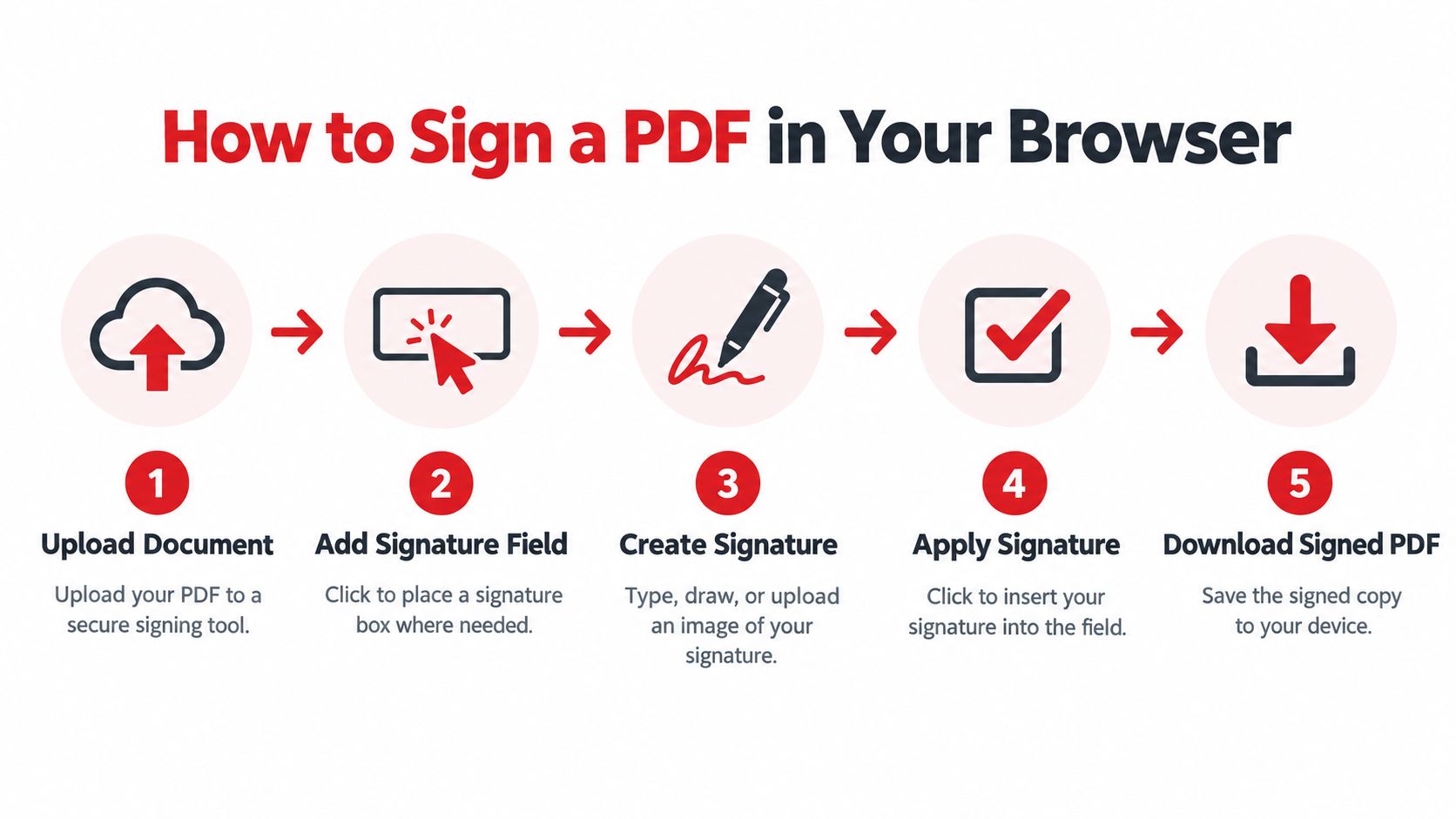
Prepare the file before opening the tool
Open the PDF first and check that the page contains the intended signature line or approval area. If the document has several pages, note the page where the signature belongs. A quick preview on the device you'll use for signing can expose a common mistake, a field that looks correctly placed on a large monitor but sits over text or outside the page on a phone.
You should also decide whether you need a visual electronic signature or a certificate-backed signature. The browser workflow below is for adding a typed, drawn, or image-based signature. A certificate-based signature may require compatible desktop software, a prepared digital-signature field, and a certificate password.
Complete the browser workflow
-
Upload the PDF. Open a browser signing tool and select the document from your device. Drag and drop works on many desktop browsers, while a file picker is usually easier on mobile.
-
Add the signature field. Click the signature control, then place the field directly over the intended line or box. Zoom in before placing it. A field that's slightly too high can cover the recipient's name, date, or surrounding text.
-
Create your signature. Type your name, draw it with a mouse or touchscreen, or upload an image of a handwritten signature. Use the option that produces a clear result at the document's viewing size.
-
Apply and adjust. Insert the signature into the field, then resize and position it. Check the entire field, not just the ink or typed characters. On a phone, rotate the device if necessary and inspect the page at normal reading size.
-
Finish and download. Complete the transaction and save the signed PDF to your device. Rename it clearly so you can distinguish the signed copy from the unsigned original.
PDFWix provides this type of browser-based signing through its Sign PDF tool. According to the publisher's product information, 22 of its 24 tools run in the browser through WebAssembly, and the service doesn't require an account, add watermarks, or impose daily task limits. That setup is useful when you want files to remain on the device during browser processing and don't want a desktop installation.
Keep the signing path short. Upload the document, place or create the signature, finish the file, and inspect the result before sending it.
The PDFWix guide to adding a signature covers the placement details separately. In practice, the most frequent failures aren't attacks. They're a missing signature field, an accidental placement over existing text, an unexpected sign-in screen, or a download that gets mistaken for the original file.
How to Request Signatures and Track Signing Progress
Requesting signatures is not the same as signing your own PDF. You become the sender, the document needs fields for other people, and the workflow must preserve who signs, in what order, and whether anyone has finished.
Start with the final document, not a draft. Add a signature field for each signer and place every field where it belongs. If the client signs on one page and your representative signs on another, assign those fields before routing the file. A recipient who receives an unprepared PDF may not know where to sign, and a sender who fixes fields after the request has gone out may create version confusion.
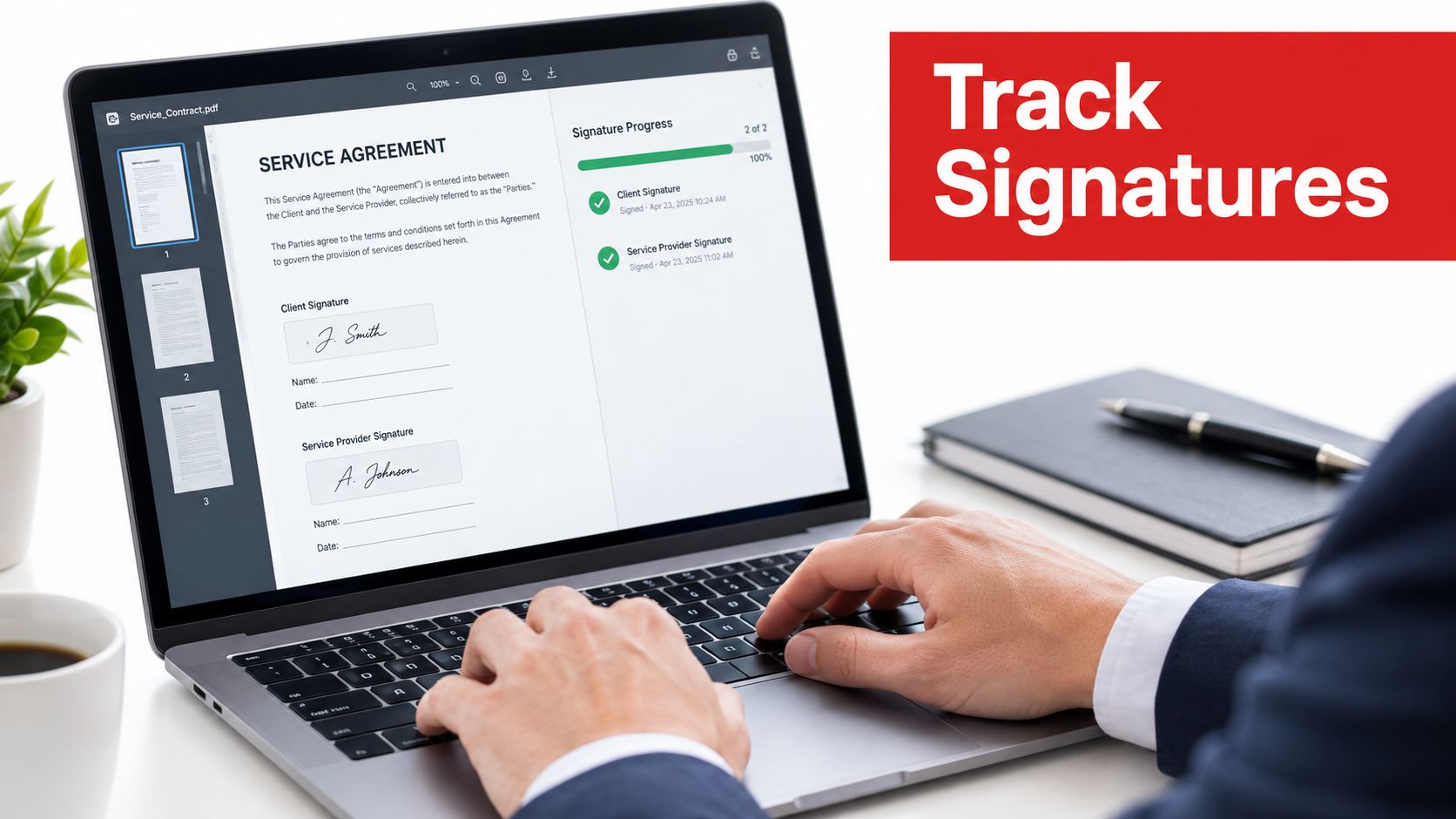
Set up the request
Add each recipient using the address they monitor. Then choose whether they sign in sequence or in parallel. A client contract may need the customer first and an internal approver second. A simple approval may allow several people to complete their assigned fields without waiting for one another.
The request workflow should make the recipient's next action obvious:
- Assign fields clearly. Give each signer only the fields they need to complete, including signature, date, initials, or required text fields.
- Use routing deliberately. Set an order when one person's approval depends on another's signature.
- Send a concise message. Name the document and explain what the recipient must do, without making them search through the PDF.
- Monitor status. Track whether the request was sent, opened, signed, or still waiting.
- Preserve the completed record. Download the final PDF and retain the available completion or audit artifacts with it.
A browser-based request is especially practical for freelance proposals, client agreements, and HR offer letters because the recipient doesn't need to print a file or install an application. Still, convenience can disappear if the workflow unexpectedly demands a desktop app, forces an account before the recipient can view the document, or places the signature field in the wrong location.
Routing insight: A self-signing flow ends when you download the file. A request-signature flow ends when every assigned signer completes the document and you can retrieve the final record.
The PDFWix guide to converting a digital signature to a PDF is relevant when a workflow begins with a signature action and must produce a shareable PDF. If the signed document supports contractor payments, pairing the signing process with a way to streamline contractor billing can also reduce the gap between approval and invoicing. Keep the signed PDF and its supporting record together so the payment team doesn't have to reconstruct the agreement later.
Legal Validity and Security When You Electronically Sign a PDF
A signed PDF holds up better in a dispute when it records more than a mark on a page. The workflow should show intent, consent, attribution, and integrity, while matching the transaction and applicable law.
In the United States, the ESIGN Act defines an electronic signature as “an electronic sound, symbol, or process” attached to or logically associated with a record and executed with intent to sign. Once the statutory requirements are met, electronic signatures generally receive the same legal effect as handwritten signatures for business and consumer transactions, as explained in Adobe's United States electronic-signature regulations overview.
The European Union follows a similar principle. Article 25 of eIDAS says a signature cannot lose legal effect or admissibility solely because it is electronic. A qualified electronic signature has the same legal effect as a handwritten signature, according to this Article 25 eIDAS explanation.
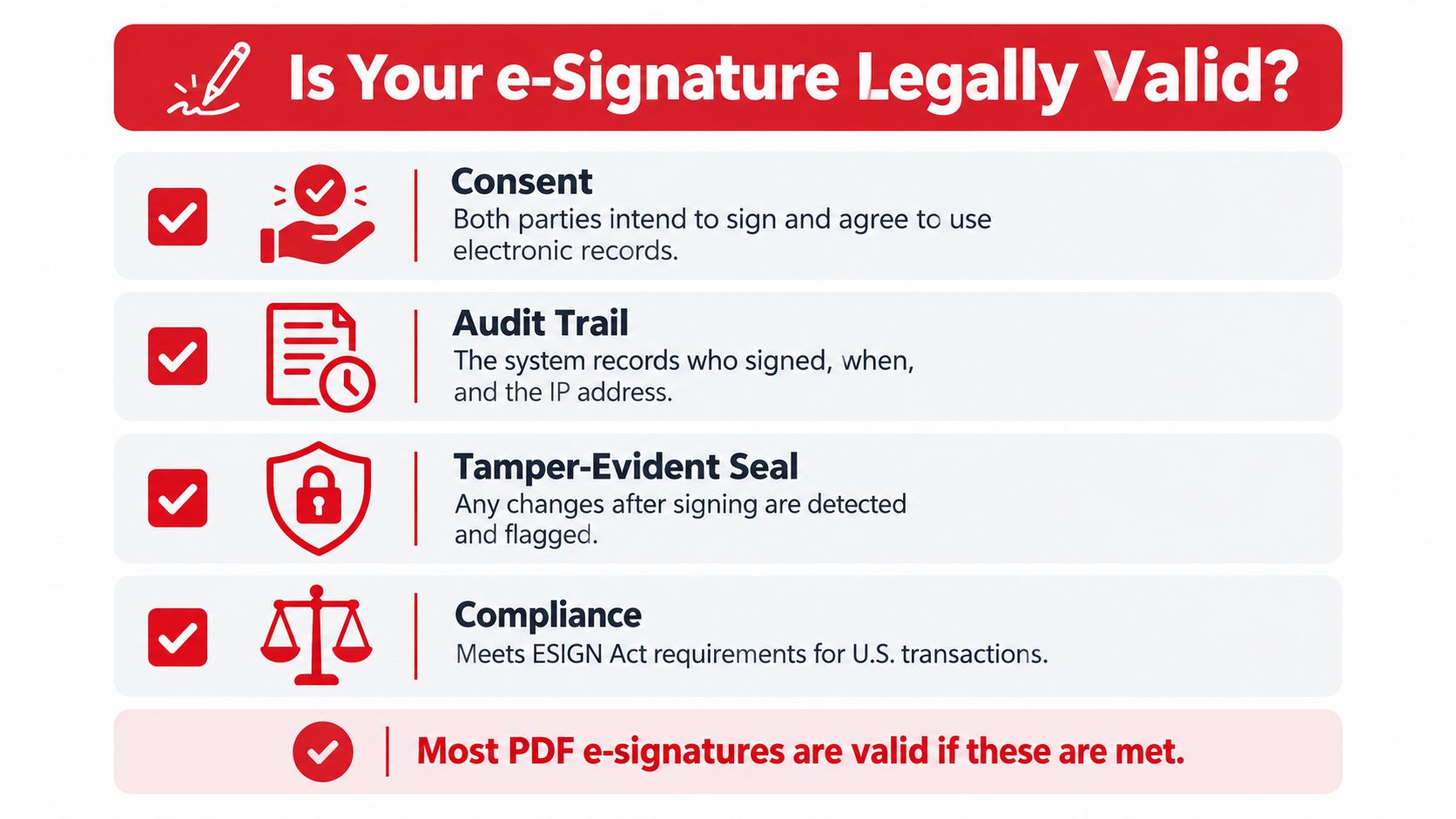
Make the record defensible
Choose the signing method according to the document's risk and the recipient's needs. A routine internal approval may need a visible signature and a reliable document trail. A disputed or regulated transaction may call for certificate-backed signing, stronger identity checks, or a qualified signature under the applicable framework.
Adoption data from the same period shows the shift is structural rather than temporary. An Adobe survey reported that more than three-quarters of respondents said they were signing more documents electronically during the prior six months, and about half of the documents people signed were already handled electronically on average. The figures point to established use rather than occasional paper replacement.
Before sending or storing a signed PDF, preserve the evidence behind the event:
- Intent: The signer takes a clear action showing agreement to sign.
- Consent: The parties accept electronic records for the transaction where required.
- Attribution: The process connects the signature to the person who applied it.
- Integrity: The final file reveals unauthorized changes after signing.
The browser workflow also separates three jobs. Self-signing is suitable when one person completes the PDF. A signature request is appropriate when another party must act and the process needs a record of completion. Certificate-backed digital signing adds certificate information and tamper detection for documents that require stronger proof. In each case, verify the completed file and apply any available locking or certification setting before treating it as final.
Security depends on both the tool and the handling process. HTTPS protects requests in transit, while storage and processing controls determine what happens afterward. Teams assessing broader controls can use this overview of enterprise grade security to frame questions about access, infrastructure, and data handling. The PDFWix electronic-signature best practices guide covers practical controls for preparing, signing, and retaining electronic documents.
PDFWix states that its browser tools process files locally through WebAssembly, while Protect PDF jobs run in server memory without writing files to disk. It also states that requests use HTTPS and downloads contain no tracking pixels. These are product details, not legal advice, but they matter when privacy is part of the workflow choice. Their value depends on the document, the parties, and the controls your organization requires.
Verifying Locking and Troubleshooting Your Signed PDF
A signature isn't finished when the ink appears on the page. Open the downloaded PDF and verify the result before forwarding it. For a certificate-backed signature, two checks matter most: whether the document changed after signing and whether the signer's certificate is trusted.
Open the signature properties in a compatible PDF reader. Review the certificate holder, issuer, validity period, and certificate chain. A valid status should explain whether the file remained intact and whether the reader trusts the certificate used to sign it, as outlined in this guide to validating digital signatures in PDF files.
Lock the final version
Locking or certifying the document helps prevent later edits from becoming part of the signed record. If the PDF changes after a certificate-backed signature is applied, the reader should detect the change or flag the signature status. Don't edit the signed file and then keep sending the old signature as though it still covers the modified content. Create a new version and sign that version instead.
When a PDF won't sign, check the basics in this order:
- Field placement: Confirm that a signature field exists and sits inside the visible signing area.
- Permissions: Check whether the document creator restricted signing or editing.
- Certificate compatibility: Make sure the reader recognizes the certificate and that it hasn't expired or become unavailable.
- Software path: Certificate signing may require Acrobat or Reader rather than a lightweight browser viewer.
- Authentication friction: Remove unnecessary sign-ins or application downloads from recipient workflows where the document doesn't require them.
If you only need to remove a signature from an unsigned or test copy, use the PDFWix guide to removing a digital signature from a PDF. Don't treat removal as a way to alter an executed agreement. Keep the original signed file intact, make any correction in a fresh copy, and obtain the required signatures again.
The reliable finish line is short: inspect the signed pages, confirm the signature fields are in the right places, validate certificate status when applicable, lock or certify the final version, download the completed record, and preserve any audit artifacts. PDFWix supports browser-based self-signing and signature requests without installation, account requirements, daily task limits, or watermarks.
Use PDFWix to upload a PDF, add a typed, drawn, or image signature, request signatures from others, and download the completed document in your browser. Choose the simple overlay for routine approvals, use routed requests for multi-person workflows, and verify the final PDF before you send it.