
You've got a PDF in front of you, you need to change the text, and the sender either can't or won't send the original Word file. That happens constantly. HR gets a signed offer letter and needs a name swap. A consultant gets a client report as PDF and has to update two pages before a meeting. A legal assistant receives a form that looks editable until they click into it and realize it's just a frozen page.
This is why PDF to Word document conversion is still a core office task. The file looks finished, but your job isn't. The problem is that PDF was built to preserve appearance, not make editing easy. Adobe introduced PDF in 1993, it became an ISO standard in 2008, and PDF 2.0 was updated again in December 2020, which tells you exactly why the format is so entrenched and so stubborn to edit directly (Microsoft Office file format reference).
The mistake many make is treating every PDF like the same kind of file. It isn't. A PDF exported from Word behaves one way. A scanned contract behaves another. A protected or restricted PDF is its own problem entirely. If you pick the wrong workflow first, you waste time, then blame the converter for a file type mismatch.
Table of Contents
- Why You Need to Turn a PDF into an Editable Word Document
- Using a Free Browser-Based PDF to Word Document Converter
- Converting with Microsoft Word and Google Docs Instead
- Running OCR for Scanned PDFs Before You Convert
- Preserving Formatting and Cleaning Up the Output
- Keeping Sensitive Documents Private During Conversion
- Choosing the Right Method and Troubleshooting Common Failures
Why You Need to Turn a PDF into an Editable Word Document
An editable Word file gives you the one thing PDF doesn't. Reflowable content. You can rewrite paragraphs, fix numbering, move tables, apply tracked changes, and send the document back through a normal review process.
The real-world reason this keeps coming up
A hiring manager doesn't want to rebuild an offer letter from scratch because one salary figure changed. A freelance writer doesn't want to retype a white paper because the client only saved the PDF. An operations team needs to revise a policy doc, but the original author left years ago and the .docx is gone.
Those are not edge cases. They're daily document work.
Adobe says its own online PDF-to-Word converter handled more than 41 million uploaded files over an 18 to 24 month period, which is a useful signal that this isn't some niche task. Adobe also says a 2026 industry summary reported that 54% of digital documents are PDFs, compared with 20% for Word and 12% for Excel, which helps explain why so many people need to move content back into editable formats (Adobe Acrobat online PDF to Word converter).
Why Word is the usual destination
Word is where cleanup happens. It gives you comments, tracked changes, styles, headings, page breaks, tables, and broad compatibility with business workflows. That matters more than theoretical purity. You're not converting a PDF because you love file formats. You're converting because somebody needs to edit the content today.
Practical rule: If your end goal is review, revision, or collaboration, convert to Word first and clean up there. Don't fight the PDF.
The file type decides the method
Three PDFs can look identical on screen and still require completely different handling:
- Born-digital PDF gets the cleanest result because there's real text and structure inside the file.
- Scanned PDF needs OCR before Word can edit anything meaningful.
- Protected PDF has to be permission-cleared before conversion.
That's why some jobs take seconds and others turn into repair work.
Using a Free Browser-Based PDF to Word Document Converter
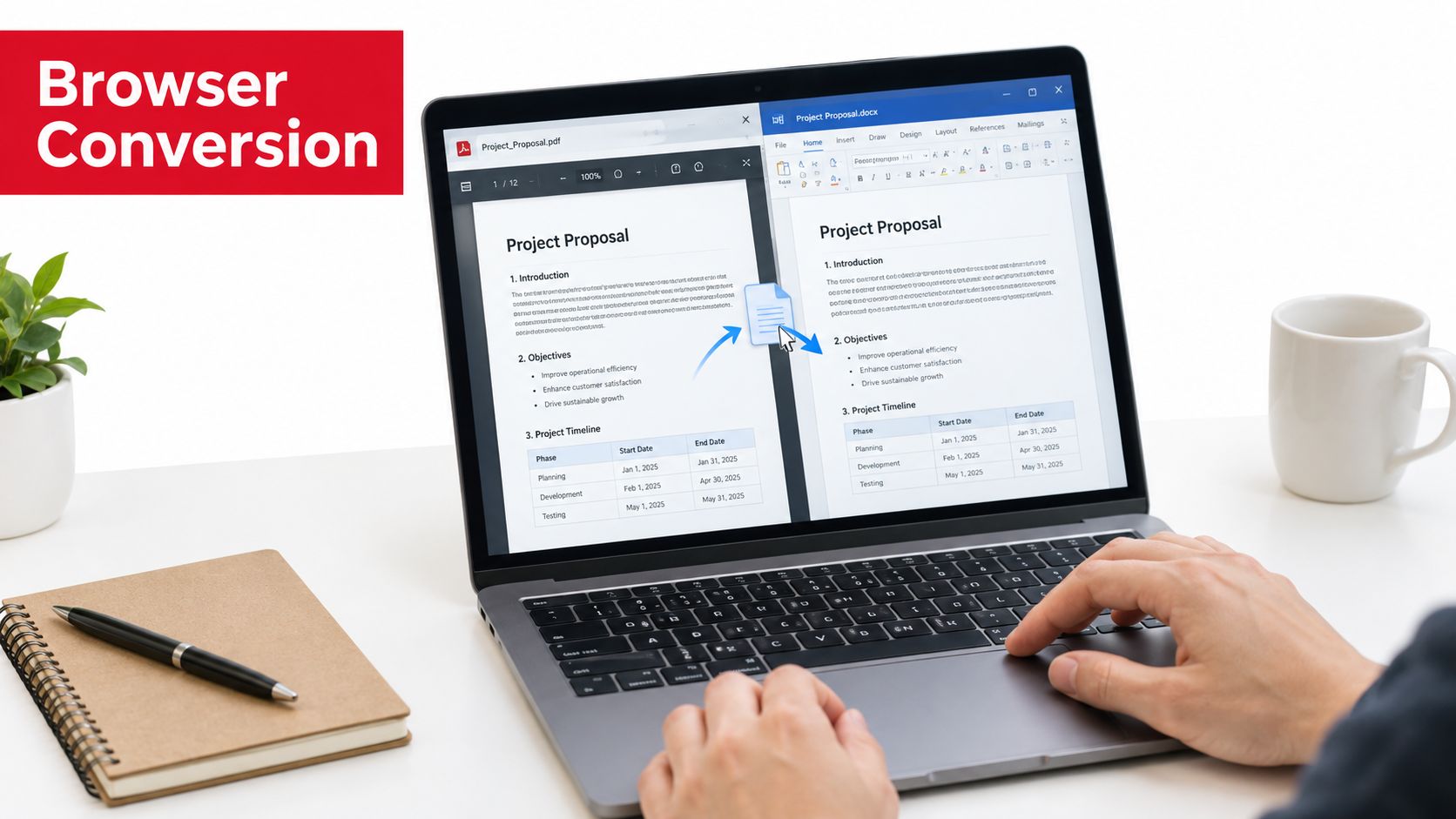
If your file is a normal, text-based PDF and you want the fastest route, use a browser tool that runs locally on your device. That avoids installs, avoids signups, and keeps the workflow simple.
Before you start, do three things. Close the original PDF so another app doesn't lock it. Update to a current stable browser. Check whether the file is password-protected, because a locked PDF won't convert properly until you deal with permissions first.
The clean browser workflow
For a browser-based PDF to Word document conversion, the process should be short:
- Open the converter page.
- Drag the PDF into the drop zone, or use the upload button.
- Let the tool process the file in the browser.
- Download the resulting .docx file.
- Open it immediately in Word or Google Docs and inspect the structure.
If you want a broader primer on how browser-side document tools work, this browser PDF tools guide is worth reading before you start moving sensitive files around.
What actually matters in a free tool
Most “free” converters hide the catch in the workflow. They add watermarks, cap downloads, force account creation, or upload the file to a remote server. Skip those when you can.
The three features that matter most are straightforward:
- No account required so you don't turn a two-minute task into a registration chore.
- No watermark because a converted document is supposed to be usable, not branded by the tool.
- No server upload because many PDFs contain contracts, payroll details, IDs, or draft agreements.
One browser option in this category is PDFWix, which provides a PDF-to-Word converter as part of its browser-based toolkit and doesn't require an account or add watermarks. For routine office files, that's the right shape of workflow.
What to check after conversion
Don't trust the first visual glance. Open the .docx and test the document, not just the pages.
- Review columns first because sidebars and multi-column layouts often collapse.
- Scan fonts and spacing since substitutions can shift pagination.
- Run Find and Replace to clean stray line breaks, repeated spaces, and broken hyphenation.
- Check tables manually because borders and cell alignment are common failure points.
If the text edits cleanly but the layout looks off, the conversion still did most of the hard work. Cleanup in Word is usually faster than rebuilding from scratch.
Converting with Microsoft Word and Google Docs Instead
You get a PDF from a client, open it in Word, and five seconds later the page numbers shift, the table breaks, and the footer jumps into the body text. That is normal. Word and Google Docs are useful here, but only for the right kind of PDF.
Treat the file type first, not the app. If the PDF is born-digital and built from normal text, native tools can save time. If it is scanned, heavily designed, form-based, or locked down, these tools are usually the wrong starting point.
Microsoft Word
Word is the better native option for editing. Open File > Open, select the PDF, and let Word convert it to an editable document.
Use Word first for simple office PDFs: reports, letters, contracts, and forms with clean structure. Skip it for magazine-style layouts, dense tables, footnotes, layered text boxes, and anything built in InDesign or exported from design software. Word tries to rebuild the layout, not preserve the original construction, and that guesswork is where documents start to fall apart.
It also matters which PDF you have. Born-digital files often come through well enough to edit immediately. Protected PDFs may block copying or opening. Scanned PDFs may open, but you still do not have real editable text yet.
Google Docs
Google Docs is faster for rough text extraction than for faithful conversion. Upload the PDF to Drive and choose Open with Google Docs.
Use it when you need the words, not the page. Meeting notes, simple drafts, and plain text documents are fine candidates. Docs is a poor choice for legal formatting, tables, headers, footers, and page-dependent layouts because it simplifies structure aggressively.
That tradeoff is the whole point. Google Docs is convenient. It is not a layout-preservation tool.
Native PDF to Word Document Methods vs. Browser-Based Converters
| Method | Best For | Formatting Fidelity | Privacy | Account Required |
|---|---|---|---|---|
| Microsoft Word | Born-digital PDFs with simple structure | Good on basic documents, weaker on complex layouts | Depends on your setup and storage practices | Usually tied to a Microsoft license |
| Google Docs | Fast text extraction and light edits | Fair for basic files, weak on tables and page layout | Lower because the file enters Google Drive | Yes, Google account |
| Browser-based local converter | Common office PDFs when you want a .docx quickly | Often cleaner on standard business files, varies by PDF type | Stronger when processing stays on device | Often no |
My recommendation
Start with Word if the PDF came from Word, Excel, or another office app and the layout is plain. Use Google Docs only when text matters more than formatting.
Do not force either tool onto every PDF. That is the mistake most guides make. A native app can handle a clean born-digital file well enough, but it will not rescue a scan, a secured file, or a complex publication layout. In those cases, use a dedicated converter or change the workflow entirely.
Running OCR for Scanned PDFs Before You Convert
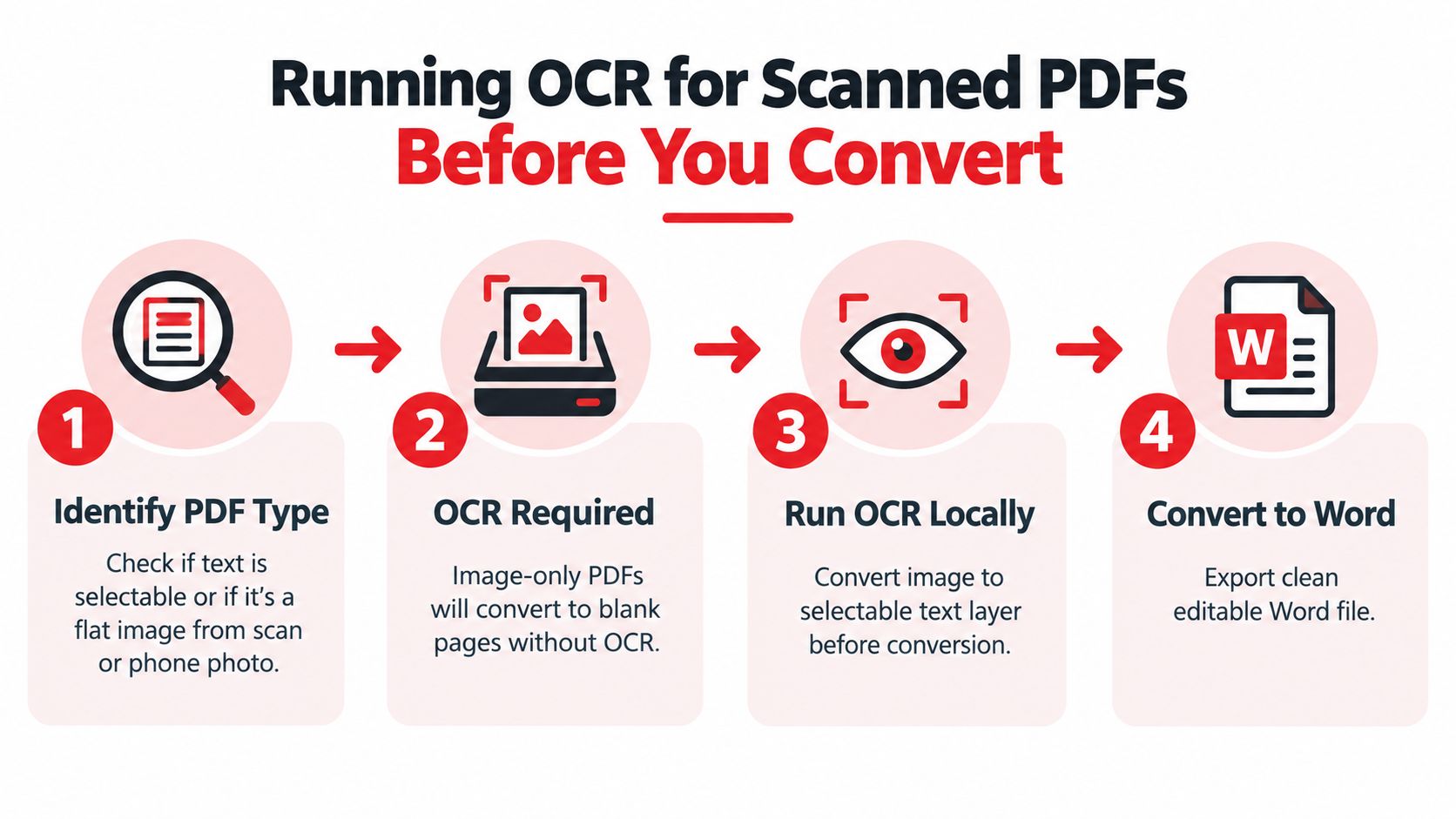
If your PDF is really just a page image, direct conversion won't give you editable text. It gives you a shell. Word can open it, but the result may be blank, image-based, or badly fragmented unless OCR runs first.
That's the line people miss. Scanned PDFs are not text documents. They are images of text until an OCR engine interprets them.
How to tell when OCR is required
Try selecting a sentence in the PDF. If you can't highlight real text, or every page behaves like a photo, OCR is mandatory.
Mapsoft puts it plainly: born-digital PDFs convert more reliably, while scanned documents can't be converted directly into editable text unless OCR is used first (Mapsoft on converting PDF to Word).
What improves OCR results
Scan quality decides everything. The OCR engine can't recover text that the page image barely contains.
Use these prep habits:
- Scan at 300 DPI when possible because low-quality scans amplify recognition errors.
- Deskew crooked pages so text lines are horizontal.
- Crop dark borders that distract the OCR engine.
- Use clean grayscale for text-only pages if you're rescanning.
- Expect trouble with handwriting, watermarks, and receipts even after OCR.
A comparative OCR study showed just how wide the quality gap can be. One free OCR-to-Word converter reached 23.29% character accuracy with a 76.71% symbol error rate, while Google Docs reached 100% on the same metric set in that study. The same research reported Online OCR at 95.9% accuracy with a 4.10% symbol error rate (comparative OCR study PDF).
A realistic browser OCR workflow
A browser-based OCR pipeline usually does two jobs in sequence. It creates a text layer from the scanned image, then exports that reconstructed content into Word. If you want the mechanics explained clearly, this plain-English OCR explanation covers what the software is doing.
If you process invoices, receipts, forms, and similar finance-heavy paperwork, this roundup of OCR software for accountants is useful because accounting documents expose OCR weaknesses fast.
One more hard truth matters here. A recent benchmark summarized digital PDFs at 99%+ field accuracy, while handwriting and receipts dropped into the 60% to 80% range (document-type OCR benchmark). That's why some scanned PDFs clean up nicely and others never do.
Preserving Formatting and Cleaning Up the Output
People obsess over whether conversion “worked.” The better question is how much cleanup you're willing to do afterward. Text extraction and layout reconstruction are not the same thing.
A useful engine-level test from 2026 broke this apart properly. In 24 conversion jobs, 22 files reached the ready state, and all 22 downloadable outputs passed DOCX package checks. The same test reported mean normalized character recall of 99.9%, mean token recall of 99.6%, and a median ready time of 3.19 seconds. That sounds excellent, and for text extraction it is. But the same report showed multi-column layout restoration at 60% accuracy and margins at 86%, which is exactly why a file can have the right words and still need structure repair (CompdfKit PDF conversion SDK test report).
What usually survives well
Simple business documents convert cleanly most of the time:
- Single-column letters usually hold up.
- Basic reports with headings and lists are manageable.
- Standard tables often need touch-up, not full rebuild.
- Embedded images typically transfer, though anchoring may shift.
What breaks first
Complex layouts are where converters start guessing.
| Document Element | Typical Fidelity | Cleanup Needed |
|---|---|---|
| Headings | Usually strong in simple documents | Reapply Word styles if hierarchy flattens |
| Bullet lists | Often acceptable | Fix indentation and spacing |
| Numbered lists | Mixed | Renumber or reassign list styles |
| Simple tables | Fair to good | Repair borders, widths, and merged cells |
| Inline images | Usually present | Re-anchor and resize |
| Headers and footers | Unreliable | Rebuild manually if page logic matters |
| Footnotes | Often weak | Verify numbering and placement |
| Multi-column layouts | Low in difficult files | Expect major reconstruction |
The cleanup pass that saves time
Don't poke around randomly. Use a fixed cleanup sequence.
- Review font substitution first. A changed font alters line length, page breaks, and table fit.
- Fix heading styles so the document becomes navigable again.
- Repair tables before editing body text, because table changes affect page flow.
- Reassign list formatting for bullets and numbering.
- Reposition images after text cleanup.
- Run spelling and visual proofing last.
If you're moving content around after conversion, this guide on cutting and pasting in PDF workflows is a useful companion because content extraction often turns into selective reuse, not full-document editing.
Keeping Sensitive Documents Private During Conversion
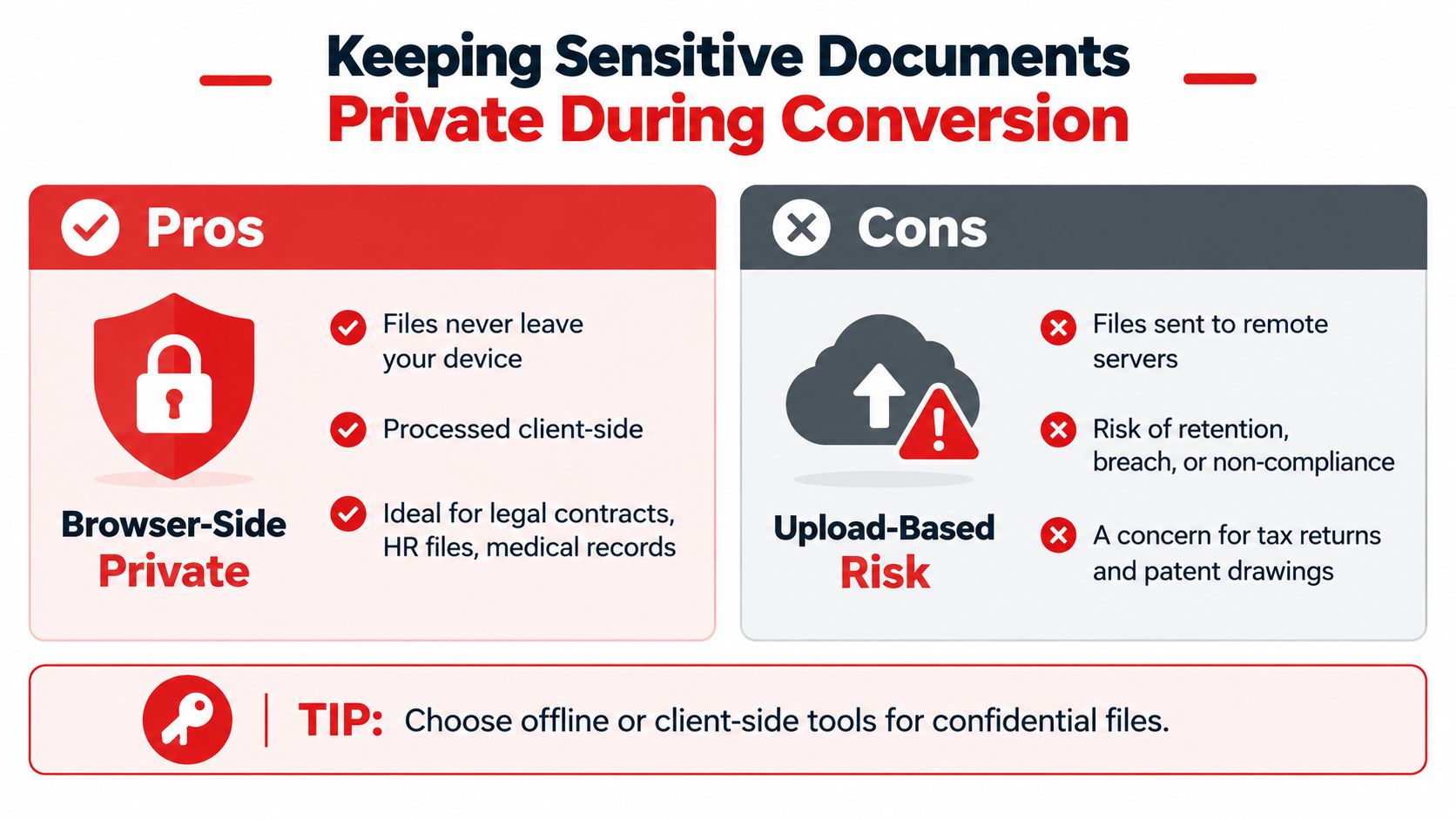
If the PDF contains employment terms, tax records, medical details, contract drafts, or technical drawings, upload-based conversion is a bad default. Not always catastrophic. Just unnecessary risk.
The key distinction is simple. In server-side processing, the file leaves your device and gets handled remotely. In client-side browser processing, the conversion engine runs inside the browser, usually through JavaScript or WebAssembly, and the document stays local.
What to verify before using any online converter
You don't need a cybersecurity checklist the length of a procurement form. You do need basic discipline.
- Check HTTPS before uploading or processing anything.
- Read the privacy policy and look for plain language about retention and deletion.
- Avoid forced accounts for one-off confidential jobs.
- Prefer local processing when the contents would be a problem if exposed.
For smaller teams that haven't formalized these habits yet, this guide to data protection for SMBs gives a practical baseline for how to think about business file handling.
My position on private conversion
For sensitive document work, client-side browser conversion is the safer default. That doesn't make every local tool perfect, but it removes one obvious risk: sending confidential files to someone else's server when you don't need to.
If you want to evaluate that model more carefully, this write-up on whether online PDF tools are safe is worth a read because it separates browser-side processing from blanket “online equals unsafe” thinking.
When desktop software is still worth paying for
There are narrow cases where a local desktop app still makes sense:
- Large document sets that need repeated conversion
- Locked-down corporate environments with strict software approval
- Complex publishing files where you want more granular controls
- Offline-only workflows for regulated or air-gapped systems
For everyone else, local browser processing covers far more work than people assume.
Choosing the Right Method and Troubleshooting Common Failures
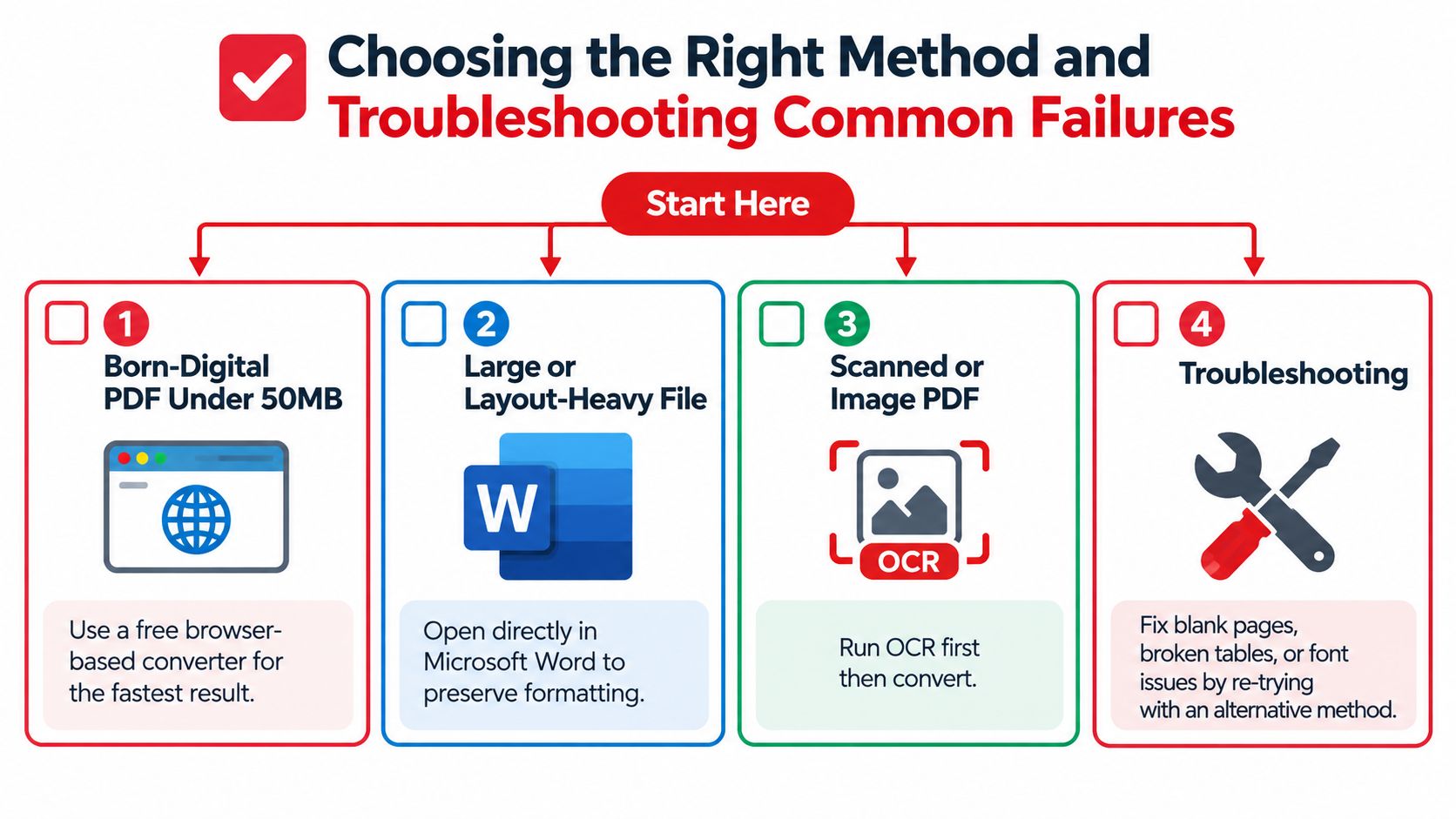
You don't need a flowchart taped to your monitor, but you do need a fast decision rule. Most conversion errors come from choosing the wrong method before you even start.
The one-minute decision tree
Use this order:
- Born-digital PDF under typical office size: start with a browser-based converter.
- Layout-heavy report, brochure, or column-rich document: try Microsoft Word or a more format-aware desktop tool.
- Scanned or image-only PDF: run OCR first, then convert.
- Password-protected or restricted file: remove permissions before doing anything else.
If you need a broader toolset after conversion, especially when editing, annotating, or restructuring pages becomes part of the job, a PDF editor app guide helps sort out what belongs in a converter and what belongs in an editor.
Common failures and the fix that usually works
Fonts changed
Install the original font if you have it. If you don't, accept substitution and fix line wraps later.
Tables turned into blocks of text
Re-run with layout preservation if the tool offers it. If not, rebuild the table in Word. Fighting a broken table longer than a few minutes is wasted effort.
Columns collapsed into one stream
This is common in newsletters, journals, and sidebars. Try another converter. If the file is important, rebuild the column structure manually after extracting the text.
Links disappeared
Copy the visible URL or anchor text from the PDF and reinsert the hyperlinks in Word.
Output is mostly images
OCR either didn't run, or it only processed part of the file. Recheck page recognition and rerun the scan workflow.
The converter isn't always the problem. Bad scans, weird fonts, and publication-style layouts break clean workflows faster than the brand name on the tool does.
Short FAQ
Can I batch convert PDFs to Word documents?
Yes, if the tool supports batch work. For mixed file types, sort born-digital and scanned PDFs first. Combining them in one batch usually creates uneven results.
Can I do this on a phone or tablet?
Yes, but only for simple files. Mobile works for quick edits and emergency conversions, not careful formatting cleanup.
Is a converted Word file legally the same as the signed PDF?
No. Treat the converted .docx as a working copy for editing. Keep the original signed PDF as the official record.
How often should I retry with another method before giving up?
Twice is usually enough. If a second method still breaks structure badly, stop chasing a perfect conversion and rebuild the parts that matter.
If you need a practical browser workflow for this job, PDFWix offers PDF-to-Word conversion alongside OCR, editing, repair, and other document tools in one place. Use it when you need an editable Word file fast, especially for routine office PDFs where local browser processing and a no-account workflow make more sense than uploading files all over the internet.