
You've found the page you need, but it's buried behind a login, the layout keeps shifting, or the link may disappear tomorrow. A bookmark won't preserve the current content, and a screenshot usually loses searchable text, working links, and a clean page structure. Saving the webpage as a PDF gives you a portable copy you can read offline, attach to an email, or store with other records.
The quick method is built into your browser. Open the print dialog, select a PDF destination, check the preview, and save the file. That works well for short, mostly static pages. For long articles, dashboards, and JavaScript-heavy sites, a dedicated HTML-to-PDF workflow can produce a more faithful result, provided you understand where the page is processed and whether sensitive content leaves your device.
Table of Contents
- Why Saving a Webpage as PDF Still Matters
- How Browser Print to PDF Works
- Save Webpage as PDF on Chrome Edge Firefox Safari and Mobile
- When to Use a Dedicated HTML to PDF Tool Instead
- Fix Blank Pages Layout Drift and Privacy Pitfalls
- Your Next Steps for Clean Shareable PDFs
Why Saving a Webpage as PDF Still Matters
A page can change after you read it. A retailer may remove a receipt view, a publisher may update an article, or a public page may become unavailable. A PDF preserves the version you reviewed, including its visible text and layout, while a bookmark preserves only the route back to a live page. The practical explanation of what a PDF is also helps clarify why the format travels well between devices and applications.
PDFs are useful for more than personal reading. Students save research material for offline study, freelancers keep project instructions with their deliverables, office workers archive policies, and legal teams preserve web content as part of a record. A PDF is also easier to name, search, share, annotate, and combine than a folder of screenshots.
The browser print workflow became widely accessible because Windows 10 and macOS included built-in print-to-PDF support, while Chrome offered the same option on older Windows versions, as documented in the Consumer Financial Protection Bureau's save-as-PDF instructions. The standard sequence is short, Ctrl+P on Windows or Command+P on Mac, followed by a PDF destination such as “Microsoft Print to PDF” or “Save as PDF.”
Two capture paths
Native Print to PDF is the right starting point when the page is short, visible, and mostly static. It's fast, private by default, and doesn't require another service.
Dedicated HTML to PDF conversion becomes more useful when the page depends on scripts, loads content after the initial display, or needs carefully controlled headers, footers, pagination, and styling. It can also help when the browser preview clearly differs from what you're seeing on screen.
Before saving, decide what matters most. If speed and local handling come first, use browser printing. If visual fidelity matters more, test a dedicated rendering path. If the PDF is going into a formal archive, plan for metadata, embedded resources, and an archival format rather than treating any printable file as a preservation copy.
How Browser Print to PDF Works
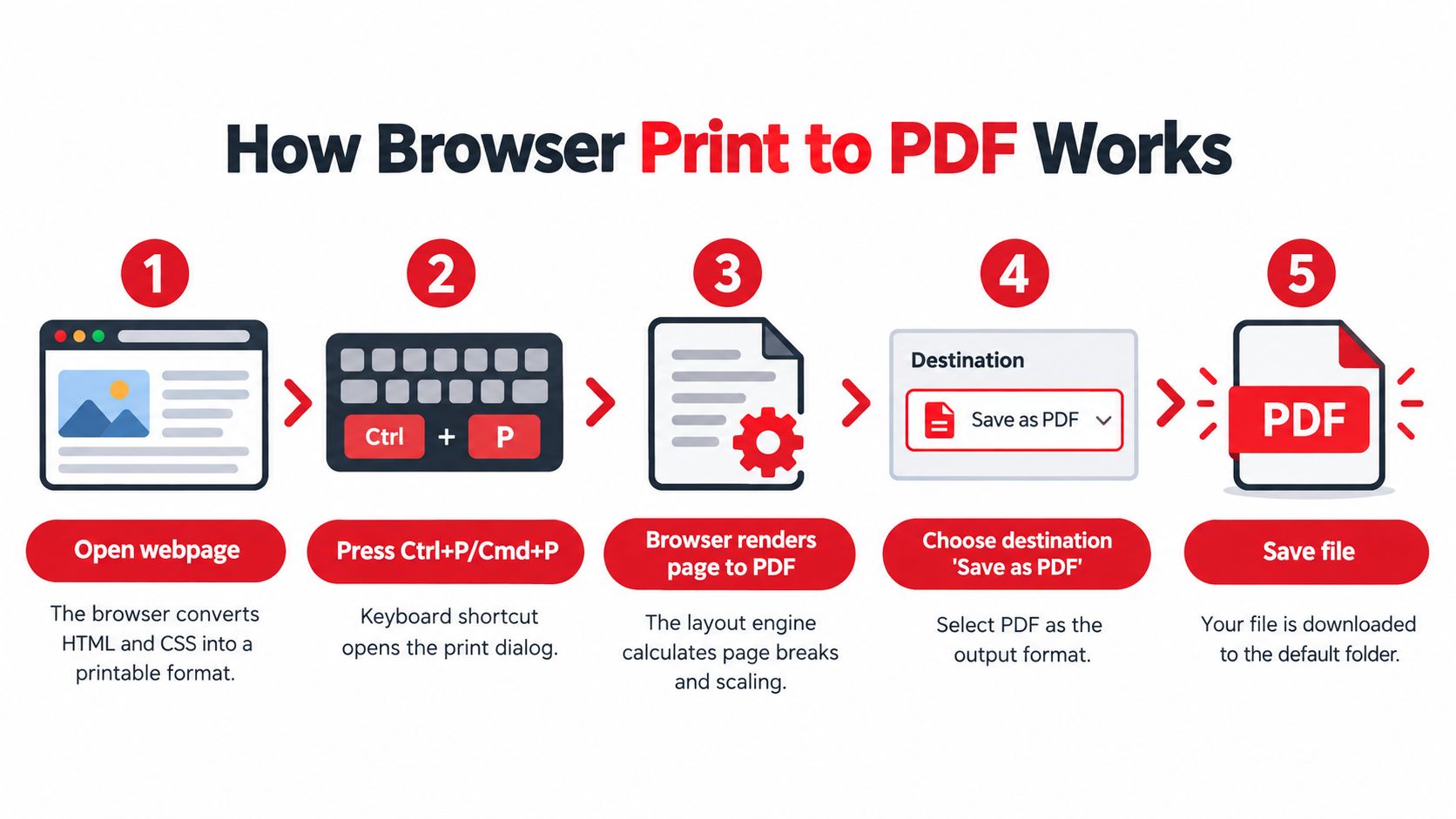
A browser does not capture a screenshot when you choose PDF output. Its rendering engine interprets the page's HTML and CSS, applies print rules, calculates page boundaries, and builds a document from that layout. Dynamic pages can change during this process, so content that looks correct in the browser window may shift, disappear, or split awkwardly in the saved PDF.
The standard workflow
- Open the full webpage and wait for images, charts, and expandable sections to finish loading.
- Press Ctrl+P on Windows or Cmd+P on Mac.
- In the destination or printer field, select Save as PDF or Microsoft Print to PDF.
- Check the preview and adjust the page controls.
- Save the document with a clear filename and location.
The browser-tools guide to PDF workflows compares native browser features with document tools. For a quick first test, the browser print dialog is usually the fastest option.
Four settings control most results
- Margins: Reduce excess white space, but leave enough room so text, headers, and page numbers do not touch the edge.
- Scale: Lower the scale when a table or wide layout is clipped. Increase it only when the preview leaves too much unused space.
- Orientation: Use portrait for standard articles. Choose horizontal for wide dashboards, spreadsheets, and comparison tables.
- Background graphics: Enable this when color blocks, shaded headings, diagrams, or branded panels carry information. Disable it for a lighter document with less ink coverage.
Print CSS explains many unexpected results. The @page rule can set page size and margins, while page-break-inside: avoid, page-break-before: always, and table-header-group behavior affect how content divides across pages. Authors may hide navigation, advertisements, or interactive controls in print view. Browser engines handle these rules differently, and some may ignore ordinary body margins during printing. Dedicated print rules therefore matter, as explained in this HTML-to-PDF printing guide.
Practical rule: Trust the print preview, not the live webpage. If the preview clips a column, drops a background, or leaves a heading stranded, the saved PDF will usually keep that defect. When a dynamic page still renders incorrectly after the content finishes loading, use a dedicated HTML to PDF tool and review its privacy handling before uploading the page.
Save Webpage as PDF on Chrome Edge Firefox Safari and Mobile
The core command is similar across platforms, but each browser exposes the useful controls in a slightly different place. Save a test page first, especially when the content is a receipt, a long article, or an authenticated dashboard.
Google Chrome
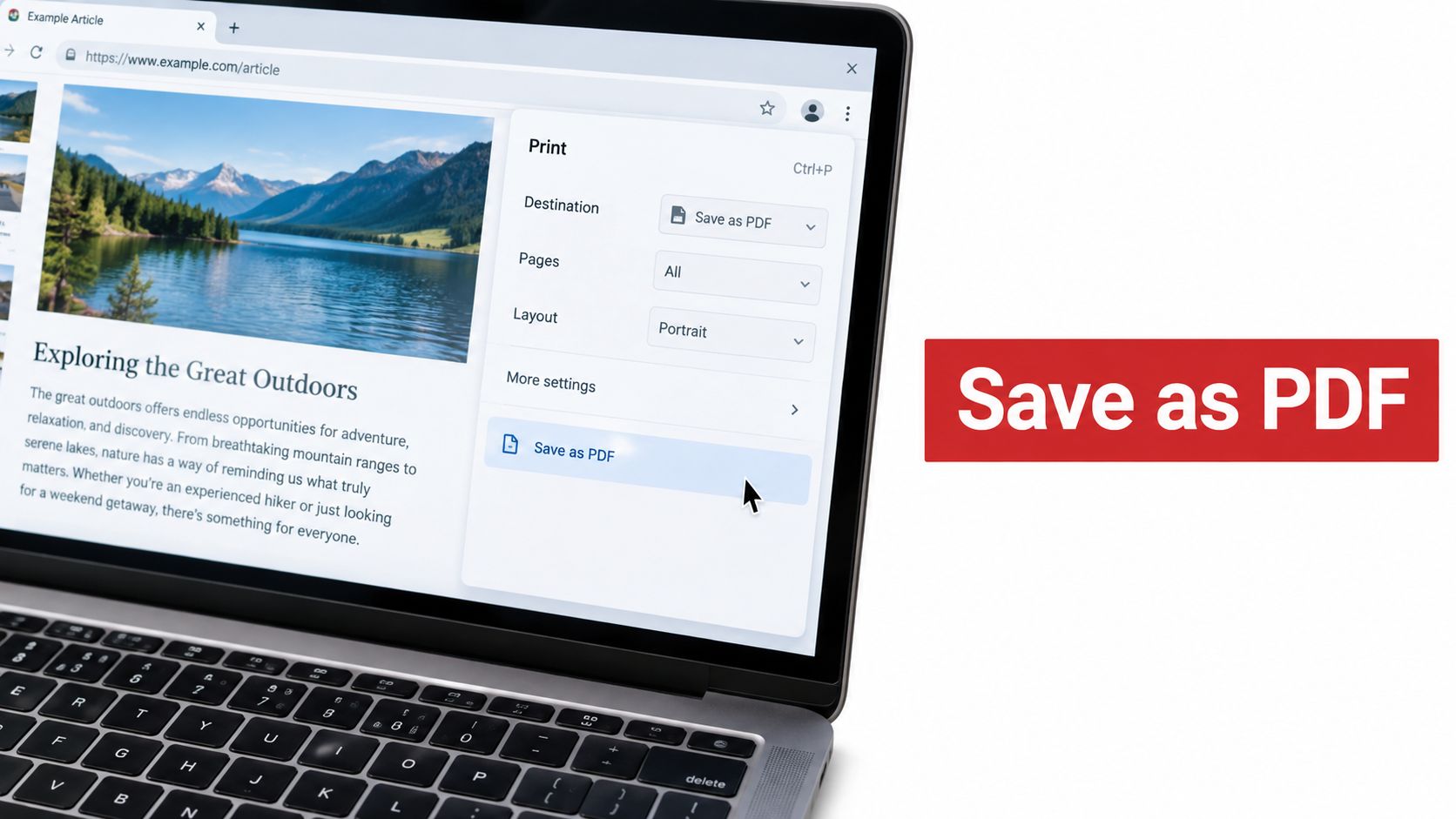
Open the page, press Ctrl+P on Windows or Cmd+P on Mac, and locate the Destination menu. Select Save as PDF, then set pages, layout, paper size, margins, scale, and Background graphics as needed. Click Save, choose the folder, and give the file a descriptive name.
For a long article, switch on background graphics only if shaded sections or diagrams are important. For a receipt, inspect the preview for the order details and make sure the page range includes the complete receipt. For a dashboard, a lower scale can prevent wide cards from being cut off.
Microsoft Edge
In Edge, open the page and choose Settings and more, then Print, or use Ctrl+P on Windows and Cmd+P on Mac. Select Save to PDF or the available Microsoft PDF printer, review the preview, and adjust layout, scale, margins, and background graphics before saving.
Edge can be a useful fallback when Chrome produces a poor preview because different browser versions may handle page styling differently. Don't assume the browser with the cleanest screen view will produce the cleanest PDF. Compare the preview.
Mozilla Firefox
Press Ctrl+P or Cmd+P, then use Firefox's print preview to select the destination and page settings. Check orientation, paper size, margins, headers and footers, and the page range before confirming the save.
Firefox is particularly worth testing when a page's print structure behaves differently in Chromium-based browsers. If the preview is blank or incomplete, reload the page, wait for dynamic elements to settle, and try the print command again with extensions temporarily disabled.
Safari on Mac
Open the page in Safari and choose File, then Print, or press Cmd+P. Use the PDF menu in the print dialog and select Save as PDF. For a text-heavy article, try Reader view first, then print the simplified version. Reader view can remove navigation and advertising, producing a cleaner document, but it may also omit page elements you need as evidence, so compare it with the normal page.
iPhone and Android
On iPhone, open the page in Safari, tap Share, choose Print, and use the print preview to save the result through the share sheet or Save to Files, depending on the iOS version. If Safari offers a format choice, select PDF when you need a document rather than a web archive.
On Android, open the page in Chrome, tap the three-dot menu, select Share, then Print, and choose Save as PDF in the printer options. Select the PDF icon or save command, then choose the device location. Mobile print dialogs vary by manufacturer, so verify the resulting file instead of relying on the save confirmation alone.
When to Use a Dedicated HTML to PDF Tool Instead
Browser printing fails when the print engine captures the page before client-side content finishes rendering, or when the page's screen layout doesn't translate cleanly into paginated output. Long articles, dashboards, charts, sticky navigation, web fonts, and responsive components are common trouble spots. A blank or partial result isn't always user error. It can reflect a mismatch between the live page and the browser's print capture, a problem also discussed in this Microsoft support troubleshooting thread.
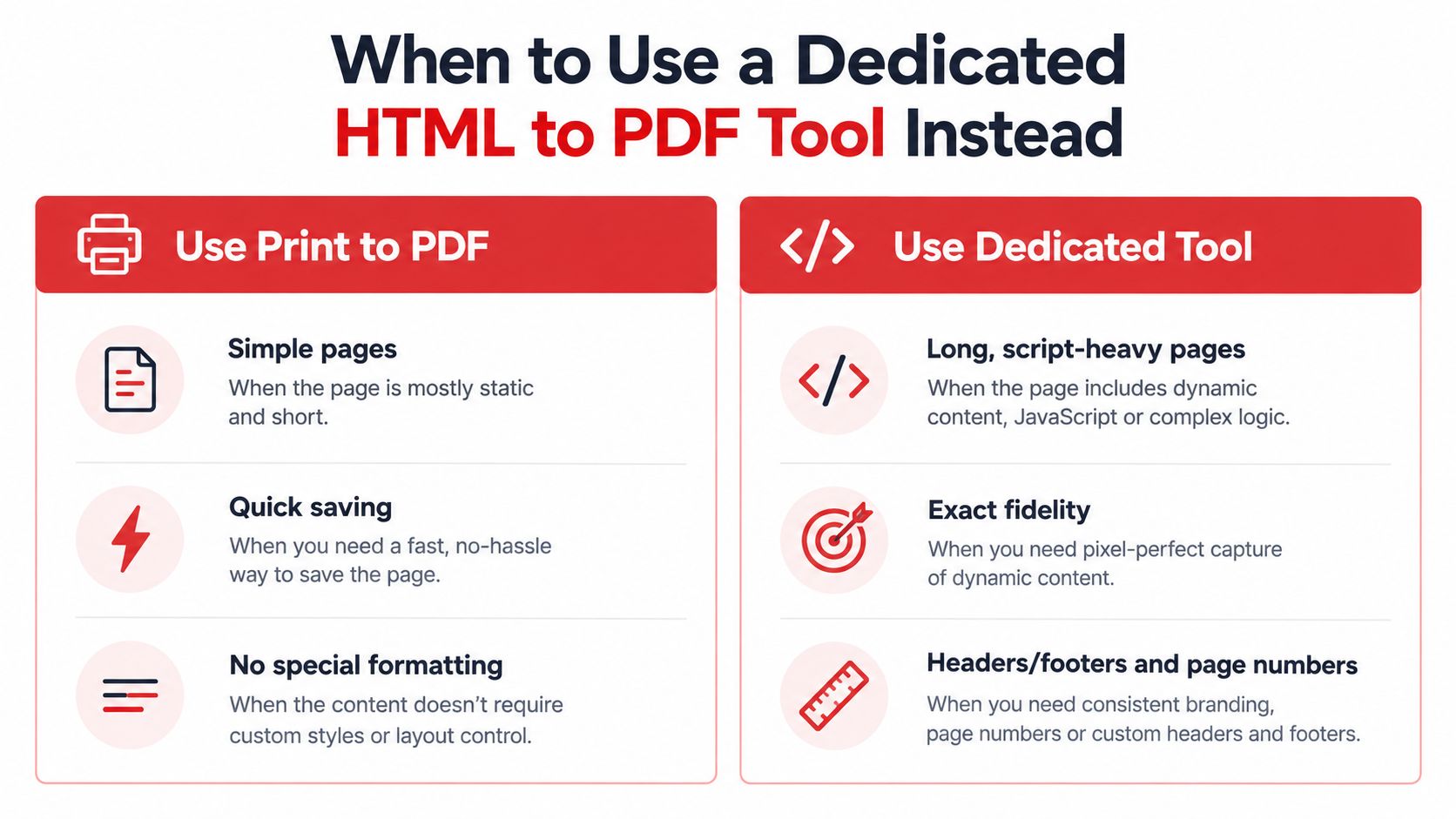
A dedicated converter is worth testing when you need the renderer to process HTML and scripts more deliberately, or when you need output options that the browser dialog doesn't expose. A URL or HTML can be supplied, the layout selected, and the generated PDF downloaded. For confidential material, don't paste an internal URL into a service until you've confirmed its processing model. Local, client-side handling is preferable when the content must remain on the device.
PDFWix provides an HTML-to-PDF workflow for converting a web page, pasted HTML, or an HTML file into a paginated PDF. Its HTML-to-PDF guide is relevant when browser printing has already produced clipped or incomplete output.
Choose your save method in seconds
| Scenario | Best Method | Why |
|---|---|---|
| Short article with ordinary text | Browser Print to PDF | It's quick and usually preserves the readable content. |
| Receipt or confirmation page | Browser Print to PDF | The visible record can be checked immediately in preview. |
| Long page with delayed content | Dedicated HTML to PDF tool | A different rendering path may capture content the print engine misses. |
| Wide dashboard or table | Either, after testing | Browser settings may work, but dedicated layout controls can offer more control. |
| Sensitive internal page | Local browser workflow | Avoid sending the URL or page content to a third party. |
| Archive requiring conformance | Dedicated preservation workflow | A normal PDF may need validation and conversion to PDF/A. |
The trade-off is straightforward. Browser printing offers speed and local control, while dedicated conversion can improve fidelity but introduces a privacy question and another rendering system to evaluate.
Fix Blank Pages Layout Drift and Privacy Pitfalls
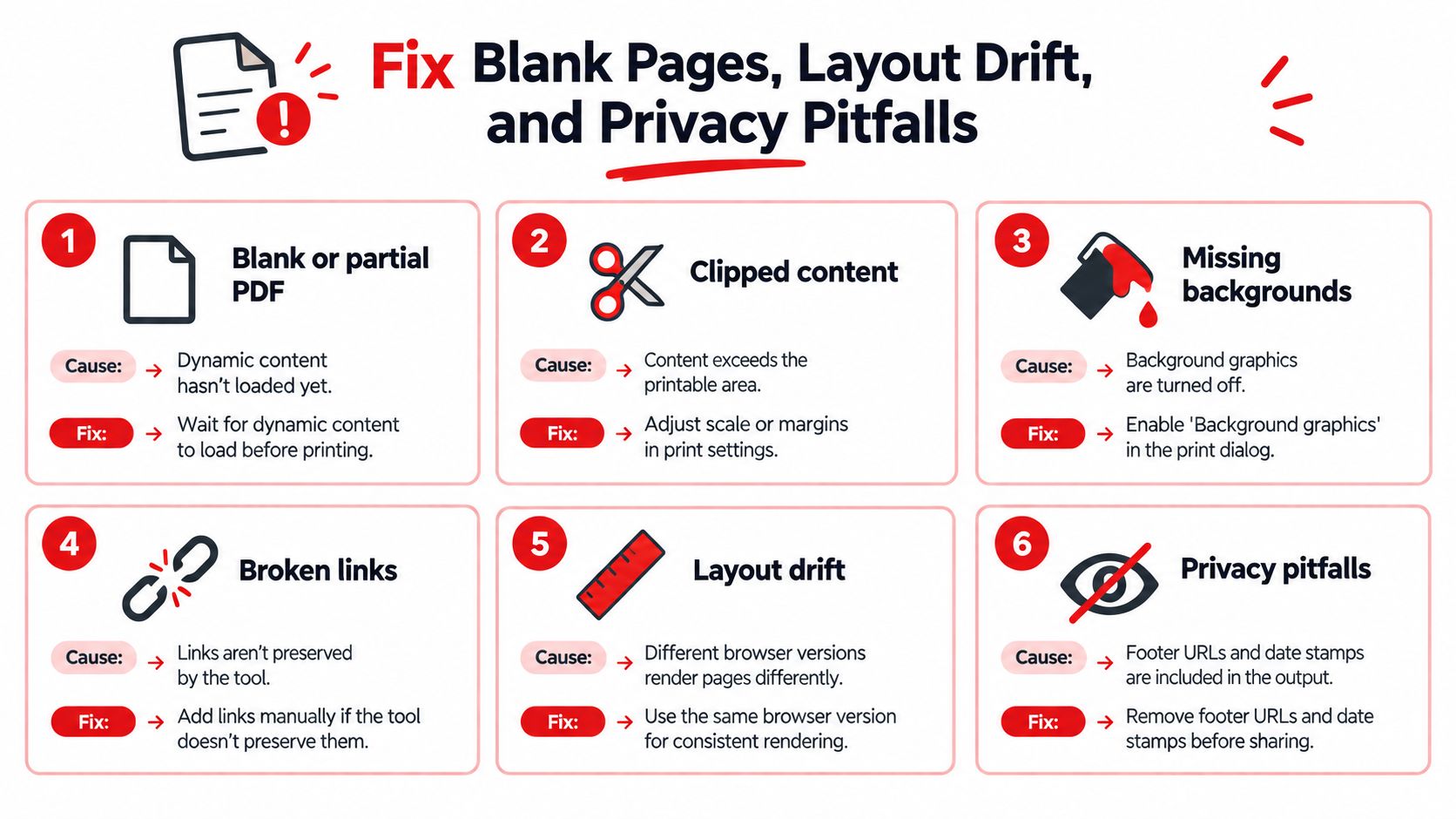
A page that looks fine on screen can still save as a blank, partial, or badly paginated PDF. Common causes include dynamic content, late-loading scripts, browser extensions, cache problems, and site-specific print blockers. Treat the failure as a rendering diagnosis, not as proof that you pressed the wrong shortcut.
Run these checks in order
- Wait for dynamic content: Scroll through the page so lazy-loaded images, tables, and charts have a chance to appear before opening print preview.
- Remove interference: Try a private window or disable extensions that alter ads, scripts, consent panels, or page styling.
- Refresh the render: Reload the page, clear relevant cached data if the problem persists, and reopen the print dialog.
- Correct the layout: Change scale, margins, and orientation. Enable background graphics when the missing design carries information.
- Try another renderer: Use another browser or a dedicated HTML-to-PDF path for JavaScript-heavy pages.
- Inspect the finished file: Search for expected text, open links, check the last page, and confirm that no sensitive footer, URL, or date stamp remains.
Broken links deserve a separate check. Some capture methods preserve clickable links, while others flatten the page into visual content. If the links matter, test one before distributing the document and add reference details manually when the renderer doesn't preserve them.
Privacy check: A page can contain more than visible article text. URLs, form values, account names, internal paths, and browser-added metadata may become part of the saved record.
For sensitive content, prefer a local workflow and review the tool's handling before uploading anything. The guide to online PDF tool safety covers the questions that matter, including whether processing occurs locally, whether files are transmitted, and what happens after a task completes.
File size is usually driven by images, embedded fonts, and page complexity. Remove unnecessary pages, crop excess content, and compress the finished PDF when sharing. For long-term preservation, PDF/A is a different objective from ordinary printing. ISO 19005 defines it as a restricted PDF subset for electronic-document preservation, and the Library of Congress overview of PDF/A-1 distinguishes PDF/A-1a, which includes structural and semantic requirements, from PDF/A-1b, which focuses on preserving visual appearance.
PDF/A files must be self-contained. Fonts need embedding, color must be device-independent, and features such as encryption, JavaScript, audio, video, and external content references are restricted or disallowed, as explained by CASRAI's PDF/A definition. That can require cleaning or flattening a web capture before archival conversion. PDF/A-4, published as ISO 19005-4:2020, adds enhanced tagged-PDF accessibility support, compressed object and cross-reference streams, compliant attachments and packages, transparency in images, and JPEG 2000 support, according to the Library of Congress PDF/A-4 summary.
Your Next Steps for Clean Shareable PDFs
Use this short checklist every time you save a webpage:
- Check the preview: Look for clipped columns, blank pages, missing images, and unexpected page breaks.
- Choose the right mode: Stay with Print to PDF for simple pages. Switch rendering paths when scripts or complex layouts fail.
- Control the appearance: Adjust margins, scale, orientation, and background graphics instead of accepting the defaults.
- Protect the record: Remove unnecessary URLs, dates, account details, and blank pages before sharing.
- Name it clearly: Include the subject and date in the filename so you can identify the document later.
- Prepare for its purpose: Compress a sharing copy, but consider PDF/A when the file needs long-term preservation. Use a PDF compression workflow after checking that text and links remain usable.
Save one real page today, then open the PDF separately from the browser. Search for a phrase, click a link, inspect the final page, and compare the important details with the original. That simple verification catches most failures before the file becomes part of an archive, submission, or client record.
PDFWix offers browser-based HTML-to-PDF conversion along with tools for compressing, organizing, editing, and converting saved documents. Use it when native browser printing doesn't preserve a dynamic page cleanly, and visit PDFWix to test the workflow on a page you need to keep.