
You've opened the PDF, entered the password, and still can't print, copy, or edit it. Or the file won't open at all, even though someone insists the password is correct. Those are different protection problems, and treating them as the same is the fastest way to waste time, damage the document, or upload confidential information to the wrong service.
To unprotect a PDF safely, first identify whether you're dealing with an open password or a permissions restriction. Then choose a workflow that matches the file's encryption, your access rights, and your privacy requirements.
Table of Contents
- Before You Unprotect a PDF Understand What Is Locked
- Why Some PDFs Are Harder to Unprotect Than Others
- How to Unprotect a PDF in Your Browser With PDFWix
- Other Proven Ways to Unprotect a PDF on Desktop and Command Line
- When You Can Legally Unprotect a PDF and How to Stay Private
- Troubleshooting Common Issues When You Unprotect a PDF
Before You Unprotect a PDF Understand What Is Locked
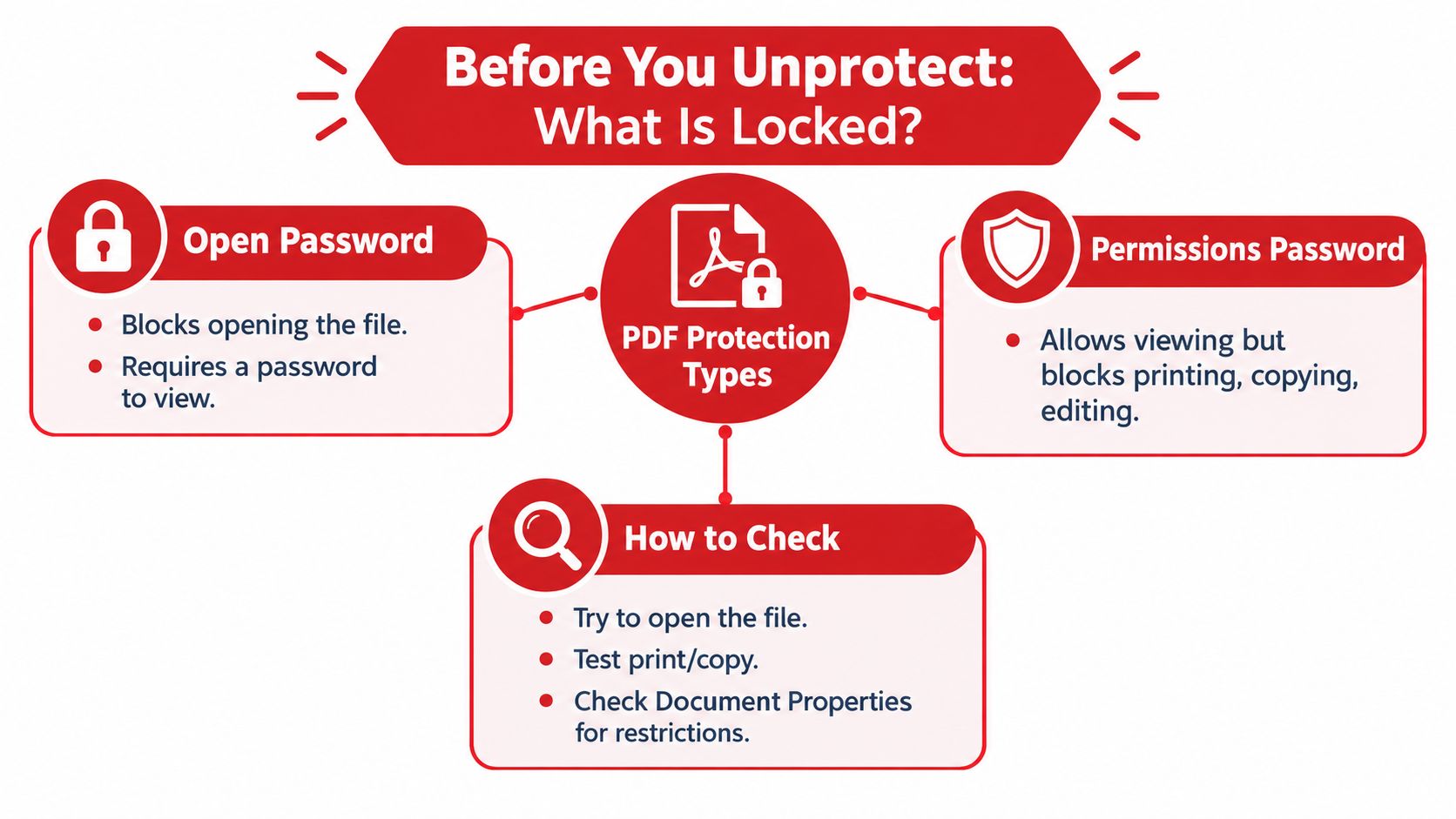
A locked PDF usually creates one of two experiences. In the first, the viewer asks for a password before showing any pages. That's a user password, also called an open password. In the second, the document opens normally, but printing, copying, editing, commenting, or form changes are disabled. That restriction is controlled by an owner password, also called a permissions password.
The PDF security model allows up to two passwords. The user password protects opening and reading, while the owner password grants control over permissions and passwords. If a file has a user password, it also has an owner password. If no separate owner password exists, the owner password is the same as the user password, as described in the PDF standard security documentation.
Diagnose the lock before changing the file
Start by opening the original in a trusted viewer such as Adobe Acrobat Reader or Preview.
- Opening blocked: The file requires the user or open password. Without it, the content remains inaccessible.
- Opening allowed, actions blocked: Check whether printing, copying, editing, or annotations are restricted. These are permissions controls.
- Opening and editing allowed: The document may have no active protection, or the application may already have access to the required permissions.
Document Properties or the Security pane can reveal the permitted actions. Try a harmless test, such as opening the print dialog without completing a print job, or selecting text for copying. Don't assume that a PDF that opens is fully unprotected.
Understand what a successful unlock produces
A genuine decryption workflow creates an unencrypted copy by removing the encryption dictionary. It doesn't necessarily rewrite every page or convert the PDF into another format. That generally preserves the document's existing content, but you should still compare the output with the original before deleting anything.
For study material, you might unprotect a reference file so you can annotate it while preparing CramShare study notes PDF. For business records, keep the protected original as an untouched archive and work from a clearly named copy.
If you only need to protect a newly created document, use a deliberate PDF protection workflow rather than relying on restrictions you may later forget. Removing security also changes the file's future risk profile, so decide how the unprotected copy will be stored, shared, and deleted.
Why Some PDFs Are Harder to Unprotect Than Others
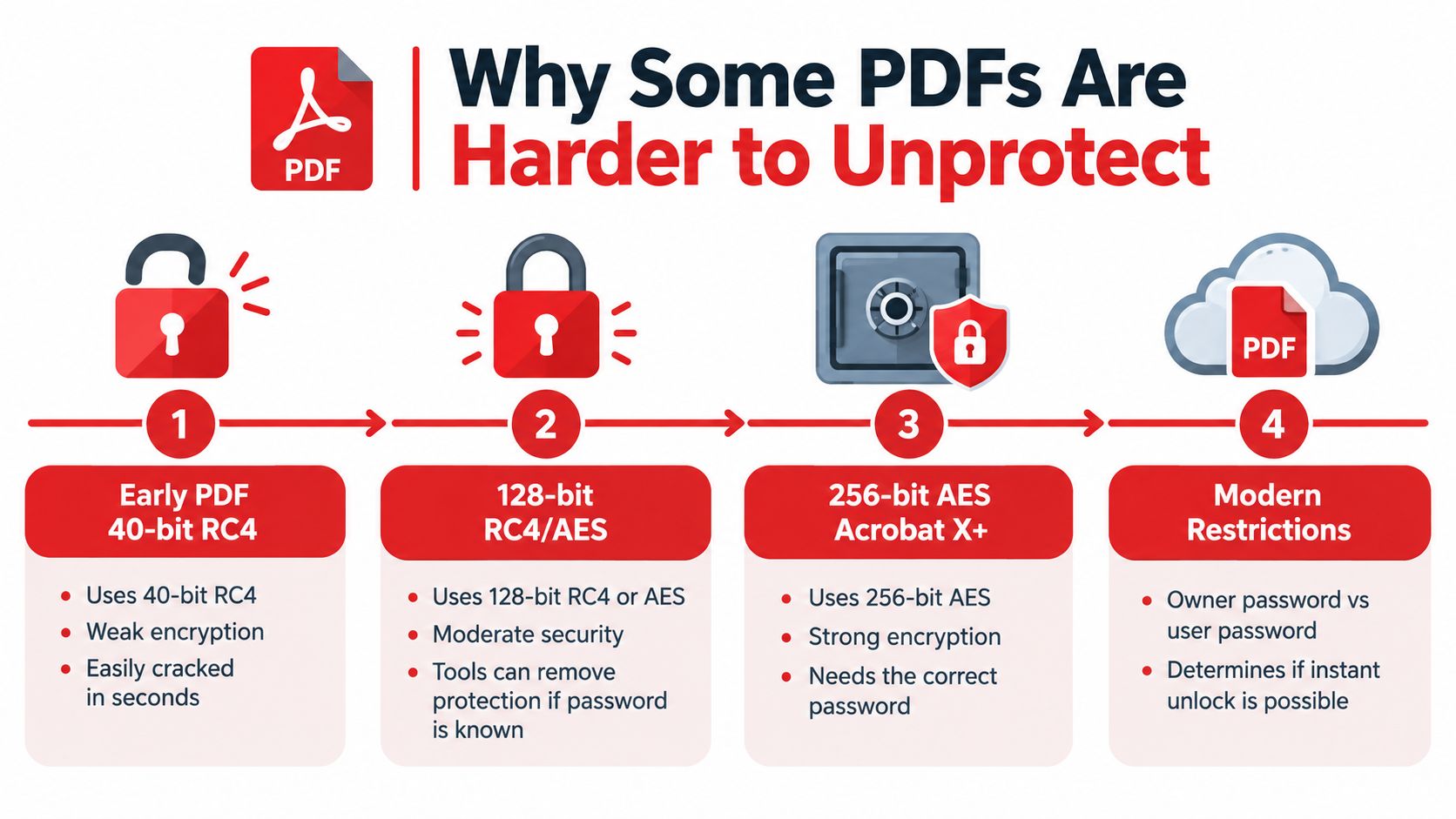
A PDF's version often determines how difficult it is to remove its restrictions. Adobe added password protection to PDF files in 1996, and the security model has since passed through several encryption milestones. PDF 1.1 through 1.3 used 40-bit RC4, PDF 1.4 and Acrobat 5 introduced 128-bit RC4, PDF 1.6 and Acrobat 7 added 128-bit AES, and PDF 2.0 with ISO 32000-2 formalized 256-bit AES. The progression is documented in the history of PDF password protection.
A file created with an early security revision can behave very differently from a current PDF. Older encryption is weaker, and older password handling may make permission removal more accessible to specialized software. In 2006, Adobe changed password checking in Acrobat 8, allowing password-removal software to remove owner passwords up to 100 times faster than before, according to that historical account.
Check the generation and password limits
The PDF standard also sets technical password limits. Up to PDF 1.7, passwords were restricted to 32 characters and Latin-1 characters. PDF 2.0 extended the limit to 127 UTF-8 bytes. Modern protected PDFs use 256-bit AES, while legacy 40-bit RC4 and 128-bit RC4 are considered weak and should not be used for new files, as explained in PDFLib's PDF password security guide.
Use the file's protection type to choose the right response:
- Known open password: Decryption should be direct and fast if the file is not damaged.
- Known permissions password: Removing restrictions is usually straightforward because the document already opens.
- Unknown open password: A permissions workaround will not reveal the contents.
- Modern AES protection: Treat password recovery as a recovery task, not a routine permissions change.
Brute-force recovery is a poor default. An experimental encrypted-document evaluation measured generated-and-verified passwords across different lengths using a 63-character alphabet, showing that search costs rise sharply as passwords become longer. Exhaustive recovery is generally infeasible for strong passwords, while weak passwords may remain vulnerable. The password-recovery evaluation supports a practical rule: obtain the correct password from the owner, records, or an approved password manager before trying guesses.
For a practical diagnostic sequence, follow this guide to opening password-protected PDFs, then select a method based on what the file blocks.
How to Unprotect a PDF in Your Browser With PDFWix
You have the current password, need a usable copy, and do not want to install desktop software. A browser workflow can fit that situation, provided you understand what the file is protecting. An open password encrypts the document and normally triggers a password prompt. A permissions password limits actions such as printing or editing after the file opens. Removing permissions does not reveal an unknown open password.
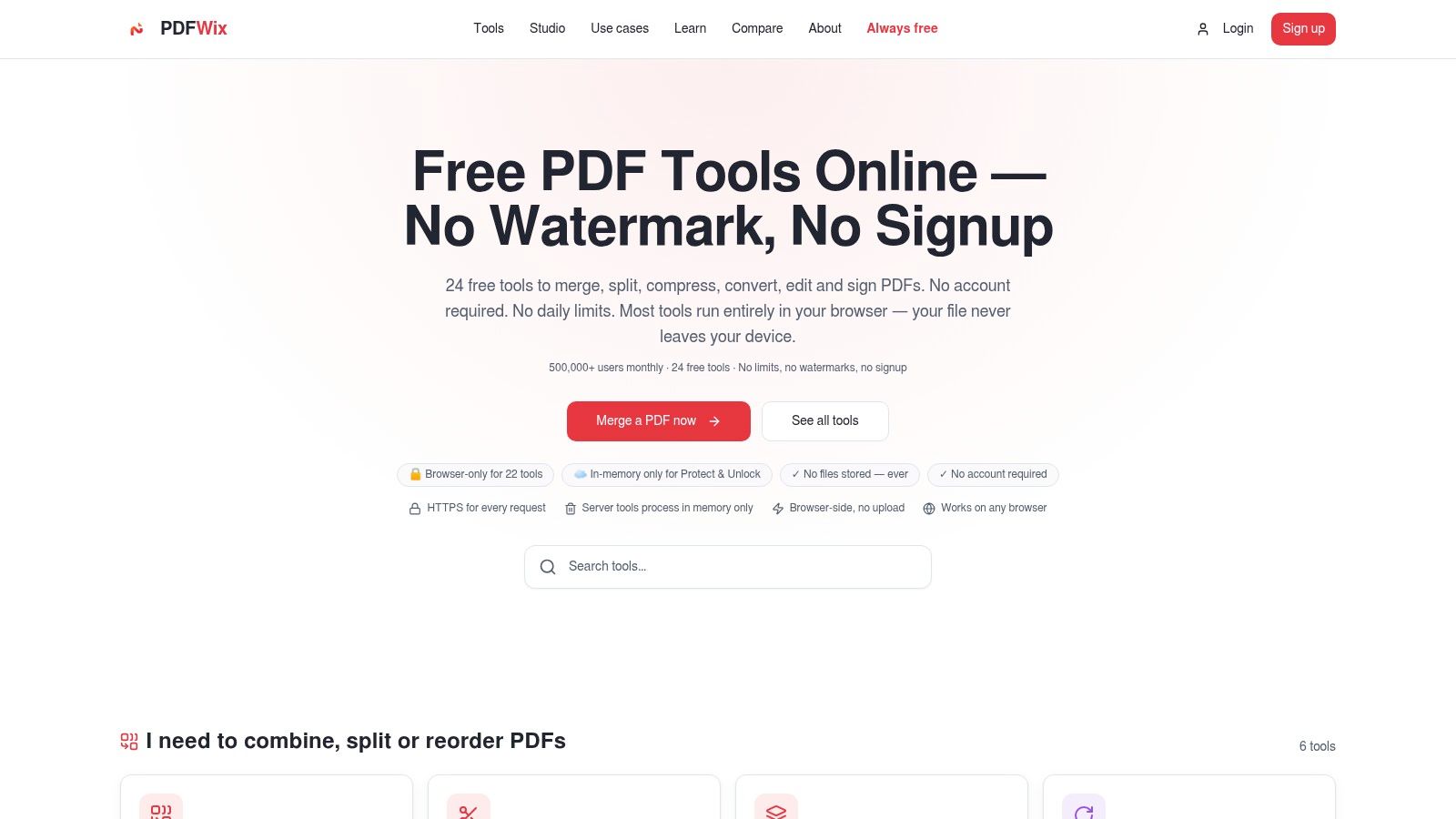
PDFWix handles this operation server-side in memory and does not write uploaded files to disk. No account is required, and the output has no watermarks. This differs from PDFWix's other browser tools, which process files locally through WebAssembly. The privacy trade-off is direct: server processing avoids local setup, but the PDF must still be sent to the service. Check your organization's handling rules before uploading confidential material.
Use the browser workflow carefully
- Open the tool: Go to the PDFWix Unprotect PDF tool in a current browser.
- Choose the source file: Select the protected PDF from your device. Keep the original unchanged so you can compare the result or retry if needed.
- Enter the credential: Provide the current open password if the document is encrypted for opening. A file that opens but restricts printing or editing may not require a password in this field.
- Run the operation: PDFWix decrypts the document or removes the applicable permissions. It cannot recover an unknown open password.
- Save a separate copy: Download the result with a new filename, such as
contract-unprotected.pdf, rather than overwriting the source. - Test the required action: Open the copy in another viewer and check printing, copying, editing, or annotations, depending on your goal.
Browser privacy has a trade-off
Use this route only for files you are authorized to process and permitted to send to a service. An offline desktop method keeps the file on your device. A local browser tool can also suit supported operations when server transfer is unacceptable.
After downloading, inspect the PDF's Security Properties. If encryption or restrictions remain, verify the password type and repeat the operation with the correct credential. A successful download alone does not prove that the protection changed.
Other Proven Ways to Unprotect a PDF on Desktop and Command Line
Choose the method according to the file and the result you need. Adobe Acrobat Pro suits controlled desktop editing when you have the required password. macOS Preview can export a local copy when the PDF opens. On Windows, printing to PDF creates a usable copy if the document opens and the output preserves the functions you need.
Printing or exporting can rebuild the document instead of removing its encryption cleanly. Forms, links, tags, layers, signatures, metadata, and other features may change or disappear. Compare the result with the original, especially for records, contracts, and files that must remain editable.
Choose the method by the job
| Method | Best For | Password Needed | Offline |
|---|---|---|---|
| Adobe Acrobat Pro | Controlled desktop editing and security management | Usually, for protected actions | Yes |
| macOS Preview | A local export when the PDF opens | Current password when prompted | Yes |
| Windows Print to PDF | A quick local copy from an openable document | Open password if required | Yes |
| qpdf | Repeatable decryption, scripting, and technical workflows | Correct password | Yes |
| PDFWix browser tool | No-install processing across devices | Correct password when the file asks for it | No |
qpdf is the precise choice for command-line decryption because it preserves the PDF structure more reliably than a print-based reconstruction. Run:
qpdf --password=PASSWORD --decrypt input.pdf output.pdf
With the correct password, qpdf removes the user and owner passwords and writes an unencrypted output. Owner and user passwords control different things. The user password governs opening the file, while the owner password governs permissions such as printing or editing. If you need to remove permission restrictions while retaining the open password, qpdf also supports a mode that preserves encryption. See this qpdf PDF decryption guide for the workflow and password distinction, and consult this qpdf command reference for syntax details.
Match the tool to the constraint
Use Acrobat for a guided interface and security inspection. Use Preview when the file stays on your Mac and an exported copy is sufficient. Use qpdf for repeatable processing of authorized files, scripting, or deliberate encryption preservation. A browser-based PDFWix workflow avoids installation but sends the file to a service, so an offline method is preferable for confidential documents.
For editing, confirm that the output contains selectable text and editable objects rather than only a rendered page image. The PDF editing unprotect guide gives relevant workflow context. A file that opens is not automatically ready for editing, and removing restrictions does not restore missing source objects.
When You Can Legally Unprotect a PDF and How to Stay Private
You created a report, but the saved copy still blocks printing. Or a client sends a PDF that opens normally while preventing edits. The technical method may be available in both cases, yet permission depends on who owns the file, which password type controls it, and what agreement covers its contents.
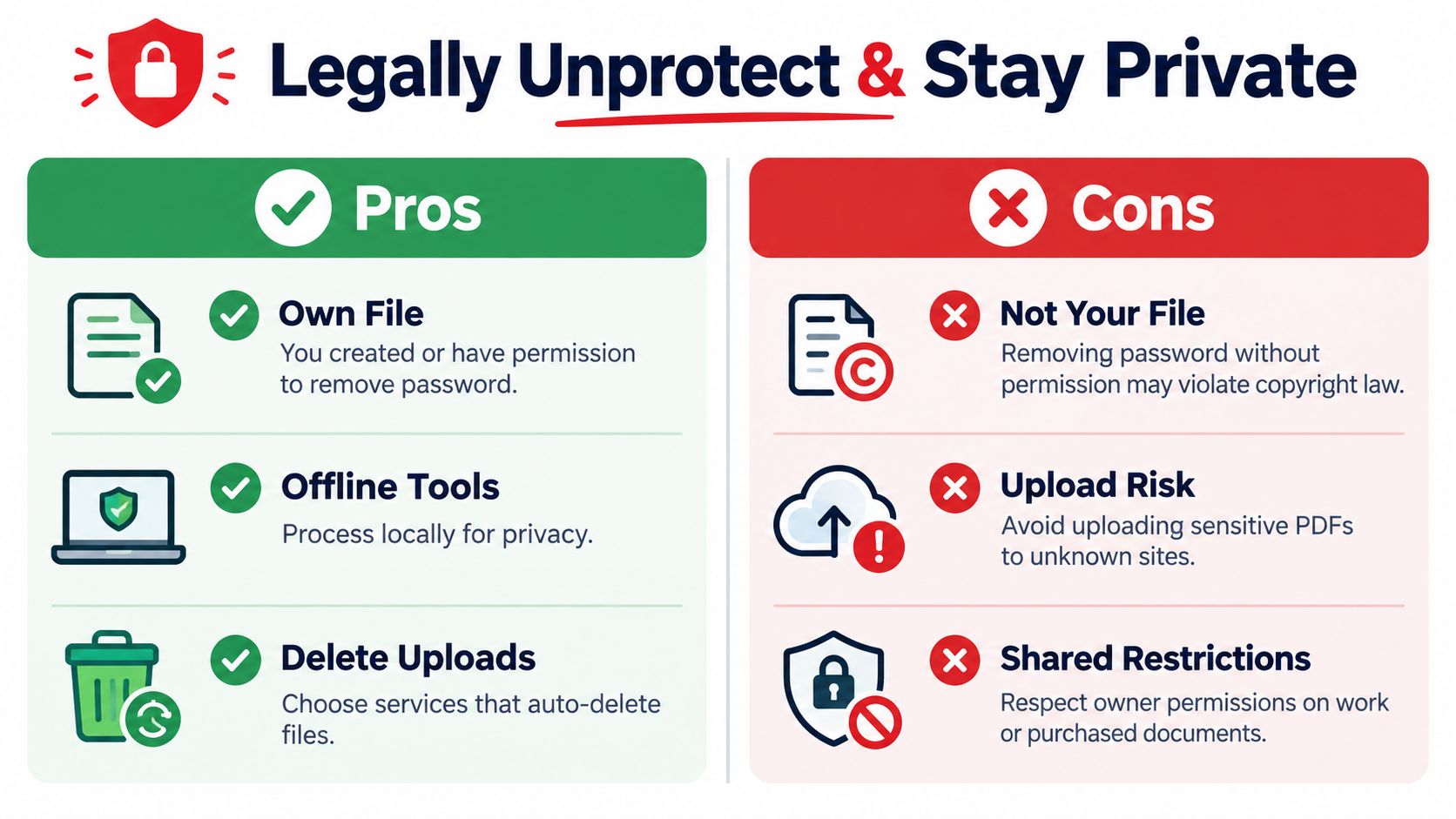
Removing protection from a PDF you created or own is generally permissible. The same usually applies when the owner clearly authorizes the change. Greater caution is required for purchased commercial material, another person's document, or a workplace file covered by confidentiality terms and internal access controls.
Circumventing DRM on commercial material can trigger anti-circumvention rules such as DMCA §1201 in the United States. Ownership, authorization, document type, and jurisdiction all affect the answer. This legal analysis of removing PDF passwords explains those factors and the risks of treating technical access as legal permission.
Separate access from permission
A PDF can open successfully while still blocking copying, printing, or editing. That restriction may reflect the owner's intended use. Ask the sender for an editable version, request the owner password, or obtain written approval before changing the document's security settings. A user password controls opening, while an owner password commonly controls permissions, so identify the actual restriction before acting.
Adobe distinguishes document-open passwords from permissions passwords and notes that some files require the correct password before protection can be removed. Its guidance on opening PDF files supports the same practical conclusion: changing a viewer setting does not establish authorization.
Privacy depends on where processing occurs. This overview of whether online PDF tools are safe explains the browser-based and server-side trade-offs.
- Keep sensitive files local: Use offline tools for personal, financial, legal, health, or confidential business documents.
- Check processing behavior: For an online service, review whether files stay in memory, reach storage, remain retained, or are deleted after processing.
- Protect the output: An unencrypted copy is easier to edit, open, and share. Store it where access is controlled.
- Preserve the original: Keep the protected source separately so the original security state remains recoverable.
Permission removal is only one security decision. If collaborators need controlled access, use permission-managed storage, authenticated sharing, or apply a replacement password after editing.
Troubleshooting Common Issues When You Unprotect a PDF
A PDF that opens but refuses to print has a different restriction from one that will not display any page. The first case usually involves permissions. The second requires the document-open password. An owner password that controls permissions will not satisfy a viewer asking for the user password.
Use this checklist to isolate the failure:
- Wrong credential: Confirm whether the password opens the file or only changes permissions. Copy it carefully, check for spaces, and test it in the original viewer.
- Legacy file behavior: Older PDFs can use earlier encryption revisions or unusual password handling. Try a current viewer or use qpdf with the known password before assuming corruption.
- Damaged source: Open the original in another trusted reader. If several viewers report structural errors, request a fresh copy before attempting decryption.
- Restrictions remain: A viewer may cache the original permission state. Close the file, reopen the newly saved copy, and inspect its Security Properties.
- Output looks right but behaves differently: Printing to PDF can flatten forms, remove interactive elements, or change document features. Use direct decryption when the original structure must remain intact.
Verification rule: Do not call a PDF unprotected until a fresh viewer confirms that the required actions work on the downloaded copy.
Verify the output in three ways. Open it without a password, test printing and text copying where needed, then open it in a PDF editor to confirm that the required content remains editable. Keep the protected original until these checks pass.
A missing open password changes the problem. Brute-force recovery is rarely sensible because password search grows with length and alphabet size, while modern encryption is designed to resist exhaustive guessing. Contact the sender, check an authorized password manager, or request a new copy instead of assuming every locked file can be bypassed.
After removing protection, decide whether the output still needs access controls. Use approved permission-managed storage or authenticated sharing rather than attaching an unrestricted copy to ordinary email.
Use PDFWix when you have authorization and the correct password, and need a browser-based method to remove PDF encryption or permissions without installing software. Upload the file, follow the password prompt, download the new copy, and verify its security properties before sharing it. For confidential documents, confirm how the service processes and retains uploads. A local tool may provide better privacy, while a browser workflow avoids installation and can be faster for routine files.