
You click a document you need right now, and the application returns an unhelpful error. A PDF opens with missing pages, a spreadsheet shows blank cells, or a Word file crashes the moment you select it. The tempting response is to run a repair command immediately, but that can replace useful evidence with a partially repaired result.
A safer approach to how to check for corrupted files starts with verification. Preserve the original, test whether the problem follows the file or the storage device, compare it with a trusted copy or previous version, and only then choose repair, restoration, or hardware investigation.
Table of Contents
- Why Checking First Beats Repairing First
- Spotting the Early Signs of File Corruption
- Running Safe System Checks on Windows macOS and Linux
- Verifying File Integrity With Hashes and Metadata
- Checking Application Files and PDFs Without Extra Risk
- Preventing Future Corruption and Choosing Your Next Step
Why Checking First Beats Repairing First
A corrupted file isn't always the actual problem. The document may contain damaged data, the filesystem may be returning bad blocks, or a backup and sync service may have preserved an already-damaged version. The same visible symptom, such as an application crash or missing content, can come from any of those layers.
Suppose a freelancer opens a contract and sees an error. If the original is the only copy, running a repair tool against it may alter the file before anyone has preserved its current state. The safer move is to stop editing, duplicate the file to separate storage, record its size and timestamp, and test the duplicate. That gives you an untouched reference if the first repair attempt makes the result less usable.
Students, office teams, and legal professionals need this discipline because the file may be evidence as well as a working document. A previous version in OneDrive, Google Drive, Dropbox, or a local backup can be more valuable than an aggressive repair operation. A corrupted file repair workflow can help frame the recovery process, but the practical rule remains simple: validate first, copy second, act third.
The three places corruption can hide
- The file layer: Internal structures, object tables, compressed streams, or document content may be incomplete or invalid.
- The storage layer: A failing disk, filesystem inconsistency, torn write, or connection problem may damage multiple files or return unreliable data.
- The recovery layer: A backup, sync copy, or version history may contain the same bad state, especially if synchronization occurred after the damage.
A single document failing while nearby files work normally points toward an application or file-format issue. Several files failing, changing size unexpectedly, or producing read errors points toward storage. A file that works from an older version but not from the current synchronized copy points toward backup or sync history.
Practical rule: Never repair the only copy of an important file. Make a preserved duplicate before a tool writes changes.
For PDFs, keep the original outside the repair tool's output folder and use a separate filename for every test result. A dedicated PDF repair tool may be appropriate after validation, but it shouldn't be the first action when you haven't established which copy is intact.
Spotting the Early Signs of File Corruption
Corruption often announces itself before a diagnostic command does. The obvious signs include an application refusing to open the file, an error stating that the format is invalid, missing pages, garbled text, unexplained blank areas, or repeated crashes when the file is read. Those symptoms justify isolation, not immediate repair.
Subtle indicators matter too. Compare the affected file with a known-good copy and look for an unexpected file size, a timestamp that predates a recent edit, a thumbnail that won't render, or a cloud drive showing a sync conflict. A file can look normal in a folder while its internal structure is incomplete.
Separate a bad file from a bad disk
Start with a small comparison set:
- Open neighboring files: If files created around the same time on the same drive also fail, investigate the disk or filesystem before repairing documents.
- Test another copy: Copy the affected file to a healthy device. A copy that fails in the same way suggests file-level damage, while read errors during copying point toward storage trouble.
- Check version history: An older cloud or backup version that opens correctly gives you a recovery candidate. Don't overwrite it while testing.
- Compare applications: If a file fails in one application but opens in another compatible viewer, the original application, plug-in, font, or rendering environment may be responsible.
- Observe sync behavior: Conflicted filenames, repeated download failures, or a file that changes after every sync suggest a versioning or transfer problem rather than simple local corruption.
A PDF that renders blank may have damaged page objects, but it may also contain content that a particular viewer doesn't support. The distinction is important, and a focused guide to why PDF files are blank can help separate rendering symptoms from structural damage.
A quick triage decision
If only one file fails and another copy works, preserve the good copy and analyze the bad one. If many files fail or the system reports read errors, stop repeated copying and inspect the drive. If the current cloud version fails but an earlier version opens, restore to a new filename and retain the damaged version for reference.
Don't repeatedly open and save the original while diagnosing it. Every save can change metadata or rewrite internal structures, making it harder to determine what happened.
Running Safe System Checks on Windows macOS and Linux
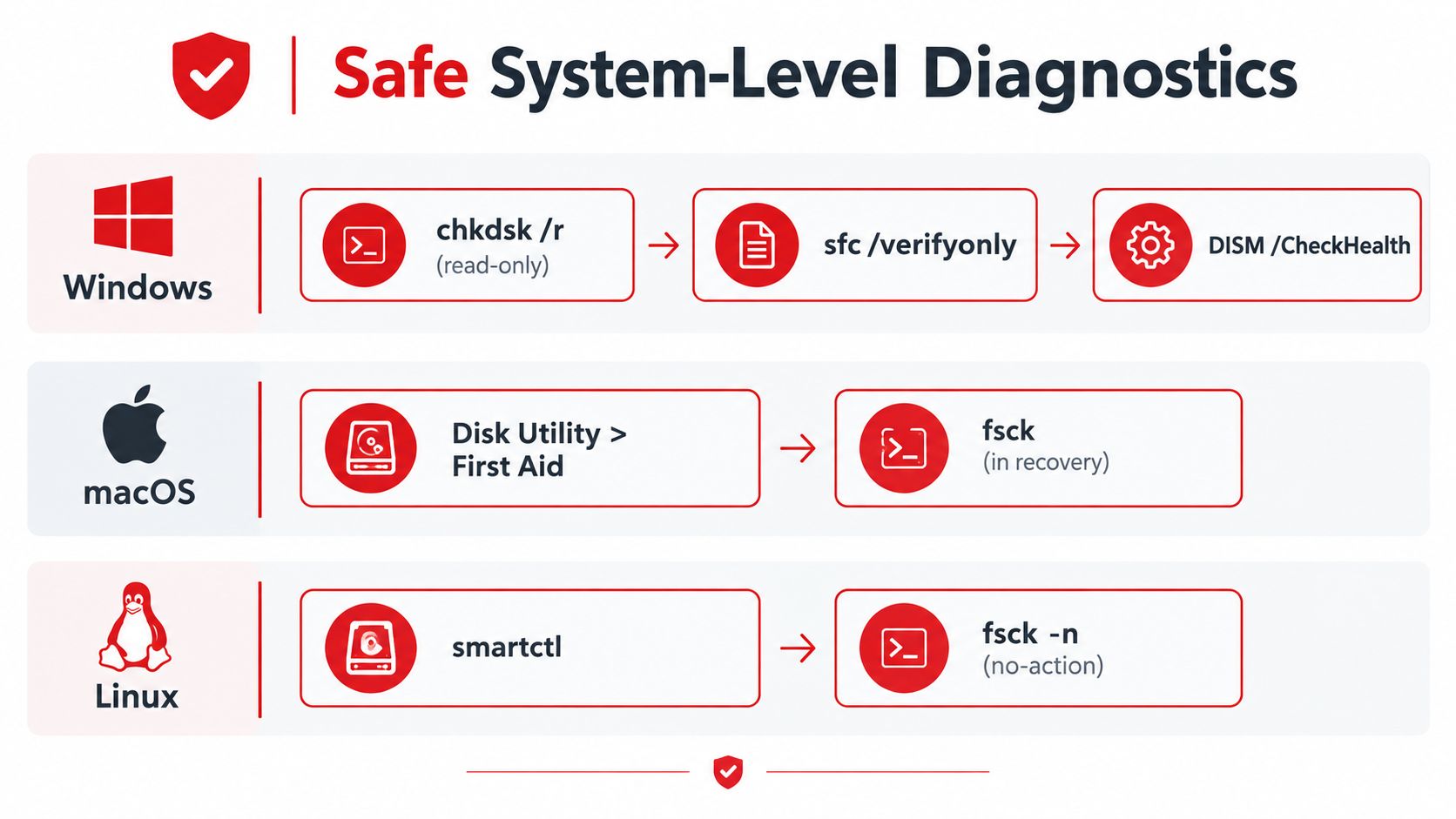
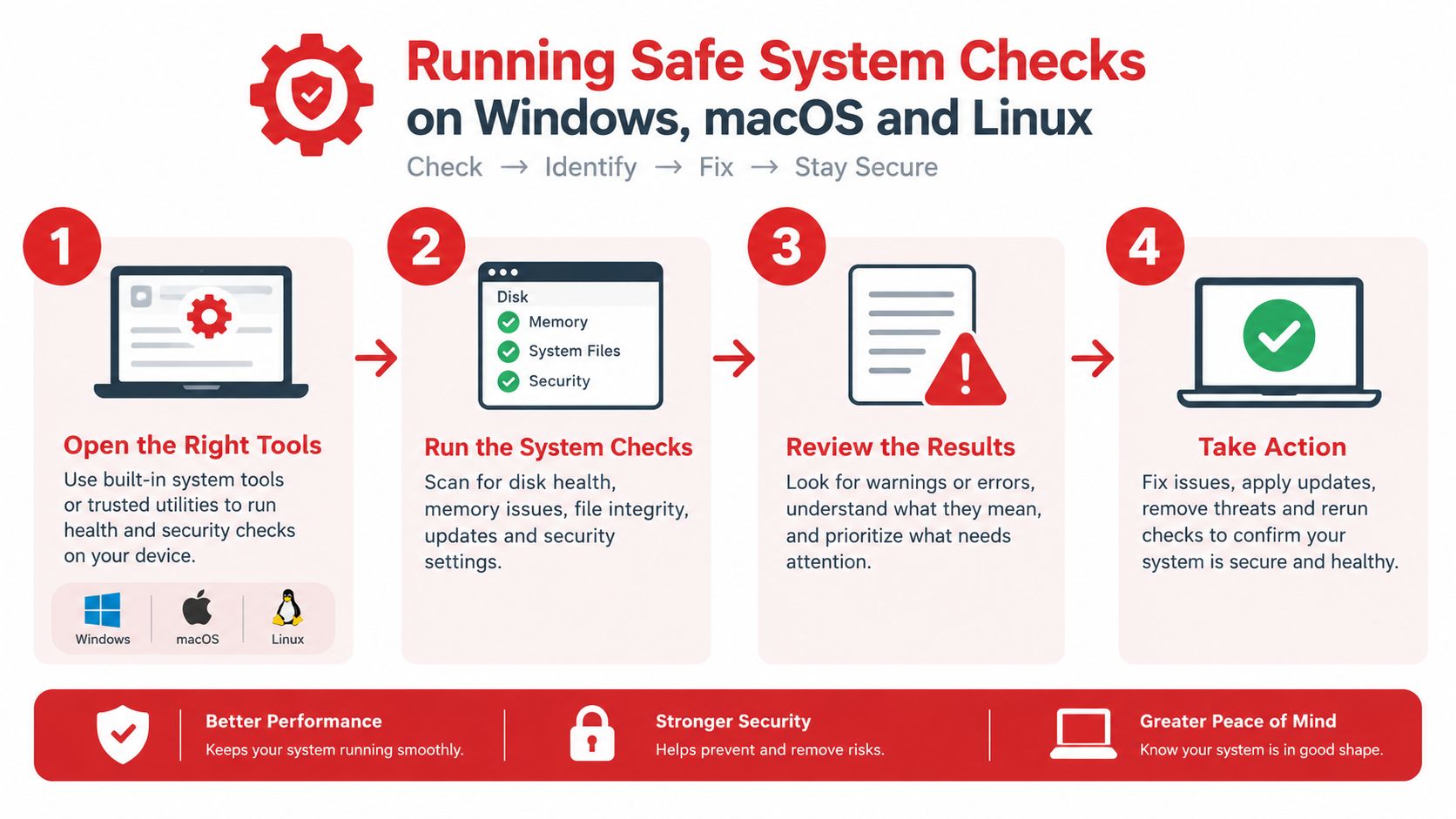
Operating-system diagnostics can tell you whether the environment is contributing to the failure, but they don't prove that a particular document is intact. Use read-only or verification modes first, and copy valuable data before allowing any command to write repairs.
Windows checks
Open Command Prompt or PowerShell with appropriate privileges, then begin with a volume check that doesn't modify the disk:
chkdsk C:
This checks the volume and reports filesystem problems. Avoid adding repair flags while the original files remain at risk. A repair pass can be useful later, but it changes filesystem structures and should follow a backup or image-based preservation step.
For protected Windows system files, use:
sfc /verifyonly
The verification mode checks system-file integrity without applying repairs. Microsoft documents SFC as a tool for missing or corrupted system files in its System File Checker guidance. If it reports problems, save the output and decide whether the issue affects Windows components or the user document itself.
Then inspect the Windows image health with:
DISM /CheckHealth
Treat these results as system diagnostics, not as a document recovery method. SFC and DISM can address operating-system components, while CHKDSK examines filesystem consistency. None of them can reconstruct the intended contents of a damaged spreadsheet or PDF.
macOS checks
Disk Utility's First Aid provides a graphical path for checking volumes and containers. Select the relevant volume and review the result before choosing any option that changes the disk. For deeper checks, fsck is normally used from Recovery or single-user maintenance contexts, with the exact command depending on the filesystem and macOS version.
Keep the distinction clear: a successful volume check doesn't certify every file. It only reduces the likelihood that the filesystem is the immediate cause.
If the Mac shows repeated read failures, disappearing volumes, or slow access, copy what you can once and stop stressing the device. A specialist offering software repair for Macs in Philadelphia may be more appropriate than repeated consumer repair attempts.
Linux checks
Use smartctl to inspect drive health when the device supports SMART data. Review reported errors and overall health indicators, but don't assume a clean SMART result proves that every sector and file is safe.
For a filesystem check, use fsck in a no-action or read-only mode where supported, such as:
fsck -n /dev/device
Never run fsck against a mounted writable filesystem unless the distribution and filesystem documentation explicitly support that operation. Unmount the target first or use the system's recovery environment. The no-action flag is valuable because it reports findings without immediately applying corrections.
Browser-based document services also deserve the same caution as local tools. Before using any online workflow, understand whether the file leaves your device, as discussed in this guide to online PDF tool safety.
Verifying File Integrity With Hashes and Metadata
A hash provides a file-level test that visual inspection cannot. Calculate a checksum, then compare it with a trusted reference. A matching value shows that the file matches that reference. A mismatch means the bytes differ, so treat the file as corrupted, incomplete, or altered until you establish why. Checksum-based verification explains this comparison and why even a one-byte change produces a different result.
Use a trusted reference
For a downloaded installer, ISO, archive, or dataset, obtain the published hash through the software maker's official distribution channel. On Windows, PowerShell can calculate SHA-256:
Get-FileHash .\filename.iso -Algorithm SHA256
On macOS or Linux, use:
shasum -a 256 filename.iso
If your existing reference uses MD5, Windows supports Get-FileHash with -Algorithm MD5, macOS commonly provides md5 filename, and Linux commonly provides md5sum filename. Use SHA-256 when the publisher supplies it. The NeoTeo tutorial on ISO verification shows how to compare a Windows or Office image with its published value.
Keep the reference separate from the file being tested. A hash copied from an untrusted location cannot establish much, particularly if the same damaged backup could have changed both the file and its reference.
Create your own fixity record
For an archive, calculate a cryptographic hash when each file is first accepted as trusted. Store it in metadata or a separate manifest, then recalculate it during scheduled scrubbing and whenever the file is retrieved. The Digital Preservation Coalition describes checksum fixity as a preservation method: a repeated matching hash supports the conclusion that the bytes are unchanged, while a mismatch calls for investigation and, if available, restoration from a known-good copy. Its fixity and checksum guidance recommends regular rechecking, with the schedule adjusted for storage risk and usage.
| Checkpoint | What to Do | Why It Matters |
|---|---|---|
| Ingest | Hash the file before placing it in trusted storage, then save the reference separately. | Establishes a baseline for later comparisons. |
| At rest | Recompute hashes during scheduled scrubbing. | Finds silent changes before the file is needed. |
| Retrieval | Hash the delivered or copied file and compare it with the stored value. | Catches transfer damage before analysis or editing. |
Metadata supports the hash but cannot replace it. A changed file size, unexpected modification time, altered page count, or missing embedded font may explain the symptom. For PDFs, what an optimized PDF is also explains how structural rewriting can affect file metadata. Metadata can be rewritten without changing meaningful content, so use it as a clue and base the decision on a trusted checksum or application-level validation. If validation fails, preserve the original and work from a copy before attempting repair.
Checking Application Files and PDFs Without Extra Risk
Generic filesystem checks can't understand every format. A document application may identify an invalid internal structure that CHKDSK never sees, while a viewer may expose a rendering problem caused by a missing font rather than damaged bytes. Format-specific tests are therefore useful, provided they operate on a duplicate.
Office documents
For Word, Excel, and PowerPoint files, start by copying the original to a separate working folder. Try opening the copy with the application's built-in Open and Repair option where available. If the file opens, save the result under a new name and compare the recovered content with the original or a previous version.
A second application can provide a valuable cross-check. LibreOffice may open a document that Microsoft Office rejects, but a successful open doesn't prove that formulas, tracked changes, macros, charts, or formatting survived. Exporting immediately can also discard features, so preserve the original and record which application produced each output.
Images and archives
Open an image in more than one viewer, then inspect its file signature or header with a hex editor if the problem warrants it. A JPEG normally begins with a recognizable marker, while PNG files contain a defined signature, but a plausible header alone doesn't prove that the complete image data is present.
For ZIP-based office files, a copy can often be inspected as an archive. If the archive can't be listed or extracted, the container may be damaged. Don't repeatedly run repair utilities against the only copy, because a tool may rebuild the archive and remove entries it can't interpret.
PDFs
PDF validation should begin with a viewer. Look for missing pages, blank content, broken fonts, malformed annotations, or error messages during rendering. Try a second viewer if the first one fails, because a rendering engine can be the source of the apparent problem.
When the duplicate still fails, a PDF-specific repair process can inspect structures such as cross-reference tables, object streams, headers, and truncated content. PDFWix provides browser-based PDF operations, including a Repair PDF tool that reports detected damage and attempts to reconstruct recoverable content. Its publisher states that 22 of 24 tools run in the browser through WebAssembly, while Protect PDF and Unlock PDF run in memory on servers without writing files to disk, as described in the PDF tools without uploading guidance.
Preserve the original: Treat every repaired output as a new artifact. Keep the damaged source, the recovered copy, and your notes together.
For confidential files, confirm the processing model before using a browser tool. A local viewer and a client-side workflow reduce exposure, but no repair result should be trusted until you open it, inspect every important page, and compare it with the best available source.
Preventing Future Corruption and Choosing Your Next Step
A file that opens today can still fail during the next copy, sync, or drive read. Set up verification before recovery becomes urgent. Store hashes separately from the files, retain version history, eject removable storage safely, and avoid editing while a sync client is resolving conflicts. For important archives, schedule periodic scrubbing instead of waiting for a user to report a bad file.
Industry preservation guidance recommends checking tape-based holdings annually and hard-drive systems about every six months, with the interval adjusted for risk and usage. A storage study also describes more frequent block checks for high-assurance systems and shows why transferred files should receive a fresh hash check. See the research on storage scrubbing and transfer integrity for its methodology and context.

Make the decision from the evidence
- Hash matches: Keep the file. Investigate the application, viewer, permissions, fonts, or sync client instead of rewriting valid bytes.
- Hash mismatches: Restore a known-good version, then preserve the mismatched copy for analysis.
- Several files fail: Back up accessible data immediately, minimize writes, inspect the drive and filesystem, and plan hardware replacement if errors continue.
- Only the current synchronized copy fails: Pause synchronization and recover an earlier version into a new location.
- No intact copy exists: Work from a duplicate and consider professional recovery before filesystem repair or repeated application saves.
A storage study summarized by the Digital Preservation Coalition examined 1.53 million disks over 41 months and observed about 400,000 checksum mismatches. Mismatches were reported on 3,855 disks, including 3,088 of 358,000 SATA disks and 767 of 1.17 million Fibre Channel disks, as documented in the checksum verification guide. The practical lesson is to investigate and restore after a mismatch, rather than assume every copy is lost.
Students should keep assignment drafts in versioned storage. Freelancers should maintain a separate backup and hash manifest for delivered work. Teams should test restores, monitor storage health, and record who can approve a repair. If a disk clicks, disconnects, or produces repeated read errors, stop experimenting and consult a recovery specialist.
PDFWix provides browser-based tools for validating, repairing, comparing, converting, and organizing PDF files, with most processing performed locally through WebAssembly. Visit PDFWix to check a damaged PDF on a preserved copy and choose the next action without overwriting the original.