
You open a PDF that mattered five minutes ago. The attachment preview is white. Page thumbnails look normal, or maybe they don't. You try again on your phone, then your laptop, then a browser tab, and now you're wondering whether the file is damaged, whether the sender messed it up, or whether you're about to lose the document entirely.
Most of the time, a blank-looking PDF is a rendering problem first and a destroyed file second. That distinction saves time. It also stops people from doing the worst possible thing, which is deleting pages or re-exporting the document before they've checked whether the content is still there.
Table of Contents
- Why Your PDF Looks Blank Even When It Is Not Empty
- Common Reasons PDF Files Show Blank Pages
- Quick Diagnosis to Tell Viewer Issues From File Damage
- Proven Fixes for Blank PDFs by Cause
- When PDFs Print Blank or Go Blank After Processing
- Prevent Blank PDFs and Keep Files Readable Everywhere
Why Your PDF Looks Blank Even When It Is Not Empty
A PDF page can exist as a valid page object and still appear blank in the app you're using. That's been true since PDF was first documented in June 1993 in the original specification archive at the PDF Association PDF specification archive. The format can hold text, images, layers, transparency, page boxes, and other elements that a viewer still has to interpret and draw correctly.
That matters because “blank” isn't the same as “empty.”
A historical blank-page study looked at 24 PDFs and found that only 1 was blank, while 23 of 24 still contained some non-blank content according to the analysis in this write-up on the study. In practice, that's exactly what support teams run into. A page looks empty, but text selection still works. Or a hidden layer exists. Or the content sits outside the visible crop area. Or one viewer fails while another shows the file normally.
If you handle online forms and document handoffs, this same pattern shows up in adjacent workflows too. A file that seems “missing” may be stuck in the delivery path, which is why teams often end up needing IT support for form delivery issues before they need file repair.
Key takeaway: Treat a blank PDF as a display symptom until you prove the file itself is damaged.
The fastest first check is simple. Open the same document in a second viewer before you repair, convert, print, or delete anything. Browser preview, Adobe Acrobat Reader, Apple Preview, and built-in mobile viewers do not all render the same way. If one app shows content and another doesn't, you've already narrowed the problem.
One more clue shows up in file behavior. If a large document only breaks in one environment, optimization sometimes changes how reliably it opens, especially in browser-based readers. Understanding optimized PDFs and how they load helps, because faster-loading structure can expose whether the issue is download, rendering, or memory pressure.
Common Reasons PDF Files Show Blank Pages
Blank PDFs usually fall into a small set of root causes. The fix depends on which pattern you're seeing, so matching symptoms matters more than trying random repair tools.
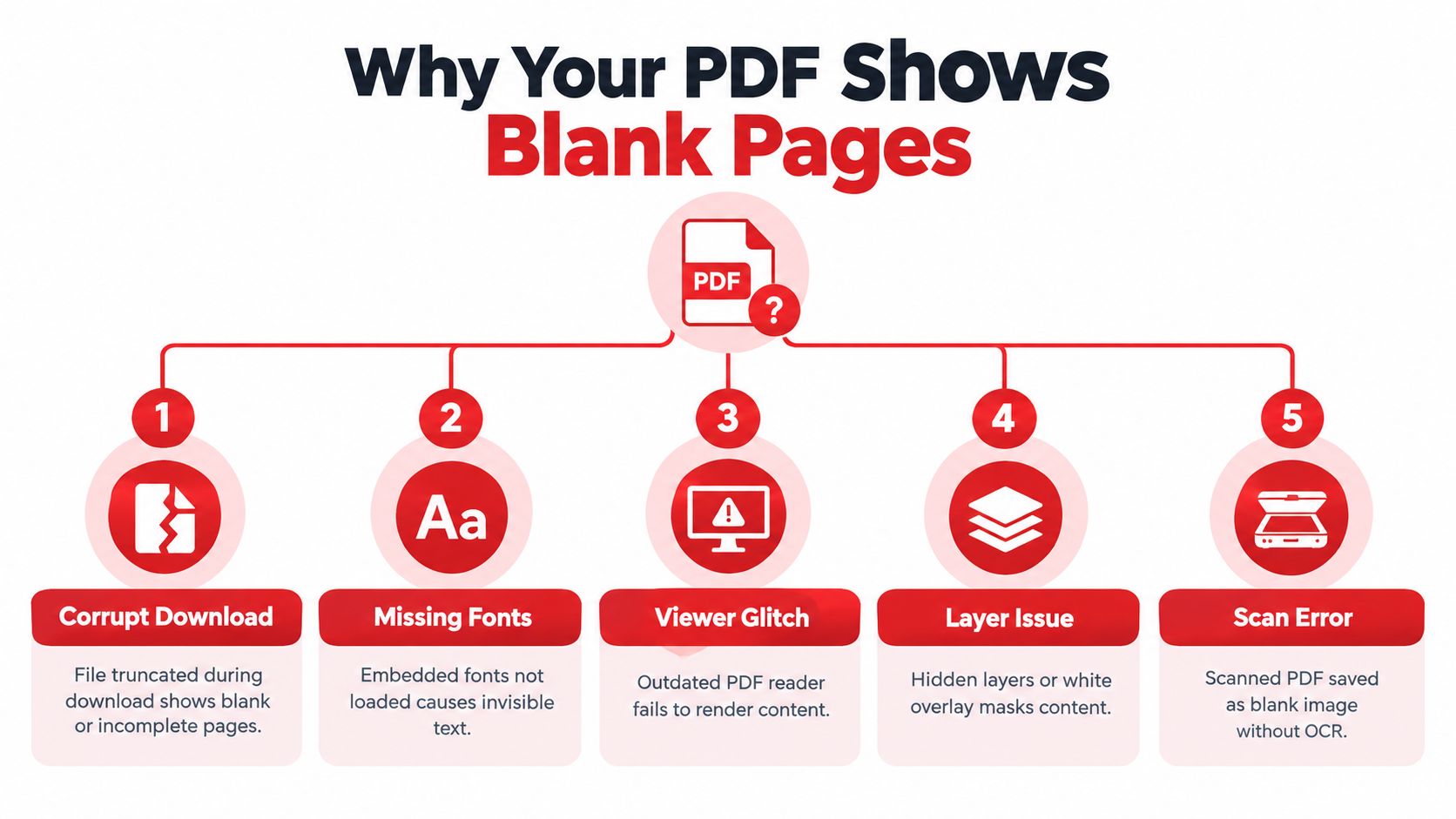
Corrupt or incomplete files
A partial download often opens just enough to confuse you. You may see page thumbnails but no page content, or the first pages render while later pages turn white. This happens when the file didn't finish downloading or when a save process stopped early.
The common clue is inconsistency. The same file may behave differently after a fresh download, and later pages fail more often than early ones.
Font failures and invisible text
Some PDFs contain text that depends on embedded fonts or font substitution. When the viewer can't load or interpret those fonts correctly, the page may look empty even though the text objects are still present.
Adobe's troubleshooting guidance includes fonts, layers, and security settings among core causes in its blank page troubleshooting article. In the field, the giveaway is that copy and paste may still work even while the page looks blank.
Hidden layers and Optional Content Groups
Layered PDFs can hide visible content without deleting it. Architectural drawings, edited marketing proofs, and exported office documents are common examples. If the wrong layer state gets saved, the page looks blank even though the objects still exist.
Independent troubleshooting guidance also points to hidden layers as a recurring reason a PDF appears blank in one view path but not another, including the checks described in this practical blank-page PDF guide.
- Look for layer controls: If the viewer has a Layers panel, check whether content is turned off.
- Watch for selective failure: One page or one object type disappears, but the file itself still opens.
- Compare with the source app: The original authoring tool may still show content that the PDF viewer hides.
Crop box and page-box problems
A PDF doesn't have just one page boundary. It can include a crop box that defines what the viewer displays or prints, separate from the underlying media box. If the crop box is too restrictive, content can appear missing while still existing in the file.
The Coherent PDF manual explains this behavior in its discussion of crop boxes and media boxes. If you've ever opened a PDF and seen a perfectly white page even though text extraction still works, page-box configuration is a serious suspect.
Scan and OCR issues
Scanned documents create a different kind of confusion. Sometimes the scanner captured a faint, overexposed, or empty image page. Sometimes the page is image-only and the lack of OCR makes people think the content is gone because nothing can be selected or searched.
If you work with scans often, a workflow built around scanning documents into PDF correctly reduces a lot of these false alarms before they start.
Viewer bugs and platform regressions
This one gets missed because people assume software readers are stable. They aren't always. Recent reporting noted that Adobe acknowledged a blank white page issue in Acrobat and Reader and fixed it in an optional March 19, 2025 update, as covered in this summary of blank or black PDF behavior.
If the file is blank in one app and normal in another, stop blaming the document until you've ruled out the viewer.
Quick Diagnosis to Tell Viewer Issues From File Damage
You can sort most blank-PDF cases in about two minutes if you test in the right order. Don't start with repair. Start with comparison.
Run these checks in order
- Open the file in two viewers. Use a browser preview and a full PDF reader, or use two desktop readers. If one shows content, the file probably isn't destroyed.
- Check whether the file size makes sense for the page count. A many-page PDF with a tiny file size can indicate a bad download or a broken export. This is qualitative, but obvious mismatches matter.
- Try selecting text. Drag across the blank area. If selection highlights, the text may be there but invisible.
- Inspect layers if the viewer supports them. Hidden Optional Content Groups can make real content disappear.
- Check page boxes. If available, inspect crop settings or re-open in a tool that can show page boundaries.
- Use command-line validation if you have it. The workflow described in this viewer-versus-file troubleshooting guide recommends
pdftotextandmutool drawbecause extraction or rasterization quickly tells you whether content exists but isn't being drawn.
Blank PDF Diagnosis Matrix
| Test Result | Likely Cause | Next Action |
|---|---|---|
| Opens blank in one viewer, normal in another | Viewer rendering issue | Update the failing reader or switch apps |
| Text can be selected or extracted from a blank page | Invisible text, font issue, or layer problem | Re-save with embedded fonts, inspect layers, flatten if needed |
| Later pages go blank in browser only | Browser memory pressure | Split the file and reprocess smaller sections |
| Blank on screen and no text extraction | Image-only scan or damaged structure | Check for scan quality, OCR, or repair |
| White page but page count and file size seem wrong | Incomplete download or truncated save | Download again or ask for a fresh export |
| Screen view is fine but print output is blank | Print pipeline issue | Check driver, spooler, scaling, flattening |
What later-page failures usually mean
When only later pages go blank, especially in browser-based workflows, think about memory before corruption. Some renderers struggle with large files, heavy images, or complex transparency late in the document.
That's when splitting the document becomes a diagnostic step, not just a workaround. If smaller segments render normally, the source may be fine and the environment is the weak point. If you need a browser option for testing damaged structure, PDF repair tools can help confirm whether the file itself has recoverable issues.
The first goal is a verdict, not a fix. Once you know whether the viewer or the file is at fault, the rest gets faster.
Proven Fixes for Blank PDFs by Cause
Once you've identified the pattern, use the fix that matches it. Random conversion loops waste time and sometimes make recovery harder.
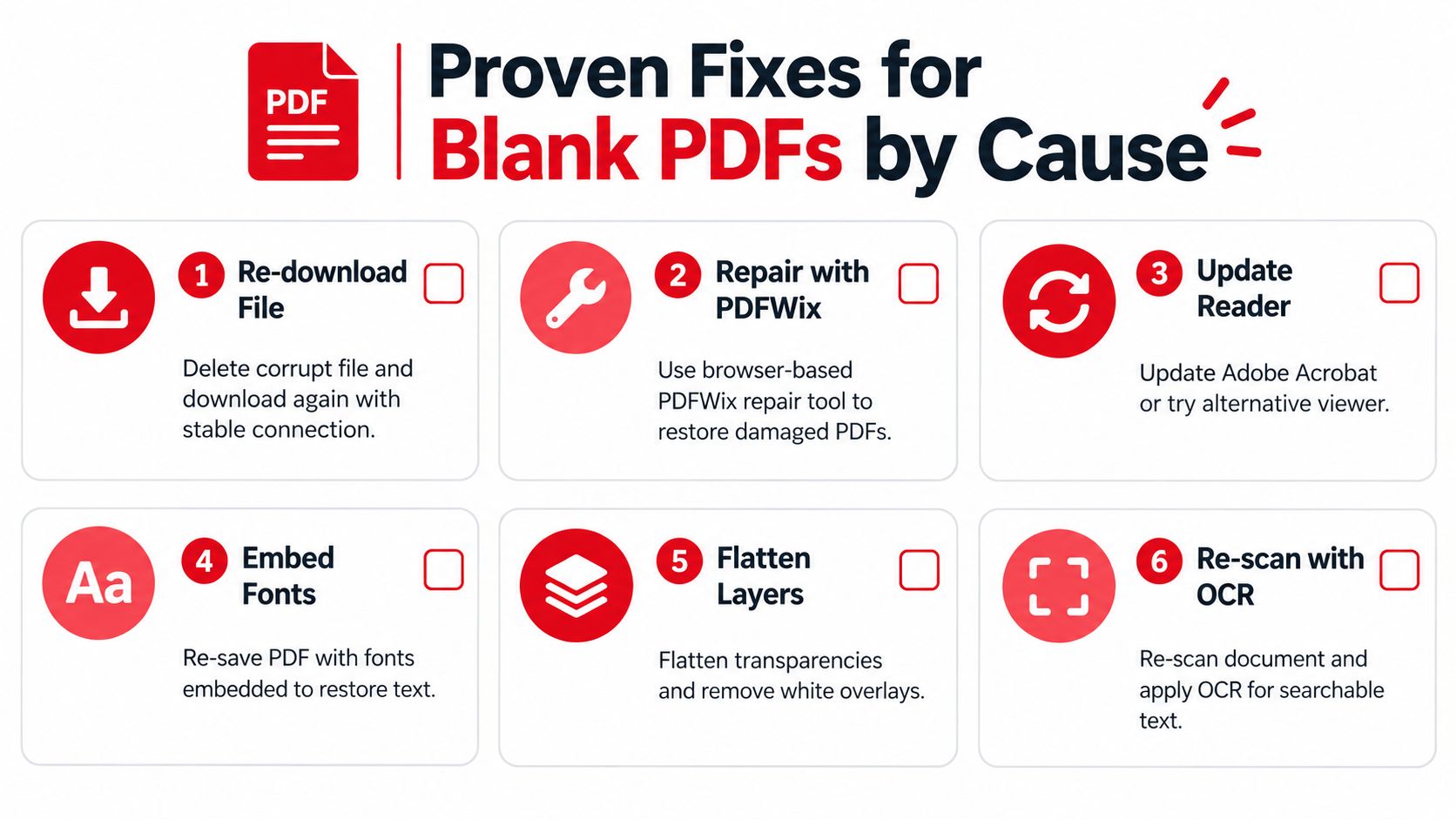
Re-download and re-save suspect files
If the PDF came from email, cloud storage, or a web form, delete the local copy and download it again. If you created it yourself, export a fresh PDF rather than repeatedly saving over the same file.
This works better than “repairing” a truncated file that never finished writing correctly in the first place.
Fix fonts and invisible text
When selection works but the page looks blank, re-open the original document if you have it and export again with fonts embedded. If you don't have the source file, try printing to a new PDF from a viewer that can display the content correctly.
A substituted-font export can restore readability, but it can also alter line breaks and pagination. That trade-off matters in contracts, forms, and court filings, so verify layout after the fix.
Reveal or flatten hidden content
Layered files, white overlays, and transparency effects often need flattening. In practical terms, that means converting layered display logic into a simpler final page appearance that more viewers can handle.
Common paths include:
- In Acrobat or similar editors: Turn on hidden layers, then save a flattened copy.
- From a source app: Export a print-ready PDF rather than an interactive layered one.
- For browser workflows: Use a flattening method such as the steps in this guide on how to flatten a PDF.
This is also the one place where a browser-based toolkit can help without changing the whole workflow. PDFWix provides repair, split, merge, compare, and OCR functions in the browser, which is useful when you want to test a copy locally before sending the document elsewhere.
Correct crop box problems
If the content exists but the visible area is wrong, reset or expand the crop box so the viewer displays the full media box. Many users miss this because the page looks empty, but the content is outside the displayed region.
A good test is to open the file in another editor or prepress-oriented tool that exposes page-box settings. If the content reappears when the crop changes, the PDF was never blank.
OCR or re-scan image-only pages
Scanned pages need a different fix path. If the page is a washed-out image, OCR won't recover what the scanner never captured. Re-scan with better contrast and alignment.
If the image is present but unsearchable, OCR adds a text layer and makes the file easier to validate later. Searchable text gives you a second way to prove the page isn't empty.
Update the reader and disable problematic rendering paths
For app-specific failures, update first. That's especially important if the problem appeared suddenly after a software change. If updating doesn't solve it, disable hardware acceleration if the reader offers that setting, then reopen the file.
Practical rule: Test after each change. Don't stack five fixes at once or you won't know which one solved the blank page.
When PDFs Print Blank or Go Blank After Processing
A PDF that looks normal on screen but prints blank usually isn't suffering from the same problem as a PDF that opens blank everywhere. In print cases, the failure often sits in the output path.
The practical sequence is straightforward. Update the PDF app and printer driver, reboot the computer and printer, clear any stuck print jobs, and retry with scaling and extra print effects turned off. Guidance focused on blank print output also recommends restarting the Windows Print Spooler and clearing stale queued jobs in the process described by this blank-PDF printing troubleshooting article.
What to try when printing is the only failure
- Flatten the PDF first: Transparency and hidden layers often fail during print processing even when screen rendering looks fine.
- Convert the PDF to images: This removes a lot of vector, font, and transparency complexity from the print path.
- Save a fresh copy: Partial writes and old spool data can mimic document loss.
- Try another viewer: If one app prints blank and another prints correctly, the document itself probably isn't the culprit.
When the file goes blank after conversion or browser processing
Platform-specific failures often show up after you save a webpage, convert from another format, or process a large PDF in the browser. Memory ceilings, hardware acceleration, and incomplete intermediate exports all play a role.
If the problem starts right after a web capture, compare the original page and the PDF settings used to create it. A cleaner export route, like the methods used to save a webpage as a PDF, often avoids the broken render path that created the blank result.
Prevent Blank PDFs and Keep Files Readable Everywhere
Prevention comes down to making PDFs simpler to render and easier to verify. The strongest habits are boring, but they work.
Keep the document portable
Save with embedded fonts when possible. Flatten layers before sharing if the recipient doesn't need interactive content. For long-term storage, archive-oriented exports help because they reduce dependency on viewer-specific behavior.
Also verify that downloads completed. A lot of “blank PDF” tickets begin with a file that arrived halfway.
Use a quick send-before-share checklist
Before sending a PDF to a client, colleague, or court portal:
- Open it in two viewers: One browser preview and one dedicated reader is enough.
- Test selection: If text should be selectable, make sure it is.
- Check page thumbnails against page content: White pages with normal thumbnails are a warning sign.
- Compare versions after edits: If a page disappeared after processing, inspect what changed instead of assuming corruption.
- Choose the right remedy: Re-export when the source app is available, repair when structure seems broken, OCR when the page is image-only.
A lot of blank-page frustration comes from using the wrong remedy for the wrong failure. Re-exporting won't fix a viewer bug. OCR won't restore a bad crop box. Page deletion won't solve hidden layers. The more disciplined approach is to classify the failure first, then apply the least destructive fix.
A readable PDF is less about luck than about reducing complexity before the file leaves your hands.
If you need to test, repair, split, flatten, compare, or OCR a troublesome PDF without installing desktop software, PDFWix gives you a browser-based set of tools for those jobs. It's a practical way to check whether your PDF files are blank because the file is damaged, or because the viewer and rendering path are failing.