
You've found the PDF you need, but it asks for a password you can't remember. Maybe it's an old thesis on a forgotten laptop. Maybe it's a contract your company owns, but the person who created it has moved on. Searching for “remove PDF password online free” will produce plenty of tools, but the key question isn't which one has the biggest button. It's whether the file can be opened safely and legitimately.
The decision depends on the type of PDF protection, whether you know the password, and how sensitive the document is. A public flyer is very different from a medical record or an unpublished agreement.
Table of Contents
- When You Can and Cannot Remove a PDF Password Online
- Browser-Local vs Server-Side Online Password Removal
- Removing a PDF Password Online Free with PDFWix
- Common Failure Modes and How to Fix Them
- Safer Alternatives for Sensitive or Locked Files
- Choosing the Right Path for Your File
When You Can and Cannot Remove a PDF Password Online
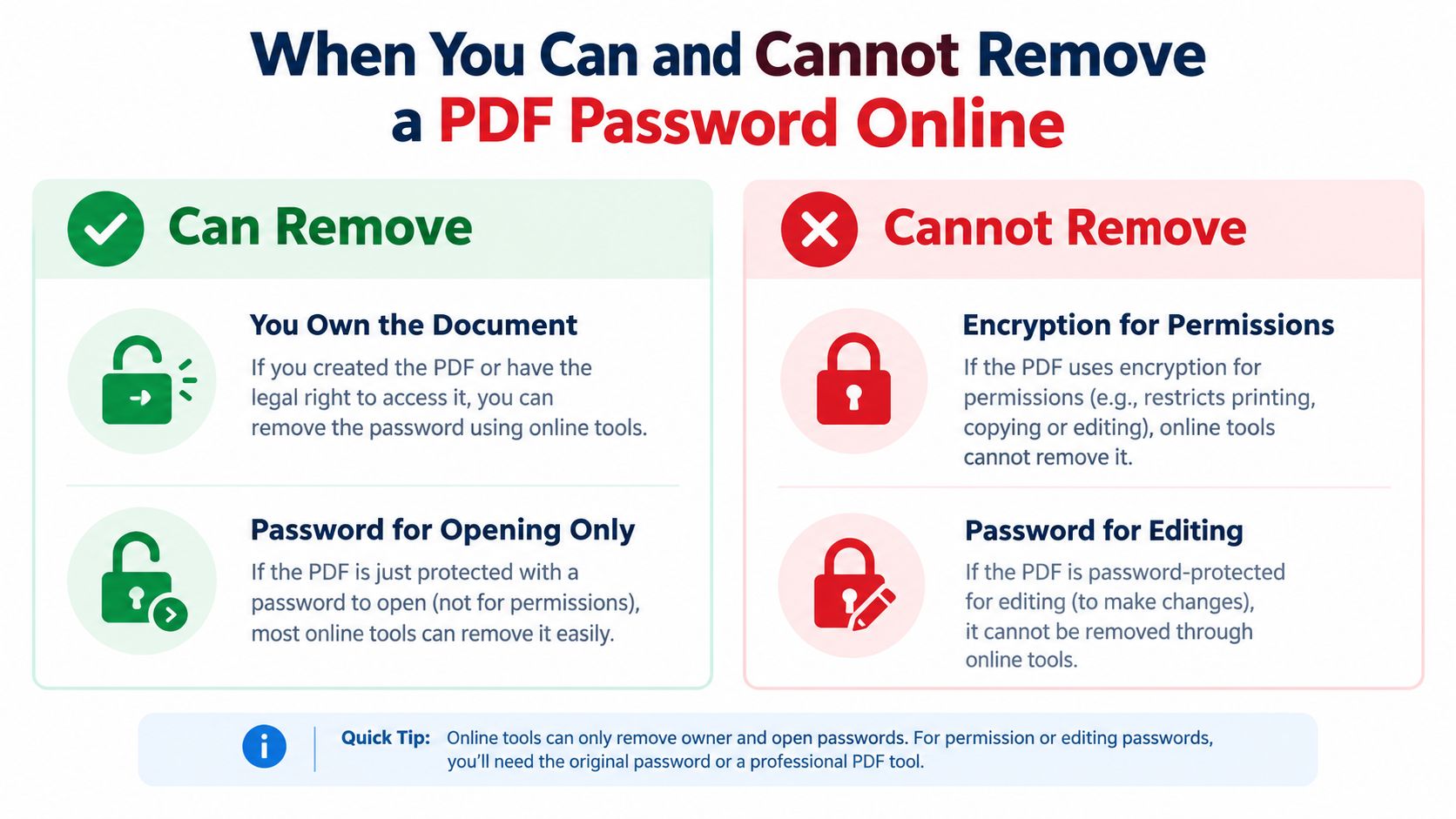
A PDF that opens but blocks printing is a different problem from one that refuses to open. PDF protection has two separate controls. A user password, also called a document-open password, encrypts the file and prevents a reader from decrypting it without the correct password. An owner password, also called a permissions password, controls printing, copying, editing, and commenting.
Those controls provide different levels of protection. Permission settings depend partly on PDF software enforcing them, so some readers and tools can ignore or remove those limits after distribution. That is why “remove PDF password” tools exist. They do not prove that every encrypted PDF can be cracked. Adobe's explanation of PDF password removal distinguishes opening a file from changing its security settings.
The password type decides the outcome
If the PDF opens normally but blocks copying or printing, it may have permissions restrictions only. If the correct owner password is supplied, most tools can remove those restrictions; without it, only weak permission controls can be stripped. Treat that result as a limitation of the restriction model, not a method for defeating encryption.
If the PDF will not open, you need the actual user password. A legitimate free online tool can decrypt the file when you provide that password. It cannot reliably recover an unknown document-open password. Strong passwords and modern encryption can be impractical to recover without the original password. Weak passwords or older encryption are more exposed to dictionary or brute-force attacks, as Adobe's security documentation explains.
Practical rule: If you do not know the password required to open the PDF, stop searching for a “free cracker.” Services promising instant access are misleading at best and dangerous at worst.
Privacy should decide whether you use an online service at all. A public brochure presents little exposure, while a medical record, financial document, or unpublished agreement should stay in a browser-local or offline workflow whenever possible. Online processing is reasonable only when you own the file or have permission to handle it, understand where processing occurs, and accept the provider's data practices.
Only remove protection from a file you created, own, were authorized to handle, or have permission to modify. Circumventing protection on copyrighted material you do not control can violate applicable laws, including the DMCA in the United States. For a practical walkthrough of legitimate access scenarios, see this guide to removing protection from password-protected PDFs.
Browser-Local vs Server-Side Online Password Removal
Online PDF tools use one of two processing models. A server-side remover sends your document to a remote system, processes it there, and returns the result. A browser-local tool uses JavaScript or WebAssembly in your browser tab, keeping the core operation on your device.
That difference matters more than the word “free.” HTTPS protects data in transit, but it does not change the fact that an uploaded file reaches another company's infrastructure. Check whether the service asks for a password, where processing occurs, and when uploaded files are deleted. Adobe's data-safety guidance for removing PDF passwords advises caution with untrusted online tools.
| Criteria | Browser-Local WebAssembly | Server-Side |
|---|---|---|
| Processing location | Inside your browser on your device | On the provider's remote server |
| Internet after page load | Often works without a connection after the tool loads | Usually required for upload and download |
| File size limits | Usually depends on available device memory and browser limits | Often depends on upload ceilings and server limits |
| Typical speed | Fast for ordinary files, affected by your device | Fast when upload and server processing are efficient |
| Password requirement | Known document-open passwords still need to be entered | Known document-open passwords still need to be entered |
| Ideal use case | Personal or moderately sensitive files where local handling matters | Public or low-sensitivity files, especially when local hardware struggles |
For contracts, financial statements, medical records, identification documents, source code, and unpublished research, browser-local processing is the only online approach I'd consider. A server-side service is reasonable for a public brochure or your own resume when you understand its retention practices and accept the privacy trade-off.
Test the provider's claim instead of trusting a badge. Open developer tools, select the Network tab, choose a PDF, and inspect the requests. A genuine local workflow should not send the file payload to an external endpoint. WebAssembly can keep PDF processing in the browser, as explained in this privacy guide to browser-based PDF tools. Before trusting any tool, read this guide to how PDF work in browser tools should operate.
PDFWix offers a concrete browser-based example. Its behavior gives you something specific to inspect rather than a vague promise that your file is “processed securely.” If the file is sensitive and the tool sends it elsewhere, stop and use an offline application instead.
Removing a PDF Password Online Free with PDFWix
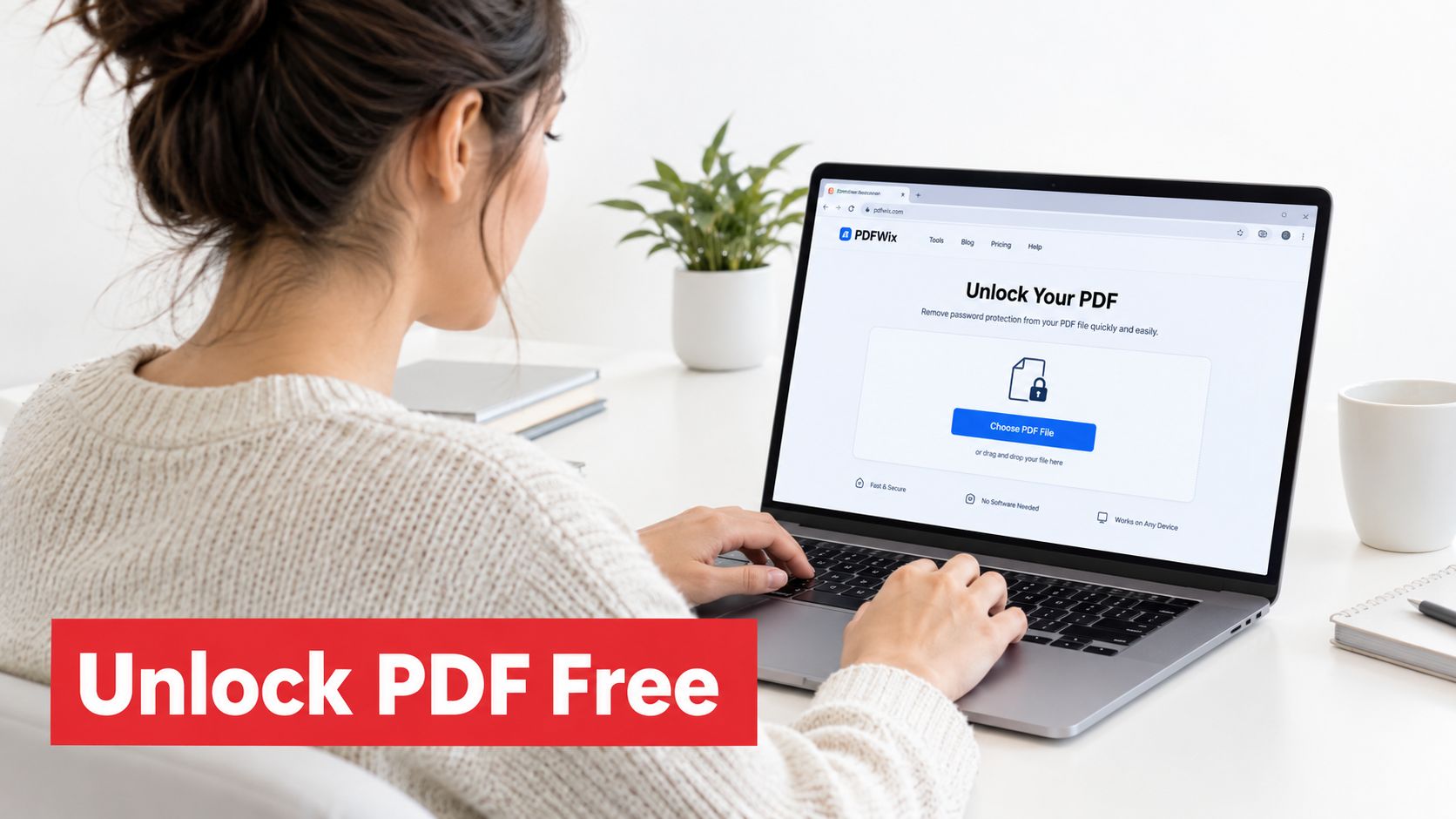
If you have a non-sensitive PDF and already know its password, PDFWix provides a quick browser-based route. Open the PDFWix PDF password removal tool in an updated version of Chrome, Edge, or Firefox. No account or installation is required. Drag the protected file into the upload area, or click it and choose the PDF from your device.
What happens after you select the file
PDFWix reads the document through client-side JavaScript instead of following a standard upload workflow. To verify that behavior, open DevTools, select the Network tab, and then choose the file. If no request carries the PDF payload to an external endpoint, that is stronger evidence than a generic privacy statement.
A PDF with only a permissions restriction may process without asking for a password. If the document requires a password to open, the page displays a password field. Enter the password you already know, then confirm the removal. The tool can decrypt the file when that password is correct. It cannot recover a password you do not have.
After processing succeeds, select Download and save the result under a different filename, such as contract-released.pdf. Keep the original protected copy. Open the new file in a separate browser tab or PDF reader, then test the action you needed, whether that means printing, copying, or editing.
Check the result: A completed process does not prove that every restriction disappeared. Close the original, open the downloaded copy separately, and verify its permissions.
PDFWix processes this tool in browser or in server memory only, never writing files to disk. Very large or unusual documents can still behave differently depending on your device. Its broader toolkit also covers PDF editing, conversion, signing, compression, and protection.
The page works without an account. A browser-local workflow may continue after the page loads if your browser and device retain the required resources. If the file will not open, enter its document-open password. Do not substitute a permissions password copied from an email or file note.
This short demonstration shows the process in action:
If the result fails, check the password type, PDF condition, browser, and viewer cache before trying again. Sensitive files should stay in an offline application when the page sends data away from your device.
Common Failure Modes and How to Fix Them
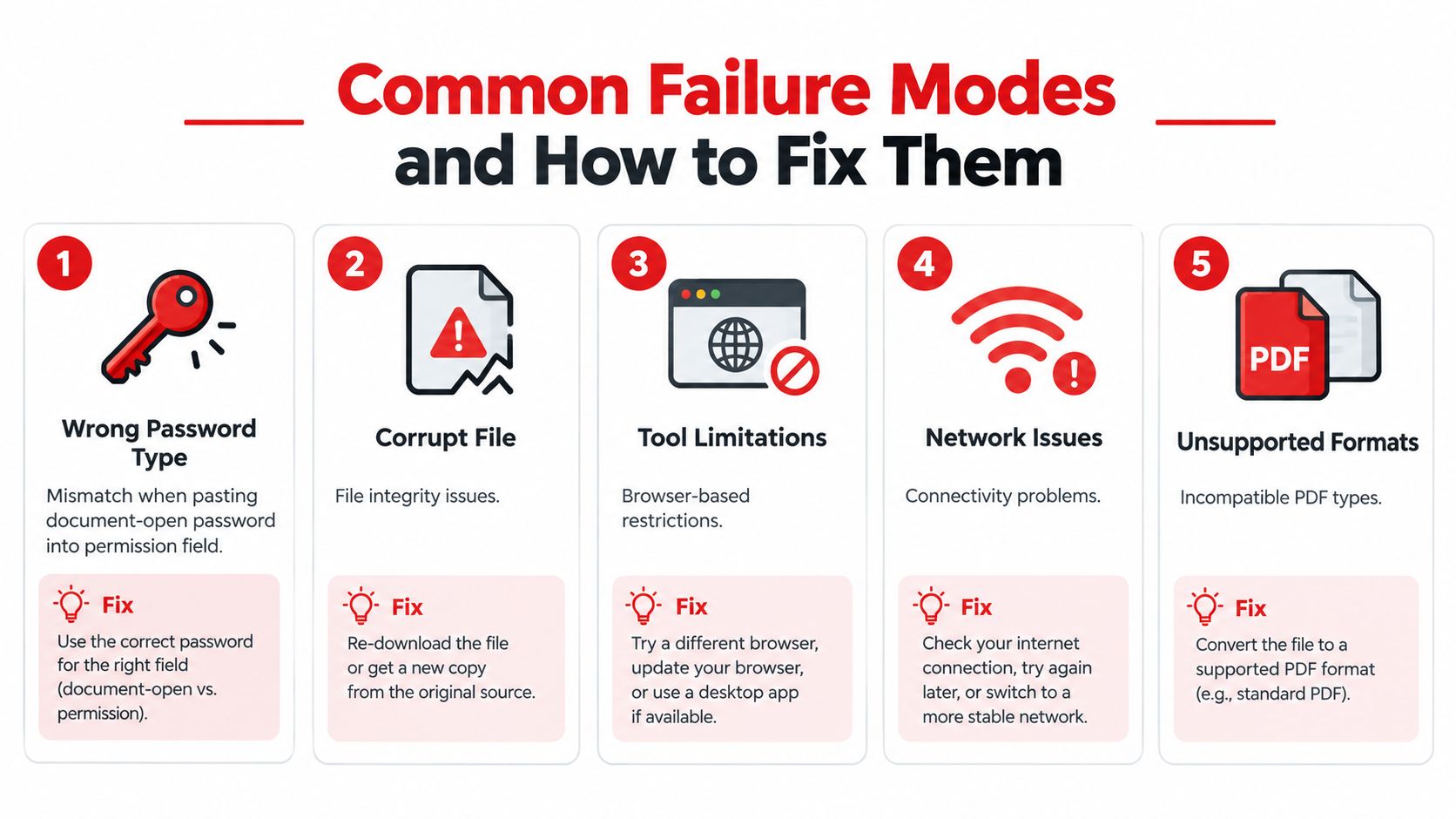
Most failed access attempts aren't mysterious. The visible error usually points to a mismatch between the type of protection, the password entered, or the copy being inspected.
Match the symptom to one fix
-
Wrong password type: The tool immediately reports “incorrect password” after you paste a password that opens the document in Acrobat. That password may be valid for opening, while the tool is asking for the permissions password. Fix: try the password specifically assigned to editing or permissions, or use a workflow that detects the restriction type.
-
Encryption versus restriction confusion: The PDF opens, but printing, copying, or editing is blocked. You may be treating a permissions lock like document encryption. Fix: open the security properties and identify whether the file has a document-open password, permissions password, or both.
-
Corrupt file: The upload finishes, but the tool rejects the document, produces an unreadable result, or shows a blank page. A damaged download or incomplete file copy can cause this. Fix: open the original locally first, then make a fresh copy and test that copy with a PDF repair or validation tool. This guide to checking corrupted files provides a practical diagnostic route.
-
Network interruption: A mobile connection drops during a server-side upload, and the service returns an incomplete or rejected file. Fix: retry on a stable connection, or choose a browser-local workflow that avoids sending the document away.
-
Mobile browser quirks: Safari's autofill overlay can cover the password field, while Android file pickers can return a different file location than the one you selected. Fix: dismiss autofill, confirm the filename before proceeding, and retry from a desktop browser if the selected file keeps changing.
A final problem appears after the tool claims success. The downloaded PDF looks unchanged or empty because the viewer has cached the original document. Save the output under a new name, close the old tab, and open the new file in a separate reader. That takes less than a minute and prevents you from diagnosing a successful removal of the password as a failure.
Safer Alternatives for Sensitive or Locked Files
Use an offline-first rule for anything you wouldn't email to a stranger. That includes medical records, financial statements, contracts containing personal data, source code, and unpublished research. “Free” doesn't mean risk-free when a service receives a copy of the document, and a deletion promise cannot undo exposure during transmission or processing.
For technically comfortable users, qpdf is the cleanest command-line option. With the correct password, run:
qpdf --password=YOURPASSWORD --decrypt input.pdf output.pdf
The command writes the decrypted output on your own machine. It has no graphical interface, so it isn't a good recommendation for someone who wants a point-and-click workflow, but it avoids the upload decision entirely.
If the file belongs to someone else, contact the original owner or sender. Ask for an unprotected copy or the correct permissions password. That may take days, but it's often the simplest route and the only appropriate route when ownership or authorization is unclear.
| Method | Privacy | Speed | Skill Needed |
|---|---|---|---|
| Browser-local tool | Stronger, because the file stays on the device | Fast for ordinary files | Low |
| Server-side unlocker | Depends on provider handling and retention | Often convenient for large files | Low |
| qpdf offline | Highest practical control on your machine | Fast once installed | Moderate |
| Contact original owner | No processing exposure | Depends on the response | Low |
For teams that regularly exchange confidential documents, the larger workflow matters too. Reviewing secure document sharing case studies can help you think beyond password removal and design safer ways to distribute files in the first place.
Don't confuse removing password protection with securing the next copy. If you need to apply a new password or permissions policy afterward, use a dedicated PDF protection tool and verify the result before sharing it. The trade-off is straightforward: qpdf costs convenience, while contacting the owner costs time. Choose either when confidentiality matters more than immediate access.
Choosing the Right Path for Your File
You can make the decision quickly by answering six questions. Don't start by searching for the cheapest tool to remove passwords. Start with the document and its risk.
Use this decision tree
-
Does the file open without a password?
If yes, you're probably dealing with permissions restrictions. Try an authorized removal workflow and test the output. If the file won't open, continue to the next question. -
Do you know the document-open password?
If yes, a browser-local tool is practical for an ordinary file. If no, stop trying random online sites. Recover the password from the owner or an authorized password record. -
Is the document yours or are you authorized to modify it?
If yes, proceed. If ownership is unclear, contact the creator before removing protection. Authorization matters more than technical access. -
Does the file contain information you would shred after reading?
For personal, medical, financial, contractual, or unpublished material, use qpdf offline or ask the owner for an unprotected copy. For a low-sensitivity resume, flyer, or internal draft, browser-local processing is a sensible convenience. -
Will you repeat this task regularly?
For occasional work, use the method that matches the file's sensitivity. For repeated operations, install and document an offline workflow, or bookmark a trusted browser-local tool so you don't make a rushed choice during a deadline. -
Have you verified the output?
Open the downloaded copy separately. Test the exact action you need, then retain the original protected file until you know the new copy works.
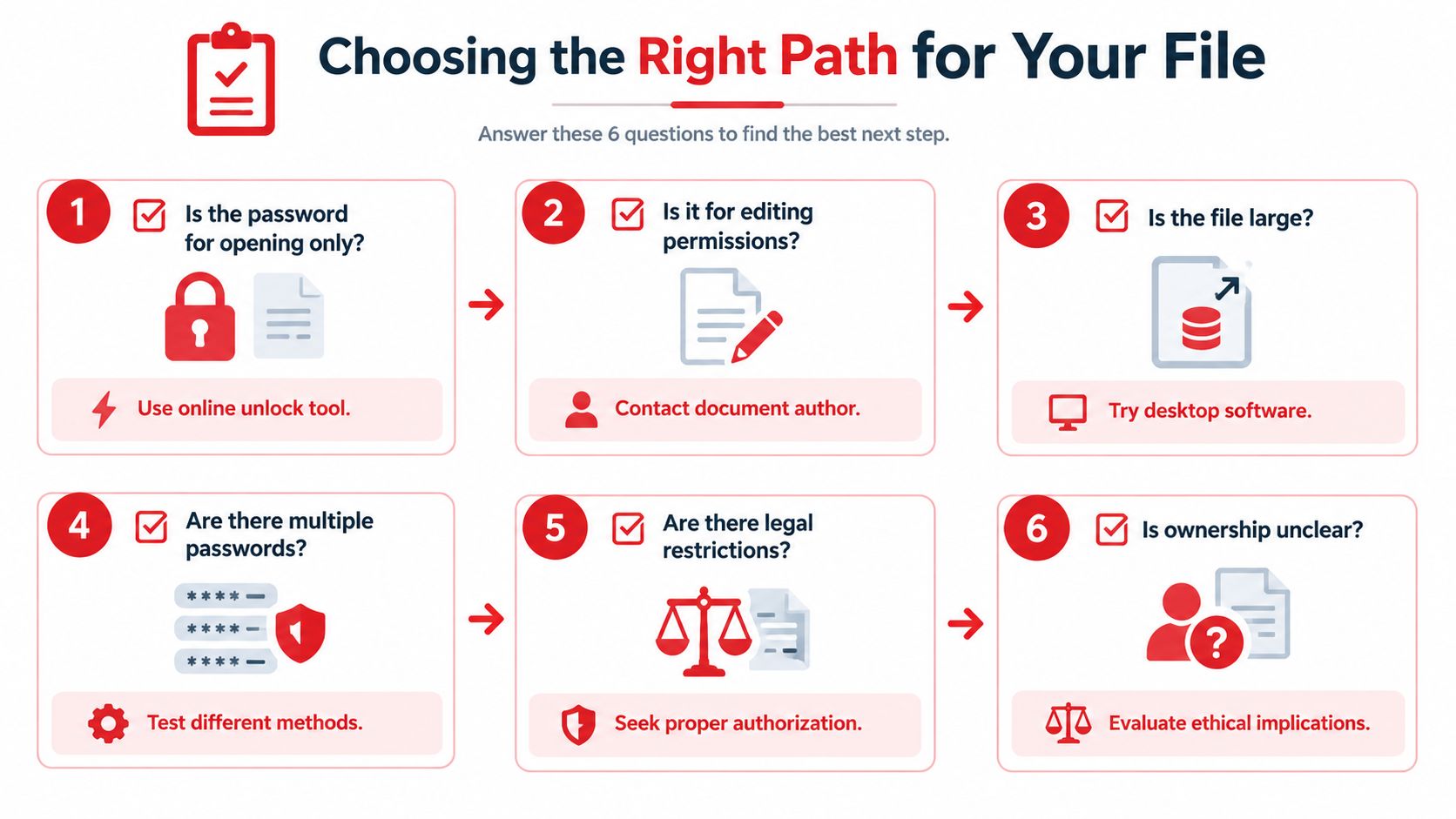
The practical default is simple. Use a browser-local tool for a document you own when the password is known and the content isn't highly sensitive. Use qpdf when privacy takes priority, and contact the original owner when authorization or the password is missing. A large file may also be more comfortable in desktop software, but don't use size as an excuse to upload confidential material without checking the processing model.
Bookmark a trusted local-processing tool before the next lockout happens. That way, you can inspect the file type, choose the right method, and avoid handing a sensitive PDF to an unknown search result.
PDFWix provides a free online PDF protection removal workflow for removing protection from authorized files, with browser-based processing described for the tool and no account requirement. Visit PDFWix when you need a quick way to test a known password or handle a low-sensitivity PDF, and choose qpdf or the original owner for documents that require stricter privacy.