
You need to edit a contract, convert a report, sign a form, or protect a sensitive PDF, but you don't want Acrobat's cost, complexity, or wider ecosystem commitment. That decision is less about finding a single “Acrobat killer” and more about matching the tool to the work: a private browser task has different requirements from legal production, Windows-heavy operations, Apple review, or team administration.
This list of the best Adobe Acrobat alternatives evaluates each product by the workflow it improves. The comparison considers core editing, conversion and OCR, forms and signatures, redaction and compliance, collaboration, privacy, platform coverage, pricing model, and migration effort. Ease of use deserves particular attention. Independent business-trend research found that 35% of respondents choose a PDF editor primarily for ease of use, while 56.5% struggle to identify a reliable alternative (PDF editing software trends). G2's comparison also shows that alternatives can compete closely with Acrobat on usability and recommendation measures, even when Acrobat has a much larger enterprise review base (G2's PDF Editor Comparison).
Use the list to separate quick utility tools from full desktop suites. If your PDF work supports printed materials, you may also need reliable leaflet printing by The Print Warehouse Ltd. Finally, verify current prices, renewal terms, feature availability, and plan limits on each provider's website before purchasing.
Table of Contents
- 1. PDFWix
- 2. Foxit PDF Editor
- 3. Nitro PDF Pro
- 4. Tungsten Power PDF
- 5. Wondershare PDFelement
- 6. PDF-XChange Editor
- 7. Qoppa PDF Studio
- 8. PDF Expert
- 9. Sejda PDF
- 10. Smallpdf
- Top 10 Adobe Acrobat Alternatives, Feature Comparison
- Match the Alternative to the Work You Actually Do
1. PDFWix
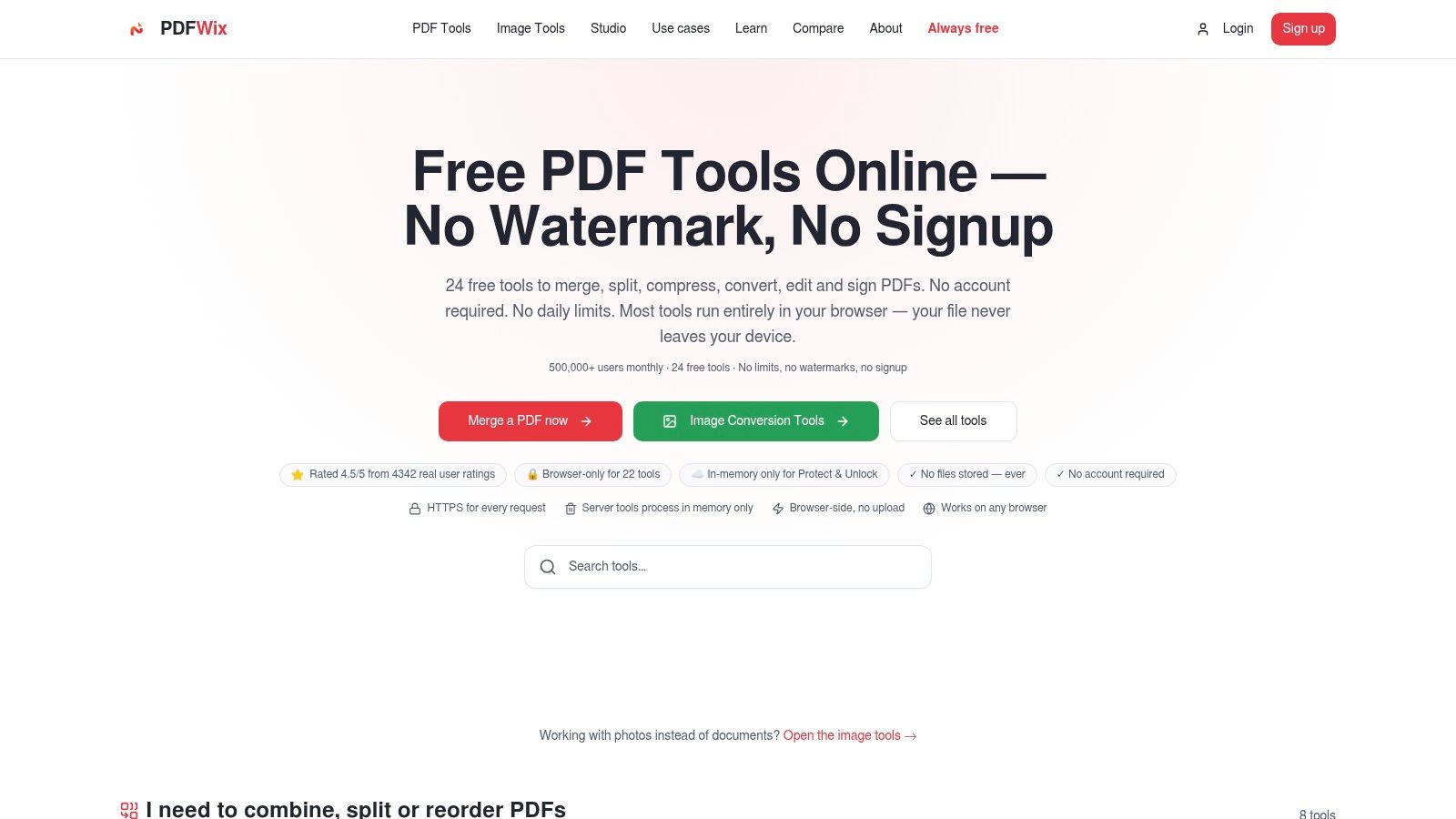
PDFWix is the strongest fit for private, browser-first PDF work. It removes the friction that makes many free online PDF tools impractical: there's no account requirement, no daily task limit, and no watermark on outputs. Its toolkit includes 24 PDF tools for merging, splitting, compressing, converting, editing, signing, redacting, organizing, and securing documents.
The privacy model is the main differentiator. 22 of the 24 tools run locally in your browser through WebAssembly, so those workflows don't require the document to leave your device. Protect PDF and Unlock PDF use server-side processing, but the files are handled in memory only and aren't written to disk. PDFWix also documents HTTPS across requests, no tracking pixels in downloads, GDPR-aligned policies, and a commitment not to read, scan, index, or train models on uploaded documents.
Where PDFWix works best
The browser approach suits students merging coursework, freelancers converting client documents, HR teams filling forms, and legal or healthcare users who need local processing for routine PDF work. It runs on modern browsers across Windows, Mac, iPhone, Android, and Chromebook, with no installation. Browser-side tasks can use files up to the available device RAM, so a capable laptop is a better choice than a phone for a particularly large document.
Privacy rule: Don't judge a browser PDF tool by whether it has a server. Check where the file is processed, whether retention is ruled out, and what the network activity shows. Browser processing can remain local even when a site still uses servers for analytics (browser PDF privacy guidance).
PDFWix also offers a pay-as-you-go developer API using the same WebAssembly engine, with 250 free operations per month to start (PDFWix's browser-based processing overview). That makes it relevant beyond individual editing, especially for teams embedding repeatable PDF operations in an application or internal workflow.
Trade-offs to understand
PDFWix isn't a replacement for every advanced desktop publishing or enterprise document-management requirement. Some advanced conversions and OCR capabilities are still rolling out, and the two server-side security tools have smaller file-size ceilings than the browser-side tools. Those limits matter if your workflow depends on mature OCR, complex prepress controls, or very large server jobs.
For everyday edits, redaction, signatures, forms, compression, and conversions, PDFWix is unusually low-friction. It's the clearest recommendation when privacy, no signup, no watermarking, and unrestricted routine use matter more than a deep desktop ecosystem.
Website: PDFWix
2. Foxit PDF Editor
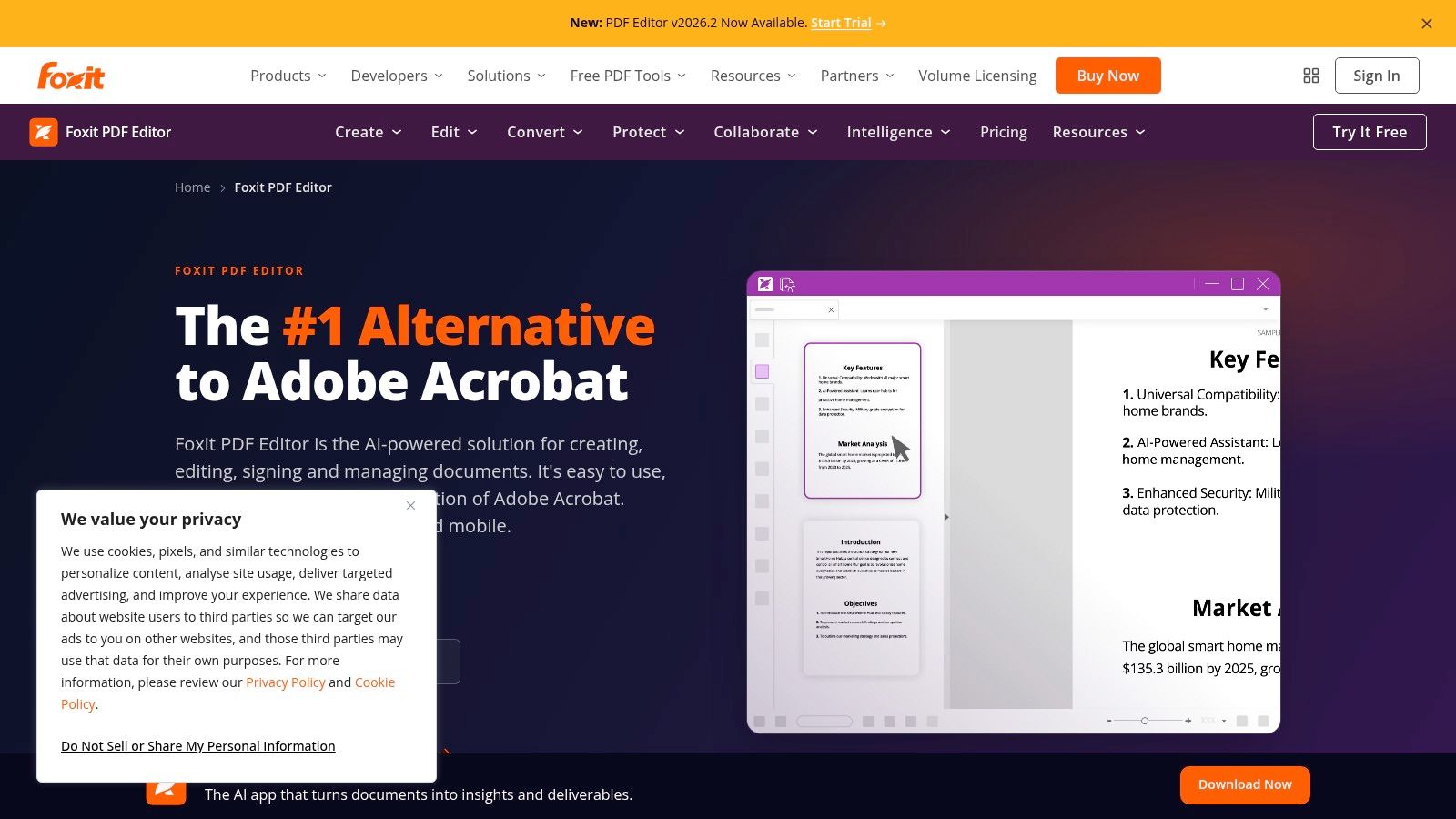
A legal team preparing discovery files, or an operations group maintaining forms across departments, will find Foxit PDF Editor closer to Acrobat than a lightweight browser utility. It supports Windows, macOS, and web workflows for editing text and images, creating PDFs, OCR, forms, signatures, redaction, comparison, Bates numbering, and PDF/A output.
Foxit's advantage is breadth with a business focus. It connects with cloud storage and Foxit eSign, while Foxit Workspace adds document management for organizations that need controlled access beyond a standalone editor. Optional AI features cover summarization, translation, and redaction, but check availability and plan placement before standardizing on them.
Why teams choose Foxit
Foxit's usability results are competitive in the G2 PDF Editor comparison data. The dataset reports 88% ease of use, 93% likelihood to recommend, and 90% quality of support for Foxit PDF Editor. Adobe Acrobat records 91% ease of use and 92% likelihood to recommend there. These figures do not settle every workflow comparison, but they show that Foxit can compete on everyday usability while offering different deployment and licensing choices.
Foxit suits Acrobat users who already rely on form creation, redaction, document comparison, or Bates numbering. Its perpetual-license option also gives organizations a way to avoid an ongoing subscription, although they should confirm which features and support terms apply to that license.
If you need editing, signatures, OCR, and administrative integration in one product, Foxit belongs on the shortlist before assembling several smaller tools.
The trade-off is interface density. Occasional users may face more controls than they need, and full eSign access is limited to the pricier Editor+ tier. Compare existing Acrobat templates, signature processes, and deployment requirements against the specific Foxit plan before migrating. A practical PDF editor app guide can help distinguish basic browser editing from a full desktop workflow.
Website: Foxit PDF Editor
3. Nitro PDF Pro
Nitro PDF Pro suits organizations that want Acrobat parity with a simpler licensing decision. It covers PDF editing, Office conversion, OCR, batch operations, forms, and digital signatures. Nitro Sign adds an eSignature workflow, while the Plus tier includes an admin portal and analytics for teams overseeing a broader deployment.
The product feels most natural in SMB and office workflows. Staff can convert Office files, revise text, prepare forms, review documents, and send files for signature within one product family. That reduces application switching, though specialist legal production and advanced prepress may require a different tool.
Licensing and administration
Nitro offers Standard and Plus plans, alongside a Classic Windows license option. This gives businesses a choice between subscription access and a traditional license. The Classic route is Windows-only, so mixed-platform teams should verify that every user can work consistently on the supported systems.
Nitro also offers a 14-day full-feature trial without watermarking. Use it with representative documents rather than relying on a feature list, as noted on Nitro's product page. Larger-tier pricing may require a direct quote instead of a fixed public dollar amount, which adds a procurement step for larger deployments.
The practical limitation
Nitro's broad feature set has different value depending on the workflow. A solo user who only merges, compresses, and annotates PDFs may find the suite heavier than needed. A distributed business processing recurring forms and approvals has a clearer reason to use the administration and analytics layer.
Test signature routing, converted document fidelity, OCR on your scans, and batch behavior during the trial. Check recurring document types, not just a successful single-file edit, and confirm that the Classic Windows license fits your device mix. For occasional conversions, a lighter tool may be easier to justify. For office teams handling approvals and document queues, Nitro's integrated workflow can reduce handoffs.
Run the 14-day trial against your three highest-volume document types before choosing the Classic Windows license or a Plus subscription.
Website: Nitro PDF Pro
4. Tungsten Power PDF
Tungsten Power PDF, formerly Kofax Power PDF, is built for organizations that treat PDFs as production documents rather than occasional attachments. Legal teams are the obvious audience because the product combines editing, forms, OCR, redaction, Bates numbering, and watched-folder automation. Those tools address the repetitive mechanics of preparing, labeling, and routing document sets.
The perpetual-license model is a major reason to consider it. Standard, Mac, and Advanced editions are available through one-time licensing routes, so organizations don't have to put every user on a subscription to maintain desktop PDF capability. Business deployment options, Microsoft 365 integration, iManage connectivity, and Tungsten SignDoc workflows add the controls expected in a professional environment.
Strong fit for legal production
Bates numbering and redaction deserve more weight than generic “advanced editing” labels. A legal team needs to confirm that redactions are permanent, that numbering survives the final export, and that watched-folder automation behaves predictably under real naming and routing rules. Power PDF is designed around those kinds of operational requirements, not just changing a sentence inside a PDF.
For protected files, a separate local-processing workflow can also be relevant. PDFWix's PDF protection tool offers a simpler browser route for routine password protection, but a law firm evaluating Power PDF should compare the two approaches against its retention, audit, and deployment policies.
Legal workflow test: Validate redaction by trying to copy, search, extract, and inspect the final file after processing. A black rectangle placed over text isn't the same as secure redaction.
The main drawback is lifecycle management. Upgrades aren't included with perpetual licenses, and major releases can require another purchase. Cloud collaboration is also less expansive than some newer rivals. Power PDF is therefore strongest when perpetual ownership, legal controls, and on-premise-oriented deployment outweigh the appeal of a broad cloud ecosystem.
Website: Tungsten Power PDF
5. Wondershare PDFelement
Wondershare PDFelement is a practical budget choice for users who want a friendly interface with more depth than a basic web utility. It supports editing, conversion, OCR, forms, and redaction, then extends into AI functions such as chat, summarization, and translation. PDFelement Cloud adds a connected workflow, while Windows, Mac, iOS, Android, and web availability make it easier to support a mixed-device household or small business.
The product's main appeal is flexibility in how you buy and use it. Subscription and perpetual options are presented together, and promotions can make the entry point attractive. That can work well for freelancers, students, and small teams that need recurring PDF work but don't want the full administrative weight of an enterprise suite.
Where it earns its place
PDFelement handles the common sequence of opening a PDF, correcting text, adding an image or annotation, converting the file, and sending it for review without demanding specialist knowledge. Its AI tools may help users summarize or translate documents, but those capabilities should be evaluated against your privacy rules and the need for internet-connected processing.
Use the guide to editing a PDF without Adobe to distinguish a simple browser edit from a workflow that requires a locally installed editor, OCR, form construction, or recurring batch work.
The trade-off is professional depth. Advanced prepress and compliance tooling is not as extensive as in specialist suites, and promotional pricing varies. Confirm whether a displayed offer covers a one-time license or a renewal, what platforms are included, and which features belong to the chosen tier.
PDFelement makes sense when value, platform coverage, and approachable editing matter most. It's less compelling as the sole standard for a regulated organization that needs mature audit controls, specialized legal production, or tightly governed document retention.
Website: Wondershare PDFelement
6. PDF-XChange Editor
PDF-XChange Editor is the Windows power user's alternative. It runs efficiently, offers granular controls, and supports a perpetual licensing model that suits people who'd rather buy a capable desktop tool than maintain another subscription. The core editor handles annotation and PDF editing, while Editor Plus adds OCR, form creation, and document comparison.
This is a tool for users who care about speed, control, and hardware efficiency. Its interface can feel dense because it exposes many settings and actions, but that density becomes useful once a team standardizes annotation styles, form workflows, and recurring document operations. Flexible bundles, including PDF-Tools and PRO options, let organizations add automation capabilities rather than buying a monolithic package.
Best for a Windows-centered workflow
PDF-XChange Editor fits offices with Windows desktops, modest hardware, and repeatable document tasks. Its perpetual licensing and volume tiers make procurement easier for organizations that want a defined software purchase rather than an expanding collection of cloud seats. Editor Plus is the version to test if OCR, form creation, or comparison is central to the workflow.
The platform limitation is decisive. macOS users need another editor, which can complicate a mixed-device standard. Casual users may also find the controls less immediately approachable than Sejda, Smallpdf, or PDFWix.
Choose it when users spend much of the day inside PDFs and want a configurable Windows application. Don't choose it solely because it has many tools. Test the interface with the people who'll use it, especially if they only need to annotate, fill forms, and export finished documents.
Website: PDF-XChange Editor
7. Qoppa PDF Studio
Qoppa PDF Studio, now branded Xodo PDF Studio, is a strong option for mixed operating systems and regulated environments that prefer a desktop application with perpetual licensing. It supports Windows, macOS, and Linux, which immediately separates it from Windows-only alternatives and many Apple-first products.
The feature set goes beyond basic editing. PDF Studio supports annotation, OCR, form filling and creation, redaction, optimization, preflight, and prepress workflows. Those prepress tools matter to teams preparing documents for controlled output, where file structure and rendering consistency can be more important than a polished cloud dashboard.
Why Linux support matters
A mixed-OS team often ends up compromising. One group uses a Windows editor, another relies on Preview, and Linux users depend on a browser tool. PDF Studio offers a more consistent desktop route, with a per-seat model and the ability to install one user license on two computers. Published volume discounts and optional campus or education pricing can also help organizations with defined user groups.
The interface is more utilitarian than mainstream competitors, and the cloud ecosystem isn't as expansive. That isn't necessarily a problem for a team that wants local control, but it can frustrate users expecting smooth online collaboration or consumer-style simplicity. The rebrand may also cause short-term confusion when searching for documentation or comparing older references.
PDF Studio is best evaluated by document complexity and operating-system coverage, not brand familiarity. Test OCR on your own scans, inspect preflight output, and confirm that forms and annotations survive collaboration with users on other platforms. For an on-premise-oriented team that wants one-time licensing and Linux support, it deserves serious consideration.
Website: Xodo PDF Studio
8. PDF Expert
PDF Expert by Readdle is the Apple-first choice for people who read, mark up, organize, and review PDFs across Mac, iPad, and iPhone. It feels less like a traditional office suite and more like a fast document workspace. Rendering, annotation, page organization, iCloud, and Files integration support a workflow where a document starts on a Mac, gets reviewed on an iPad, and is signed or shared from an iPhone.
The product supports editing text and images, conversion, OCR, markup, and cross-device sync. Its AI PDF Copilot adds summarization and question-answering features, although some advanced capabilities require a Premium subscription. That makes plan checking particularly important for users who view AI as central rather than optional.
The Apple review experience
PDF Expert's value appears during review rather than complex production. A designer can annotate a proof with an Apple Pencil, a manager can review a contract on an iPad, and a user can continue on a Mac without reconstructing the session. The on-device workflow emphasis may also appeal to privacy-conscious Apple users, but verify the behavior of every cloud and AI feature before handling confidential documents.
The obvious limitation is platform coverage. There is no Windows client, so PDF Expert can't serve as a universal corporate standard unless Windows users have a separate approved workflow. It also isn't the first choice for heavy legal production, advanced Bates numbering, or enterprise-wide administration.
Choose PDF Expert when device continuity and a polished Apple experience outweigh cross-platform uniformity. For an Apple-only freelancer or review team, it can be more productive than a heavier Acrobat replacement. For a mixed organization, treat it as a specialist endpoint tool rather than the sole PDF platform.
Website: PDF Expert
9. Sejda PDF
Sejda PDF is designed around the question, “What PDF task are you trying to finish?” Its web interface presents focused tools for merging, splitting, compressing, converting, editing text, and OCR rather than asking occasional users to learn a large desktop suite. Desktop applications for Windows, Mac, and Linux add a local-processing route when uploading a document isn't acceptable.
That combination makes Sejda useful for occasional editors. A user can open the browser tool for a quick conversion, install the desktop app for local work, and upgrade when the free tier becomes too restrictive. The product's paid plan is presented as a predictable step up, with no ads or watermarks in the upgraded workflow.
Convenient, with clear boundaries
Sejda works well for a student reorganizing pages, a freelancer compressing a proposal, or an office worker filling a routine form. The desktop application is particularly useful for sensitive files because it processes documents locally. Its task-oriented design also reduces onboarding friction, which matters for users who may only touch PDFs occasionally.
The limitation is volume and depth. The free tier has task-per-day, file-size, and page limits that can become restrictive for heavy use. Advanced editing and form capabilities are also more modest than those in a full desktop suite. Before adopting it for a team, test your largest regular files and the exact form fields you use.
For forms, compare the workflow with PDFWix's browser PDF form filling guide. Sejda is a good fit when fast access and task clarity matter more than deep document engineering. It isn't the right answer for a legal department that needs extensive Bates, redaction governance, or enterprise administration.
Website: Sejda PDF
10. Smallpdf
Smallpdf is one of the easiest online alternatives for people who need to compress, merge, split, convert, or protect a PDF without installing a complex editor. Its web tools are approachable, and desktop applications for Windows and macOS provide an offline route for core tasks. Team plans and a simple interface make it suitable for non-technical users who need a consistent set of common operations.
The product is strongest as a utility layer. A sales team can compress an attachment, an administrator can merge a document pack, and a freelancer can convert a PDF before sending it to a client. OCR and eSign integration through Sign.com extend the workflow, but advanced editing and form design remain lighter than in professional desktop suites.
Know when utility becomes a constraint
Smallpdf is easy to introduce because users don't need much training. That convenience can hide a procurement issue, however. Some features sit behind higher subscription tiers, and organizations handling confidential documents need to understand whether a particular task runs locally or through a cloud service.
Use the PDF compression software guide when deciding whether compression is an occasional browser task or part of a broader private workflow. If your team regularly edits text, builds forms, performs secure redaction, or needs detailed administrative controls, test Smallpdf against Foxit, Nitro, or Tungsten Power PDF instead of assuming a popular web suite will cover those requirements.
Smallpdf is a sensible choice for accessible, repeatable everyday PDF tasks. It's not a universal Acrobat replacement, and its value declines when the workflow depends on specialist editing, deep compliance controls, or extensive offline production.
Website: Smallpdf
Top 10 Adobe Acrobat Alternatives, Feature Comparison
| Tool | Core features ✨ | Quality ★ | Price / Value 💰 | Best for 👥 | Standout USP |
|---|---|---|---|---|---|
| PDFWix 🏆 | 24 tools: merge/split/convert/edit/sign/secure, 22 run in‑browser | ★★★★☆ (4.5/5) | Free/no signup; API pay‑as‑you‑go (250 free ops) 💰 | Students, freelancers, legal & HR teams, developers 👥 | In‑browser WebAssembly privacy, files stay local; no limits/no watermarks 🏆 ✨ |
| Foxit PDF Editor | Full editor, OCR, forms, eSign integration | ★★★★☆ | Subscription + perpetual options; tiered business pricing 💰 | Teams & enterprises 👥 | Perpetual license option and strong eSign/cloud connectors ✨ |
| Nitro PDF Pro | Edit/convert/OCR, digital signatures, admin & analytics | ★★★★☆ | Subscription + Classic Windows license; enterprise pricing 💰 | SMBs and larger orgs 👥 | Enterprise admin/analytics + Classic Windows license ✨ |
| Tungsten Power PDF | Edit/forms/OCR, redaction, Bates, watched‑folder automation | ★★★★☆ | Perpetual licensing; transparent Advanced pricing 💰 | Law firms & organizations preferring one‑time buy 👥 | One‑time licensing tailored for legal workflows (Bates, redaction) ✨ |
| Wondershare PDFelement | Edit/convert/OCR, AI features, cloud integration | ★★★☆☆ | Aggressive promotions; low entry pricing (renewal varies) 💰 | Budget-minded users & small teams 👥 | Value pricing + AI/cloud features on multiple platforms ✨ |
| PDF‑XChange Editor | Lightweight Windows editor, OCR (Editor Plus), virtual printer | ★★★★☆ | Very low perpetual license pricing; flexible bundles 💰 | Windows users needing performance/value 👥 | Fast, efficient Windows‑centric tool with low cost ✨ |
| Qoppa PDF Studio | Edit/annotate/OCR, prepress, optimization; Linux support | ★★★★☆ | Perpetual licensing with clear per‑seat pricing 💰 | Mixed‑OS teams, privacy‑minded & on‑prem deployments 👥 | Linux support + one‑time licensing for regulated environments ✨ |
| PDF Expert (Readdle) | Edit, annotate, OCR, iCloud sync, AI Copilot on Apple devices | ★★★★☆ | Paid app; Premium for advanced AI/features 💰 | Mac, iPad & iPhone users (Apple ecosystem) 👥 | Best‑in‑class Apple UX and on‑device workflows ✨ |
| Sejda PDF | 40+ task tools (merge/split/compress/edit), desktop for local processing | ★★★☆☆ | Free tier with limits; Pro subscription for more capacity 💰 | Occasional web users who want desktop local processing 👥 | Task‑oriented web UI + local desktop processing option ✨ |
| Smallpdf | Web tools + desktop apps: convert/compress/merge/split/protect | ★★★★☆ | Subscription/team plans; some features behind higher tiers 💰 | Teams standardizing frequent PDF tasks 👥 | Very approachable UI with desktop+web flexibility ✨ |
Match the Alternative to the Work You Actually Do
There isn't one universal winner among the best Adobe Acrobat alternatives. The right choice depends on where the document is processed, how often users handle PDFs, which devices they use, and whether the workflow needs specialist controls.
Students and occasional users should start with frictionless conversion, annotation, page organization, and form filling. PDFWix, Sejda PDF, and Smallpdf are practical when the goal is to finish a discrete task without learning a heavyweight editor. PDFWix has the clearest privacy and no-friction position because it requires no account, adds no watermark, and imposes no daily task limits. Sejda's desktop application is attractive when local processing matters, while Smallpdf is particularly approachable for simple web tasks.
Freelancers and independent contractors need a broader balance. Platform coverage, predictable output, signing, conversion, and client compatibility usually matter more than an unusually long feature list. PDFWix works well for browser-first jobs, PDFelement offers broad device coverage, and Foxit or Nitro make more sense when editing, OCR, forms, and signatures become daily work.
Legal and regulated teams should inspect redaction, Bates numbering, local processing, deployment, and upgrade policies before comparing interfaces. Tungsten Power PDF is designed around legal production, Foxit includes Bates and redaction capabilities, and PDF Studio adds prepress and desktop coverage across Windows, Mac, and Linux. PDFWix is compelling for private browser tasks, but regulated teams should validate every server-side operation, retention policy, signature requirement, and audit expectation against their internal controls.
Teams and administrators should compare administration, analytics, eSign capacity, integrations, and deployment depth. Nitro provides an admin portal and analytics in its Plus offering. Foxit connects editing with Foxit eSign and Workspace, while Tungsten supports business integrations such as Microsoft 365 and iManage. A low per-user cost doesn't compensate for a missing deployment control or an eSign allowance that sits in a higher tier.
Windows power users should consider PDF-XChange Editor for performance, granular control, and perpetual licensing. Nitro and Foxit offer broader commercial ecosystems, while Tungsten Power PDF is stronger when legal tooling and one-time licensing take priority. Apple users should prioritize device continuity, where PDF Expert stands out across Mac, iPad, and iPhone. Mixed-OS organizations should be careful about making an Apple-first editor their only standard.
Developers should evaluate API access instead of forcing an end-user editor into an automated pipeline. PDFWix exposes the same browser-oriented engine through a pay-as-you-go REST API, including 250 free operations per month for initial use (PDFWix API information). That route is better suited to embedded document processing than asking staff to repeat manual conversions.
A migration should be deliberate:
- Inventory Acrobat-dependent tasks: List editing, OCR, forms, signatures, redaction, Bates numbering, comparison, compression, and automated actions.
- Preserve source files and templates: Keep originals, reusable form templates, signature assets, and approved document versions before changing tools.
- Test fonts and form behavior: Open representative files on every target platform and confirm that fields, fonts, calculations, and tab order remain usable.
- Validate signatures and redactions: Confirm signature workflows, certificate handling, and irreversible redaction behavior on exported documents.
- Compare converted documents page by page: Check layout, images, links, tables, page breaks, and searchable text rather than trusting a successful export message.
- Confirm retention and processing policies: Document whether files stay local, enter server memory, remain stored, or are used by connected AI features.
- Pilot with representative files: Include ordinary documents, the largest routine files, damaged PDFs, scanned pages, complex forms, and sensitive material.
- Document fallback procedures: Give users a supported alternative for failed conversions, unavailable services, unsupported platforms, and urgent signature work.
PDFWix is especially compelling for private browser-based work when no account, no watermark, and no daily task limits matter. Readers who need deep desktop publishing, enterprise controls, mature advanced OCR, or specialist legal production should validate those requirements before switching. The sensible decision isn't to replace every Acrobat workflow with one product. It's to assign each workflow to the tool that handles its risk, platform, and operational demands most reliably.
PDFWix offers 24 browser-based PDF tools for merging, splitting, compressing, converting, editing, signing, redacting, and securing documents, with 22 tools processing files locally through WebAssembly. Visit PDFWix to test a no-account, no-watermark workflow for everyday PDF tasks before committing your team to a larger Acrobat replacement.