
A PDF can shrink by 91.5% when it's a scanned document, but the median best-case saving across 21 real PDFs was only 14.4%, so the right approach depends on what's inside the file. Diagnose the document first, then compress its images, structure, or OCR layer instead of dragging a quality slider at random.
You know the moment. An upload portal rejects your file seconds before a deadline, an email attachment is too large to send, or a client opens a document and waits while a heavy scan loads. The obvious response is to search for the strongest compression setting, but that can make charts muddy, remove searchable text, or even produce a larger file.
PDF compression is diagnosis before treatment. A five-page scanned contract and a long text report may both end in .pdf, yet they need opposite strategies. The scan usually contains oversized page images. The report may already store text efficiently and gain more from font cleanup or removal of unused objects.
Table of Contents
- Why Your PDF Is Too Big in the First Place
- The Compression Standards Working Inside Every PDF
- Shrinking Images the Smart Way
- Trimming Fonts, Metadata, and Hidden Bloat
- Matching the Workflow to the Scenario
- Quality Risks and How to Verify the Result
- A Recommended PDFWix Workflow for Every Case
Why Your PDF Is Too Big in the First Place
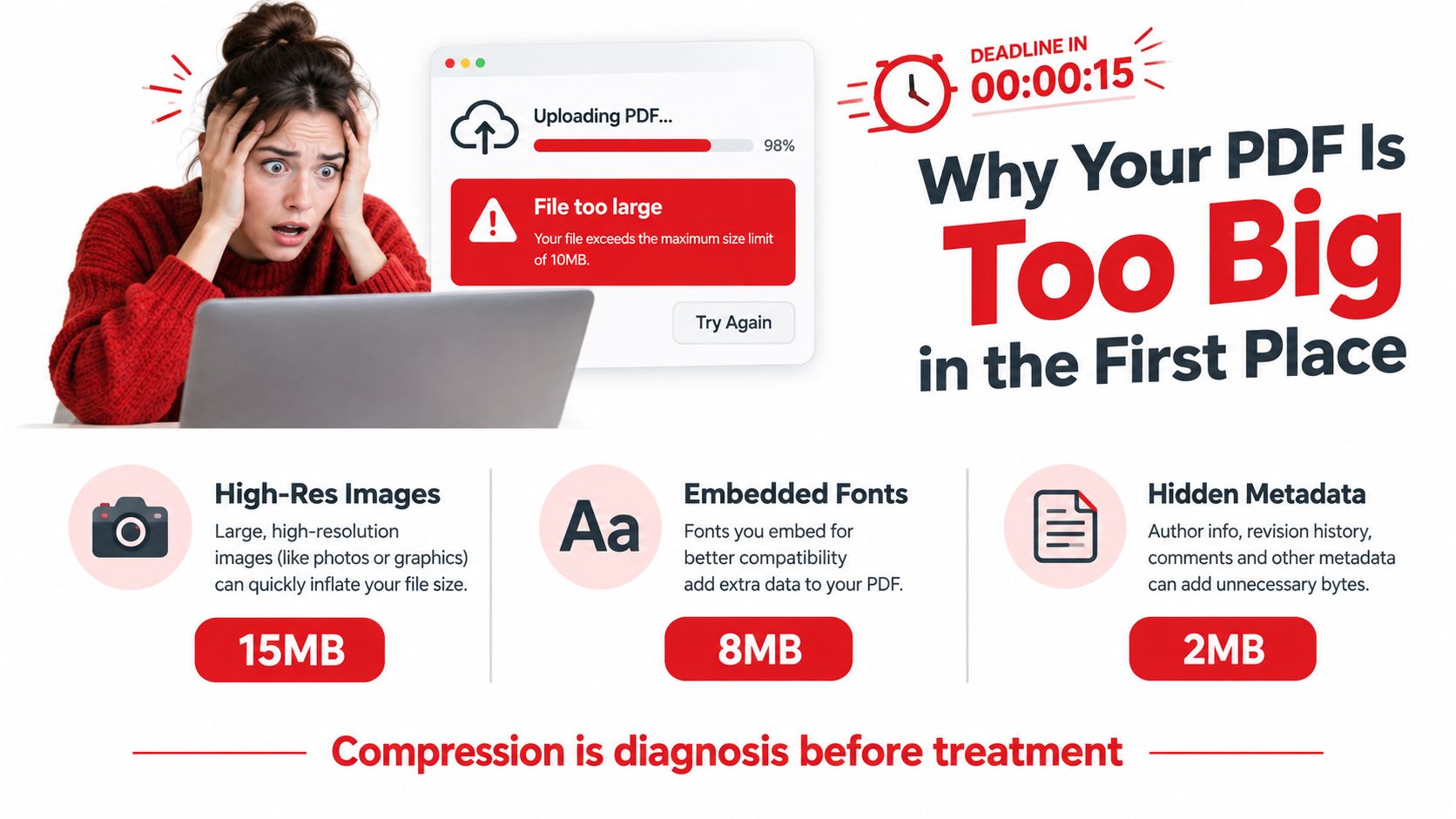
A PDF's page count tells you very little about its size. The actual weight may sit in embedded images, font resources, document layers, form data, attachments, or duplicated objects. Adobe's optimizer guidance describes several structural sources of reduction, including font subsetting, transparency flattening, and removal of thumbnails, search indexes, forms, multimedia, and private data in suitable cases (Adobe's advanced PDF size reduction guidance).
Start with the dominant source of bloat
Scanned pages are often the first suspect. A scan is an image of a page, and an image saved at unnecessarily high resolution carries far more pixel data than a screen reader or ordinary office printer needs. If the scan also contains a separate OCR layer, the file may include both the page image and hidden searchable text.
Image-heavy layouts create a similar problem. Brochures, slide exports, portfolios, and reports may contain photographs or screenshots that were inserted at a resolution intended for print, even though the PDF will be viewed on a screen. Re-encoding those images with a suitable profile usually has more effect than changing text streams.
Fonts can also add weight. A PDF may embed complete typefaces even though the document uses only a small set of characters, or it may carry repeated font resources from several authoring stages. Subsetting keeps only the glyphs the document uses, although removing fonts entirely can cause substitutions on another device.
Then there are the less visible contributors:
- Unused layers and objects can remain after editing.
- Thumbnails and metadata may be carried over from authoring software.
- Attachments, comments, forms, and scripts can sit inside the file even when the visible pages look simple.
- Transparency groups may preserve layered rendering instructions that the recipient doesn't need.
Text-only PDFs are different. Their text streams and vector information often compress efficiently with FLATE, so forcing aggressive image-style compression may deliver little benefit. The practical explanation of PDF compression standards notes that non-image content commonly receives about 50% compression with LZW or FLATE, while the largest gains generally come from image data.
If you regularly face this problem, keep this guide to why PDF files become so large nearby. The useful habit is simple: inspect the document category before choosing the treatment.
The Compression Standards Working Inside Every PDF
PDF compression isn't one universal process. A PDF writer selects different methods for different kinds of content, much like an editor chooses a file format based on whether the source is a photograph, a diagram, or plain text.
FLATE, also called ZIP compression in many PDF settings, is the general-purpose workhorse. It looks for repeated patterns in text streams, vector paths, and other structured data. It doesn't remove visual detail, so it's a sensible choice where exact fidelity matters, but it won't transform a high-resolution scan into a small file by itself.
JPEG, based on DCT compression, suits photographs and continuous-tone images. It reduces data by discarding detail that may be difficult to notice at normal viewing sizes. The trade-off is permanent image change. Repeatedly saving the same image with JPEG compression can create blockiness, halos, and softened text inside screenshots.
CCITT Group 4 is designed for pure black-and-white imagery, especially scans of printed pages. It works well when each pixel is only black or white, but it isn't appropriate for photographs or pages containing meaningful color and shading.
JBIG2 uses pattern matching and dictionaries to compress monochrome page images, particularly when the page contains repeated letterforms and typeset text. It can be very effective for text-dominant scans, but a careless configuration can confuse similar shapes, so searchable or legally important documents need careful verification.
| Standard | Best for | Typical reduction | Quality risk |
|---|---|---|---|
| FLATE | Text, vectors, repeating data | About 50% compression for non-image content in the cited technical reference | Low, because it preserves data |
| JPEG | Photographs and gradual-tone images | Can produce major savings in image-heavy pages, sometimes 10 times or more | Loss of detail, blocking, halos |
| CCITT | Pure black-and-white page scans | Often very compact for monochrome documents | Poor fit for color or grayscale content |
| JBIG2 | Text-dominant monochrome scans | Page images may reach about 5% to 2% of original size in suitable cases | Character substitutions if handled aggressively |
The practical lesson is that an optimized PDF depends on matching the encoder to the content. A plain-language explanation of optimized PDFs can help clarify why optimization involves more than lowering image quality.
Shrinking Images the Smart Way
Downsampling and recompressing embedded images are usually the most impactful moves in an oversized PDF. Downsampling removes pixels by lowering image resolution. Recompression decodes the existing image and encodes it again under a chosen profile. Adobe explains the downsampling role in its PDF Optimizer settings, while Datalogics describes why these two operations often drive the largest reductions in image-heavy files.
Choose resolution by the document's destination
Don't begin by asking how small the file can become. Ask how the recipient will use it.
- Screen-only documents can often use a lower image resolution because monitors don't display every pixel held in a print-ready asset.
- Email and routine reading usually need enough detail for ordinary text, diagrams, and photographs to remain comfortable at normal zoom.
- Mixed screen and print use calls for a more conservative setting, especially when small labels or signatures matter.
- Press or production output requires preserving substantially more image detail than a portal upload.
Those are use-case decisions, not universal presets. A document that looks sharp in a browser may print poorly, while a print-focused file may be unnecessarily heavy for a digital approval workflow.
The benchmark evidence reinforces that range. In a study of 21 real PDFs, a scanned document reached 91.5% reduction, while text-heavy publications achieved only 7.0% median best-case savings and interactive forms just 2.1%. A separate benchmark reports scanned or image-only files as the strongest candidates, with slide decks around 40.0%, mixed text-and-figure files around 32.4%, and image-heavy reports around 14.4% under its test conditions.
Match the image encoder to the visual material
Use JPEG for photographs, gradients, and other continuous-tone imagery. Use ZIP or FLATE for line art, logos, diagrams, and screenshots where crisp edges and flat colors matter. JPEG can introduce visible ringing around text and geometric edges, even when it looks acceptable on a photograph.
Grayscale can help when color carries no meaning, but don't remove color from a map, annotated contract, medical image, or branded presentation if the color communicates status or structure. Flattening transparent layers may also simplify the file, though you should inspect overlays, annotations, and blend effects afterward.
PDFWix's image compression tool fits this image-first workflow by giving you a browser-based place to handle image assets before they become the dominant source of PDF weight. The clear recommendation is to reduce unnecessary pixels first, then adjust encoding, rather than applying maximum compression to every object indiscriminately.
Trimming Fonts, Metadata, and Hidden Bloat
When image optimization barely changes the file, stop lowering image quality. The document may be structurally heavy instead. Adobe lists font handling, transparency, thumbnails, search indexes, forms, multimedia, and private data among the areas that can affect size (advanced PDF optimization options).
Work from safer edits to riskier edits
Font subsetting is often the first structural adjustment. Instead of embedding an entire typeface, the PDF can retain only the glyphs used by the document. This helps when a report uses a small portion of a large font family. Keep an eye on multilingual documents, unusual symbols, and future editing needs, because a subsetted font may not contain characters added later.
Metadata is usually less central to visual quality. Document information, XMP history, producer details, and embedded thumbnails can often be removed when the file doesn't need that history for governance or audit work. Metadata may still matter for accessibility, records management, provenance, or internal search, so treat “unused” as a business decision, not merely a technical label.
Attachments and scripts deserve more caution. Removing an embedded spreadsheet, JavaScript action, comment layer, or form data may make the PDF smaller, but it can also change what the recipient is expected to do. A filled form isn't disposable overhead, and an attachment may be part of the record.
Practical rule: Preserve anything the recipient must search, fill, validate, audit, or rely on. Remove only what you can identify as unnecessary for that workflow.
Transparency flattening merges layered visual instructions into a simpler rendering model. It can reduce complexity, but it may affect editability and the appearance of overlapping objects. Accessibility requires separate care. Tagged structure, logical reading order, form fields, and alternative text can be more important than a modest size reduction.
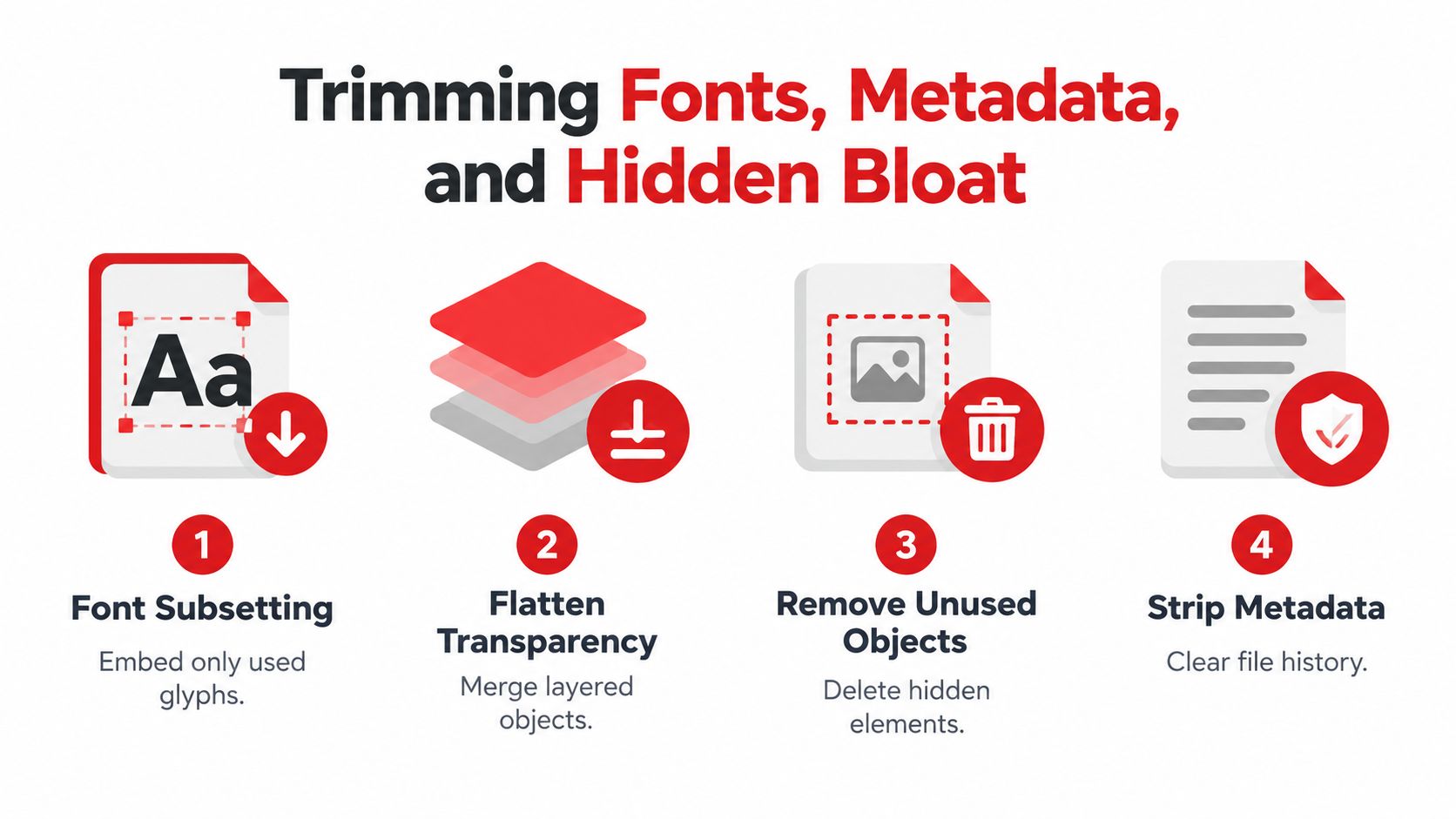
A sensible order is subset fonts, clear metadata and thumbnails, review attachments and scripts, then consider flattening transparency. Use PDFWix's metadata editor when metadata itself needs inspection or controlled cleanup. This sequence moves from relatively contained changes toward edits that can affect behavior, accessibility, and later editing.
Matching the Workflow to the Scenario
The right target isn't always the smallest possible PDF. A portal may impose a hard ceiling, while an archive may prioritize fidelity and future retrieval. A scanned contract may need a searchable OCR layer, whereas a text report may need almost no visual treatment.
| Scenario | Priority lever | Target size | Quality trade-off | Keep original? |
|---|---|---|---|---|
| Email attachment | Downsample oversized images, then remove unnecessary structural data | Fit the recipient's attachment limit | Accept modest image reduction for screen reading | Yes |
| Portal with a strict cap | Diagnose the largest objects, then use the strongest acceptable image profile | Meet the portal's stated ceiling | Reduce print quality only if the submission allows it | Yes |
| Long-term compliance archive | Preserve searchable text, tags, metadata required by policy, and visual fidelity | Use the smallest size that remains audit-safe | Favor integrity over aggressive reduction | Always |
| Searchable scanned contract | Optimize the page images while retaining or rebuilding OCR | Meet the sharing limit without losing search | Accept image reduction, not loss of text recognition | Yes |
The email copy
For a routine email, begin with photos and full-page scans. If the pages are already text-based, structural cleanup may be enough. Don't remove fields, signatures, comments, or attachments just because they add weight. A recipient who needs to complete the document values function more than a marginally smaller download.
The portal submission
A strict upload ceiling changes the order. First identify whether the file is mostly images, a scan, or a complex export. Then create a submission copy, preserve the original separately, and verify that the portal-required features still work. If the file remains too large, stronger image reduction may be justified, but only after you know what visual information can safely be sacrificed.
For a long academic document, a resource such as this literature review sample PDF can be useful when checking how text-heavy publications differ from scan-led files. The key distinction is not length alone. A long text report may have limited compression headroom, while a short document made from large page images may shrink substantially.
The archive and the contract
Archiving isn't a contest to reach the smallest number. Preserve the original, document the processing decision, and retain the properties required for search, accessibility, provenance, and review. For a searchable contract, test OCR after compression. If recognized text disappears, image reduction solved the wrong problem.
Quality Risks and How to Verify the Result
Compression fails when the editor checks only the file size. A smaller file can still be unusable if a signature becomes unreadable, a chart loses labels, or search no longer finds a clause.
Look for the failures people miss
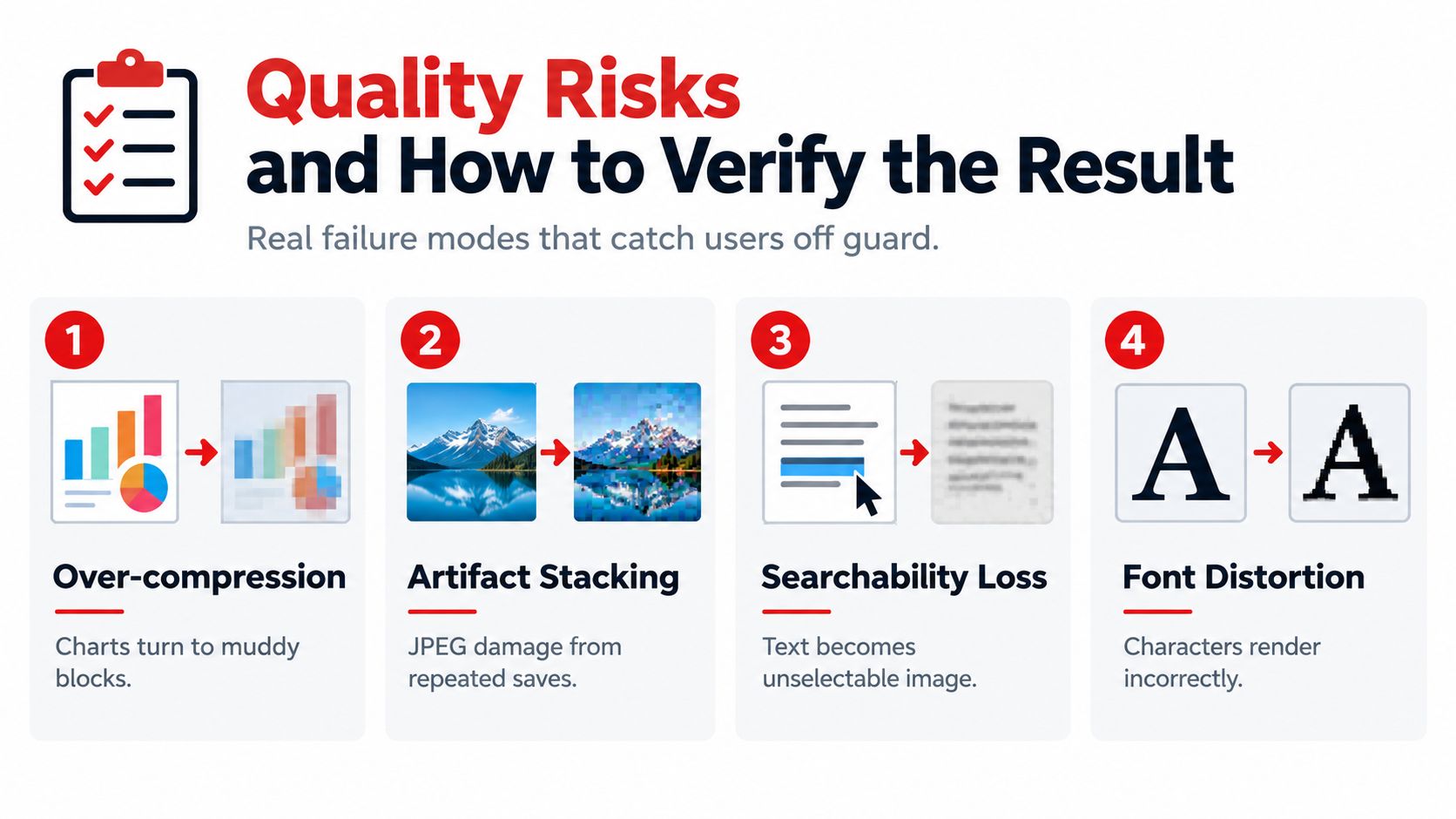
Over-compression turns fine lines, small type, and charts into muddy blocks. This is especially easy to miss in a thumbnail preview.
Repeated recompression stacks JPEG damage. Each new save can soften edges further, so work from the original whenever you need another version instead of compressing an already compressed copy.
Searchability loss occurs when a tool drops the OCR layer or rasterizes text without rebuilding recognition. The pages may look identical while searches, copying, and accessibility tools stop working.
Font fallback can produce missing-glyph boxes or unexpected character shapes when subsetting is too aggressive. Multilingual pages and technical symbols deserve extra attention.
Accessibility regression can happen when tagged structure, logical reading order, alternative text, or form semantics are stripped during cleanup. A visually accurate PDF isn't automatically accessible.
Use a short acceptance check
Open the compressed file at 100% and 200%. Inspect small text, signatures, diagrams, photographs, and areas where text sits over an image. Run a search for a word that you know appears in the document, then select and copy a passage if the workflow requires selectable text.
Check that the page count, links, bookmarks, form fields, comments, and attachments behave as expected. Compare the original and compressed sizes, but treat the result as approved only after reading the file from start to finish.
Keep the original on disk until the compressed copy has been opened, checked, and signed off.
For sensitive records, preserve a clear naming distinction between the source and the delivery copy. That prevents a later editor from mistakenly treating a reduced, flattened, or OCR-altered file as the only authoritative version.
A Recommended PDFWix Workflow for Every Case
A reliable workflow begins before compression. Identify whether the PDF is a mixed office document, an image-heavy layout, an image-only scan, or a searchable scan with an OCR layer. Then select a tool that matches the diagnosis instead of expecting one preset to handle every document equally.
PDFWix provides browser-based PDF tools for this workflow, including compression, optimization, image handling, and OCR-related processing where available. Its publisher states that most tools run in the browser through WebAssembly, which means files processed by those tools can remain on the device. Server-side protection tools are described as operating in memory without writing files to disk, so check the current product behavior and privacy terms for the specific operation you choose.
Use the matching path
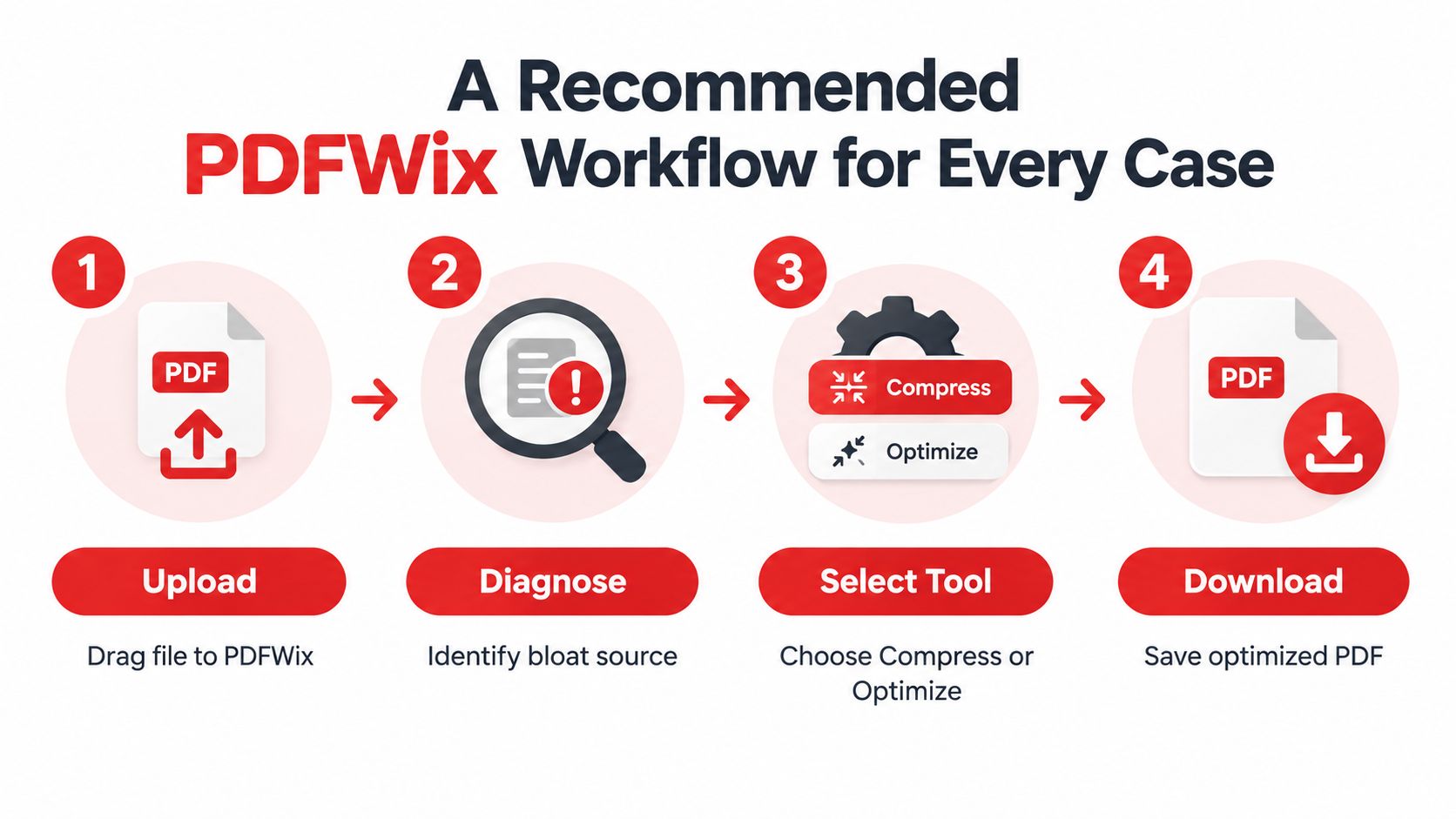
- Upload a working copy. Keep the original untouched, especially for contracts, invoices, medical records, academic submissions, and compliance files.
- Diagnose the bloat. Look for full-page images, oversized photographs, duplicated fonts, hidden objects, attachments, or missing and unnecessary OCR layers.
- Select the tool. Use PDFWix's Compress PDF workflow for mixed office files, an optimization path for image-heavy layouts, image compression for image-led content, or a scan-focused workflow when OCR needs to remain part of the result.
- Fix the obvious source first. Downsample suitable images, choose JPEG for photographs and ZIP or FLATE for crisp graphics, then apply structural cleanup where appropriate.
- Verify before delivery. Check visual quality, search, page behavior, accessibility requirements, and the destination's size limit.
- Escalate only when needed. If searchable text was lost, rebuild or re-run OCR rather than continuing to lower image quality.
The result doesn't need to be the smallest possible file. It needs to be small enough for its destination, clear enough for its readers, and faithful enough for its purpose. Consistent diagnosis beats one-click guesswork.
PDFWix offers browser-based tools for compressing and optimizing PDFs, handling images, editing metadata, and supporting OCR-related workflows without requiring an account for its web tools. Visit PDFWix with a working copy of your document, identify what is making it heavy, and create a verified delivery version before your next upload or email.