
You've just finished a contract, hiring packet, tax return, or sealed filing. The PDF looks final, so you click “protect,” type a password, and send it. Then the recipient opens the document without a password, or a reviewer discovers that copying and editing were never restricted in the first place.
That happens because password-protecting a PDF isn't one control. A PDF can require a password before anyone views it, or it can remain readable while restricting actions such as printing, copying, and editing. If you're learning how to lock PDF with password protection, the first decision isn't which button to click. It's what you need the recipient to be unable to do.
Table of Contents
- Why Locking a PDF Is More Than One Password
- Locking a PDF With PDFWix Protect in Practice
- Understanding Encryption Strength Behind the Lock
- User Passwords Versus Owner Passwords in Real Workflows
- Building a Password Strong Enough to Matter
- Where Password Protection Fits in a 2026 Security Strategy
- Locking PDFs Without Locking Yourself Out
Why Locking a PDF Is More Than One Password
A freelancer sends a signed contract to a client. The agreement contains pricing, bank details, and the parties' signatures. The freelancer wants the file to remain unreadable if the email is forwarded, so the PDF needs an open password, sometimes called a user password. Without that secret, the recipient's PDF viewer shouldn't render the pages.
A paralegal has a different concern when forwarding a sealed exhibit. The legal team may allow opposing counsel to read the filing but want to discourage changes, copying, or printing. That calls for a permissions password, often called an owner password. It controls permitted actions inside the file, but it doesn't necessarily prevent someone from opening and reading it.
Those outcomes aren't interchangeable. An open password protects confidentiality, while a permissions password controls how a compliant PDF reader handles the document after opening. Adobe's documentation describes password protection as encryption that turns the document into unreadable ciphertext, while the PDF security model separates access to the file from restrictions on permitted use. You can review the practical distinction in this guide to protect a PDF from editing.
The decision most guides skip
Ask one question before choosing a password setting: Should the recipient be able to view the document without a secret?
- If the answer is no, set an open password.
- If the answer is yes, but you want to discourage editing, copying, or printing, use permissions controls.
- If both confidentiality and handling restrictions matter, use both types of protection.
A permissions password isn't a substitute for encryption. If someone can open the document freely, the contents are available to that person. Permissions can communicate policy and restrict compliant readers, but they're not the same barrier as making the file unreadable.
Practical rule: If forwarding the PDF to the wrong person would expose sensitive information, use an open password and share that password through a separate channel.
Legal, finance, and HR teams should record which control they applied. “The PDF was password-protected” doesn't answer whether the file was confidential before opening, or merely marked against certain actions afterward. That distinction matters during handoffs, audits, and incident reviews.
Locking a PDF With PDFWix Protect in Practice
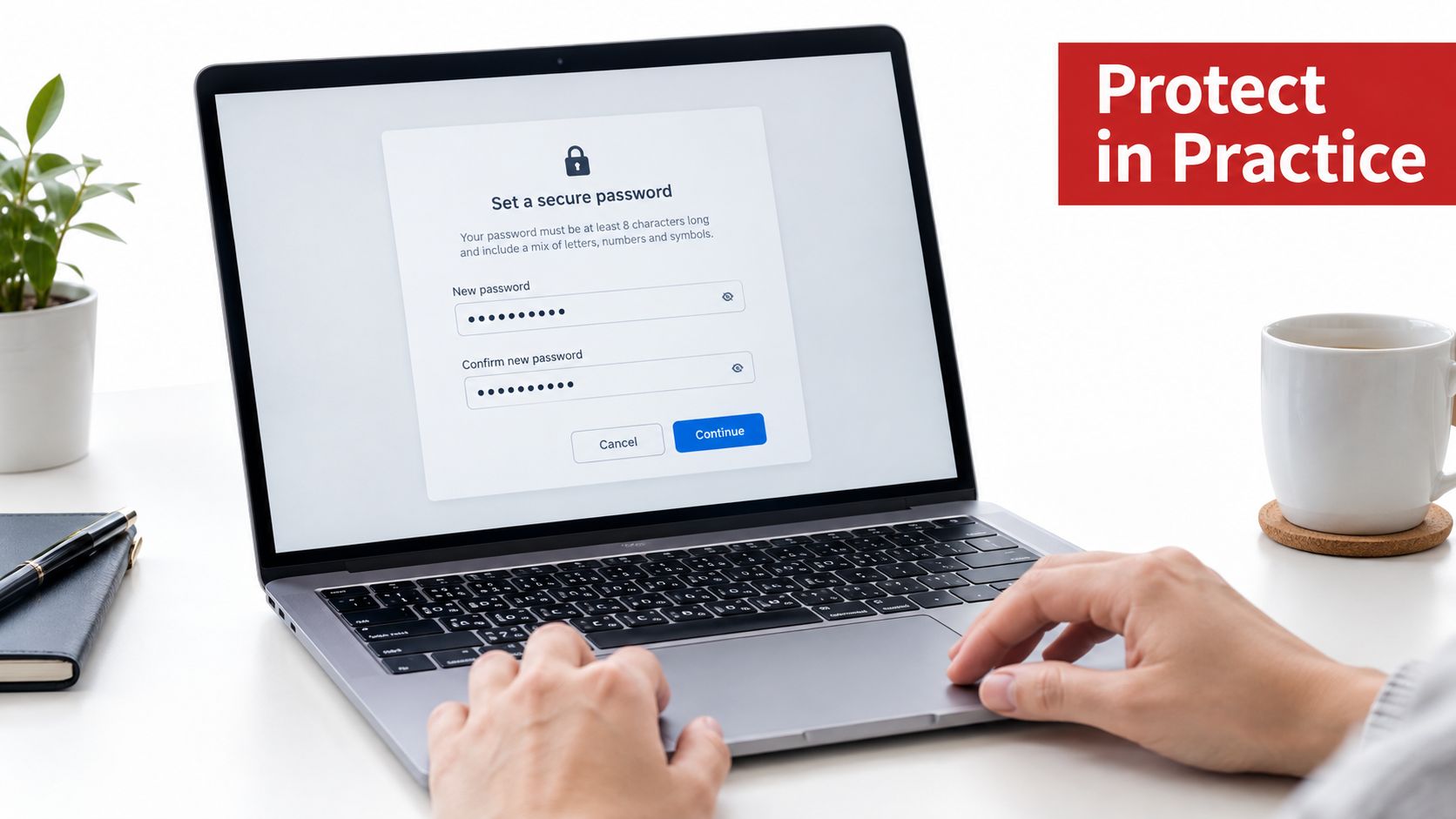
Once you know which restriction you need, the workflow should be uncomplicated. Open the Protect PDF tool, select the document, and inspect the available password fields before processing it. A useful interface makes the open-password and permissions-password choices visible, rather than hiding both behind one vague “secure file” toggle.
Upload the PDF, then decide whether to apply one password or both. The open password controls what happens before the first page renders. The permissions password applies restrictions such as printing, copying, or editing, subject to the behavior of the recipient's PDF reader. If your goal is private delivery, don't assume that setting permissions alone will hide the contents.
Choose the encryption strength available for the file. Modern workflows generally offer AES-128 or AES-256, with AES-256 the stronger common choice. The tool then re-encrypts the PDF on the server and returns a protected file for download. PDFWix says its Protect PDF and Unlock PDF processing runs in server memory and doesn't write uploaded files to disk. The service also requires no account for its web tools, which suits a one-off external handoff. For a device-specific walkthrough, see this guide to protecting a PDF on Windows.
What each control changes
The fields aren't decorative. They produce different behavior in the resulting file.
- Open password: The recipient must supply the password before the viewer can display the document.
- Permissions password: The file can remain viewable, while selected actions are restricted for readers that honor the PDF permissions settings.
- Encryption selector: The selected AES level determines the cryptographic protection applied during processing.
- Download output: The protected PDF is a separate file, so keep the original in a controlled location if you may need to change the settings later.
Before sending the result, test the actual output. Open it on a fresh device or in a separate viewer. Confirm that the open password is requested if confidentiality was the goal, and check whether printing, copying, or editing behaves as intended when those restrictions were selected.
Also verify the password itself before closing the workflow. A protected file with a forgotten password can become an operational problem, especially when the original has been replaced or the sender is unavailable. Store the secret in the team's approved credential system and share it separately from the document.
Understanding Encryption Strength Behind the Lock
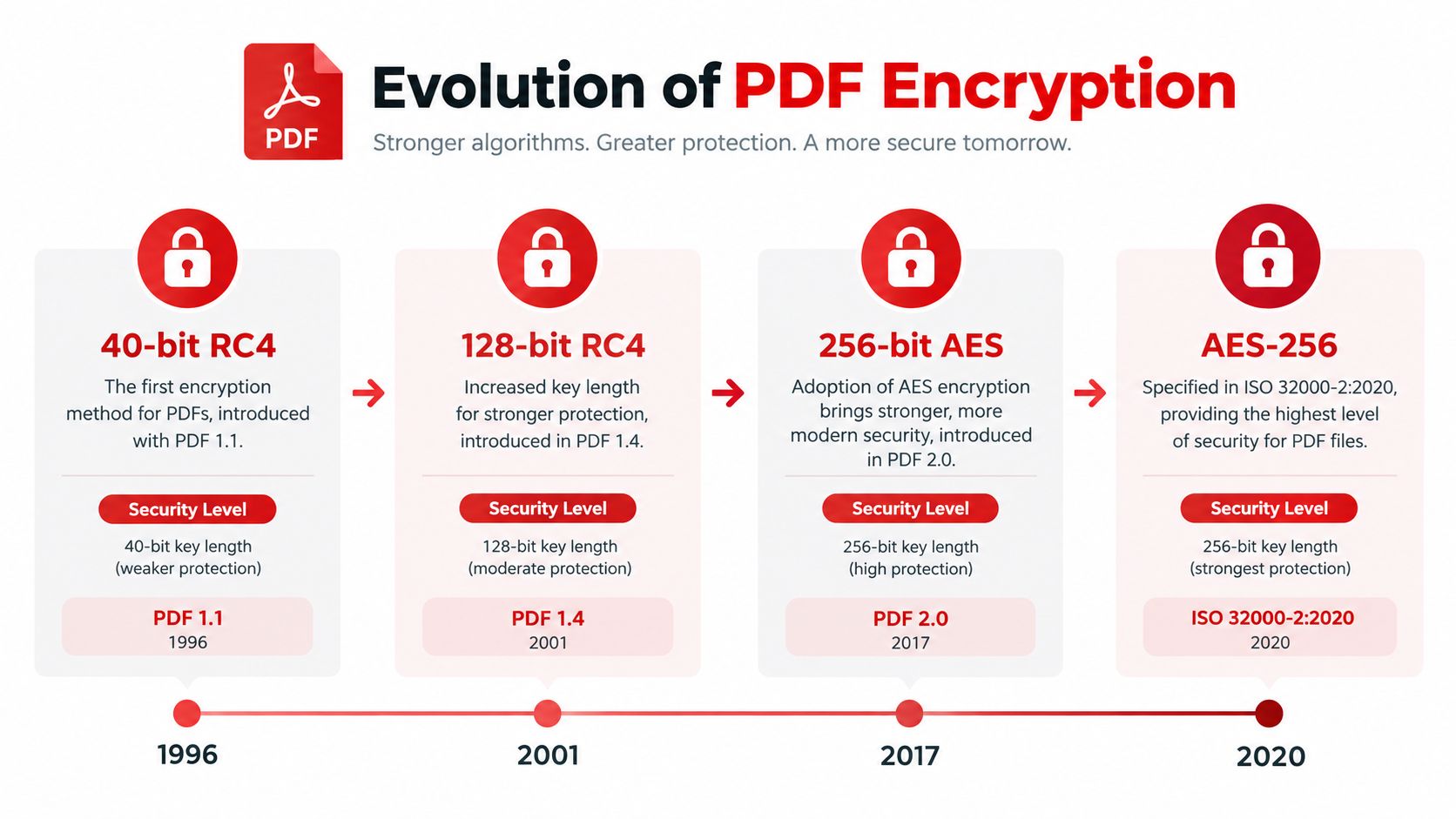
“Encrypted” doesn't identify the security level by itself. PDF password protection has evolved from early RC4-based schemes to AES implementations with different strength and compatibility characteristics. Adobe documents a progression in which Acrobat 6.0 and later used 128-bit RC4, Acrobat 7.0 and later introduced 128-bit AES, and Acrobat X and later moved to 256-bit AES. The Adobe password security documentation explains the current protection choices and their compatibility implications.
PDF's formal standards history reinforces that change. PDF became an ISO standard in 2008, when PDF 1.7 was adopted as ISO 32000-1, and ISO later published PDF 2.0 in 2017. In ISO 32000-2, RC4 was deprecated and 256-bit AES became the standard for PDF 2.0 files. Older PDFs and legacy readers may still support earlier methods, but modern protection increasingly favors AES-256.
Choosing strength without breaking delivery
AES-128 and AES-256 both provide substantial protection when implemented correctly and paired with a strong password. AES-256 gives you the larger key size and aligns more closely with modern security expectations, but recipient compatibility still matters. If a recipient relies on an old reader, test the protected file before making it part of a time-sensitive process.
RC4 presents a different problem. It may preserve compatibility with older software, but it's a legacy choice that modern PDF standards have moved away from. Don't select an outdated cipher just because the interface offers it without explaining the trade-off.
The cipher also isn't the whole defense. A technically strong AES-256 file protected with a predictable passphrase can still be exposed through password guessing. PDF security guidance explains that the password is transformed through a derivation process rather than used directly as the encryption key, and that modern PDF 2.0 and Acrobat X workflows support passwords up to 127 UTF-8 bytes. More length and unpredictability generally give the derivation process a better secret to work with. You can protect a PDF with encryption while still needing to make the passphrase itself difficult to guess.
User Passwords Versus Owner Passwords in Real Workflows
An HR team sending a benefits packet may want employees to read and print the summary while discouraging edits or extraction of selected content. A tax return sent to an external accountant has a different requirement: the contents must remain unreadable if the email is misdirected or forwarded. These workflows need different PDF password controls.
A user password, also called an open password, controls whether someone can open and view the file. An owner password, also called a permissions password, controls selected actions after the file has been opened. Applications may use different labels, so check the security settings rather than relying on terminology alone.
For the benefits packet, a permissions password can restrict editing, copying, or printing without forcing every employee to enter an access secret. For the tax return, an open password protects the contents before viewing, and the sender should transmit it through a separate channel from the file.
User vs Owner Password Decision Matrix
| Aspect | User (Open) Password | Owner (Permissions) Password |
|---|---|---|
| Primary purpose | Controls whether the document can be opened and viewed | Controls selected actions after the document is opened |
| What it blocks | Viewing without the password | Printing, copying, editing, or other configured actions in compliant readers |
| Best use | Confidential contracts, personnel records, financial documents, and sealed filings | Readable policies, forms, or packets where downstream handling should be limited |
| What it doesn't solve | It doesn't automatically control every action after access is granted | It doesn't make the document unreadable |
| Sharing requirement | Send the password separately from the file | Record the permissions secret so authorized editors can change the file later |
| Main limitation | Forgotten passwords can prevent legitimate access | Non-compliant software may ignore or remove restrictions |
Permissions settings work only when the recipient's PDF software respects them. They provide a policy signal and a useful guardrail in ordinary workflows, but they are not an absolute technical barrier. A person who can view a document may still reproduce its contents through screenshots, transcription, or another capture method, even when copying is disabled.
When confidentiality and presentation integrity both matter, combine the controls. A finance team might require an open password for a forecast while also restricting editing and copying. Keep the two secrets governed separately where possible, document who may change the restrictions, and record the approved recovery process. If an authorized user later needs the file without its protection, follow a controlled process for removing password protection from a PDF. Server-side, no-account protection can fit this workflow when the team needs a quick file operation without adding another account to manage.
Building a Password Strong Enough to Matter
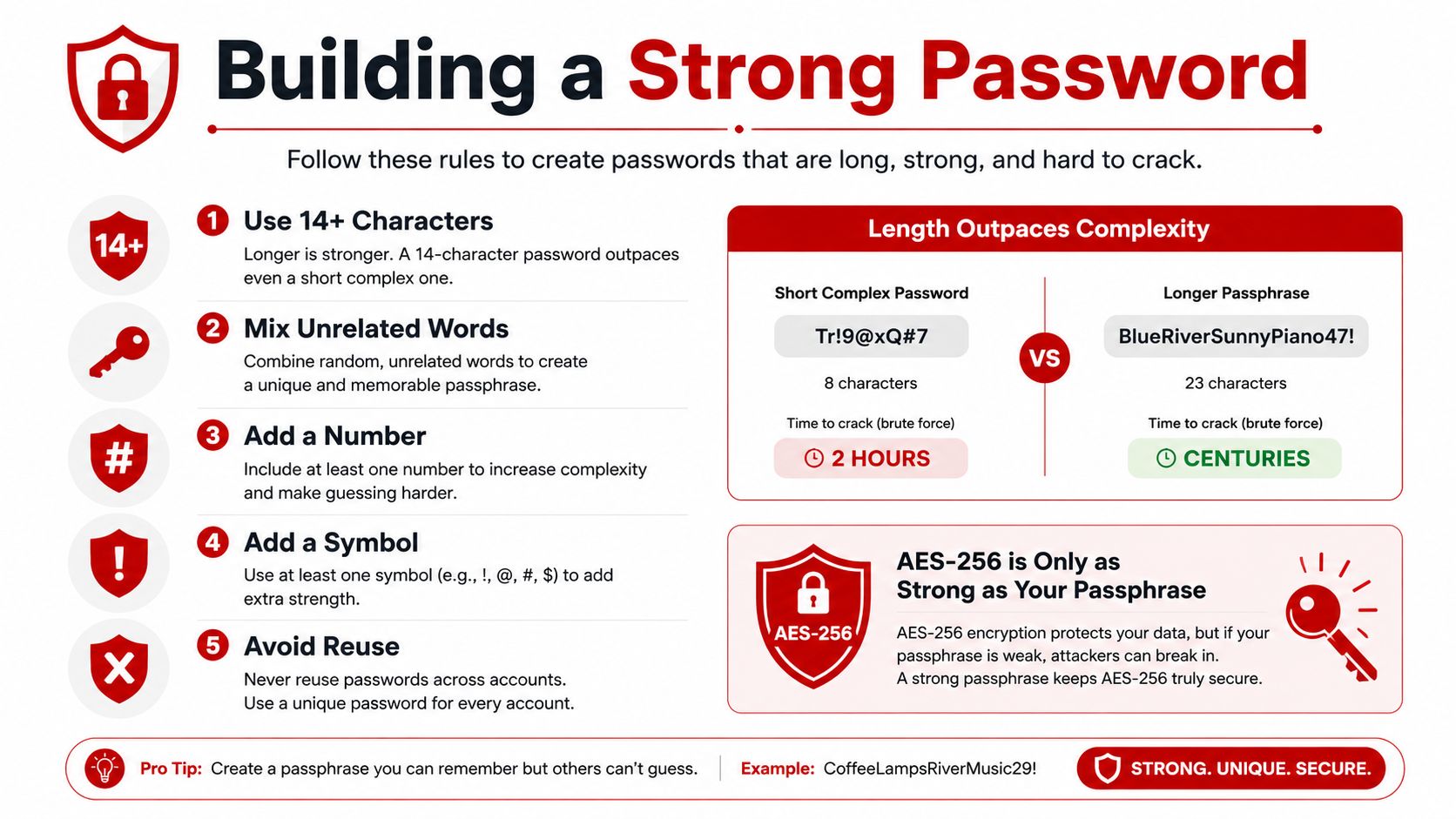
AES-256 can protect the file's encryption layer, but it can't compensate for a passphrase that colleagues can guess. Don't use a birthday, pet name, client name, contract date, office phrase, or any detail visible in the PDF. Attackers don't need to defeat the cipher if they can predict the secret.
A practical passphrase should be long, unique, and unrelated to the document. Combining unrelated words with a number and a symbol is easier to manage than inventing a short phrase based on personal information. The key requirement is unpredictability, not visual complexity for its own sake.
Habits that protect the passphrase
Use a password manager to generate and store the secret. That removes the pressure to reuse a familiar password or keep sensitive credentials in a plain text note. It also gives a team a controlled place to retrieve the password when the original sender is unavailable.
Share the password out-of-band. Send the PDF through one channel and the password through another, such as a secure phone call, a managed vault, or a separate messaging channel. Don't put both pieces in the same email thread, because anyone who gains access to that thread gains the file and its key together.
Rotate access when the people or devices involved change. A recipient leaving the project, a lost device, or a change in document ownership should trigger a review. For audit-heavy teams, record who received the file, who received the password, and when access was granted. Store the password according to your organization's credential policy, not in the same folder as the document.
If a colleague who knows your habits can guess the password, it isn't strong protection. It's only a delay.
Where Password Protection Fits in a 2026 Security Strategy
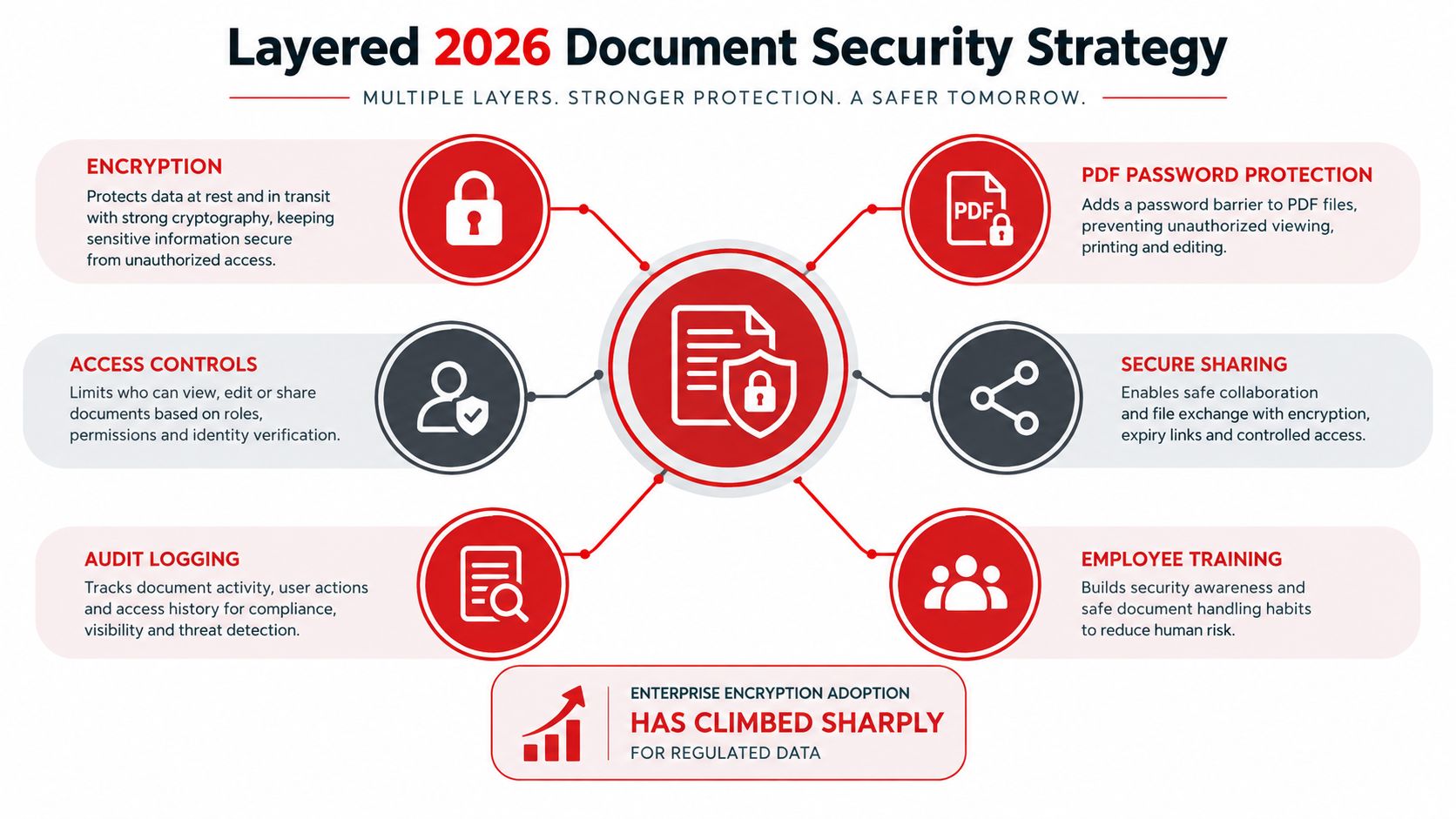
A password-protected PDF is one layer in a document security workflow, not a complete information-security program. The surrounding controls still matter. Use secure transport, restrict who can access the download, remove unnecessary copies, and apply audit logging or watermarking when the document's sensitivity justifies it.
The broader security environment is pushing teams toward more explicit encryption and access controls. In a 2025 IT security survey, 88% of experts rated the threat situation as high or very high, with encryption described as indispensable in response to cloud growth, international data flows, and regulatory requirements such as NIS2. The same survey material reports that 28% of organizations use bring-your-own-key encryption, while 65% report having MFA in place. These figures don't make a PDF password sufficient, but they show why file-level protection needs to sit inside a wider control framework. See this overview of whether online PDF tools are safe when evaluating an external workflow.
Match the control to the risk
A routine external share may need an encrypted PDF, separate password delivery, and a documented recipient. A highly sensitive legal or financial file may also need an expiring link, identity verification, a watermark, download restrictions, and an audit trail. Don't apply every control blindly. Choose based on the consequence of disclosure, alteration, or uncontrolled reuse.
The 2025 Data Threat Report findings state that 68% of organizations encrypt at least 40% of sensitive cloud data, while nearly 60% use biometrics and 47% use passwordless authentication. Passwordless account access is valuable, but passkeys and similar methods protect an identity or service account. They don't automatically encrypt a PDF sent to an outside party who doesn't share your identity system.
That's why PDF passwords remain useful in external document exchange. A server-side, in-memory protection workflow can be appropriate for an ad-hoc share when a larger document-rights platform would add unnecessary setup. It should still be paired with secure delivery, controlled password handling, and a verification step. Encryption protects the file, but governance determines whether the right people receive it and whether the organization can prove what happened.
Locking PDFs Without Locking Yourself Out
Most failures happen after the PDF has been protected. The sender forgets the password, stores the only copy on a retired laptop, or sends the secret in the same message as the attachment. The file may be cryptographically sound and still unusable because the workflow around it was careless.
Use this short operating checklist every time:
- Store the open password immediately: Save it in the approved password manager as soon as the protected file is created.
- Separate the channels: Send the PDF and its password through different channels, such as a secure file link and a phone call.
- Record permissions ownership: If an owner password controls editing or printing, document who can retrieve it and who may change those restrictions.
- Test the delivered file: Open the downloaded PDF on a fresh device or separate viewer before sending it to the final recipient.
- Keep the original under control: Retain the unprotected source only where your document policy permits, with access limited to the people who need it.
A quick test should confirm more than whether the file opens. Check that the password prompt appears when it should, verify the intended permissions, and make sure the recipient can use the document for the legitimate purpose. A hiring packet that can't be printed when printing is required creates support work. A confidential report that opens without a password creates a security incident.
Passwordless authentication and document-rights controls will continue to change how teams manage access, but file-level secrets still serve a distinct purpose for external recipients. Treat each PDF password as a revocable credential. If the recipient list changes, the file is redistributed, or the secret may have been exposed, create a new protected copy rather than assuming the old control remains effective.
PDFWix provides a no-account Protect PDF workflow for adding open-password and permissions protection, with server-side processing held in memory rather than written to disk. Visit PDFWix to protect your next PDF, test the downloaded file, and build the separate-channel password habit into your document workflow.