
You've got a folder full of PDF files, a meeting starting soon, and no desire to open every document, wait for a print dialog, and repeat the same clicks dozens of times. The basic shortcut, select the files and choose Print, works for a small batch. It becomes unreliable when the folder contains mixed paper sizes, protected files, inconsistent settings, or more documents than Windows' context menu can handle.
The practical answer to how to print several PDF files at once depends on your operating system, the required document order, and how much control you need over the final paper output. A quick native workflow is often enough, but a queue-based process or a merged PDF is safer when the job matters.
Table of Contents
- Why Batch PDF Printing Still Feels Broken
- How to Batch-Print Multiple PDFs on Windows Without Hitting the Limit
- How to Print Several PDF Files at Once on macOS Using Preview
- Combining PDFs First Versus Printing a Multi-File Queue
- Settings That Keep Your Batch Print Job from Going Off Track
- Choosing the Right Batch-Print Approach for Your Situation
Why Batch PDF Printing Still Feels Broken
The frustrating part of bulk printing isn't usually the printer. It's the handoff between the file system, the PDF application, and the printer driver. One document may be set for portrait Letter paper, another for horizontal A4, and a third may contain annotations or transparency that renders differently once it reaches the spooler.
A common office scenario illustrates the problem. You select a folder of reports, send them to the printer, and assume the job is complete. One password-protected PDF pauses the process, a broken file association removes the Print command, or a file with a different page size comes out scaled incorrectly. You then discover that the printer has processed some files but not others, leaving you to identify the missing pages manually.
The shortcut works until the batch becomes real
Desktop PDF software has supported batch workflows for years. Adobe's documentation of batch printing in Acrobat 9 described printing all PDF files inside a Portfolio as one job instead of opening every document separately. Windows later made multi-file printing more accessible through File Explorer, so users could select PDFs and send them to the default printer without additional software.
That shift reduced the manual effort involved in printing dozens of documents, but it didn't remove the operational risks. Batch printing is only as reliable as the least compatible file in the selection.
The failure points to check first
Before sending a large folder to the printer, look for:
- Mixed page requirements: Documents may use different media sizes, orientations, or tray preferences.
- Password protection: A secured PDF may require a password before its pages can be rendered or printed.
- File associations: Windows uses the default PDF application for the shell Print action, and a damaged association can make the command disappear or fail.
- Unclear order: File Explorer may use names and selection behavior that don't match the sequence you need on paper.
- Rendering complexity: Transparency, annotations, and complex vector content can produce output defects unless the renderer normalizes the page content.
A useful preparation workflow is to collect the files in one folder, standardize their names, and decide whether order or file separation matters. For broader workflow preparation, see this guide to automating PDF workflows.
How to Batch-Print Multiple PDFs on Windows Without Hitting the Limit
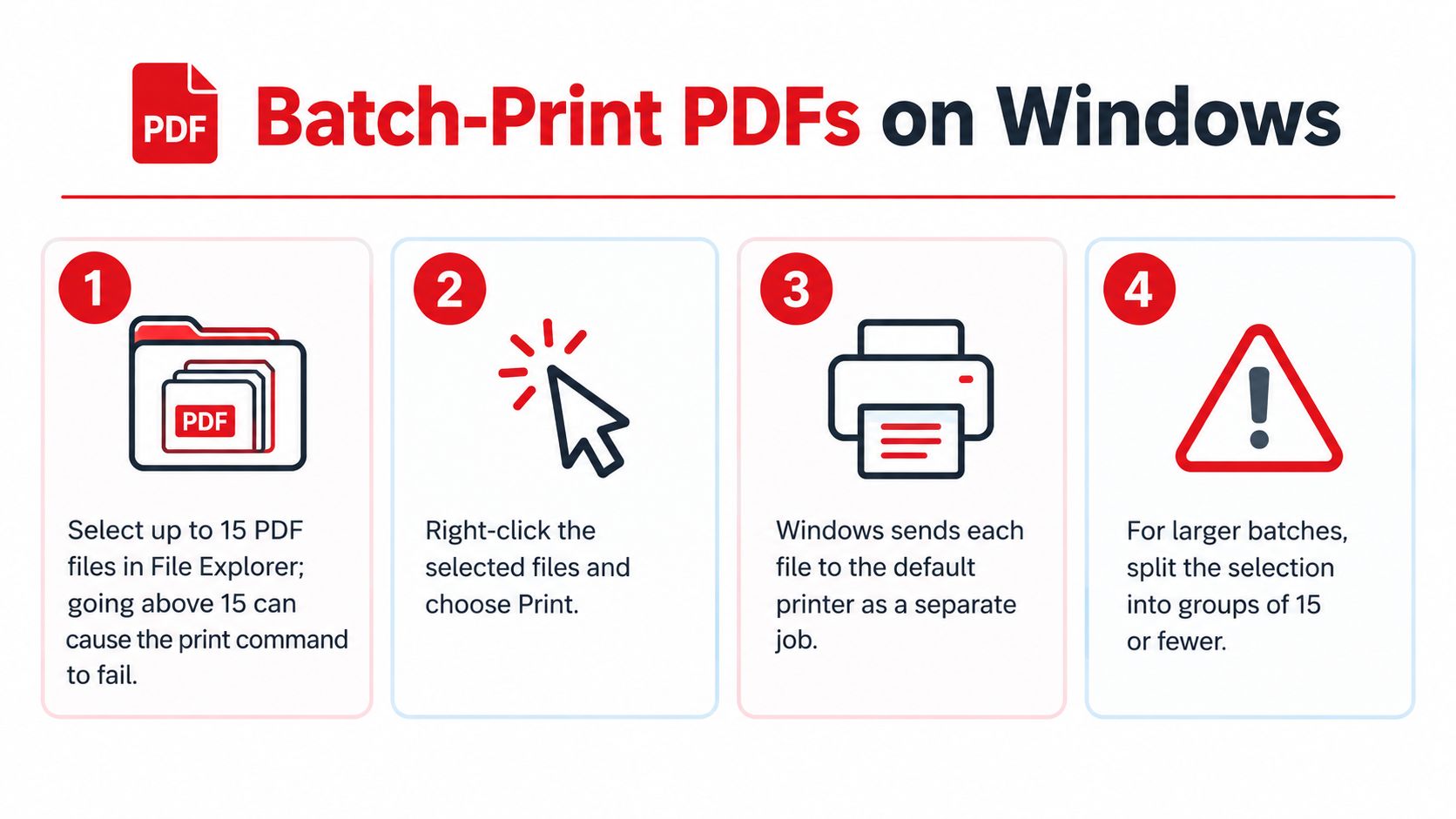
Windows File Explorer provides the fastest built-in route for a small PDF batch. Open the folder, select the files with Ctrl-click, or use Ctrl+A when the folder contains only the documents you want, then right-click the selection and choose Print. On Windows 11, the option may be inside Show more options, because the classic context menu is hidden by default.
The important limitation is file count. Microsoft community guidance describes a practical ceiling of 15 files for the File Explorer context-menu method. If you select more than that, Windows may hide or disable the command rather than warning you clearly.
Use the native route for small, consistent batches
Follow this sequence when the files share broadly compatible settings:
- Prepare one folder: Move only the PDFs intended for the job into a dedicated directory.
- Check the names: Add leading text or numbering if the printed sequence matters.
- Select the files: Use Ctrl-click for a controlled selection, or Ctrl+A for the complete folder.
- Open the classic menu: Right-click, choose Show more options if required, then select Print.
- Confirm the printer: Windows sends the files through the default PDF application and printer association.
The Explorer action generally sends each PDF as a separate print job. That preserves file boundaries, but it doesn't guarantee that the printer will treat the whole selection as one continuous packet.
Stop splitting when the job needs control
For a selection larger than 15 files, Microsoft guidance recommends printing in groups of 15 or fewer or using a queue-based workflow. Splitting works, but it creates a new risk: someone may print a group twice, skip a group, or lose the intended order between groups.
A dedicated batch-print utility or printer queue is more reliable for larger folders. Tools in this category can process a directory sequentially and expose settings for paper size, orientation, scaling, duplex printing, tray selection, separator pages, and print quality. Commercial products advertise printing “1000s of PDFs at once,” while command-line workflows can loop through every .pdf file in a directory and send each document to a printer without opening it individually, as described by Total PDF Printer's batch-printing workflow.
If you need to prepare the files before printing, use a separate PDF workflow for merging files on Windows only when a single ordered document is more useful than separate queue entries.
How to Print Several PDF Files at Once on macOS Using Preview
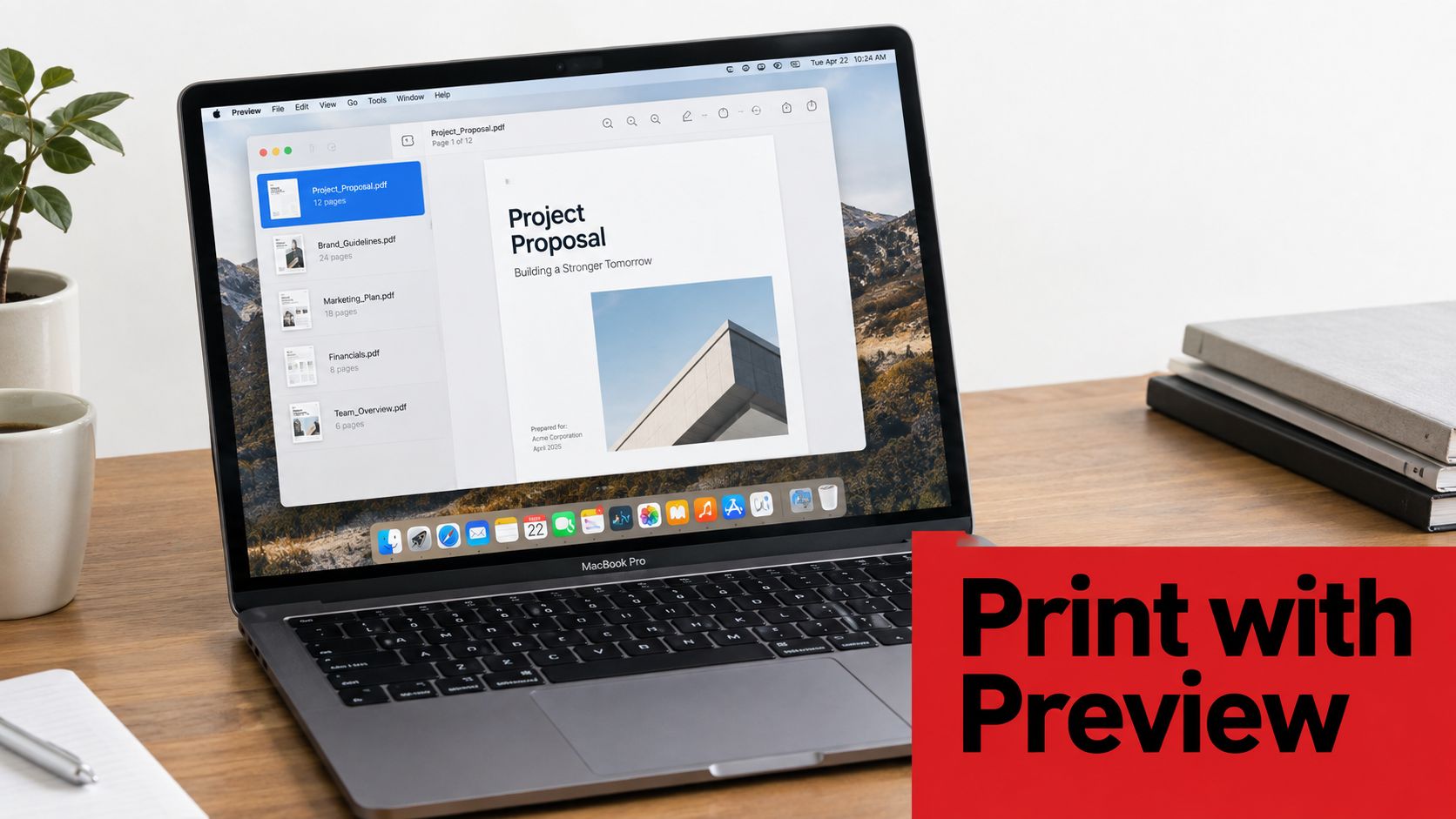
macOS uses a different built-in path. Finder helps you select the documents, but Preview handles the multi-file print workflow. Select the PDFs in Finder with Command-click, open them in Preview, and use Preview's print command to apply the operation across the selected documents.
This distinction matters because copying the Windows instructions directly can lead to inconsistent results. macOS batch-print guidance describes Finder selection with Command-click followed by opening the documents in Preview, which is separate from Windows' File Explorer right-click Print path.
The Finder and Preview sequence
Start by placing the PDFs in one Finder folder. Rename them if their order matters, then select the required files with Command-click. You can also select a complete folder's contents when every document belongs in the same job.
Open the selection in Preview. If Preview displays the documents as separate windows or a combined sidebar, verify that the complete selection is present before opening the print dialog. Check the destination printer, page range, paper size, orientation, scaling, and duplex setting, then send the batch.
Preview is convenient for a small or moderate group of files with compatible layouts. It isn't a substitute for a production queue when documents require different trays, media types, or page handling rules. A password-protected PDF may also interrupt the process if Preview can't access it without authentication.
Check the output before committing paper
Look at the print preview for the first document and confirm that the page isn't being cropped or forced onto an unsuitable paper size. If the files contain maps, forms, or diagrams, automatic scaling can make important details too small or shift content outside the printable area.
For page-order control or preparation on a Mac, a guide to merging PDF files on Mac can help create a single ordered document before printing. That adds a preparation step, but it can be preferable when the output must read as one continuous packet.
Combining PDFs First Versus Printing a Multi-File Queue
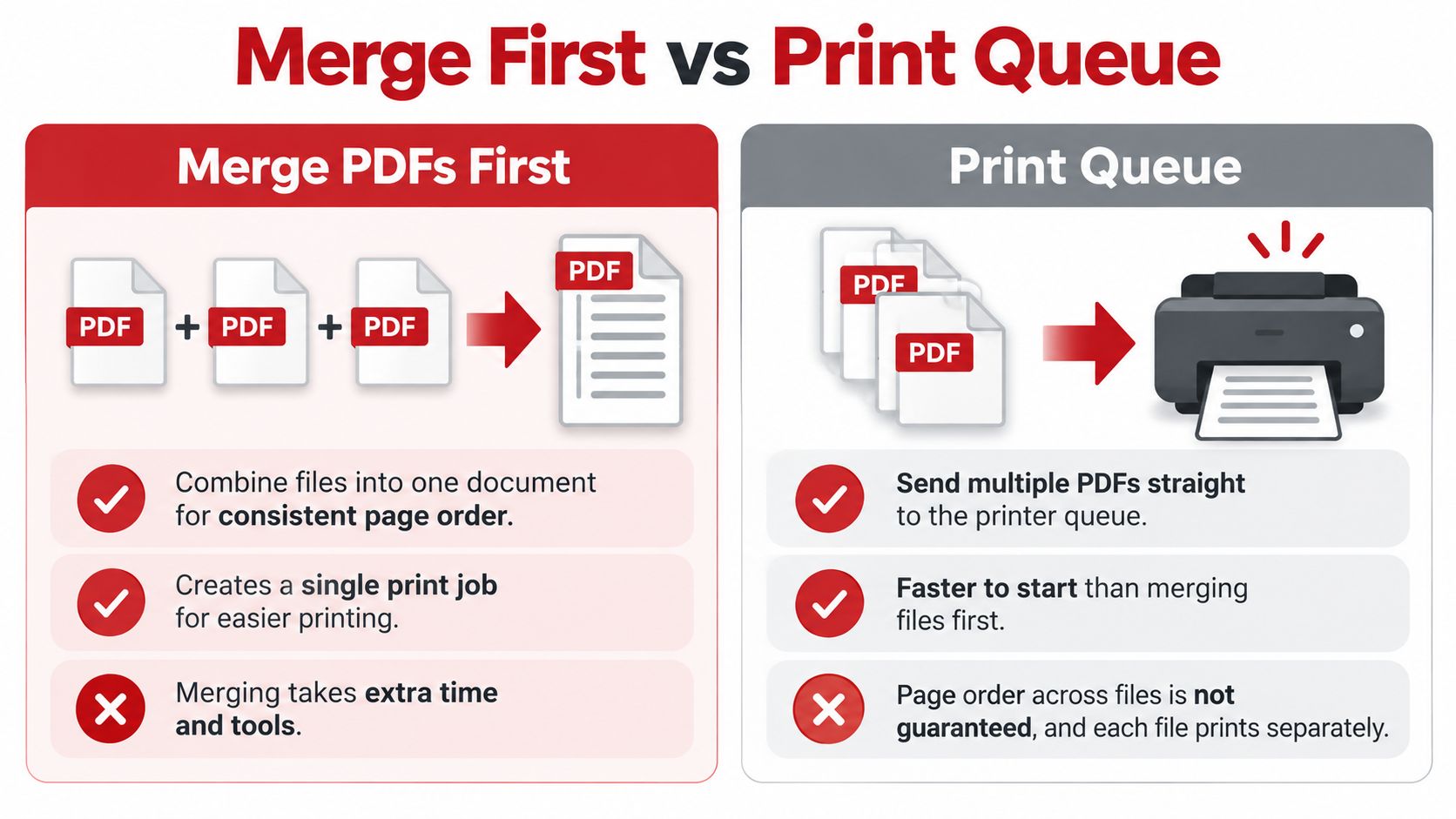
Merging and queue-based printing solve different problems. Merging prioritizes order and document continuity. A multi-file queue prioritizes speed, separation, and simpler handling.
Choose merging when the printed result must follow a precise sequence. Combining the files creates one document that can be reviewed, reordered, and printed as a single job. It also makes it easier to confirm the total packet before sending it to the printer.
Use a queue when the PDFs should remain separate. Invoices, individual reports, application forms, and archived records often need their original file boundaries preserved. A queue lets you print them sequentially without creating a new combined artifact.
Compare the trade-offs directly
| Requirement | Merge PDFs first | Use a multi-file queue |
|---|---|---|
| Document order | Strong control because pages become one ordered file | Depends on file names, queue behavior, and spooler processing |
| File boundaries | Boundaries may be less obvious after combining | Each PDF remains a separate job |
| Printer setup | One print job can use one consistent configuration | Individual files may expose different page requirements |
| Preparation time | Requires combining and checking the new PDF | Starts printing sooner |
| Privacy | A third-party upload may be unsuitable for sensitive files | Local queue processing can keep files on the device |
| Troubleshooting | One combined file simplifies sequence checks | A failed file can often be isolated more easily |
The choice becomes clearer when you define the output. If you're producing a numbered handout or a packet for review, order is usually more important than preserving separate files. If you're printing unrelated records for filing, keeping each PDF separate avoids unnecessary manipulation.
A PDF guide to combining files is useful when you decide that one ordered document is the safer route. For sensitive documents, check where processing occurs before uploading anything. Local processing is preferable when policy or confidentiality rules prohibit sending files to an external service.
Settings That Keep Your Batch Print Job from Going Off Track
A batch can look ready and still fail at the printer. Mixed page sizes, password-protected PDFs, and driver defaults cause more trouble than selecting the files. Start with a folder containing only the intended documents, verify the printer settings, and run a small pilot before releasing the full queue.
Standardize the batch before spooling
Check for mixed media sizes, portrait pages, annotations, transparency, and complex vector content. These features may render differently across PDF engines and printer drivers. If a file contains problematic page objects, flattening or recreating the affected content may correct output defects. See this guide to what an optimized PDF is for normalization options before you spool, alongside the PDF batch-printing guidance from Print Conductor.
Set each control deliberately:
- Printer choice: Confirm the destination printer. A changed default can send the entire batch to the wrong device.
- Paper size: Match the selected stock to the document. A Letter setting can crop an 11x17 plan or force an unexpected reduction.
- Orientation: Use automatic orientation only after testing mixed vertical and horizontal pages together. Some drivers apply one orientation to the whole queue.
- Scaling: Choose actual size, fit, or a fixed percentage. Automatic fitting can shrink forms and diagrams until labels or dimension text become unreadable.
- Duplex mode: Turn on double-sided printing only when the paper and page sequence support it. Short forms can otherwise place the next file on the reverse side.
- Separator pages: Add them when separate PDFs must remain easy to identify after printing, especially in a long filing run.
- Print quality: Use draft quality for internal review. Select a higher setting when fine lines, photographs, or detailed graphics matter.
Treat password protection as a preflight issue
A secured PDF may not print in a batch. Open protected files first, confirm that printing is permitted, and keep the required password available. Do not wait for the queue to show that one document cannot be rendered.
Practical rule: Print a representative pilot set before sending the entire folder. Include a normal page, a mixed-orientation document, a graphics-heavy file, and every protected PDF.
The pilot exposes blank pages, scaling errors, tray mistakes, driver behavior, and rendering problems while the cost remains small. Batch reliability depends on these checks more than on the raw number of files.
Choosing the Right Batch-Print Approach for Your Situation
Use the built-in operating-system workflow when the batch is small, the files are local, and the documents use compatible paper and print settings. On Windows, remember that the File Explorer context-menu route has a 15-file ceiling, so a larger selection should be split carefully or moved to a queue-based method. On macOS, Finder and Preview provide a distinct built-in path for sending selected PDFs to the printer.
Merge the files first when sequence, page continuity, or one-job handling matters more than preserving separate documents. Keep them separate when each PDF needs its own identity, filing destination, or troubleshooting path. For mixed page sizes, sensitive records, password-protected documents, or unattended folder processing, a dedicated local batch-print utility gives you more explicit control than the basic shell shortcut.
The most dependable process is simple: stage the folder, check names and security, verify paper and duplex settings, run a pilot, then release the full job. That discipline saves more time than repeatedly restarting a failed batch.
PDFWix can help you prepare a print-ready set by merging, organizing, compressing, or optimizing PDF files in the browser, with many tools processing files locally on your device. Visit PDFWix to organize the documents before sending them to your printer.