
You've just received a PDF that needs one small change. Perhaps a contract contains a typo, a form needs your signature, or several scanned pages must be merged before you send them. You're using a Chromebook, a managed work computer, or someone else's laptop, and installing software isn't practical.
A browser tab seems like the obvious answer. But “browser-based” doesn't tell you what happens to the file. Some editors process the document inside your device, while others upload it to a remote server. That architectural difference affects privacy, speed, file-size handling, offline behavior, and reliability.
Table of Contents
- The Moment You Decide You Need a Browser PDF Editor
- What a Browser PDF Editor Actually Does
- Core Features You Should Expect From a Modern Tool
- Client-Side Versus Server-Side Processing
- Privacy and Security in Browser-Based PDF Editing
- How to Choose the Right Browser PDF Editor
- Common Misconceptions About Browser PDF Editors
- When a Browser Editor Is the Right Choice and When It Is Not
The Moment You Decide You Need a Browser PDF Editor
The search usually starts with a minor inconvenience, not a technology project. You open the PDF, try to select a sentence, and discover that the built-in viewer only lets you highlight, draw, or add a note. The text itself won't move. The signature field isn't where you need it. The pages are out of order.
You could install a desktop application, but the computer might block installations. You might be working from a hotel, a library, a client's office, or a shared household device. Even on your own computer, downloading a large application feels excessive for a task that should take a few minutes.
A pdf editor browser workflow removes that installation step. You open a web page, choose a file, make the change, and save the result. That convenience explains why the PDF remains central to digital work. Adobe introduced PDF in 1993, and PDF/A became ISO 19005-1:2005 for long-term archiving. A widely cited overview also records 2.2 billion PDF files on the public web, 20 billion files in Dropbox, and 73 million new PDF files saved every day in Google Drive and Mail. The same overview reports that PDF represented 81% of online documents in one dataset in 2011 and 90% in 2021, illustrating the format's persistence.
The useful question isn't just which editor has the longest feature list. Ask instead:
- What do you need to change? A note, a page structure, existing text, or a signature workflow?
- Where should the file live? Only on your device, or on a provider's server?
- How demanding is the document? A short contract behaves differently from a scanned archive.
- How often will you work this way? A one-off task has different requirements from a daily process.
Those questions turn a vague software search into a practical decision.
Practical rule: A browser editor is only as private as its processing model and its surrounding data practices.
What a Browser PDF Editor Actually Does
A browser-based PDF editor is a web application that lets you view, annotate, modify, sign, organize, or convert PDF files without installing a native program. The browser supplies the interface, while JavaScript and, in more advanced tools, WebAssembly perform the document operations.
WebAssembly is compiled code that runs safely inside the browser engine, allowing complex processing to happen in the page rather than requiring a separate desktop application. A tool can use it to parse PDF objects, render pages, rewrite text, create output files, and perform other operations that once depended almost entirely on installed software.
Built-in browser viewers sit at the lightweight end of the category. They're useful for opening a document, highlighting passages, drawing annotations, adding simple text, or completing fields that already exist. They generally don't provide full control over a PDF's internal layout. If you need to change existing text, insert images, create form fields, rearrange pages, or prepare a document for signatures, you need a dedicated editor. A detailed guide to working with PDFs in browser tools explains this distinction in practical terms.
Desktop editors form the other neighboring category. They install on the operating system, use local storage and system resources, and can often work without an internet connection. They're valuable for intensive workflows, plugins, batch automation, and environments where administrators have approved a specific application.
Cloud editors use the browser as the front end but send the document to remote infrastructure. The server may handle conversion, OCR, rendering, or storage before returning the finished file. That model can support demanding jobs and centralized collaboration, but it means the provider becomes part of the document's trust boundary.
The interface can look similar across all three models. The important difference is what happens after you select Open, Upload, or Save.
Core Features You Should Expect From a Modern Tool
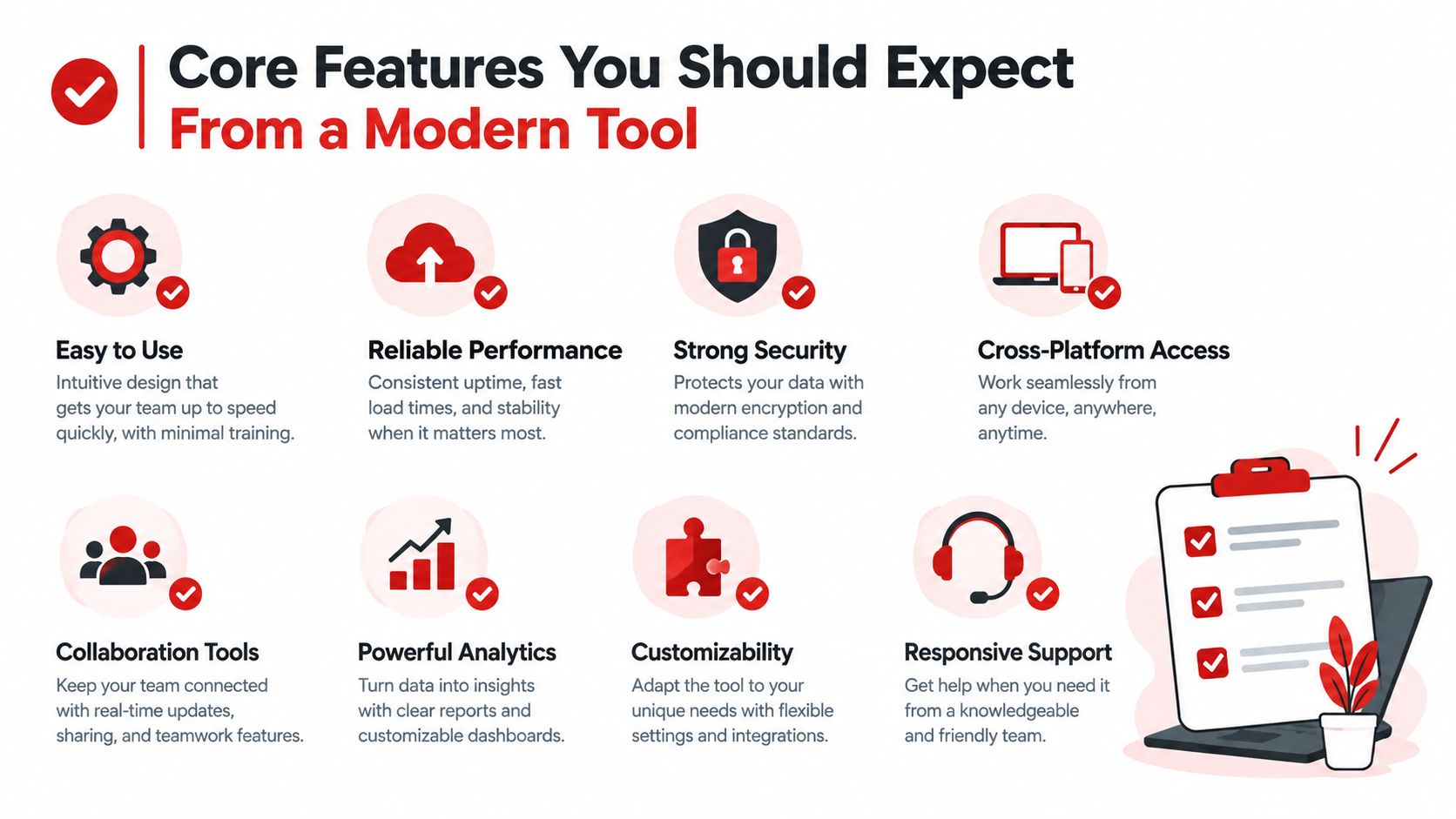
You discover a browser PDF editor's quality when a routine document becomes inconvenient: a clause needs correction, pages are out of order, or a scanned receipt contains no selectable text. The useful question is not how many buttons the toolbar contains. Ask whether the editor solves the document problem while preserving layout, readable output, and appropriate control over the file.
Editing and page organization
Text and image editing should let you correct a clause or add a logo without making the change look pasted on. Check whether the tool preserves fonts, spacing, alignment, and nearby elements. A separate text box placed over old content may technically alter the page, but it can leave an obvious visual defect.
Page organization addresses document structure. For a scanned report with pages in the wrong sequence, look for thumbnail previews, reordering, rotation, deletion, and extraction into a new file. The page order should remain clear before you export, since a visually correct editor can still produce a confusing final document.
Conversion and document preparation
Conversion helps when the PDF is not the right format for substantial drafting. You might turn it into an editable word-processing file, revise the content, and export the result as a PDF again. Evaluate more than whether conversion finishes. Compare headings, tables, images, layout, and line breaks with the original.
Digital signing needs a defined workflow. Someone signing an offer letter on a phone should be able to find the signing area, place or resize a signature, and produce a file without shifted content. For formal documents, the editor should explain how it records consent and how it handles the completed file.
Forms cover filling and creation. Existing checkboxes, dates, and text fields should remain usable after editing. Form creation calls for text boxes, dropdowns, checkboxes, and signature fields, plus labels that tell recipients what information belongs in each control.
OCR, compression, and protection
OCR, or optical character recognition, converts scanned page images into searchable text. It can help you find a vendor name or amount on a receipt later. Results depend on scan quality, typeface, spacing, and document complexity, so review recognized text before treating it as accurate.
Compression and merging support ordinary sharing tasks. Combine an invoice, cover letter, and supporting pages, then reduce the file size for a restrictive email workflow. Good compression keeps text readable and signatures clear. A protection workflow should also explain whether safeguards are applied locally or remotely. See this guide to protecting a PDF before using sensitive files.
For a comparison of browser-based PDF tooling approaches, you can browse Pdf Pro Ai on SubmitMySaas-2. Together, these features show why the file's processing location matters as much as the interface: the same editing control can have different privacy and reliability implications depending on what happens after you select it.
Client-Side Versus Server-Side Processing
You open a PDF editor in a browser to revise a sensitive contract. The visible tools may look familiar, yet the file can follow two very different paths. The key question is where the document is processed: inside your device or on a remote server.
A client-side editor downloads application code, often including WebAssembly, into the browser. The browser parses, renders, edits, and saves the PDF in the tab, keeping the document bytes in local browser memory during the operation. This model can suit a short, sensitive document or work on an unreliable connection after the application has loaded.
A server-side editor uploads the file to a remote backend. That backend performs tasks such as OCR, conversion, compression, or redaction, then sends the result back. Server processing can provide more computing capacity for complex jobs, while the uploaded document becomes subject to the provider's infrastructure, access controls, and retention policies.
One market estimate values PDF editor software at USD 6.39 billion in 2026, according to 360iResearch's market estimate (PDF editor software market estimates). The figure does not determine which architecture fits your work. It does show why both browser convenience and document processing remain active parts of the software market.
| Dimension | Client-Side WebAssembly | Server-Side |
|---|---|---|
| File location | The PDF stays in browser memory during processing | The PDF is uploaded to remote infrastructure |
| Privacy boundary | The page, browser, device, and extensions remain relevant | The provider's transport, storage, access, and retention controls matter |
| Network dependence | Often needed to load the application, less important for processing afterward | Needed for upload, processing, and download |
| Large files | Limited by device CPU, RAM, browser memory, and document complexity | Can use server resources, subject to upload and service limits |
| OCR and complex conversion | Depends heavily on the local device and implementation | May offer deeper processing capacity |
| Failure mode | Browser memory pressure, tab crashes, or operation limits | Upload failure, queue delays, service interruption, or retention concerns |
Local processing still depends on the device. Guidance for client-side processors warns that large files may require 64-bit desktop browsers and can consume several times the file size in temporary memory while the browser parses, renders, and rewrites objects (client-side PDF processor guidance). Page images, fonts, metadata, and output buffers may need to coexist, so a file that opens easily on a desktop could strain a lower-memory device.
Implementation guidance also recommends 4 GB+ WebAssembly heaps and SIMD-capable browser builds for demanding jobs (browser-native PDF processing guidance). Treat those figures as technical guidance, not a promise that every editor supports the same limits.
A PDF editor that works without uploading can suit privacy-sensitive, modestly sized tasks. Server-side processing may fit a large scanned dossier when local OCR would overwhelm the device. Choose according to the document, task complexity, connection, and privacy requirements.
Privacy and Security in Browser-Based PDF Editing
“Runs in your browser” doesn't automatically mean “stays on your computer.” Privacy depends on whether the editor processes the file locally or uploads it, and on what the page does around that core operation.
In a client-side design, JavaScript or WebAssembly parses the PDF within the browser's security environment. A worker can isolate processing from the main page, and the document can remain in memory rather than entering a provider's storage system. That reduces exposure to server logs and retained uploads, but it doesn't eliminate every risk.
The browser may cache application resources through a Service Worker. It may also retain drafts or temporary data in IndexedDB. A browser extension with access to page content can affect either processing model. Analytics scripts, URL-based file identifiers, and unexpected download or sharing features deserve attention before you use the tool with confidential material.
Questions that reveal the real boundary
Ask these questions before opening a sensitive file:
- Processing location: Does the privacy policy explicitly say the document is processed locally, or does the workflow upload it?
- Temporary data: Does the editor use browser storage, and how can you clear drafts and site data?
- Server retention: If uploads occur, how long are files retained, and are automatic deletion practices documented?
- Transport and storage: Does the service use encrypted connections and encryption at rest?
- Secondary use: Does the policy address analytics, human review, automated analysis, or model training?
- Access path: Can a file be retrieved through a predictable URL or shared identifier?
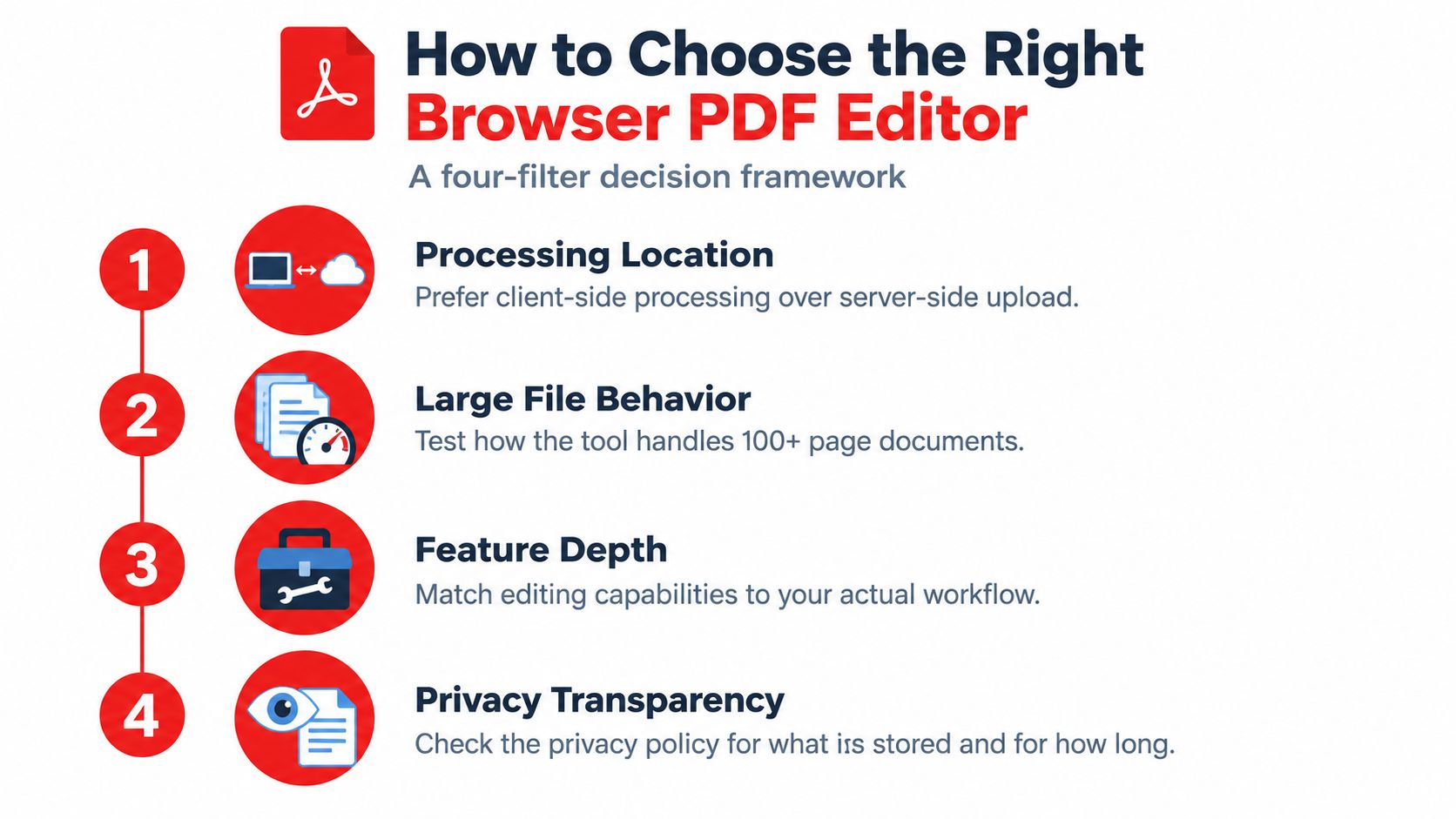
For server-side tools, encrypted transport is only the beginning. You also need clear information about access controls, storage, retention windows, deletion, backups, and whether uploaded files are used for purposes beyond completing your requested operation. A provider can have strong encryption and still retain documents longer than your organization permits.
For local tools, clearing site data can remove locally stored drafts, but that action doesn't erase a copy you already downloaded or shared. It also doesn't protect a file from someone who has access to the device, an unsafe extension, or malware.
The safety of online PDF tools therefore depends on matching the tool's actual data path to the document's risk. A client-side editor can be a strong choice for private documents, but only when the implementation clearly communicates what remains local and what leaves the browser.
How to Choose the Right Browser PDF Editor
Choose the processing model before you compare decorative features. A polished interface can't compensate for a workflow that sends confidential documents to a server when your policy requires local handling.
Start with four filters
First, locate the file. Look for an explicit local-processing statement, not just a privacy-friendly slogan. If the editor offers both local and remote operations, identify which features use each path.
Second, test the document you use. A small text contract, a form with interactive fields, and a scanned report exercise different parts of the editor. Large files can push a browser toward memory pressure, especially during OCR, compression, or complex page reassembly.
Third, check account requirements. An account may enable history, sharing, or team controls, but it also creates another identity and storage relationship. For a one-off task, an account-free workflow may be simpler. For recurring work, auditability and controlled access may matter more.
Fourth, inspect output quality. Convert a representative file and review fonts, tables, images, page breaks, form fields, annotations, and signatures. “Export succeeded” isn't the same as “the document remained usable.”
Match the tool to the task
For a one-off form fill, prioritize a clear interface, no forced installation, reliable field handling, and an uncomplicated download. You probably don't need a large collaboration suite.
For an everyday multi-file workflow, look for page organization, batch-friendly interaction, predictable output, keyboard support, and a pricing model that makes sense for your volume. Check whether the editor preserves file names and doesn't add watermarks.
For a regulated-document workflow, start with your organization's requirements. Confirm processing location, retention, access controls, deletion, signing records, and whether offline operation is possible. A feature list cannot replace a documented security review.
Then test failure behavior. Disconnect briefly after the application loads, open a complex file, cancel an operation, and close the tab before saving. A tool that explains its limits is easier to trust than one that just freezes.
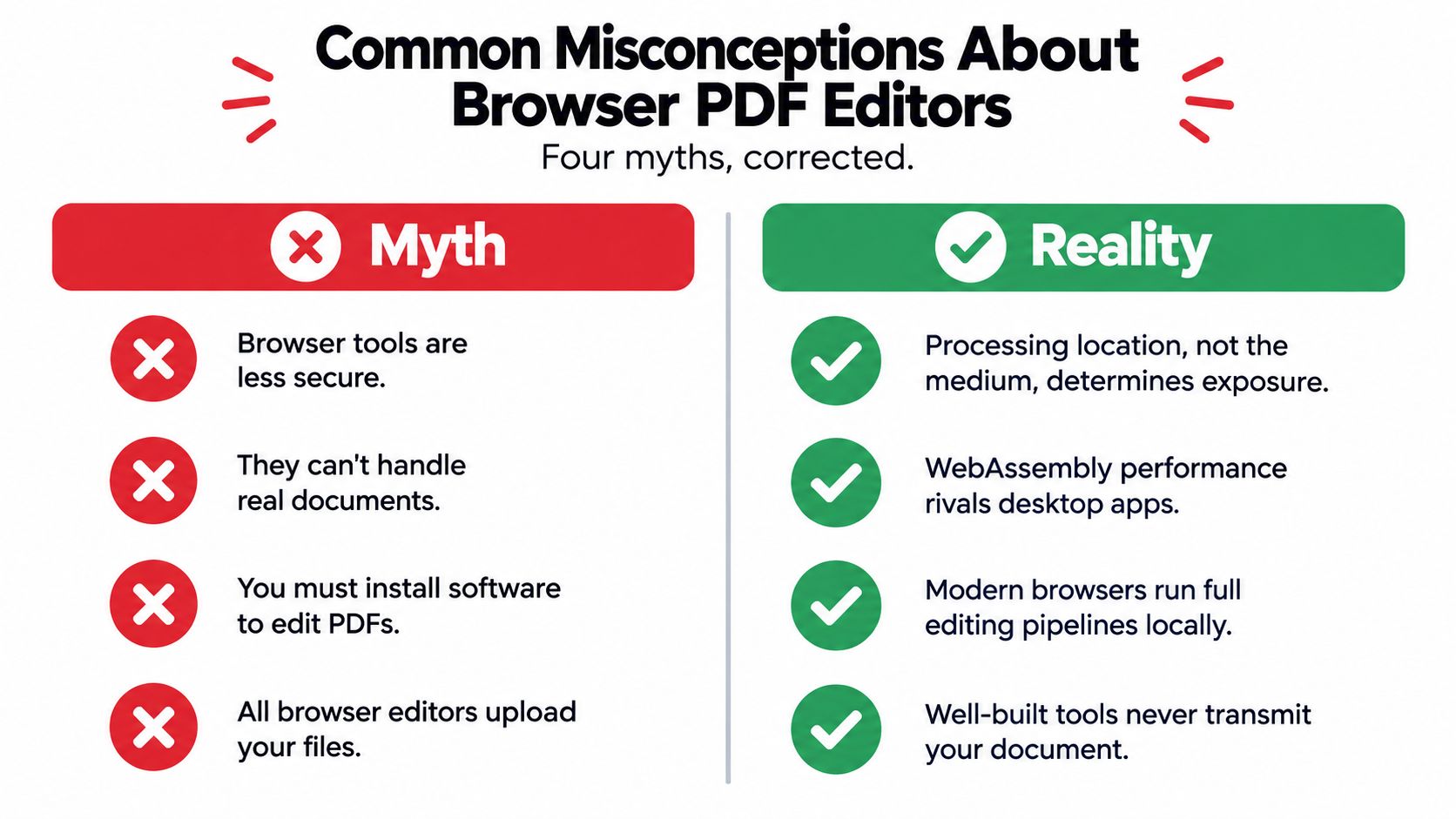
The right editor isn't the one with the most buttons. It's the one whose processing location, reliability, output quality, and privacy controls fit the documents you handle.
Common Misconceptions About Browser PDF Editors
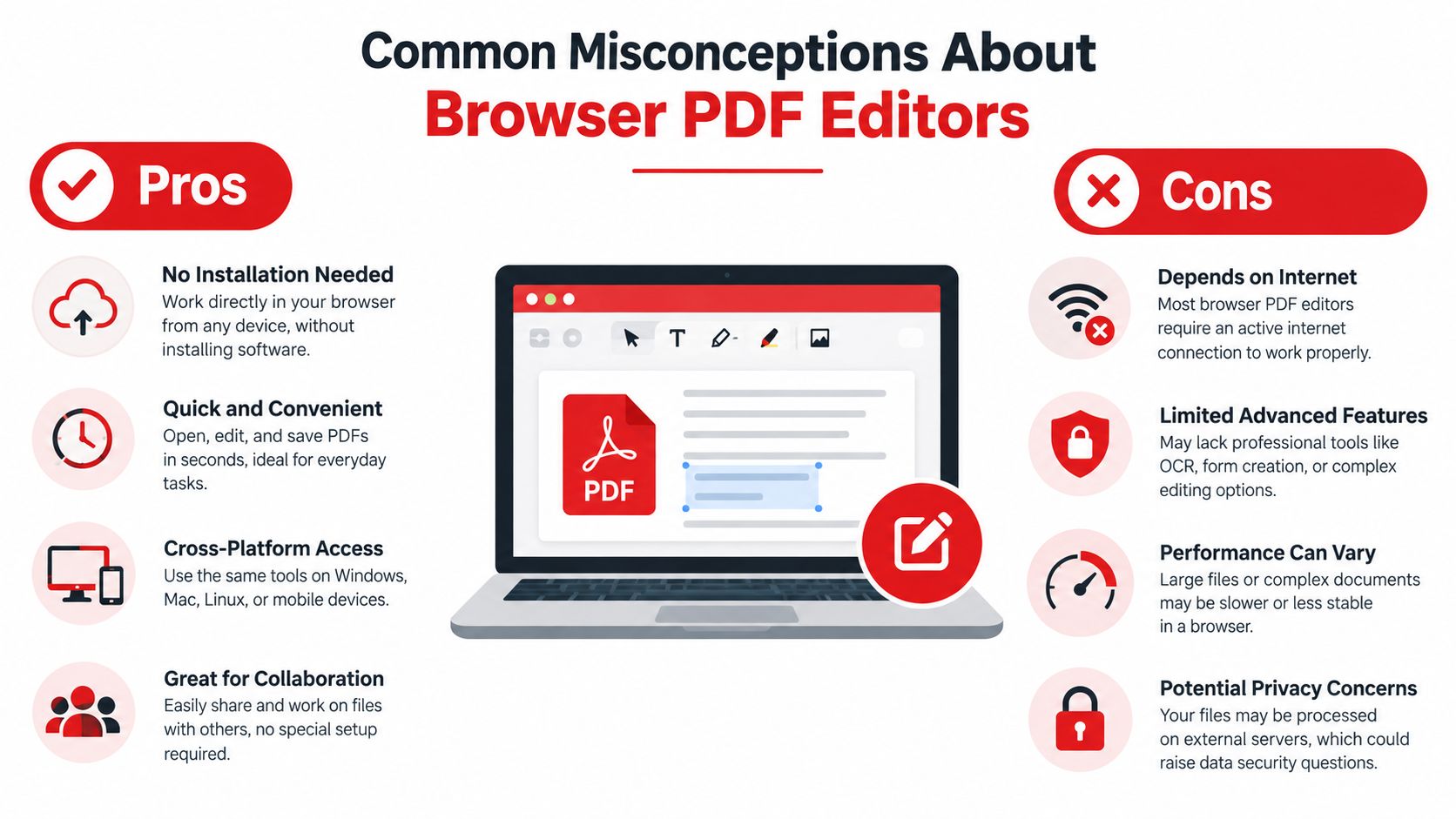
You open a browser editor on a shared laptop to adjust a sensitive contract. The word “browser” may suggest that the file is automatically exposed, while “desktop” may seem safer by default. The architecture matters more than either label. A client-side editor can process the document in browser memory, whereas a desktop workflow may still sync files to remote storage. Processing location determines exposure more directly than the label “browser.”
A second misconception is that free means limited. Some free editors add watermarks, task caps, page limits, or lower export quality. Others offer a useful set of functions without those restrictions. Check the complete workflow, including export behavior, instead of assuming that free always means either generous or compromised.
Performance depends on the job
The misconception is that local processing is always faster. A client-side editor avoids upload and download time, which can help with a small file and a quick change. Yet the browser still has to start WebAssembly, parse the PDF, render pages, and create the revised output. For a large or image-heavy document, startup and rewriting may take longer than expected. A server-side editor may finish sooner if it can assign the task to more capable remote computing resources.
Performance also depends on the operation. OCR, compression, and complex page reassembly place different demands on the editor than adding a short annotation. The practical question is not whether local or remote processing wins in every case. Test the document and action you need, then compare completion time, output quality, and failure behavior.
The final misconception is that desktop software makes browser editors irrelevant. Desktop applications still suit offline work, plugins, automation, and intensive recurring jobs. Browser editors remain useful when you need no installation, access across operating systems, immediate updates, or editing on a managed device without administrator rights.
Redaction shows why the intended result matters. A black rectangle can hide text visually while leaving the underlying content selectable or searchable. If you need to redact a PDF online, confirm that the editor removes the concealed content instead of merely placing a shape over it.
When a Browser Editor Is the Right Choice and When It Is Not
A browser editor is a strong fit when the task is occasional, the file is manageable, and installation creates more friction than the edit itself. That includes signing a form on a phone, adding a few annotations on a borrowed laptop, rearranging pages in a short report, or converting a modest document without administrator access.
A client-side option is especially attractive when the document is sensitive and the tool clearly keeps processing local. You still need to consider browser storage, extensions, device access, and the possibility of downloaded copies, but you avoid sending the PDF through a remote processing pipeline.
The category becomes less suitable when the work is large, repetitive, or dependent on a stable offline environment. Hundred-page batch redactions, extensive OCR across scanned archives, multi-author editing with version control, and field work without dependable connectivity may call for desktop or managed infrastructure.
Decision rule: If the file is small, the task is occasional, and the machine isn't yours, a browser editor usually reduces friction. If the file is large, the workflow repeats, or the network is unreliable, desktop software or a controlled processing system may be safer operationally.
Before choosing, return to the checklist: identify where processing occurs, test a representative file, inspect the output, and read the retention policy. The best pdf editor browser choice is the one that fits the document's sensitivity and the work's practical demands.
PDFWix offers browser-based tools for editing, merging, splitting, converting, signing, organizing, and protecting PDFs, with most tools processing files locally through WebAssembly. Visit PDFWix to test a no-install workflow and check whether its processing model fits your next document task.