
You've just received a contract that needs a signature, a scanned invoice that needs searchable text, or a report assembled from several separate files. Installing desktop software feels excessive, but uploading confidential documents to an unknown website feels risky. The challenge in finding the best free online PDF editor isn't locating a tool with an edit button. It's finding one that handles privacy, watermarks, accounts, file limits, and routine workflows without unpleasant surprises.
A practical evaluation starts with the invisible mechanics. Does the file stay in your browser, or does it travel to a server? Can you edit repeatedly, or will a daily quota interrupt your work? Will the downloaded document carry branding? The answers matter as much as text editing, merging, OCR, or signatures.
Table of Contents
- Why Free PDF Editors Are a Daily Necessity
- The Rise of the Browser-Based PDF Workflow
- Comparing the Top Free Online PDF Editors
- Why PDFWix Is the Best Free Online PDF Editor
- Essential PDF Editing Tasks Made Simple
- How to Choose the Right Tool for Your Needs
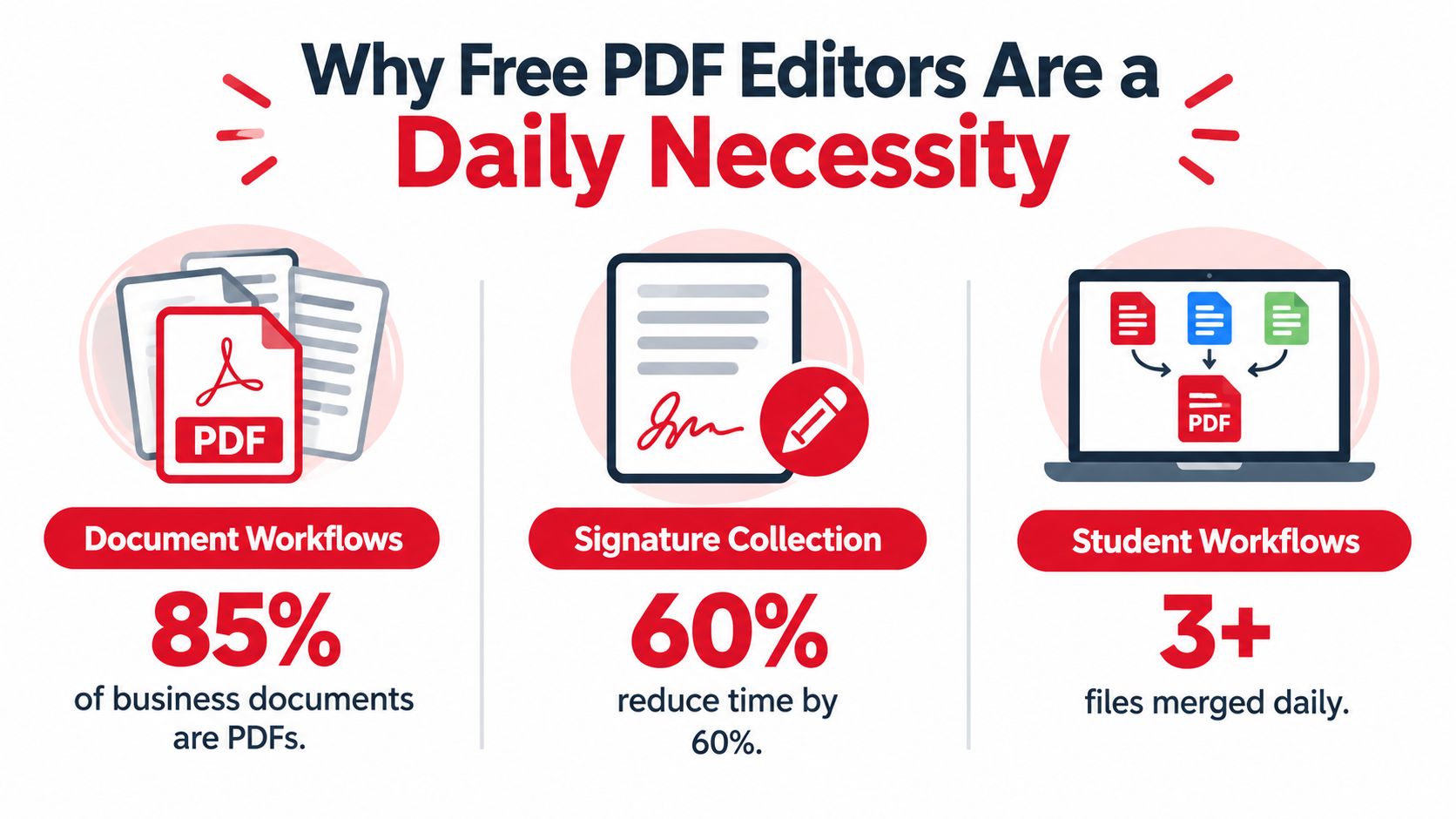
Why Free PDF Editors Are a Daily Necessity
A deadline can turn a minor PDF change into a real bottleneck. A student may need to combine an assignment with references, a small business may need to merge invoices for submission, or a legal team may need to add a signature field before sending a contract. Installing desktop software can take longer than the task itself, while an unfamiliar online editor may introduce account requirements, watermarks, or privacy concerns.
PDFs became central to these workflows because they preserve text, images, and layout across devices. Adobe formally launched Acrobat and the Portable Document Format on June 15, 1993. Britannica describes the original Acrobat package as three components: Acrobat Exchange for creating PDFs, Acrobat Reader for viewing them, and Acrobat Distiller for converting PostScript into PDFs. Adobe's retrospective on Acrobat's evolution places that launch within the broader move toward portable digital documents.
PDFs became workflow infrastructure
PDFs now carry contracts, applications, invoices, course materials, policies, identity documents, and financial statements between people using different operating systems and devices. In its 2018 retrospective, Adobe reported that about 200 billion PDFs had been opened in its products in the preceding year, with three quarters of the Fortune 500 and more than 100 million people using Acrobat daily. The figures describe Adobe's reported usage at that time, rather than current market activity.
That history explains the expectation of immediate results. A file should open without compatibility problems, edits should preserve the layout, and the finished document should be ready to share. Browser-based editing removes installation and licensing friction for quick jobs, but the convenience depends on how the service handles uploaded files.
The free tier still has to be usable
A free editor is useful only when its output works for the intended recipient. Watermarks can make a document unsuitable for a client. An account requirement can slow down a one-time form, and a daily cap can interrupt routine work just when several files need processing. Privacy terms deserve the same scrutiny: check whether files are uploaded, how long they are retained, whether encryption is used, and whether deletion is clearly explained.
The strongest free editors support the tasks users repeat most often:
- Page management: Merge, split, rotate, reorder, or remove pages.
- Content changes: Add text, images, highlights, shapes, and annotations.
- Forms and signatures: Fill interactive fields and sign documents in the browser.
- Conversion and OCR: Convert files into usable formats or make scanned text searchable.
- Privacy controls: State processing, retention, encryption, and deletion practices clearly.
Feature count alone is a poor selection method. Test the exact workflow with a non-sensitive file first, then confirm the export has no watermark, the tool does not impose an unexpected usage limit, and confidential documents receive appropriate handling. The right free editor completes the job without trading a small convenience for a privacy or delivery problem.
The Rise of the Browser-Based PDF Workflow
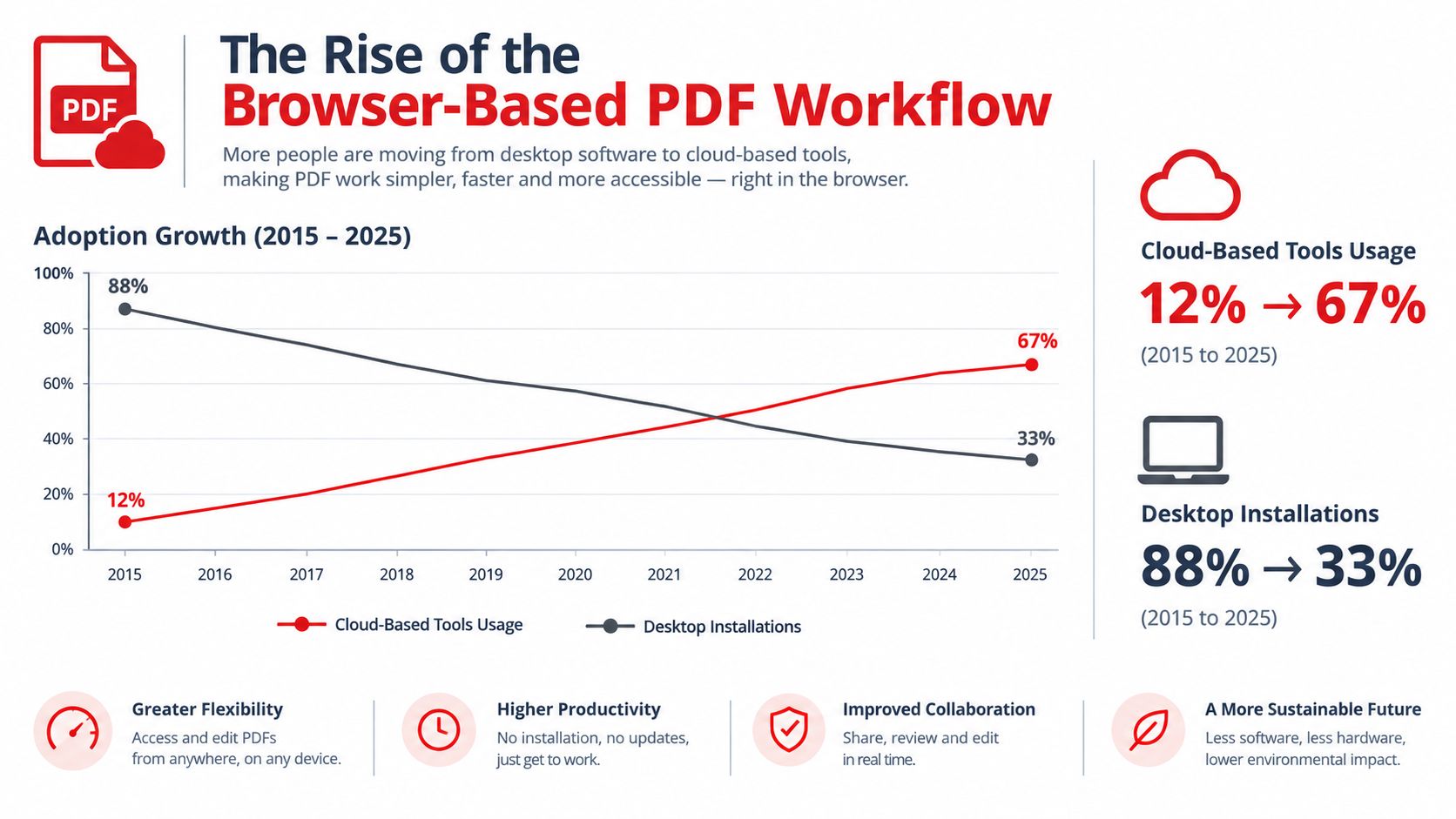
Browser-based PDF editing has moved from a convenience to a normal delivery model. Users can open a tool from a work laptop, continue on a tablet, and avoid installing software on every device. Teams also benefit when the workflow connects naturally to shared drives, browser sessions, and collaboration systems.
The market data reflects that shift. Global Growth Insights estimated the PDF editor software market at USD 4.64 billion in 2025, projecting USD 5.51 billion in 2026, USD 6.55 billion in 2027, and USD 25.95 billion by 2035, with a projected 18.79% compound annual growth rate over the forecast period. The market estimate from Global Growth Insights is a projection, not a guarantee, but it shows why browser-first document products continue to attract investment.
A separate estimate from Business Research Insights placed the market at about USD 5.54 billion in 2026 and USD 24.7 billion by 2035, with an 18.09% projected CAGR. These estimates differ in scope and methodology, yet both describe a multi-billion-dollar category with rapid projected growth. That makes freemium access commercially plausible, while competition pushes providers to reduce setup friction.
Why teams prefer the browser
One market report says web-based PDF editor software held a 58% market share in 2025 and was valued at USD 2.73 billion, citing browser accessibility, real-time co-editing, version control, and multi-device access as key advantages. The same source says more than 58% of global businesses prefer web-based editors for flexible team editing and cloud-drive integration. The category overview and market discussion supports the practical observation that teams increasingly want documents available wherever work happens.
Desktop software still makes sense when files must remain offline, when advanced layout control is essential, or when an organisation has strict endpoint policies. Browser tools win when the job is occasional, distributed, and time-sensitive. They also make access simpler for contractors, students, and external signers who shouldn't need a specialised installation.
Processing architecture matters
Not every browser tool uses the same model. Some upload a document to a remote service, process it, and return a download. Others use client-side processing, often through WebAssembly, so the browser performs the operation locally.
For teams designing broader document workflows, Doczen's implementation strategies offer useful context on how automation can be integrated around document intake, extraction, and downstream processing. The same architectural discipline applies to a simple editor. Before choosing a tool, identify where the file is processed and what happens after the task ends.
For a closer look at the practical mechanics of browser editing, use this guide to PDF editors in the browser. It's especially useful when the priority is a quick edit without a desktop installation.
Comparing the Top Free Online PDF Editors
A feature checklist cannot show whether a free editor fits a sensitive contract. Text editing, signing, and merging may be available while file retention, server processing, account requirements, or free-tier restrictions remain unclear. Those details determine whether the tool reduces work or adds operational friction.
PDFs often contain identity documents, contracts, payroll information, and financial statements. Before uploading one, check encryption, retention, and reuse policies. The provider should explain where processing occurs, who can access the file, and when it is removed. Vague privacy language is a warning, even when the feature list looks strong.
| Evaluation question | What a useful answer looks like | Warning sign |
|---|---|---|
| Where is processing performed? | The service clearly states whether processing is local or server-side. | The privacy explanation is vague or difficult to find. |
| Is an account required? | One-off editing works without registration. | A simple task is blocked until signup. |
| Are outputs branded? | Finished documents are delivered without unwanted marks. | The free plan adds a watermark. |
| What limits apply? | File size, task quotas, and feature restrictions are stated before use. | Limits appear only after repeated attempts. |
| How are files handled? | Encryption, deletion, and retention terms are documented. | The provider gives no clear retention explanation. |
| Can it handle the actual task? | Text, pages, forms, OCR, or signatures work as needed. | The editor only overlays text instead of changing content. |
The main categories of free tools
Upload-based editors can suit conversions, OCR, and other heavier processing. Their convenience comes with a data-transfer decision. Review how files are transmitted, stored, reused, and deleted before submitting confidential material. A policy promising deletion later may still be unsuitable when the document must remain on the device.
Local browser tools keep processing on the user's device, which can reduce exposure to external systems. Performance depends on browser capability, available memory, and document complexity. They fit users who prioritise data locality and do not need a hosted collaboration workspace.
Desktop editors remain useful for offline work and detailed document control. Installation, device dependency, licensing friction, updates, and machine compatibility create their own costs. They are practical when files cannot leave a controlled environment, while browser tools are often easier for occasional or distributed work.
What “free” should mean in practice
A useful free editor should let you complete a normal task, download a clean result, and return later without discovering that the workflow depends on an upgrade. Advanced features may reasonably be restricted. The limits should be visible before work begins, and they should not introduce watermarks or unexpected daily caps into ordinary use.
Compare processing behaviour and restrictions in the PDFWix comparison of Smallpdf and similar tools before choosing a workflow. Then read the service terms for file retention, server-side processing, third-party sharing, watermarks, daily quotas, and account requirements. These checks reveal more than feature badges and help match privacy needs with practical limits.
Why PDFWix Is the Best Free Online PDF Editor
The most useful distinction between free PDF tools is often where processing happens. An upload-based service sends the file away for processing, which may be acceptable for a public brochure but not for a signed contract or identity document. A client-side editor keeps the main operation inside the browser, reducing the number of systems that handle the file.
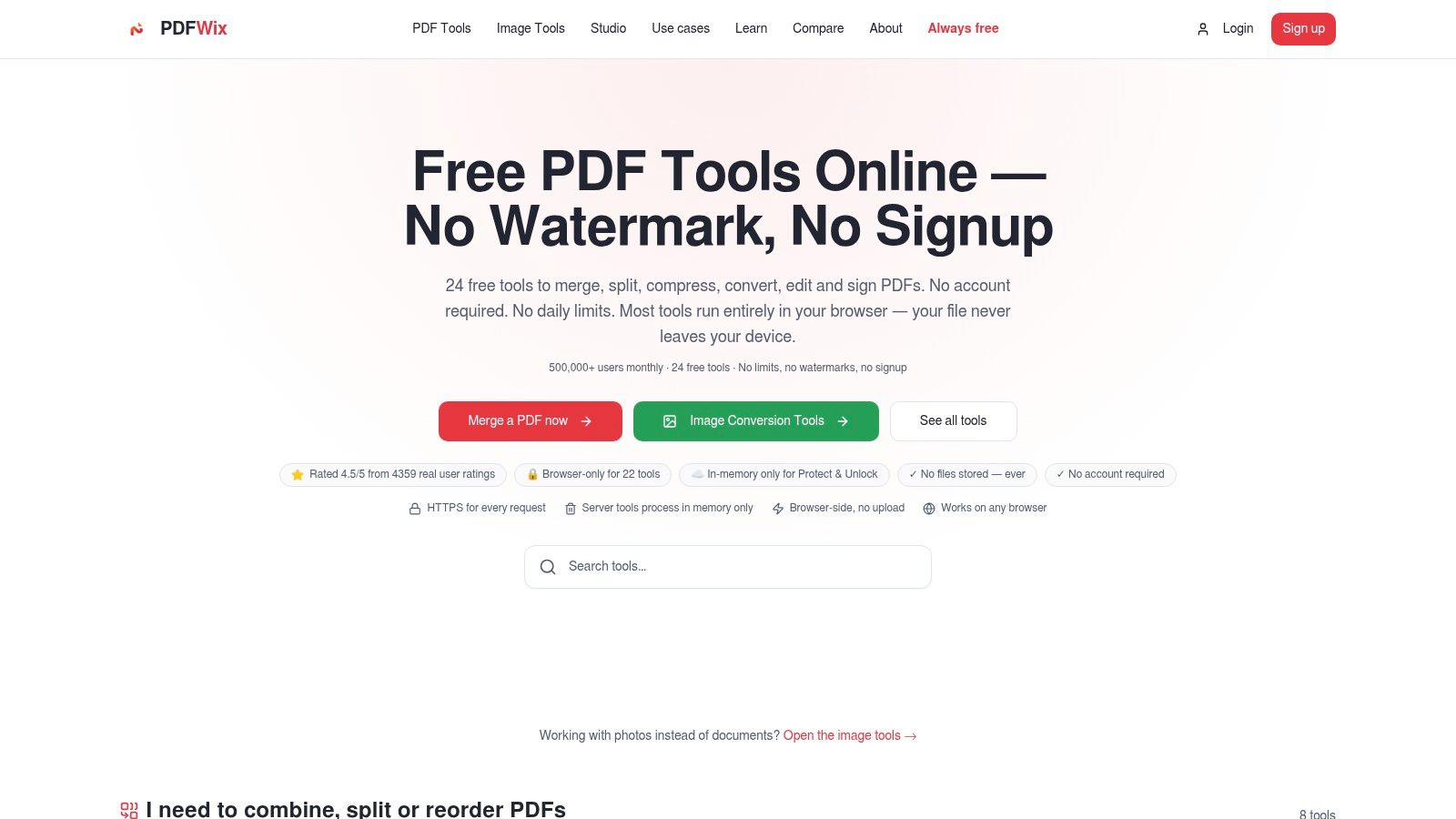
PDFWix provides 24 browser-based PDF tools, with 22 running in the browser through WebAssembly. Its Protect PDF and Unlock PDF tools run server-side in memory only and don't write files to disk. That architecture gives users a clearer privacy model than a service that just asks them to upload documents without explaining retention.
The platform also states that it requires no account, imposes no daily task limits, and adds no watermarks to outputs. Those policies address the practical frustrations that make many free tools difficult to use repeatedly. A user can edit, merge, compress, sign, or convert a document without first creating a profile or accepting branded output.
What the privacy model changes
Local processing doesn't make every document risk-free. Users still need to protect their device, browser session, and downloaded files. It does, however, remove the routine upload step for the tools that run locally, which can be a meaningful difference for freelancers, legal staff, office workers, and students handling personal records.
The product supports common editing tasks, including adding text, images, shapes, highlights, and freehand annotations. It also includes page organisation, conversions, forms, self-signing, signature requests, OCR where available, compression, repair, and document comparison. The PDFWix overview of its approach provides the relevant product details without requiring users to infer them from a pricing table.
Where it fits best
PDFWix is a strong practical option when the priority is a clean output without a watermark, no mandatory signup, and a browser workflow that keeps most processing on the device. It's less suited to organisations that need extensive hosted governance, central document retention, or a full enterprise collaboration environment around every file.
That trade-off is healthy to state plainly. A privacy-first browser toolkit solves fast document operations. It isn't automatically a replacement for every controlled records-management system. Choose it when the work calls for direct editing and low friction, and verify the handling model for any server-side security operation.
Essential PDF Editing Tasks Made Simple
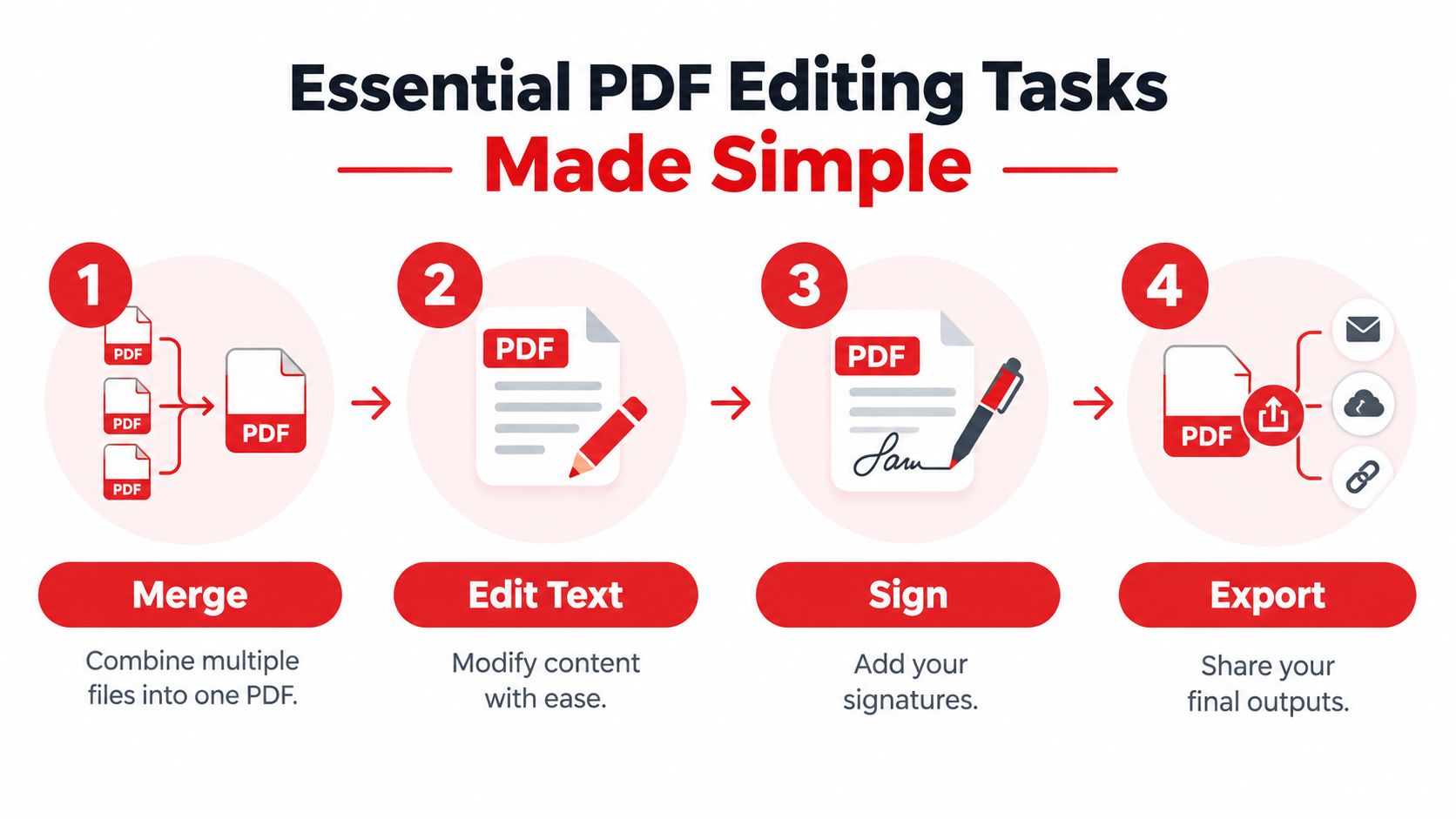
Most PDF jobs become easier when you separate document structure from document content. First decide whether you need to change pages, change visible content, extract text, or collect information. Then use the narrowest tool that completes that job, rather than opening a full suite and searching through unrelated controls.
Merge and organise pages
To combine files, open the merge workflow, select the PDFs, and review the page thumbnails before exporting. Arrange the files in the intended sequence, remove duplicates, and rotate pages that were scanned sideways. Save the combined document under a new filename so the original files remain available if the order needs correction.
Splitting follows the opposite logic. Select the pages that belong together, export them as a separate file, and check that bookmarks, page numbers, and signatures still make sense. Page-level review prevents a common mistake, sending an incomplete appendix or leaving a confidential page in the wrong output.
Edit text and scanned content
For a digitally generated PDF, choose the text editing tool and click the area that needs correction. Keep the replacement short when possible, because changing a long paragraph can affect spacing, line breaks, and nearby objects. Export a copy, then reopen it to confirm that the change survived conversion.
A scanned PDF is different. It contains page images rather than dependable text objects, so you need OCR before searching or editing the words. Review OCR results carefully, especially for names, invoice references, dates, and amounts. Recognition can make a scan usable, but it shouldn't remove the need for visual proofreading.
For a focused walkthrough, use this guide to adding text to a PDF. If your end product is instructional content rather than a document, a separate workflow can convert PDF to video easily.
Fill and sign
Interactive AcroForm fields usually accept typed information directly. Click each field, check that the text fits, and move through the document in order. Before exporting, confirm that required fields are populated and that the final file still opens as a form if another person must complete it.
For a self-signature, select the signature tool, create or import your signature, place it precisely, and inspect the surrounding text. A signature image and a managed electronic-signature workflow aren't always the same thing, so organisations with formal signing requirements should verify their audit and identity needs separately.
Export and inspect
Export only after checking page order, legibility, margins, and form fields. Open the downloaded file in a second PDF viewer, because an editor's preview may not reveal a font substitution or a missing annotation. This final inspection takes little time and catches errors before the document reaches a client, lecturer, or signatory.
How to Choose the Right Tool for Your Needs
The right editor depends on document sensitivity, task frequency, and required output quality. A student correcting a typo in a public reading may prioritise speed. A professional handling contracts or financial statements should prioritise processing location, retention rules, and the ability to produce an unbranded final file.
Use this decision guide:
- For occasional, low-sensitivity edits, choose a browser editor that works without installation and clearly states its free limits.
- For repeated daily work, avoid tools with restrictive quotas unless the volume is small.
- For confidential files, prefer local processing or a provider that documents encryption, retention, deletion, and server access in plain language.
- For scanned documents, confirm that OCR is available and plan to proofread recognised text.
- For signatures, distinguish simple self-signing from workflows that require identity checks, audit records, or multiple signers.
- For offline environments, use software that processes files locally without depending on an active upload connection.
A simple risk test
Before using any online editor, ask three questions. Does the file leave my device? If yes, what protection and deletion terms apply? Will the output work for its recipient? Check for watermarks, altered formatting, and compatibility. Can I complete the task without an account or quota interruption? A technically capable editor may still be the wrong choice if those constraints interfere with routine work.
The privacy question deserves special attention because file safety isn't visible in the editing toolbar. Guidance on online PDF tool safety is useful when reviewing local processing, uploads, retention, and the difference between a privacy promise and a documented operating model.
Don't treat “free” as a complete evaluation category. Treat it as one requirement alongside data handling, limits, output quality, and workflow fit. The best free online PDF editor for a public handout may be entirely different from the best choice for a signed employment agreement.
PDFWix offers browser-based tools for editing, merging, converting, signing, and securing PDFs, with most processing performed locally and no required account, daily task limits, or watermarks. If those privacy and usability trade-offs match your workflow, visit PDFWix and test the document task you need to complete.