
You've finished the last page of a long report. The body is signed off, the tables are clean, and the one job left is the part nobody schedules: a title across the top of every page and a page number at the bottom. It looks like a two-minute task.
It isn't quite that, and it isn't hard either. Adding a header and footer to a PDF is a layout task, an accessibility task and a verification task at once. The text has to sit in the margin rather than on the body, it has to mean something sensible to a screen reader, and it has to survive the round trip through the tool you used. Get those three right and the document looks finished. Get them wrong and you've either covered a signature on page 22 or filled a screen reader's output with the same page number read aloud forty times.
Table of Contents
- How to Add a Header and Footer to PDF in Six Steps
- Page Sizes and Margins to Check First
- Labels, Dates and Page Numbers That Belong There
- Fixing Overlap, Rotation and Clipping Problems
- Keeping Essential Header Text Accessible
- Verify the Final PDF Before You Sign or Share
How to Add a Header and Footer to PDF in Six Steps
The job is adding repeated text to the top and bottom margins. The six steps below keep that text clear of the body and keep the file you started with intact.
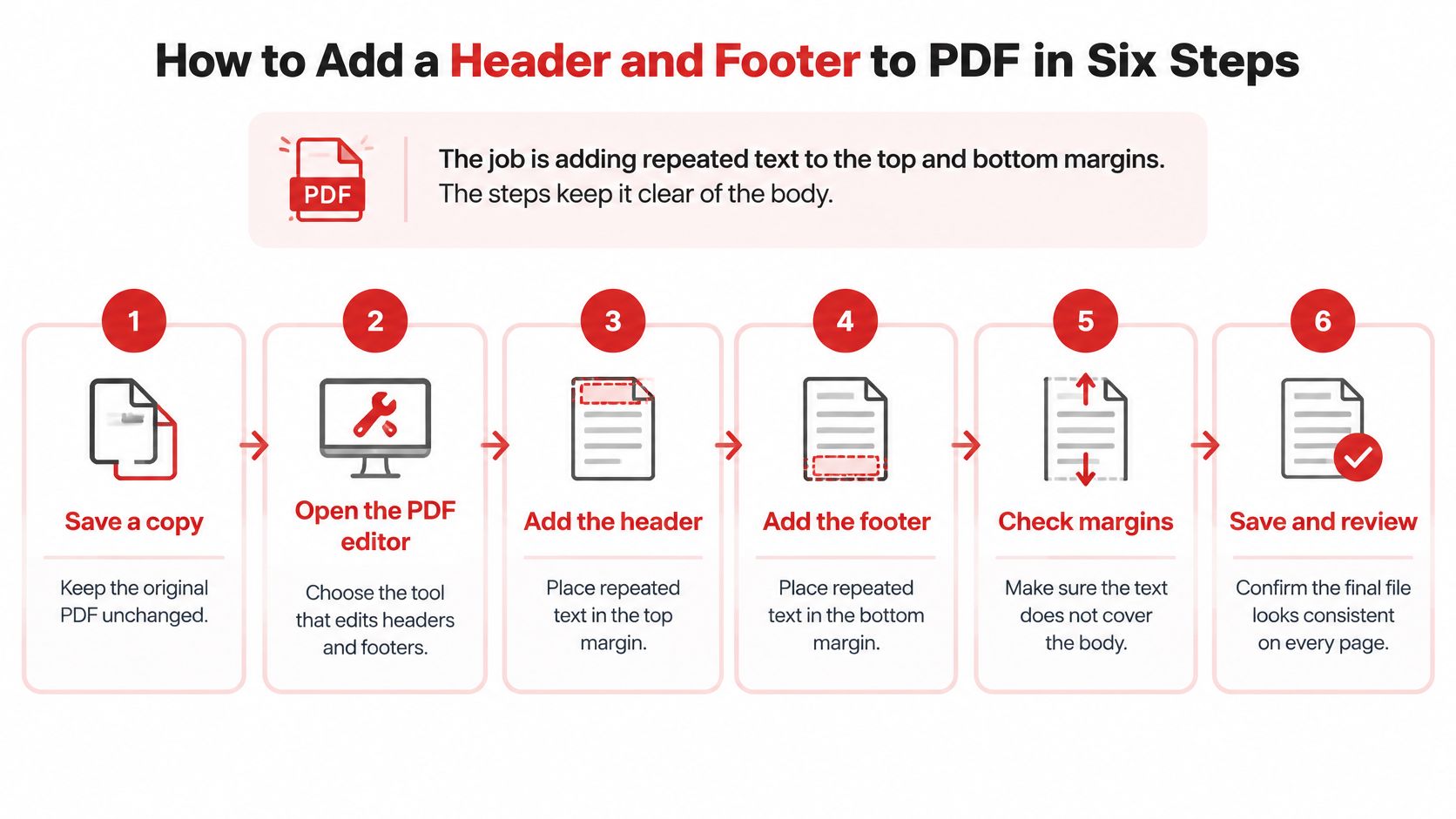
- Save a copy before you touch anything. Your untouched original is the fallback for every later edit, and you'll want it when a placement goes wrong on page 27 and there's nothing to undo.
- Open the header and footer tool and load the file. Add your document at the PDFWix header and footer tool, and read the options and processing terms it currently lists before you put anything confidential in.
- Type the header and footer text. Header: document title, section name, or a confidentiality label. Footer: the date and a page format such as Page 3 of 15. Keep each entry on one line, because a string that wraps on some pages and not others breaks the alignment you set.
- Set font, size and position inside the margin band. Look for the placeholder options (page number, total pages, file name, date), the alignment controls and the skip-the-cover-page setting on the tool page, then place every line in the outer margin rather than the body area.
- Preview the first, middle and last pages, plus any wide or odd-sized page. One template behaves differently on each, and the page you skip is the one that ships with the text across a chart.
- Download, then reopen the file. Confirm the expected text appears on every page with the body untouched. The full checklist is further down.
If only two or three pages need a label, the browser PDF editor is a better fit than a document-wide template, because you can place one text box exactly where it belongs instead of imposing a rule on every page.
The output carries no extra branding. PDFWix never adds a watermark, footer or branding to files users create, so the only text on the page is the text you asked for.
Page Sizes and Margins to Check First
| Page size | Dimensions | Clearance to keep | What to check |
|---|---|---|---|
| A4 | 21.0 × 29.7 cm | 1.0 cm on all sides | Body text should stop at least 1.0 cm from the top and bottom edges |
| US Letter | 21.6 × 27.9 cm | 1.0 cm on all sides | Recheck the footer distance, since the page is shorter than A4 |
| US Legal | 21.6 × 35.6 cm | 1.0 cm on all sides | Give the taller page its own footer position rather than copying a letter-page setting |
| Mixed sizes in one file | Each page keeps its own size | 1.0 cm on each page | Use per-page placement rather than one template |
1.0 cm is a floor, not a target. The International Council for Harmonisation's Specification for PDF Format sets remaining page margins at a minimum of 1.0 cm and states that header, footer and page-number information should not appear in those margins. Read that twice: the new text belongs in its own reserved band, not inside the content area the body is allowed to occupy. Borrow the number as a working floor even when no regulator is watching, because below it printers trim and body text collides.
How to measure the space you actually have
Open a single page and find the piece of body text closest to the top edge. Measure the distance from that line to the edge, then do the same at the bottom. If both clear 1.0 cm with room to spare, you have a safe band. Then repeat on every distinct page type in the file, because a template applied once lands in four different places.
A letter-sized memo with one legal-sized insert is the classic failure. The taller page pushes the bottom edge down, so a footer that clears the body on eleven pages can sit inside the last paragraph on the twelfth.
Rule of thumb: if body text already sits within 1.0 cm of an edge, reflow or shrink the body before you add anything. New text placed in that space will collide with it.
When a page is the wrong shape altogether, resizing first is cleaner than shrinking your label to three points. The Change PDF Page Size tool resizes to A4, Letter or Legal and can add print margins, which gives the header band somewhere real to live.
Labels, Dates and Page Numbers That Belong There
| Element | Typical position | Example text |
|---|---|---|
| Document title | Header, left or centered | Quarterly Sales Report |
| Section name | Header, right | Chapter 3: Methods |
| Date or version | Header right or footer left | Revised 14 March 2026 |
| Page number | Footer, centered or right | Page 3 of 15 |
| Confidentiality label | Header or footer on every page | CONFIDENTIAL |
| Response deadline | Footer on the first page | Respond by 30 June 2026 |
Three documents show how these combine in practice.
A contract under negotiation. A response deadline belongs in the footer of the first page, where a reader sees it immediately, while a confidentiality label belongs on every page in the header. Splitting them this way means the deadline isn't repeated as noise forty times, and the restriction is impossible to miss.
A long report. A running title and chapter name go in the header so a reader flipping through can locate themselves, and Page 3 of 15 goes in the footer. If the report is a quarterly financial document, the section structure described in this guide to quarterly report sections and layout will tell you which running header helps navigation and which one just fills space.
A document that gets revised. A version label such as Revised 14 March 2026, written in one consistent format across the whole file, saves an argument later about which copy someone is holding.
Choose two or three elements per document. A header carrying a title, a section name, a date and a confidentiality label crowds the top of every page and makes the body harder to read, and the clutter repeats on every sheet.
Match the page number to what a reader sees, so the visible number and the file's own page identifier agree. If your footer numbering needs to start after a cover or run in a different format, adding page numbers to a PDF covers the position, alignment, format and starting number controls before you layer a title on top.
Fixing Overlap, Rotation and Clipping Problems
Six symptoms account for nearly every header and footer failure, and each one has a recognisable cause.
| Symptom | Likely cause | Fix |
|---|---|---|
| New text covers a line of body text | Header or footer band too close to the body | Move the text into the margin, or reduce the body area first if the tool allows it |
| Text appears sideways or upside down on some pages | Page rotation not accounted for | Check the rotation of each page and set placement per page |
| Text sits outside the visible page or is clipped | Placement measured from the full page rather than the visible area | Place text inside the visible area and check the edges on every page |
| Text is missing on some pages | One global template used across mixed page sizes | Apply per-page placement to rotated and differently sized pages |
| Characters look wrong or widths change | Font not embedded | Use an embedded font and recheck line length |
| Links or form fields stop working | Annotations not preserved during editing | Verify links and fields after export and redo any that broke |
Two causes sit behind most of that table. The first is geometry. A PDF can define a MediaBox for the full page and a CropBox for the area readers see, and placing text from the full-page origin pushes it outside the visible region. Clipped text is lost to sighted readers and screen readers alike, because content outside the CropBox renders nowhere. Rotation is the second cause: on a rotated page the coordinate directions change, so a footer that sits right on portrait pages appears shifted or inverted on the rotated one.
The W3C's guidance on running headers and footers recommends inspecting each page's MediaBox, CropBox and rotation first, then defining a safe area inside the visible CropBox rather than positioning from a fixed page origin. It also flags the four failure modes worth memorising: coordinates applied before rotation, MediaBox confused with CropBox, unembedded fonts, and new content inserted over existing body text.
Fonts deserve their own line. A substituted font changes the width of every character, so a footer that fit neatly inside the margin with the original face can overflow it once the viewer swaps in something else.
The mixed page size problem from Section 2 resurfaces here as missing text rather than a collision, because a template sized for A4 can fall outside the CropBox of a wider sheet entirely.
Test the page type, not the document. A footer that sits perfectly on forty portrait pages can still be wrong on the one wide spreadsheet in the middle.
After any fix, reopen the file and inspect the pages you changed rather than page one. Then rerun the margin and overlap check, because moving text out of one collision has a habit of creating another a few millimetres away. When the body itself needs more room, cropping the page to establish a clean content area is often faster than fighting coordinates that were never right for that page.
Keeping Essential Header Text Accessible
The comfortable assumption is that a header is decoration and can be dismissed by assistive technology. Sometimes that's true. Sometimes it strips out the only instruction that mattered.
Repeated page furniture is the safe half. A page number, a running title, or a section name that appears on every page can be marked as a pagination artifact, which tells a screen reader to skip it instead of reading the same line thirty times. Do that carelessly and you delete information. The West Virginia Department of Education's accessibility guidance notes that a title appearing only in the header on page one should not be artifacted there, because that page holds the only place it is read.
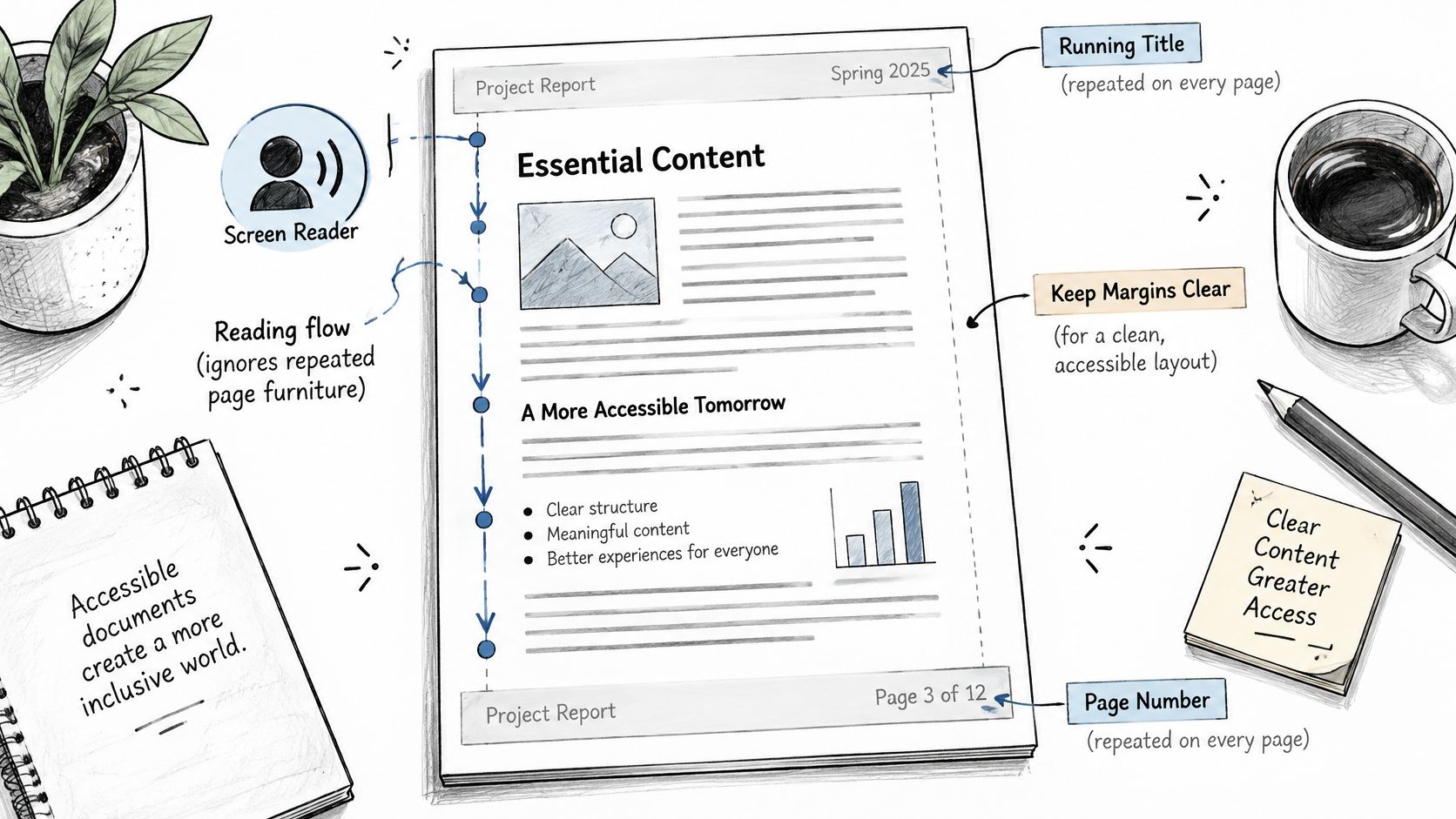
Essential text is the other half. The U.S. Social Security Administration's PDF Section 508 compliance checklist gives examples such as "Respond by X Date," "CONFIDENTIAL" and "Do Not Distribute," and warns that vital information sitting in a source file's header or footer may not automatically become tagged content. That material has to be tagged by hand and placed in the tag tree or at the start of the related section so a reader using assistive technology can find it.
| Item | Repeated or essential | Accessibility treatment |
|---|---|---|
| Running document title on every page | Repeated navigation | Mark as artifact after the first page |
| Title that appears only in the header on page 1 | Only place the title is read | Do not artifact on page 1 |
| Section name on every page | Repeated navigation | Artifact if it repeats; keep readable if it guides the reader |
| Date or version label | Repeated, often decorative | Artifact unless it marks a required action |
| Page identifier such as Page 3 of 15 | Meaningful identifier | Keep discoverable in the reading order |
| Respond by date | Essential instruction | Tag manually and place at the start of the related section |
| CONFIDENTIAL or Do Not Distribute | Essential restriction | Tag manually so it is discoverable |
Ask one question of each line. Would a reader lose information if this line disappeared? If yes, it belongs in the reading order. If no, it's furniture.
The working sequence is short: place the visual header and footer, mark repeated items as artifacts, keep essential items tagged and in order, open the tag tree and inspect it, then test with a screen reader or a text-reflow view. Give artifacts a bounding box where the tool allows it, since an artifact without one can be discarded during reflow. Treat running headers as a technique that supports orientation, not a blanket requirement that guarantees conformance.
Verify the Final PDF Before You Sign or Share
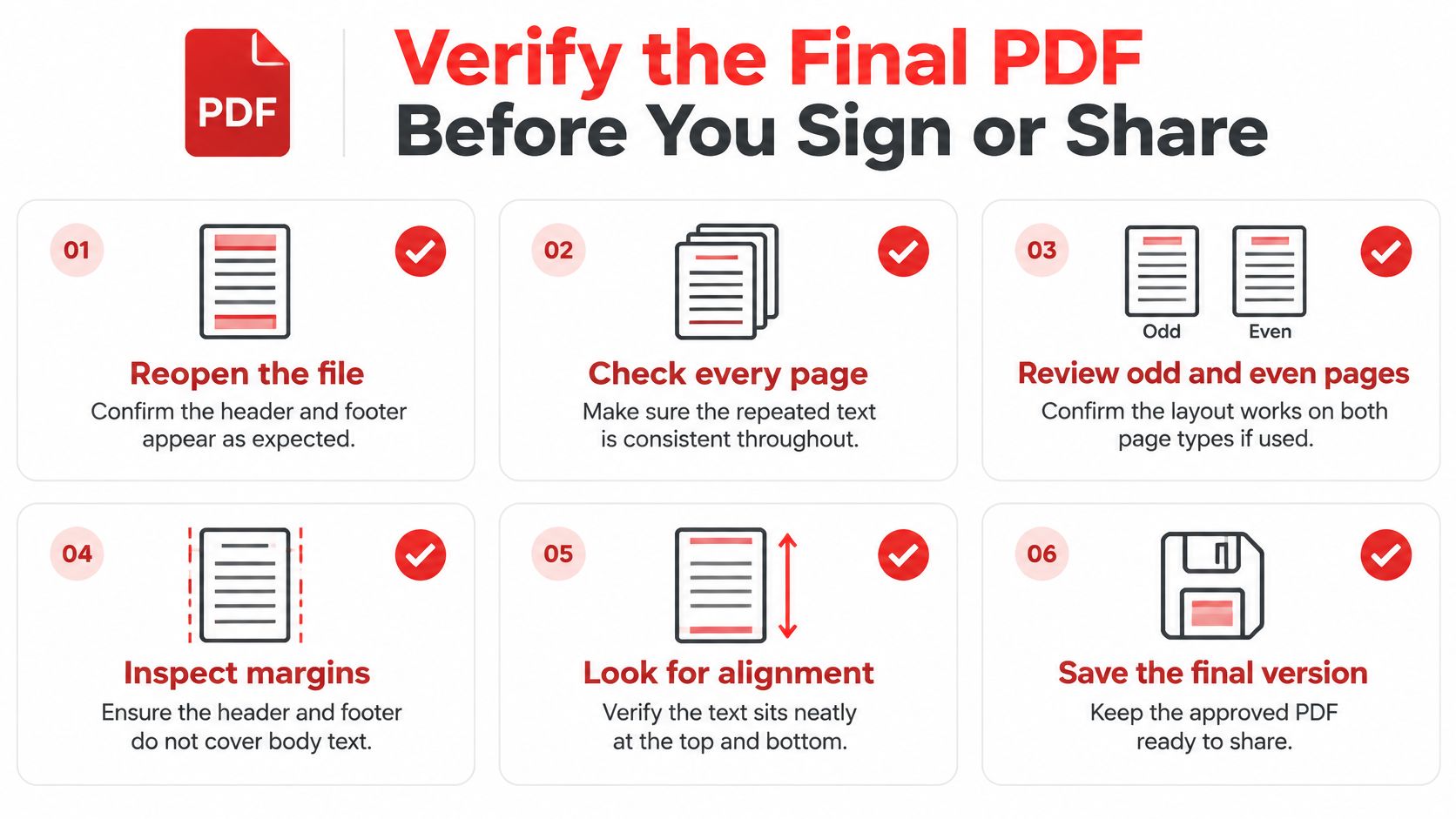
Run these checks in order once the text is in place.
- Reopen the file and confirm every page. Each page should carry the expected header and footer strings, including odd and even pages if your layout differs between them.
- Check that every line sits inside the visible page area. Look at the edges specifically. Clipping at the trim is invisible on screen and obvious on paper.
- Hunt for collisions. Signatures, stamps, redaction boxes, form fields and links all sit on top of or underneath your new text, and some editors drop annotations on export. Click the links to confirm they still work.
- Sign after the header and footer are final. A later text change can land on top of a signature and force a re-sign, so the guide to adding a signature to a PDF is worth reading before you apply one with the sign PDF tool, not after.
- Keep the editable source. Stripping metadata or flattening a file can stop the originating application from editing those elements later, which turns a small date change into a rebuild.
- Do a last visual pass on the first and last pages. Those are the two anybody looks at before forwarding, and the two where a stray cover-page label is most obvious.
If the document is a tender submission going out under a deadline, tender response tools help you keep the response structure and submission requirements straight while you label pages, which is exactly the stage where a mismatched page identifier causes trouble.
Send one file, keep three. The verified PDF goes out. The untouched original, the editable source and the version you sent stay with you as the record of what left your desk.
Once the checks pass, stop editing and send the verified copy. Every further "quick tweak" restarts the whole sequence, and the page you don't re-inspect is the one the recipient opens first.
The header and footer tool at PDFWix is free, needs no account, and adds nothing of its own to your file, so you can test a label on one page before committing it to two hundred. Add your title, date and page numbers, download the result, then reopen it and inspect the pages that carry the most risk: the first, the last, and any that are rotated or a different size. Start at PDFWix and keep your original untouched until the new version has passed every check.