
You're one keystroke from sending it. The contract is signed, the invoice totals are right, and page 8 of the PDF is a duplicate scan of page 7 that nobody needs to see. Or worse: appendix C still carries last client's pricing and it's going to a new one.
So you open the file, click the page, press Delete, and nothing happens. Or the page vanishes, you save out of habit, and the original is gone. People who look up how to delete a page from a PDF on Mac often run into one of those two outcomes, and both come from doing the right action in the wrong place.
The deletion itself takes under a minute. What takes judgement is choosing the tool, selecting the correct sheet, and making the saved copy prove it did what you asked. That's the order this article works in.
Table of Contents
- Choosing Between Preview and the Browser Tool
- Selecting the Right Pages Without Removing the Wrong One
- Delete a Page in Preview Step by Step
- Removing Pages Online with the Browser Tool
- Saving a Copy and Checking the Page Count
- When Deleting a Page Does Not Remove Everything
- Delete the Page and Send Only the Checked Copy
Choosing Between Preview and the Browser Tool
Start with one question: is the file already on this Mac, and does anything on the pages you're keeping need to survive exactly as it is? If yes to both, delete the page in Preview and work on a copy. If you're trimming a blank scan or a duplicate out of a file you're happy to open in a browser, the browser route is quicker to reach and behaves the same on any machine.
Preview on Mac arrives with macOS. It opens any PDF you can already read, needs no account, and never uploads the document anywhere. That last point decides the choice for a lot of people handling offer letters, medical records or anything under a confidentiality clause.
A browser tool earns its place when Preview isn't there at all, when you're on a borrowed or shared Mac and don't want to leave the file in someone's Downloads folder, or when you want the same five steps whether you're at your desk, on an iPhone or on a Windows laptop in a meeting room.
| Factor | Preview on Mac | PDFWix Remove Pages |
|---|---|---|
| Software needed | None, built into macOS | None, runs in a browser |
| Works offline | Yes | Once the tool page has loaded, yes, since the file is processed in the browser rather than uploaded |
| Page selection | Click thumbnails, Command-click to add pages | Select the pages to remove in the tool |
| Annotations on the deleted page | Removed with the page | Removed with the page, so keep a copy of any markup you still need |
| Saving the result | Save under a new filename | Download the result under a new name |
| Best fit | Files already on your Mac, especially with markup | Quick removal from any device with a browser |
The row that decides most real cases is the annotation one. Neither route treats the deleted page gently: the page and everything on it go. If a reviewer's comments on that sheet matter, you keep the original rather than hoping for partial recovery.
Neither route resizes anything either. If the right page is the wrong dimensions, that's a different job, covered in the guide on how to change a page size in PDF.
Selecting the Right Pages Without Removing the Wrong One
Almost every bad deletion happens before the Delete key is pressed. The page you meant to remove sits next to the page you removed, and the saved file looks fine until someone replies asking why the signature page has disappeared.
The commonest cause is trusting the printed number over the file's own order. Say a ten-page contract has an unnumbered cover sheet, so the sheet carrying the signatures is page 7 in the file but reads "6" in the footer. Delete by the printed number and you take out the notice page next to the signatures. Read the page number Preview shows under each thumbnail instead, and confirm the sheet visually before you select it.
Apple's guidance covers the mechanics: opening a multi-page PDF and choosing View > Thumbnails puts a smaller version of every page in the sidebar, clicking one jumps to it, and the sidebar separator can be dragged to change thumbnail size, per Apple's Preview documentation. That sidebar is the only control you need, and it's the one people skip.
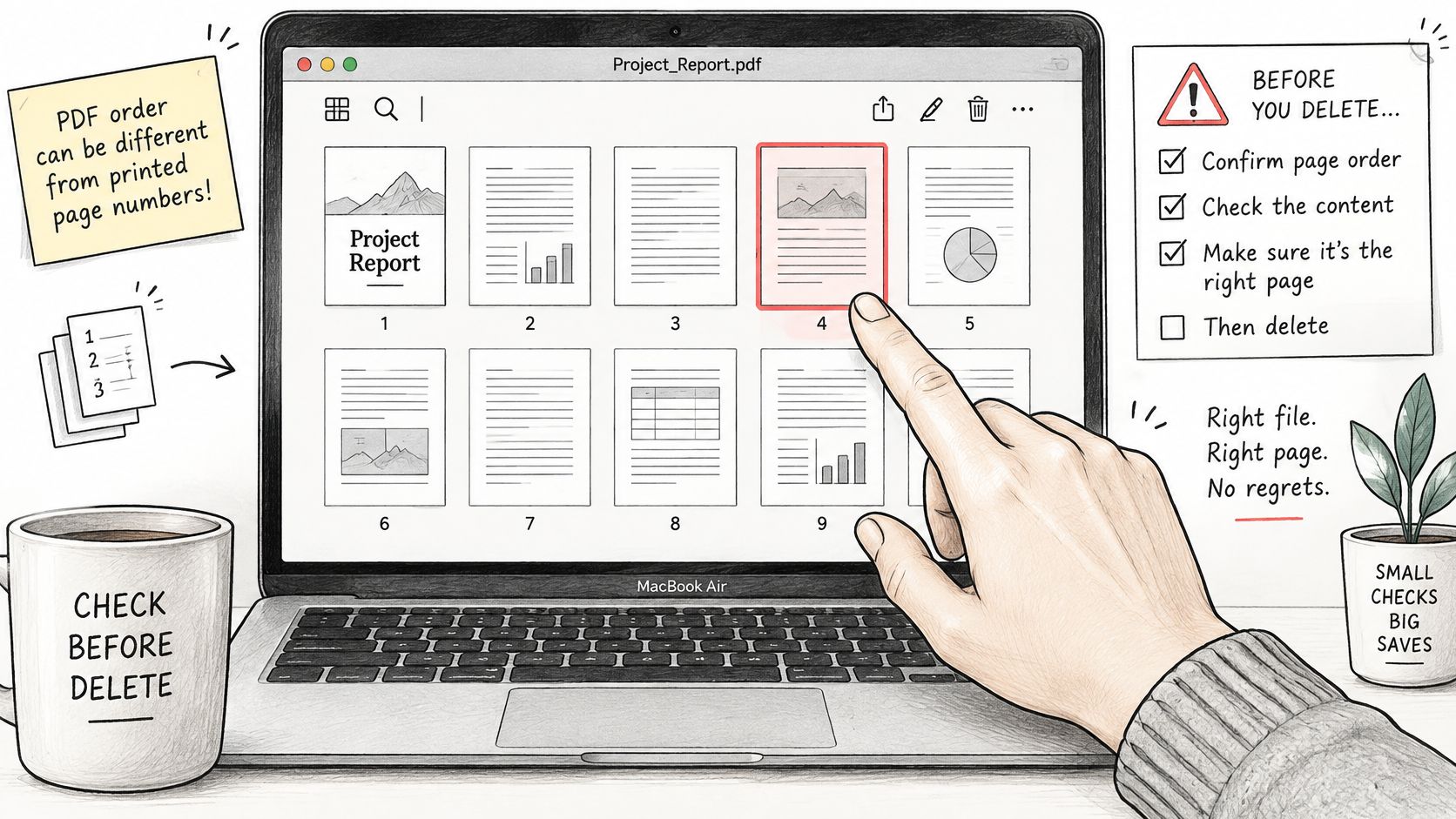
Three slips account for the rest. The first is selecting in the large main view instead of the strip, which leaves the actual target ambiguous. The second is a stray Shift-click that grabs a block of pages you didn't inspect; scroll the whole sidebar once more before pressing Delete. The third is scanning pages that look identical, such as a run of invoices with the same layout, so drag the sidebar separator wider until the page numbers are legible.
Write it down first: note the pages you're removing and the count you expect afterwards. Twelve pages minus pages 2, 3 and 9 leaves 9.
If you need those pages intact elsewhere rather than gone, extract the selected pages into a separate file before you delete, and keep that extraction as your record.
Delete a Page in Preview Step by Step
Preview is the default route for a Mac user because there's nothing to install and nothing to sign up for. Apple documents the workflow in its guide to deleting pages in Preview, and it runs through the thumbnail sidebar or a menu command, either of which works.
Here's the whole sequence, with the reason behind each move.
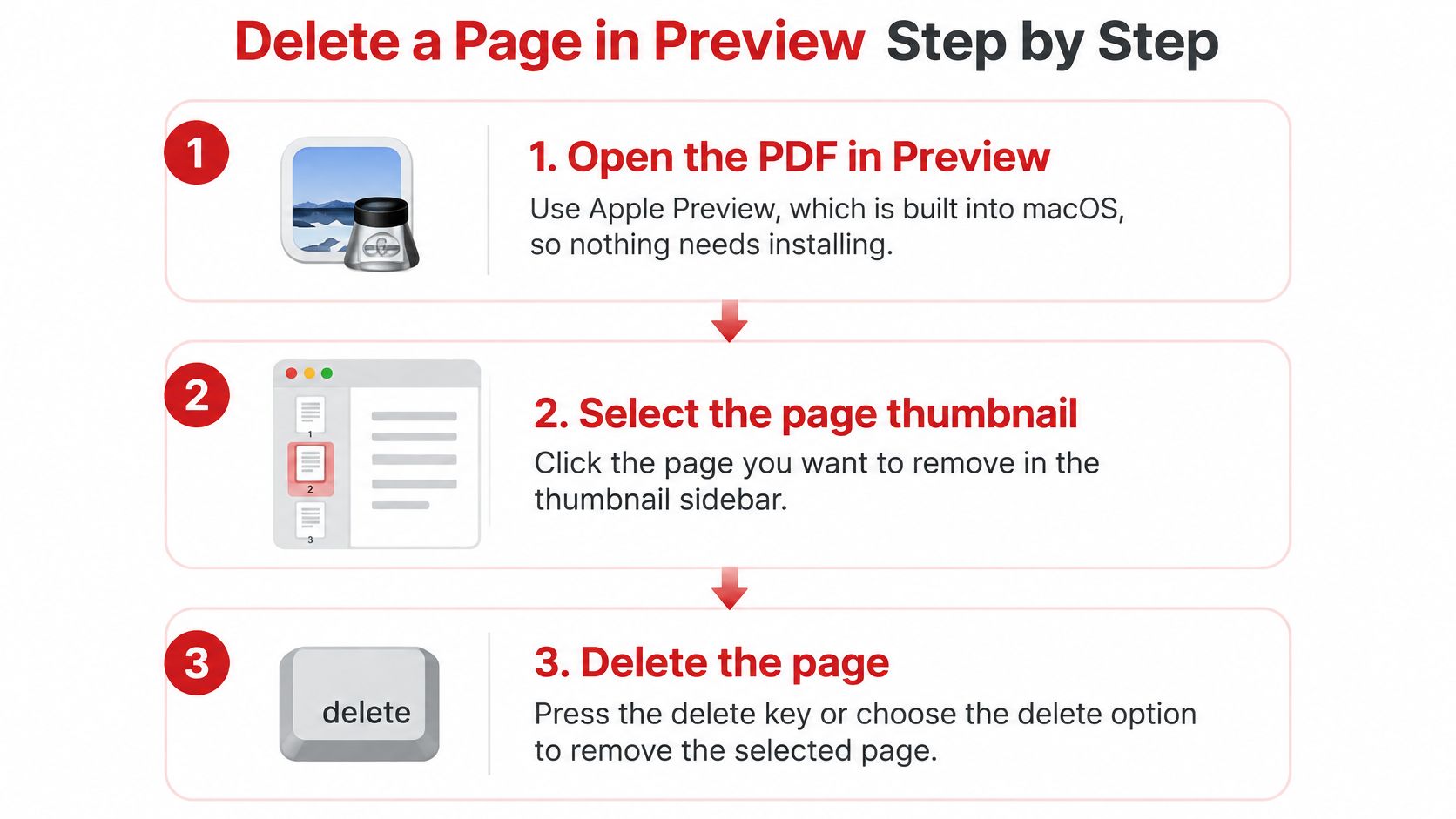
Open the PDF in Preview. Double-click the file, or right-click and choose Open With, then Preview. Check the title bar names the file you think it does, since macOS will happily open a similarly named copy from another folder.
Show every page. Choose View, then Thumbnails. View, then Contact Sheet gives you a grid of the same pages if you prefer a wall of previews. Without one of these open, a click in the main area moves a text cursor rather than selecting a page.
Select the target. Click the thumbnail, and Command-click to add more. Keep your eyes on the highlight in the sidebar, not on the large view, because the large view shows whichever page you last landed on.
Delete it. Press the Delete key, or choose Edit, then Delete. If nothing happens, the focus is still in the document area, so click the thumbnail again to give the sidebar focus and repeat.
Count what's left. Scan the remaining thumbnails in order. This is the check that catches an accidental range selection while you can still undo it.
Save as a new file. Use File, then Save, and type a new name at that point rather than overwriting. The original stays whole, which is the entire safety net for this operation.
Two consequences deserve naming. Apple states that deleting a page also removes all annotations on that page, so comments, highlights and signatures on the sheet itself don't survive. And on a Mac laptop the Delete key is the backspace key, which is exactly the key you want here.
What success looks like: a thumbnail strip that matches your plan and a new file whose page count is exactly the number you intended to lose.
For text changes on the pages that stay, such as fixing a typo on the cover, that's editing rather than page management, and the walkthrough on editing a PDF on Mac covers it.
Removing Pages Online with the Browser Tool
When Preview isn't an option, or you're on a machine that isn't yours, the browser route does the same job without installing anything. The steps are short, and the order matters more than the clicking.
Open the tool. Load PDFWix's Remove Pages tool in Safari, Chrome or Firefox. There's no account step between you and the file picker.
Add the PDF. Select the file from Finder. The copy on your disk stays exactly as it is, which is the point: you're working on a duplicate as far as your own records are concerned.
Name the pages to remove. Use the file's own page order, counting from the first page in the document, not the numbers printed in the footers. A roman-numbered front matter section often trips people up.
Run the removal and let it finish. Don't start a second run while the first is processing. Two downloads with different page counts is a reliable way to send the wrong one.
Download under a new name. Add a suffix such as the date or "trimmed" before the file goes anywhere near an email.
What happens to your file
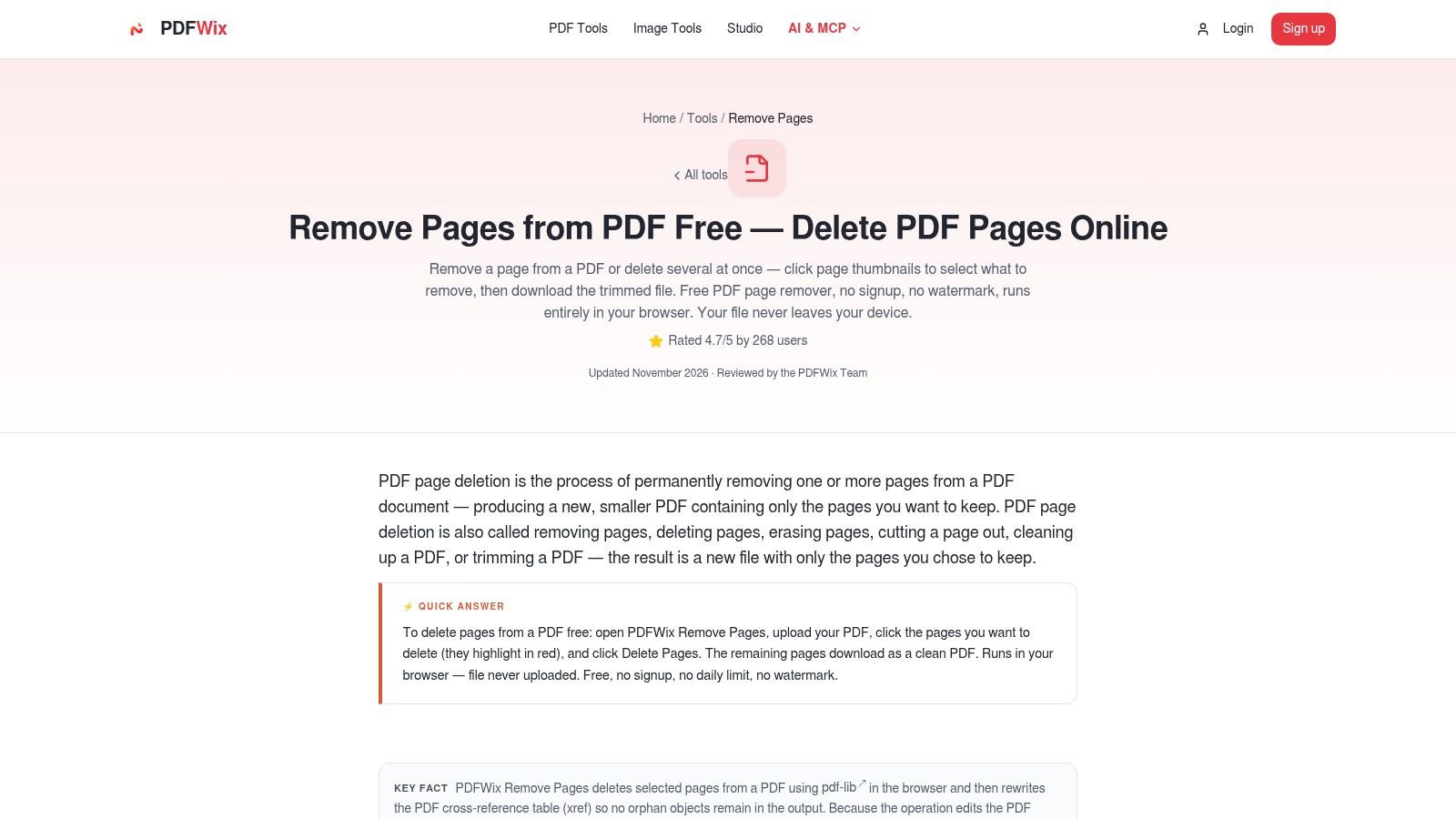
Most PDFWix tools, including merge, split, compress, rotate, JPG/PDF conversion, watermark, sign, edit, organize, crop and page numbers, run entirely in the browser, and the file is never uploaded. That design is why the page count changes locally and why a large document is bounded by your machine's memory rather than an upload quota. For a file under a confidentiality clause, it's also the detail worth confirming on the tool page before you drop it in.
Read the processing note on that page yourself rather than assuming, and check the current stated limits before feeding it a 400-page manual. Those two checks take a minute and save a failed run.
The expected result is narrow and easy to verify: the same first page, the chosen pages gone, and no other change. If anything else shifted, you're looking at a different problem, and splitting the file into the sections you want can be a cleaner route, as covered in the guide to splitting PDFs online.
Saving a Copy and Checking the Page Count
Saving is not the last step of deletion. It's part of it. The rule I'd hold to: never overwrite the only copy of a file you're about to alter, and never trust a count you haven't read back.
Apple's save workflow supports this directly. As Apple's Preview save documentation describes, entering a new name before saving creates a copy and leaves the source PDF unchanged. Do that first, before you delete anything, and the worst outcome is a wasted download rather than a lost contract.
The arithmetic is what makes verification fast. Original count minus pages removed equals the new count. Remove 3 pages from 12 and you should see 9. If you see 10, a selection didn't register. If you see 7, a Shift-click took a neighbour with it. Undo, then reselect from the thumbnail strip rather than guessing which page went.
| Check | Correct result | If it fails |
|---|---|---|
| Page count | Original count minus pages removed | Undo and reselect pages from the thumbnail strip |
| Page order | Remaining pages keep their original sequence | Recheck the deleted or selected range |
| Original file | Source PDF still shows every page | Work from the untouched original you kept |
| Annotations on kept pages | Comments and highlights still visible | Reapply markup from the original file |
| Bookmarks and links | Still open the correct pages | Compare with the original and rebuild the links |
| Filename | Copy has a distinct name | Rename before sharing so the wrong version is not sent |
Keep the original until the recipient confirms they have what they need. A scenario worth rehearsing: a reviewer comes back saying an exhibit is missing. With the untouched source still sitting in your folder, you rebuild the trimmed version in minutes instead of recreating the document from scratch. When that project finally closes, it's worth learning how to securely delete old project files rather than leaving draft versions with client data lying around in cloud folders.
When Deleting a Page Does Not Remove Everything
Deleting a page changes the page structure, but the content on the remaining pages stays where it was. An offer letter can print a salary on page 2 and repeat that figure in a summary table on page 5. Remove page 5, send the file to a client, and the salary is still on page 2.
A chart copied onto two sheets behaves the same way. Deleting the page that holds the first copy removes that page and the annotations attached to it. The second copy stays, including any caption that quotes the figure.
Document properties travel with the file. Author names, original file paths and other metadata remain after you drop pages. In Preview, open Tools > Show Inspector and clear fields you would not want a recipient to see.
Signatures and running totals are easy to miss. A digital signature that covered the whole document no longer matches the same file once the page structure changes. Form fields that add values across pages need a fresh total after a neighbouring page is gone. I would click through those fields on the trimmed copy before it leaves the folder.
Page deletion fits structural cleanup: a cover sheet, a duplicate, a blank scan, an appendix that should not travel. Sensitive content needs its own pass. PDFWix's redaction tool rasterises the page, so the underlying text is removed rather than only covered. When the job is changing wording rather than removing sheets, use the guide on deleting text in a PDF.
Delete the Page and Send Only the Checked Copy
The attachment looks ready. Before it goes out, the saved copy has to show the right page count, the right order, and none of the sheet you meant to drop. I treat that check as part of the deletion. A shorter file you have not reopened is not finished.
Pick the method from the machine in front of you. The PDF is already on this Mac, you need the markup kept, and nothing should leave the machine: use Preview. You are on another device, or Preview is not installed: use the Remove Pages tool at PDFWix. If the file is password-protected and you do not have the password, or it will not open cleanly, stop and fix that first. Deleting pages from a file you cannot fully open only produces a broken copy with a new name.
Then run the sequence. Delete the page with the method that fits the file. Save or download the result under a distinct name. Reopen it and match it to the source: page count, order, annotations, and links. If you removed one sheet from a 12-page packet, the saved copy should read 11, and the pages on either side of the cut should still follow each other.
Send only that verified version.
Removing the page does not remove sensitive content that still sits elsewhere in the file. An account number or a private note on a page you kept will travel with the attachment. Deal with that content on its own before you send.
If the file leaves your desk, protecting it is a sensible next move. The Protect PDF tool can set a user password required to open the file, or an owner password that restricts printing, copying and editing.
When a PDF needs one page gone and the rest left alone, PDFWix's free browser-based Remove Pages tool does that on a Mac or any other device, with no account and no watermark on the download. Open PDFWix, drop in the file, and send only the download whose page count you have checked against the source.