
You've just received a PDF that needs signing before the end of the day. The sender expects a clean copy back, you're working from a browser or phone, and installing desktop software feels like unnecessary friction. Searching for “pdf sign online free” seems like the obvious answer, but the fastest button isn't always the safest workflow.
A free signing tool should do more than place a handwritten mark on a page. You also need to consider where the file is processed, whether anyone can verify what happened, and whether the finished document will remain trustworthy after certificates expire or software changes. The practical approach is to match the signing method to the document's sensitivity and risk.
Table of Contents
- The Urgent PDF Signature Problem
- Self-Signing and Requesting Signatures in Your Browser
- Privacy Risks in Online PDF Signing
- Browser-Based vs Server-Side Processing
- Legal Validity and Audit Trails
- Choosing the Right Free Signing Tool
The Urgent PDF Signature Problem
At 4:45 p.m., a supplier sends an agreement that must be signed before work starts. Your usual PDF editor is unavailable, the document is open on a phone or browser, and installing software would delay the reply. Searching for “pdf sign online free” leads to a tool that promises an immediate upload, signature, and download.
That workflow can solve the visible problem while leaving the important ones unresolved. Did the service keep a copy of the PDF? Was the signature connected to the signer's identity, or was it only an image placed on a page? Does the recipient have evidence of when the document was signed? Can either party detect changes made after export?
A typed name, uploaded image, or drawn mark can indicate intent. It does not automatically create a complete electronic signing record. If someone later disputes the agreement, the surrounding evidence may matter as much as the mark itself: the signed version, identity checks, timestamps, consent, and records showing whether the file was altered.
Separate speed from risk
A no-account browser workflow can suit a low-risk form. An internal acknowledgment, simple approval, or document without confidential information may only require a visible signature and a clean downloaded PDF. In those cases, avoiding registration and sending the file directly back can reduce unnecessary setup.
The decision changes when the document contains sensitive information or carries serious consequences. Check these points before uploading:
- What does the PDF contain? Identification details, financial records, health information, trade secrets, and contract terms require more care than a blank administrative form.
- Who needs to sign? Adding your own signature is a smaller task than coordinating several people, assigning fields, and proving who completed each step.
- What proof might be needed later? A routine approval and a high-value agreement need different levels of identity evidence, timestamps, and audit history.
- What happens after signing? A protected final file or verifiable certificate may be necessary when an editable annotation would be easy to change.
Practical rule: Choose the simplest workflow that still preserves the document's privacy, signer identity, and required evidence.
The hidden cost of “free”
“Free” can describe only the signature action, while registration, trial restrictions, sending limits, or account access control the useful parts of the workflow. Some services let a recipient sign without paying but require an account to return documents or omit audit records from free access. A free signer access overview illustrates why the word needs closer inspection. Read the conditions before uploading confidential material, particularly when you need a lasting no-account process.
Make the decision before the upload, not after the file is already on a remote server. For a routine document, local browser processing and a direct download may be sufficient. For a contract with substantial legal or financial consequences, use a process that records identity, intent, timing, and document integrity, even if that adds setup or slows completion. A fast signature is useful only when the resulting PDF remains private, credible, and usable when someone reviews it later.
Self-Signing and Requesting Signatures in Your Browser
A browser workflow can handle two different jobs: adding your own signature to a PDF, or preparing the file so another person can sign it. Don't confuse these tasks. Self-signing is mainly about editing and exporting the document. Requesting signatures adds recipient identity, field assignment, delivery, and status tracking.
PDFWix provides both types of workflow without requiring an account. Its signing tool lets you draw a signature, type one, or upload a handwritten signature image, then place it on the PDF and download the completed file. It also supports initials, dates, and text fields, which helps when the document needs more than a signature mark.
Sign your own PDF
Follow this sequence for a straightforward self-signing job:
- Open the signing tool in your browser. Use a current browser on a device you trust, and avoid public computers for confidential files.
- Select the PDF from your device. Check that you're working from the final version. If the sender supplied several attachments, confirm the filename and page count before editing.
- Create the signature. Draw it with a mouse, trackpad, or touchscreen, type your name, or upload a prepared signature image. A drawn mark may look more natural, while typed text can be easier to read.
- Place and resize the signature. Put it in the designated field rather than covering nearby terms, dates, or instructions. Zoom in before positioning it.
- Add supporting fields if needed. Initials, a date, or a short text entry can prevent the recipient from sending the file back for clarification.
- Review every page. Look for misplaced marks, missing fields, unexpected blank pages, and changes to the original layout.
- Download a new signed copy. Keep the original untouched so you can compare the files if a question arises.
For more detail on placement and signature creation, follow this guide to adding a signature.
Request signatures from other people
Requesting a signature requires more care because the other person must know what they're signing and where to sign. Upload the final PDF, add a signature field to the correct location, and assign that field to the intended recipient. Add separate fields for initials, dates, or required answers instead of asking the signer to guess where information belongs.
Check the recipient address carefully before sending. If the workflow allows signing order, use it when one person must approve the document before another signs. If the free process doesn't provide a formal status dashboard or audit trail, keep your own record of when you sent the file and which version you sent.
The limitation is important: a no-account browser tool may be ideal for placing a signature and returning a file, but it may not provide the evidence associated with a managed signing transaction. Don't represent a simple signature image as a high-assurance identity check. The workflow should match the promise you're making to the recipient.
Privacy Risks in Online PDF Signing
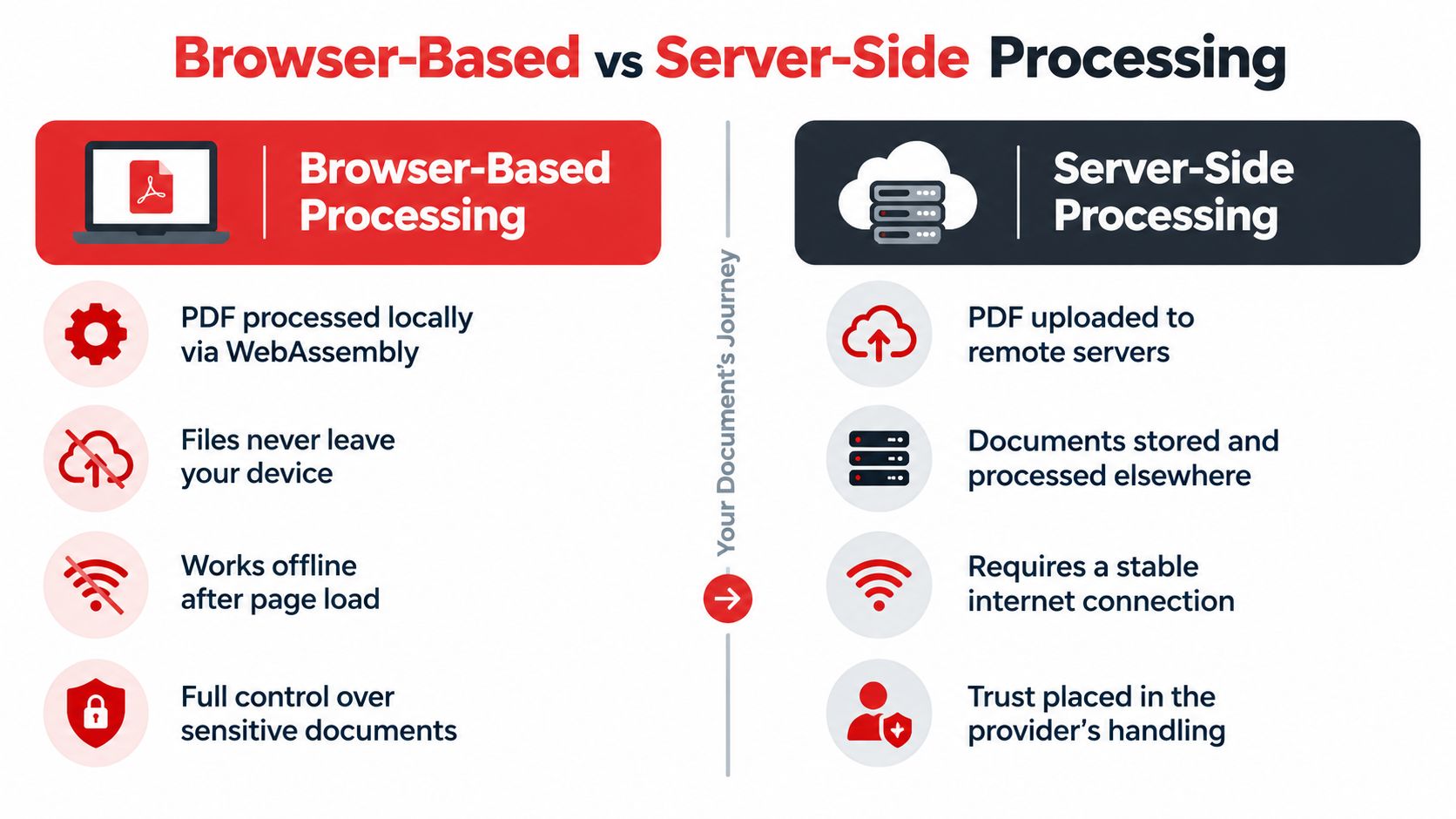
A rushed contract, a passport scan, or an employee form can become a privacy problem the moment it leaves your device. Uploading a PDF gives a website access to its contents, even if processing takes only a moment. Encryption during transfer does not answer the questions that matter afterward: whether the file is stored, copied temporarily, inspected for diagnostics, shared with another processor, or deleted when the task ends.
The processing path determines who controls that risk. A browser-based tool may use WebAssembly to perform the signing locally, keeping the PDF on your device. A server-side service receives the document and performs the operation remotely. That model can be handled responsibly, but the provider then needs clear retention rules, access controls, and deletion procedures.
Check the privacy path before uploading
Read the privacy policy, then look for specific operational answers:
- Processing location: Does the file remain in the browser, or must it reach a remote server?
- Retention: When are temporary files, previews, and generated copies removed?
- Third parties: Does the service disclose processors, analytics, or other systems involved in the workflow?
- Downloads: Does the completed PDF download directly, or pass through another system?
- Account requirements: Does signing require an email address or other personal details unrelated to the task?
Broad assurances are not enough. A useful policy explains storage, deletion, and processing in concrete terms. If you cannot establish what happens to a confidential PDF, do not upload the original. Create a working copy and remove unnecessary pages or sensitive fields only when doing so will not weaken the document.
The business context adds another consideration. E-signature functions increasingly sit inside CRM, ERP, HR, and other core business applications rather than operating only through standalone signing pages. Organizations also combine electronic and paper workflows, so a free browser signer may support one step without replacing the wider approval process. This discussion of signing inside business applications describes that shift.
Limit exposure during the task
Use a clean document copy and upload no unrelated attachments. Close tabs that expose other confidential work, download the completed file promptly, and remove local copies when your retention policy permits. Repeatedly emailing the PDF between devices creates extra copies and additional access points.
For highly sensitive material, local processing is usually the safer default because the document can remain on the device. If a remote server is involved, look for plain-language commitments covering memory-only handling, deletion, and staff access. This guide to online PDF tool safety provides a practical checklist for assessing those controls.
Browser-Based vs Server-Side Processing
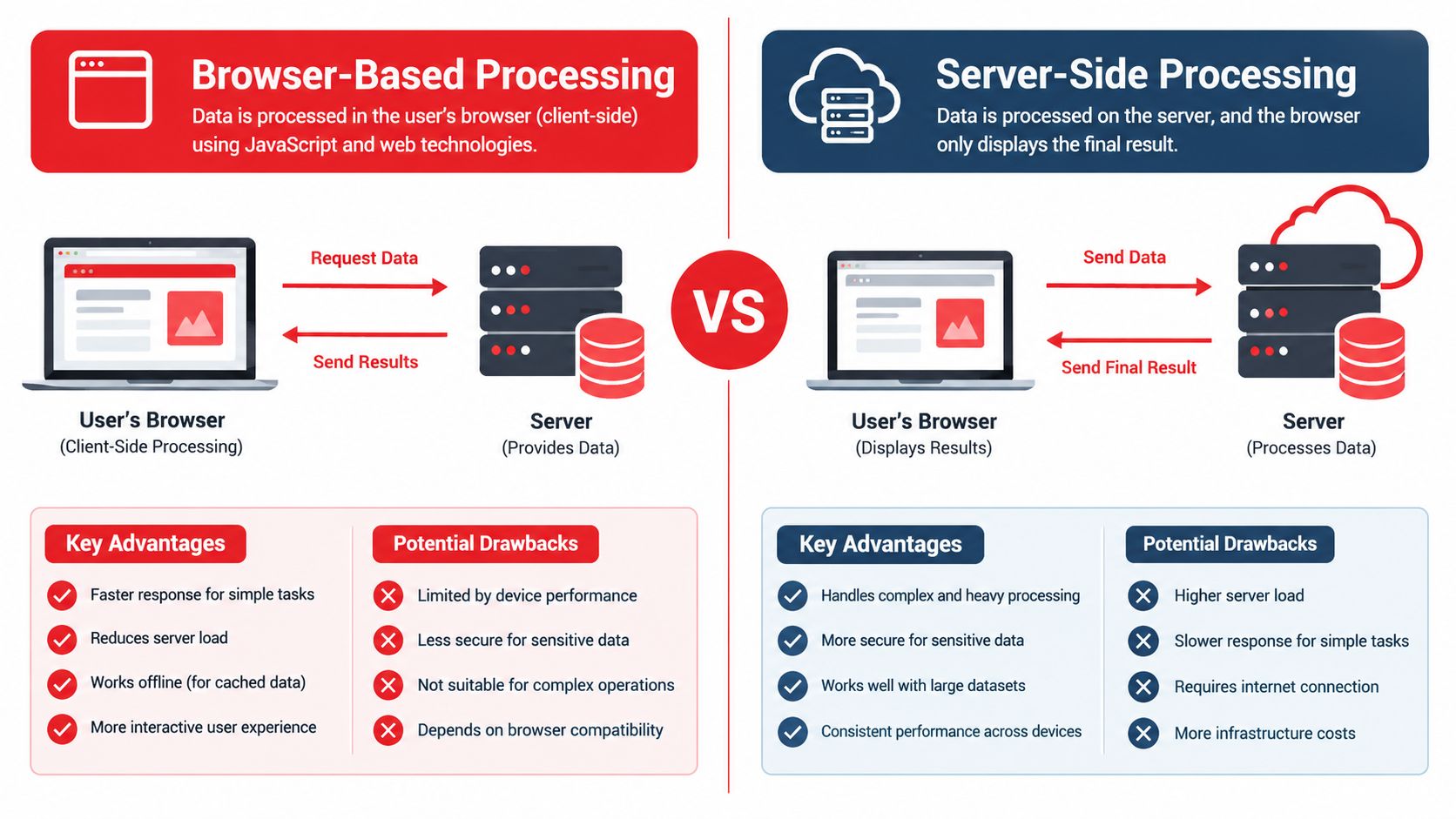
A confidential PDF can take two very different paths after you select “sign.” In one workflow, the browser loads the signing application and performs the operation on your device. In the other, the browser uploads the file to a remote system, which processes it and sends back the result. That distinction determines who handles the document, where exposure occurs, and what evidence the process can preserve.
The labels alone do not establish safety. A browser-based application still depends on the integrity of the code delivered to your browser. A server can also be configured to process files without keeping them on disk. The useful question is which system handles the document, and what happens afterward.
Browser-based processing
Local processing keeps the PDF on the device during the signing task. That can reduce privacy exposure, avoid upload delays, and remove the need to give a remote provider access to the document contents. It also places more responsibility on the device. Available memory, battery, browser performance, and PDF complexity can affect the experience, particularly with large or heavily structured files.
This approach fits a short list of practical situations:
- Adding your own signature to a routine PDF without creating an account.
- Editing a file that contains private information.
- Working from a trusted device with an up-to-date browser.
- Keeping a clear boundary between the document and a remote server.
Browser processing does not automatically produce reliable signing evidence. A tool may create a PDF that looks signed while recording no recipient authentication, complete event history, or certificate that another reader can validate. A locally processed file can therefore offer better document privacy while providing weaker proof of who signed, when the action occurred, and whether the file remained unchanged.
Server-side processing
Remote processing becomes useful when the workflow includes several participants or repeated actions. A service can send documents, authenticate recipients, notify participants, and retain transaction records. Those functions can support a more organized signing process, but they require the PDF to leave your device.
Read the provider's handling terms before uploading. A clearer policy says whether files are held in memory, written to disk, accessed by staff, and deleted after processing. “Secure upload” communicates far less than a specific explanation of storage and deletion. Even with explicit controls, you still rely on the provider's implementation and policy enforcement.
Match the processing model to the task:
- Your own routine signature: browser-based processing, after confirming that the file stays local.
- Confidential content: local processing where possible, with upload disabled or absent.
- Several sequential signers: a managed remote workflow, with identity checks and an audit record.
- A durable certificate: a certificate-based process, followed by validation in a compatible PDF reader.
The trade-off is straightforward. Local processing limits document exposure but may offer fewer workflow and verification features. Remote processing can coordinate signers and preserve records, while introducing another party into the document's path. Review this guide to PDF tools that work without uploading before choosing a browser tool. Decide where the file should be processed before opening the upload screen.
Legal Validity and Audit Trails
A completed PDF can still leave you exposed when a signer later denies approving it. The question is not whether a signature mark appears on the page. You need evidence of the signer's intent, the identity checks used, the document version, and whether the file changed after signing. A practical guide to electronic signatures and legal validity explains these concepts, but the correct standard depends on the document, the parties, and the applicable jurisdiction.
A typed name or drawn mark may suit a routine, low-risk form. It provides weaker evidence when the document carries financial, employment, ownership, or contractual consequences. Increase authentication as the risk rises. Email confirmation may be enough for a simple exchange, while a higher-risk agreement may justify SMS verification, two-factor authentication, or an identity check.
Keep the evidence with the signed file. An audit trail should identify the signer, record the relevant timestamps, identify the exact document version, and include a document hash where the workflow provides one. Export that record before closing a free browser-based session, especially when the tool does not require an account. A no-signup process reduces friction, but it may also give you fewer recovery options if the browser closes or the transaction record is unavailable later. The cited e-signature validity guidance provides further context on matching authentication and evidence to the signing event.
Preserve verification over time
A PDF that looks signed in a browser may not remain verifiable after certificates expire, revocation information becomes unavailable, or a recipient opens it in different software. Check the completed file before sending it onward.
- Trusted certificates: Use a certificate that compatible PDF readers can recognize and validate.
- Embedded timestamps: Preserve the signing time through a trusted timestamp rather than relying only on the signer's device clock.
- Long-Term Validation: Keep the certificate and revocation data needed for later verification when the workflow supports LTV.
- Compatibility testing: Open the result in a desktop PDF reader, a browser viewer, and a mobile app. Confirm that the signature status, signer details, and document integrity remain visible.
A self-signed certificate may be difficult for an outside recipient to trust. A technically valid signature can also display as unverified if the receiving application cannot interpret its certificate chain or embedded validation data. This technical guidance on preserving PDF signature validity covers the practical relationship between certificates, timestamps, LTV, and later verification.
Keep the final record intact
Do not edit the PDF after signing unless you are prepared to create a new signing event. Changing a date, page, or annotation can break the relationship between the signature and the file contents.
Save the signed PDF with a clear filename. Retain the original signed version, the exported audit trail or completion record, and any certificate information the workflow provides. A free online signature process should produce more than a visible mark. It should leave you with evidence that can explain who signed, what they signed, and when the event occurred. Legal requirements vary by jurisdiction and document type, so important matters may require professional legal review.
Choosing the Right Free Signing Tool
A one-page form for your own records has different requirements from a contract that several people must sign. Choose the signing mode first. Self-signing suits documents you control from start to finish; a managed request-signatures workflow fits cases where recipients need invitations, reminders, and a record of each handoff.
Check four practical details before uploading a file:
- Privacy first: Use browser processing for sensitive documents when possible. For remote processing, read the retention and deletion terms.
- Evidence next: If a signature could be challenged, confirm that the workflow records signer details, timestamps, document hashes, and an exportable audit trail.
- Then usability: No-account access saves setup time, but it may not provide the identity checks or recipient controls a formal signing request requires.
- Finally, verification: Open the finished PDF in more than one viewer and check that its signature status remains understandable.
PDFWix provides browser-based tools for signing, editing, and related PDF tasks without requiring an account for its web tools. You can draw, type, or upload a signature, and most supported operations are designed to run in the browser. Choose PDFWix self-signing for a quick, low-coordination document. Choose a managed request workflow when several recipients, reminders, or event records matter more than speed.
A useful free workflow should produce a clean PDF without an unexpected watermark and make the source-file handling clear. For a practical checklist, see this guide to the best free online PDF editor.
If you need to sign a PDF online without installing software or creating an account, PDFWix lets you add signatures, initials, dates, and text fields in your browser. Test it with a non-sensitive document first.