
You've finished scanning a document, opened the PDF, and found the closing page where the cover should be. Before you move anything, check whether the whole file runs backward or whether the scanner has mixed fronts, backs, or separate batches. The wrong fix can turn a partly correct scan into a completely scrambled document.
To reverse PDF page order reliably, start with the numbers printed on the pages, preserve the original file, and rebuild only the sequence that's wrong. A thumbnail's position tells you where a page sits in the PDF, not where it belongs in the document.
Table of Contents
- Spot Which Kind of Reversal You Have
- How to Reorder a Fully Reversed Scan Step by Step
- Fixing a Partial Reversal
- Fixing Two-Pass Scans Where Fronts and Backs Split
- When Reordering Will Not Fix the File
- Confirm the Order Before You Share
Spot Which Kind of Reversal You Have
Open the scan and read the printed numbers on the first three and last three pages. If the document has no printed numbering, use headings, dates, continuation text, or the order of the paper stack as your reference. The filename and the cover thumbnail can both mislead you here.
A completely reversed scan usually starts at the feeder. When the feeder pulls the last physical sheet first, the PDF begins with the document's final page, and the correction turns 12, 11, 10, …, 1 into 1, 2, 3, …, 12. Every page stays upright during that fix. Rotation is a different problem with a different fix.
Scan Order Patterns and Their Fixes
| What you see | Likely cause | Fix |
|---|---|---|
| Pages run 12, 11, 10 down to 1 | Feeder took the stack from the last sheet first | Reverse the full sequence |
| A middle block runs backwards, such as 1, 2, 3, 6, 5, 4 | One batch loaded in the wrong direction | Reverse only that block |
| 1, 3, 5, 6, 4, 2 | Two-pass scan: all fronts first, then all backs | Interleave front and back passes |
| Pages are upside down or sideways | Orientation error | Rotate the pages; reordering leaves them sideways |
| Pages from several sessions out of sequence | Multiple scanning batches | Move each batch into its numbered place |
Treat each pattern as a diagnosis that calls for a specific local fix. A backward block needs its own reversal and nothing more. Front-and-back passes need interleaving page by page. Batches from separate sessions need repositioning into their numbered places. A full reversal is the only pattern that justifies reversing the whole file.
Orientation is a separate check. If the text is sideways but the pages already run in the right sequence, fix it with the PDFWix page rotation tool and leave the order untouched. A file can carry both problems at once, so check sequence and orientation independently before moving anything.
Practical rule: Write down the observed page order before making changes. That gives you a reference if a move lands in the wrong place.
For unnumbered documents, make a short content map instead: cover, introduction, continued text, attachments, closing page. Keep page identity and current PDF position separate in your notes. Confusing the two is how a correct page ends up moved to the wrong slot.
How to Reorder a Fully Reversed Scan Step by Step
Once you've confirmed that the entire document runs backward, manual reordering is a straightforward fix. Open a working copy in PDFWix's Organize PDF tool, which supports rearranging page thumbnails and saving the reordered document.
This workflow doesn't depend on an assumed one-click reverse feature. Interface layouts can change, so use the available page-moving controls and check the resulting position after every action rather than relying on a particular button name.

Build the Correct Sequence From the Front
For a worked example, suppose your scan contains twelve pages in completely descending order.
- Preserve the original. Save a separate working copy before opening it for editing, so you can compare the output with the untouched scan.
- Inspect the thumbnails. Confirm that the printed numbers descend from the ending page to the opening page; enlarge any preview whose footer is too small to read.
- Move the opening page to the beginning. In this example, the page marked 1 starts at the end, and moving it first establishes the beginning of the corrected sequence.
- Place the next page immediately after it. The page marked 2 is now at the end of the remaining backward run, so move it after page 1 without disturbing the page you've already placed.
- Continue building the ordered prefix. Find each next printed page number and place it directly after the last correct page, checking both neighbors after each move.
- Save a separately named result. Inspect the complete sequence before downloading, then use a filename that clearly distinguishes the corrected document from the original.
The advantage of this method is that the completed portion stays together at the front. You don't have to keep mentally reversing the entire thumbnail grid after every move.
Check the Drop Position
A page can land before the intended neighbor instead of after it. Watch the insertion position, then read the surrounding printed numbers once the move finishes.
Move by the number printed on the page, not by the position label assigned by the editor.
For a long scan, manual movement requires careful checking. If the paper is available and the feeder setup is easy to correct, a properly configured rescan may be less work than repositioning every page. Choose the route you can verify most confidently, not the one that avoids scanning again.
Fixing a Partial Reversal
A six-page scan that reads 1, 2, 3, 6, 5, 4 tells you two things at once: the opening is sound, and the damage is a single reversed run at the end. Reversing the whole file would fix the tail and wreck the head. The repair has to be bounded, rebuilding only the run that reads backward.
Manual reordering handles this well. Dragging individual pages into place suits misplaced sections, inserted covers, and batches scanned in separate sessions, anywhere the printed numbers show a contiguous block out of sequence.
Work One Move at a Time
In this example, the page printed 4 sits in PDF position 6. Each move below rebuilds the run inside the existing document.
| Stage | Action | Resulting order |
|---|---|---|
| Starting scan | Identify the backward final run | 1, 2, 3, 6, 5, 4 |
| First move | Move page 4 from position 6 into position 4 | 1, 2, 3, 4, 6, 5 |
| Second move | Move page 6 from position 5 into position 6 | 1, 2, 3, 4, 5, 6 |
After the first move, the position numbers shift, so re-read the grid before the next drag rather than trusting the layout you remember. The last placement puts page 6 after page 5, and the untouched opening never moves. Confirm the repair by reading across the seam where the original pages meet the corrected run.
Find the Actual Batch Boundary
Partial reversals often come from multi-batch scans. Say a twelve-page document holds a second batch covering pages 7 through 12, delivered as 12 through 7. Leave the first batch alone and rebuild the second internally.
The boundary rarely sits at the numerical midpoint. Check the last correctly placed page, the first misplaced page, and any headings or inserts between them. An unnumbered cover or attachment can push the visible break several pages off center.
Working on that run inside the full document is usually simplest. If the batch is tangled enough to warrant isolation, extract the affected pages into a separate PDF, repair the order there, and merge it back afterward. That approach adds a file to track and reassemble, so reserve it for runs where dragging inside the original keeps losing context.
Before saving, compare the start and end of the repaired run against the paper stack. A batch can be internally correct and still sit between the wrong sections.
Fixing Two-Pass Scans Where Fronts and Backs Split
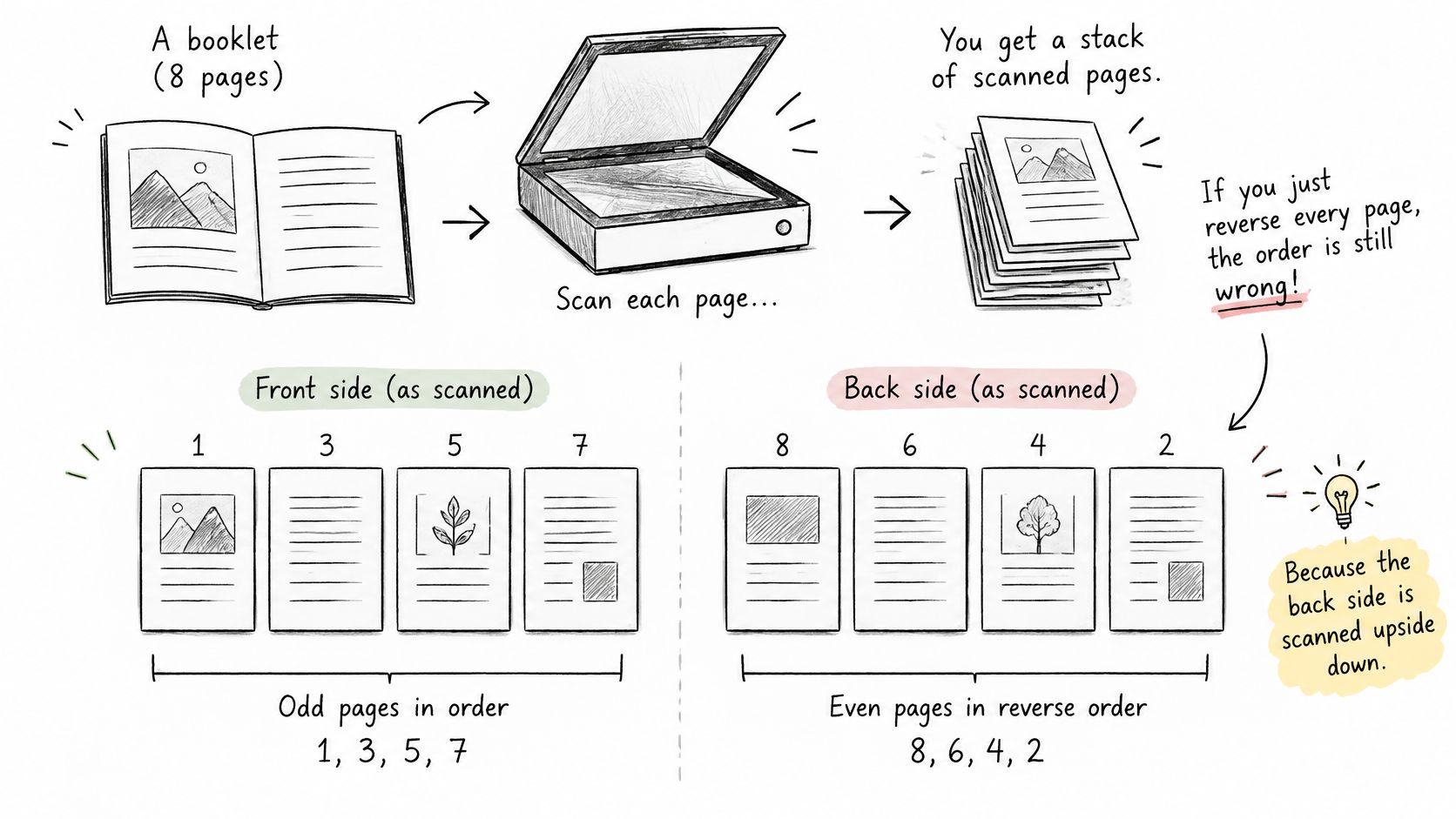
A backward-looking file can come from two separate capture passes. When a scanner captures every front side first and every back side afterward, the file holds two runs: the fronts in reading order, then the backs in whatever order the flipped stack produced. The fix is restoring the pairing between each front and its back, and the eight-page case from the table in the first section shows why.
Why the Obvious Fix Fails
Take that same eight-page file, with four fronts followed by four backs that arrived in reverse. Reversing every page produces 2, 4, 6, 8, 7, 5, 3, 1. The direction of the file changes, and each back still sits nowhere near its matching front.
Identify the passes before moving individual pages:
- Front pass: The front-side run already reads in order, 1, 3, 5, 7. Leave it alone.
- Back pass: The scanned backs read 8, 6, 4, 2, so arrange that run as 2, 4, 6, 8.
- Combined document: Alternate each front with its corresponding back until the sequence reads 1, 2, 3, 4, 5, 6, 7, 8.
A page organizer handles this without creating separate files. Treat the passes as logical groups, then move each back directly after the matching front.
In a two-pass scan, the actual defect is broken pairing: every back has to sit directly behind its own front.
Account for Blank Backs and Missing Captures
Keep blank reverse sides until you understand the complete pairing. Removing them too early can obscure where a back belongs, especially when the document mixes single-sided and double-sided sheets.
Once the sequence is correct, inspect each blank-looking page at a readable scale before removing it. Faint writing, stamps, and small footer text can disappear at thumbnail scale.
If the pass counts do not match, reconcile them against the paper stack. An omitted blank and a missed content page need different responses. When a side was never captured, rescan it; no page move can fill that gap.
For the next scan, check whether the scanner supports duplex capture and how it expects the stack to be loaded. The guide to scanning multiple pages covers the capture workflow, which is separate from repairing an existing sequence.
When Reordering Will Not Fix the File
A file can read in perfect order and still be wrong. Once the sequence is settled, whatever remains falls into one of two groups: a defect in the captured images, or damage in the file itself. Each calls for a different tool, and neither responds to moving pages a second time.
Match the Defect to the Fix
- Incorrect page dimensions: Follow How to Change a Page Size in PDF when the output needs different dimensions or margins. A larger page boundary never recovers content that was cropped off during scanning.
- Missing content: Locate the absent sheet or side, scan it, and insert it at the matching document boundary. No arrangement can supply an image that is not in the file.
- Repeated pages: Compare the full content before deleting anything. Identical headings or repeated printed numbers can occur on distinct forms, copies, or attachments.
- Blank-looking pages: Open them at a readable scale and check for faint marks before removal.
Missing or repeated printed numbers are warning signs, not automatic deletion instructions. Some documents restart numbering by section, and attachments may use their own sequence. Let the content and the original paper determine what belongs.
Separate File Damage From Scan Quality
If the PDF will not open or its pages render incorrectly, start with structural PDF repair. The repair tool fixes most structural errors automatically in your browser and is the recommended first step for a corrupted file.
Repair can recover readable pages where the file structure is damaged, but it cannot guarantee recovery. Keep the damaged original and inspect any recovered output for missing content.
Blurred text, clipped edges, dark shadows, and unreadable handwriting call for a different judgment. If the source image does not contain legible detail, a fresh scan of the sheet is the dependable fix.
Searchable text is also a separate task. A correctly ordered image-only scan remains image-only until you use an OCR tool. External text-recognition tools can add recognized text, but their output needs checking, particularly around names, totals, and handwritten entries; that recognition is not part of this reordering workflow.
Confirm the Order Before You Share
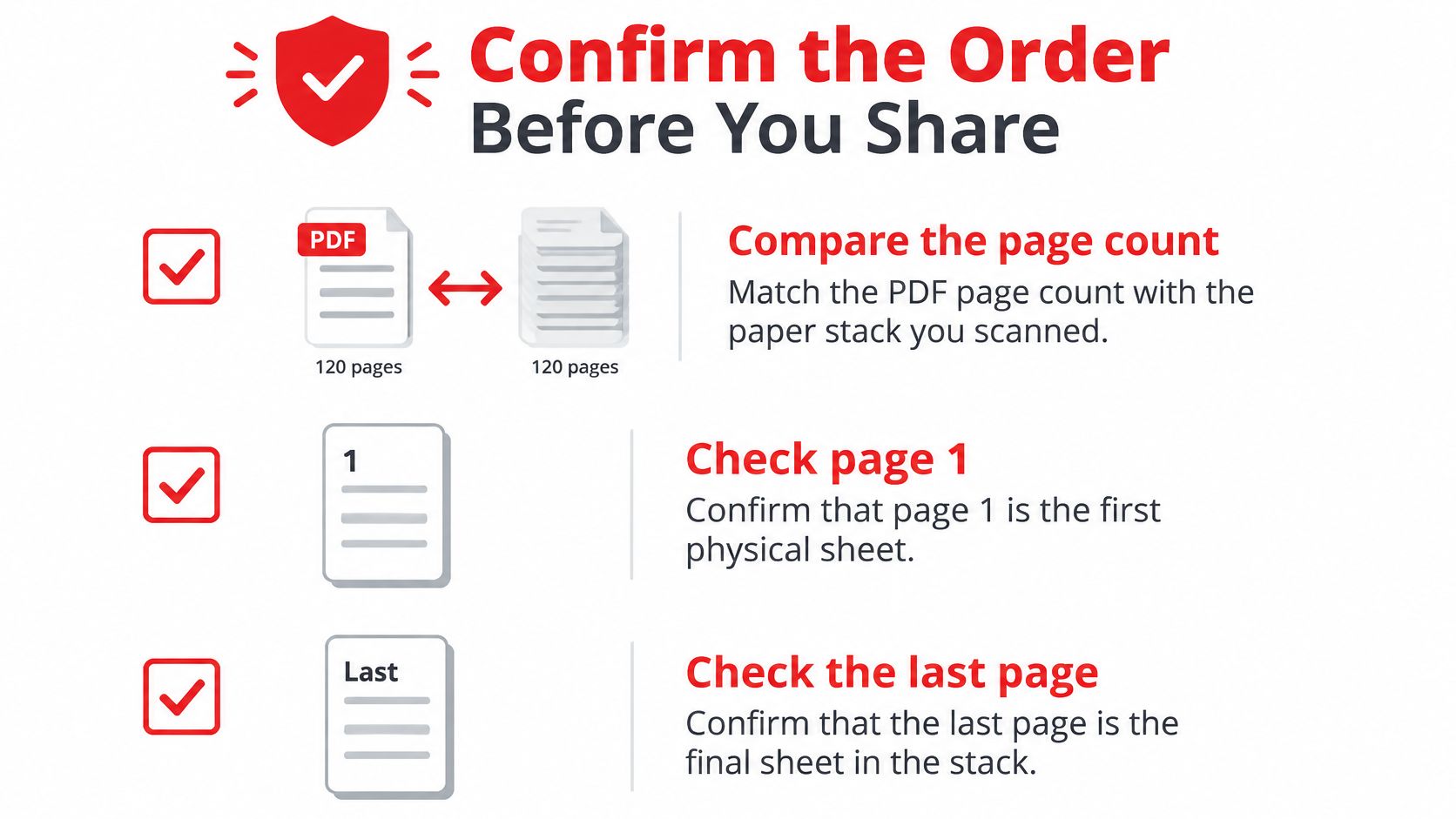
Check the downloaded file, not just the organizer's preview. Compare it with the untouched original and the paper stack rather than relying on your memory of the moves.
Run the Final Check
- Count the captured sides: Match the PDF against the paper, allowing for intentionally removed blank backs.
- Check the endpoints: Confirm that the opening page and final page match the physical document.
- Read the sequence: Follow headers, footers, and continuation text through each repaired boundary.
- Inspect the saved output: Open it in different viewers and confirm that the actual pages, not merely a thumbnail selection, appear correctly.
- Check completeness: Look for duplicates, missing passages, and accidentally omitted inserts.
If the document needs new navigation numbers, use the guide to adding PDF page numbers only after the sequence is settled. Added numbers aren't evidence that the underlying pages are correct.
For delivery after verification, Upfling's a guide to sharing client PDFs provides a separate reference for the upload-and-sharing step. Send only when the saved sequence matches the paper stack; if a check fails, return to the relevant move or missing capture.
PDFWix offers free core PDF tools for organizing, rotating, extracting, and preparing documents, with no watermarks added to files. Visit PDFWix to rebuild your scan's page order, save a separate corrected copy, and check it against the original before sharing.