
You've got the scan open, the contents page says Chapter 6 starts on page 37, and you type 37 into the tool. The file that comes back starts four pages early, in the middle of Chapter 5. Nothing's broken. You entered the printed page number, and the tool needed the physical page position.
That one mismatch causes most failed attempts to split PDF by chapters from a scan. Fix it before you export anything, and the rest becomes simple arithmetic, a careful range, and a quick check of the first and last pages. Work only from a document you're allowed to divide for study, submission, or internal filing, and keep the source file exactly as it is.
Table of Contents
- Map Printed Chapter Pages to Physical Ranges
- When Bookmarks Help and When They Mislead
- How to Export One Chapter Without Touching the Source
- Checks That Keep a Split Chapter Usable
- Export One Mapped Chapter Before the Rest
Map Printed Chapter Pages to Physical Ranges
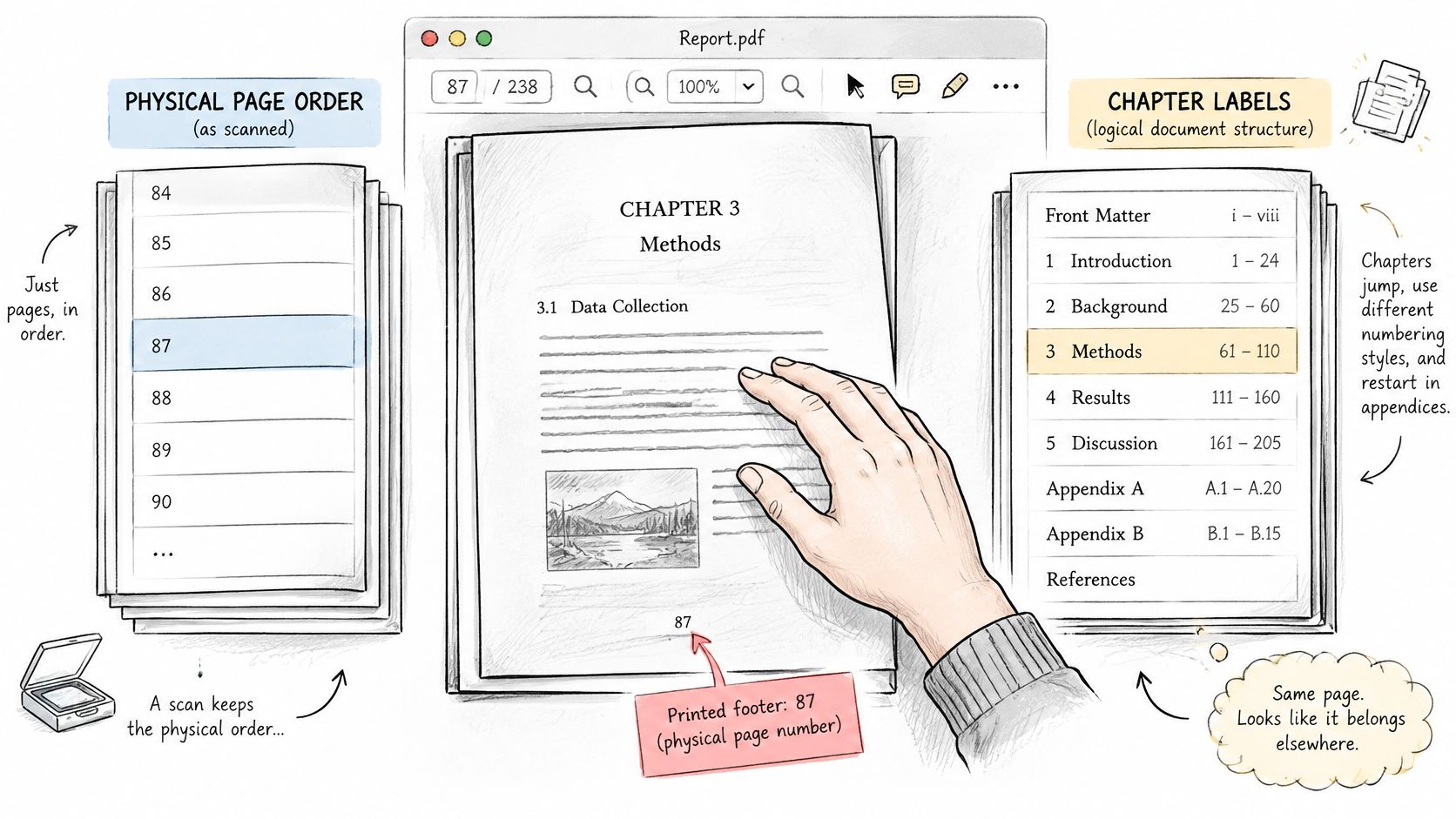
A scan can show printed page 37 while a PDF tool identifies the same sheet as page 41. Those numbers describe different things. The physical position is the sheet's place in the file, counted from the first sheet as page 1. The printed label is the number or mark shown on the page, and it may restart, skip, or change style between sections.
That arrangement can be valid even when the scan seems inconsistent. Adobe's guidance on renumbering pages describes page labels that use decimal numbers, lowercase or uppercase Roman numerals, prefixes, and independent numbering sequences. For chapter splitting, use the visible label to locate the chapter in the document, then translate it into the physical position the tool needs.
The offset formula
When printed and physical numbering differ by a constant amount, calculate the offset once:
Physical start = printed start + front matter count
Count every sheet before printed page 1. Covers, title pages, copyright pages, and contents pages all count, even if they have no footer number. If four unnumbered sheets come first, printed page 1 is physical page 5.
Apply that same offset to the chapter's start and end. If a chapter begins on printed page 37 and ends on printed page 52, with four front-matter sheets, its physical range is 41-56: 37 + 4 = 41, and 52 + 4 = 56.
Check the result on screen before exporting. If the physical position does not show the expected printed page, recount the sheets before printed page 1. An inside cover or blank verso can be easy to overlook, shifting every later range.
Confirm the offset on a second number
One matching page does not establish that the offset holds throughout the book. Check a second printed number well away from the first.
- Early check: Printed page 10 should be physical page 14 when the offset is four.
- Later check: Printed page 50 should be physical page 54 if the same offset still applies.
- Failed check: If printed page 50 is physical page 55, an unnumbered sheet, such as an illustration plate or blank divider, may have appeared between the two checks.
When the offset changes, calculate separate ranges rather than averaging the difference. Check a printed number just before and just after the unnumbered sheet to locate the change. For a chapter that crosses that point, calculate its start with the earlier offset and its end with the later one.
Give title pages and illustrations the same attention. They may have no printed number and may be absent from the contents list, yet each still occupies a physical position. Any unnumbered sheet after printed page 1 changes the later physical positions and can make the original offset too small.
Why the labels behave this way
A PDF can store page labels in its Document Catalog's /PageLabels entry. The W3C technique on specifying page numbering explains that label ranges can specify a numbering style, a starting number, and an optional prefix.
That structure lets one file use i, ii, iii for front matter, 1, 2, 3 for the main text, and A-1, A-2 for an appendix. Each sequence has its own labels. Translate each label into a physical position before exporting.
Roman-numbered front matter calls for a physical count, not a conversion. If the preface runs from i to xii, count the sheets to confirm where it ends. There are twelve sheets only if none is unnumbered among them. The first Arabic page 1 is the next sheet after the last Roman-numbered page.
Appendix labels need their own reference point. A-1 does not continue the body sequence, so adding the body offset to the number after the hyphen gives the wrong position. Find A-1 in the scan, note its physical position, and count forward from there.
Printed labels converted to physical chapter ranges
Use this worksheet beside the viewer. Enter the offset you have checked, then use physical positions in the split tool.
| Scan layout | What you see | Offset to add | Physical range to enter |
|---|---|---|---|
| No front matter | Printed pages 12-28 | 0 | 12-28 |
| Four unnumbered front pages | Printed page 1 is the first body page | 4 | Body starts at 5 |
| Chapter after four front pages | Printed 37-52 | 4 | 41-56 |
| Roman front matter then Arabic body | i, ii, iii, then printed 1 | Count physical pages through the last Roman leaf | First Arabic body page onward, using its physical position |
| Unnumbered plate inside the book | A blank or illustration with no footer | Recheck two known printed numbers | Physical indexes after the offset change |
| Advertisement to omit | Printed chapter with one unwanted insert | Same offset, then skip that physical page | 41-48, 52-56 if commas are supported |
| Appendix with its own prefix | Label A-1 after the body | Use a new label sequence, not the body offset | Physical page of A-1 through the last appendix sheet |
For an unwanted advertisement, omitting one page creates two ranges. Enter both only if the tool accepts a comma-separated range. Check the input format shown in the tool. If it does not accept commas, export the full span and remove the insert afterward.
Write the map down
For each chapter, record its title, printed start, printed end, offset, and physical range beside the filename. Keep the title exactly as printed. The note gives you a reliable reference if you need to repeat an export without rebuilding the map.
This record also keeps the scan unchanged. You are noting positions for extraction, not editing the source file, so each chapter export remains a copy drawn from the original.
If the scan contains images only and no selectable text, a tool cannot search its chapter headings. Optical character recognition can create searchable text, but recognized words may contain errors. PDFWix offers a PDF OCR tool for extracting text from scanned PDFs. Check any recognized heading against the page itself before relying on it to set a chapter boundary. The offset method does not require selectable text: read the printed footer, confirm its physical position, and use the checked range.
When Bookmarks Help and When They Mislead
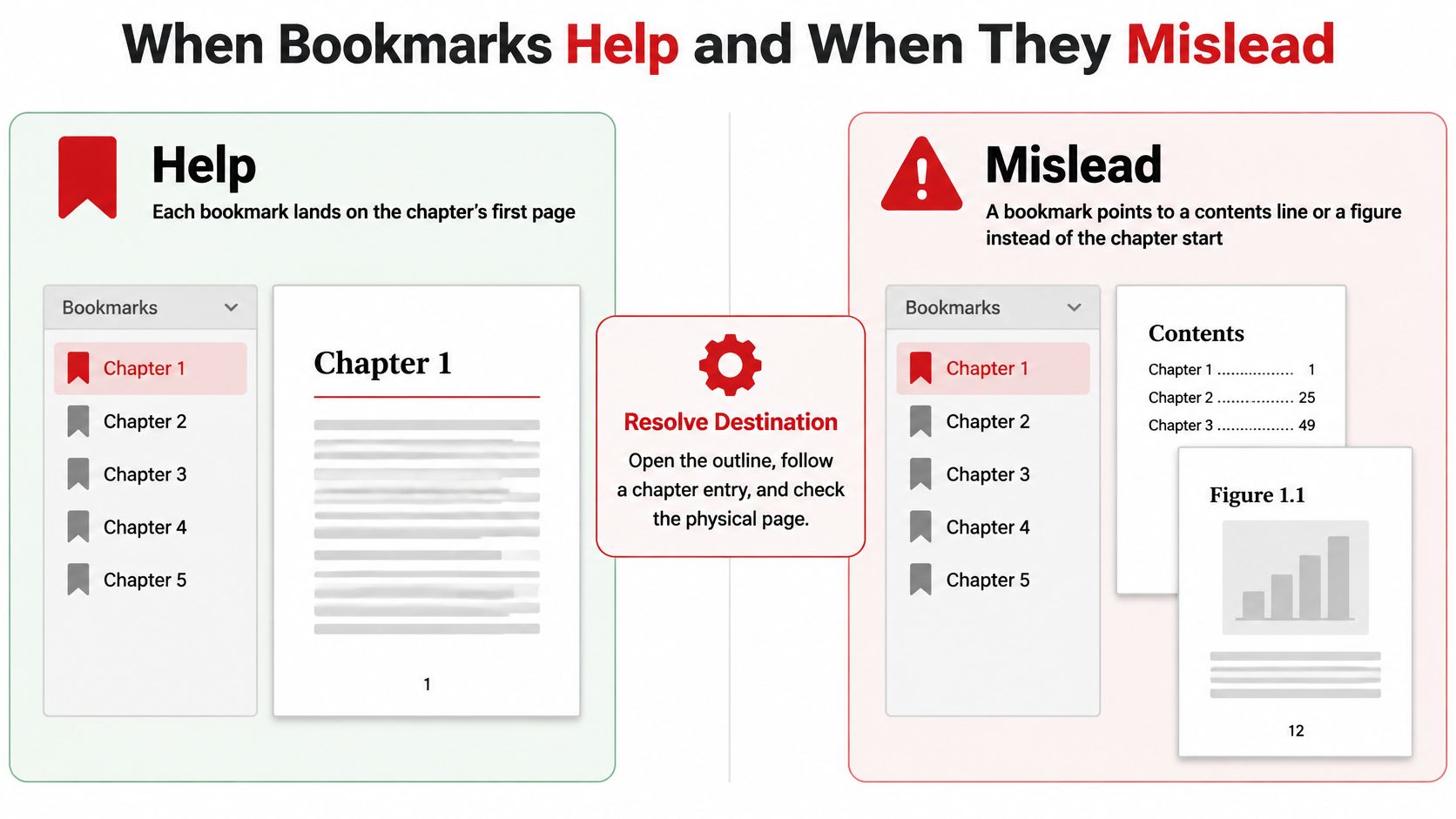
A bookmark labeled Chapter 6 looks like the answer. You click it, and you land on the contents page, reading a line that mentions Chapter 6. The bookmark exists. It just doesn't point where you need it to.
Treat bookmarks as clues you verify, not as boundaries you inherit. They save time when they're right and cost time when they're not, and the only way to tell is to follow each one.
The accept or ignore test
Open the outline panel and click a chapter entry. Look at what you see on the page you've landed on, then check the physical position shown by your viewer.
- Accept it: You see the chapter title at the top of the page, the printed footer matches your mapped start, and the physical position matches your offset calculation.
- Ignore it: You see a contents line, a figure, a list of tables, or the last paragraph of the previous chapter. Note the correct physical position from your map instead.
- Ignore it: The entry points to a subsection. Splitting on every subsection shreds one chapter into a pile of small files you didn't ask for.
Once you've confirmed the starts, sort them in page order. A chapter ends on the page before the next confirmed start, which gives you the end position without hunting for the last printed page.
Two separate structures
It's tempting to assume the outline mirrors the page order. It doesn't have to. Microsoft's open specification documentation for PDF describes outlines as a tree-structured navigation feature, while the page tree independently defines physical page order.
Navigation and sequence are different jobs. An outline can be nested, reordered, or partially broken while the pages themselves sit in perfect order. Resolve each destination to an actual page rather than trusting the displayed number beside it.
Why bookmarks go stale
The format permits bookmarks. It doesn't require anybody to make them accurate. A scan assembled from an earlier edition can carry an outline written for different pagination, so every entry lands a few pages off in the same direction. That's the dangerous kind of error, because it looks consistent.
Other files have no outline. A scan produced sheet by sheet often has none, and no setting will invent one. In that case, list each candidate heading yourself, with its physical page, then check it against the running header and the printed number on that sheet.
Confirm the pages either side before you accept the split point. The page before should read like an ending, with white space or a closing section, and the page after should continue the new chapter rather than restart something. That thirty-second look catches most false boundaries.
Headings a machine might misread
If your scan has no text layer, don't pretend a heading was read from it. This extraction workflow doesn't run OCR for you, so a separate recognition product would have to produce that text, and its confidence in a doubtful heading is worth checking by eye.
A running header repeats on every page. A chapter title appears once. Anything that shows up on three consecutive pages isn't a boundary.
Watch for titles split across two lines, where only the first line looks like a heading, and for two-column contents pages, where reading order can pair a title from the left column with a page number from the right. Both produce confident-looking, wrong results.
If the pages are also out of order, fix the sequence first with the PDF page organizer or your viewer's page panel, then rebuild the map. Mapping offsets onto a shuffled file gives you accurate numbers for the wrong book.
How to Export One Chapter Without Touching the Source
Export a single chapter first. One bad range in a batch of twelve is hard to find. One bad range on its own is obvious the moment you open it.
Work through these six moves in order, and don't skip the last one because the file downloaded without an error. A successful download tells you nothing about whether the right pages are inside.
The six moves
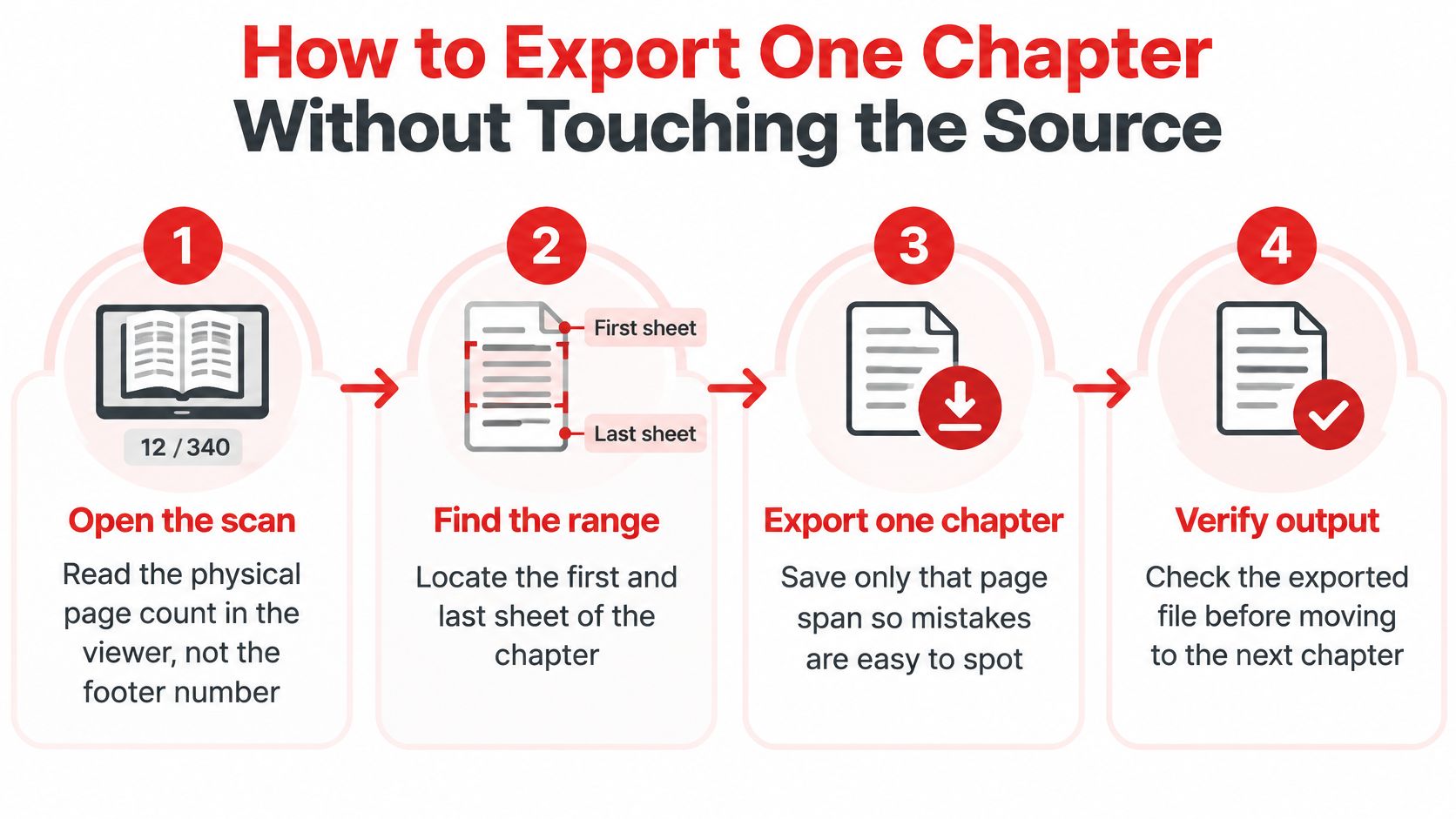
- Read the physical page count. Open the scan and note the total shown by the viewer, not the highest number printed in a footer. If the viewer says 214 pages and the last printed label is 208, that difference is your front matter and plates, and it should agree with your map.
- Find the first and last sheet. Go to the chapter opening and confirm the title is on that sheet. Then go to the mapped final sheet and confirm the next sheet starts something new.
- Write the range. Apply your offset to both ends and write the result as one continuous span, such as 41-56.
- Enter the physical indexes. Open the PDF page extraction tool and type those physical positions. Look at the current screen before you rely on any control name, since interfaces change, and don't assume a price, a sign-up step, or an upload limit that isn't shown there.
- Download under a new name. Save the result with the chapter number and title in the filename. Never overwrite the source, and never save into the same name in the same folder.
- Open and compare. Check the first and last pages of the new file against the chapter in the scan. Pay attention to a short page at either boundary, because a half-page chapter ending is easy to leave behind.
Range syntax that matters
Two characters do most of the work. In Adobe's print settings documentation, a hyphen denotes a continuous range while commas separate individual pages or multiple ranges, with documented examples including 6, 10-31, 42.
So 41-56 means every sheet from 41 to 56 inclusive, which is 16 pages. Count it before you export: last minus first plus one. If your download has 15 pages, one end is wrong, and you'll know immediately which end to check.
Use commas only for separate spans you deliberately want in one file. 41-48, 52-56 keeps two blocks and drops the three sheets between them, which suits an advertising insert or a pull-out plate you don't want. Only use that form if the tool in front of you accepts multiple ranges. If it doesn't, export the full span and delete the unwanted sheets as a second step.
Confirm what the tool is counting
Before you type anything, settle two questions on the actual screen. Does it expect physical positions or displayed labels? Does its counting start at 1?
Your map assumes 1-based physical positions as shown in the viewer, where the cover is page 1. If a tool counts from 0, every range shifts by one and each chapter loses its opening page and gains the first page of the next. Test with a two-page export if you're unsure. It costs a minute and it settles the question for the whole book.
Also check whether the preview thumbnails match the numbers you typed. Thumbnails are the fastest sanity check available. If the first thumbnail shows a contents page, stop and recount rather than exporting and hoping.
Device differences
Phone and tablet layouts rearrange the same controls, and small screens make thumbnail checks harder. Rather than mixing device-specific taps into this offset method, follow How to Split a PDF on iPad or How to Split PDF Pages on Android for the screen you're holding. The map you built doesn't change. Only the tapping does.
Whatever the device, keep the source read-only in practice. Work from it, export copies from it, and if anything looks wrong, close the chapter file and start again from the untouched scan. Splitting documents you're authorized to use for study or internal filing doesn't replace permission for copyrighted or restricted scans, so check that you have the right to make the extract before you make it.
Checks That Keep a Split Chapter Usable
Your chapter file has 15 pages and you expected 16. A one-page shortfall usually means the end boundary stopped one sheet early, or an unnumbered insert shifted the offset after a printed number you trusted. Either way the file is telling you the map and the scan disagree. Filing it would leave the last page of the chapter in the source and nowhere in the extract.
Do not patch it by adding one page and moving on. The same disagreement will land in every chapter after this one, each time shifted by that extra sheet. Fix the map, then export again from the untouched scan.
Find the missing sheet
Printed labels and the viewer's page numbers are two rulers laid on the same book. One often starts after the cover, the title pages, and a contents list that carries roman numerals or no numbers at all. The offset is the gap between those rulers. If the footer says 40 and the viewer says 46, the offset is 6, and every later range has to use 6.
Recount from two known printed numbers, one before the chapter and one inside it. Convert each label with the same offset and see whether both land on the sheets you expect. If both checks give the same offset and the file is still short, the error sits at the end boundary. Open the scan at the sheet after your final page. You are often looking at the last page of the chapter, a short page with a few lines and a lot of white space, easy to treat as blank and leave behind.
If the two checks disagree, an unnumbered sheet sits between them. Correct the offset for everything after that sheet, then re-export. One correction realigns every later chapter.
A second reader, then the totals
Keep the original scan in a separate folder and export copies only. While the mapping is still fresh, open a file that matters for filing or citation in a second reader as well. Different readers handle inherited page boxes and rotation differently. A chapter that opens upright in one viewer and sideways, or clipped, in another will surprise the person you send it to. A PDF comparison tool helps when you need to confirm that a re-export matches an earlier version page for page.
If you export every chapter, add the page counts. They should total the source count exactly, with no overlap and no gap. A total that is one over means a boundary sheet was claimed by two chapters. A total that is one under means a sheet belongs to nobody. That sum is the check the individual files cannot give you on their own.
Splitting is not accessibility repair
A correctly divided chapter can still be hard to use with a screen reader. The UK government guidance on publishing accessible documents treats chapter-level structure as something conveyed by hierarchical heading tags, logical reading order, and bookmarks, not by visual formatting alone.
Extracting pages copies the pages you selected. It does not write heading tags, set a reading order, or rebuild an outline. If the source scan had no tags, the chapter has no tags, and calling it an accessible PDF would be untrue. Say what you have done: you have made a smaller file containing one chapter. Remediation is a separate, larger job.
Splitting can also drop navigation the source relied on. A single outline covering the whole book may leave a lone chapter with no bookmarks at all, which matters in a long teaching or public document where readers move by headings. For a deeper treatment of how structure carries through a document, the ClassLecture.ai guide to structured analysis walks through reading a PDF as an organized hierarchy rather than a stack of pages.
Permission and records
A personal study extract from an authorized copy is not the same as republishing a copyrighted chapter for other people. Easy extraction does not widen that permission. When you are unsure, ask whoever owns the rights or issued the copy.
Log three things for each file you keep: the printed label range, the physical range, and the filename. That record lets a colleague reproduce your split, shows which pages a citation refers to, and turns a later correction into a short job instead of an afternoon of recounting.
Export One Mapped Chapter Before the Rest
A single incorrect offset can carry through every chapter file in a batch. Before exporting the whole book, use one mapped chapter as a proof run. Choose a chapter in the middle: it has a preceding and a following chapter, so its boundaries can reveal a shift that the first chapter might not expose.
Run the proof chapter
Enter the mapped physical range in a PDF extraction tool and save the result under a clear chapter name. Use the checks from the earlier section to confirm that the exported boundaries match the scan. The purpose here is to test the mapping, not to repeat every page check across the book.
PDFWix's split tool can extract selected pages into a new file, which suits this proof run. Once the range is confirmed, the same selection can be used for the full chapter export.
Fix the offset, then repeat
If the proof file is short or long by a page, correct the offset before exporting another chapter. Trace the mismatch back to the front matter or an unnumbered sheet, then update the physical range using the corrected mapping. Export the same chapter again. A successful second proof shows that the fix addresses the cause, rather than just shifting one boundary by guesswork.
Treat the printed page number like a label on a folder, not the position of the sheet in the stack. The export tool needs physical page positions. If the printed numbering restarts or skips pages, apply the offset consistently to the mapped range. Use the note you made while mapping the chapter to identify its printed start and end, offset, and physical start and end.
If you want the chapter to have fresh, continuous numbering instead of retaining the book's labels, see this guide to adding page numbers in a PDF. Add numbering only after confirming the chapter boundaries, so a corrected export does not leave you with numbering to redo.
Then batch with confidence
Once the proof file matches the mapped chapter, apply the same corrected offset to the remaining chapters. Use the earlier boundary checklist as you work, rather than assuming that one chapter's end automatically confirms the next chapter's start. An unnumbered sheet later in the scan can still affect the physical ranges.
After the exports, compare their page counts with the source and account for any pages that are not part of a chapter. PDFWix's core tools are free and add no watermarks. Most browser-based tools, including split and page numbering, process files on your device, so the files are not uploaded.
Only export a chapter when you have permission to make that extract. The mapping can be ready before the export, but a correct range does not itself grant permission to share the pages.
Start with one mapped physical range and save a checked proof file. At PDFWix, you can extract the selected pages, then organize or number the result in your browser. Confirm the offset on that single chapter before applying it across the book.