
Choose by where your files are allowed to go first, then by features. If you're combining a signed agreement, supporting scans and a cover letter before a deadline, the best tool to merge PDF files isn't necessarily the one with the fastest download button. It's the one that handles the documents appropriately and produces a file you can submit without trouble.
Table of Contents
- Quick Picks for Merging PDFs by Situation
- Feature Matrix and Overall Ranking
- Why Client-Side Merging Keeps Files on Your Device
- Performance and Size Limits Under Real Workloads
- Security Checks Before Merging Files You Did Not Create
- Post-Merge Checks That Keep a PDF Filing-Ready
- Merge Your PDFs in Four Steps on PDFWix
Quick Picks for Merging PDFs by Situation
Merging documents is routine office work. In 2025, employees generated an average of 15 documents per month, according to Kantar's Office Study 2025, commissioned by the publisher of the Office Study report.
The practical choice starts with confidentiality, then device capability, then document complexity. A collection of public handouts needs a different workflow from an employment file containing identification documents.
Best merge tool by situation
| Situation | Best pick | Why it fits | Trade-off |
|---|---|---|---|
| Confidential contracts or HR files | PDFWix in-browser merge | Files are processed on your device under our processing policy | Untrusted inputs still need a safety check |
| Mac user, offline, a handful of files | Built-in desktop PDF application | Drag page thumbnails into the destination document without uploading | Manual assembly becomes tedious for batches |
| Windows user, occasional merges, no install | Client-side browser merger | Nothing to install | Very large jobs can exhaust browser memory |
| Many large scanned files | Local desktop PDF editor | Direct access to local CPU and RAM | Installation required; advanced editors are often paid |
| Signatures and form fields in one workflow | Full-featured PDF editor | Combines document assembly with field and signature management | More setup, and online services may require an account |
| Quick one-off merge with no account | Account-free cloud merger | Simple setup without installing software | Files leave your device; service restrictions need checking |
For an offline desktop workflow, save a duplicate before dragging pages between documents. Some applications save changes directly into the file you opened, which makes an accidental overwrite harder to undo.
For complex forms, prioritize field handling over a polished interface. A merger that produces attractive pages but combines unrelated fields under the same name can create an unusable application packet.
I would choose the processing location before comparing convenience. Use the feature matrix to separate service promises from the checks your own document needs.
Feature Matrix and Overall Ranking
Processing location determines whether the service receives your files; account requirements determine setup friction. Size limits constrain the job, while watermark behavior determines whether the free output is suitable for submission.
Merge tool feature matrix
| Tool category | Where files are processed | Account needed | Size or page limits | Watermark on free output |
|---|---|---|---|---|
| PDFWix | In your browser | No | No file size limit for merge | No |
| Full-featured online editor | Provider's servers | Often required | Check current merge allowance | Verify with a sample export |
| Account-optional cloud merger | Provider's servers | Optional for basic use | Check current free-tier allowance | Verify before assembling the packet |
| Lightweight cloud merger | Provider's servers | Optional for basic use | Check current task and upload allowances | Inspect downloaded output |
| Desktop-and-cloud toolkit | Local in desktop mode; servers in cloud mode | Check selected mode | Device capacity locally; service allowance online | Inspect selected tool's export |
| Built-in Mac PDF application | On the Mac | No | Device memory | No |
| Third-party Windows application | Application-specific | Check application requirements | Check application documentation | Test the selected export mode |
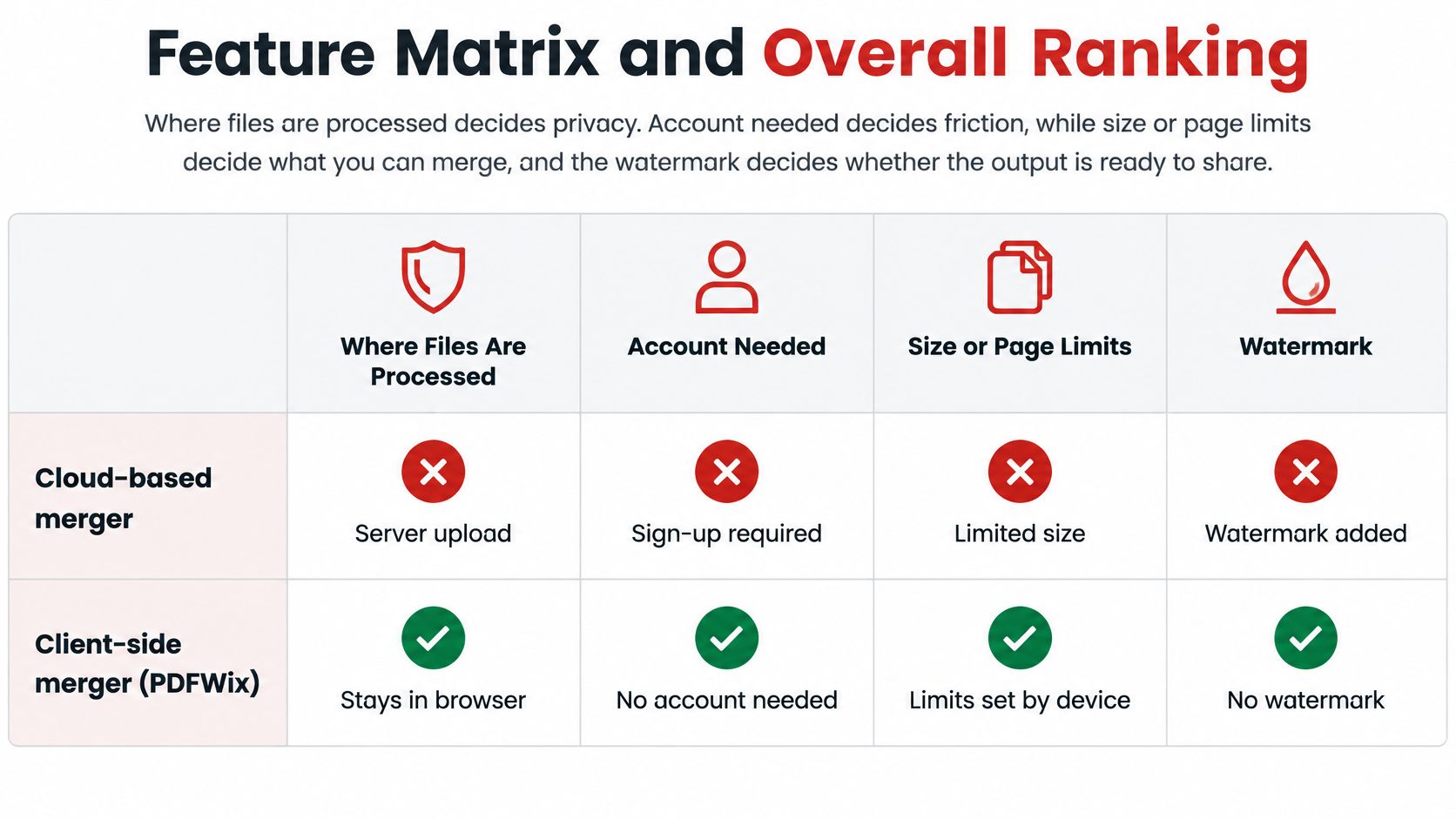
Treat the graphic as an architectural comparison, not a universal description of cloud services. Server processing doesn't automatically mean a signup or watermark.
For privacy-sensitive filing, my category ranking is:
- Account-free client-side merger, for browser convenience without document uploads.
- Built-in local application, for straightforward offline assembly.
- Installed desktop toolkit, for repeatable local workflows.
- Full-featured online editor, when integrated document functions justify server processing.
- Basic cloud merger, for non-confidential one-off jobs.
Our core tools are free and add no watermarks. We built the service to remove forced signups after repeat tasks, daily caps and deliberately slowed processing.
Visual fidelity alone isn't enough: only 2.4% of 11,397 scholarly PDFs met all accessibility criteria in the study discussed by the Learned Publishing paper.
Why Client-Side Merging Keeps Files on Your Device
Cloud merging sends your input PDFs to a server, combines them there and returns a downloadable result. Client-side merging loads processing software into your browser and assembles the document using your device's resources.
A lending application that bundles bank statements shows the difference. In a cloud workflow, the processing provider receives those statements; in a local workflow, it receives neither the source PDFs nor the assembled document through the merge operation. Where the file travels before and after assembly matters as much as how fast the merge completes.
What local processing does and doesn't cover
Our merge, split, compress, rotate, sign and other local tools run entirely in the browser, without uploading the file. The open-source components underneath include pdf-lib for in-browser editing, Mozilla's PDF.js for rendering and parsing, and qpdf compiled to WebAssembly for encryption.
The Protect PDF and Remove Password operations are the exceptions: they run on servers, in memory only, and never write files to disk. Choose each operation by its actual processing route rather than assuming every tool on a site shares one architecture.
For financial records, technical privacy is only part of the decision. BankStatementWizard's guide to the lawful basis for processing bank statements is useful when deciding why your organization may handle the information in the first place.
A local merge narrows disclosure to the processing provider. Deciding who inside your organization should receive the finished document remains a separate policy question.
Why local doesn't automatically mean faster
The WebAssembly benchmark paper found WebAssembly averaged 1.3× the speed of JavaScript on SPEC CPU tests, while running approximately 1.5× slower than native code in Firefox and 1.9× slower in Chrome. Those figures describe general computing workloads; merge timing depends on the specific files and browser in front of you.
Local processing removes upload wait time, yet the browser still loads its processing module, reads objects and constructs the output. A scan-heavy file can occupy far more working memory than its compressed size suggests, which is where a merge on modest hardware tends to strain.
Our guide to whether online PDF tools are safe separates processing location from wider security questions. Check also whether your download folder syncs to a shared cloud drive, since local processing stops controlling the file once you save it.
Cloud processing can be sensible for a large job on a low-memory phone when the documents are permitted to leave the device. For confidential material, moving the job to a capable local computer is usually the cleaner choice.
Performance and Size Limits Under Real Workloads
A fast result on a small text document tells you little about a folder of scans. Measure the full operation, including loading the tool, arranging inputs, exporting and reopening the result.
The real-world WebAssembly benchmark separated module loading from execution and found Firefox outperformed other browsers in its PDF-document test. Browser-specific compilation affected total time, so don't treat a library's runtime result as the time you'll spend completing a merge.
Merge test workloads and what to measure
Use representative copies of your own documents. The workloads below are test categories, not advertised capacity guarantees.
| Workload | What usually breaks | What to measure |
|---|---|---|
| Many small PDFs | Reordering becomes sluggish or the interface freezes | Completion time and order accuracy |
| A few large PDFs | Browser memory peaks or the tab crashes | Peak memory and whether output opens |
| Scanned, image-heavy pages | Output grows unexpectedly | Output size against combined input size |
| Forms, annotations and signatures | Fields or markup disappear or change behavior | Field usability, annotation retention and signature status |
| Mid-range phone in a mobile browser | Memory runs out sooner than on desktop | Whether the same job completes |
| Damaged or malformed input | Silent page loss or an incomplete merge | Expected versus actual page count |
Start with ordinary text documents to establish a baseline, then repeat with the difficult files. Keep the browser version, device, input order and settings consistent when comparing results.
Record useful measurements
- Time to first interaction: Measure until you can select and arrange files, not just until a heading appears.
- Completion time: Include export and download availability. A finished progress bar isn't useful if the file can't be saved.
- Peak memory: Watch the browser process during the operation. Closing unrelated tabs can help isolate the job.
- Output size: Compare against the combined inputs. Unexpected growth can signal resource duplication, although growth alone doesn't prove a defect.
- Failure rate: Repeat representative jobs across desktop and mobile browser engines, recording crashes and incomplete outputs.
Our free merge tool has no file size limit and no daily task limit. That removes service-imposed caps, not the physical ceiling set by your device's RAM and browser.
For image-heavy documents, the guide to compressing PDFs helps you choose an optimization approach. Work on copies and check fine print, stamps and diagram labels before accepting reduced image quality.
Security belongs in the test plan too. The PDF malware classification paper describes vulnerabilities to adversarially modified files, so classifier approval isn't an absolute safety guarantee.
Acceptance target: Require repeatable page content, navigation and field behavior under realistic memory conditions, not merely a quick export.
Run your heaviest representative files before a deadline. Consistent usable output matters more than winning a stopwatch comparison.
Security Checks Before Merging Files You Did Not Create
Local processing isn't the same as safe content. It protects against disclosure through the merge upload, but doesn't neutralize anything hostile inside the document.
PDFs can contain JavaScript, embedded files, launch actions and payloads aimed at reader vulnerabilities. A merger may preserve some of those objects, omit them or rewrite their references; don't assume its behavior without inspecting the output.
Check inputs before assembly
-
Scan external files before opening them. Use your organization's approved endpoint scanning process, then open permitted files in an updated, sandboxed viewer with scripting and external actions disabled. Avoid casually previewing suspicious attachments in your everyday browser session.
-
Inspect document properties and the attachments panel. Unexpected executables, unrelated attachments, unexplained password prompts or requests to enable features deserve investigation before you combine anything.
-
Create a read-only derivative when interactivity isn't needed. Flattening annotations or re-exporting pages can remove some interactive features, but the result depends on the method. Links, fields, tags and searchable text may be lost; neither flattening nor printing is a universal sanitization guarantee.
-
For a file that won't open cleanly, try Repair PDF on a copy after security screening. Our repair tool fixes most structural errors automatically in the browser and is the recommended first step for corrupted files, but structural repair isn't malware removal.
Encrypted inputs need deliberate handling. Confirm that you're authorized to access them, obtain the password through an approved channel and retain the protected original.
Preserve evidence without preserving unnecessary risk
For legal or investigative material, keep the original source files unchanged and assemble a separate working copy. Flattening an evidentiary document can discard information you later need, including annotations, attachments or signature details.
If the destination only needs readable pages, use an organization-approved sanitization workflow and inspect its result. If the destination needs live forms or attachments, document those requirements instead of stripping them indiscriminately.
The password protection tool can restrict access to a finished file, but encryption doesn't make its contents trustworthy. Remember that this operation uses server-side, in-memory processing when deciding whether it fits your handling policy.
A successful merge establishes that the tool produced an output, not that the output is safe. Quarantine unexplained behavior rather than repeatedly opening the same suspicious file in different applications.
Post-Merge Checks That Keep a PDF Filing-Ready
A merged PDF can look right and still be broken. Reading order, page labels, destinations, field names and signatures live in structures that aren't obvious from a visual preview.
The ACM paper on PDF structural analysis reinforces the value of examining internal features rather than judging a PDF only by its visible pages. For submission work, translate that principle into checks tied to what the recipient must do with the document.
Validate the saved output
- Page count: Confirm that the total equals the expected pages from all inputs, allowing only intentional omissions.
- Order and rotation: Check document boundaries, sideways-oriented inserts, blank separators and mixed page sizes.
- Navigation: Test bookmarks, hyperlinks and page labels against their intended destinations, especially after inserting a cover sheet.
- Searchability: Search for text on scanned pages. Run OCR on a copy if text is missing, then check recognition accuracy.
- Forms: Enter sample values, save and reopen. Confirm that values persist and unrelated fields don't mirror each other.
- Signatures: Inspect validation status, not just the visible signature image. Merge before signing when the workflow permits, since assembly can invalidate earlier signatures.
- Metadata: Check title, author, document language and any confidential information inherited from the inputs.
- Accessibility: Use a screen reader to check reading order, headings and meaningful navigation; supplement this with an accessibility checker.
Don't inspect only the first and last pages. The join between source documents is where shifted destinations, duplicated labels and unexpected orientation changes are easiest to find.
Keep the right version for the destination
Retain an interactive working copy when colleagues still need to complete fields or revise annotations. Create a separate flattened derivative only when the recipient wants static content, and validate that derivative independently.
For drawing packages, HireArchitects' guide to project management for design professionals provides useful context for coordinating deliverables. Apply that discipline to the PDF: use clear revision names and identify which assembled package is approved.
Filing rule: Test the version you'll actually submit, after every final conversion or optimization.
A flattened PDF isn't automatically an archival-standard file. The comparison of PDF, PDF/A and PDF/X explains why the destination's format requirements should determine the export.
A short checklist takes minutes and helps prevent expensive resubmissions. Keep the source files and validation notes until the recipient accepts the package.
Merge Your PDFs in Four Steps on PDFWix
-
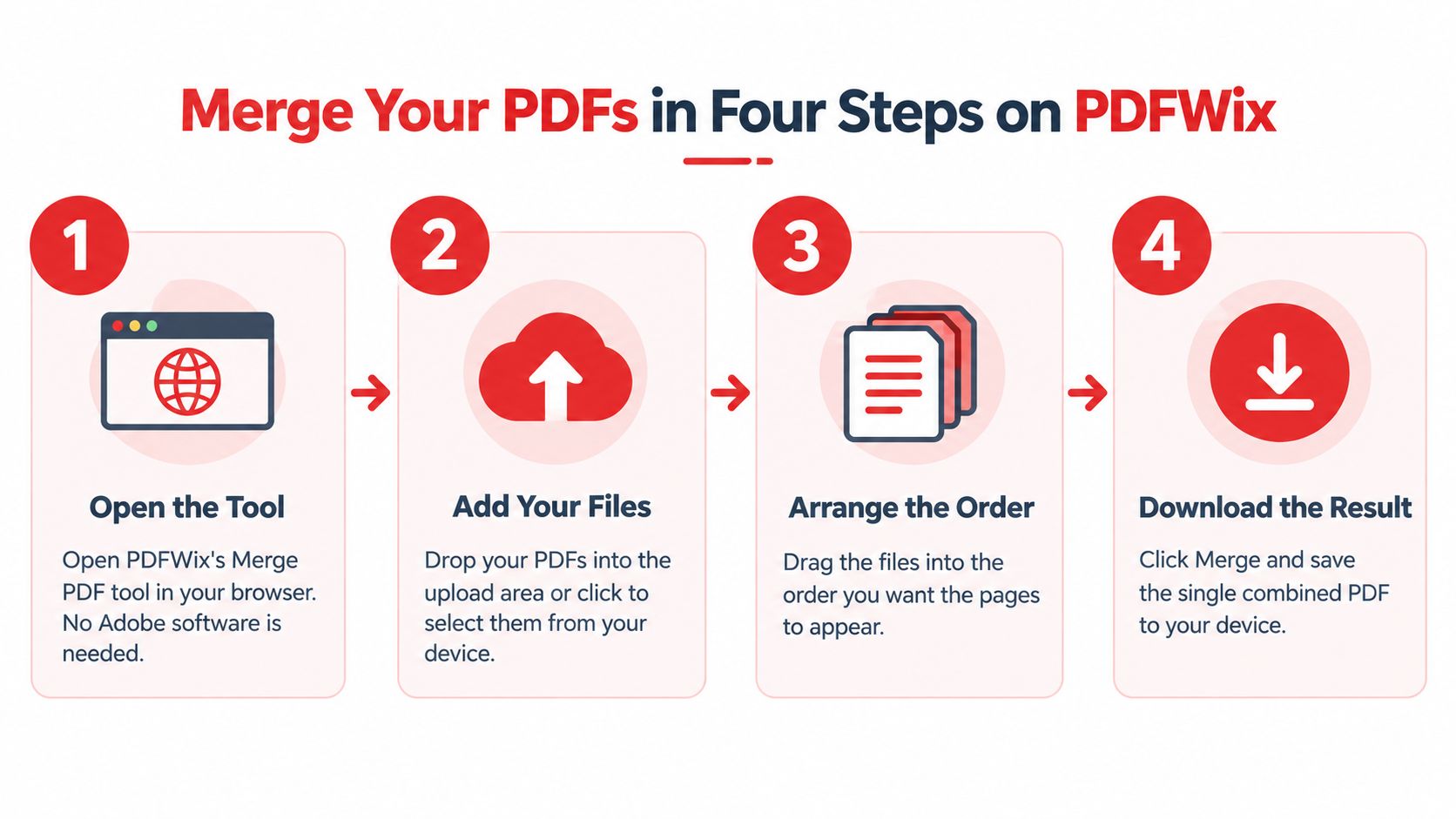
Open the Merge PDF tool in your browser. You don't need separate desktop PDF software. Keep the original documents in their source folder and choose a destination for the assembled copy.
-
Add your files. Drop them into the file-selection area or click to select them from your device. The interface may call this an upload area, but this merge operation processes the files locally.
-
Arrange the sequence. Drag files into the order you want their pages to appear. Check the cover document, supporting material and appendices before starting the merge.
-
Merge and download. Save the combined PDF under a descriptive filename, then reopen the saved file rather than relying solely on the browser preview.
Resolve assembly problems without losing the originals
File order and page order aren't always the same problem. If a source contains a misplaced page, use the page organization tool to correct that document or adjust the assembled copy.
For a routine job, output is ready in seconds, although complex documents and constrained devices can take longer. Don't repeatedly click Merge while processing is underway, since that makes it harder to tell which downloaded version is final.
If an input won't open or the operation behaves unexpectedly, run Repair PDF on a copy first. If the problem persists, email help@pdfwix.com with the tool name, browser and the file that triggered the issue if you can share it.
Sending an attachment to support is separate from local merging. For confidential files, start with a description of the error and a non-sensitive reproduction where possible.
Choose by handling requirements, then validate
Decide where the files are allowed to go first. If they must remain on your device, choose a client-side tool or an approved local application. Whichever method you choose, validate the final saved document before filing.
The best tool to merge PDF files is the one that passes your own representative documents. A long feature list won't compensate for missing pages, broken fields or an unacceptable processing route.
PDFWix offers free, account-free PDF merging that runs in your browser and adds no watermark to the result. Visit PDFWix to combine a representative set of files, arrange them in order and check the downloaded document before your next submission.