
You've got a BMP sitting in a folder, and the next step isn't just “make it a PDF.” The question is what that PDF needs to do. If you're sending a screenshot, filing a scan, bundling records, or preserving an image for printing, bmp to pdf can be the right move, but only when you choose the right output type.
A BMP is often trapped in the wrong place for the job. Maybe it came from an old export, maybe it's a scan you need to submit, or maybe it's one page in a larger packet that has to arrive as a single document. In those cases, PDF gives you a page-based container that's easier to share, archive, and combine with other pages, while a straight image file stays tied to one visual frame. What a PDF is and why it behaves differently from an image file helps explain that difference clearly.
The practical split is simple. Image-only PDF preserves the visual. Searchable PDF adds OCR text for finding and copying. Accessible PDF goes further with structure, reading order, and tags. Students, freelancers, legal teams, and HR staff run into this all the time because a file that merely opens is not always the file that can be searched, printed cleanly, or used with assistive tech.
Practical rule: Convert to PDF when you need a page container, not just a picture wrapper.
Table of Contents
- Why Converting BMP to PDF Is Worth Thinking Through
- What BMP Actually Is and Why It Matters for Output Quality
- Converting a Single BMP to PDF in Your Browser
- Batch and Multi-Page BMP Conversion Workflows
- Adding OCR to Make the PDF Searchable and Accessible
- Privacy, File Size, and Platform Choices
- Quick Checklist for Your Next BMP Conversion
Why Converting BMP to PDF Is Worth Thinking Through
A student finishes a lab submission and realizes the screenshot is still a BMP. A freelancer gets a scanned approval page from a client and needs it attached to an invoice packet. In both cases, the file is visible, but not yet useful in the way the workflow demands.
That's where bmp to pdf earns its keep. PDF becomes valuable when you need a document that can be emailed as one attachment, printed on a defined page, or merged with other pages later. It's less compelling for a single casual photo, where PDF may add little beyond another container.
The decision gets sharper when the BMP is really part of a process, not a lone image. A multi-page record, a submission packet, or an evidence set often works better as a PDF because the pages stay together and present consistently. The format choice is no longer cosmetic, it's operational.
The three output levels that matter
A conversion can land in one of three places. An image-only PDF is faithful, but still just a picture inside a document shell. A searchable PDF includes OCR text underneath the image, which helps with retrieval and copying. A properly tagged accessible PDF adds structure for assistive technology and clearer navigation.
That distinction matters because “converted” doesn't always mean “usable.” A clean-looking PDF can still fail the actual job if nobody can search it, copy text from it, or read it with a screen reader. If the file is going to a classroom, court filing, HR packet, or internal archive, the intended use should decide the output.
The safest way to think about it is purpose first. If you only need faithful visual reproduction, keep it simple. If the text matters, add OCR. If accessibility matters, tags and reading order become part of the work, not an optional extra.
What BMP Actually Is and Why It Matters for Output Quality
BMP is older than many people's workflows, but its structure still shapes what happens during conversion. It began as a Windows bitmap format, designed to store images independently of the display device, and a conventional BMP carries a 14-byte bitmap file header, a device-independent bitmap header, optional color information, and pixel data. Scan lines are padded to four-byte boundaries, which affects file size and parsing. BMP file format structure and history explains why converters have to read more than just the filename.
Header version and color depth are not trivia
BMP has a wide technical range. The Library of Congress notes that BMP Version 5 supports arbitrary width, height, and resolution, with color depths of 1, 4, 8, 16, 24, 32, or 64 bits per pixel. That range covers monochrome images, indexed-color graphics, and full-color images, and some variants use color profiles or compression too. BMP Version 5 capabilities and lineage matter because a converter has to interpret the actual bit depth, not assume every file is a simple photograph.
That's why a screenshot, a 32-bit icon, and a 1-bit scanned page can behave differently in the same tool. If the converter misreads transparency, row padding, or pixel order, the result can look washed out, flipped, or larger than it should be. The historical milestone here is not academic, it explains the output.
A BMP is fundamentally a single raster image, while a PDF is a paginated document container that can hold images, text, metadata, and vector content together.
Why converters have to be careful
When you turn BMP into PDF, the software has to interpret dimensions, color depth, compression, row padding, and pixel offset before it can place the image on a page. If the page size doesn't match the image shape, you get awkward margins or stretching. If the bit depth is handled poorly, colors drift or edges look wrong.
That's also why a “one click” conversion can surprise people. A fixed paper size can make a wide screenshot look tiny. A grayscale choice can flatten an image that needed color to remain readable. A setting that seems harmless at first can become a problem once the PDF is printed or reviewed on another device.
The practical takeaway is simple. BMP's structure deserves deliberate handling, and the settings you choose later should match the image type in front of you, not just the file extension.
Converting a Single BMP to PDF in Your Browser
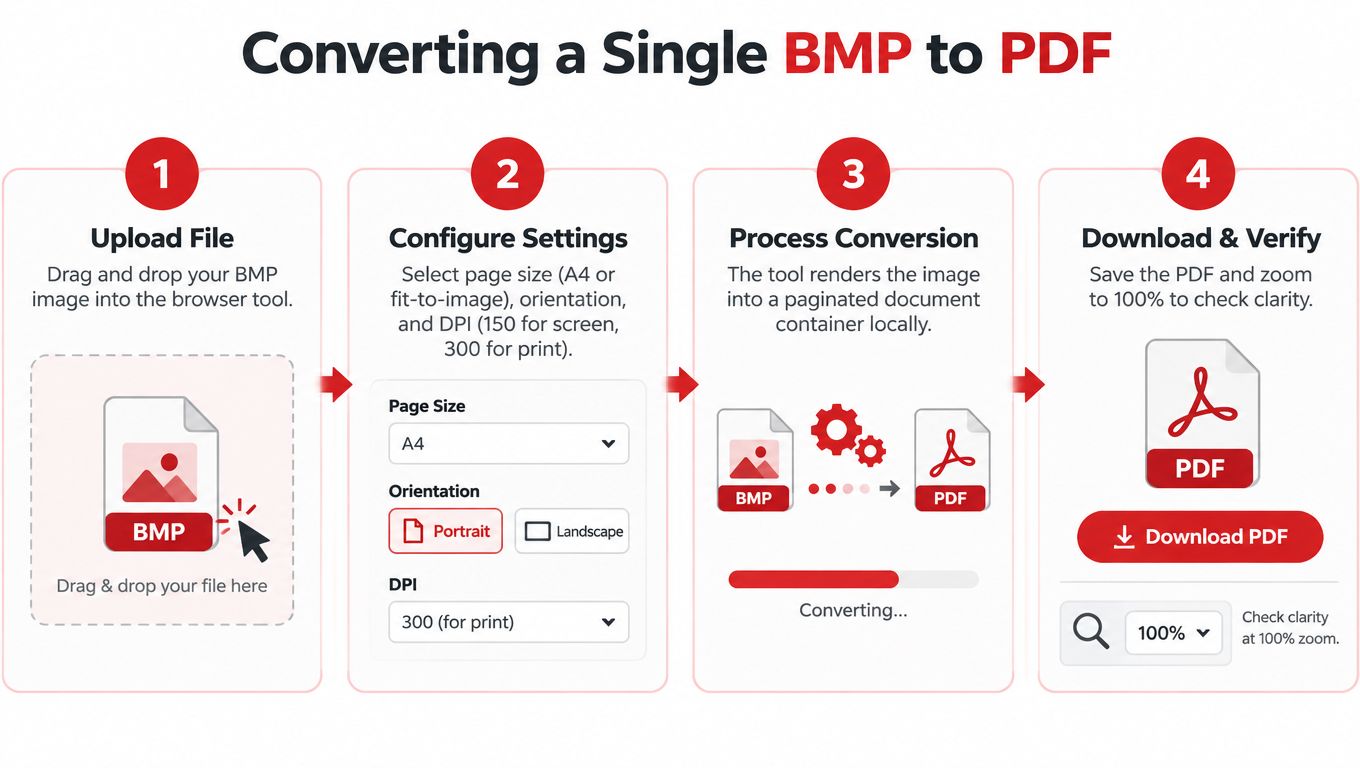
Start with the BMP file in your browser-based converter and upload it directly from your device. For a straightforward scan or screenshot, a browser workflow is usually enough, and it keeps the task focused on the file instead of the software installed on the machine. If you're used to opening attachments online, the logic is similar to viewing DOCX files online, except the output here is a PDF page rather than a document preview.
Choose the page behavior next. Fit-to-image works well when the BMP has an unusual aspect ratio, like a long screenshot or a narrow export. Fixed sizes like A4 or Letter make more sense when you want predictable printing or you're matching a standard form.
The settings that actually change quality
DPI affects how the image lands on the page. Lower values can keep file size lighter, while higher values are better for dense scans and print-heavy workflows. Color mode matters too, since grayscale can reduce output size when the source doesn't need color.
A practical starting point is to match the output to the use case. Screen review usually needs less than archival scanning, while print jobs need more careful clarity. Keep orientation aligned with the source, because an upright image forced onto the wrong page orientation wastes space and can make labels harder to read.
If you want the same file handled through a related image conversion workflow, BMP-friendly image conversion options can help when you're comparing how raster inputs behave across formats. The core habit stays the same, though. Pick the output purpose before you click convert.
Good habit: Open the PDF immediately, zoom to 100%, and check that edges, text, and margins look right before you send it.
After download, verify the file, don't trust the preview alone. A quick open tells you whether the page came through cleanly. If the BMP contained text, scan the lines visually, because that's where missing detail or a bad crop usually shows up first.
Batch and Multi-Page BMP Conversion Workflows
Once you move from one image to many, the job changes. A folder of scans may need one PDF per image, or it may need a single combined document with one image on each page. Those are different outputs, and confusing them creates cleanup work later.
Many BMPs merged into one PDF works best for records, invoices, forms, or evidence packets. Many BMPs saved as separate PDFs makes more sense for logo variants, icon sets, or image archives where each file needs its own container. The right choice depends on whether the reader needs a sequence or a set of individual assets.
Ordering and layout deserve attention
Select the files in the order you want them to appear. If the batch mixes wide and tall images, check the page orientation after merging, because mixed sets can look awkward if every page is forced into the same shape. A scan packet that looks tidy in a folder can become confusing if the page order or rotation drifts.
Naming matters too. Keep the filename pattern tied to the source, especially if you're exporting both a merged document and separate PDFs from the same batch. That way, you can trace the final file back to the original image without digging through a second folder later.
For a deeper look at bundling image sets into a document, combining images into a PDF shows the same workflow from the page-assembly angle. The principle is the same whether you're handling five images or fifty, preserve the sequence first, then decide whether they belong together.
Batch conversion is easiest when you treat file order as part of the document, not as an afterthought.
If a batch includes documents that serve different purposes, split them before conversion. A mixed folder of receipts, screenshots, and logos usually deserves separate output rules. One batch can still produce multiple PDFs, but only if the grouping is intentional.
Adding OCR to Make the PDF Searchable and Accessible
A BMP placed inside a PDF is still just an image. A screen reader cannot read the words on it, and users cannot search or copy the text unless OCR adds a text layer. The W3C guidance on scanned PDF content makes that accessibility gap clear, because image-only files need extra processing before they work well for assistive tools. OCR and accessibility guidance for PDF content
OCR solves search, not everything
OCR makes a PDF searchable and copyable. It does not guarantee correct reading order, proper tagging, or accurate recognition of every character. That matters with names, dates, amounts, and legal wording, because those are the details people check later.
Image quality still drives the result. If the original BMP is soft, skewed, or low contrast, OCR may still extract text, but the output needs a closer review. Mixed-language files need the right language model too, or the text layer can drift in ways that are hard to spot from the page preview alone.
For a plain explanation of how text extraction works, OCR explained in plain terms gives a useful foundation. OCR should be treated as retrieval support, not a promise of perfect transcription.
What to verify before you call it done
- Recognition accuracy: Check names, dates, totals, and any legally sensitive wording.
- Reading order: Make sure the logical flow matches the visible page.
- Document language: Set it correctly so assistive tools behave as expected.
- Tags and structure: Confirm the PDF is searchable and usable, not just searchable.
For larger batches that need text extraction, an OCR tool for bulk workflows can fit into the process, but the output still needs review before you trust it. A readable file is not automatically an accurate one.
Privacy, File Size, and Platform Choices
The platform choice matters as much as the conversion setting. A browser tool, desktop software, and upload-based service all solve the same basic problem, but they handle privacy, limits, and setup very differently. If the BMP holds a contract, ID, medical scan, or internal record, where the file goes matters just as much as what the PDF looks like.
PDFWix uses a client-side model for most tools, which keeps files on the device for processing in the browser. Only the Protect PDF and PDF opening flows run on servers in memory, and they don't write files to disk. That's a very different privacy posture from an upload-and-process flow, because the file never needs to leave the browser in the first place for standard conversions.
Picking the Right BMP to PDF Environment
| Environment | Privacy | File Size Limit | OCR | Account Needed |
|---|---|---|---|---|
| Browser-based, client-side | Files stay local during processing | Bounded by device memory | Available where supported | No |
| Desktop software | Local, depends on the app | Depends on the machine | Varies by app | Usually no |
| Upload-based server service | File is sent for remote processing | Depends on service limits | Often available | Often yes |
The trade-off is straightforward. Local processing protects privacy and avoids upload friction, but very large batches can still hit browser or device memory limits. Upload-based services can offload the work, but they introduce a transfer step that sensitive documents may not tolerate well. Desktop software stays local too, though it usually asks you to install and maintain another app.
If you're trying to reduce image weight before sharing product photos, optimizing images for Etsy listings is a useful adjacent topic because the same size-versus-quality decisions show up there too. For BMP-to-PDF, though, the bigger question is whether the file should move at all.
Privacy first: If the document is sensitive, keep the conversion local unless you have a clear reason not to.
Mobile browsers have gotten better at handling these flows, so quick conversions on iPhone or Android aren't unusual anymore. That still doesn't change the core rule. Choose the environment that matches the file's sensitivity, size, and the amount of control you need over the result.
Quick Checklist for Your Next BMP Conversion
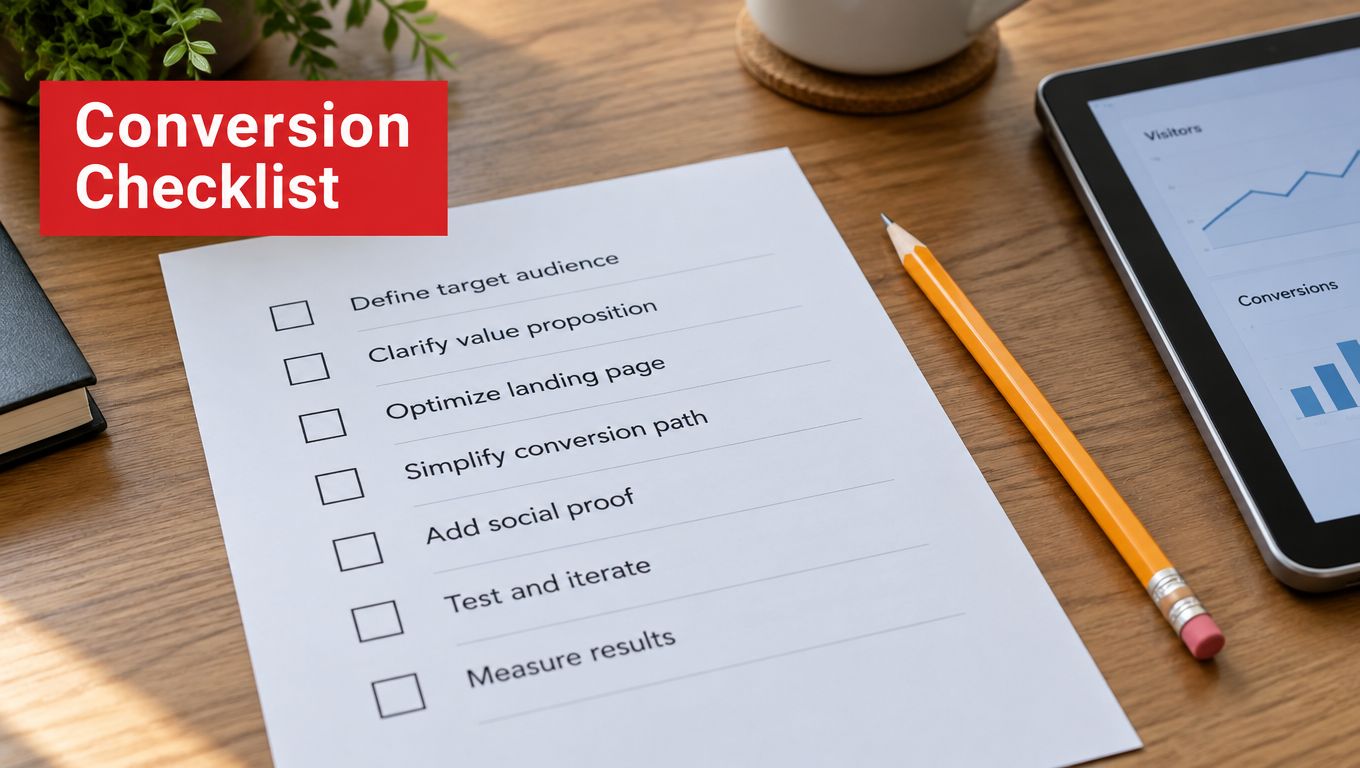
Before you convert, decide what the PDF has to do. If the goal is faithful visual reproduction, keep it image-only. If the file must be searchable, plan for OCR. If people will rely on assistive technology, treat tagging and reading order as part of the conversion, not a cleanup step.
During conversion, match the settings to the job. Use the page size that fits the source, choose orientation deliberately, and keep color only where it adds value. For batches, decide up front whether you want one combined PDF or separate files, then keep the ordering clean.
After conversion, open the PDF and check it as if you were the recipient. Zoom to 100%, confirm the text or image looks right, and run OCR validation if the file needs search or copy/paste. If accessibility matters, verify the result with the same reader or workflow that will use it.
The rule stays consistent. Image-only PDF for faithful reproduction, OCR PDF for search and extraction, and tagged PDF for accessibility. Pick the outcome first, then verify the result against the job it was made for.
If you want a browser-based way to handle BMP to PDF without uploading sensitive files, PDFWix offers client-side PDF tools that keep standard conversions local in the browser. It's a practical fit when you need to convert, combine, or refine document pages while keeping privacy and output control in the foreground.