
You've got a PDF open, a deadline approaching, and a word that looks wrong. You try to select it, but the cursor grabs the whole page. A spell checker can't review text that the file doesn't contain as text, so the first job isn't choosing a tool. It's figuring out what kind of PDF you have.
Classify the file first: selectable text can usually go straight to a spell checker; scanned pages need OCR; mixed files need both approaches, page by page. That distinction prevents two common wastes of time: running OCR on text that's already available, and trusting a spelling pass on a scan whose recognized text may be wrong.
Table of Contents
- How to Tell If Your PDF Even Has Selectable Text
- Running OCR So a Scanned PDF Becomes Checkable
- Using Acrobat's Built-In Spell Check on Selectable PDFs
- Converting PDFs to Editable Formats for Spell Checking
- Editing in Browser to Use Built-In Spell Check
- Common Failure Modes That Fool the Spell Checker
- Recommended Workflows for Different Users
How to Tell If Your PDF Even Has Selectable Text
Run this quick check before opening an editor or converting the file. The cursor and search function can tell you whether the PDF contains an electronic text layer, or just images of pages.
- Try to highlight a word. Drag across an ordinary word in a paragraph. If the cursor selects individual letters or a word, the page likely has selectable text. If it selects the entire page as one picture, or selects nothing, it may be a scan.
- Search for a word you can see. Use Ctrl+F on Windows or Command+F on Mac and search for a distinctive word on the page. If the search lands on that word, the PDF has searchable text on that page. If it doesn't, the page may be image-only, though a spelling difference or unusual text encoding can also affect search.
- Check another page if needed. A report can have a text-based cover and scanned appendices, or searchable body pages mixed with image-only tables. Test representative pages rather than assuming the whole file behaves alike.
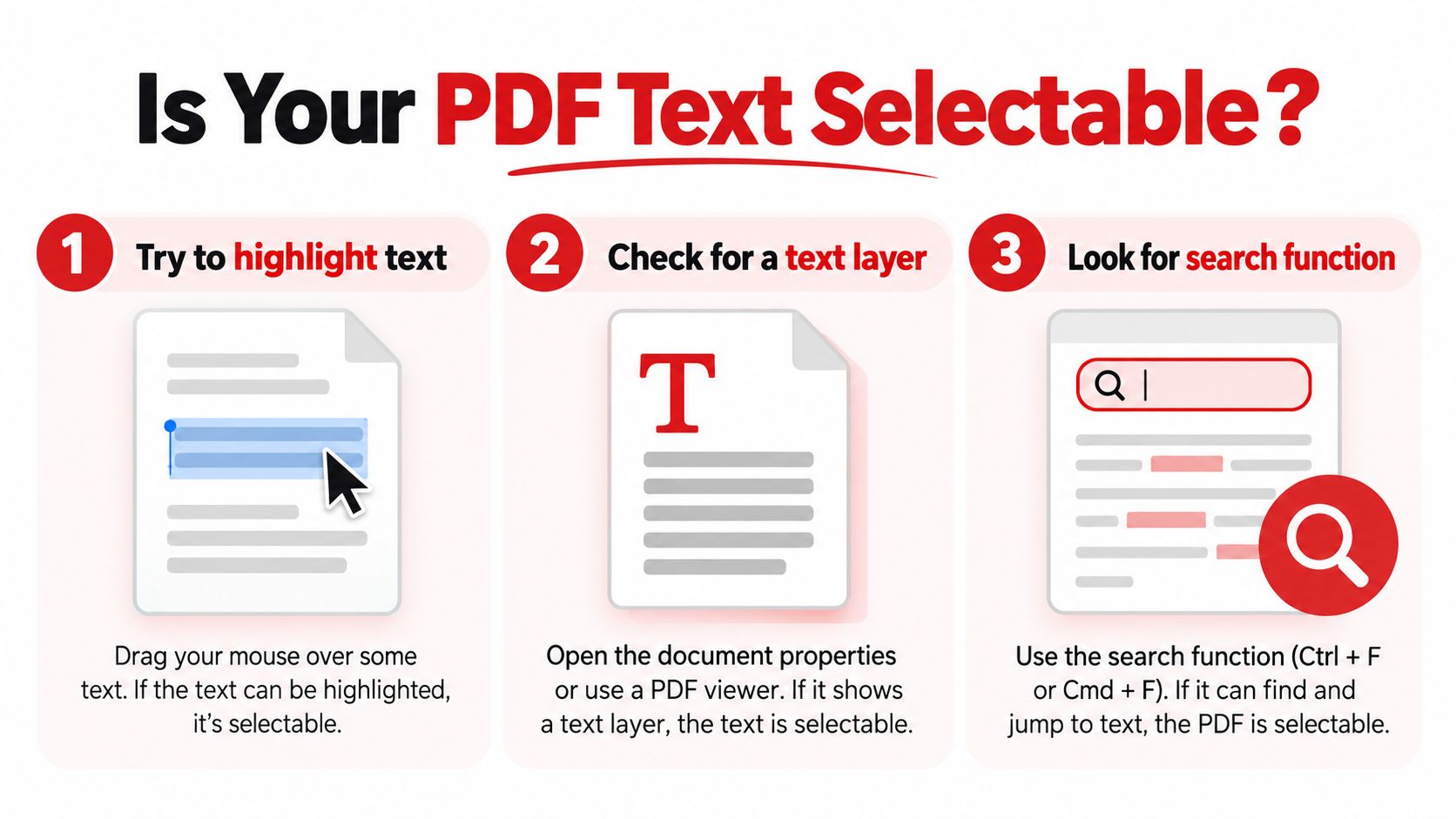
Use the result to choose your route
If highlighting and search both work, try a PDF editor's built-in spell check or move the text into an editable document. If neither works, the page needs OCR before a dictionary check can help. If the results vary by page, treat the file as mixed: identify the image-only pages and process those separately.
Don't mistake selectable text for correct text. A PDF can contain text that's searchable but still garbled, out of order, or split at line breaks. Take a moment to compare a few extracted words with the page image before deciding the text layer is reliable.
If your scan needs a searchable text layer first, this guide to making a PDF searchable covers that separate preparation step.
Quick decision card
- Selectable: Run a spell check on the existing text.
- Scanned: OCR first, then review the recognized text.
- Mixed: Segment the pages, then use the appropriate route for each.
Running OCR So a Scanned PDF Becomes Checkable
OCR, or optical character recognition, converts page images into text that software can search and spell-check. It also introduces another source of error. A character that the OCR system mistakes can turn into a misspelling, a different valid word, or text that's missing altogether. The spell checker can only assess what OCR extracted.
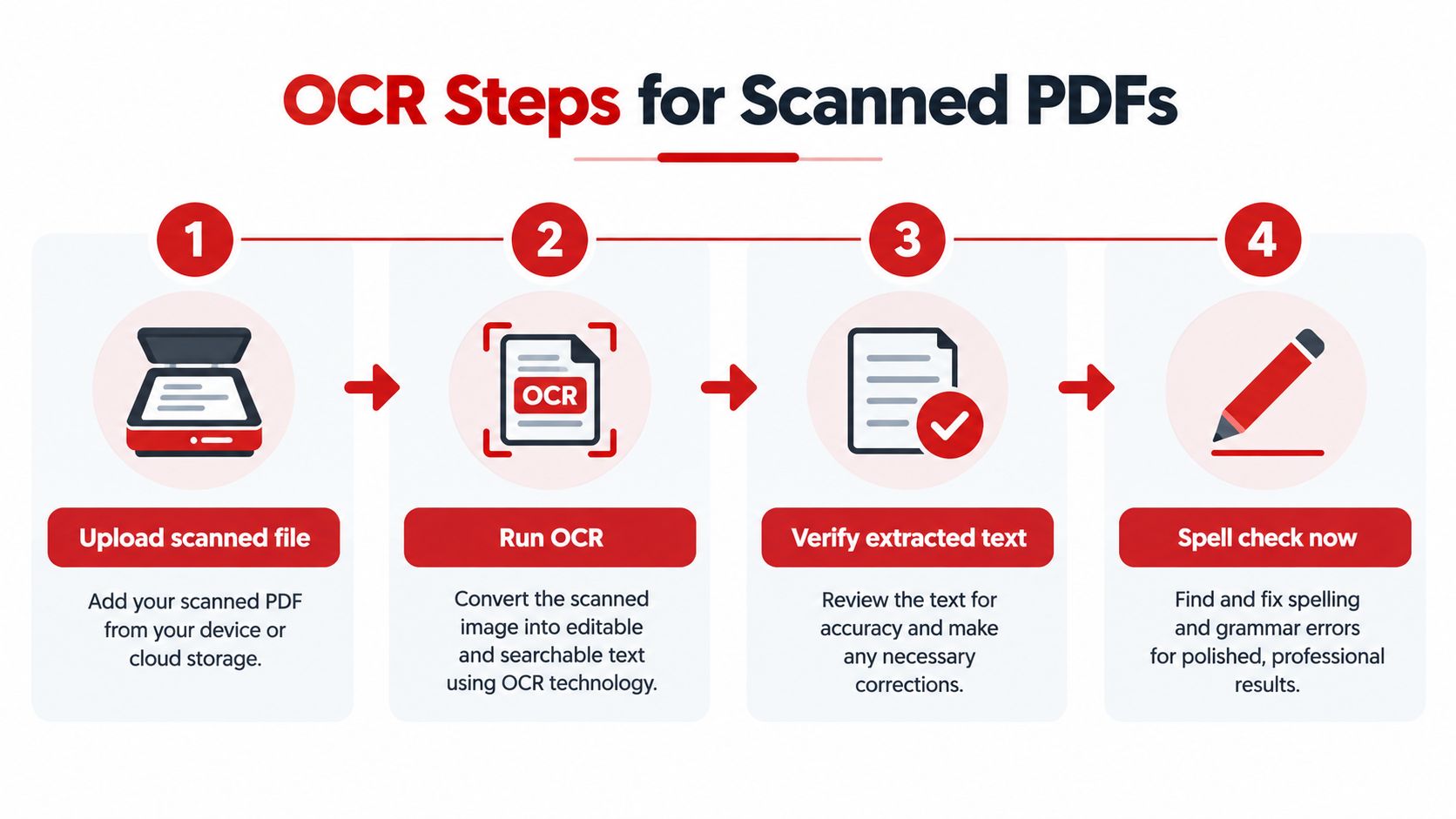
Set up OCR for the page, not just the file
Start with the clearest available scan and select the language used on the page. A wrong language setting can misread accents, spelling conventions, or letter combinations. Then consider the layout: a straightforward paragraph is different from a table, footnote, signature, or multi-column page. Handwriting and degraded print deserve especially cautious review.
OCR performance also depends on image quality, but no single scan setting guarantees an accurate result. Don't assume that selecting a high resolution or pressing an OCR button has made the text trustworthy. Check whether the extracted words, spacing, and reading order match what you can see.
For a practical overview of what recognition does and where its limits show up, see this guide to OCR for PDF documents.
Test the output before spell-checking everything
Sample pages from each distinct layout type in the document. Compare the OCR text with the visible page and note substitutions, missing spaces, and reading-order problems. For a more formal check, calculate word error rate against a manually corrected sample. Research on information retrieval found statistically significant degradation beginning at a 5% word error rate, with 10% producing broad disruption (research on OCR errors and retrieval).
Acceptance rule: If the OCR text is too messy to read naturally, don't treat its spell-check results as dependable. Improve the scan or review the page image while correcting.
OCR research has also shown that recognized text can retain errors even when it looks plausible. A foundational study found that producing finished documents with error levels comparable to typed documents required about 98% character recognition accuracy combined with computer-assisted proofreading (OCR text-entry study). That's why OCR should be treated as preparation for review, not a substitute for it.
Using Acrobat's Built-In Spell Check on Selectable PDFs
For a PDF with clean, selectable text, an in-place spell check is often the simplest option. It keeps the review in the document's original layout, which makes it easier to see where a flagged word appears and whether a suggested replacement fits.
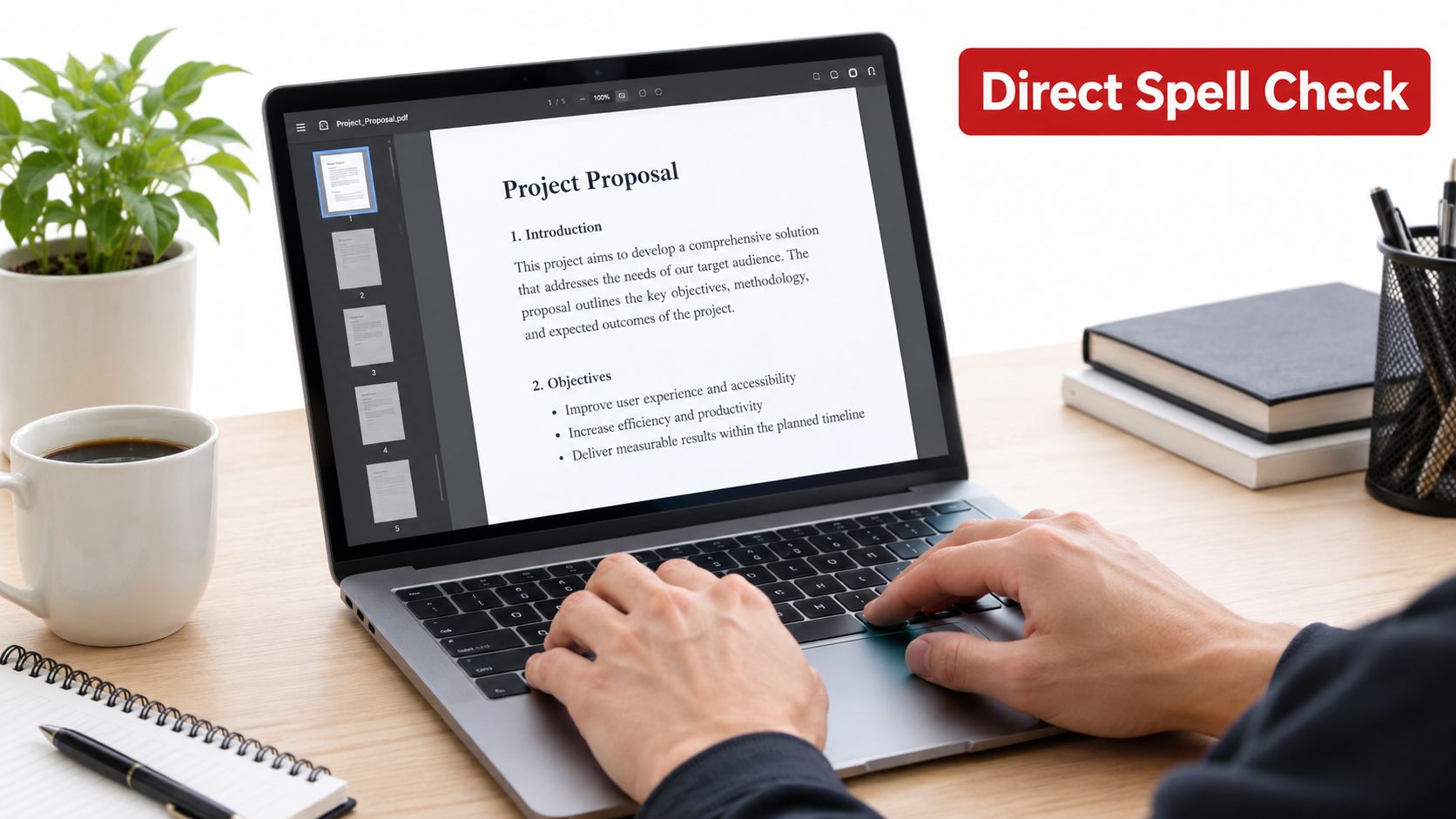
Check the text and dictionary settings
In Acrobat, open the PDF and use Edit PDF to access the document's editing and spelling tools. Start the spell-check panel from the editing interface, then check the document language before reviewing suggestions. The exact controls can vary by version, so look for the spelling options associated with editing rather than assuming the PDF will be checked automatically when opened.
A dictionary is useful, but it doesn't know your project's vocabulary. Add recurring names, product terms, abbreviations, and defined language to a custom dictionary when they're correct. Use “ignore” cautiously: ignoring one instance for the current pass is different from teaching the dictionary to accept that spelling in future reviews.
Don't let a clean panel end the review
Acrobat can flag words that aren't in its dictionary, but a correctly spelled word used in the wrong context may pass. It also won't reliably tell you whether a line-end hyphen belongs in the final word, or whether a name has been changed into a different valid word. Check the page around each meaningful correction, especially in contracts, citations, and technical documents.
If the text came from a scan, or the PDF's existing text layer is badly ordered, correcting it in place may be slower than fixing an editable copy. Conversion can also be the better choice when a collaborator needs to review changes in a word-processing workflow. Other desktop PDF editors offer their own spelling tools, but the same rule applies: confirm the text layer and review suggestions in context.
Converting PDFs to Editable Formats for Spell Checking
Conversion is useful when you need a familiar document editor's full spelling workflow, or when the PDF's text is easier to review outside its fixed layout. It's not a magic repair step. The conversion can rearrange columns, headers, footnotes, and tables, so the best route depends on what matters most: layout fidelity, privacy, or offline access.
Compare the routes by the review you need
| Route | Processing Location | Layout Fidelity | Best Use |
|---|---|---|---|
| PDF-to-Word conversion | Depends on the converter | Varies with document complexity | Editing text while retaining a familiar page-based layout |
| Cloud document editor | Cloud | Can shift complex formatting | Reviewing body text when upload is acceptable |
| Offline word processor | Local device | Complex layouts may need repair | Spell-checking without a cloud upload |
A PDF-to-Word conversion route is often the practical starting point when you want to inspect corrections beside the original page structure. A cloud editor can be convenient for collaboration and built-in spelling support, but uploading a confidential file may be inappropriate. An offline editor keeps the review local, though complex pages may need more manual formatting work.
Whichever route you choose, spell-check the converted text and then compare the output with the PDF. Watch headers, footnotes, tables, line-end hyphenation, and page breaks. Don't assume that a clean spelling panel means the converted document still says exactly what the source says.
For a focused walkthrough of editing documents with an offline office suite, the BarkerBooks 2026 editing guide offers another route to consider. If you're weighing the conversion process itself, this guide to converting PDF files to editable Word documents explains the key decision.
Editing in Browser to Use Built-In Spell Check
For a short PDF with selectable text, editing in a browser can be faster than converting the whole file or setting up a desktop workflow. You click into a text block, make a correction on the page, and let the browser's spelling support flag likely errors as you type. The advantage is direct visual editing; the limitation is that browser spell check works on editable text, not on words printed only in an image.
Try this route when the document is simple
Open the PDF in a browser-based editor and click inside a text block. If the text can be edited, correct flagged words in context and check the surrounding line for spacing or alignment changes. Then save or export the edited PDF and inspect the result.
This route is a good fit for an invoice, cover letter, or short draft with a straightforward layout. It's less suitable when the file has intricate tables, many text blocks, or a layout that must remain exact. A correction can fit in the text box but still cause line wrapping or movement elsewhere on the page.
If the PDF is image-only, return to OCR before attempting text editing. If it's password-protected or encrypted, you'll need authorized access before making changes. For interactive forms, use the form fields rather than placing ordinary text over the page. A guide to editing a PDF online can help you decide whether the browser route matches the document.
Short-document routine: Confirm that the words are selectable, make corrections in the editor, then export and compare the result with the original. Don't skip the final visual check just because the spelling underlines disappeared.
Common Failure Modes That Fool the Spell Checker
A green spell-check result means the checker didn't find words it recognized as misspelled. It doesn't prove that the PDF's text is accurate. This distinction matters most with OCR, where a recognition mistake can produce a real word that the dictionary accepts.
Valid words can still be wrong
OCR may confuse similar-looking characters. A printed word can become a different, correctly spelled word, or a name can be changed into a common word that looks plausible. A dictionary check may leave that substitution untouched because it has no way to know what the page image says.
Layout errors create a different problem. On a multi-column page, extracted text can run across columns in the wrong order, leaving every word correctly spelled but the sentences scrambled. OCR can also omit spaces or join adjacent words, while conversion can break a line-end hyphenation in a way that changes the text.
Review meaning, not only spelling
Keep the page image visible while you review. Create a list of flagged terms with their page numbers and nearby context, then compare each proposed change against the original. Require direct visual approval for edits in tables, formulas, URLs, citations, and legal definitions. Treat proper nouns, units, and abbreviations as intentional until you've checked them.
A spell checker evaluates tokens. You're responsible for whether those tokens preserve the document's meaning.
The practical sequence is detect the file type, OCR where necessary, and review the changes against the page. Skipping review can leave errors in legal, academic, or medical text, even after every flagged word has been corrected. Teams handling sensitive records may also benefit from a broader document management guide for law firms, where accuracy is one part of a larger document-handling process.
Recommended Workflows for Different Users
Different jobs call for different routes, but the first decision stays the same: determine whether the PDF contains selectable text, scanned pages, or a mixture.
- Students: Convert a text-based assignment to an editable document, run the spelling check, then export it back to PDF. Check headings, citations, and page breaks after export. Watch for: conversion changing the layout of footnotes or tables.
- Legal and HR teams: Use a privacy-appropriate OCR or conversion workflow, maintain a dictionary for case names and defined terms, and visually verify every flagged correction. Watch for: a valid-word substitution changing a party name or contractual term.
- Freelancers and small businesses: For a short, text-based proposal or invoice, edit directly in a browser and check the saved PDF. Watch for: text wrapping or alignment drift after a correction.
- Developers and product teams: Build a staged document workflow that identifies the text layer, applies OCR where needed, and routes uncertain text for human review. A guide to PDF work with browser tools can help teams assess browser-based document operations. Watch for: treating automated spelling output as proof that OCR content is accurate.
For every group, the reliable habit is the same: classify the file first, then choose the tool. That small decision saves unnecessary conversion for text PDFs and prevents a scan from reaching spell check before its words can be read.
PDFWix offers browser-based PDF tools for editing, converting, and OCR workflows, with many operations processed on your device. If you've identified the right path for your file, visit PDFWix to choose a tool and prepare your PDF for a careful spelling review.