
A payroll export can look tidy in a spreadsheet and still make a poor PDF. The last column disappears beyond the right margin, a ZIP code loses its leading zero, or an address containing a comma breaks into separate cells. If you need a file someone can print, review, or submit, a CSV file to PDF converter has to do more than change the file extension. It has to read the data correctly, lay it out for pages, and produce a PDF that's fit for its audience.
The right workflow depends on whether you're printing one report, reusing a designed template, or producing PDFs in batches. Whichever route you choose, judge the result by more than neat columns: check whether the table is accessible and where the data was processed.
Table of Contents
- Why CSV and PDF Need Different Treatment
- Which CSV to PDF Workflow Fits the File
- Column Widths Margins and Repeating Headers
- How to Convert a CSV File to a Print-Ready PDF
- Batch and Scripted CSV to PDF Pipelines
- Accessibility and Privacy Checks Before You Send
- Finish the PDF on Your Own Computer
Why CSV and PDF Need Different Treatment
A class roster is ready to print. In the spreadsheet, names and course details line up in columns. On paper, the last column is sliced at the margin, one address occupies several rows, and a date no longer matches the value in the original export. That isn't a file-extension problem. It's a sign that parsing and page layout are separate jobs.
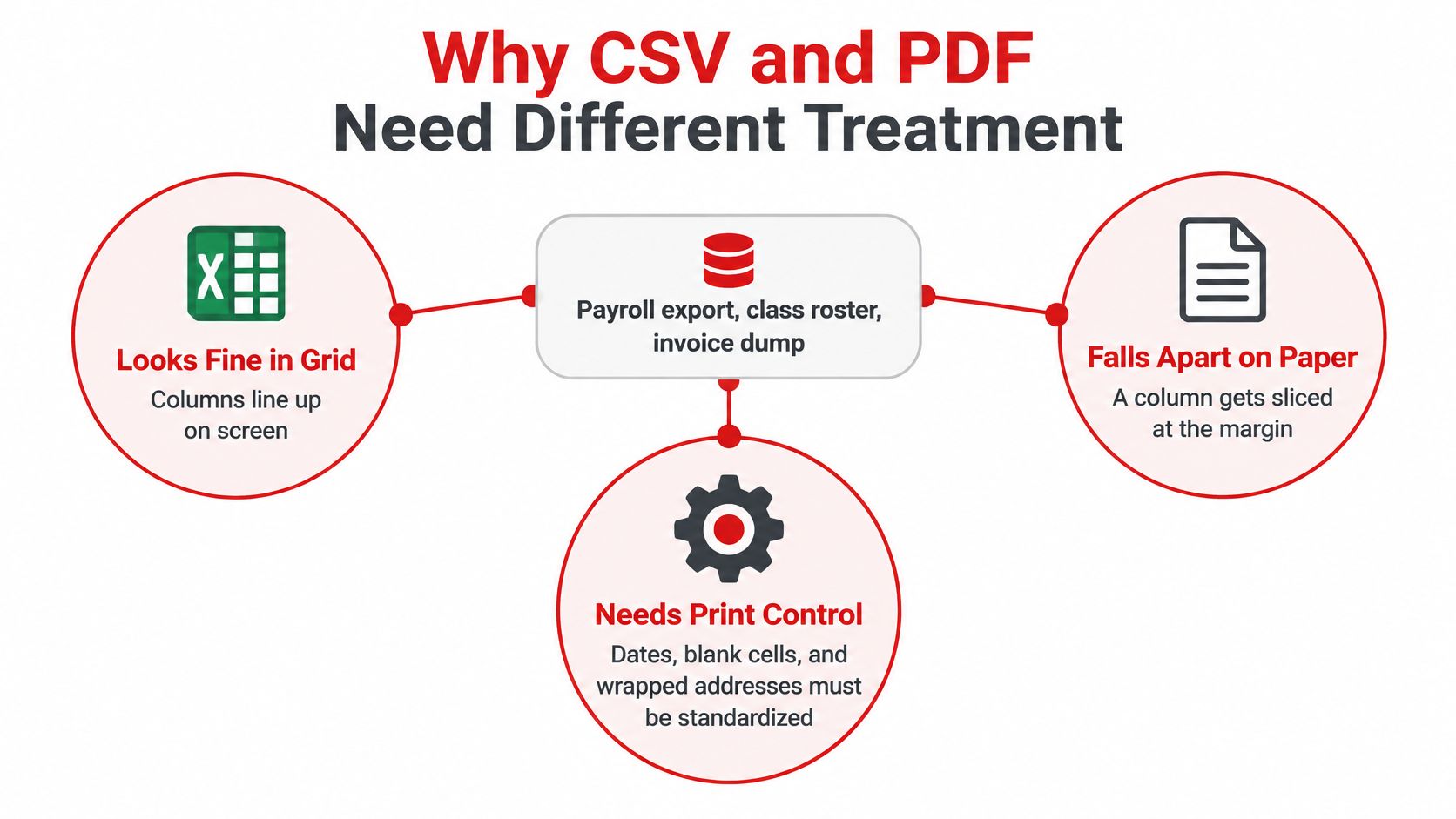
CSV is designed to pass structured values between programs. PDF is designed to present pages consistently on screens and in print. The Internet Engineering Task Force's RFC 4180 history records the standard's publication on October 4, 2005, and its registration of the MIME type text/csv. RFC 4180 describes a practical format baseline: records occupy separate lines, commas separate fields, and a field containing a comma, quotation mark, or line break can be enclosed in double quotes.
That last rule matters in ordinary work. If an address is "18 Main Street, Unit 4", a converter that splits on every comma can turn one address into two columns. A note containing a line break can be mistaken for a new record. The converter must recognize CSV quoting before it decides where cells and rows begin.
Once it has parsed the file, it still needs to decide how wide each column should be, where rows should break across pages, and whether headers repeat. CSV holds values, not the visual choices needed to make a printed report readable. A reliable converter therefore preserves the structured data first, then lays it out on fixed pages.
PDF's role is different. Its standardization and archival options make it useful for distributing a stable document; for a closer look at those format choices, see this guide to PDF, PDF/A, and PDF/X.
Practical rule: Keep payroll, student records, legal exhibits, and customer lists on a trusted device unless your organization has approved the processing route. “Convert” doesn't tell you where the file goes.
For a single report, you may only need to print the spreadsheet you already have. Repeated invoices or branded reports often call for a template. Scheduled batches are better handled by a script. Choose the workflow before adjusting the page, then use the right click path, page settings, batch checks, and send checks for that choice.
Which CSV to PDF Workflow Fits the File
A 12,000-row export lands in your inbox an hour before the report goes out. The temptation is to reach for a tool first. The better question is what the PDF has to survive: a one-off printed report, a designed document that repeats next month, or a scheduled job that runs without you. Each answer points to a different workflow.
| Workflow | Best for | Where data stays | Layout control | Main watch-out |
|---|---|---|---|---|
| Excel, Google Sheets, or LibreOffice print or export | One report you already opened | On your computer or in that sheet's account | High after page setup | Wide tables spill in portrait |
| Operating-system Print to PDF from a text app | Last resort when no spreadsheet is installed | Local print spooler | Low | Prints raw comma-separated lines |
| HTML or Markdown page with print CSS | Repeating styled tables | Local if you build the page yourself | High with @page rules |
Bad CSS still clips columns |
| Word or Google Docs mail merge | Letters or invoices plus a short table | Local file or the docs account | High for narrative, weak for huge grids | Collapses when the CSV has dozens of columns |
| Python or Node report script | Hundreds of files on a schedule | Your laptop or server | Full if pagination is coded | Breaks when someone adds a column |
| Online CSV converter | One small non-sensitive file and no install | Usually uploaded to the site | Low to medium | Row caps and unclear deletion |
A text editor's Print to PDF sends the comma-separated lines to the printer as text. It never builds a table. A spreadsheet does, but check where it reads from: a cloud sheet processes the file inside the account that owns the sheet, so "local" only holds if the sheet itself is local.
For a recurring table with visual styling, an HTML page plus print CSS gives you control over page breaks and repeated headers, and it stays on your machine when you build the page yourself. Weak CSS still clips a wide column, so the preview matters as much as the code. A mail merge fits a different job: a short table inside a letter or invoice, not a many-column data dump.
The script route earns its setup cost only when the same file shape repeats. A report script paginates exactly the way you code it, but it assumes the schema is stable, so lock down which columns are expected before you schedule it.
Whichever route you pick, judge the output on two things beyond neat columns: whether the PDF carries a real tagged table that a screen reader can walk row by row, and where the data sat while it converted. Local print keeps the file on your disk, a template keeps it in your doc account, and an online converter puts it in someone else's upload queue.
If the CSV itself needs cleanup before conversion, this guide on importare CSV gestendo correttamente i delimitatori covers delimiter handling in detail (the article is in Italian, but the import steps translate directly).
Decide the workflow now, before page setup. A 40-column dump forced into a letter template because the template has a logo produces a logo on an unreadable grid.
Column Widths Margins and Repeating Headers
A 14-column staff roster exported straight from a spreadsheet will not fit on portrait Letter at readable size. The usual instinct is to shrink the text until it does. That produces a PDF where every column technically fits and nobody can read it. A table that is only slightly too wide may fit after careful adjustment, but a wide report is better split into related tables than compressed into 6 pt type.
| Table width | Paper and orientation | Margins | Body type | Header row |
|---|---|---|---|---|
| Up to about 8 columns | Letter or A4 portrait | About 0.5 inch | 9 to 10 pt | Repeat on each page |
| About 9 to 14 columns | Letter or A4, wide-page orientation | About 0.4 inch or 10 mm left and right | 8 to 9 pt | Repeat on each page |
| More than about 14 columns | Wide-page orientation, split into two tables | Same narrow margins | Not below 8 pt | Repeat on each section |
| Invoice or letter with a short table | Portrait, table on part of the page | About 0.5 inch | 9 to 10 pt | Once unless the table breaks |
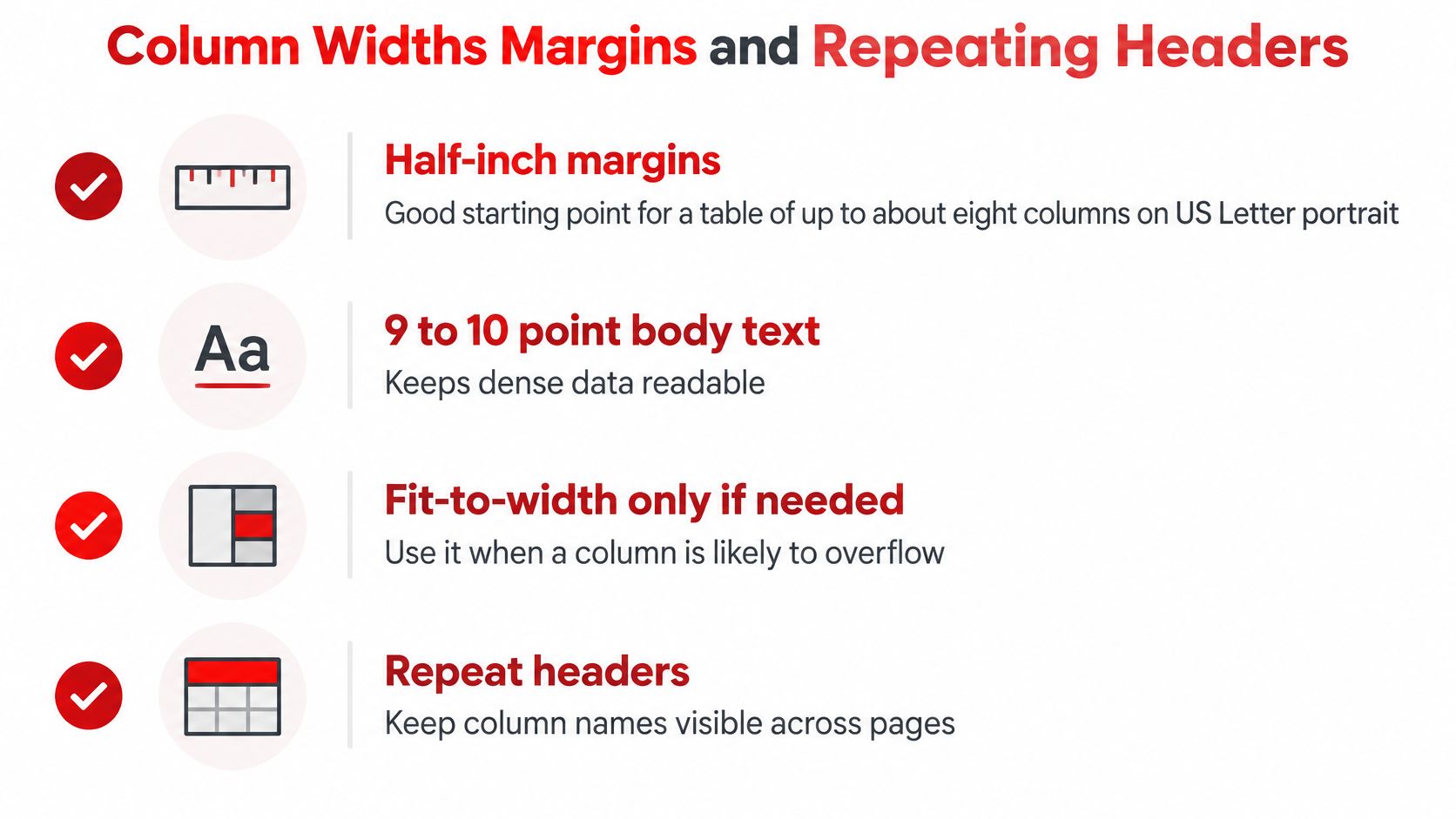
Treat those settings as starting points. "Fit to one page wide" can rescue a slightly overlong table, but it scales the whole sheet down and may cut the text size more than you expect, so compare the preview at 100 percent zoom rather than trusting the thumbnail. If columns still will not fit at readable size, split the report by purpose: identity details in one table, measures or amounts in another, with a shared key column so a reader can join them. For different paper dimensions, use this guide to change a page size in a PDF.
Repeat the header row on every page. Without it, someone opening page 12 sees a column of values with no clue what they mean. Add a header or footer with the report name, date, and page number so printed pages can be identified if they get separated.
Keep text columns left-aligned and numeric columns right-aligned. Format currency and percentages in the spreadsheet before exporting so the PDF shows readable amounts rather than raw floating-point values. Wrap long text only when the resulting row stays a sensible height; for a long address or note, move the detail to a notes column or a separate page.
Avoid merged cells as decorative section bands. They disrupt reflow and make the table harder to represent to assistive technology, which reads structure rather than visual grouping. Use blank rows only when they are real separators.
The cleanest check is structural, not visual. A locally printed or tagged PDF preserves the table as a table: header cells are marked as headers and rows stay in order for a screen reader or a later data extraction. A PDF rendered from a screenshot or a flattened image looks identical on paper but carries none of that structure, and whichever route you chose also decides where the data went: local print keeps the file on your machine, a template tool may process it in a browser tab, and an online converter sends it somewhere you should be able to name.
How to Convert a CSV File to a Print-Ready PDF
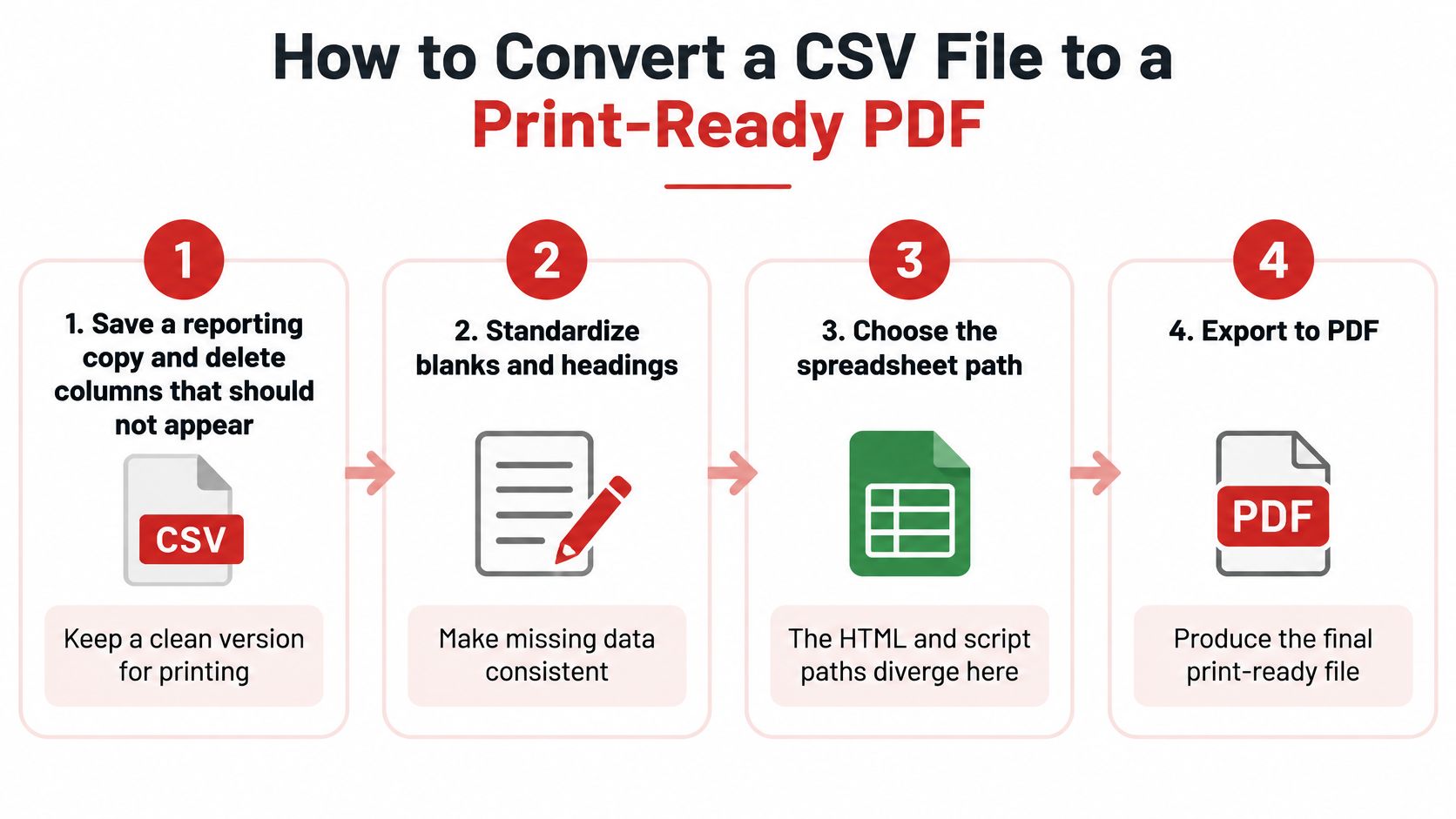
The spreadsheet route keeps the whole job on your own machine: import, lay out, export. With an HTML template you would run the same checks in print preview, and with a script you would turn them into assertions against the output. Either way, the pass criteria below stay the same.
-
Save a reporting copy and delete columns that shouldn't appear. Keep the source file intact, then make a copy for the report. Remove national IDs, full account numbers, internal notes, and any other fields the recipient doesn't need. Deleting is safer than hiding: a hidden column can travel into the export or resurface in another viewer, while a deleted one is not there.
-
Import with the correct delimiter and encoding. Open the reporting copy in Excel, LibreOffice Calc, or Google Sheets. Select comma as the delimiter and UTF-8 as the encoding when the import dialog offers those options. Treat ZIP codes, invoice IDs, and other identifiers with leading zeros as text, or the spreadsheet will strip the zeros or reinterpret a value as a date.
-
Confirm quoted values stayed together. Check an address that contains a comma and a note that contains a line break. Each should remain inside its intended cell, not spill into an extra column or row. If either broke apart, reimport with a proper CSV parser rather than patching the output by hand.
-
Keep one clear header row. Add a report title above the table only when it won't be mistaken for a second header. Use short, descriptive column names, and handle empty values consistently so readers don't have to guess whether blank,
NULL, andN/Amean different things. -
Apply the page setup. Choose portrait or horizontal orientation, margins, and text size based on the table width. Turn on fit-to-one-page-wide only when needed, and set the header row to repeat across pages. Resist shrinking the whole report just to avoid splitting it; an unreadable single page fails harder than a clean three-page file.
-
Preview before exporting. Look for clipped characters, cut-off columns, blank pages, unexpected page breaks, and a missing header on the second page. Fix layout problems here, where they are cheap, rather than in the PDF.
-
Export to PDF and test the file. Use the application's PDF export or print-to-PDF option, never a screenshot. Open the result, select the text inside a cell, and try copying a value. If that works, the PDF carries real text rather than a picture of the grid, so search, copy-paste, and screen readers all behave. Then print one page to check the physical result.
Two things separate a shareable export from one that only looks finished. The sensitive columns are absent from the file, not hidden inside it. And the table survives the trip as a real table, so someone opening page twelve gets a repeating header and values they can pull out, rather than a flat image they have to retype.
Batch and Scripted CSV to PDF Pipelines
Local printing handles one file. A template handles a handful. Once the same report runs every week, the third option, a pipeline, pays for itself because it makes identical layout decisions every time and leaves a record of what went in and what came out. For a freelancer sending recurring invoices or an analyst generating a scheduled report, the pipeline should catch a changed input before it shifts the output. Start with a reporting copy that has sensitive columns removed and blanks standardized.

-
Parse with a CSV library. A real parser preserves quoted commas and line breaks inside fields, and lets you handle malformed quotes and encoding errors deliberately. Splitting each line on commas yourself breaks the first time a field contains a comma.
-
Map fields to a versioned template. An HTML table with
@pagerules, a word-processor merge, or a PDF library that draws rows can all work. Keep the expected column list alongside the template, so a newly added input field doesn't slide into the wrong output column without notice. -
Paginate using the content. Repeat headers, keep totals with the rows they summarize, and calculate page breaks using measured text rather than a guessed number of lines. A long address takes more vertical space than a short name, so a fixed row count per page still produces collisions.
-
Create and name the output. Make one PDF per customer or a single multi-page report. If filenames use a data field, choose a safe value and normalize characters that could create confusing or invalid names.
-
Log what went in and what came out. Record the input row count and the number of pages or files created. That basic check makes a silent truncation easier to spot than inspecting filenames alone. For a small team planning recurring runs, this overview of deploying scheduled data processing jobs can help frame the operational steps.
Browser-based conversion has a practical ceiling: memory. A page runs out of room if it loads every row, renders every page, and retains all intermediate data at once. Stream or chunk the input, cap concurrent work, release page buffers as you go, show progress, and estimate the row count, column count, cell lengths, fonts, and page count before starting a large job.
A WebAssembly and JavaScript performance study hosted in INESC TEC's open repository compared the two across Chrome, Firefox, and Edge and found WebAssembly was about 30% more energy-efficient on average, although results varied by browser and benchmark. That supports choosing WebAssembly-based libraries where they exist. The study also reports median conversion time, peak memory, and output size separately for desktop and mobile, which is the right way to measure: one small-file timing says little about a wide file on a mid-range phone. No energy figure changes the fundamentals. Bounded-memory processing, cancellation, and validation are what keep a browser tab alive through a large batch.
For a batch that matters, test both a wide file and a long one on the devices people use. Keep the template versioned with its column list, and decide in advance when the job should stop or fall back rather than crash a tab. Judge the finished PDF the same way every run: the table tagged so assistive technology can read it, and the raw CSV having stayed where you intended, on the machine or with a service you chose. Teams building repeatable document operations can also review this guide to automate PDF workflows.
Accessibility and Privacy Checks Before You Send
A polished table can still be a bad document for someone using a screen reader. If the PDF is an image of the grid or its table structure is untagged, visual neatness gives assistive technology nothing: no reading order, no header cells, no way to announce which column a value belongs to.
Prepare the CSV with one clear header row, descriptive labels, no blank columns, and consistent treatment of empty values. Avoid merged cells and stacked header rows where you can. In the PDF, check the logical reading order, the document language, contrast, and the table, row, header-cell, and data-cell structure. The University of Arizona accessibility guidelines for data files explain why a visually correct export falls short and why complex spanning headers create problems.
Whichever route produced the file, local print, a saved template, or a scripted pipeline, the judgement is the same: does the PDF carry tagged tables, and where did the data go on the way there. Universities, public agencies, employers, and anyone sending reports to people who use assistive technology should run an accessibility checker and fix what it flags before distributing the file. If the converter can't produce a tagged table, a clean-looking export still fails that audience. These PDF accessibility checks cover the practical points to verify.
Privacy gets its own pass. Confirm where the bytes go before you trust a privacy label: does the file stay on this laptop, move into a document account, or travel to a conversion service. Find out whether processing writes temporary files, whether hidden columns made it into the PDF, and whether your organization permits that service for the information involved.
A cloud converter saves setup time but adds a governance burden for payroll, health, student, or legal records. A shared, unmanaged, or compromised device carries its own risk even when nothing is uploaded. Make a reporting copy first, remove the identifiers the recipient doesn't need, standardize missing values, and inspect the finished PDF for fields that should have been excluded. A payroll export that merely hides an identifier column in the spreadsheet can still print it; deleting the column from the copy is the reliable fix.
| What you see | Likely cause | Fix |
|---|---|---|
| Text can't be selected, or a screen reader skips cells | The export is an image or the table is untagged | Export real text and check the table header tags |
| A screen reader announces the wrong language | The document language was never set | Set the language on the PDF before distributing |
| Cells read across the wrong rows or out of order | The tag order doesn't match the visual layout | Re-export with a template that writes tags, or fix the reading order |
| A removed identifier still appears | The column was hidden in the sheet, not deleted | Delete it from the reporting copy and export again |
Cut-off columns, split addresses, and encoding problems belong to the import and page-setup steps, so correct them at that stage rather than patching the PDF afterward. Don't send the file until you can select its text, the header repeats where needed, sensitive columns are gone, and an accessibility checker has passed when the audience requires it.
Finish the PDF on Your Own Computer
Choose the method that matches the job. For a one-off report, stay in the spreadsheet, set the page, and export. If the same layout will run again, save the template or script now, before repeated manual exports introduce inconsistent pages. If the rows are sensitive, don't switch to an upload tool just to get a smaller file.
After export, finish the PDF locally if it needs page numbers, a cover sheet, compression, or a draft watermark. PDFWix's core tools, including merge, split, compress, convert, rotate, watermark, sign, and protect, are free and don't add watermarks. Most tools, including page numbering and merge, run in the browser, so the file isn't uploaded. The guide to PDF tools without uploading explains the local-processing option. Use protection only when the recipient shouldn't edit the archive copy; a password can't undo the mistake of leaving a sensitive column in the report.
Use PDFWix to finish a CSV-derived PDF with tools for merging, compressing, rotating, watermarking, signing, and page numbering. Keep the reporting copy lean, export a selectable PDF, then make any final adjustments before you send or print it.