
If a PDF has a user or open password, you can't edit it without the password. If it only has a permissions or owner password, editing may be possible after you remove the permissions layer, while PDF security itself has evolved from 40-bit RC4 in early files to 256-bit AES in later PDF standards.
You've probably seen the problem before. The document opens normally, the text is visible, and yet every useful control is greyed out. You can't change a sentence, copy a paragraph, print a page, or fill in a field. The frustrating part is that “password protected” doesn't describe one single condition. It can mean the file is genuinely encrypted, or it can mean a viewer is obeying a set of editing restrictions.
That distinction determines what works. Before you try to convert, print, upload, or repair the file, identify whether you're facing a true open lock or a permissions lock. Then use only a method you're authorized to use, because technical access and legal permission aren't the same thing.
Table of Contents
- Understanding PDF Protection Types
- The History and Ethics of Editing Restrictions
- Choosing Between Client-Side and Server-Side Unlocking
- How to Edit a Protected PDF Using PDFWix
- Troubleshooting Common Editing Issues
- Best Practices for Secure Document Editing
Understanding PDF Protection Types
The most common mistake in editing protected PDF files is treating every password as an open password. A document can open without asking you for anything and still carry restrictions on editing, copying, printing, commenting, form filling, signing, or page extraction.
User passwords block access
A user password, also called an open password, protects access to the document itself. The PDF viewer asks for the password before it displays the file. Without the correct key, you can't inspect the pages or begin editing because the content remains inaccessible.
That's a very different situation from a file that opens but refuses changes. If the document won't open at all, an editor that merely removes permission flags won't solve the problem. You need the password or an authorized decrypted copy from the owner.
Owner passwords control permissions
An owner password, often called a permissions password, controls what an authorized viewer lets you do after the file opens. The document may be readable, but the creator can separately restrict modifying content, copying text and graphics, filling forms, signing, commenting, printing, or extracting pages.
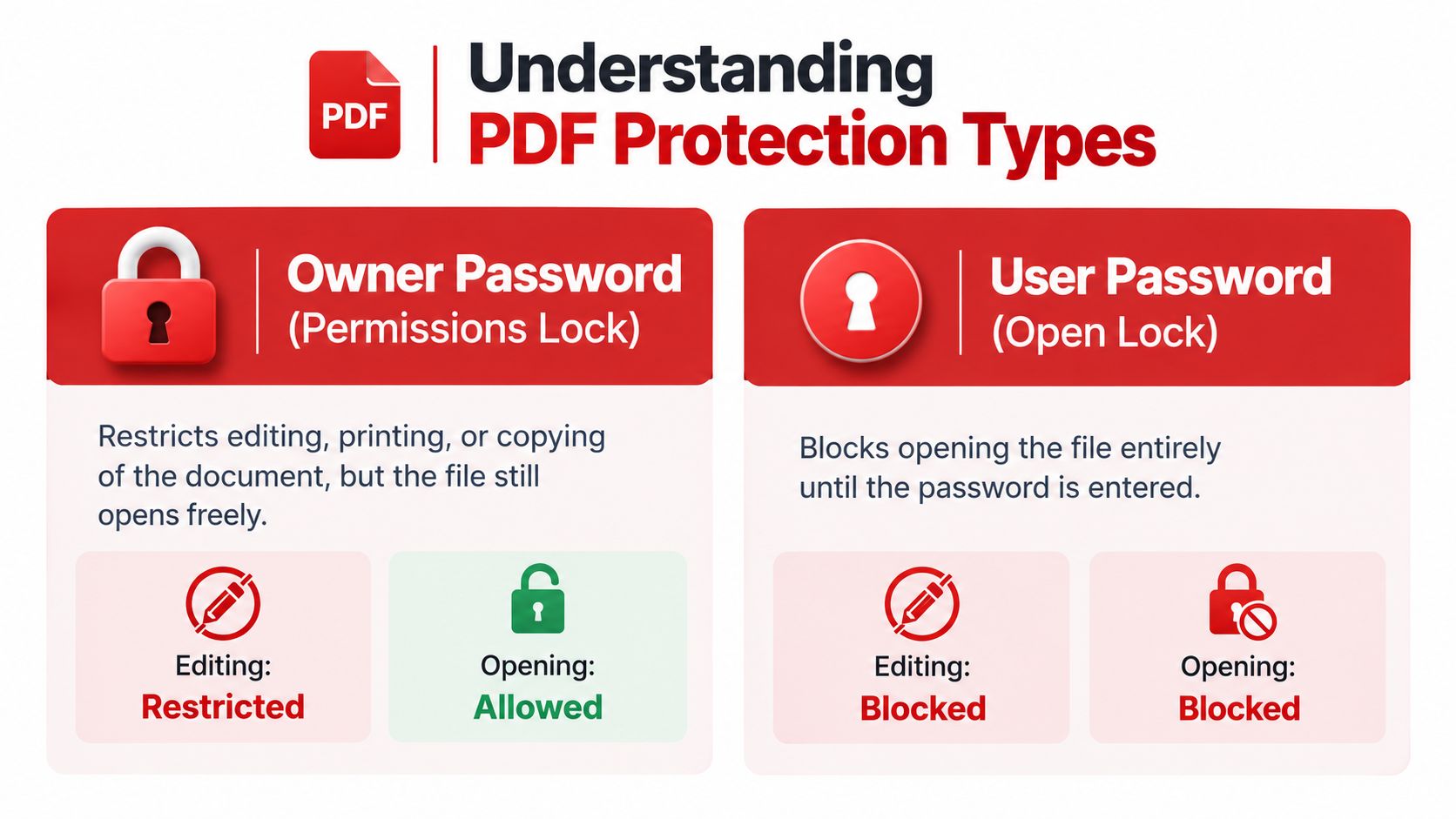
The PDF security model defines separate user and owner access. A user password opens the file under restricted permissions, while the owner password grants full rights. The distinction is documented in the PDF security model described by the RFC, which also explains that permissions are enforced by cooperating viewers. Software that doesn't cooperate with those flags may ignore them.
That doesn't make every restriction meaningless. It means you need to diagnose the protection before choosing a tool. Check the document's security properties, then test the specific action you need. If the file opens but editing is disabled, you're likely dealing with permissions. If a password prompt appears before the pages load, stop and request the password.
For a practical overview of how protection settings are applied, see this guide to protecting a PDF from editing.
Practical rule: If you can read the document but can't change it, investigate permissions first. If you can't open it, obtain the password or an editable copy.
The History and Ethics of Editing Restrictions
PDF restrictions didn't appear as a modern afterthought. The standard security handler has been part of PDF since version 1.1, and the format has moved through several encryption stages. Early PDFs used 40-bit RC4, PDF 1.4 introduced 128-bit RC4, PDF 1.6 introduced 128-bit AES, and PDF 1.7 Extension Level 3 introduced 256-bit AES. PDF security was formally incorporated into PDF 2.0, ISO 32000-2, published in 2017, as documented in this history of PDF security standards.
That history explains why two files that look equally “locked” can behave very differently. An older document may rely mainly on permission flags that compliant viewers enforce. A newer file may combine permissions with encryption that prevents access to the underlying content. The visible symptom, an unavailable editing button, doesn't tell you which technical layer is responsible.
Technical ability is not authorization
The ethical boundary is simple: edit only when you own the document or have permission to modify it. A file sent to you for review isn't automatically a file you may alter. A contract may belong to a client, a form may be controlled by an institution, and an internal report may be subject to company policy even if you can technically remove its restrictions.
Owner-password protection is intended to control changes to the document. Bypassing it on somebody else's copyrighted, confidential, or legally significant file can create problems that no editing tool can resolve. The responsible workflow is to ask the author for the owner password, request an editable version, or obtain written approval for the specific change.
Separate the working copy from the source
Authorized editing also requires document discipline. Preserve the original protected file, record who approved the change, and create a new working copy rather than overwriting the source. That gives your team a clear audit trail and makes it possible to compare the edited document with the version you received.
A restriction that can be removed technically still deserves to be treated as an access control.
The standards history offers a useful technical lesson, but it doesn't grant permission. Whether the restriction is weak, old, or only viewer-enforced, the question remains who authorized the edit and what the resulting file may be used for.
Choosing Between Client-Side and Server-Side Unlocking
Once you've confirmed that you're allowed to edit the file, decide where the processing should happen. The choice is between a client-side workflow, where the document stays on your device, and a server-side workflow, where the file is uploaded to a remote processor.
Client-side processing is the safer default for sensitive material. A browser-based tool can process a document locally, which suits contracts, identity records, financial paperwork, legal drafts, and confidential business files. The document doesn't need to leave your computer, so you avoid sending its contents to an external service.
Server-side processing can be convenient when a local workflow isn't available or when a remote processor is already approved by your organization. It can also provide a straightforward path for permission removal and document transformation. The trade-off is that you're transmitting the file, so you need to understand the provider's retention, access, deletion, and logging practices before uploading it.

Use sensitivity as the deciding factor
Ask three questions before choosing:
- What does the file contain? Personal data, privileged communications, trade secrets, and unreleased agreements deserve stricter handling than a public brochure.
- Is uploading approved? Your employer or client may require an approved processor, regardless of how convenient another option appears.
- What does the tool do? Some tools edit the document directly. Others convert it, flatten it, rasterize pages, or create a new PDF that may lose structure.
A browser editor can be useful for routine changes, but check whether it processes locally or sends the file away. The browser-based PDF editor guide explains the distinction between local processing and online workflows.
For a server-side access removal, verify that the service uses encrypted transmission and has a clear handling policy. PDFWix's Unlock and Protect tools are described as running in server memory only without writing temporary files to disk, which may suit an authorized workflow where server processing is acceptable. That still doesn't replace your organization's privacy review.
Choose the path before you upload. Convenience matters, but the right method is the one that preserves both the document's confidentiality and its structure.
How to Edit a Protected PDF Using PDFWix
When a file opens normally but refuses editing, PDFWix provides a direct access workflow for removing the permissions layer before making changes. It isn't a solution for a PDF that remains closed behind an unknown user password. That distinction should be tested first, not discovered after you've uploaded the wrong file.
Test the file before unlocking
Open the PDF in a trusted viewer and check its behavior. Confirm that the pages display, try selecting text, and open the document's security information if the viewer provides it. Note whether the restriction affects editing only or also blocks printing, copying, form filling, commenting, or signing.
If the file opens and the viewer reports editing restrictions, proceed only if you have authorization. If it asks for a password before opening, obtain the correct password or request an editable version from the author.
Remove the permissions layer
The operational sequence is straightforward:
- Keep the original. Make a duplicate of the protected file and work from the copy.
- Open the access tool. Use PDFWix's PDF unlock workflow for a file you're permitted to modify.
- Upload the working copy. Confirm that the document is allowed to leave your device if the tool uses server processing.
- Run the access action. The tool attempts to remove the permissions restriction that prevents standard editing.
- Download the resulting file. Give it a distinct filename so nobody confuses it with the protected original.
- Open the new PDF in an editor. Test a small, non-destructive change before making extensive revisions.
Edit and verify the result
After the permissions layer is removed, use a standard PDF editor to add text, place images, annotate pages, or work with fields that were previously unavailable. Save the edited document as a separate version. Then close and reopen it to confirm that the changes remain intact and that the page layout, fonts, links, form behavior, and signatures still behave as expected.
A successful removal of restrictions doesn't guarantee a perfect edit. Some PDFs contain scanned page images rather than editable text, while others use complex layouts that shift when objects are moved. Removing restrictions changes access permissions. It doesn't automatically convert an image into live text or repair a damaged document structure.
The safest test is practical. Make a small authorized edit, save it, reopen the file, and inspect the output before investing time in a major revision.
Troubleshooting Common Editing Issues
A failed release usually has a clear cause. The first diagnostic question is whether the file opens. If it doesn't, you're dealing with an access barrier rather than a simple editing restriction. A permissions tool can't provide an unknown user password, and converting a file without opening it first won't solve the underlying encryption.
If the file opens but the text still can't be changed, identify what “editing” means in this document. A scanned page may contain only an image, so there's no text object for an editor to select. A form field may be read-only because its creator configured it that way. A digital signature may also preserve the signed state and limit modifications after signing.
Match the symptom to the barrier
| What you see | Likely cause | Appropriate next step |
|---|---|---|
| A password prompt appears before the pages load | User or open password | Request the password or an authorized editable copy |
| Pages open, but editing controls are disabled | Permissions restriction | Use an authorized permissions-unlock workflow |
| Text is visible but cannot be selected | Scanned or image-only content | Use OCR or add annotations instead |
| Fields appear but reject input | Read-only or locked form fields | Ask the form owner for an editable version |
| The file changes after signing or shows signature warnings | Digital signature controls | Preserve the signed original and request a new signing copy |
| Restrictions return after processing | External or server-based policy | Contact the policy author or administrator |
The last category needs special care. Some PDFs use policy controls managed outside the document itself. In that case, removing ordinary permission flags won't change the organization's access rules. The guide to blank or unresponsive PDF files can help distinguish a rendering problem from a file-content problem, but policy-controlled documents still require the administrator's intervention.
Use a fallback that preserves the original
If direct editing remains unavailable, add comments, highlights, or a separate page rather than altering the source without approval. For extensive revisions, request the original source document or an editable export from its owner. Conversion can be useful, but it may change line breaks, fonts, columns, images, and page spacing.
The practical workflow for editing secured PDFs follows the right order: determine whether access is blocked by a user password or by permissions, then select software that addresses the correct layer. That diagnosis prevents wasted attempts and reduces the risk of damaging a file that should have remained untouched.
Best Practices for Secure Document Editing
Opening a document is only one part of a controlled editing process. The output needs a clear identity, the original needs protection, and everyone handling the file needs to know whether the permissions were removed temporarily or permanently.
Start with authorization. Keep the approval in the same project record as the working copy, especially when the PDF is a contract, regulated record, client deliverable, or signed document. If responsibility is unclear, ask the document owner rather than assuming that possession equals permission. For teams handling agreements or filings, a virtual legal assistant may also help organize approvals, versions, and document follow-up, although legal responsibility remains with the appropriate owner or counsel.
Protect the editing workflow
Use a simple control routine:
- Preserve the source: Never overwrite the original protected PDF.
- Name versions clearly: Identify the document, revision, and status in the filename or document system.
- Test before major edits: Make a small change, save, close, reopen, and verify the result.
- Check the finished pages: Review text flow, images, fields, page numbers, links, and signatures.
- Limit distribution: Share the unsecured copy only with people who need editing access.
- Reapply protection when appropriate: If the final document should not be changed, use an approved protection workflow after completing the edits.
A PDF may look correct while carrying hidden problems. Text can shift during conversion, form fields can lose their behavior, and a signature can become invalid after modification. Visual inspection and a reopen test catch issues that a simple “saved successfully” message won't reveal.
For documents you distribute regularly, establish a repeatable policy covering who may remove restrictions, which processing methods are permitted, where files may be stored, and when the final version must be protected again. The guide to protecting a PDF from editing is useful when you need to configure restrictions for your own outgoing documents.
The strongest practice is also the most conservative: restrict access to only the copy you need, edit only what you're authorized to change, and retain an untouched original. That approach protects the document's history while giving the editor enough access to complete the task.
PDFWix provides browser-based tools for removing restrictions from, editing, converting, signing, and protecting PDF files, with the Unlock workflow intended for authorized permission-restricted documents. Visit PDFWix to test the file, remove the appropriate restriction, and continue editing without losing control of the original.