
You know the moment. A 30-page report, contract, or assignment is already sitting in Files on your iPhone, and only one section of it should leave the phone. Pages 4 to 9 go to a manager, pages 2 and 14 go to a client, and the rest stays put.
The confusing part isn't selecting pages. It's what happens next. The Print sheet and Safari's download list put the finished file in two different places, and neither one announces itself. People tap Print, assume the job is done, then hunt for a document that was never created.
Treat this as two jobs, not one. First you make the smaller PDF. Then you prove you can find it, open it, and confirm the right pages are inside before anything leaves your phone. The taps are quick. The finding and checking is where ten minutes get lost and, occasionally, the wrong pages get sent.
Table of Contents
- Pick the Right iPhone Extraction Method
- Save a Contiguous Range from the Print Preview
- Pull Scattered Pages with a Browser Picker
- Find the New PDF in Downloads or iCloud
- Confirm the Pages Then Send Only That File
Pick the Right iPhone Extraction Method
Start with the page pattern, not the app. A single continuous block such as pages 4–9 fits Apple's built-in route perfectly. So does a single page. Scattered selections, the kind people describe as "pages 2, 5–7, and 14," need a different tool because the built-in route produces one range per pass.
Apple's method has been stable for years. It isn't a feature called Extract Pages at all. It's the print interface doing double duty: open the PDF in Files, tap Share, choose Print, set the range, then use the share control inside the print preview to save the result back to Files. Instructions documented since at least November 2021 describe exactly this sequence, as Filewise's notes on iPhone PDF workflows record, and no printer is involved at any point.
| Route | Best for | Where the file lands | What can change |
|---|---|---|---|
| Files, Share, then Print | One contiguous range, such as pages 4–9 | Save to Files from the expanded print preview | Rendering can drop links, forms, bookmarks, layers, attachments, signatures and tags |
| Safari page picker | Scattered pages such as 2, 5–7 and 14 | Browser download, then Files Downloads or iCloud Drive Downloads | Annotations and signatures may not copy; privacy depends on local versus remote processing |
| Repeat Print, then merge later | Several ranges when print thumbnails cannot be toggled | A separate file in Files for each range | Same print limits, plus a later combine step |
Read the row that matches your page pattern and follow only that one. Mixing routes mid-task is how people end up with three files, two of them wrong.
Keep the source. Every route here builds a new document and leaves the original untouched. That copy in Files is your proof of what the full document said.
One honest caveat before you start: the print route renders pages rather than copying them. Interactive form fields, embedded attachments, layers, digital signatures, bookmarks, and accessibility tags may not survive intact even when the words look identical. For legal, HR, or archival files, compare the extract against the original instead of assuming a faithful copy.
The desktop version of this job, including free browser options, is covered in How to Extract Specific Pages from a PDF, so the rest of this guide stays on the phone.
Save a Contiguous Range from the Print Preview
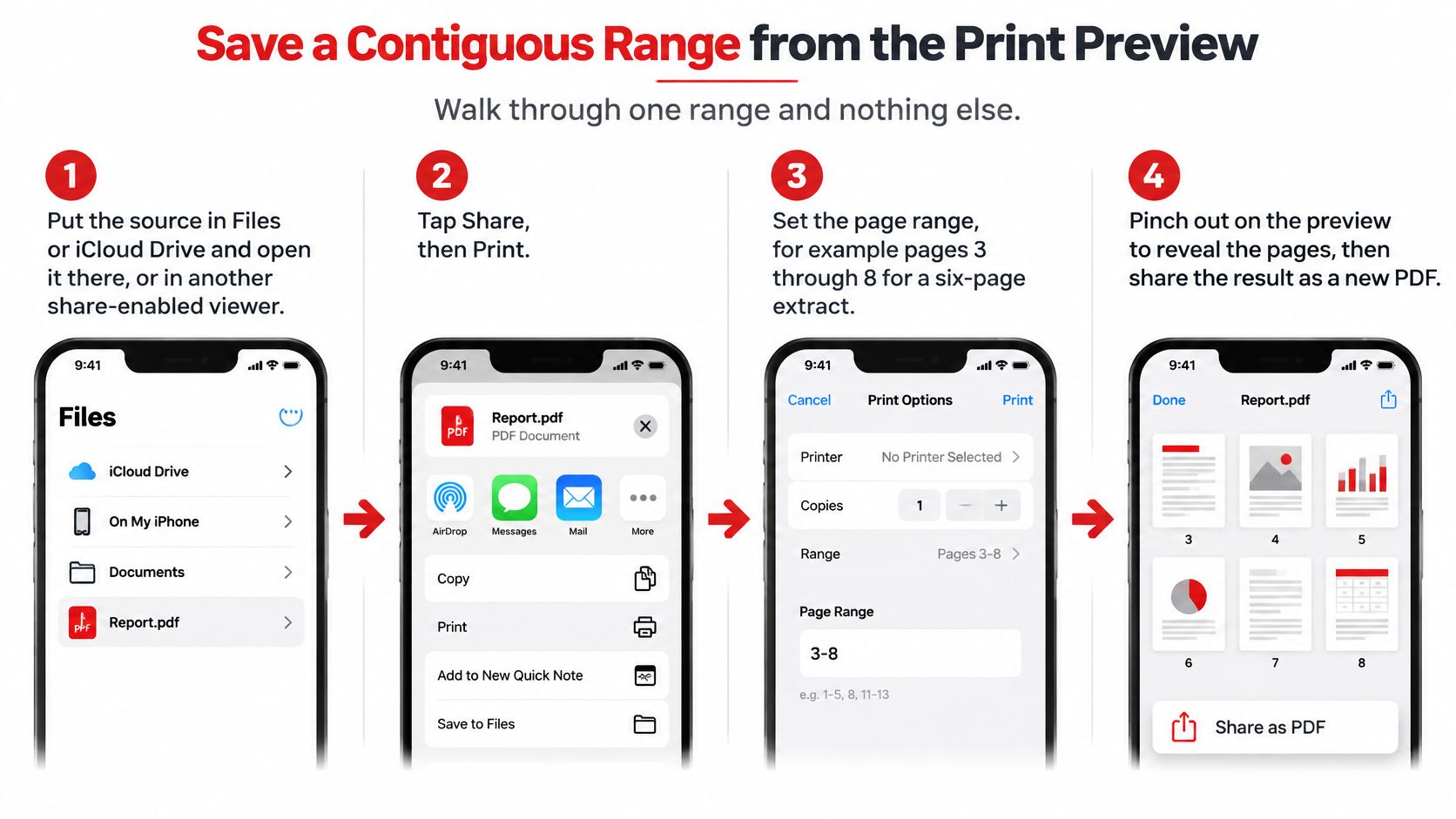
Here's one range, start to finish. If you only need pages 4–9 of a 30-page file, these taps are the whole job.
- Stage the source. Save or copy the PDF into Files or iCloud Drive and open it from there, not from a Mail preview or a half-loaded browser tab.
- Tap Share, then Print. The print sheet appears with a small page preview at the bottom.
- Set the range. Type 4 to 9 in the Range field. If the sheet exposes page thumbnails instead, tap the pages you don't want so they're deselected.
- Don't send it anywhere. Ignore the printer picker completely. Nothing physical prints, and no printer needs to be nearby.
- Pinch outward on the preview. Two fingers, spread apart, until the tiny preview expands into a full-screen PDF with its own Share button.
- Share, then Save to Files. Name the file for the range, pick On My iPhone or an iCloud Drive folder, and tap Save.
- Reopen and check. The page count should equal the range, and the first and last pages should be the ones you meant.
This is the documented iPhone route from Adobe's guide to splitting a PDF on an iPhone, including the pinch-out, which is the least obvious step in the sequence.
The step people miss: tapping Print does not create the file. The extract exists only after the preview is expanded and shared from that expanded view.
Saving from the print preview uses the same Save to Files sheet you'd meet when you save a webpage as a PDF, which is why the filename field matters. A file called "Print.pdf" in a folder full of similar names is a future problem. Name it report_p004-p009.pdf and you'll never guess twice.
When the thumbnails won't toggle. Some print sheets don't expose per-page selection. That's not a broken phone. Run steps 1–7 once per contiguous block, so one file holds page 2, another holds 5–7, another holds 14, then combine them. Each output is a normal PDF, so joining them later is a separate step, not something the print sheet can do.
When the file won't open from Files at all. Stop. A PDF that other apps can't read won't extract cleanly through any route, and there's no hidden system command worth hunting for. Switch to the browser picker instead. If the original opens but the export looks off, compare a page side by side before sending it anywhere, especially if it carries a signature or a fillable form the recipient needs.
Pull Scattered Pages with a Browser Picker
Scattered selections are where the print sheet runs out of patience. Pages 2, 5–7, and 14 would take three full passes, three files, and a merge. A browser page picker handles them in one selection, because it lets you tap thumbnails directly instead of wrestling with a range dialog designed for printers.
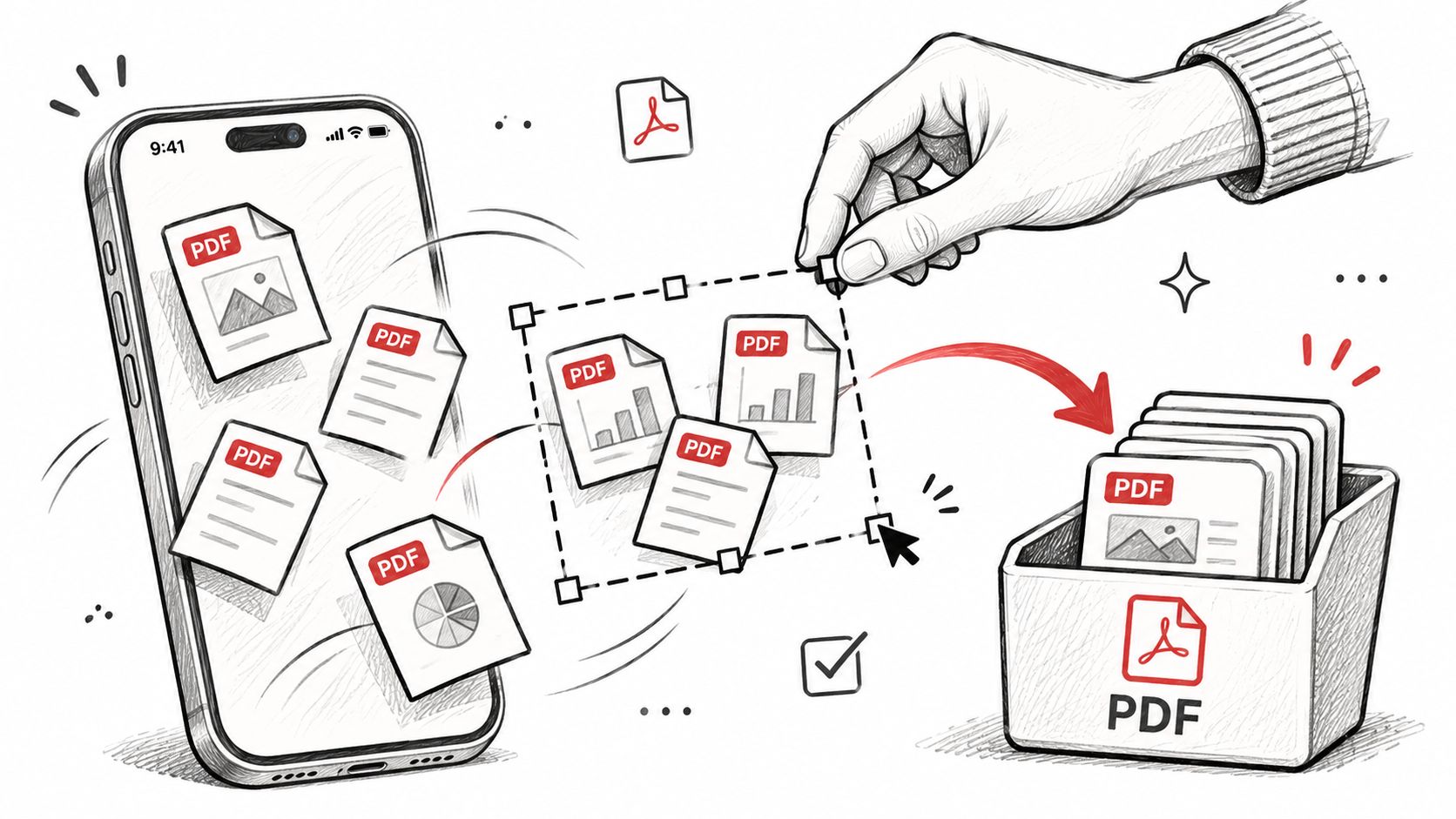
The sequence stays short:
- Keep the source in Files. The picker reads from Files, so move the PDF there first if it arrived in Mail or a chat app.
- Open Safari and load the extraction tool. PDFWix's extract pages tool runs in the browser with no app install and adds no watermark to the output.
- Choose the file through the Files picker and wait for the thumbnails to render.
- Tap the pages in the order you want them to appear, not the order they sit in the document. The output follows your taps.
- Run the extraction and download the new PDF, then move it into Files.
This browser-based pattern, described in izipDF's walkthrough of iPhone page extraction, is faster for scattered pages but adds a decision the print sheet never asks you to make.
Where does the file go while you work? Before you upload a contract, a medical record, or a litigation packet, find out whether that session stays on your device or leaves the phone for a remote server. If the answer isn't visible on the page, treat it as remote and use a different route for sensitive material.
Two failure modes are common enough to plan around. Thumbnail numbers can disagree with the numbers printed on the paper once pages have been inserted or deleted, so match the printed labels rather than the thumbnail index. And annotations or a digital signature may not survive a rebuild, even when the page content looks perfect.
Name the output deterministically, something like contract_p002_p005-p007_p014.pdf, and write the selected sequence down somewhere you can check later. If pages come out sideways after a rebuild, fix the orientation with rotate a PDF on iPhone before sending. If Safari can't reach the tool, fall back to the print route, one contiguous group at a time.
Find the New PDF in Downloads or iCloud
Viewing a PDF and storing one are different states on iOS, and the gap between them swallows more files than any other step here.
A PDF opened in Safari is a temporary view. Apple's documented save flow is Share, then Save to Files, then edit the filename, choose the destination, and tap Save. Until that last tap, nothing has been stored anywhere you can attach it from later.
A print-preview share that already used Save to Files behaves differently. That file is in the folder you picked at that moment, usually On My iPhone or a specific iCloud Drive folder, and it will not appear in Downloads automatically. Look where you aimed, not where you'd expect a download to land.
For anything that came through Safari as a download, Apple gives a fixed path. Open Files, tap Browse, then tap Downloads. If that folder looks empty, take the second path: Files, Browse, iCloud Drive, then Downloads, because Apple's iPhone guide to finding downloaded files notes the Downloads folder can sit nested under iCloud Drive.
That Files location is the lasting copy. It is not the temporary list inside Safari's download manager, which can clear itself or show an item still in progress that isn't yet a document you can attach to an email.
When both folders look empty
Search Files for the exact filename you typed on the save sheet. Then check Recents. A mail attachment saved from another app, or a file exported straight into a named folder, may never pass through Downloads at all, which makes the destination you chose on the Save sheet the only place worth looking.
If the export is confidential, add a password before it travels. You can protect the PDF in the browser, and the file is processed in transient server memory rather than written to disk. Either way, confirm the file exists in Files first.
One check before you move on. Tap the file and watch what opens. A multi-page PDF with a thumbnail strip is an extract. A single screenshot means you saved the wrong thing, and the range in the filename won't match what's inside.
Confirm the Pages Then Send Only That File
A smaller PDF is not automatically the right PDF. Extraction tools will happily produce a clean six-page file containing the wrong six pages, and nothing about the download will warn you.
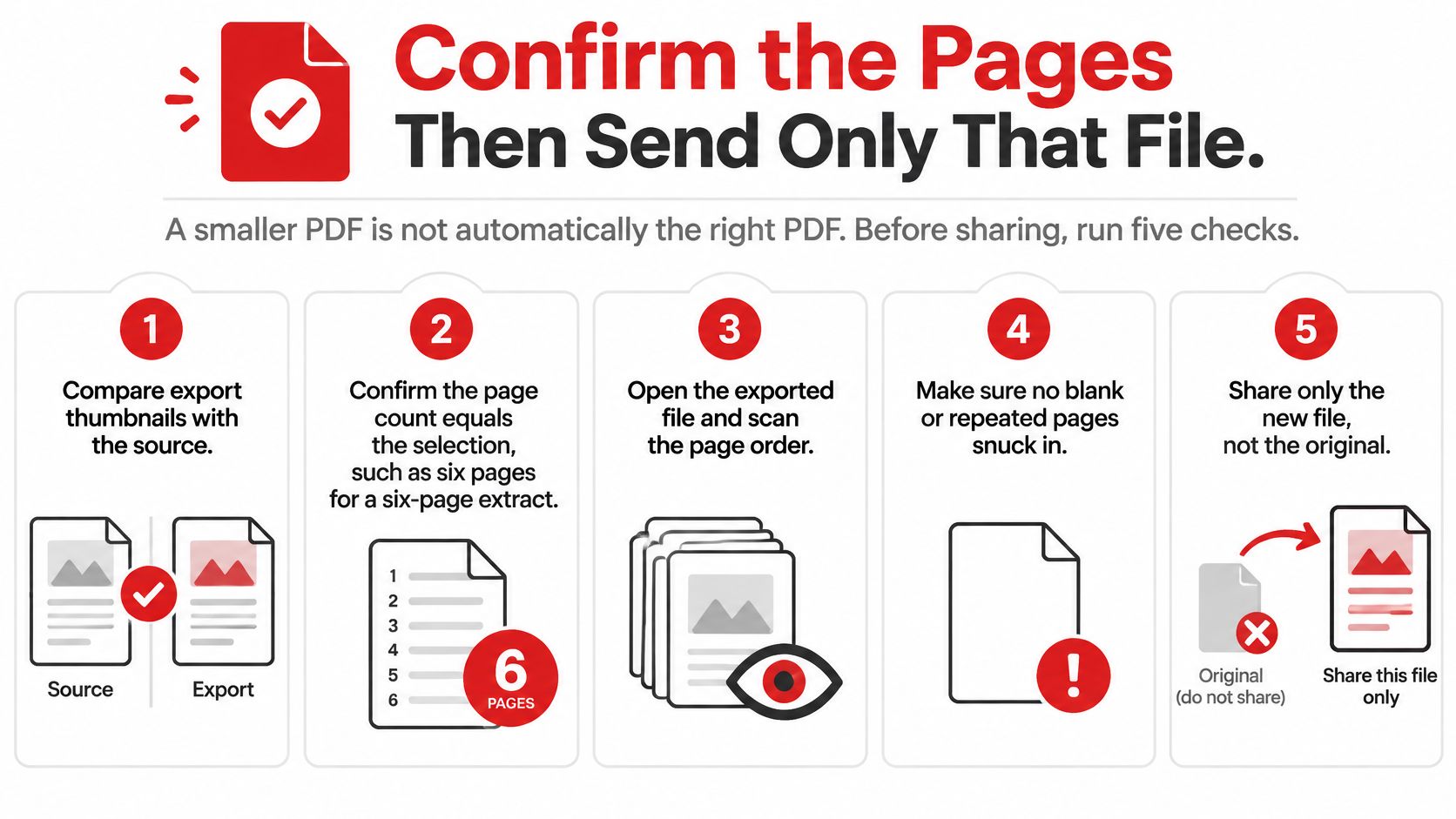
Run five checks before the file goes anywhere.
- Compare thumbnails against the source. Put the export and the original side by side in Files and match the pages visually.
- Count. Six pages for 4–9. Four pages for 2, 5, 6, 7, and 14. A different number means something went wrong.
- Check both ends. The first and last pages should carry the labels you expected. When page inserts or deletions have shifted the PDF index, trust the numbers printed on the document itself.
- Hunt for blanks and test interactivity. A stray empty page from the print preview is easy to miss on a phone screen. If the recipient needs a link or a form field, tap it once before sending.
- Read the filename and the destination. A confidential page still sitting inside the file is the failure that matters most, and only you can catch it.
Scanned documents complicate checks two and three. A scan can look razor sharp and still be an image with no text layer, which changes what page identification you can rely on. The EU's accessibility guidance on screen readers for iOS explains that VoiceOver announces headings, links, and tables only when the document was authored with those structures, and that many navigation options work only when the file is accessible. A scan may therefore read fine to you and give a blind colleague no way to find their place.
Extraction is not OCR. Pulling pages out of a scan produces a smaller scan. It does not create searchable text, and it does not add tags, reading order, or form labels.
That distinction matters for contracts and HR paperwork too. A visual match doesn't prove a signature, a redaction, or a bookmark survived the rebuild. If check four fails, don't send the file and don't overwrite the source. Rename the bad export, keep it for reference, and repeat the single route you chose rather than improvising a new one.
When the extract passes, share that new file from Files and leave the full PDF where it started. For anything heading outside your organisation, follow a step-by-step secure file sharing workflow instead of dropping a confidential extract into the first chat thread you open.
If the passing file is too large for an email limit, compress the PDF on iPhone after verification, not before, so you're never compressing a document you haven't checked. Desktop methods and the wider free workflow stay in How to Extract Pages From a PDF.
The job is done when the smaller PDF opens on its own, the page count matches your selection, the original is still intact in Files, and you can point to the folder where the new file lives.
Extracting pages on an iPhone takes about a minute once you know which route fits your page pattern. PDFWix keeps that second job simple with a free browser extract pages tool that opens in Safari, needs no app install, and adds no watermark to the file you download. Every core tool on PDFWix is free, including merge, split, compress, rotate and protect, so you can extract a section, verify it, and lock it down before it leaves your phone.