
You've got the file ready, and the portal says no. Maybe it's a 28 MB scan for a court filing, a university dropbox, or an HR inbox that stops at 10 MB. The deadline isn't moving, and re-scanning the whole packet isn't an option.
Learning how to compress PDF files on Mac is less about finding a hidden button and more about picking the right trade-off. You want the file small enough to send, but you also need small print, signatures, barcodes, and searchable text to survive. Start by matching the method to the document, not by chasing the smallest possible number.
Table of Contents
- Pick the Right Path and Compress in Preview
- Run Ghostscript When You Need a Preset
- Fix a PDF That Stays Large or Breaks
- Check the File Before You Send It
- Stay Local or Compress in the Browser
Pick the Right Path and Compress in Preview
For a one-off file you need to send today, start with Preview. It's already on your Mac, it works on a copy, and it handles most ordinary scans well enough. Move to Ghostscript when you need the same compression level again next week, or when Preview either barely changes the size or makes the pages look muddy. Use a browser tool when you can't install anything and you'd rather pick a level than learn terminal commands.
That choice matters because different documents protect different things. A scanned legal filing lives or dies on signatures and footnotes. A text-heavy paper needs search to keep working. A photo portfolio can tolerate some image compression, but an engineering drawing can't tolerate soft lines.
Apple is open about the limits here. The Apple Preview guide on reducing PDF size notes that Reduce File Size can lower quality and that results depend on the options you choose. So the useful question isn't how to shrink a PDF without losing quality in the abstract. It's which quality you're protecting: visual sharpness, OCR accuracy, searchability, accessibility, or print fidelity.
Match the Document Before You Click
Use this table as your first decision, before you touch any settings. Find the row that looks like your file, note the setting to try first, and write down what must survive. That last column becomes your test at the end.
| Document | First method | Setting to try | Protect |
|---|---|---|---|
| Scanned legal or HR filing | Preview, then Ghostscript if still too big | Reduce File Size, then /ebook | Signatures, barcodes, small print |
| Text-heavy paper or contract | Preview Quartz export | Optimise images for screen | Searchable text and fonts |
| Photo portfolio | Ghostscript or JPEG image filter | /ebook or Save images as JPEG | Color and detail |
| Invoice, form, or linked PDF | Preview on a copy | Reduce File Size | Fields, links, bookmarks |
| Already-compressed JPEGs, vectors, or fonts | Skip another JPEG pass | Do not use Save images as JPEG | Expect little size change |
| Screen or web handoff | Light compress plus linearize | Create Linearised PDF | Faster open, not just fewer bytes |
| Print or engineering line art | Higher Ghostscript profile | /printer or /prepress | Sharp lines and monochrome text |
A few rows deserve a plain warning. If your PDF is mostly already-compressed JPEGs, vector graphics, or embedded fonts, a broad image preset may do very little. If it's a 40-page scan made from phone photos, the same preset may cut it sharply because there's a lot of oversized image data to reduce. That's not inconsistency. That's the tool working on different payloads.
Decide first: Name the one thing that can't degrade, such as a barcode, a footnote, or a form field. If that thing fails after compression, the smaller file is a failed file.
Compress a Copy in Preview
The Apple Preview export instructions describe the built-in workflow: duplicate the source first, open the copy in Preview, choose File > Export, pick Reduce File Size from the Quartz Filter options, and save under a new filename. Follow it in this order, and don't skip the duplicate.
- Duplicate the PDF in Finder: Select the file and duplicate it, then work only on the copy. This keeps the original filename and bytes untouched if the export disappoints you.
- Open the copy in Preview: Double-click the copy, not the original. If you're not sure which is which, check the title bar before you go further.
- Choose File, then Export: Don't use Save. Export is where the Quartz Filter and the extra PDF options live.
- Set the format to PDF: If the format menu shows something else, change it back to PDF so you're not converting the file by accident.
- Choose Reduce File Size for a normal scan: Open the Quartz Filter menu and select it. This is the broad preset that's designed for a quick, built-in reduction.
- Try Optimise images for screen for screen-only pages: If nobody will print the file and the pages are mainly for reading on a display, this option fits better than pushing for print-level detail you'll never use.
- Use Save images as JPEG only for photo pages: This option applies lossy image compression, which means it permanently discards pixel data. Keep it away from legal exhibits, engineering drawings, screenshots that contain text, and archival masters.
- Use Create Linearised PDF only for faster browser loading: Tick it when the goal is progressive web viewing, where the first page appears sooner. It doesn't shrink the underlying content, so don't count it as compression.
- Save under a new name: Use something clear such as filing-preview-reduce.pdf. A descriptive name stops you from compressing a compressed file later by mistake.
- Check the derivative before sending: Compare sizes, zoom in, test search, and click the interactive parts. If anything you need has changed, delete the copy and return to the original.
Step 7 is where most blurry results begin. JPEG is built for photographs, where smooth color changes hide small losses. On black text against white paper, those losses show up as ringing around characters, fuzzy edges on letters, and gray halos where lines should be crisp. A screenshot of a settings page, a scanned exhibit, or a drawing with thin rules will show that damage fast, even if the file size looks great.
Why Two Files Shrink So Differently
Students, lawyers, and HR teams often assume a small reduction means they clicked the wrong thing. Usually they didn't. Reduce File Size is a broad preset, not a transparent report that optimizes each image one by one and shows you the savings. It tends to help most when pages are raster-heavy, meaning they're built from large scanned images. It helps least when the weight sits in fonts, clean vector artwork, or photos that were already saved as efficient JPEGs.
Say you export a brief from a word processor. The text is real text, the fonts are embedded, and there are only two small charts. Preview may return a file that's barely smaller because there isn't much image fat to trim. Now say you scan a signed onboarding packet on an office copier at a high setting. Every page is a big picture of paper. The same preset can cut that file dramatically because it's finally reducing the thing that's taking up space.
That's also why you should think in terms of an optimized PDF for a specific job, not a universally smaller PDF. If you're curious what that term covers beyond raw byte count, this explanation of what an optimized PDF is connects size, structure, and delivery. For your file today, the practical version is simpler: small enough for the portal, clear enough for the reader, and still searchable if search worked before.
Three Confusions to Clear Up Now
First, smaller isn't automatically better. A filing that uploads but has an unreadable exhibit stamp creates a second problem that's harder to fix under deadline. Second, linearized isn't the same as compressed. A linearized file can open faster in a browser while staying large, which helps a web reader but doesn't help an upload limit. Third, you don't get the discarded pixels back. Once a lossy export throws image detail away, you can't restore it from that derivative. You have to go back to the original and export again at a gentler setting.
Keep that original until the recipient confirms the file works. Storage is cheap compared with asking a signer, a client, or a records office for a fresh copy. If Preview gives you a clean result that passes your checks, you're done. If it gives you a file that's still too big or visibly soft, don't keep re-exporting the export. Move to a preset you can control and repeat.
Run Ghostscript When You Need a Preset
Ghostscript lets you choose a named compression preset and repeat the same settings when you process similar PDFs. Install it in Terminal with brew install ghostscript, then run the command from the folder containing your file.
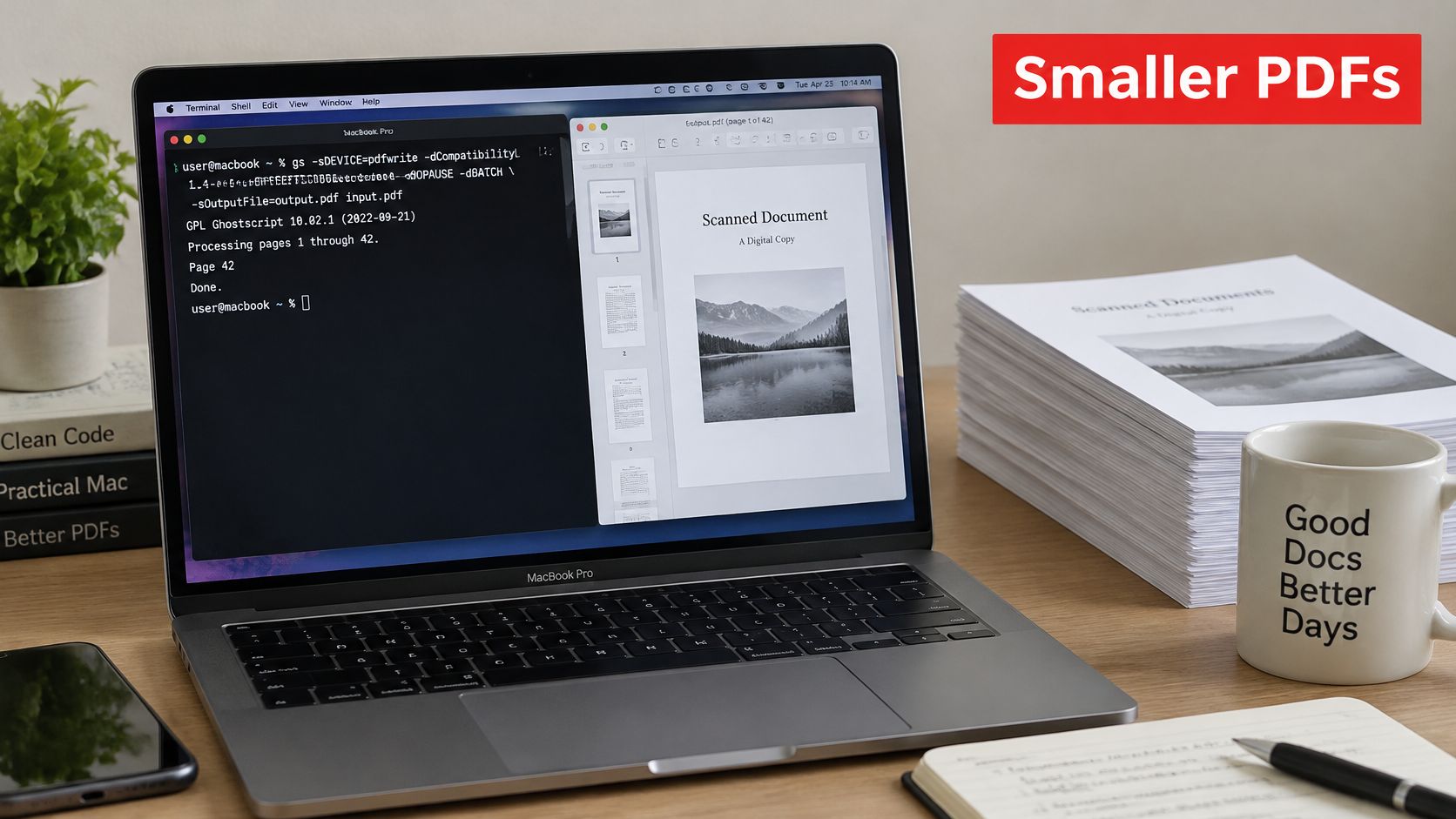
Start with /ebook, a medium-resolution setting. The Ghostscript guide to optimizing PDFs describes /screen as the smallest, lowest-resolution profile, /ebook as a medium-resolution balance, /printer as higher-resolution output, and /prepress as the largest, print-quality profile.
gs -sDEVICE=pdfwrite -dPDFSETTINGS=/ebook -dNOPAUSE -dBATCH -sOutputFile=compressed.pdf input.pdf
Replace input.pdf with your filename and compressed.pdf with an output name that records the preset, such as filing-gs-ebook.pdf. That makes it easier to compare results if you try another level.
| Preset | Intent | Use when |
|---|---|---|
| /screen | Smallest, lowest resolution | The file is still over the limit after /ebook and will only be viewed on screen |
| /ebook | Medium-resolution balance | A first test for ordinary scans and mixed documents |
| /printer | Higher resolution | Pages will be printed and /ebook looks soft |
| /prepress | Largest, print quality | Color accuracy matters more than file size |
Test One Preset at a Time
After the /ebook run, compare the file size in Finder and inspect representative pages. Check the smallest type, a page with a photo or stamp, and any page with a link, annotation, or form field you need.
Confirm that text extraction, page geometry, links, annotations, forms, color, and signatures meet your needs. Page geometry means the page size, orientation, and margins still match the source. If a wide exhibit sits differently on the page, that output is not suitable, even if it is smaller.
Choose another preset based on the result. If the file still exceeds the limit and is only for screen reading, try /screen. If it will be printed and /ebook looks soft, try /printer or /prepress. For black-and-white pages, converting a PDF to grayscale is a separate, deliberate choice.
Why the Same Command Treats Files Differently
Ghostscript can change image color space, image compression, duplicate objects, and effective image resolution. A file with duplicated resources or oversized lossless images may shrink considerably. If its images are already tightly compressed, reducing the size further may require a lossy step that affects visible detail.
Use the diagnosis table in the next section if the output remains too large or a feature no longer works. A preset is a starting point, not a guarantee: judge the result by the pages and functions that matter for your document.
Fix a PDF That Stays Large or Breaks
The file barely shrank. Or it shrank, but now search finds nothing and a screen reader has nothing useful to read. Both outcomes tell you to stop compressing and start diagnosing.
PDF size isn't only about images. It can also come from embedded fonts, duplicated resources, transparency, attachments, annotations, or scanned pages with no text layer. A discussion in Microsoft's community thread on compressing a PDF on Mac makes the related point that the built-in filter lacks fine-grained controls and may noticeably degrade photos, scans, and small text. Preview gives you broad choices, not a diagnostic report that names the heaviest object.
Find the Dominant Payload First
Look at the pages. If each page looks like a photograph of paper, with shadows, skew, or copier texture, images are probably the weight. If you can select crisp text word by word and the file is still large, look beyond images to fonts, attachments, duplicated objects, and transparency effects.
A simple comparison helps. If a text-only export is tiny, the bulk is almost certainly image data. If an image-heavy copy refuses to shrink, those images may already be JPEGs with little left to give. For a fuller walkthrough of the usual culprits, this guide to why PDF files get so big maps common payloads to fixes. The point for your file is to identify what's heavy before you apply another preset to the whole document.
| Symptom | Likely cause | Next move |
|---|---|---|
| Size barely changes | Vectors, embedded fonts, or images that are already JPEG | Stop re-encoding; remove attachments or accept the size |
| Scan turns soft or blotchy | Downsampling or a second lossy pass | Return to the original and use /ebook or /printer |
| Monochrome text looks gray | Text treated like a photograph | Avoid /screen and JPEG conversion |
| Copy, search, or OCR fails | Image-only pages or a destroyed text layer | Keep a readable image, then OCR separately |
| Links, forms, or bookmarks vanish | Rewrite dropped interactive objects | Discard that derivative and test a milder preset |
| Colors shift | Image color space changed | Retest /printer or /prepress from the original |
| Opens faster but stays large | Linearized for the web, not compressed | Do not count linearize as a size win |
Stop Re-Compressing the Derivative
Repeated lossy recompression isn't a reliable workflow. Each pass works from an already reduced image, so scans get softer and artifacts get baked in. Worse, a pass that rewrites pages as images can destroy a text layer that search, copy and paste, OCR, and assistive technology depend on.
Work in versions instead. Keep the original untouched, make one derivative per attempt, and name each for the preset that produced it. If interactivity died in one version, don't try to repair that broken copy. Go back to the original and test a milder setting.
Don't fix a bad derivative. Replace it. Every new attempt should start from the original, never from the last compressed copy.
One more confusion causes wasted effort. Compression won't create selectable text that never existed. If your scan arrived as image-only pages, you need a readable image first and then OCR as a separate step. Compressing harder before OCR can make recognition worse, because the OCR tool gets fuzzier letters to read.
For legal and education files, the stakes are practical. A smaller PDF that loses searchable text, a required bookmark, or a working form field creates more work than the upload limit did. The recipient can't find the clause, the student can't complete the form, and you end up sending the original anyway through a slower route.
Check the File Before You Send It
The upload portal says your five-page form must be under 5 MB. Your scan is 20 MB, so getting below that cap matters, but the smallest possible file is not automatically the best one. Check whether compression has kept the details the recipient needs.
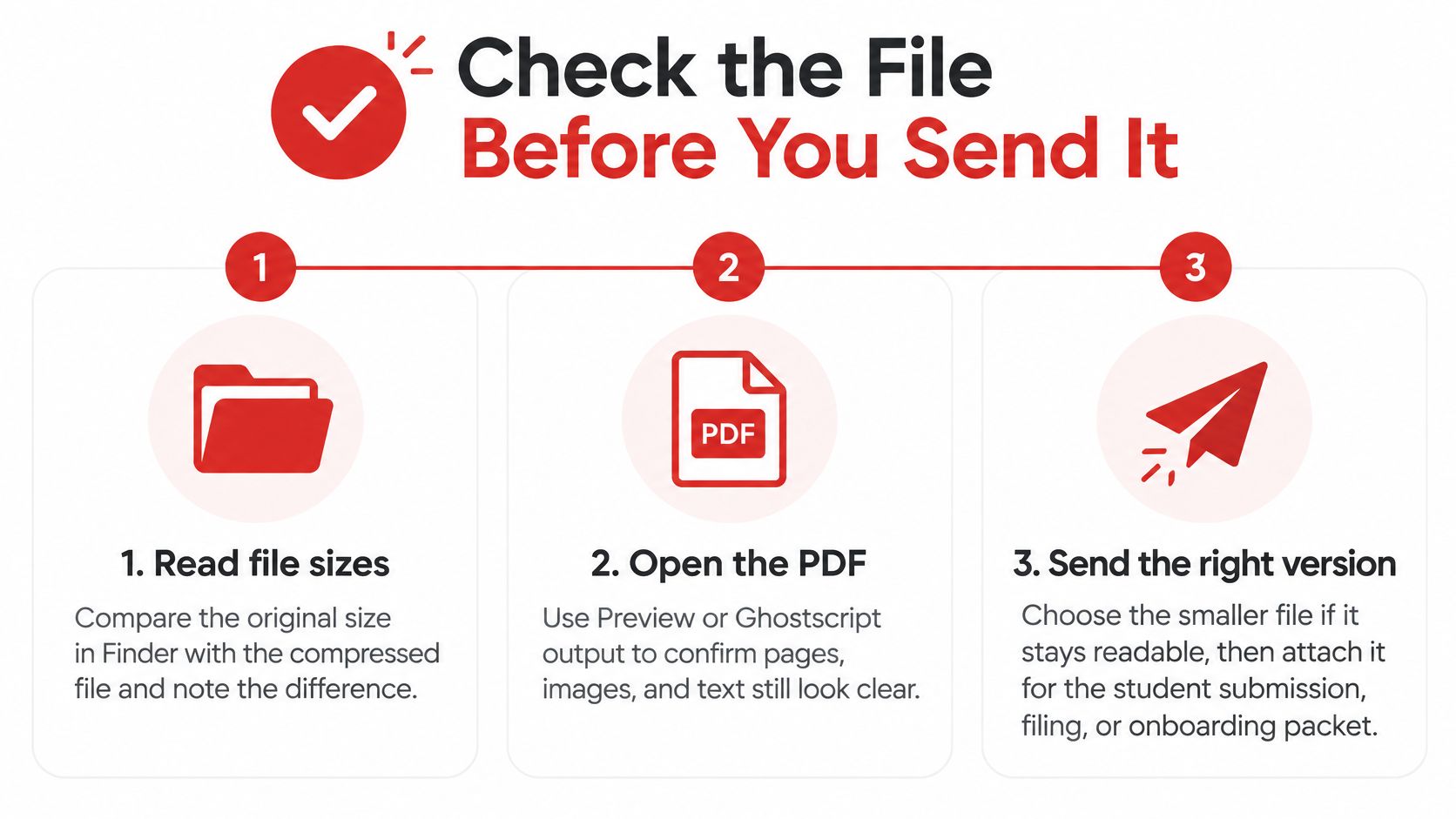
- Compare the file sizes in Finder: Check that the compressed copy is below the destination's limit, not merely smaller than the original.
- Inspect small print: Zoom to 200%, then 400% on the smallest footnote, caption, or table line. Look for fuzzy edges or halos.
- Test the text layer: Search for a word on the page, then copy a sentence and paste it into Notes. Missing or garbled text can mean the searchable text did not survive.
- Check important marks: Inspect signatures, barcodes, QR codes, and stamps at a readable zoom. Barcodes and QR codes need clear contrast and spacing to scan.
- Test interactive elements: Click a link, open the bookmark panel, and tab through a form field if the source had one. Confirm the parts you need still work.
- Check a printed page: Print or preview the densest page. Fine lines and small type can look softer on paper than on a bright screen.
- Check accessibility if required: Run your usual screen-reader or accessibility check on the compressed copy. A result from the original does not confirm the derivative is accessible.
Pass rule: Send the file only if it meets the size limit, keeps small text readable, preserves searchable text, and retains the interactive features you need. If it fails any check, try a milder setting and test the new copy.
Give each version a clear name, such as original, preview-reduce, or gs-ebook, so you can identify the file you checked. Organize files with Smart Folders to keep originals and test copies easy to distinguish. For help with the sending side, see this guide to handling a PDF that's too big to email. A drawing set may need a larger file to preserve fine lines; choose the size that meets the limit without sacrificing the details the recipient needs.
Stay Local or Compress in the Browser
You have a PDF to send today, but the file contains material you would rather keep on your Mac. Preview and Ghostscript let you create local copies; a browser-based compressor can be more convenient when you prefer selectable settings and do not want to install software.
PDFWix offers medium and high compression levels. Its compression tool runs in your browser, so the PDF stays on your device. Learn more about how PDF tools that run without uploading keep files on your device.
Choose the setting around what the document needs to preserve. A form or signed document may depend on crisp text and intact fields; a scan may contain small print or barcodes that need careful inspection. Start with the milder option, then move to a stronger one only if the file still exceeds the size limit and the details remain clear.
PDFWix compression often reduces a 10 to 50 MB PDF to 2 to 5 MB, with minimal visible quality loss. That range is a useful expectation, not a guarantee: results depend on the document's contents. Keep the original untouched while you work, and delete failed or confusing derivatives so they cannot be mistaken for the version you intend to send.
Before sending, use the checklist in the previous section to confirm the compressed file is suitable. Keep a clear filename for the copy that passes.
Drop your oversized PDF into PDFWix, choose a medium or high compression level, and download the smaller copy. The file stays in your browser on your Mac. Use the previous section's checklist to decide whether the result is ready to send.