
You've got three screenshots in your camera roll, a scanned worksheet, or a stack of receipts, and someone needs them as one file before a deadline. Sending each image separately makes the recipient assemble the story; converting them to a PDF gives them one document to open, review, print, or sign. But the conversion changes the packaging, not what the images contain, and that distinction matters if the document needs to be searchable or accessible.
Table of Contents
- Why Convert PNG to PDF in the First Place
- Converting Single and Batched PNGs in Your Browser
- Turning Phone Photos and Camera Rolls Into PDFs
- Choosing Page Size, Orientation, and Image Quality
- Accessibility, OCR, and Searchable PDFs
- Troubleshooting Common PNG-to-PDF Problems
- Quick Reference and What to Verify Before Sharing
Why Convert PNG to PDF in the First Place
A PNG stores pixels. A PDF packages page content, including images, inside a document designed to preserve its presentation across software, hardware, and operating systems. When you convert a PNG, those pixels are generally placed on a PDF page. The converter decides how large the page should be, where the image sits, whether it needs to rotate, how it scales, and whether it applies compression.
That makes PNG-to-PDF a practical packaging choice, not a magic upgrade. A single screenshot can become a one-page PDF, or several PNGs can become ordered pages in one file. The PDF is easier to send as a single attachment and usually more predictable to print, archive, or submit through a document portal. But the text inside a screenshot remains part of the image, and the image can still be edited only as an image, not as a document full of editable words.
PDF was first released on June 15, 1993, and later became ISO 32000-1:2008, helping make it a portable format across desktop, mobile, and print workflows rather than one tied to a single vendor (PDF's history and standardization). If you're handling confidential material, check how an online converter processes files before choosing one. This guide to online PDF tool safety can help you weigh convenience against privacy.
PNG and JPG aren't interchangeable in every workflow
Both formats can be placed inside PDF pages, but PNG's lossless image compression is useful for screenshots, text-heavy captures, diagrams, and graphics with transparency. JPG is commonly used for photographs, where its compression can reduce file size but may soften fine edges. Pick the source file you have, then check the resulting PDF rather than assuming that changing the container will improve the image.
Convert when you need shareability, printing, or signing. Keep the PNG when you still need to edit the image, preserve its transparency, or work with layers.
Converting Single and Batched PNGs in Your Browser
One image is easy. Ten images in the wrong sequence is a problem you hand to your reader. A folder sorted alphabetically rarely matches the lesson, transaction, or form sequence you intended, so set the page order inside the tool before you export. Catching it after the PDF reaches someone's inbox is too late.
In PDFWix's PNG-to-PDF workflow, add files through the picker or drag them straight into the browser window. Clipboard paste is quicker for a single screenshot when the tool supports it. Once the images load, drag the thumbnails into the order the reader should see them, delete accidental duplicates, and rotate anything that came in sideways.
PDFWix runs PNG-to-PDF conversion in your browser via WebAssembly, with no account, daily cap, or watermark, so a folder of lecture slides or invoice scans can be processed in one sitting (PDFWix's browser-based tools). Because files stay on your device instead of uploading to a server, this route suits draft contracts and student work you'd rather keep local. For very large jobs, the limit you'll hit is your device's memory.
Check the batch before you download
Sort filenames first, then inspect the loaded page list. Names like page-01, page-02, and page-03 are far easier to verify than a camera roll of untitled captures. When images come from different sources, confirm each page landed where you expected rather than trusting the tool to guess your intent.
A finished download only proves the file exists. Open the PDF, scroll every page, and confirm the sequence reads correctly for someone who never saw your folder. That quick check is what separates a document from a pile of images wearing a .pdf extension.
Turning Phone Photos and Camera Rolls Into PDFs
A screenshot is already a flat digital image, so it usually needs little preparation. A phone photo of a whiteboard, handwritten note, receipt, or printed form is different: the camera may capture the desk around it, distort the page from an angle, or save a large image whose shape doesn't fit neatly on a standard PDF page.
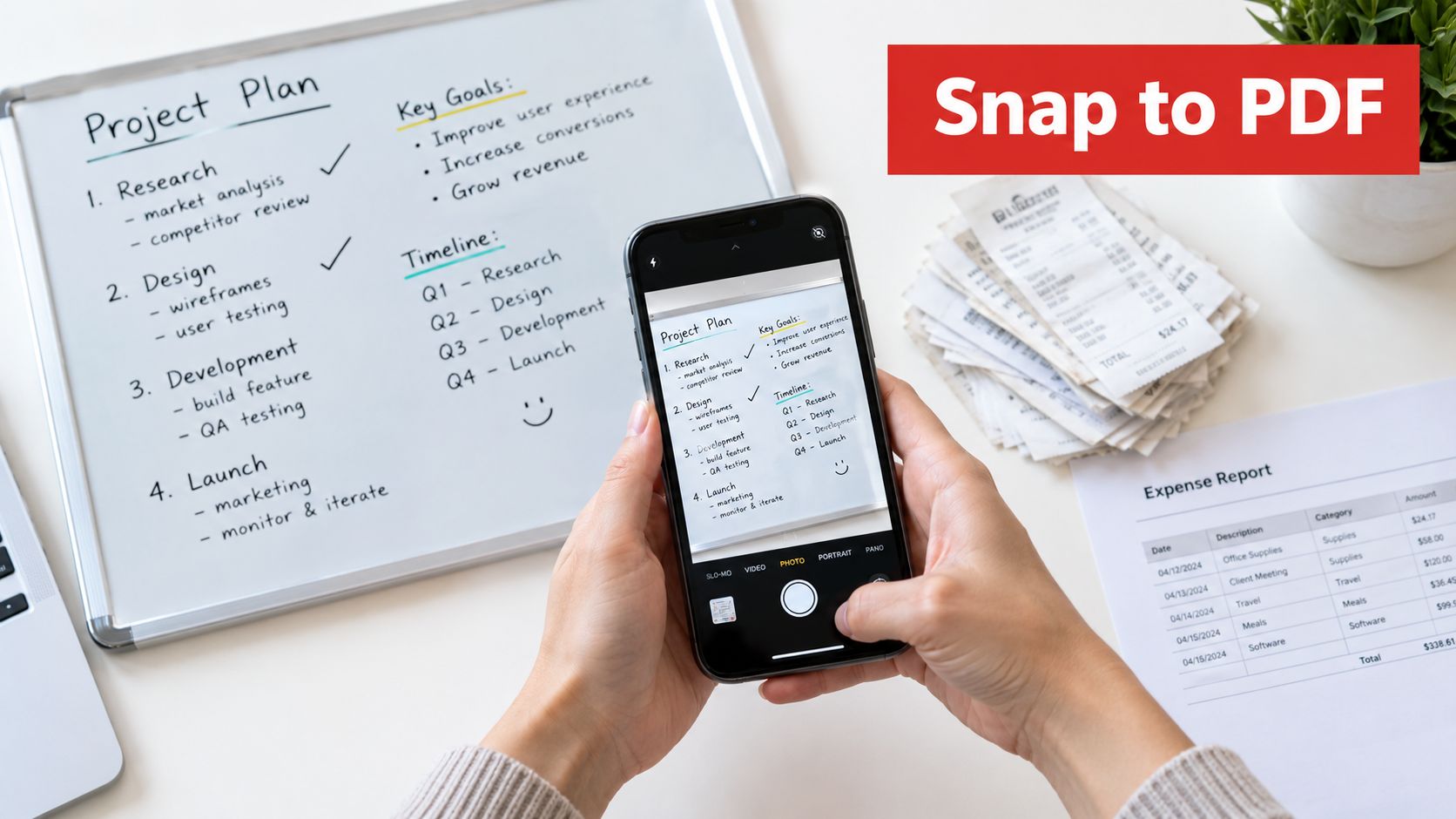
Before converting a camera capture, crop away the surrounding table or background so the actual document fills the frame. Choose portrait for a tall page and horizontal orientation for a wide whiteboard or receipt. If the picture shows a physical sheet rather than a screen capture, a scan-to-PDF workflow can be a better fit because it's designed around capturing document pages. PDFWix offers a photo-to-PDF workflow for iPhone for users who want to turn camera images into a document.
Mixed photos and screenshots need a little planning
When one PDF contains both screenshots and camera photos, don't assume one page size will make every page look right. A screenshot may fit best when scaled to the page, while a photographed form may need its original proportions preserved. Review the pages individually and rotate each one based on its content, not on the orientation of the phone.
For a paper page, take the photo straight above it, keep the phone parallel to the surface, and use even light. That reduces perspective distortion and harsh shadows. A converter can rotate or resize an image, but it can't recover writing hidden by glare or reliably correct a slanted page without a deskew process.
Rule of thumb: screenshots can usually go straight to PDF; camera captures deserve a quick crop or a scan workflow first.
Choosing Page Size, Orientation, and Image Quality
The page-size setting isn't cosmetic. It determines whether the image fills the page, keeps its original proportions, or sits inside a standard paper layout. Choose based on how the recipient will use the PDF, not just on what the dropdown happens to select.
| Use Case | Best Page Option | Recommended DPI | Why |
|---|---|---|---|
| Screenshot or slide capture | Fit to page | 150 DPI for screen sharing | Uses the page area without requiring a standard paper match. |
| European coursework or forms | A4 | 300 DPI for print | Fits a common page layout for submission and printing. |
| North American forms or submissions | US Letter | 300 DPI for print | Matches a common paper size in those workflows. |
| Archival scan or nonstandard artwork | Original size | Preserve source resolution | Avoids forcing the image onto a different page shape. |
| Small image such as an ID scan | Original size, with margins if needed | Preserve source resolution | Prevents needless enlargement and leaves room around the image. |
Treat DPI guidance as a practical target, not a way to manufacture detail. A low-resolution source won't become sharper because you place it on a larger page. PNG uses lossless compression and supports bit depths of 1, 2, 4, 8, and 16 bits, so screenshots, grayscale scans, transparent graphics, and technical images may have different quality and file-size needs (W3C PNG specification). Re-encoding and scaling choices can still affect the PDF you end up with.
Fit, original size, and margins
Fit to page works well when a screenshot should fill a page or a slide needs to be easy to view. Original size is the safer choice for scans you need to preserve without stretching. A4 and US Letter are better when the recipient expects a conventional page, but a mismatched aspect ratio can introduce empty space or reduce the image. Margins provide breathing room around a form or image; they can also make a small item harder to read if they consume too much page area.
For screen reading and email, a moderate resolution may be enough. For printing, retain enough source detail for fine text and lines to stay clear. The page-size adjustment guide can help if the PDF needs a different layout after conversion.
Lowering image quality to reduce file size can be a sensible trade for a document people will view on screen. It's a poor shortcut for a print-ready scan: small text and thin lines may become difficult to distinguish.
Accessibility, OCR, and Searchable PDFs
A PDF can look perfect and still be unusable to someone who needs to search its contents or access it with assistive technology. A PNG is a flat raster image, so converting it into a PDF doesn't automatically create selectable text, headings, reading order, or alt text. Without extra remediation, screen readers may not be able to interpret the page (PDF accessibility guidance).
What OCR changes and what it doesn't
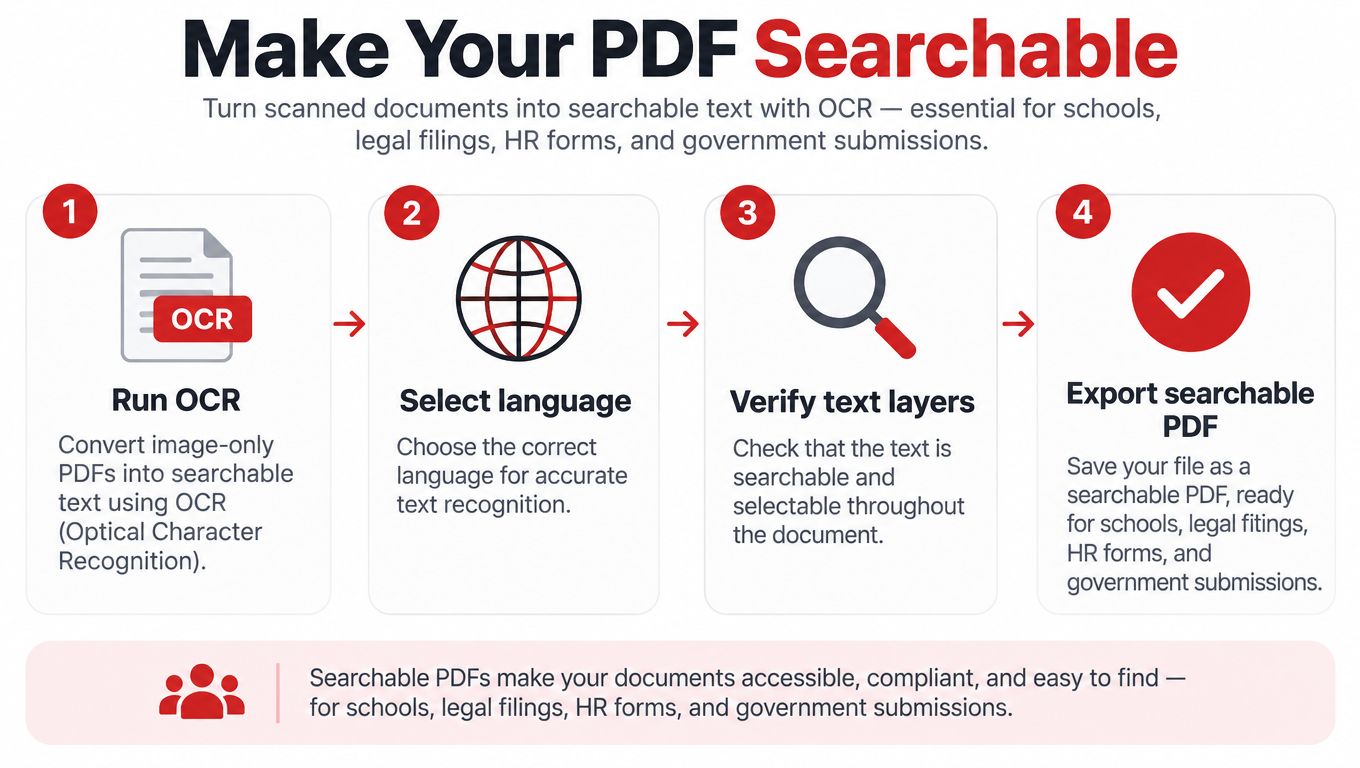
Optical character recognition (OCR) analyzes text in an image and adds a text layer that can be searched or selected. With OCR, a reader may be able to find a name, copy a sentence, or use text-to-speech with recognized content. Without OCR, the PDF is still just an image on a page. Learn how to turn PDF scans into searchable text if you want a clearer picture of what OCR does in an image-based document.
Use OCR when you need to search, copy, extract text, or make an image-based document more usable with assistive technology. That's especially important for school materials, legal filings, HR forms, and government submissions. WCAG and Section 508 requirements make accessibility a practical compliance concern, not a cosmetic extra. A visually faithful conversion can still fail an accessibility check if the PDF lacks a usable text layer and other accessibility structure.
PDFWix has OCR available where supported, which can fit after the image-to-PDF conversion. Treat that as a separate task from creating the PDF. OCR can misread handwriting, low-contrast text, unusual fonts, or marks that resemble letters, so a human needs to review important results before sharing.
Verify the document, not just its appearance
Try selecting a word in the PDF reader. Use Find to search for a term you can see on the page. If neither works, the PDF may still be image-only, even if it looks clean. Then check reading order and meaningful image descriptions where the document needs to work with screen readers.
Visual conversion preserves how a page looks. Accessibility remediation makes its content usable.
For additional guidance on making a PDF searchable, think beyond the OCR pass: verify the text, review the reading sequence, and add the structure the document requires.
Troubleshooting Common PNG-to-PDF Problems
When a PDF comes out wrong, start with the symptom instead of repeating the conversion. Most issues come from a mismatch between the image and the page settings, or from a source file that isn't what its name suggests.
Fix the problem you can see
- Blurry output: Check whether the source PNG is already soft or whether the converter enlarged it to fill a page. Use a higher-resolution source when available, or reduce the page size so the image isn't stretched.
- Oversized PDF: Reduce output quality only if the intended use is screen viewing, and avoid needlessly preserving large image dimensions for a small on-screen document. If the content needs to print clearly, don't compress away detail just to hit an arbitrary file size.
- Rotated page: Rotate the page in the conversion tool before downloading. Don't rely on image orientation metadata to be interpreted consistently by every downstream reader.
- Wrong page order: Reorder the thumbnails before exporting. Fixing the sequence after download means editing the PDF separately.
- Blank or missing page: Confirm that the file is a PNG, then check whether the browser tab refreshed or the file failed to load. Some phones save images as HEIC even when users expect PNG; if the format isn't supported, convert it with a compatible image workflow or use a scan-to-PDF route.
- Transparency looks wrong: PNG can contain transparent pixels, but a PDF page still needs a visible background. Preview transparent logos on a white page before sending, especially if the graphic relies on transparency to look correct.
Use the right compression trade-off
There's no single ideal PDF size for every image. Dense screenshots, large scans, and simple graphics compress differently, and the chosen resolution affects the result. Check that small text remains readable at the size the recipient will view or print it.
If a PDF is too large to email, use a PDF compression workflow that protects quality and inspect the result afterward. Don't judge compression by the file size alone. Open the PDF at normal viewing scale and confirm that labels, handwriting, and fine lines remain legible.
Quick Reference and What to Verify Before Sharing
Match the conversion path to the source and the job. Screenshots convert directly, with a quick check of page order and fit afterward. Camera photos usually need cropping or a scan workflow before they become pages. School, legal, HR, or government documents need OCR when recipients must search or select text, with accessibility handled as a separate pass. Large batches belong in a browser-based workflow that keeps files on your device, assuming the device can handle the load.
Before sending, run a 60-second check: pages in the right order, each image in the intended orientation, the PDF opening cleanly on a device that isn't yours. If the document should be searchable, try selecting a line of text. Check the file size against the recipient's email or submission limit, and if you need to shrink it, compress the PDF without losing quality, then open the result and confirm small text still reads clearly. Never judge a compressed file by its size alone.
For confidential material, as noted earlier, on-device processing keeps files from being sent to a server. Confirm the tool you used processed the file locally before you share anything sensitive, and prefer tools that ask for no account, impose no daily cap, and stamp no watermark.
Convert when you need shareability. Add OCR and accessibility remediation when the document needs to be used, not just viewed. PDFWix combines PNGs into a PDF in your browser, arranges pages, and adjusts the layout before downloading, so the file you hand off is ordered, readable, and ready for whoever opens it.