
A signed contract lands back in your inbox, three pages, nothing on screen to suggest it has been anywhere. Before you forward it, open the file's document properties. The author name of whoever drafted it is there, along with the software that exported it, the template's working title, and timestamps for every save since Tuesday. None of that appears on the page, and none of it lifts when you rename the file.
Metadata is a structured part of the PDF, not a caption printed in the margin. That's why deleting a line of visible text and clearing a metadata field are separate operations, using separate tools, with separate failure modes.
Working out how to remove metadata from a PDF gets much simpler once you stop treating the properties dialog as the whole job. Treat it as three decisions in order. Choose the cleanup level that matches where the file is going, clear the fields on a working copy, then reopen the output and prove the values are gone. Skip the third step and you're trusting a tool that may have caused the problem.
Table of Contents
- Check the Metadata Fields Your PDF Holds
- Choose the Cleanup Level and What to Keep
- How to Remove Metadata from a PDF Step by Step
- What a Properties Cleaner Still Leaves Behind
- Verify the Cleaned Copy Before You Send It
Check the Metadata Fields Your PDF Holds
A proposal can identify its drafter and the software that produced it, even when the page looks clean. Those details live in the file structure, so changing the filename or removing visible text does not clear them.
Two storage locations and a third layer
The Info dictionary, attached to the file's trailer, can hold Title, Author, Subject, Keywords, Creator, Producer, CreationDate and ModDate. A separate XMP packet in the document catalog stores similar details as XML. The Library of Congress format description for PDF notes that PDF 1.4 introduced XMP metadata streams, allowing metadata to appear at the document level or on individual objects. XMP uses an RDF-based framework that can store different kinds of metadata.
PDF's generations matter during cleanup. PDF was introduced in 1993, Adobe's PDF 1.7 became an ISO standard in 2008, and ISO published PDF 2.0 in December 2020. Tools from different eras can write metadata in different structures. A file edited or exported through several tools may therefore contain duplicated fields that a single cleanup pass leaves behind.
A third layer sits on individual components. Pages, images, attachments and annotations can each carry metadata streams separate from the document-level fields. Clearing the main properties does not necessarily reach those objects.
What those fields reveal
Metadata can record a work history that is invisible on the page. A forensic study of 2,876 PDFs collected from 30 Swedish government agencies examined embedded metadata and hidden version-history information. It found fields containing author names, usernames, software names and versions, producer applications, and traces of internal processing workflows.
Images are another possible leak in that third layer. A photo from a phone or camera may retain its own embedded record when added to a PDF. Use EXIF removal for images before placing one in the document, then account for image metadata separately from the document's properties. Otherwise, a clean-looking properties panel may give a false sense that the file contains no identifying details.
Record the inventory before you change anything
List the values present in the file, including empty fields, and note which fields are blank. This inventory gives you a concrete reference while cleaning and when checking the copy you intend to send. Include object-level data in the review, since a properties panel may show document fields without revealing metadata attached to pages, images or other resources.
| Field or object | Where it is stored | What it can reveal | Usual action |
|---|---|---|---|
| Title | Info dictionary and XMP | Project name, client, internal document label | Clear it or replace it with a neutral title |
| Author | Info dictionary and XMP (dc:creator) | Person or team who wrote or exported the file | Clear the field |
| Subject and Keywords | Info dictionary and XMP | Internal tags, matter or case references | Clear both fields |
| Creator | Info dictionary | Application that produced the original document | Clear the field |
| Producer | Info dictionary and XMP (pdf:Producer) | PDF library, printer driver or converter, with its version | Clear it if the editor allows, then recheck |
| CreationDate and ModDate | Info dictionary and XMP | When the file was made and last edited | Clear them, or set them only when dates must be hidden |
| XMP packet | Document catalog Metadata stream | Structured copy of the fields plus editing history | Remove it with a full cleaner, not a properties editor |
| Page and image metadata | Page, image and resource dictionaries | Embedded authoring or camera details | Check and remove during full sanitization |
A field's value matters as much as its presence. For example, an empty Title beside a Producer naming a specific converter can indicate that the file was rebuilt by a tool rather than saved from its original application. Treat that combination as a reason to inspect the file structure further, not as proof that the metadata is fully cleared.
Choose the Cleanup Level and What to Keep
A recruiter asks for a CV with nothing that identifies the sender. The same afternoon, a production set has to leave with creation dates and provenance still readable because the request demands them. Choose the cleanup level and the use case first. Clear fields only after that choice. Verify the reopened copy before anyone else sees it.
I treat those two files as different jobs, even when both start as "strip the metadata."
Three levels, three different jobs
- Field clearing removes the identifying properties: Author, Creator, Producer, Keywords, and any Title naming a client or a matter. It suits low-risk material headed for a public audience and takes under a minute on a normal file.
- Full sanitization also drops the XMP packet, hidden objects, embedded files and revision history. Confidential material needs this level. Use a sanitizer that can reach those objects, or rebuild the file from the rendered pages. A properties form edits the visible fields and stops there.
- Redaction deals with what's printed on the page. PDFWix's redaction tool selects and permanently blacks out sensitive text or images, and because it rasterises the page the underlying characters are removed rather than covered.
A clean Author field next to a client name in clause 4 is a failed send. Field clearing and redaction touch different objects, so a file that carries a name in both places needs both passes, and you decide in advance which of those names the recipient is allowed to see.

When keeping metadata is the right call
Federal guidance treats metadata as carrying real weight. US federal open government data guidance defines it broadly enough to include source, provenance, rights, accuracy, publisher, contact information and collection method, and it requires agencies to weigh privacy and legal disclosure obligations before release.
Selective sanitization follows from that. Keep a pristine original, clean a copy, and record what you removed so a later request can still be answered from the untouched file.
The question to ask first: which fields does the recipient need in order to trust this file, and which ones only describe your desk?
Match the file to its use case
| Use case | Remove | Keep | Note |
|---|---|---|---|
| Public sharing (résumé, portfolio, public report) | Author, Creator, Producer, Keywords, internal titles | Page content and a neutral title | Check the file in one other viewer before posting |
| Legal production | Hidden revisions, unrelated comments, attachments | Creation dates and provenance the request needs | Keep the original and a documented verification record |
| Archival preservation | Personal fields the retention policy excludes | Rights, classification and accessibility tags | Don't strip tags that archival standards require |
| Internal collaboration | Outside contact details | Version and workflow details | Clear only what leaves the organization |
| Automated API workflow | Personal fields not needed downstream | Identifiers and required properties | Test the cleaned file in the receiving system |
Find your row before you touch a field. Cleaning is easy, and recovering a creation date that a tribunal asked for is not.
Locked files need the lock dealt with first, since most metadata editors won't open an encrypted document at all. PDFWix's password tool requires you to know the password of the PDF you're opening, so have it in hand rather than guessing at it. Cleaning also doesn't stop a recipient from editing the file, printing it, or passing it on with a fresh author name typed in. If the document needs to stay as issued, add password protection after the clean and keep those two operations in that order.
How to Remove Metadata from a PDF Step by Step
A proposal can keep its pricing and case studies while losing the author name, draft title, and software details attached to the file. Metadata cleanup is a file-structure task: choose what to remove, clear those fields on a working copy, then check the reopened output. The steps below separate those decisions from the file's visible content.
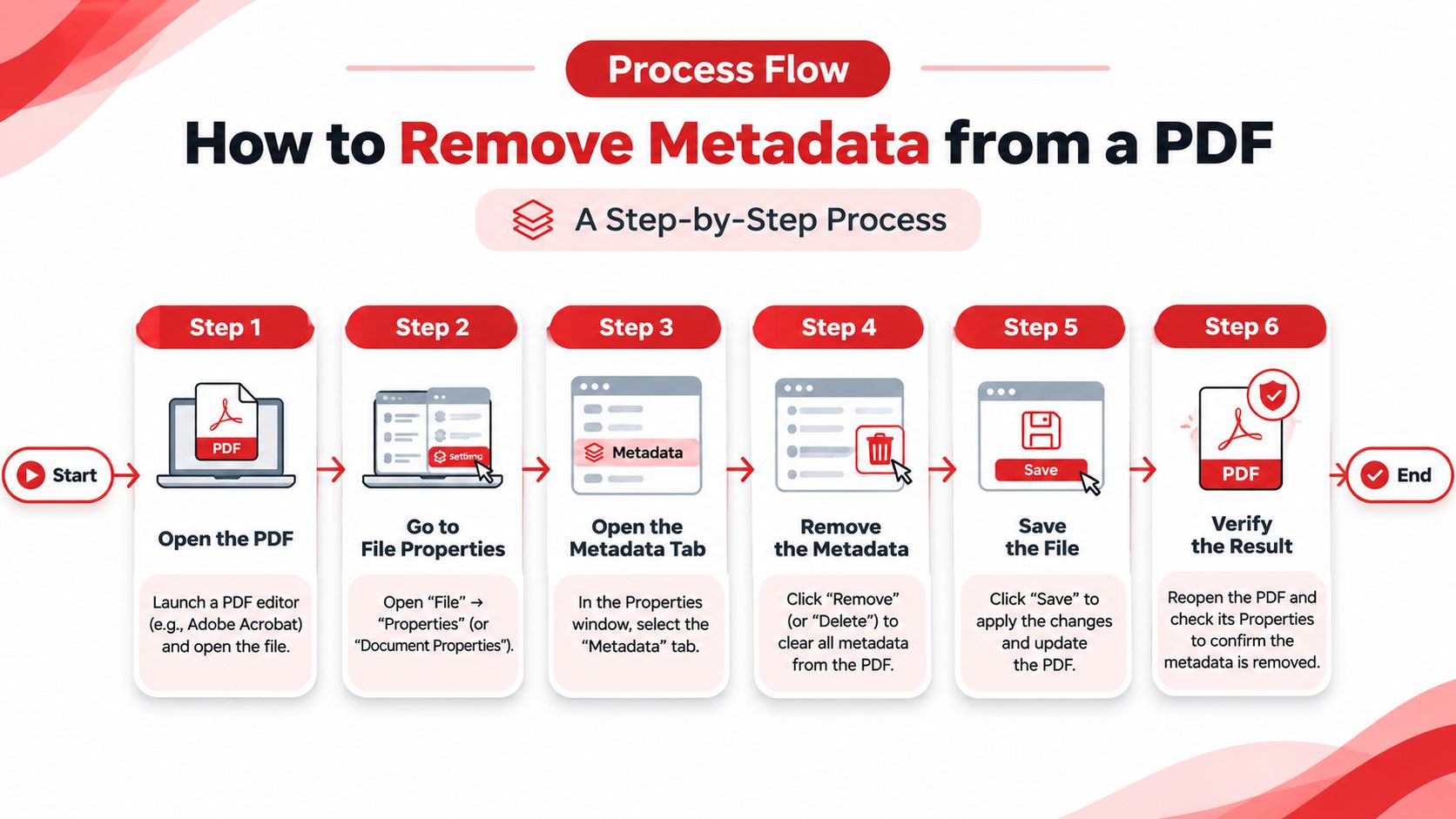
Keep the original untouched. Save a working copy under a new name before editing. The cleared values will not be present in the output, so preserve the original if you need to refer back to its contents or metadata.
Open the copy in a metadata editor. Use PDFWix's Edit PDF Metadata tool to edit standard document properties. Check the tool's current interface, since labels and layouts may change.
Compare the available fields with your inventory. Look for properties that identify a person, client, matter, draft, or software workflow. If a field appears that was not in your inventory, assess whether it should be cleared before proceeding.
Clear the personal and workflow fields you selected. Replace a revealing title with a neutral one, or clear it if the document does not need a title. Remove identifying author or software details when they are not required. Retain dates or other properties that serve a business, legal, or archival purpose.
Apply the changes and download a separate file. Keep the original and working copy intact. Saving the edited output under a distinct name makes it easier to identify which file was cleaned.
Run the reopen check described below. A field that returns after saving may indicate that the change did not persist as intended.
The slip that catches a half-clean file
Clearing Author while leaving a revealing Producer value can make a document appear anonymous in one view while still exposing the software used to create it. A blank field is not, by itself, proof that every corresponding entry in the file has been removed. Treat the properties panel as a useful check, not a guarantee.
For a freelancer sending a proposal, that could mean clearing the company name in Author, replacing a template's draft title, and removing a software name from Producer. The pricing table, case studies, and page count remain untouched. The aim is to change the file's description without altering the document's intended content.
If the output is too large to email, compress the PDF before cleaning it. Compression rewrites the file and may introduce new metadata, so clean the compressed copy and check its Producer field afterward.
What a successful run looks like
The properties you chose to remove are blank or neutral, and the pages still display as intended. The original remains available, while the cleaned copy has been reopened for inspection. Keep the distinction clear: a successful field edit is one part of cleanup, not proof that every hidden object or metadata entry has been removed.
What a Properties Cleaner Still Leaves Behind
An empty properties panel only shows that the tool ran, not that the file is clean. A PDF can hold information in multiple structures, and a viewer may display only the values it recognizes. Clearing a visible field therefore does not confirm that related data or other objects were removed from the file.

PDF properties can be stored in both an Info dictionary and an XMP packet. Adobe's documentation on PDF properties and metadata explains that these representations can be out of step, and that processing may use one to update the other. If a cleaner removes the displayed Author value but leaves a corresponding entry in the packet, another viewer may still show the name. A later save can also expose a value that appeared to be gone.
What the converter keeps
Printing or converting a document to PDF can remove some information without removing all of it. The US District Court for South Dakota warns that this process may strip revision metadata while leaving file-description details such as author, filename, or date. A newly generated PDF may appear less revealing while still carrying identifying fields.
A forensic analysis of metadata removal found recoverable metadata in all 1,237 sampled files treated with a single metadata utility alone. One reason is structural: removing a reference to a metadata object does not necessarily remove the object itself from the file. The properties panel can stop displaying a value while its data remains in the byte stream.
The objects a properties editor has no opinion about
A properties cleaner addresses document descriptions, not every object stored in a PDF. Check separately for:
- Comments with files attached. A review comment may include its own attachment, untouched by a properties clear.
- Embedded files and attachments. A spreadsheet or another document can be carried inside the PDF, even when it is not visible on the pages.
- Hidden text and invisible layers. Text may be transparent, white on white, or outside the visible page area while remaining extractable.
- Form field values. Answers entered in interactive forms are stored in form objects and can remain after properties are cleared.
- Bookmarks, thumbnails, and alternate presentations. These are separate objects that may retain document descriptions or other identifying details.
- Revision history from incremental saves. Earlier versions of objects may remain recoverable in an edited file. Saving a cleaned output copy avoids relying on the original file's edit history being erased.
A file can look anonymous in the dialog that cleared it and still name its author in the byte stream.
Comments and other page objects
Comments deserve a separate check because they can be visible during review, included in print output, or overlooked in a properties panel. For files that have gone through review, follow this guide to removing comments from a PDF. Then check attachments, form values, bookmarks, and hidden layers according to the document's use. A basic properties clean does not remove these objects just because their contents are not listed among the document's descriptive fields.
The practical distinction here is between a field cleanup and a file-structure cleanup. The first clears selected properties; the second also considers objects and stored data beyond the panel. Choose the required cleanup level for the file, make the changes, and verify the reopened output independently. A viewer showing blank fields is useful evidence about what it displays, but it cannot establish that every hidden object or earlier version has been removed.
Verify the Cleaned Copy Before You Send It
A clean properties panel is only one part of verification. Reopen the output in a viewer you did not use for cleanup, then compare it with the inventory from your first pass. Keep the original available so you can check that cleanup has not changed the visible document.
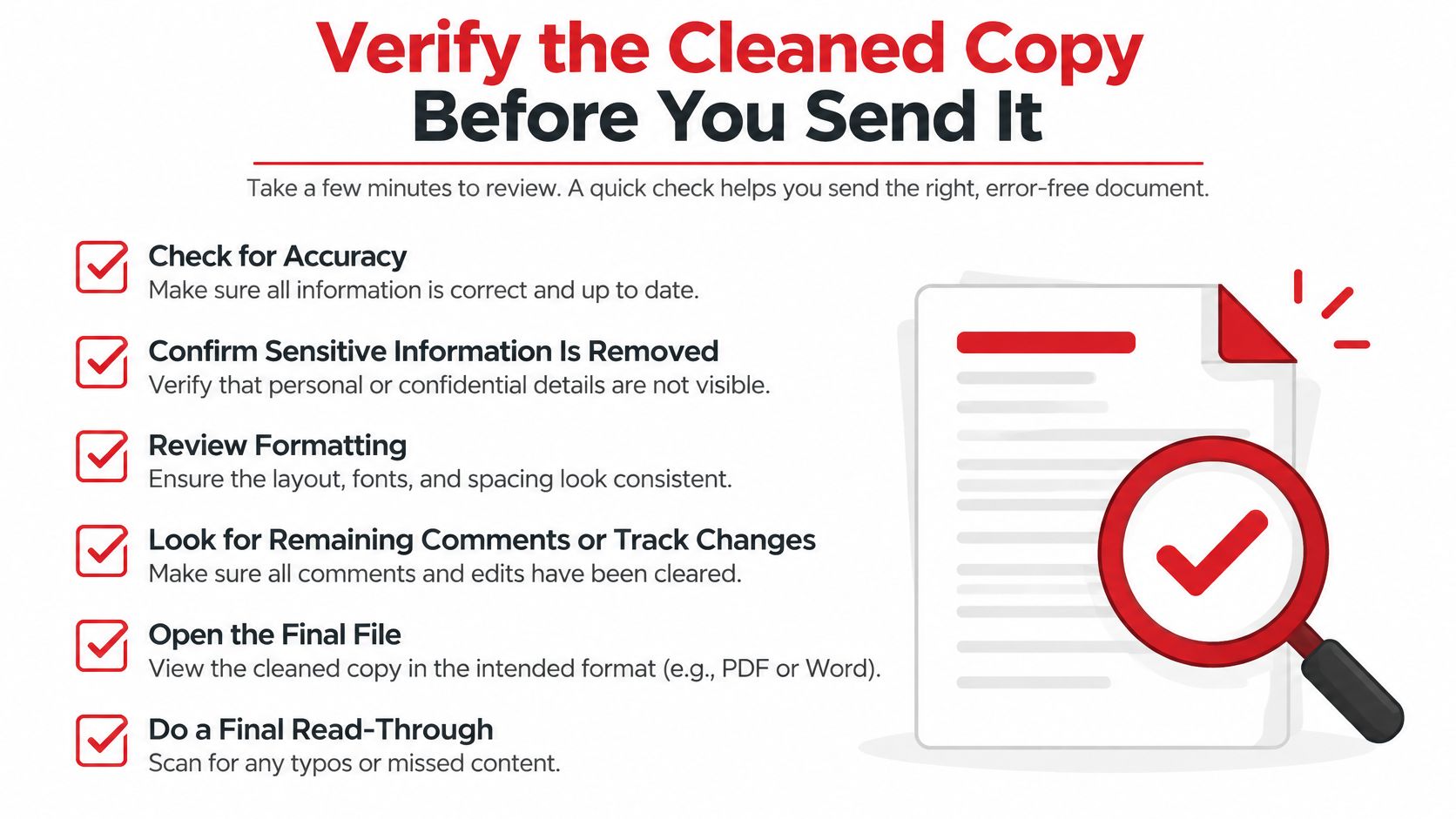
| Check | How to run it | Pass condition |
|---|---|---|
| Document properties | Reopen the output and view properties | Title, Author, Subject and Keywords are empty |
| Producer and Creator | Open the output in a second viewer | No original application or converter name appears |
| Raw metadata scan | Inspect the file with a command-line metadata inspector | No Author, dc:creator or XMP packet remains |
| Revision history | Compare structure and size with the original | No earlier versions or deleted objects are recoverable |
| Deleted text | Try to select and copy text you removed | Removed text cannot be selected or extracted |
| Annotations and forms | List annotations, comments and form fields | Only the items you intended to keep remain |
| Visible content | Compare each page before and after | Pages render with the same content |
Visible-page comparison catches damage from a rebuild. Check for a changed page count, substituted fonts or shifted signature blocks. If any of those appear, the clean altered the document and needs another attempt.
Verification matters because sensitive information can survive an attempted cleanup. A study of 39,664 PDFs from 47 countries found that authoring-process details, including producer software and operating system, could be recovered from 76% of files. It also found sensitive information in 65% of files agencies had already attempted to sanitize. A file that appears clean in its properties may still retain information elsewhere in its structure.
If removed text can still be copied, metadata cleanup will not remove it. The text is part of the page content and requires redaction of PDF pages, which permanently removes the selected text or images rather than merely covering them.
When a check fails
Start again from a fresh copy of the original instead of editing the output. Further edits can leave earlier versions of objects inside the file. If hidden objects remain after another cleanup, rebuild the document from its rendered pages, then verify the rebuilt file as well, since rebuilding can create new metadata.
Release rule: if a check cannot be run, the file is not verified, regardless of how empty the properties panel looks.
Write the verification down
For files used in legal, regulatory or HR matters, record the tool and version, checks performed, date and reviewer. Have a qualified reviewer inspect the final copy. No generic metadata cleaner guarantees that every document structure and hidden object has been cleared. A written record shows what was checked if the file is questioned later.
PDFWix's browser-based tools run locally, so the file is not uploaded for processing. Open a working copy in the browser tool, clear the fields your use case calls for, then verify the result before sharing it. Visit PDFWix to use its metadata editor, and treat the properties panel as a checklist item, not proof.