
You send a signed form as a JPG because the portal won't accept a PDF. It looks crisp in the message preview, so you upload it and move on. Later, someone zooms in to read the signature or runs OCR, and the small print turns soft or muddled. The conversion completed, but the image didn't preserve what mattered.
That's the practical challenge with PDF to JPG with high quality. You're translating a structured document into pixels, and the result depends on the source, output resolution, color handling, and compression. A repeatable workflow beats clicking the largest setting and hoping for the best.
Table of Contents
- The Conversion Moment Most People Get Wrong
- What Actually Happens When a PDF Becomes a JPG
- Picking the Right DPI and Pixel Dimensions for the Job
- The Conversion Workflow in PDFWix and Locally
- Vector, Scans, Color, and Compression Choices
- Verifying Quality Instead of Trusting the File Size
- Putting It All Together and Shipping the Output
The Conversion Moment Most People Get Wrong
A contract page, signed form, or slide deck often looks straightforward on screen. The rushed approach is to export at the default setting and judge the result in a chat preview. That preview can hide blurred fine print, broken thin lines, and artifacts around letters. Problems become obvious only when someone zooms in, prints the image, or tries to extract text with OCR.
The underlying document format is common in sharing workflows. A PDF industry guide reports that more than 80% of digitally shared documents used PDF by 2015, and gives estimates for the format's global use and adoption among businesses and users (PDFWix's PDF editing guide). Whatever the exact task, the conversion decision is still yours: decide what the image needs to preserve before you export.
Treat conversion as a small engineering choice, not a one-click ritual. A page destined for a web preview doesn't need the same pixel dimensions as a court exhibit, and a photo-heavy page won't respond to compression exactly like a page of tiny text. The method below gives you a practical way to choose settings and check whether the output is genuinely usable.
PDFWix's browser-based converter is one option used for the workflow examples here. The same principles apply with any converter that lets you control rendering and output settings.
What Actually Happens When a PDF Becomes a JPG
A PDF is a document container, not just a collection of pictures. A page can combine scalable text, vector rules, embedded fonts, photographs, transparency, and color information. A JPG, by contrast, is a fixed grid of pixels encoded with lossy compression. Conversion must render the whole page's appearance into that grid, not merely pull out photos embedded inside the PDF.
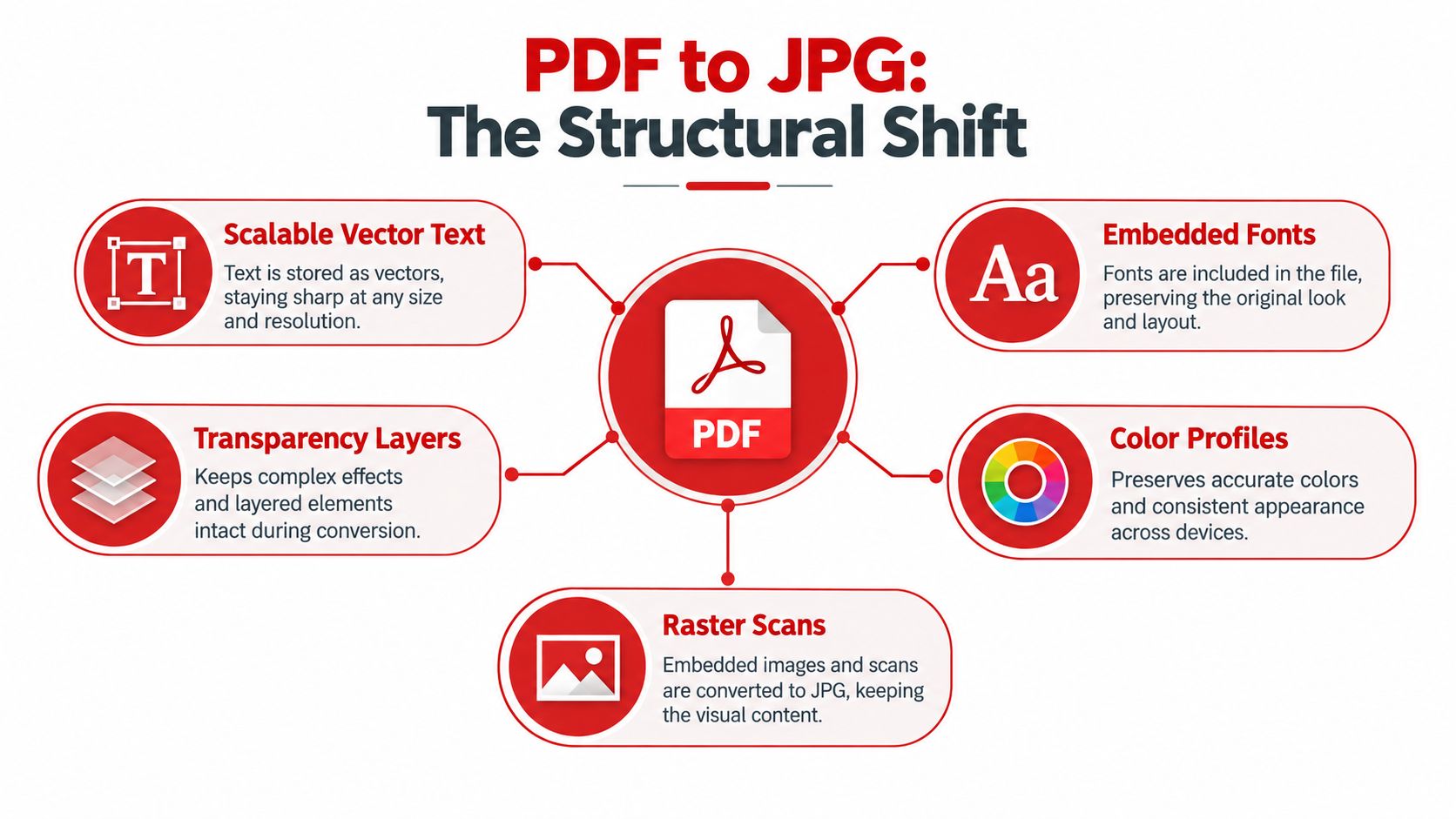
That shift is why file size alone can't tell you whether an export is good. A large image may still have blurry lettering if it was rendered at too few pixels and then saved with little compression. Likewise, a carefully rendered page can be crisp at a more modest size if its dimensions match the way it'll be viewed.
PDF's history helps explain the format's range. Adobe made the PDF specification available in 1993, and PDF 1.7 later became an international standard. Adobe's PDF 1.7 specification was standardized as ISO 32000-1 in July 2008; ISO later published PDF 2.0 as ISO 32000-2:2017, followed by a second edition in December 2020 (ISO's PDF 2.0 announcement). The standard supports different image technologies, including JPEG, JPEG 2000, and JBIG2, reflecting that a PDF may contain photographic images, scanned content, or other image types.
The familiar 72-dpi coordinate system in a PDF doesn't dictate the resolution of the exported JPG. The converter renders the composition at the output resolution you choose. For a deeper explanation of the format distinction, see this guide to the difference between PDF and JPG.
Picking the Right DPI and Pixel Dimensions for the Job
DPI is a choice about how much detail to render, not a magic quality switch. For vector text and line art, rendering at a higher resolution can produce a more detailed bitmap. For a scan that's already blurry, exporting at a higher DPI can make a larger file without restoring missing strokes or letters.
A useful reference is an A4 page. At 300 dpi, it renders to approximately 2,480 × 3,508 pixels, or about 8.7 million pixels. At 150 dpi, it's roughly 1,240 × 1,754 pixels, about one quarter as many pixels in total. The higher-resolution output is a stronger starting point for small text, OCR, or printing, while the lower one may be sufficient for a screen preview.
| Use case | Recommended DPI | A4 pixel dimensions (approx.) | Notes |
|---|---|---|---|
| Web preview | 150 | 1,240 × 1,754 | Often enough for viewing at page fit; check small text if readers may zoom. |
| LMS or routine document sharing | 150–300 | 1,240 × 1,754 to 2,480 × 3,508 | Choose based on text size and whether the image may be printed. |
| OCR-oriented document | 300 | 2,480 × 3,508 | A practical starting point for capturing fine character boundaries. |
| Print-ready exhibit | 300 | 2,480 × 3,508 | Inspect signatures, small labels, and thin rules at full size. |
| Large-format reproduction | Depends on final print size and source detail | Depends on page size and target resolution | Plan from the intended physical output, not the DPI label alone. |
Library OCR guidance identifies 300 dpi as the preferred scanning resolution for accuracy (University of Illinois OCR best practices). That's a sensible target for many text-heavy documents, but not a universal requirement. If the output is only a small preview, a lower resolution may be adequate. If you're preparing graphics for a large physical display, this guide to blowing up photos to poster size can help you think through how source detail and final print dimensions interact.
Avoid defaulting to 72 or 96 dpi for a document that will be printed or processed by OCR. It can look acceptable at screen size while leaving small text undersampled. If a JPG's dimensions need adjusting after conversion, use a deliberate image resizing workflow, but remember that resizing can't restore detail that wasn't rendered or present in the source.
The Conversion Workflow in PDFWix and Locally
A reliable workflow starts with the intended use, then sets resolution and compression accordingly. In PDFWix, open the PDF-to-JPG tool and select the PDF. Choose all pages or only the pages you need, then select a resolution such as 150 dpi, 300 dpi, or a custom setting. Use sRGB when you want predictable color across common screens, and choose a high JPEG quality setting for pages where text and fine details matter.
The tool processes files in the browser through WebAssembly, so the file stays on your device for this workflow. You can download the converted page images as a set or ZIP, then inspect the result before sharing. Library OCR guidance recommends checking fine text, thin rules, and page edges at 100% zoom after rasterization, which catches defects that a small preview can hide.
For an offline workflow, use a local PDF renderer or a desktop application that lets you specify resolution and image format. On macOS, Preview can export a selected page as an image with resolution and quality controls. On Windows, use a local PDF viewer or editor to render pages, then save or export the rendered images through an image editor. For repeatable batch jobs, command-line renderers such as pdftoppm or mutool can fit into a scripted pipeline.
Keep conversion separate from unrelated image extraction: a page export preserves the whole layout, while extracting images saves only the photos or graphics embedded in the PDF. If you need to work with an individual embedded picture instead, use a specific PDF image extraction workflow. Whichever route you choose, retain the original PDF, especially when the JPG is a derivative for sharing rather than the authoritative record.
Vector, Scans, Color, and Compression Choices
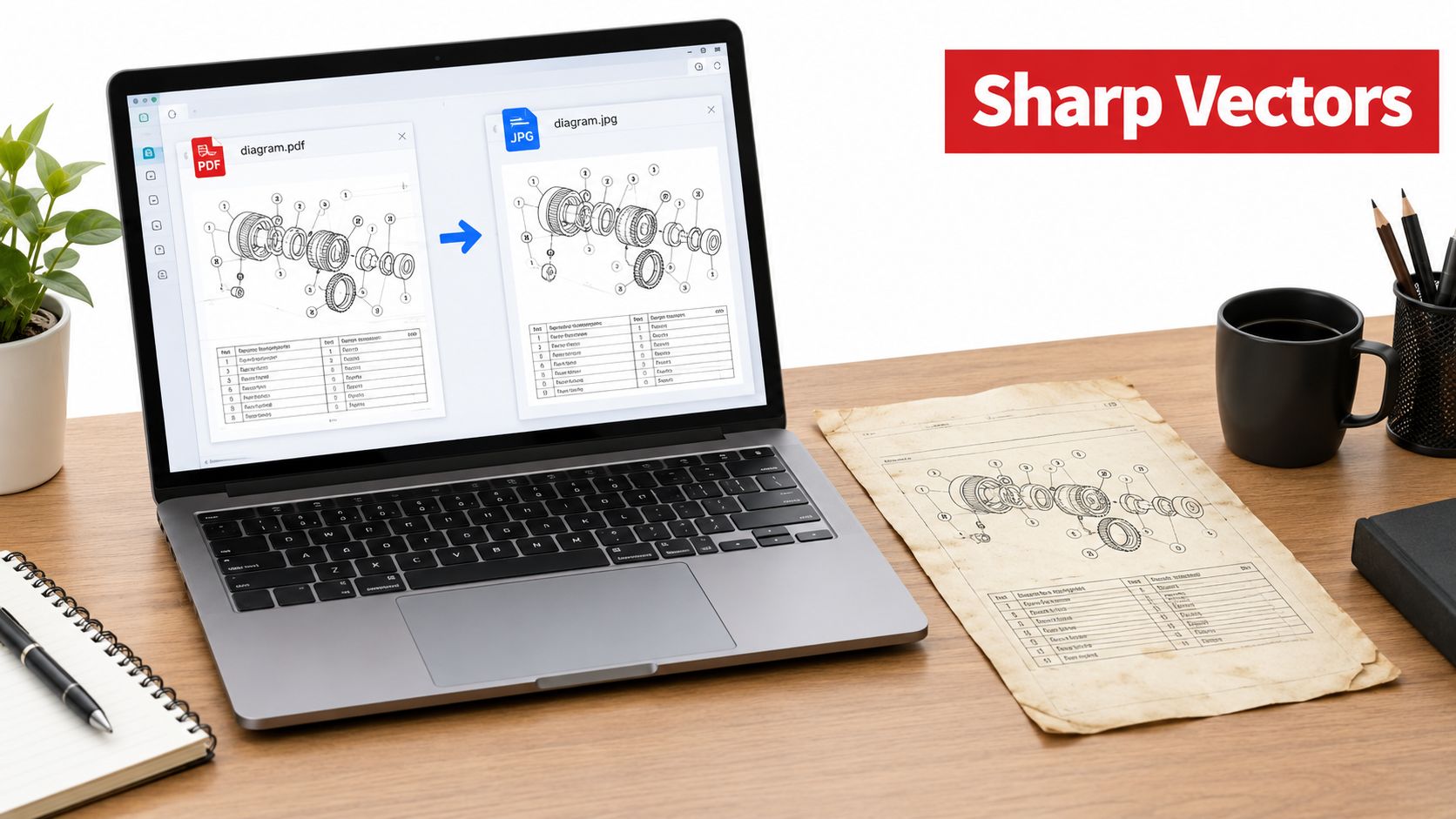
Start by identifying what's on the page. Vector-based pages often include live text and drawn lines, so a renderer can rasterize them at the chosen resolution. Scanned pages are already images placed inside a PDF. If the scan is soft, skewed, or low-detail, selecting a higher output DPI won't recreate information that the scan never captured.
Color handling matters when the JPG will be viewed on different devices. Converting consistently to sRGB is a practical choice for broadly shared images. If a workflow requires a specific embedded color profile, preserve or manage that profile rather than assuming every screen will render colors identically.
JPEG is a sensible format for photographic pages, but it uses lossy compression. Quality factors around 90–95 are commonly used for visually demanding pages, though the right setting depends on content and the result should be inspected (experimental JPEG compression report). PNG is a better intermediate when you need lossless handling, repeated editing, or protection against additional JPEG degradation. For a direct conversion that needs lossless output, consider a PDF-to-PNG workflow.
Chroma subsampling is another trade-off. 4:4:4 retains more color detail and is safer for contracts, invoices, and screenshots with colored text. 4:2:0 uses fewer bits and can look nearly as good for suitable photographic imagery, but colored edges may soften or bleed. If your processing pipeline will edit and save the image more than once, keep a PNG or TIFF intermediate and create the final JPEG only at the end.
Verifying Quality Instead of Trusting the File Size
A JPG's file size is a side effect of its dimensions, content, and compression, not proof of quality. Very large files can still contain smeared lettering, and aggressive compression can damage a document even if the page looks fine as a thumbnail. Verify what readers will need to see.
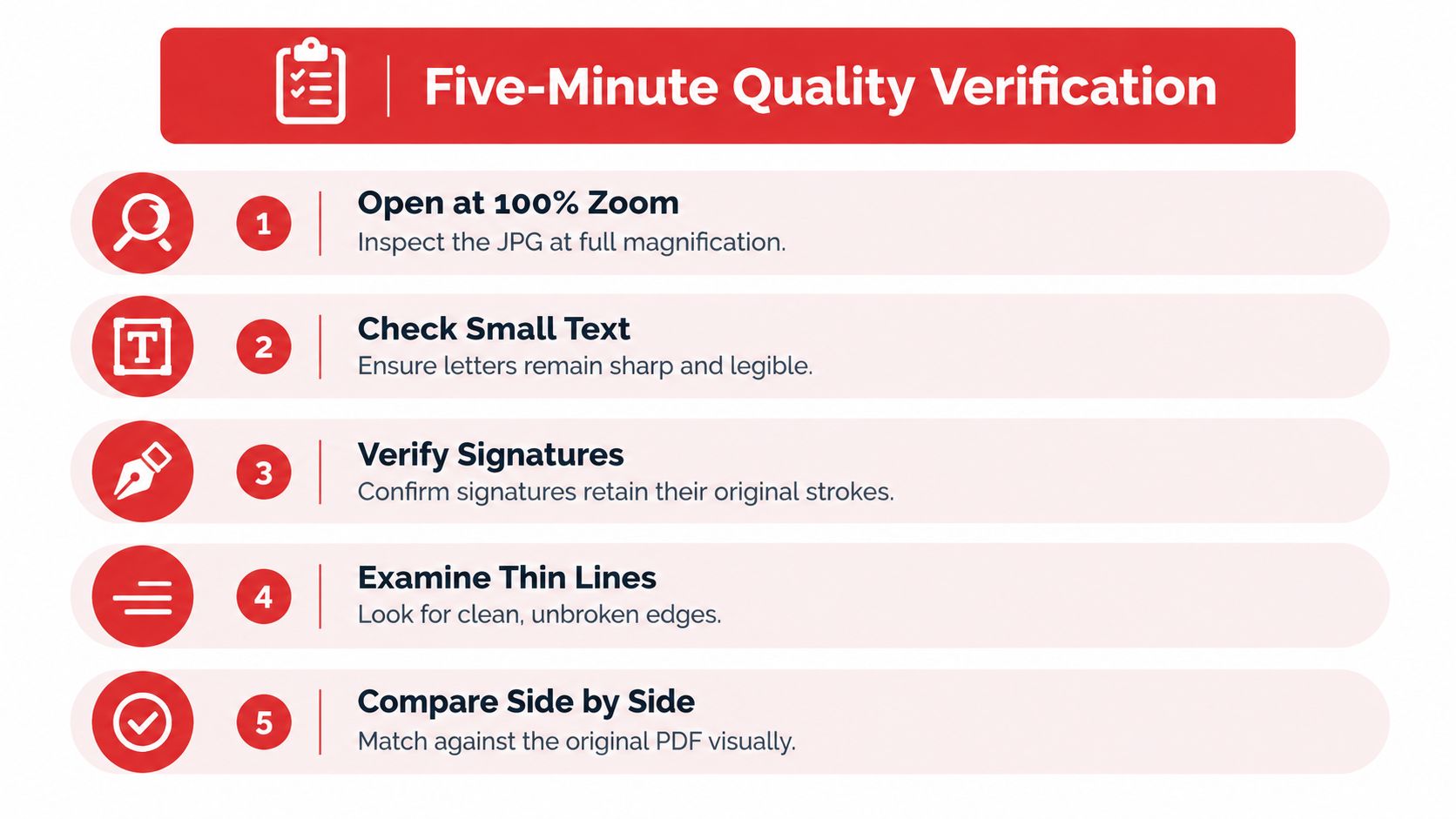
Open the JPG at 100% zoom. Check small text, punctuation, signatures, thin rules, and page edges. Compare it with the PDF at the same scale, and look for ringing or block-like artifacts around sharp edges. If color accuracy matters, compare the image with the source on a consistent display. For an OCR workflow, confirm that the resulting text remains readable to the recognition process rather than judging appearance alone.
| Check | What to look for | If it fails |
|---|---|---|
| Small text | Clear letter shapes and punctuation | Render at a higher DPI if the source contains detail to preserve. |
| Signatures and thin lines | Continuous strokes without breaks | Inspect the original PDF and reduce compression or use a lossless format. |
| Sharp edges | No obvious ringing or block artifacts | Raise JPEG quality or avoid another JPEG save. |
| Color | Colored text and annotations remain distinct | Try 4:4:4 subsampling or check color handling. |
| OCR readability | Characters are distinguishable | Check source scan quality, skew, and brightness before re-exporting. |
Two habits often waste effort. Choosing the highest possible DPI can create oversized files without adding useful detail, especially when the source is a low-resolution scan. Setting JPEG quality to 100 isn't automatically better either; for most document pages, a high quality setting with a careful visual check is more useful than chasing a maximum number. If a verified file needs to be made smaller, image compression should come after you've confirmed that it remains legible.
Putting It All Together and Shipping the Output
Before sending a converted document, identify whether each page is vector-based, scanned, or photo-heavy. Pick DPI for the destination, render to consistent color, and use a restrained JPEG compression setting. For text-heavy pages with colored annotations, favor 4:4:4 when available; keep the original PDF, then inspect the JPG at 100% zoom.
Don't mistake an image for an accessible document. Image-only PDFs prevent screen readers from accessing text, and OCR can make text searchable, but OCR alone doesn't provide full accessibility. Tags, reading order, and alternative text also matter (PDF accessibility guidance). For legal filings, educational materials, and other documents that must remain accessible, preserve a text-based version or add the appropriate accessibility structure alongside any image output.
Use the JPG as a derivative for the job it serves, not as a replacement for the source. Whether you're exporting a contract page or a large submission, the same checks help catch blur, compression damage, and unreadable text before the file reaches a client, court, or learning platform.
PDFWix offers browser-based PDF conversion and document tools, including PDF-to-JPG, page splitting, compression, and OCR where available. Try the workflow on a copy of your file, inspect the output at full size, and visit PDFWix when you're ready to convert.