
The portal closes tonight, Word is still open, and the upload box only accepts a PDF. The signature line has to land on the page, the comment balloons have to stay out, and you do not have time to rebuild the file in another app.
Saving as a PDF file in Word is a set of device-specific commands, not one button with one result. Desktop Word, Word for the web, and the phone apps do not share the same dialog. Choosing a local export over an upload is a privacy decision, not just a faster click.
Pick the path for this device and this file first. Set options second. Open the PDF in a separate viewer before you send it.
Table of Contents
- Choose the Right Save as PDF Path
- Keep Confidential Files Off Online Converters
- Save the PDF from Desktop Word
- PDF Options That Change the File
- Fix Layout Problems After Export
- Compress or Edit the PDF Next
Choose the Right Save as PDF Path
A submission portal accepts only PDFs, but the right export command depends on the device and the document. Desktop Word, Word for the web, and the phone apps expose different controls. Choose the path first, then check the finished PDF in a separate viewer.
Desktop Word: choose the command for the output
Save As or Save a Copy is the everyday route for a full-document PDF. Open File > Save As on Windows, or Save a Copy where Microsoft 365 shows that command. Choose a folder, set the file type to PDF (*.pdf), and save. Open the options before saving if you need to adjust them.
Use File > Export > Create PDF/XPS Document when you need to set options before creating the file. Open Options, make the required selections, then choose Publish. This route is useful for controlling a page range, bookmarks, markup, or optimization.
Print to PDF is a separate route, not another name for Export. On Windows, select Microsoft Print to PDF as the printer. On a Mac, choose Save as PDF in the print dialog. Use this path when the layout in Print Preview is right but the usual export has clipped a header or wide table. The trade-off is weaker tags and bookmarks, so avoid Print to PDF when the document needs accessible navigation or is a long report readers must follow.
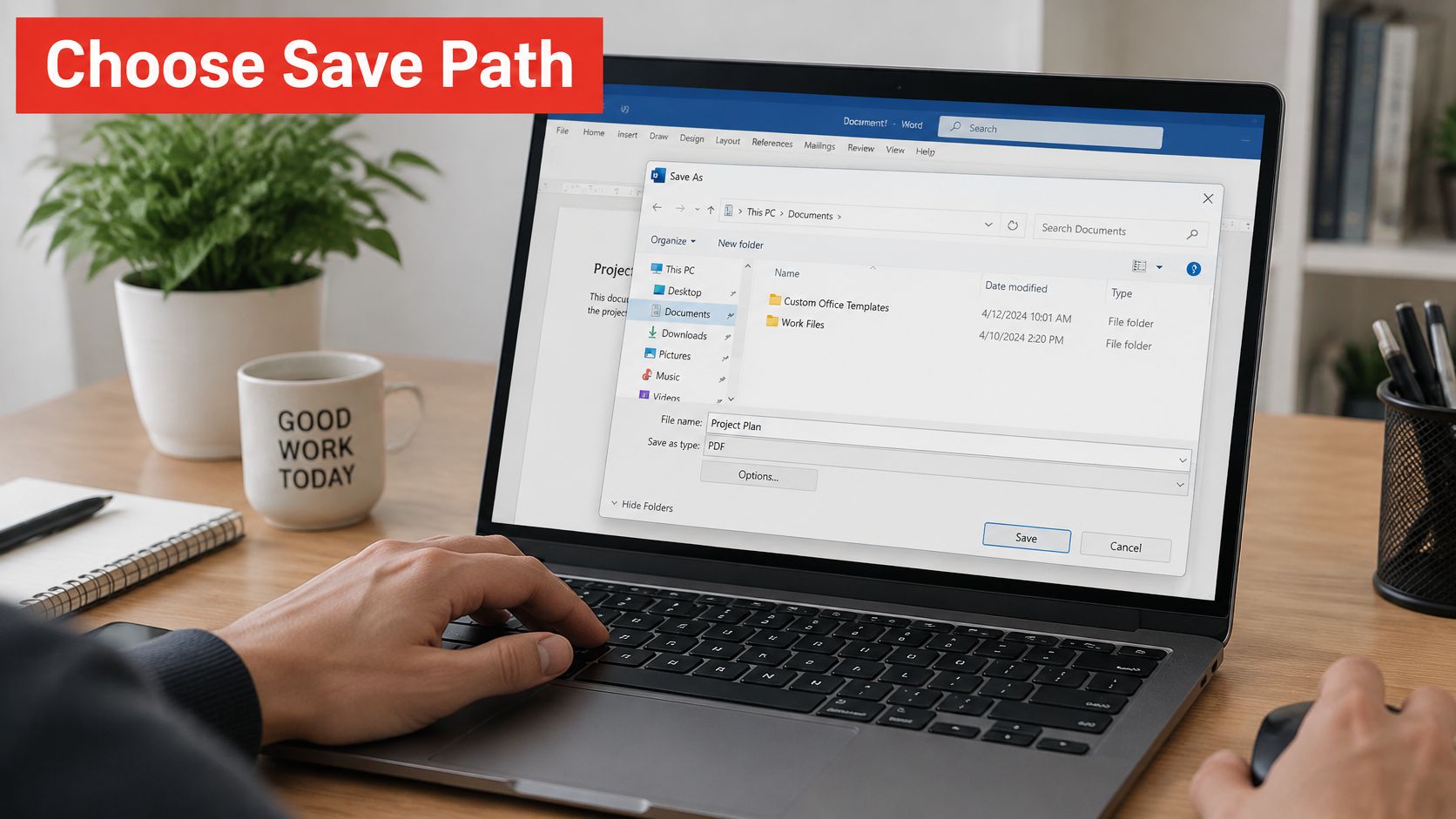
Word for the web and phone apps
Word for the web provides Download as PDF for a document stored in OneDrive or SharePoint. It exports the whole document at the default quality, without an Options dialog. You cannot use this route to set PDF/A, structure tags, or a minimum-size file.
In Word on iPhone or Android, use the share or export action. The app does not offer the desktop Options dialog, and a large file may fail on the phone. If you need tagged output, archival settings, selected pages, or control over markup, move the DOCX to desktop Word and export there.
Microsoft's accessible PDF guidance covers options such as page ranges, bookmarks, accessibility tags, and markup. These controls vary by export path, so check that the command you choose provides the settings your document needs.
Practical rule: For a PDF that must be tagged, archived, limited to selected pages, or free of markup, use desktop Word. Web download and phone export do not provide those controls.
Keep the DOCX as the editable original and send the PDF as the distribution copy. For an archival requirement, first check how PDF, PDF/A, and PDF/X differ, then confirm that the export settings match the required format. Open the saved PDF before sending it and inspect the first and last pages, page breaks, headers, and any tables that extend across the page.
Keep Confidential Files Off Online Converters
A PDF export is also a choice about where the document is processed. Desktop Word saves locally when you choose a folder on your computer. An online converter may send the DOCX to a server, where handling and retention depend on that service's terms. Check those terms before uploading.
| Factor | Local desktop Save As | Online converter |
|---|---|---|
| Data transfer | Stays on your computer | Sent to the service's servers |
| Retention | The saved file remains under your control | Depends on the service's terms |
| Account | Requires a Word sign-in | Check whether the service requires an account |
| Audit trail | Your file records show the saved copy | Conversion logs depend on the service's terms |
| Offline use | Works without an internet connection | Requires a connection |
For files that should stay on your device, use local export. Your organization's sharing and data-loss-prevention rules still matter, especially when documents are stored in OneDrive or SharePoint. See Microsoft 365 security guidance from F1Group for related considerations.
Word for the web is different from a third-party converter. The DOCX is stored in OneDrive or SharePoint, so tenant sharing rules apply. Downloading a PDF creates a separate copy; it does not remove or relocate the source document.
A browser tool may suit a file you are comfortable sharing with a service. For confidential PDFs, check whether processing happens on your device or requires an upload. This guide explains whether online PDF tools keep files on the device.
Save the PDF from Desktop Word
A DOCX is the working file; the PDF is the copy you send. Save the DOCX before exporting, then choose the desktop command that gives you the controls you need. The export stays on your computer, so for a confidential file, the folder you choose is part of the privacy decision.
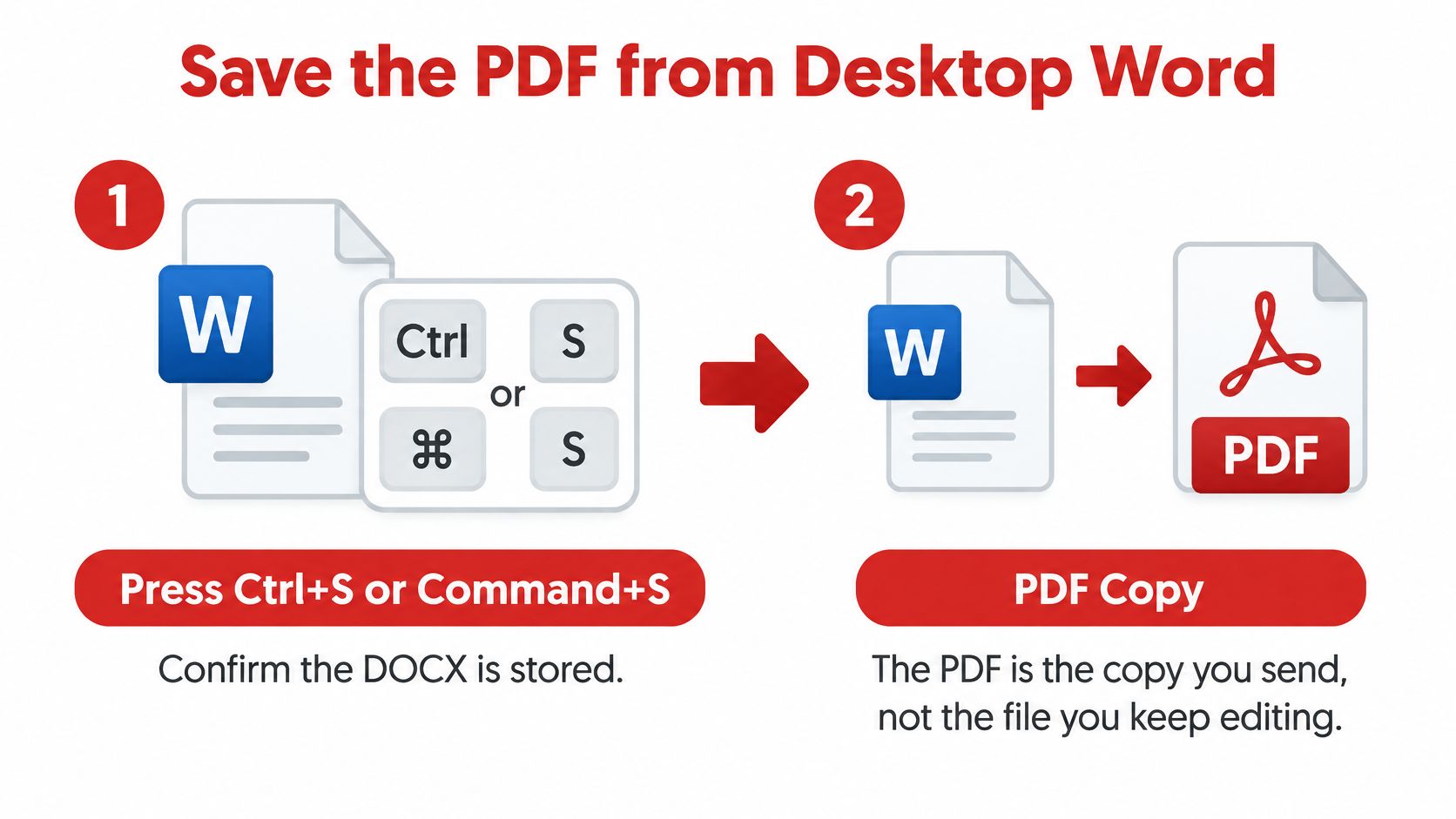
- Press Ctrl+S on Windows or Command+S on Mac and confirm the DOCX is saved. If Word closes during export, your editable master remains.
- Select File > Save As on Windows, File > Save a Copy in Microsoft 365, or File > Save As on Mac.
- Choose Browse and a folder on your computer for a confidential document. Check that the destination is not a shared folder.
- Set the file type to PDF (*.pdf) and use a name that identifies the version, such as
Offer-v3.pdf. - Choose Save to export the full document at the default quality. To set a page range or control markup, open Options first. Those settings affect what appears in the PDF.
- For export controls before saving, select File > Export > Create PDF/XPS Document > Create PDF/XPS. Set Options, then choose Publish. Microsoft's desktop save and convert steps explain the options for page ranges, document properties, bookmarks, markup, and file optimization.
- Use Standard for printing or formal submissions. The Minimum size option produces a smaller file with reduced image quality, as Microsoft explains in its desktop export instructions. Choose it when file size matters more than image detail.
Check the PDF outside Word
Open the exported PDF in Edge, Preview, or another PDF viewer. Compare the page count, page breaks, tables, hyperlinks, fonts, images, and headers and footers against Word's print preview.
Check common export failures before sending. Content can clip at a non-printing margin, a missing font can change line breaks, and leftover markup can appear in the PDF. Images may also look soft if you chose a lower-size export.
If a sentence needs changing, edit the DOCX and export again. Editing the PDF can shift objects and disturb the layout you just checked.
Use Print to PDF only if the exported file still clips content that appeared correctly in Print Preview. A proposal checklist can be concrete: confirm the DOCX is saved, select the correct PDF folder and filename, check markup settings, and review the exported page breaks and images. The Microsoft productivity tips for businesses can support teams standardizing that handoff across people who edit the same DOCX.
PDF Options That Change the File
The choices in Word's Options or More options dialog affect image quality, accessibility, metadata, and which pages or review details travel with the PDF. Choose for the file's destination, then check the result before sending.
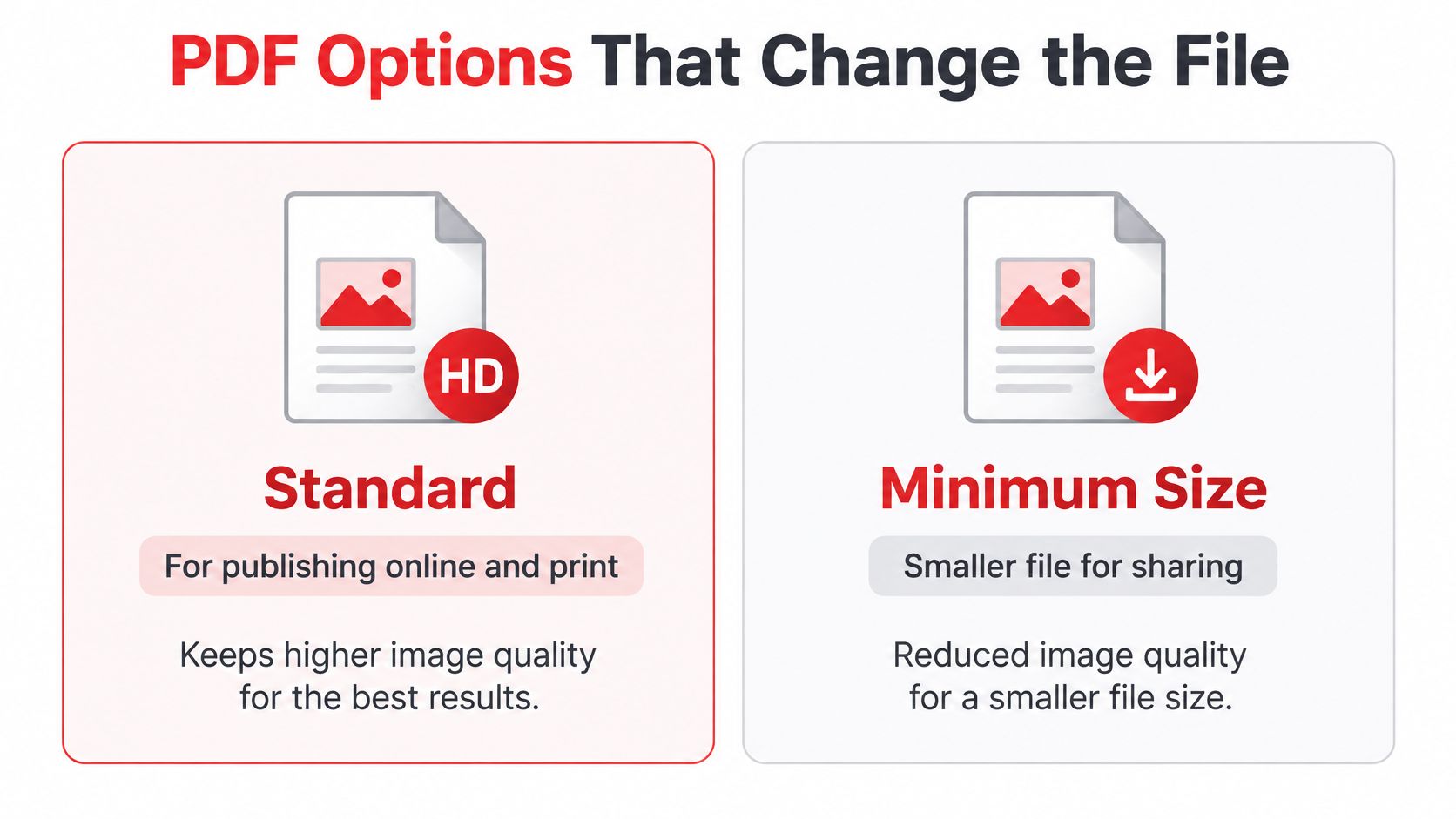
Versions, tags, and what travels with the file
For records that need to remain usable over time, consider ISO 19005-1 compliant (PDF/A). Microsoft's file-format notes explain that Office usually creates PDF Version 1.5, Word can create Version 1.6 when password protection is added, and PDF/A uses Version 1.4 under ISO 19005-1.
Document structure tags for accessibility preserve semantic information for screen readers, but they do not fix an inaccessible Word file. Microsoft's Word PDF accessibility guidance also explains that decorative objects can be marked as artifacts so assistive technology skips them. Before exporting, use built-in heading styles, meaningful link text, alternative text for informative images, and defined table header rows. Check that reading order is logical, then run Word's Accessibility Checker.
Tags cannot repair text boxes, spacing characters used to imitate layout, or headings formatted only by changing font size. A scanned page pasted into Word remains an image. OCR can make its text selectable, but recognition errors may affect names, figures, and legal or academic wording. After export, check the PDF with an accessibility checker and keyboard navigation. The guide to PDF accessibility covers additional checks for documents that must meet a stated standard.
| Setting | Choose it when | Result |
|---|---|---|
| Standard | Print or a formal submission | Higher image quality and a larger file |
| Minimum size | Email or a web preview | Smaller file and lower image quality |
| PDF/A ISO 19005-1 | Archive or records | PDF 1.4 format intended for long-term preservation |
| Document structure tags | Screen-reader users need document structure | Adds semantic tags based on the Word document |
| Bookmarks from headings | Readers need to move through a long report | Creates an outline from headings |
| Document properties | Title and author should travel with the file | Includes metadata; clear it for a blind review |
| Page range | Only selected pages should be sent | Excludes pages outside the selected range |
| Include markup | A reviewer needs to see edits | Prints comments and tracked changes into the PDF |
Create bookmarks using headings when a long report needs a navigable outline. Check Document properties if the author name should not appear in a blind review or CV. Set a Page range when only part of the document should ship. Include non-printing information controls review details: leave markup off for a client-ready copy, and include it only when the reviewer needs comments or tracked changes.
Export is a device-specific command, and choosing Word's local save path instead of an online converter is also a privacy decision. Select settings based on the document's use, then inspect the exported PDF for the content and review details it should contain.
Fix Layout Problems After Export
The footer is clipped on page 2 of a signed offer. Before sending it, check whether the footer sits inside the page's printable area, whether the signature line remains visible, and whether the page count matches the intended document. A small layout defect can change how the offer reads or prints.
| Symptom | Likely cause | Fix |
|---|---|---|
| Clipped header or footer | Content in the non-printing margin | Move it inside the margin in Word, then export again |
| Reflow or missing font | Font unavailable or not embedded | Use an embeddable font and export again |
| Comments or redlines visible | Markup was included | Turn off markup in the PDF export options |
| File too large to email | Standard quality and heavy images | Export with Minimum size, then compress if it is still too large |
| Page count changed | Comment balloons, footnotes, or section breaks | Accept changes or correct the break, then export again |
| Illogical reading order | Text boxes or fake headings | Use real heading styles, add tags, and check the reading order |
| Blank last page | Extra paragraph or section break | Remove the extra paragraph or break in Word |
For a page-size mismatch, set the paper size in Word before exporting. If the PDF is already correct in every other respect, you can resize it separately with a PDF page-size change tool.
An image-only scan pasted into Word does not become accessible just because it is saved as a PDF. Tags and OCR may help, but names and figures still need a human check. Keep the DOCX as the master when wording or layout needs correction. Editing the PDF can shift objects after you have checked their positions.
For the offer with the clipped footer, move it up within the margin in Word and export again. Check the page count and confirm the signature line is fully visible before sending. If the footer remains clipped despite looking correct in Word's print preview, use Print to PDF only for that copy, then check the result again.
Compress or Edit the PDF Next
Once the layout matches print preview, Word has finished its job. If the wording is still wrong, fix the DOCX and export again. Use a PDF tool only after the export is correct, for tasks such as reducing file size, combining documents, signing, cleaning up pages, or making a light edit.
PDFWix offers free tools with no watermarks on output. Compress can reduce a 10 to 50 MB export to around 2 to 5 MB, with little visible quality loss. Merge combines a cover letter and the Word PDF into one file: add both files, drag them into order, then download the combined PDF. For a smaller export, follow the steps in how to compress a PDF file.
Most PDFWix tools, including Compress, Merge, Split, Rotate, and Edit, run in your browser, so files stay on your device. Protect PDF and Open PDF are the exceptions. They send files over HTTPS to a worker, process them in memory, and do not write them to disk. Treat either tool as a server-side process when deciding whether to use it for a confidential document.
If a file you received is already protected and you only need to guide a client, explain a locked proposal without editing rather than trying to rewrite pages you cannot change. Use PDF only when you are authorized to access the file.
For the final pass, check that the PDF opens, page order is correct, and signatures or edits have not shifted the layout. Visit PDFWix to choose a tool for that specific task.