
You've finished a report or scanned contract, but the email, court filing system, or upload portal won't accept the PDF as it is. The practical fix isn't to pick an arbitrary number of pages per file. Start with the destination's file limit, then split and check each part against that cap.
A split can still fail after every file meets its size limit. Email encoding can increase the amount sent, and cuts in the wrong place can leave reviewers without a table, signature page, or explanation. Here's how to make parts that fit and remain usable.
Table of Contents
- Size Limits to Check Before You Split
- How to Split a PDF by File Size Step by Step
- When to Compress Instead of Splitting
- Why Parts Come Out Uneven and How to Fix Them
- Keep Parts Usable for Readers and Reviewers
- Verify Every Part Before You Send It
Size Limits to Check Before You Split
The right part size depends on where the files are going. Check the receiving system's current limit first, then leave room below it rather than aiming for the cap.
| Destination | Published limit | Target size per part |
|---|---|---|
| Gmail personal account | 25 MB total attachments per message | Under 25 MB per part |
| U.S. District Court, Southern District of New York | 15 MB per file | Under 15 MB per file |
| U.S. District Court, Western District of North Carolina | 50 MB per file | Under 50 MB per file |
| Other splitting tools, input file | Set by each service | Check the documented input limit before you upload |
| Other portals, universities and visa systems | Frequently unpublished | Confirm the current limit before splitting |
For personal Gmail accounts, Google's 25 MB attachment limit applies to the total attachments in one message. If that total exceeds the cap, Gmail replaces the attachments with a Google Drive link, so keep each part below the limit and leave room for any other files you're attaching. Workspace accounts can have different limits set by their administrators.
Court rules aren't uniform. The Southern District of New York's PDF guide sets a 15 MB per-file limit, while the Western District of North Carolina allows 50 MB. That difference changes the split: a 40 MB filing needs three parts to stay below the first court's limit, but fits in a single file under the second court's limit.
Splitting tools also cap what you hand them. Services that upload your file to a server often set their own input ceiling, while browser-based tools that process files locally are limited by your device memory rather than a fixed upload cap. The input limit governs the file you submit rather than the size of the parts the tool produces.
Allow for transmission overhead
The PDF's size on your device isn't always the size an email system processes. Attachments are commonly base64-encoded, which adds roughly a third to the transmitted data, and the JSON Meta Application Protocol specification shows the effect in practice: a 50 MB attachment allowance can correspond to a 70 MB total-message limit once headers and the message body are counted.
Working rule: Aim for 90 to 95 percent of the destination's cap. Divide the PDF's total size by that target to estimate the number of parts, then check the actual output files.
If you're unsure how an attachment limit affects delivery, this guide to PDFs that are too big to email can help you decide what to change before sending.
How to Split a PDF by File Size Step by Step
A 48 MB scanned contract needs to go to a recipient whose email limit is 25 MB. A sensible target is about 23 MB per part, leaving a buffer for variation in output and email handling. The source's page count alone won't tell you where to cut because scanned pages can vary greatly in size.
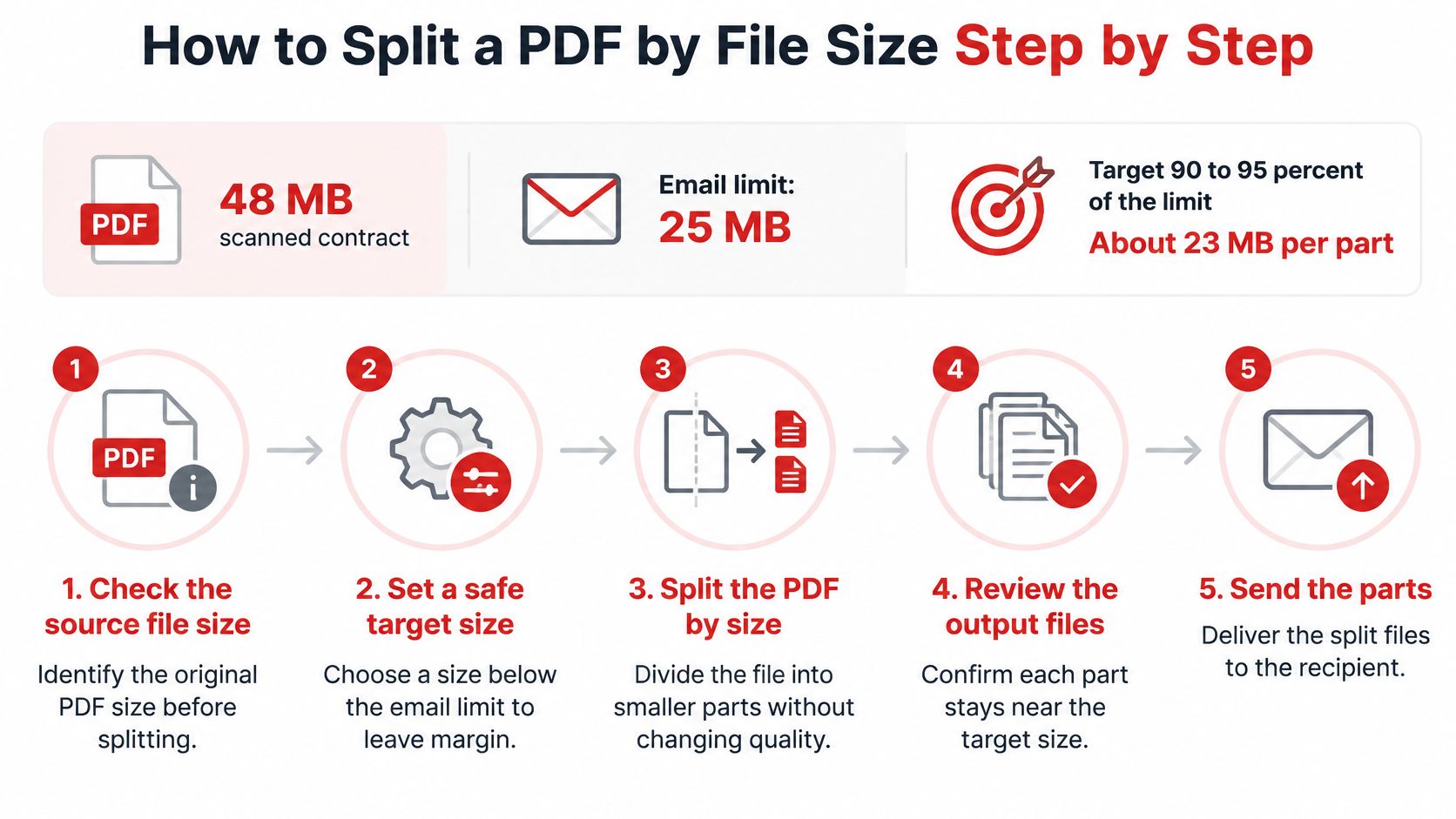
Check the source file and its page count. Note the PDF's size and total pages before changing anything. That gives you a baseline for checking whether the split produced complete files.
Set a safe target. Write down the per-part target, about 23 MB in this example. The buffer matters because files that land just below a stated cap can still be awkward to send.
Choose a size-based splitter. Use a tool with a maximum-file-size option, not one that divides the document into equal page counts. If you need to break large PDFs into smaller files as part of a repeatable workflow, make sure the process checks output size rather than assuming page count predicts it.
Enter the target and split. Type the target in the unit the tool requests, such as megabytes or bytes. Review the output list: this example should produce about three parts in page order, though the exact boundaries depend on the pages' contents.
Check and rerun if necessary. Inspect every file's size. If one exceeds the target, lower the split limit by 5 percent and run it again so the output has more breathing room.
Reopen the parts and check completeness. Confirm that the page counts add up to the source and that no page is missing or duplicated. If you only need one chapter or a handful of pages, skip a full-document split and extract the PDF pages you need.
Success means every part is under the destination limit, filenames stay in sequence, and no page is missing or duplicated. For example, name the files contract-part-1-of-3.pdf, contract-part-2-of-3.pdf, and contract-part-3-of-3.pdf.
When to Compress Instead of Splitting
Start from the destination, not the file. If a court portal, email gateway or upload form caps each attachment, ask whether the pages must remain faithful to the source or can be rewritten smaller.
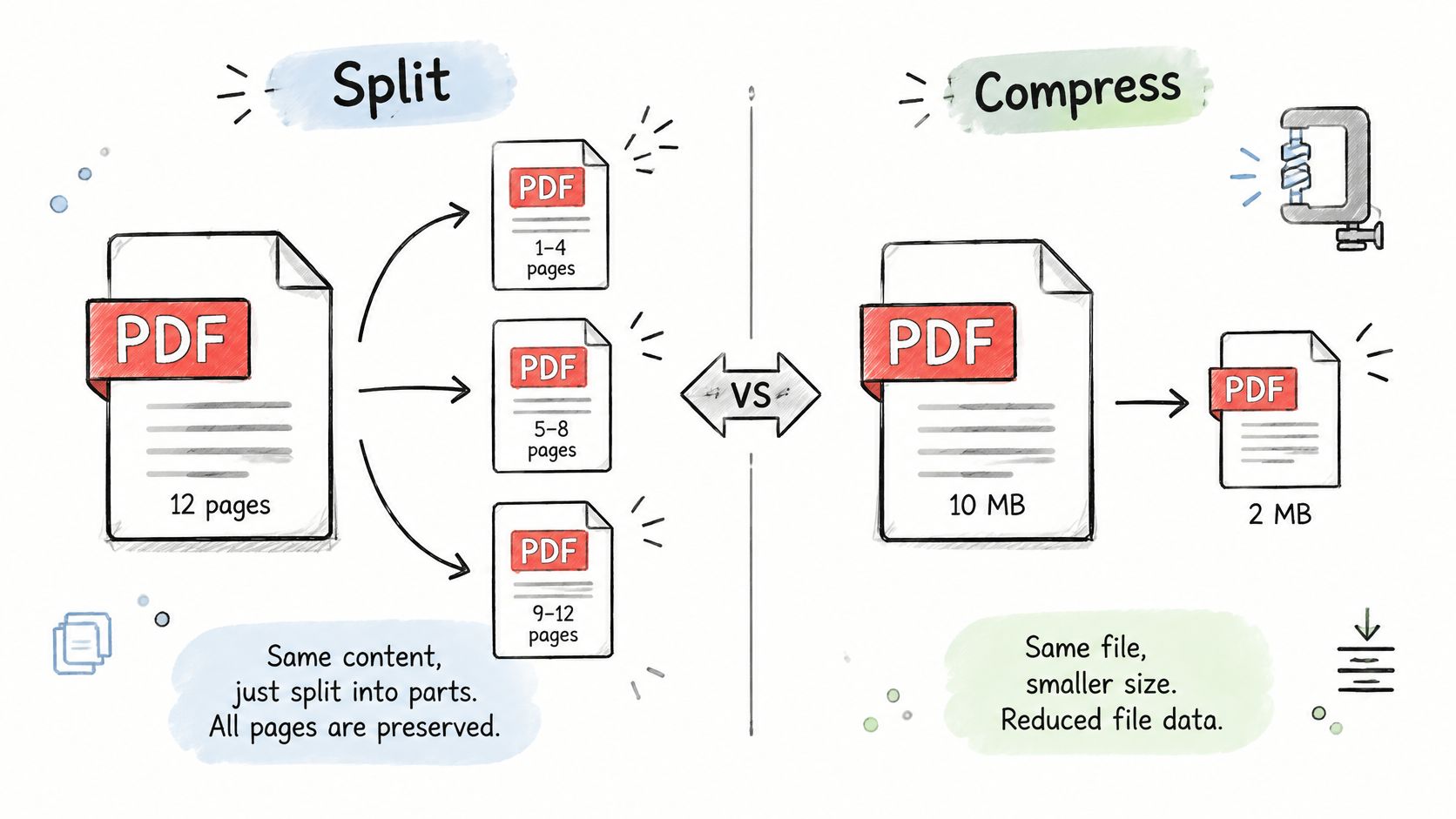
Split when preserving the original page quality is the priority. Compress when the resulting parts are still too large, or when a single page won't fit the destination limit on its own. Splitting distributes existing pages across new files and leaves their underlying page data intact. Compression changes the data stored inside the file, usually by reducing image data.
That makes splitting a sensible first move for legal exhibits, signed contracts, scanned records and print-ready submissions where fidelity matters. A part can still fail after it meets the byte cap: email encoding can enlarge the attachment in transit, and reviewers can reject files that open slowly, lose bookmarks or arrive without enough context.
Choose the change that solves the actual problem
| Situation | Better next step | Watch for |
|---|---|---|
| The full document exceeds the per-file cap, but its pages must retain their existing quality | Split by size | A single unusually large page may remain over the cap |
| Parts still exceed the cap, or one page is too large to fit | Compress, then check the output | Compression can reduce image quality |
| You need only a particular section | Extract those pages | Check that the selected pages include their context |
Compression may achieve little when a PDF already contains compressed JPEG images or embedded attachments. Rewriting a digitally signed file can also break its signature, so don't treat compression as a harmless extra step for signed or evidence-sensitive documents. Record the size before and after each change, and inspect visual quality if the content was recompressed.
When shrinking the file is the right move, use a PDF compression tool, then verify the result against the destination's limit. If you're weighing whether to reduce image data or remove material, this guide to compressing PDFs can help you choose a suitable approach.
For confidential files, check the processing policy of any tool before using it. Most PDFWix browser tools, including split and compress, run entirely in the browser, so the file isn't uploaded. That can matter when you're handling sensitive material.
Why Parts Come Out Uneven and How to Fix Them
The most common surprise is one part landing slightly over the limit. That can happen when the splitter duplicates shared fonts or images across output files, or when the process cuts by page count instead of checking each file's size. A PDF's internal objects and page content don't divide into equal byte-sized blocks.
| Symptom | Likely cause | Fix |
|---|---|---|
| One part is over the limit | Shared fonts or images copied into several parts, or a page-count split | Lower the target to 90–95% of the limit and split again |
| Parts add up to more than the original | Shared resources duplicated across output files | Compare total output with the source and reduce duplicates before splitting |
| One page is larger than the limit | Heavy scanned image or embedded media on that page | Compress the images on that page, then split |
| File will not load in the browser | Input exceeds device memory | Remove unneeded pages first with a page remover, then split |
| Part will not open or pages are missing | Damaged or incrementally updated source | Repair the source, then reopen every part and compare page counts |
The PDF format's cross-reference structure and page tree help readers locate objects and pages. Some resources can be shared across pages, while incremental updates can append new objects without removing earlier content. A splitter that doesn't account for that structure may create larger outputs than expected or produce files that don't open correctly.
Check the output, not just the split settings. Reopen every part in a second PDF reader, confirm the page count and rendering, and compare visible text with the source.
A single oversized page usually needs a different fix from an oversized group of pages. If a scan or embedded media makes that page too large by itself, lowering the split target won't solve the problem. Reduce the image data on that page if quality requirements permit, then split again.
If a browser can't load the source, remove pages you don't need before trying again. If an output won't open or appears to have lost pages, check whether the source is damaged and repair it before repeating the split. This guide to unusually large PDF files can help you identify which content may be driving the size.
Keep Parts Usable for Readers and Reviewers
A smaller PDF isn't automatically a better PDF. A cut through a clause, schedule, or signing page can separate a reference from the material it points to, leaving a reviewer unsure how the parts fit together.
Split at meaningful boundaries: chapters, sections, or exhibits. Keep a table with the notes and explanation that interpret it. Treat cross-references as warnings, since a bookmark or internal link that points across your split boundary stops working the moment its target lands in another file. Choosing where to cut is as much about navigation as it is about page order.
Make each file make sense on its own
Give each part a short context line on a cover page or opening note: what it contains, where the document continues, and which part holds the signing pages or exhibits. For records used in legal, education, healthcare, or government settings, check that the split hasn't separated a signature, supporting note, or related exhibit from the pages that give it meaning.
Accessibility deserves the same attention as page order. A 2026 survey summary from the University of Arizona reports that 85.6% of screen-reader users consider PDFs very or somewhat likely to create significant accessibility issues. Large-scale audits of public-facing PDFs point the same direction, with the most common failures involving headings, metadata, table headers, and alternative text.
Test each part with a screen reader or accessibility checker rather than assuming the source's structure survived. A split can disrupt logical reading order or assistive-technology navigation, and image-heavy pages stay inaccessible no matter how small the file becomes. Adding page numbers to each part also helps reviewers keep the sequence straight when files arrive out of order.
Teams routing the parts into a shared review workspace face a second problem: helping collaborators find the right file and its supporting context. BromeAI's guide to AI workspaces covers how to organize documents for that kind of shared review.
Verify Every Part Before You Send It
A file that meets the byte limit can still fail in review if pages are missing, the order is unclear, or forms and links no longer work. Run this checklist before you attach or upload the parts.
Check the size. Confirm every part sits below the destination limit with some margin, not barely under the cap. Email encoding inflates attachments in transit, so a part that just fits on disk can exceed the limit once it is sent.
Recheck the split boundaries. The step-by-step walkthrough already had you match the total page count to the source. The remaining risk sits at each boundary, where a dropped or duplicated page is easiest to miss, so compare the last page of one part against the first page of the next.
Open every file. Use a second reader and inspect the first and last pages of each part. This catches files that won't open, render incorrectly, or end at an unexpected page.
Name the parts in order. Use a consistent sequence so the recipient can reassemble the set at a glance and spot a missing file before opening anything.
Check navigation and forms. Verify bookmarks, links, and form fields still work in each part. If a source file may be damaged, use this guide to checking for corrupted PDF files before trusting the split output.
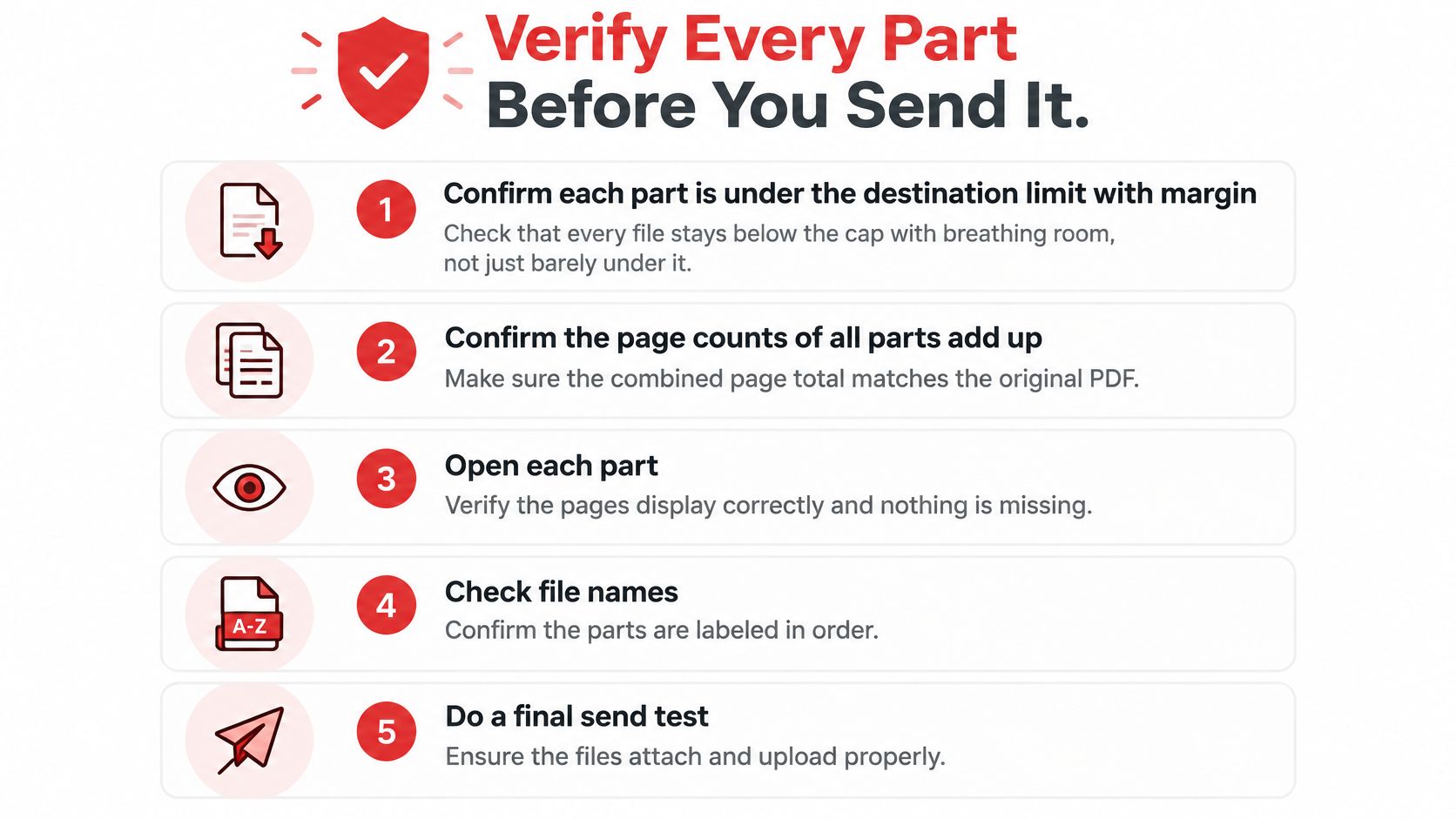
- Test the delivery. Send yourself a test email with all parts attached, or try the upload where the destination allows a draft or preview. Confirm every file arrives and opens on the receiving side.
If the parts still fail the limit, compress them or remove pages the recipient doesn't need, then run this checklist again on the new output. For sensitive legal or medical material, the final parts also need to preserve the complete record. A reviewer working through something like valuing car accident back injury claims depends on every supporting document arriving intact and in context, and a split that drops an exhibit can weaken the whole submission.
Use PDFWix to split PDFs the way your destination requires, extracting selected pages as a new file or splitting every page into individual files. Choose the change the limit calls for, then check every part before you send it.