
You've probably got a PDF in your inbox right now that wasn't supposed to stay a PDF. It might be a signed policy that HR needs to update, a course handout with comments baked into the pages, or a contract draft that arrived as a scan instead of an editable file. The instinct is simple: upload it to Google Drive, open it in Google Docs, download a Word file, move on.
Sometimes that works. Sometimes it gives you a usable draft in minutes. But when the search is for convert PDF to Word Google Docs, what they usually need isn't a magic file-format switch. They need a dependable way to recover text, preserve meaning, rebuild structure, and hand off a document that won't embarrass them when someone opens it in Word.
Table of Contents
- Why Converting a PDF to Word in Google Docs Is Trickier Than It Looks
- Opening a PDF in Google Docs Step by Step
- Exporting the Converted File to a Real .docx
- Handling Scanned and Image-Only PDFs Without Losing the Text
- Rebuilding Layout, Tables, and Columns After Conversion
- Privacy, File Size, and When to Stay Out of the Cloud
- Choosing the Right Conversion Path and Verifying the Result
Why Converting a PDF to Word in Google Docs Is Trickier Than It Looks
A lot of guides treat PDF conversion like a rename operation. It isn't. A PDF stores content as a fixed page presentation, while an editable document needs paragraphs, heading levels, tables, lists, spacing, and reading order rebuilt so a word processor can work with it.
Google Docs became a practical browser-based destination for this kind of workflow after Google acquired the company behind Writely on March 9, 2006, released Google Documents on October 10, 2006, and kept expanding collaboration and import features over time, including real-time editing improvements in 2010 and a later rename to Google Docs in 2012. That history matters because the value wasn't just file import. It was browser access, editing, collaboration, and export in one place, which changed how teams handled documents online, as outlined in Google's history of Docs and Writely.
Three problems hiding inside one task
When someone says they want to convert a PDF to Word in Google Docs, they're usually dealing with one or more of these:
- Text extraction. If the PDF already has selectable text, Google Docs can often pull that text into an editable document with decent results.
- Layout reconstruction. Multi-column pages, tables, footnotes, and mixed formatting don't survive cleanly just because the text came through.
- Image recognition. A scanned PDF is often just page images. In that case, the converter has to recognize characters before you can edit anything.
Practical rule: Treat conversion as document reconstruction, not format swapping.
That's why a student's one-page article excerpt may open cleanly, while a legal exhibit with stamps, signatures, and side notes falls apart. It's also why people confuse “editable” with “finished.” Google Docs can create a workable draft, but it won't guarantee that the resulting Word file matches the original PDF in structure or meaning.
If you need a refresher on why PDFs behave this way in the first place, this short guide on what a PDF is and why it preserves layout is worth a quick read before you start repairing a broken conversion.
Opening a PDF in Google Docs Step by Step
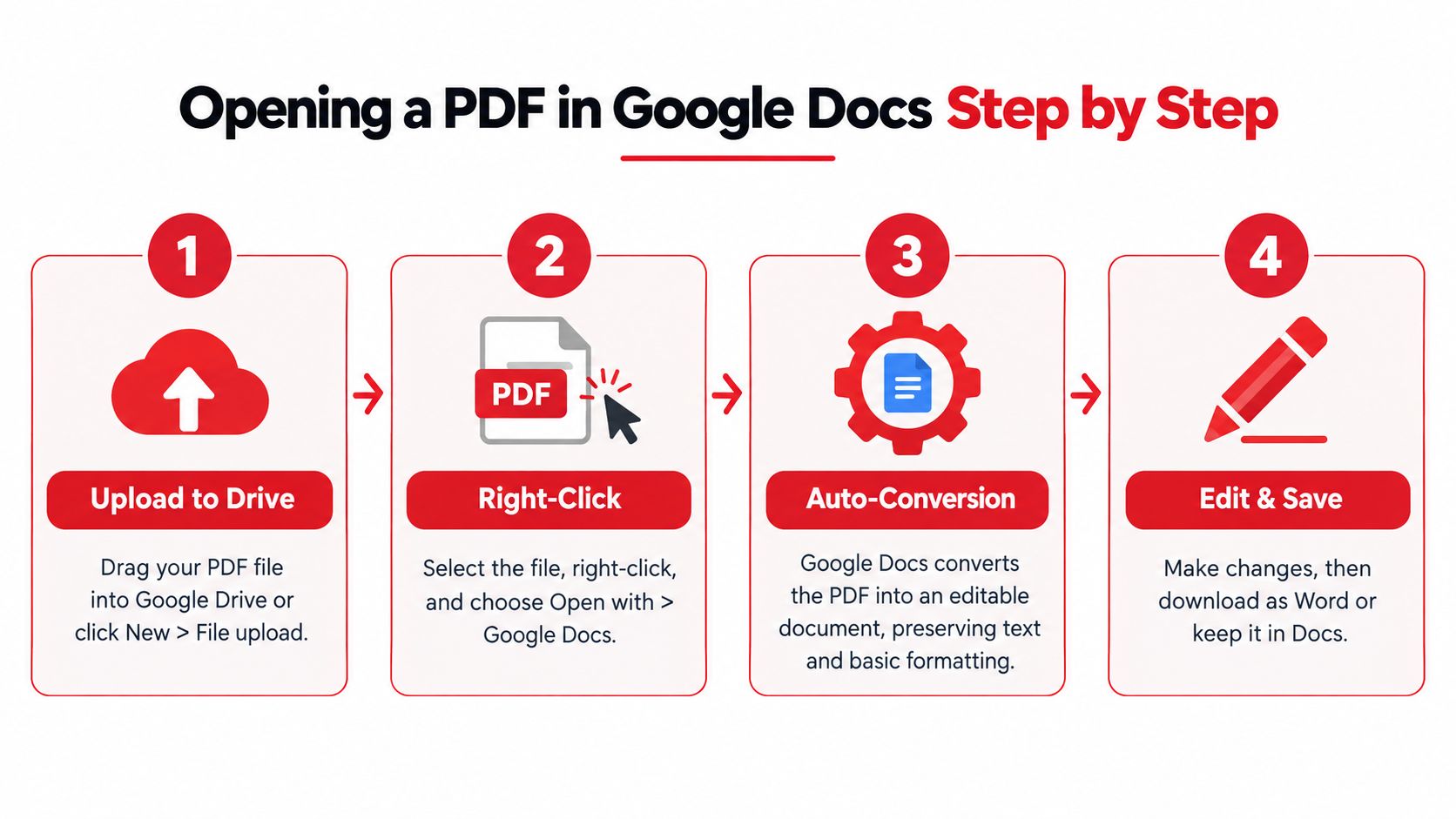
The fastest browser workflow is still the standard one in Google Drive. Upload the file, open it with Google Docs, review the extracted content, then decide whether it's good enough to clean up and export.
Before you upload anything, check the conditions Google documents for OCR and conversion. The file should be no larger than 2 MB, pages should be upright, text should be at least 10 pixels high, and scans should have sharp imagery, even lighting, strong contrast, and common fonts, according to Google Drive's OCR and conversion guidance. Those details are easy to skip, but they explain most “why did this convert so badly?” complaints.
The click path that actually works
- Go to Google Drive.
- Upload the PDF by dragging it in, or use New > File upload.
- Wait for the file to finish uploading.
- Right-click the PDF.
- Choose Open with > Google Docs.
- Let Google create a new editable document from the PDF.
What happens next depends on the input. A text-based PDF usually opens as paragraphs and headings with fewer surprises. A scanned file triggers text recognition and often needs more repair.
Prep work that saves time later
The best results come from fixing the source before conversion, not from heroic cleanup afterward.
- Rotate first. If pages are sideways or slightly crooked, fix that before upload. Google explicitly expects upright pages.
- Trim oversized scans. If a scanned PDF exceeds the documented size limit, export it again at a lower resolution or split it into smaller parts.
- Test one representative page. Don't batch an entire folder until you know how one difficult page behaves.
- Watch mixed-language files. Google notes that it auto-detects document language, but mixed-language pages and unusual fonts are higher-risk inputs.
- Flag sensitive fields early. Names, dates, citations, and IDs deserve closer checking after conversion than commas and line spacing.
If your file already has selectable text, you're not asking Google Docs to recognize characters from pixels. You're asking it to rebuild editable structure from existing text, which is a much easier job.
What to expect on screen
Once the file opens, the first page may still show the original image in some cases, followed by extracted text below. That's normal for many scanned documents. The key question isn't whether it looks familiar at a glance. It's whether the reading order, headings, and critical data came through in a way you can trust.
Exporting the Converted File to a Real .docx
Once the content is open in Google Docs, don't go back to the PDF in Drive and try to convert it again. Work from the editable Google document you already have. That avoids re-running the extraction process and gives you a cleaner handoff to people who live in Microsoft Word.
The export path to use
In the Google Docs file, go to:
File > Download > Microsoft Word (.docx)
That creates a true .docx file you can send, archive as a working copy, or open in Word for final polishing. If the document still looks rough, clean it first in Docs, then download. Basic paragraph fixes, heading repairs, and list cleanup usually survive the export better than if you leave the document messy.
If Download is missing or greyed out
This usually isn't a conversion problem. It's a permissions problem.
Try these checks:
- Owned vs shared file. If you only have view access, export options may be limited.
- Shared drive controls. Some organizations restrict downloading, printing, or copying for shared content.
- Open the converted doc, not the original PDF. Users sometimes stay on the preview of the uploaded PDF and expect full export controls there.
Keep the original PDF next to the exported Word file. The PDF is the source of record. The DOCX is the working version.
I also recommend simple filenames that preserve lineage, such as policy-manual_original.pdf, policy-manual_edited.gdoc, and policy-manual_v2.docx. That sounds boring until someone asks which version preserved the original wording of a disputed clause.
Handling Scanned and Image-Only PDFs Without Losing the Text
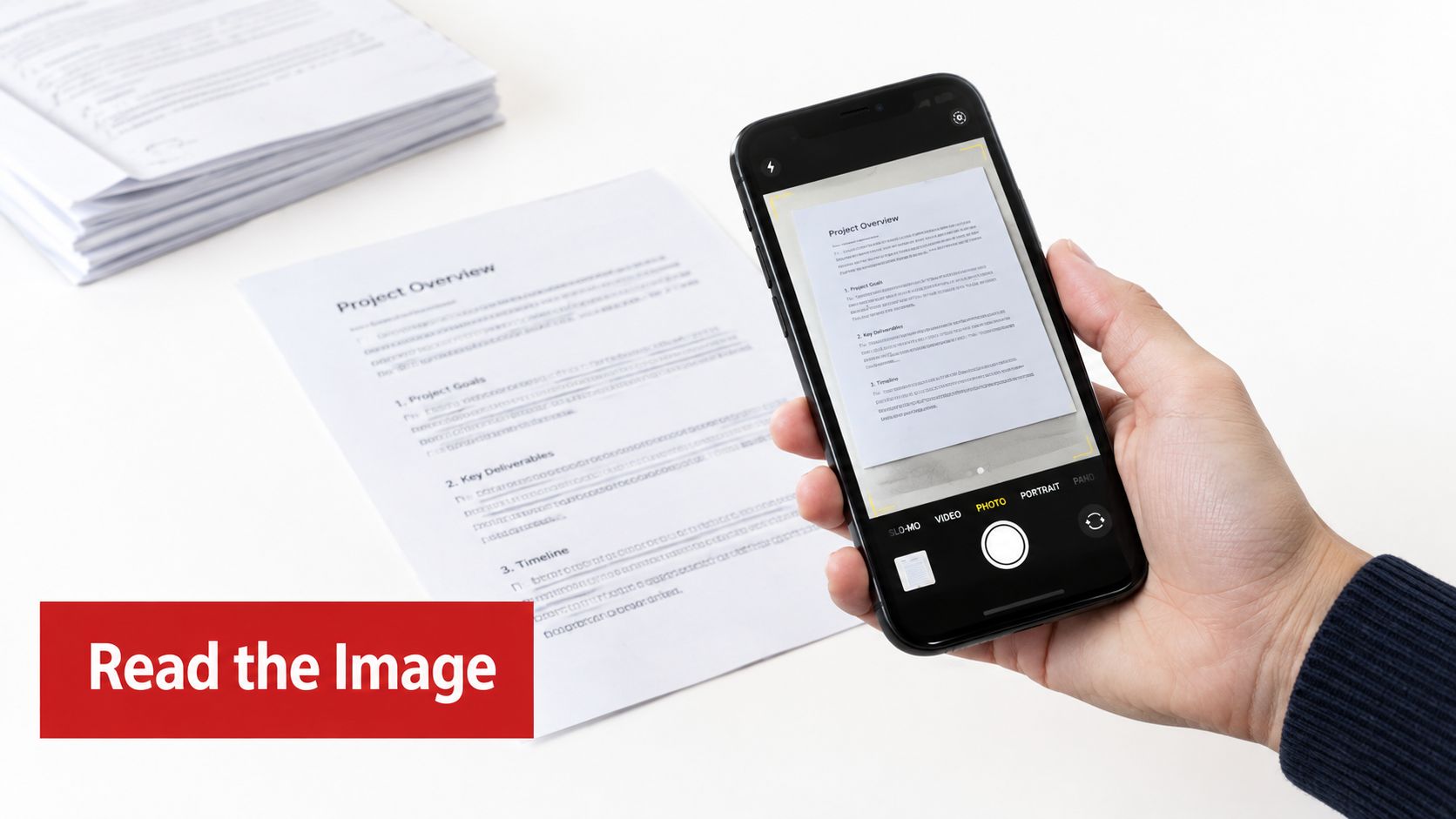
Scanned PDFs are where most conversion advice falls apart. If the PDF is only a picture of a page, there is no text layer for an editor to use. The system has to perform OCR, then rebuild the result into an editable document. That's a separate job with separate failure modes.
A University of Washington accessibility review identified 55,939 image PDFs that were scanned documents without OCR and therefore not searchable, and reported more than one million PDF accessibility issues, with approximately 6% severe, 58% major, and 37% minor. That's a strong reminder that image-only PDFs aren't just inconvenient. They create real barriers for search, editing, and assistive technology use, as shown in the University of Washington PDF accessibility report.
What OCR can recover, and what it can't
That same review cites a separate OCR evaluation with a 99.5% successful conversion rate, but the details matter. The reported average character error rate was 4.1% and word error rate was 13.7% for real-world scanned institutional documents after preprocessing. A document can count as successfully converted and still contain enough word-level errors to damage names, dates, figures, legal clauses, and tables.
This is why I don't treat OCR output as truth. I treat it as a first draft of the text.
A practical decision rule
Use this quick triage:
- Selectable text in the PDF. Open it in Google Docs first. You'll usually spend more time fixing layout than correcting text.
- Clean scan with readable print. Let Google Docs attempt extraction, then review aggressively.
- Low-quality scan, mixed languages, faint pages, handwriting, or annotations. OCR may still help, but expect heavier cleanup. In some cases, manual transcription is safer for critical sections.
- High-stakes document with tiny errors that matter. Don't rely on one-pass OCR alone.
A client-side workflow can also make sense when you want to avoid upload exposure while preparing a scan for editing. If you're working through that kind of file, this guide on how to edit a scanned document gives a useful overview of cleanup choices before and after OCR.
A scanned PDF that “looks readable” to a person can still be unreadable to software.
Accessibility isn't the same as editability
OCR can recover words. It does not automatically create semantic headings, image descriptions, or usable table structure. If the document needs to work with screen readers, conversion is only the midpoint. You still have to check reading order, heading levels, tables, image descriptions, language settings, and keyboard behavior. That distinction is emphasized in Toronto Metropolitan University's accessibility guidance on document remediation.
Rebuilding Layout, Tables, and Columns After Conversion
Google Docs is useful here because it gets you to editable text quickly. It is not a layout-preserving PDF engine. Google itself warns that formatting may not transfer reliably, and independent benchmark discussion identifies tables, columns, footnotes, endnotes, lists, and complex page structures as common failure points. The same benchmark discussion notes approximate average character or text accuracy around 94% for one cloud OCR system, 91% for DocTR, and 85% for Tesseract v4, while digitally created PDFs can approach 100% extraction accuracy when the text layer is intact. Those figures are benchmark-dependent, not guarantees for Google Docs, but they reinforce the same point: you still need acceptance checks for the documents that matter, as discussed in the OCR benchmark analysis on arXiv.
Repair in the order errors usually appear
If you clean the document in the wrong order, you'll redo work. The sequence that saves time is:
- Reading order. Make sure text flows in the correct sequence.
- Paragraph boundaries and headings. Fix merged paragraphs, broken headings, and list restarts.
- Tables and columns. Rebuild structure once the text is in the right order.
- Page breaks and peripheral elements. Then handle headers, footers, superscripts, symbols, and spacing.
Visual similarity can fool you. A page can look close to the original and still contain the wrong reading order or broken table logic.
Common Layout Failures and the Fix That Restores Them
| Layout Element | What Usually Breaks | Rebuild Step in Google Docs |
|---|---|---|
| Single-column body text | Paragraphs merge or split oddly | Reinsert paragraph breaks, then apply heading and body styles consistently |
| Multi-column sections | Text reads left to right across columns instead of top to bottom | Separate the text manually into the intended sequence before reformatting |
| Tables | Rows flatten into paragraphs or cells shift | Insert a fresh table and paste values cell by cell, checking every row |
| Headers and footers | They appear in the main body text | Cut them out of body flow and recreate them in the header or footer area |
| Footnotes and endnotes | Notes detach from references | Reconnect note markers manually and verify numbering |
| Superscripts and symbols | Characters normalize into plain text | Reapply superscript formatting and compare specialized symbols against the PDF |
For a broader explanation of what editable PDF work does and doesn't preserve, this guide on whether you can edit PDF files helps frame the trade-off correctly.
Acceptance tests for serious documents
For contracts, invoices, filings, coursework, and policy documents, use stricter checks than “looks okay.”
- Zero tolerance fields. Monetary values, dates, names, IDs, and legal citations need exact matches.
- Manual table review. Every table row should be checked against the source PDF.
- Paragraph compare. Review at least one key page side by side with the original before export.
Keep the original PDF as the authoritative copy. Treat the Google document as an editable working file, not proof that the reconstructed layout is correct.
Privacy, File Size, and When to Stay Out of the Cloud
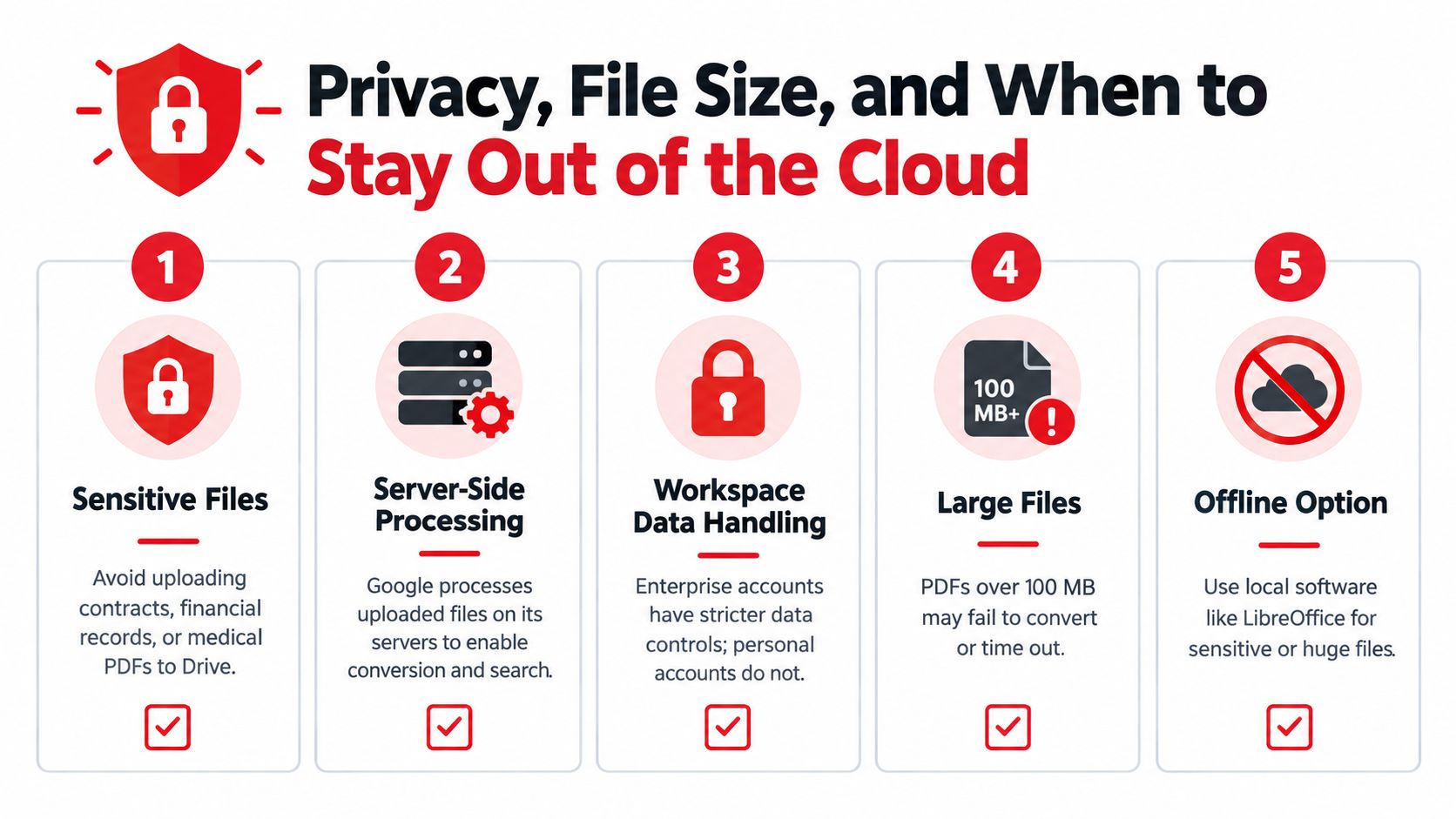
Uploading a PDF to Google Drive is convenient, but it changes how the file is handled. You must decide who controls the account, who can access the converted copy, and whether your organisation permits cloud processing for that document.
Google states that Workspace files are stored in its data centres and that Workspace customer data is not used to train underlying generative-AI models outside Workspace without permission, as explained in Google Workspace AI privacy and data handling documentation. That addresses one part of the privacy question. Access settings, retention, account ownership, and deletion still require an operational decision.
A short pre-upload checklist
Before opening the file in Google Docs, check:
- Document sensitivity. Does the PDF contain student records, HR files, legal exhibits, or medical information?
- Account ownership. Is it going into the correct managed organisational account rather than a personal one?
- Sharing scope. Could the converted document receive broader access than the source file?
- Retention and disposal. Must temporary copies be deleted after export?
- Verification trail. Can you retain the original PDF for comparison if the conversion is challenged?
Your document-handling policy should define the answer for regulated or confidential files. These practical cloud security best practices provide a useful companion when setting those rules.
When local processing makes more sense
Sensitive or policy-restricted files may be better handled by a browser tool that processes documents on the device, reducing upload exposure. PDFWix is one example. 22 of 24 tools run entirely in the browser via WebAssembly, with no account required, no daily task limits, and no watermarks. Its Protect PDF and Access PDF functions run server-side in memory only. These details do not remove the need to review your organisation's policy, but they provide another workflow when cloud upload creates too much exposure.
File size also affects the decision. Large PDFs, image-heavy documents, and scans can take longer to upload and may produce a less predictable reconstruction. If the conversion is routine and the document is suitable for cloud processing, Google Docs may be practical. If confidentiality, upload restrictions, or file handling rules take priority, keep processing local.
For privacy-focused decision-making, this guide to whether online PDF tools are safe outlines the questions to ask before submitting a document.
The decision usually involves more than “Can this PDF be converted?” Ask where it is processed, who controls access, and how the working copy will be disposed of afterward.
Choosing the Right Conversion Path and Verifying the Result
The fastest reliable decision comes down to three variables: what kind of PDF you have, how sensitive it is, and where it can be processed.
If the PDF contains selectable text and the document isn't unusually sensitive, Google Docs is a practical path for quick editing and collaboration. If the file is scanned or image-only, expect OCR errors and plan a more careful review. If the document is confidential or policy-restricted, a client-side workflow may be the safer choice. And if the original is legally or operationally important, keep the PDF as the source of record no matter which route you choose.
For a concise walkthrough of the broader conversion logic, this guide on how to convert a PDF to a Word document is a useful companion.
Before you send the DOCX, do three checks every time:
- Spot-check headings, names, dates, and numbers
- Compare one key page side by side with the original PDF
- Open the exported file in Microsoft Word, not just in a preview, and confirm it behaves like a normal editable document
If you handle PDF cleanup often, PDFWix gives you a browser-based set of PDF tools that fits this workflow, especially when you need to prepare files, convert them, or avoid unnecessary uploads for routine document work. Use Google Docs when collaboration is the priority, then keep PDFWix in the workflow when you need tighter control over preprocessing, privacy, or the handoff from PDF to an editable Word draft.