
You're ten minutes from sending a contract, a coursework packet, or a client proposal. The Word file still looks right on your screen. Pagination holds, the table sits where you left it, and the bold lines look like headings. Then you export, and the PDF that lands in someone else's inbox is a different document underneath. Text won't select cleanly. A heading that only looked bold isn't a heading. A link that worked in Word goes nowhere.
That gap is why a convert word doc to pdf job fails people who only glance at the page. Word is built for continued editing, so it can reflow when the version, operating system, or printer changes. PDF is built as a finished, page-oriented file. If you only check how the page looks, you can ship a file that opens fine and still breaks search, copy-paste, or a screen reader.
Table of Contents
- Choosing the Right Way to Convert a Word Document
- Preparing Your Word File Before Exporting
- Saving Word as PDF Natively in Microsoft Word
- Converting Word to PDF in Your Browser with PDFWix
- Keeping Fonts, Links, and Accessibility Tags Intact
- Settings and Batch Options for Quality and File Size
- Final Checks and Your Next Conversion
Choosing the Right Way to Convert a Word Document
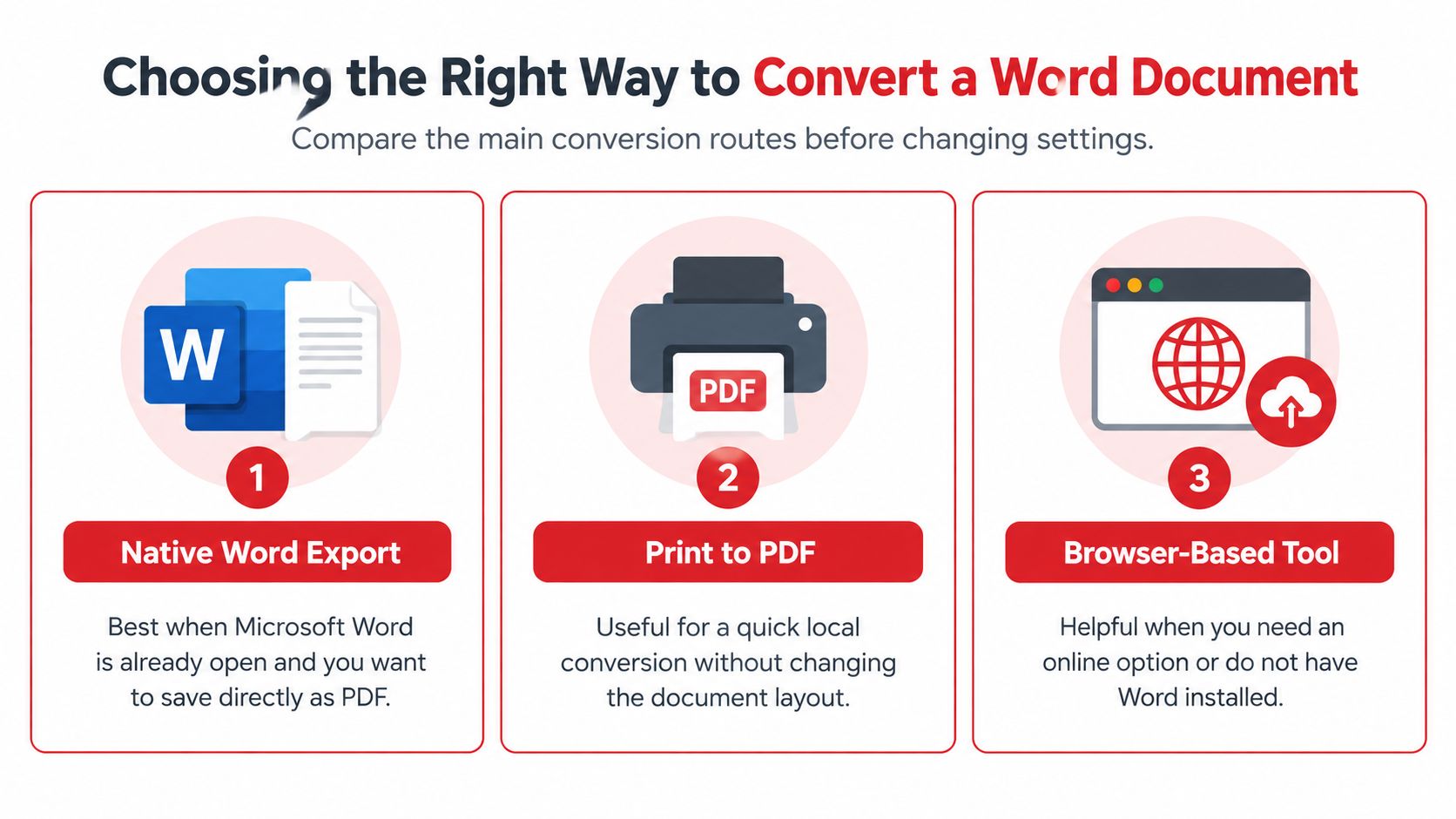
Pick the route before you touch a setting. The file type, who can see the document, and whether a screen reader has to work with it all point to a different method.
Adobe created PDF in the early 1990s so a document would keep its appearance no matter which software, hardware, or operating system opened it. Adobe published the specification in 1993, and the format stayed proprietary for roughly 15 years. On July 1, 2008, PDF 1.7 became ISO 32000-1:2008, the first ISO standard for the full-function format. Later, PDF 2.0 continued under ISO as ISO 32000-2. A conversion doesn't rename a .docx. It builds a portable page that carries text, fonts, vector graphics, raster images, links, bookmarks, and annotations. PDF 1.3, released in 2000, added an underlying logical structure. PDF 1.4, released in 2001, introduced tagged PDF, so assistive technology can follow the content instead of guessing from the paint on the page.
Match the route to the file
| Route | Use it when | Watch for |
|---|---|---|
| Native Word export | Word is already open and the file uses real styles | You still have to turn structure tags on |
| Print to PDF | You need a quick local snapshot of a simple page | Semantic structure can disappear |
| Browser-based conversion | You're on a shared PC, a Chromebook, or a phone, or Word isn't installed | You still verify tags, links, and fonts after download |
Print to PDF is the risky shortcut on structured files. That path can drop the semantic work you did in Word and scramble table reading order. A one-page flyer may survive it. A contract, a form, or a graded packet often won't.
Practical rule: If a person, a court, or a campus system has to read the file with assistive technology, don't print to PDF. Export with structure tags, then test the tags.
Teams that convert the same packet every week get fewer surprises when the route is a written step, not a last-minute click. The IamVera.AI workflow automation guide is a useful companion when those repeats should live in a documented workflow rather than in one person's memory.
If the file has to live for years, or a regulator named a profile, the choice isn't only "which button." You also need to know how PDF, PDF/A, and PDF/X differ before you lock settings. After any route, compare page count, headings, tables, links, and image placement against the Word file. A PDF that opens is not the same thing as a PDF that kept its structure.
Preparing Your Word File Before Exporting
Most broken PDFs start as messy Word files. Cleanup on the source is faster than repairing tags after the export.
Fix structure before you export
Microsoft's accessibility method treats the Word file and the PDF as two jobs. Conversion can keep semantic structure or lose it. PDF/UA tags carry that structure, and decorative objects should stay out of the reading sequence. Microsoft's guidance on accessible Word-to-PDF files is explicit that authoring the accessible document comes first.
Work through the source in this order.
- Use built-in heading styles. A contract often has lines that were bolded and enlarged by hand. They look like headings on the page. They aren't headings in the document tree, so the PDF won't offer them as navigation. Apply Heading 1, Heading 2, and Heading 3, and keep the levels in order.
- Write real alternative text for informative images, charts, and logos that carry meaning. "Image1" doesn't help anyone. Mark purely decorative shapes as artifacts so they drop out of the reading sequence.
- Check tables as tables. Header cells should be real header cells. Merged cells, nested tables, and text sitting in a floating box are common reasons a later tag check fails. Read the table in the order a screen reader will hit the cells, not the order that looks tidy on the page.
- Accept or reject tracked changes, then delete comments. Reviewer notes that stay in the file can show up for the recipient, or they can disturb what gets exported.
A styled fake heading is the failure I see most on contracts. The page is handsome. The PDF has no heading for anyone to jump to.
Fonts are part of this pass, not a later surprise. If the machine doing the export doesn't have the typeface, Word substitutes, and the line breaks move. When a face is missing, install fonts for Microsoft Word on that device before you export, and confirm the face still resolves after you reopen the file.
Language, links, and leftovers deserve a last look. Set the document language. Click each hyperlink. Remove empty paragraphs you used for spacing, because those become noise in the reading order. Run Word's Accessibility Checker while the file is still editable. It is the fastest first pass before you generate a PDF, and it will flag missing alt text and skipped heading levels while you can still fix them in the source.
Keep that .docx. The PDF is the copy you send. The Word file is the copy you can still repair.
Saving Word as PDF Natively in Microsoft Word
When Word is already open and the source is clean, native export is the shortest path. Nothing has to leave the machine.
The feature itself is newer than many assume. Microsoft documents that Word 2007 could not save directly to PDF until the 2007 Office Suite Service Pack 2. Before that, people needed a separate Save as PDF or XPS add-in. The same service pack added built-in Save As PDF/XPS for Word, Excel, and PowerPoint, which is laid out in the Office 2007 resource kit note on PDF support). That update turned a fixed-layout copy into a normal office output for submission, printing, sharing, and archival, instead of a job for separate publishing software.
Options that change the PDF
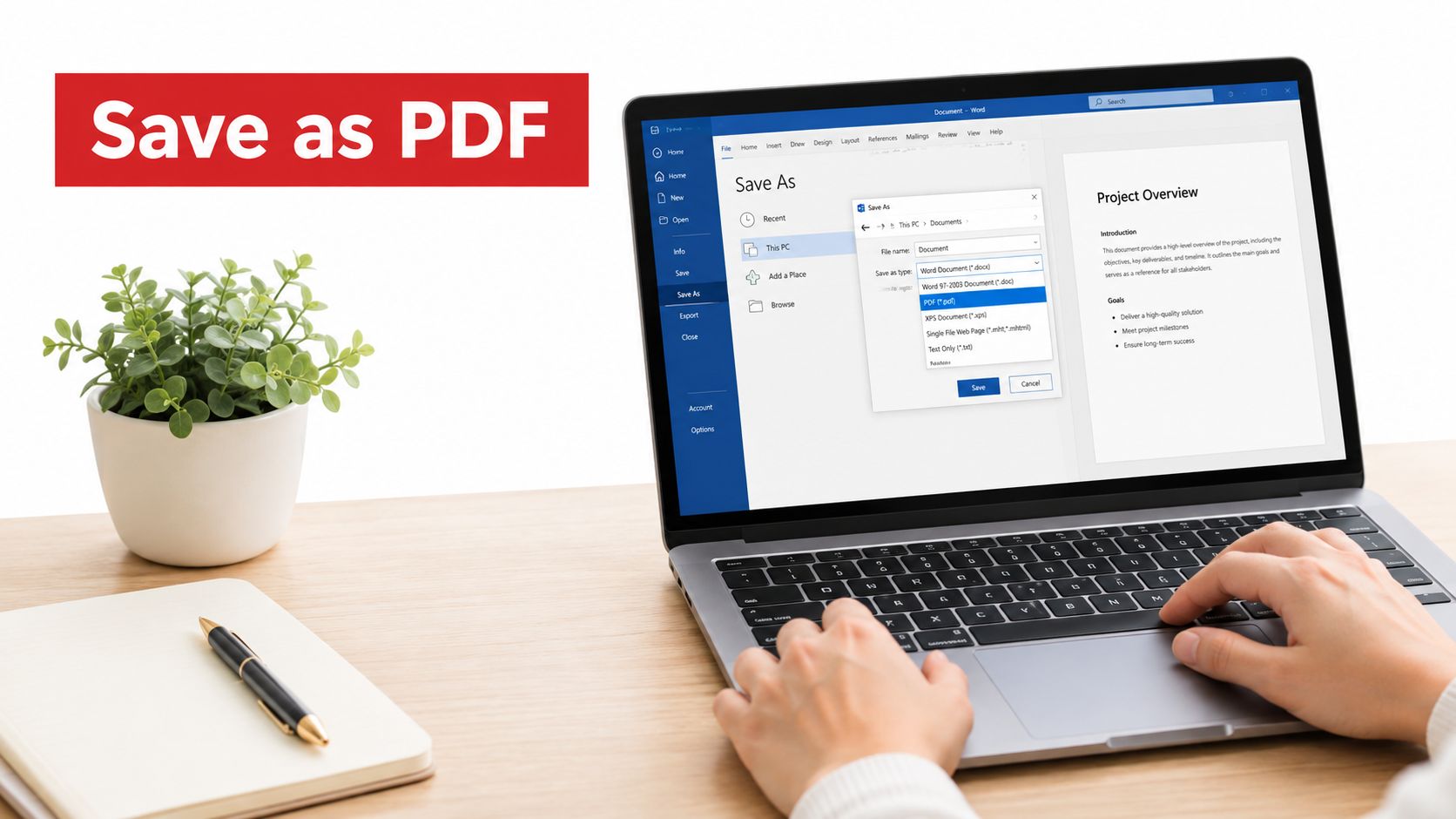
On current desktop Word, open File, then Save As or Export, and choose PDF. Don't stop at the file type. Open Options before you publish.
- Document structure tags for accessibility: Turn this on. Texas A&M's 2025–2026 guidance says you must enable "Document structure tags for accessibility" or the PDF can become a flat, inaccessible file, which is spelled out in the Texas A&M Word accessibility guide. Tags are what let a screen reader follow headings, lists, and tables.
- Standard versus minimum size: Standard favors print and on-screen fidelity. Minimum size squeezes images for email or the web, and you can see softer photos and logos. For a filing, a graded packet, or a proposal, stay on standard unless someone asked for a smaller file.
- Page range and markup: Export the pages you mean to send. Leave markup out unless the recipient is supposed to see comments.
- Bookmarks from headings: Useful on long reports, and only if you used heading styles in the source.
Save As is the fast path for a clean fixed copy. Export is the path with the publishing controls, including the tags option. For coursework and internal forms, either works once that tags box is checked and you've kept the .docx beside the PDF.
After the save, open the PDF yourself. Don't trust the success dialog. Select a paragraph, click two links, and confirm the page count matches Word. If you used minimum size, look at the images at 100 percent zoom before you send the file.
Converting Word to PDF in Your Browser with PDFWix
A freelancer I worked with had the proposal finished and ten minutes left. The laptop was a borrowed Chromebook. Word wasn't installed, and uploading the draft to a random site felt wrong because the pricing table wasn't public yet.
A browser converter fits that moment. You upload the .docx, run the conversion, and download the PDF. PDFWix does that job without an account and without a daily task cap, and the file comes back without a watermark. That last point matters on proposals and invoices. A branded banner across a fee table looks careless to a client.
What stays on the device
Privacy is the reason to pick this route over a server upload. 22 of PDFWix's 24 tools run entirely in the browser through WebAssembly, so those files stay on the device. You aren't installing an application for a one-off conversion, and the same flow works on a shared computer or a phone browser.
The steps are short.
- Upload the DOCX from the device, or drop it in.
- Run the conversion and wait for the fixed-layout PDF.
- Download the result and leave the Word file where it was.
No account also means you aren't building a login just to finish a Friday send. If you're unsure what "in the browser" covers, read whether online PDF tools keep files on your device before you drop a privileged contract into any site.
This route doesn't replace the source cleanup. A browser export won't invent heading styles you skipped, and it won't write alt text you left blank. Treat the download as the start of the check, not the end. Open the PDF, select a sentence from the pricing table, and confirm the page breaks still match the Word original. If a font substituted, fix the face in Word and run the file again. Keep the .docx as the master. The PDF is what you attach.
For a one-page note, this is enough. For a proposal with tables and links, move straight into the checks in the next section before you hit send.
Keeping Fonts, Links, and Accessibility Tags Intact
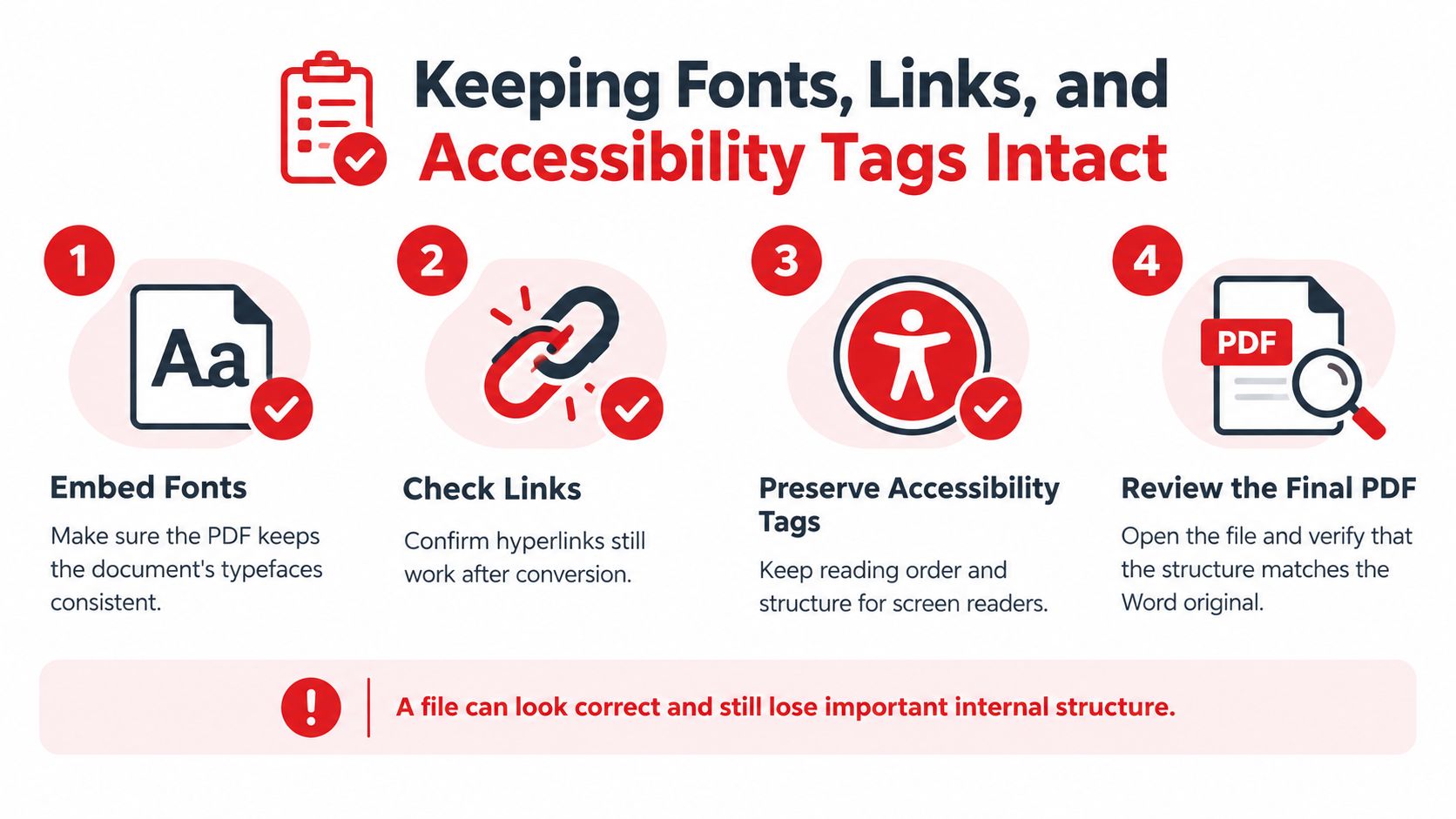
A PDF can match the Word page pixel for pixel and still be damaged underneath. That's the failure mode on legal exhibits, academic submissions, and forms. Visual inspection doesn't catch it.
Microsoft Community reports on this mismatch call out missing table tags, plus trouble from floating objects, text boxes, merged cells, and nonstandard tables. The thread on why visual tags don't match the tags panel is a useful reminder that the page and the tag tree are different layers. Results can also differ between Word's built-in Save as PDF flow and a separate desktop PDF plug-in, especially on custom heading styles, tables, and reading order. If one export looks tagged and another doesn't, don't average them. Re-export from the path that kept the structure, or fix the source and run it again.
Four checks that catch a pretty failure
Text selection and search. Drag across a paragraph. If you get an image instead of characters, the words were flattened. Search for a rare phrase from the Word file. No hit means the text isn't really text, and a later reader can't copy a clause or find a name.
Heading and table tags. Open the tag tree, or use a checker that lists structure. A heading should be a heading tag, not a styled paragraph. A table should be a table, with header cells marked. Untagged tables and text baked into images are classic misses. So is missing document language.
Reading order. Tab through the file and listen with a screen reader if you have one. Order should follow the meaning, not the order objects were drawn. Floating boxes often get read too early or too late. Keyboard access is part of this pass, not a nice extra.
Links, fonts, and page breaks. Click every hyperlink, including cross-references and email addresses. Compare fonts and page breaks to the .docx. A substituted face can push a signature block onto a new page. If licensing allows, the export should embed the fonts you intend to keep.
A file can look correct and still lose the internal structure a screen reader needs.
Call the conversion a failure if legally or operationally important content moves, vanishes, stops being searchable, or fails an accessibility review. Opening the file doesn't count as a pass. When you need the longer checklist, use a guide to tagged PDF structure and screen-reader checks. Automated rules still can't tell you whether alt text is actually meaningful. That part stays a human read.
Settings and Batch Options for Quality and File Size
One careful export doesn't scale. Font embedding, a fixed page size, and stable margins are what make the same PDF behave on a second computer. Change any of those mid-batch and page geometry drifts.
A two-pass archival routine
For archival or regulated output, don't treat a successful export as proof of conformance. Use two passes.
Pass one converts the DOCX with fonts embedded where the license allows, fixed page dimensions, stable margins, and the same renderer every time. Don't mix "whatever the default was that day."
Pass two validates the file against the exact profile you were asked for, such as PDF/A-1b, PDF/A-2b, or PDF/A-2u. NASA's PDF/A guidelines identify veraPDF as a validator for PDF/A profiles and note that Office can export PDF/A-1b. veraPDF turns each applicable mandatory requirement into rules and reports passed and failed checks, so the result is auditable.
The sequence is concrete. Embed or substitute fonts on purpose, export, reopen the PDF on a second system, confirm selectable text and page geometry, inspect metadata and embedded resources, run the validator, and archive the PDF with the validation report. A file-open test is not a conversion success rate. The PDF can open and still fail the profile.
Typical breaks are missing fonts, transparency or encryption the profile doesn't allow, bad metadata, and resources that were never embedded. PDF/A-1b is visual preservation. PDF/A-1a adds semantic accessibility. Mixing those labels up is how a "we archived it" folder fails a later audit.
A batch you can repeat
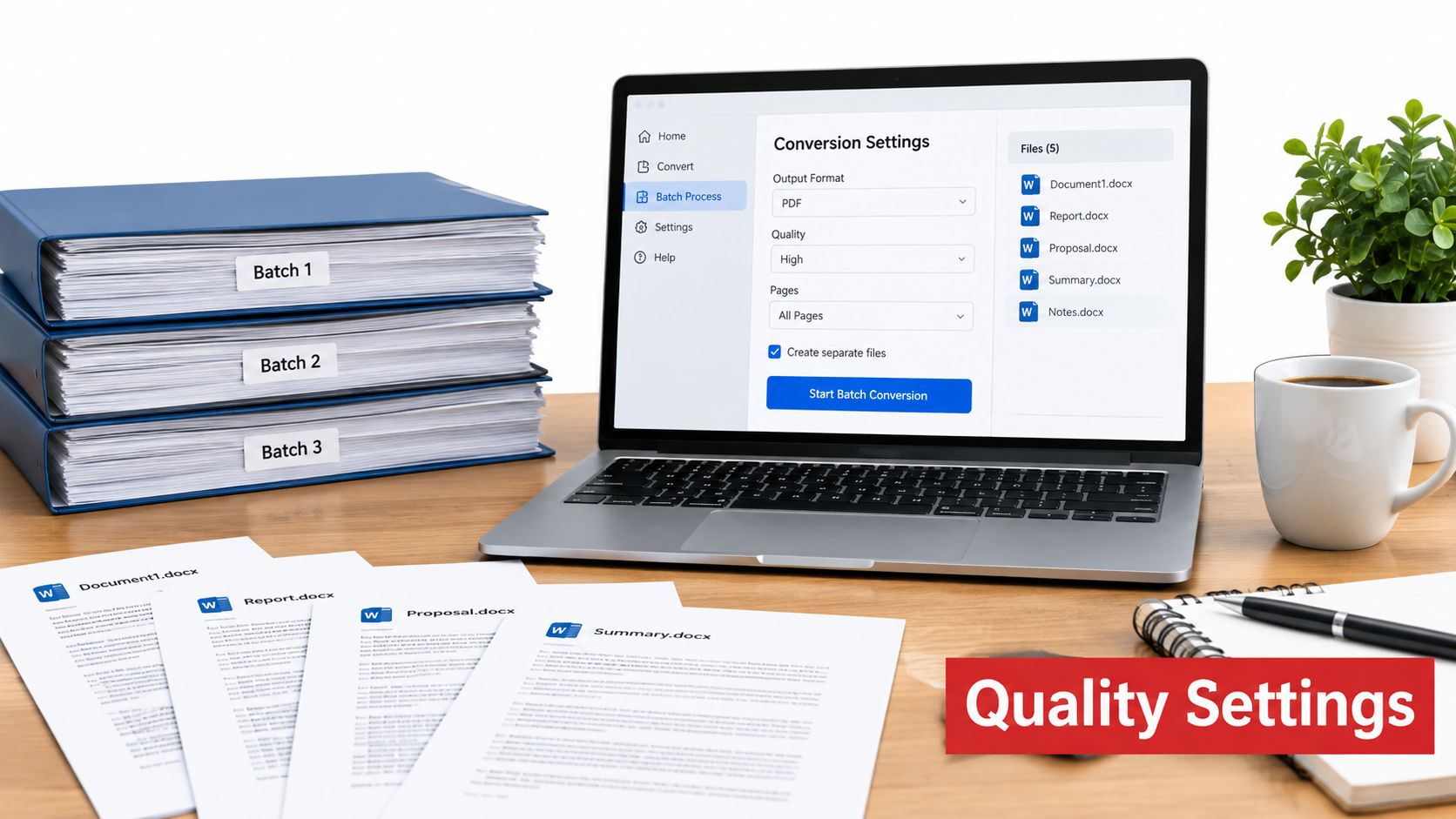
A teacher with thirty submissions, or an HR team packing onboarding packets, needs a routine more than a new button.
- One settings profile for the whole set. Same page size, same optimization, same tags choice. Standard quality unless the packet is image-heavy and someone set a size limit.
- Names that match the source. Keep the original filename and add the date or version so the
.docxand the PDF stay paired. - A sample check, not a full re-read of all thirty. Open the first file, the last file, and one with tables or images. Run the text, tag, and link checks on that sample. If the sample fails, stop the batch and fix the shared settings.
- Store the report with the file when the profile is archival. The PDF alone doesn't prove the check.
Smaller files come from image compression and from dropping unused embedded data, not from stripping tags. If you need the size concepts before you squeeze a packet, read what an optimized PDF actually changes. Shrink the pictures. Leave the structure alone.
Final Checks and Your Next Conversion
You don't need to reread every setting before the next send. You need a short habit.
Choose the route for this file. Native export when Word is open and the document is structured. A browser conversion when Word isn't available or the file shouldn't go through a heavy install. Print to PDF only for a simple visual snapshot you won't need to move through.
Clean the source first. Real heading styles, alt text, honest tables, no leftover comments. Set the language. Keep the .docx as the master.
Check structure after, not just the picture. Select text, search a phrase, confirm heading and table tags, walk the reading order, click the links. If something important moved or went silent, reconvert. Don't send the pretty failure.
Lock settings when the volume grows. One profile, paired filenames, a three-file sample, and a note or validation report stored with anything that has to last.
That note can be a single line in the folder. Method, date, and whether tags and links were checked. The next person who opens the packet won't have to guess.
When the editable copy is what you need back, conversion runs the other way too. A practical walkthrough of turning a PDF back into a Word document belongs next to this habit, because the PDF you send should never be the only file you can still edit.
Take one real document you still have as a .docx. Run it through the route you picked above. Then compare the PDF to the Word original with the four checks. Text, tags, reading order, links. If all four hold, you've got a sendable file and a routine you can reuse on the next one.
PDFWix converts a Word file to PDF in the browser, with no account, no watermark, and no daily cap, so a proposal or filing can stay a fixed-layout PDF without a surprise banner. Use it when you want the conversion on your own device, then run the tag, link, and reading-order checks from this guide before you send. Open PDFWix and convert the document you need to ship.