
You've exported a gradebook, an invoice batch, or a set of legal records, and the XML opens as a screen full of tags. Printing it doesn't produce the document you need. Even when the PDF looks respectable, a missing character, a split evidence table, or an unexpected upload can make it unsuitable for sharing.
To convert XML files to PDF reliably, choose the rendering route before writing code or uploading anything. Decide what matters most: a readable copy, repeatable pagination, accessible output, or keeping sensitive records inside your organization.
Table of Contents
- Why XML Needs a Rendering Step Before It Becomes a PDF
- Quick Browser Method from XML to HTML to Print
- Building an XSL-FO Pipeline with Apache FOP
- Converting Through HTML with Pandoc or wkhtmltopdf
- Programmatic Conversion in Java, .NET, and Python
- Choosing Online Converters Without Sacrificing Privacy
- Fixing Common Problems and Speeding Up Conversions
Why XML Needs a Rendering Step Before It Becomes a PDF
XML describes what information means. PDF captures how that information appears on pages. Changing the extension won't bridge that gap.
An XML element might identify a student's name, an invoice line, or a filing date. It doesn't necessarily specify a font, column width, or where that information belongs on a printed sheet. Those decisions need presentation rules.
The W3C's XML history describes XML's development as a structured document technology, with XML becoming a formal Recommendation in February 1998. Its purpose explains why conversion depends on the document's vocabulary and transformation rules, not its filename.
Inspect the export before choosing a route
Open the XML in a text editor and examine its structure. Don't begin by trying different converters until something produces a PDF.
- Vocabulary and schema: Identify the root element and any schema references. A stylesheet written for invoices won't understand a gradebook export.
- Namespaces: Check namespace declarations. They affect how transformation rules select elements.
- Encoding: Confirm that the declared character encoding matches the actual file.
- Existing stylesheets: Look for a stylesheet reference and check whether the referenced file is available.
- Required content: Identify attachments, notes, identifiers, and optional fields that must survive conversion.
For example, an invoice export may contain both a customer-facing description and an internal accounting code. Someone must decide whether both belong in the PDF. A generic print operation can't make that business decision reliably.
Choose by the output requirement
| Your requirement | Sensible starting route |
|---|---|
| A readable copy of a straightforward document | Styled HTML and browser printing |
| Repeatable reports with controlled page boundaries | A dedicated paginated formatting pipeline |
| Documents generated inside an application | A transformation layer connected to a renderer |
| Sensitive records with restricted handling | An approved local workflow |
Practical rule: Choose the route by the hardest requirement, not the easiest sample file.
Also decide whether you're distributing a working document or preserving an official record. The Library of Congress explains PDF's archival standards, including PDF/A's preservation purpose. Ordinary PDF output shouldn't be treated as archival conformance without a separate check.
Quick Browser Method from XML to HTML to Print
For a teacher preparing a parent meeting, a carefully checked browser print may be enough. The task is to produce a readable grade report, not build a document-generation system. Treat this as an illustrative workflow, not a guarantee that every gradebook export will print correctly.
Start with a working copy of the XML. Keep the original unchanged so you can compare the result against the export.
Turn the data into a readable page
- Check for a stylesheet: Look near the beginning of the file for a stylesheet instruction. Confirm that its target exists and is intended to produce a readable document.
- Open and inspect: If the browser displays raw tags, a document tree, or an error, you haven't reached a printable presentation.
- Create HTML when necessary: Apply a suitable transformation outside the browser if its stylesheet handling is unavailable or inconsistent.
- Review the content: Check names, labels, notes, and totals before opening print preview.
Browser support and local-file restrictions vary. If a linked stylesheet doesn't load, don't keep changing print settings. Produce an HTML file first, then open that file.
Check the printed page rather than the screen
Select the intended paper size and orientation. Adjust margins so the content fits without shrinking text into an unreadable report. Inspect background graphics if shading distinguishes totals or categories.
Browser-added headers and footers can introduce unwanted dates, filenames, or document locations. Disable them when they aren't appropriate, especially if a local path contains sensitive information.
A clean browser view isn't a print proof. Review the preview through the final page.
For the teacher's report, compare the student's name, subject labels, comments, and final entries against the XML. Make sure the report includes only the intended student's information.
This shortcut becomes less attractive when colleagues must repeat it consistently. Manual print settings are easy to change and hard to audit. Use it for a controlled, occasional document, not as an untested batch process for a school's records.
Building an XSL-FO Pipeline with Apache FOP
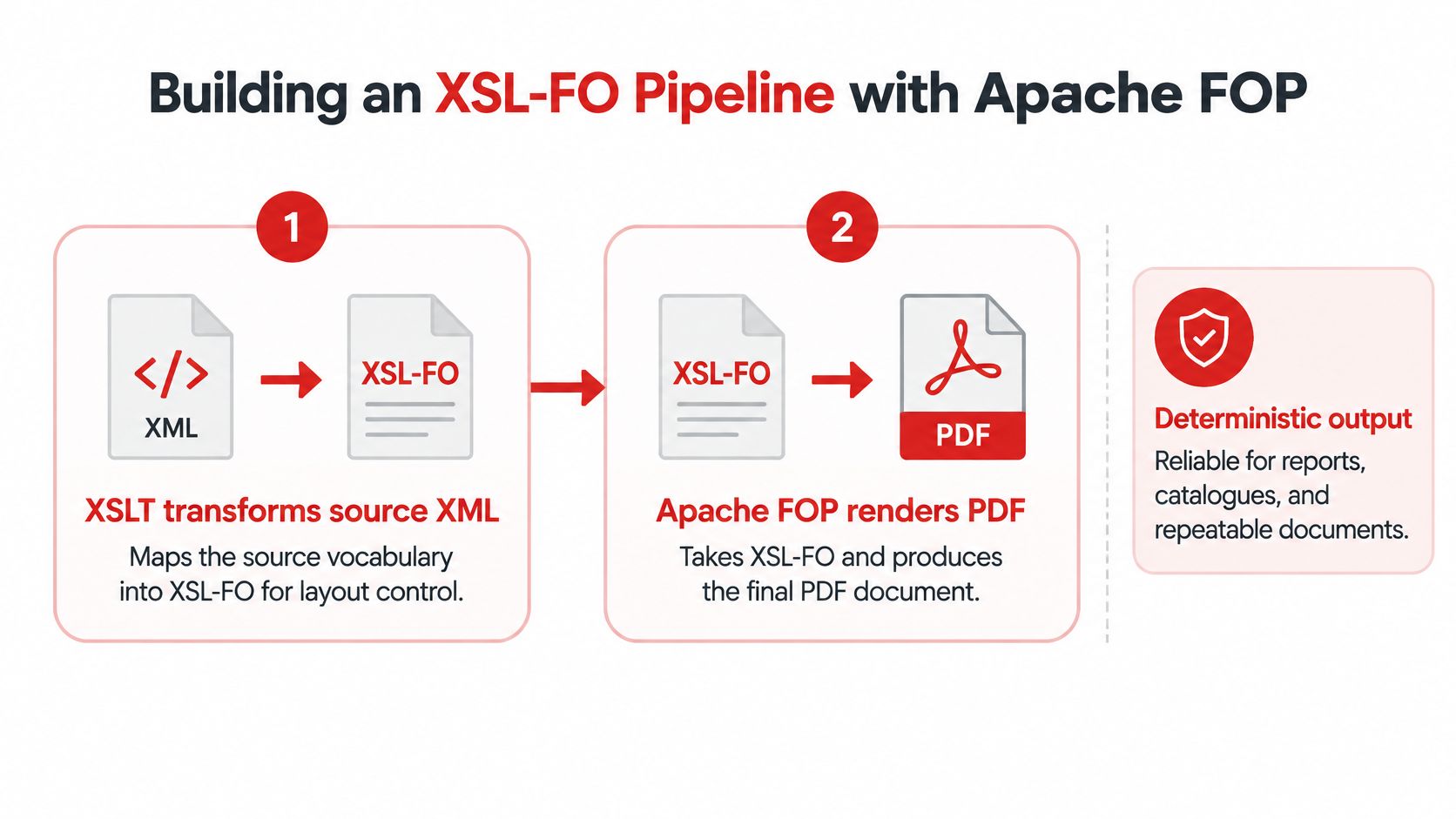
For repeatable reports, use a transformation stage followed by a dedicated formatting stage. XSLT selects and restructures the source content. XSL-FO describes the paginated document. The formatter then produces the PDF.
The W3C's explanation of XSL-FO describes this separation between transformation and formatting. It lets you investigate missing data separately from layout failures.
Map the document deliberately
Consider an illustrative invoice whose root element contains a customer name and repeating line items. Your stylesheet needs a page template, static header and footer regions, and a flowing body.
| Formatting element | Responsibility |
|---|---|
fo:simple-page-master |
Establish the page dimensions and margins |
fo:region-before |
Reserve space for the header |
fo:region-body |
Hold the flowing invoice content |
fo:region-after |
Reserve space for the footer |
fo:table |
Arrange invoice items into columns |
fo:page-number |
Insert the current page number |
A small mapping might place
These are template fragments, not a complete stylesheet. The surrounding document still needs its stylesheet declaration, namespace bindings, root template, page-master definition, and page sequence.
Keep source paths explicit. If the invoice uses a default namespace, bind that namespace to a stylesheet prefix and use the prefix in XPath expressions. Otherwise, a transformation can finish without selecting the expected content.
Run and inspect each stage
Install an approved formatter distribution and its required runtime. Configure a controlled working directory, font configuration, and output location before connecting the process to production data.
For the formatter named in this heading, an illustrative separated command sequence is fop -xml invoice.xml -xsl invoice.xsl -foout invoice.fo, followed by fop -fo invoice.fo -pdf invoice.pdf. Confirm the available options against the installed release.
Keeping the intermediate FO file makes debugging easier. If a customer name is missing there, investigate the transformation. If it's present there but absent from the PDF, investigate formatting and rendering.
- Validate input: Reject malformed XML and unexpected document structures.
- Inspect generated FO: Check required content, region names, and table structure.
- Review renderer messages: Treat overflow and font warnings as defects to investigate.
- Compare output: Use an approved reference PDF and representative edge cases.
Build automation and graphics processing can surround this pipeline, but neither should obscure those checks. Start with a transparent conversion before adding orchestration.
Set page dimensions in the template whenever possible. A downstream PDF page-size adjustment can help with an existing document, but it won't repair an upstream layout designed for the wrong page geometry.
Converting Through HTML with Pandoc or wkhtmltopdf
An HTML intermediate is useful when you need both a web view and a printable document. It also lets a team work with familiar styling rather than a dedicated page-description vocabulary.
The trade-off is control. A page that flows comfortably on screen may need substantially different rules when divided into printed sheets.
Preserve meaning during transformation
Don't assume an arbitrary XML vocabulary can be handed directly to a document converter. Map it into supported, meaningful HTML first.
For the illustrative invoice, a customer heading can use
Include the appropriate stylesheet declarations and root template around those fragments. Add explicit labels for amounts and identifiers rather than relying on their position alone.
- Keep semantics: Map headings to headings and tabular relationships to tables.
- Separate presentation: Put print-specific styling in a print stylesheet.
- Retain required data: Don't discard notes or metadata merely because the first screen design has nowhere to display them.
An HTML renderer then consumes the generated file. For the command-line renderer named in this heading, the basic invocation is wkhtmltopdf invoice.html invoice.pdf. Treat that as a starting command, not evidence that its output meets your requirements.
Choose flow or precise pagination
A structured-document converter can be useful when the input already matches a supported document model. It isn't a substitute for understanding your XML schema.
The XML.com discussion of XSL-FO workflows explains the limitation of a generic XML-to-XHTML-to-formatting route: the intermediate representation can omit information needed for publishing-quality output.
Use HTML when the document mostly needs flowing text, straightforward tables, and familiar styling. Prefer the dedicated formatting route when exact pagination and complex print behavior are central acceptance criteria.
A practical HTML-to-PDF implementation guide can help with the rendering stage. Still inspect the generated HTML first. No renderer can recover a field that the transformation already dropped.
Programmatic Conversion in Java, .NET, and Python
Application integration should preserve the same boundary: transform content, then render the document. Keep those operations independently testable, even when the application connects them without an intermediate file.
Keep the application boundary narrow
A managed-runtime implementation needs an XML transformation component, a PDF formatter, and controlled font resources. Feed transformation events directly to the formatter when the integration supports it.
An illustrative event-based transformation call is transformer.transform(xmlSource, new SAXResult(formatterHandler));. The surrounding application must configure the formatter handler for PDF output, provide its destination stream, and close that stream reliably.
For another managed application stack, the equivalent shape is compiledTransform.Transform(inputReader, null, foWriter);, followed by a renderer that reads the resulting FO. This explicitly separates stylesheet execution from PDF generation.
A scripting implementation can follow fo = compiled_transform(xml_tree), write the result to a temporary FO file, and launch the approved renderer with that file. This is straightforward to diagnose, although the XML tree and transformation result may still occupy memory.
These examples show integration boundaries rather than complete applications. The actual dependencies must match the selected runtime and rendering library.
- Stream the final output: Write PDF bytes to a file or response stream rather than accumulating a large encoded string.
- Bound resource use: Limit concurrent jobs and reject inputs outside your supported envelope.
- Handle errors at each boundary: Distinguish parsing, transformation, rendering, and output-write failures.
- Publish only completed files: Write to a temporary destination and release the result after validation.
Streaming output doesn't automatically make the whole pipeline streaming. A transformation engine may still build a complete source tree.
Treat accessibility as an output requirement
A visually correct document can still have an unusable reading order. The W3C's PDF accessibility notes explain the importance of tagged logical structure independent of visual appearance.
Map headings, lists, table relationships, language information, and alternative text deliberately. XML element names don't automatically become useful PDF tags. WCAG accessibility outcomes and PDF/UA structural conformance also require distinct evaluation.
Use a PDF accessibility checklist to define acceptance criteria before selecting a renderer. Verify its tagging capabilities, font support, and licensing terms before shipping. Successful conversion is not proof of accessibility or legal suitability.
Choosing Online Converters Without Sacrificing Privacy
A legal export may contain privileged notes. A staff document may include personal identifiers. Before using an online conversion workflow, establish where the content goes, including its intermediate HTML and supporting resources.
A browser interface doesn't answer that question. Processing may happen on the device, on a remote server, or through a combination of both.
Compare the handling model
| Processing model | What to establish before using it |
|---|---|
| Remote conversion | Upload destination, retention, deletion, access controls, and processing terms |
| In-browser conversion | Whether document contents remain local and whether external resources are requested |
| Local application | Temporary-file locations, logging behavior, permissions, and cleanup |
HTTPS protects transport. It doesn't tell you how long an operator retains an uploaded file. Likewise, local processing doesn't eliminate risks from shared folders, backups, verbose logs, or permissive temporary directories.
For sensitive HTML, inspect image references, font references, and linked stylesheets. A locally processed document can still request an external asset unless the workflow prevents that.
Privacy check: Include intermediate files and network requests in your review, not just the final PDF.
Verify the exact conversion path
Read the policy for the specific operation you intend to use. Don't assume that all tools on the same site share a processing model.
- Temporary storage: Ask whether files enter memory, disk storage, backups, or diagnostic systems.
- Download behavior: Check whether outputs contain tracking resources or unexpected additions.
- Operational access: Establish who can access job contents and troubleshooting records.
- Local controls: Confirm that fonts and images can resolve without exposing document details.
A structured online PDF safety review can help frame these questions. For regulated records, obtain approval for the actual workflow rather than relying on a general privacy claim.
To use a browser-based final render, generate the HTML locally, inspect it, and supply it to a tool whose handling model you've verified. Don't upload raw XML expecting the service to understand its vocabulary.
Choose a controlled local pipeline when policy prohibits external processing, when documents contain restricted information, or when the handling model can't be established. The safer choice is the one you can document and enforce.
Fixing Common Problems and Speeding Up Conversions
A successful render only proves that a PDF was created. It doesn't prove that every field is present, every character is readable, or every page break is usable.
The W3C's formatting requirements describe paginated presentation. In practice, your templates and test cases must exercise the features your documents need.
Diagnose the visible defect
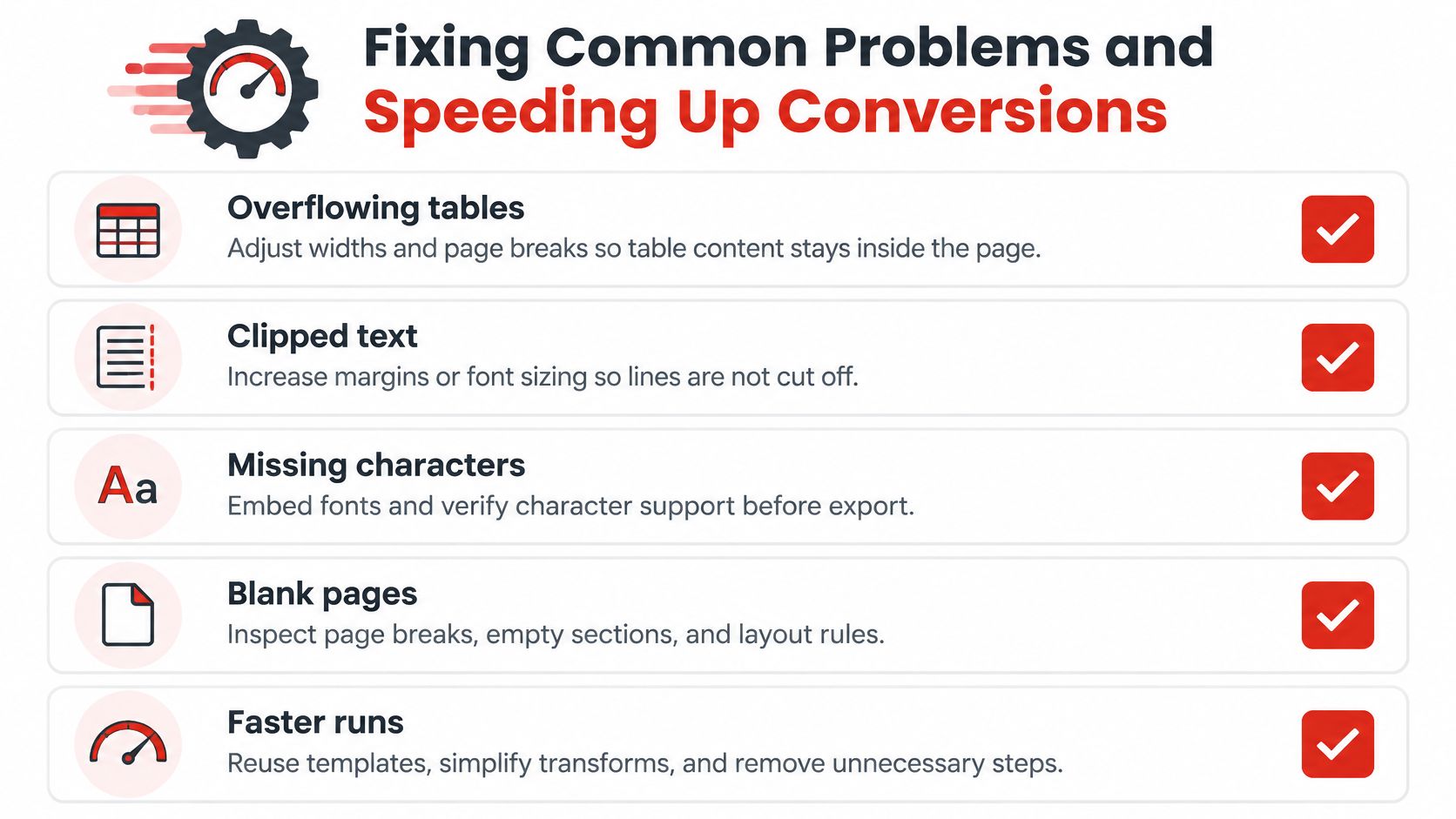
| Problem | Likely cause and useful response |
|---|---|
| Overflowing tables | Set deliberate column widths, inspect long unbreakable values, and define row-splitting behavior |
| Clipped text | Check available region dimensions, line height, and overflow rules before shrinking text |
| Missing characters | Verify glyph coverage, configure fallbacks, and embed the required fonts |
| Blank pages | Inspect forced breaks, empty optional sections, and page-sequence rules |
| Inconsistent numbering | Check numbering resets and how separate document sections are assembled |
Don't increase margins to fix clipped content automatically. That can leave less usable space. Identify the constrained region first.
Font substitution can change line lengths and move content onto another page. Use a fixed font set, test every supported script, and include right-to-left text and combining marks where relevant. Tables need repeated headers and an explicit decision about whether a row may cross a page boundary.
For unexplained empty output, follow a blank-PDF troubleshooting process before changing unrelated layout settings.
Improve throughput without hiding defects
Cache compiled stylesheets when the engine supports safe reuse. Process files through a bounded queue instead of launching every render simultaneously. Measure memory use with difficult documents, not just short samples.
- Reuse stable assets: Avoid reloading unchanged templates and fonts unnecessarily.
- Remove redundant stages: Don't transform through extra formats without a clear purpose.
- Keep useful diagnostics: Record the failed stage and a non-sensitive job identifier.
- Test changes consistently: Compare extracted text and rendered pages against approved references.
Start with a representative file containing long values, optional content, and enough rows to cross page boundaries. Check required labels through text extraction, then inspect the pages visually. Expand that routine into a regression set before converting a full collection.
PDFWix offers an HTML-to-PDF tool for the final rendering step after you've transformed your XML into readable HTML. Visit PDFWix to try a representative document, then compare its extracted text and page layout with your source before sharing the result.