
You've seen it happen. A contract leaves your desk looking clean, and the client replies with a screenshot where the heading has wrapped onto two lines and a trademark symbol has turned into an empty box. Or you open a research paper on a library computer and the equations, which were fine at home, now render as a row of question marks. Nothing was edited. Nothing was corrupted. The file trusted fonts that the other machine didn't have, and that machine did the reasonable thing: it substituted something else.
That failure is the easy one, because you can see it. The harder one is a PDF that looks identical everywhere and still refuses to let anyone copy a sentence out of it or find a word with search. Both problems begin with the same question: which fonts travel inside this file.
Table of Contents
- Three Font Statuses Every PDF Reader Should Know
- What Embedding Packs Into a PDF File
- How to Check Embedded Fonts in Acrobat
- Editing Subset Fonts Without Breaking Text
- When Licensing Blocks Font Embedding
- How to Export a PDF That Keeps Its Fonts
- Why Embedded Text Still Fails to Search or Copy
- Confirm Font Status Before You Send the PDF
Three Font Statuses Every PDF Reader Should Know
Every font in a PDF sits in one of three states, and the state tells you what you can safely do with the file next. It's either fully embedded, embedded as a subset, or not embedded at all.
Font embedding status and what it means for the file
| Font status | What the file stores | Matches original on other computers | File size effect |
|---|---|---|---|
| Fully embedded | Complete font program | Usually, when the viewer uses the embedded font | Largest |
| Embedded subset | Only the glyphs the document uses | Usually for existing text; new characters may fail | Smaller |
| Not embedded | A font name reference only | No, a substitute is likely | Smallest, but unreliable |
Fully embedded means the whole font program travels inside the file, so it displays and prints in its original typeface wherever it's opened. An embedded subset carries only the characters the document uses, which keeps the file smaller and is perfectly fine for reading, though it limits what anyone can type later. Not embedded means the PDF names a typeface without including it, and the viewer supplies whatever it has locally.
One distinction saves a lot of confusion. Embedding controls appearance, not text meaning. A file can look correct and still fail a copy, a search or a screen reader, and that failure needs its own test.
- Font shows no embedded status. Go straight to the Acrobat checking steps and confirm on a machine that lacks the font.
- Fonts show as Embedded Subset. Read the editing section before anyone changes a word of text.
- A vendor restriction appears. Read the licensing section before you send the file anywhere.
What Embedding Packs Into a PDF File
Think of a PDF as a sealed package you ship to someone. Embedding decides whether the font goes inside the box or stays in your kitchen with a note telling the recipient to find something similar. Sending a recipe card with the spices included is a different experience from sending only the recipe.
The format was designed to keep a page looking identical across computers, operating systems and printers, and fonts were part of that from the beginning. Adobe's early PDF Reference documented support for embedded Type 1, TrueType and CID-keyed fonts, the last of which handle multilingual text, and it allowed a document to describe only the characters it uses rather than an entire typeface, as Adobe's documentation on PDF fonts sets out. OpenType support arrived later, with PDF 1.6.
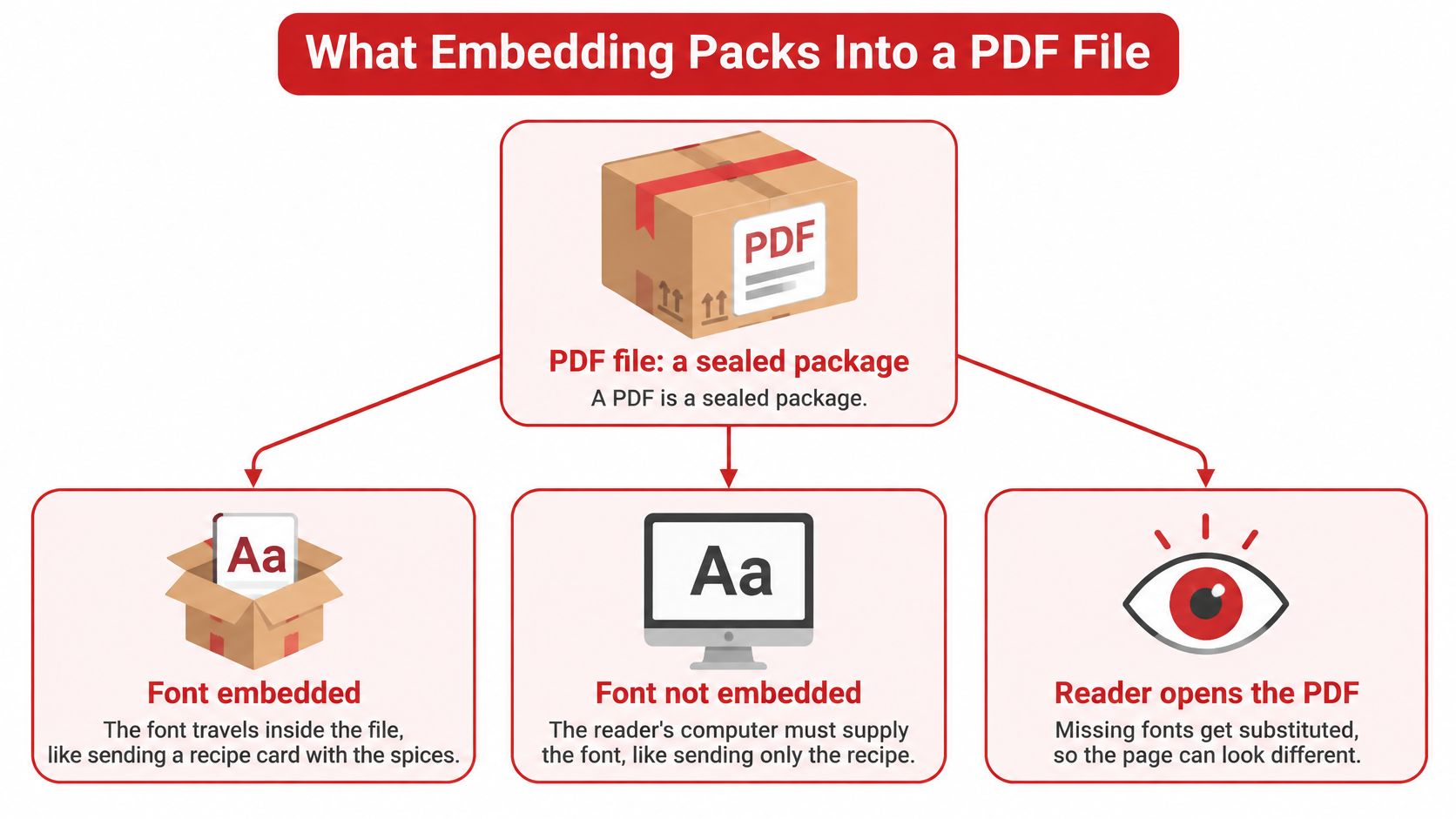
That early design produced the two approaches you'll meet in every export dialog. Full embedding stores the complete font program, every character and every weight. Subset embedding stores only the glyph descriptions the document draws, which can shrink a file substantially when it uses a small portion of a large font or a multilingual collection.
What embedding protects is broader than the shape of the letters. It holds pagination, line breaks, brand marks, symbols and non-Latin scripts in place, because a viewer that can't substitute has nothing to get wrong.
Embedding turns typography from an outside dependency into packaged document data.
The package isn't always yours to seal. Embedding is subject to the font vendor's licensing permissions, so a font whose settings prohibit embedding can't be packaged whatever you select in the export dialog.
If file size is the worry that stops you embedding, it's worth reading about what an optimized PDF actually contains, since font data is only one of several things competing for space. Then check which status your own file carries, because you can't fix a state you haven't named.
How to Check Embedded Fonts in Acrobat
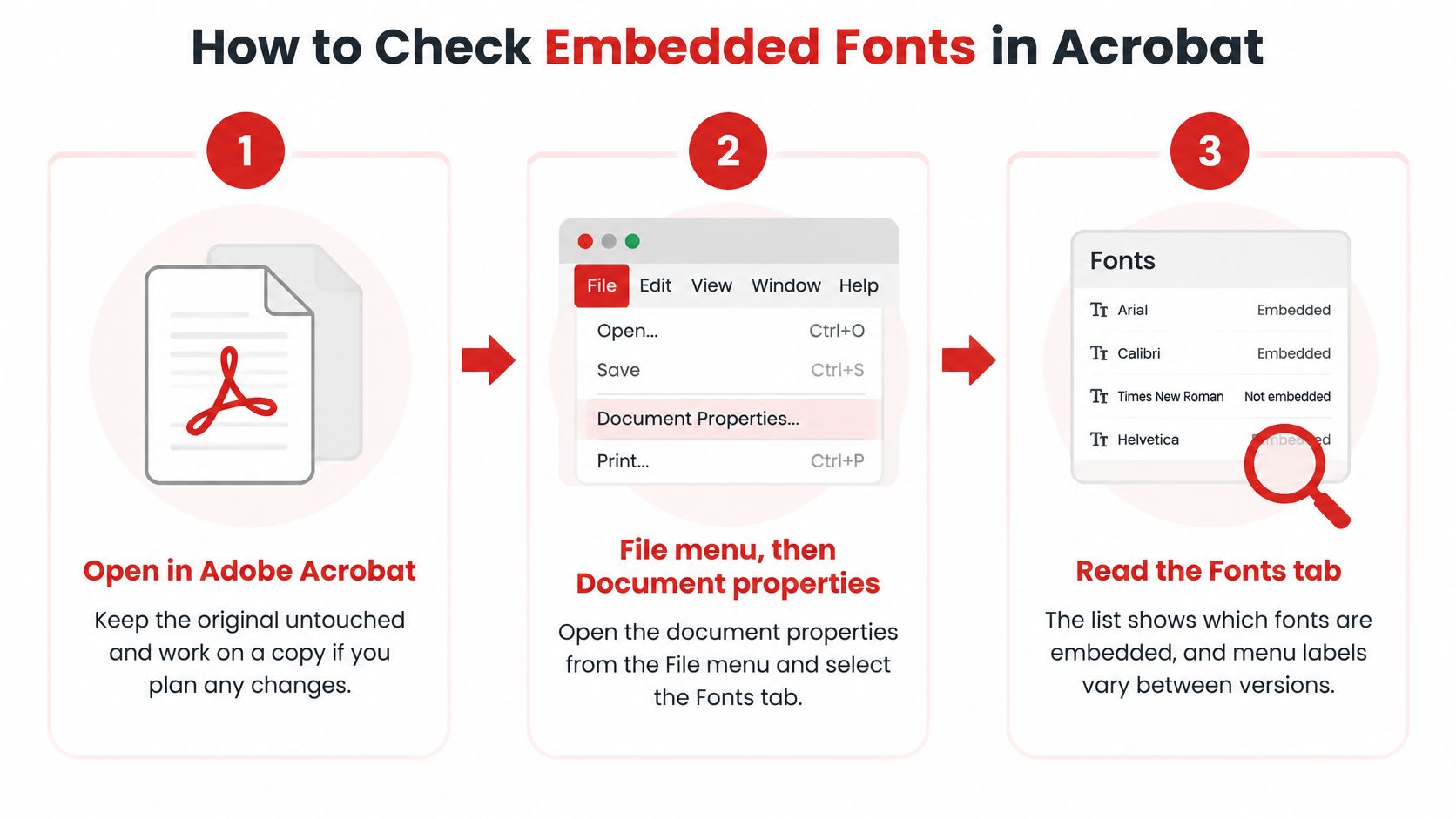
- Work on a copy. Open the PDF in Adobe Acrobat and leave the original untouched. Duplicate the file first if you plan any changes, so you always have a clean version to compare against.
- Open the document properties. Go to File, then Document Properties, and select the Fonts tab. Menu labels shift between Acrobat versions, so follow the wording in the copy you have rather than a screenshot from a blog.
- Read the status next to each font name. Embedded means the full program is packaged. Embedded Subset means only the characters used in the file are included. Adobe draws that distinction explicitly in its guidance on fonts in PDFs.
- Mark every font with no status at all. A font without an embedded label is the one a viewer will replace, and replacement is what moves line breaks and drops symbols.
- Compare the list against the typefaces you chose. A name you never selected points to a substitution that already happened during export, not on the recipient's machine.
- Come back to this tab when copy and paste misbehaves. Adobe lists font properties among the first things to verify when text behaves oddly, and checking takes seconds.
- Open the file on a computer without those fonts installed. Compare page count, line breaks and special characters against the source. This is the test that catches a substitution you couldn't see on your own screen.
- Escalate if a font is missing or restricted. A missing font sends you back to the export settings. A restricted font sends you to the licensing decisions.
Reading the results
A scanned PDF holds page images rather than text, so the Fonts tab may list little or nothing for it. That emptiness is a different problem from a missing embed, and no amount of font work will add text that was never stored.
If a font has no status at all, you can't repair the finished PDF by adding the font afterwards. Reopen the source document, install the font on the machine doing the export, and create the PDF again with embedding switched on.
Without Acrobat, you can use another viewer's document information panel, but only after confirming it reports embedding status at all. Treat any font it doesn't report as unknown rather than assuming the best.
Editing Subset Fonts Without Breaking Text
Subset font names carry a marker. You'll see something like ABCDEF+FontName, a six-character tag followed by a plus sign, which lets software tell two subsets of the same typeface apart and merge documents that use different ones, as described in Adobe's PDF specification.
That marker exists because subsets break in a specific, predictable way. Say a proposal template was exported as a subset containing only the characters in the original text. A colleague opens it, adds a client name with an accented letter, and the glyph isn't there. The page shows a gap, a substitute or a fallback box.
The damage gets worse in bulk. A merge or edit pipeline that tidies up fonts by family name can keep one subset and discard the glyphs another document depends on, which corrupts display and text extraction at the same time. Each subset's font dictionary, descriptor, encoding and glyph mappings have to survive the operation intact.
Decision rule. For templates, fillable forms, contracts or any PDF that someone will add text to, use full embedding, or regenerate the subset after every edit. For a finished, read-only file heading to print, a subset is fine when the Fonts tab shows Embedded Subset and extraction comes back clean. Remember that subsetting is a separate choice from embedding, so a tool that embeds may not subset, and the reverse. Check the file rather than the checkbox. If you're unsure whether a file is still editable at all, this guide to whether you can edit PDF files sets out what's realistic.
Run a three-part test before you rely on any edited PDF: type a character that wasn't in the original text, confirm it renders instead of vanishing, and keep the pre-edit original as a fallback.
When Licensing Blocks Font Embedding
A PDF may look correct on the designer's computer and still fail when an archive checks it for PDF/A. The cause can be the font license, not an export mistake: a font may allow display in the creating application while prohibiting embedding in the PDF.
The PDF/A joint working group's FAQ notes that some fonts, including many Japanese fonts, are copyrighted and cannot be embedded. It also explains that non-free fonts can display correctly in the application that created them yet prevent later PDF/A conversion. A correct-looking page, therefore, does not prove that the font can travel with the file or meet an archive's requirements.
Font situations that change what embedding can do
| Font situation | What happens | What to do |
|---|---|---|
| Vendor settings allow embedding | Full or subset embedding works | Embed, and choose full embedding if text may be added later |
| Vendor settings block embedding | Viewers substitute a different font on other systems | Use a licensed embeddable version or an open-licensed alternative |
| Copyrighted Japanese or other CJK font | Embedding may be restricted by the license | Confirm the license terms before embedding or switching |
| Non-free font in a PDF/A target | Conversion to PDF/A may fail | Replace the font with an embeddable one before export |
Subsetting does not change the license. It keeps only the characters already used, reducing the amount of font data in the PDF, but it grants no redistribution rights. Nor does a subset ensure that new characters will display if someone edits the document later.
A decision you can document
A university archive receiving research papers, for example, may need a plan for fonts that cannot be embedded: obtain a licensed embeddable version, choose an open-licensed alternative, or define a controlled conversion process for the documents that must be preserved. The right choice depends on the font's terms and the recipient's requirements.
For each font in a recurring document, record its embedding permission, its license terms for sharing, and where it came from. A plain list gives the printer or archive concrete information to check, rather than leaving font rights to guesswork.
An export dialog's success message confirms only that the export completed. It does not establish that the font was legally embedded or that the finished PDF conforms to the required archival format. Check the font's permissions and the recipient's requirements separately from the page's appearance: embedding can preserve how text looks without guaranteeing what the text means, whether it can be searched or copied, or whether it is accessible.
How to Export a PDF That Keeps Its Fonts
The fix usually starts before the PDF exists, because font handling is decided at export. Word processors and layout apps offer save or export options that govern it, and the labels differ by application, so confirm the exact wording in your version before you rely on it. For ordinary sharing and printing, embedded fonts with subsets where the license allows are enough.
Archival work follows a stricter branch. PDF/A-4, built on ISO 32000-2:2020, requires the font programs for all fonts used for rendering to be embedded, and a font counts as used once at least one of its glyphs is referenced from a content stream, per the ISO 32000-2 specification. PDF/A permits subsets, but each embedded subset must contain every glyph needed to reproduce the page. The lineage stretches back to PDF/A-1, published as ISO 19005-1:2005, and later standards closed the old exceptions that once let the Base 14 families (Times, Helvetica, Courier, Symbol and ZapfDingbats) travel by name alone.
A routine that holds up:
- Choose the target. Sharing and printing take one set of settings, archiving takes another. Decide before you open the export dialog.
- Export from a copy of the source, not from a previous PDF. Set the archival option if your recipient requires it, and keep the source file open so you can re-export cheaply.
- Inspect the output. Run the Fonts tab check, compare pagination with the source, and confirm the status of each family.
If your source is a Word draft, the export path matters too, and this walkthrough of converting a Word document to PDF covers what to expect from that step.
Keep three things together afterwards: the editable source, the export settings you used, and a list of the fonts that ended up embedded.
Why Embedded Text Still Fails to Search or Copy
Here's the result that surprises people. A PDF can have every font properly embedded and still hand you garbage when you copy a paragraph, or return nothing at all when you search for a word that's clearly on the page.
The reason is that a PDF stores glyph shapes and their positions on the page. It doesn't store "the word contract." Extraction depends on a character mapping that links each drawn glyph back to a readable character. When that mapping is missing, incomplete or inconsistent, copied text comes out with wrong letters, dropped symbols or no usable text whatsoever, as Adobe's font reference explains. Custom encodings, subset fonts, unusual font construction and scanned page images all produce the same symptom from different directions.
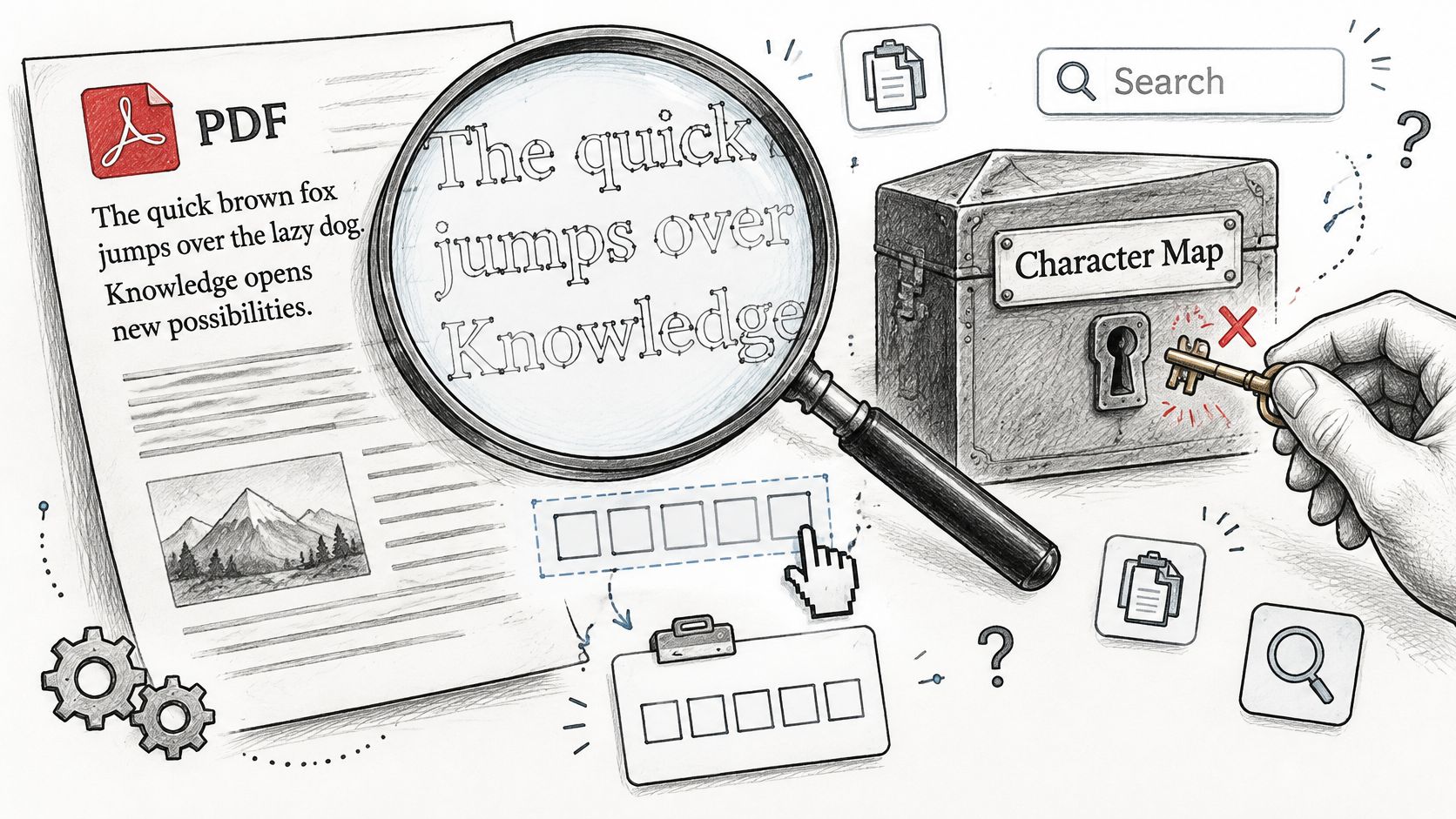
Three layers solve three different problems. Font embedding decides how the page looks. Unicode character mapping decides whether the text is readable by search and copy. Document tagging decides whether assistive technology can follow the reading order. A font inventory tells you about the first layer only, which is why a clean Fonts tab can sit on a file that no screen reader can use.
The test that exposes the gap
Run a sample page through a PDF to text converter and compare the extracted words against what's visible on screen. Anything missing, reordered or garbled is a mapping problem the font check can't see.
That test is scoped narrowly. It checks what text is recoverable and nothing more. It doesn't embed, repair or replace fonts, so keep the original file exactly as it arrived.
Text symptoms, likely causes and the check to run
| Symptom | Likely cause | Check |
|---|---|---|
| Copied text shows wrong characters | Incomplete or inconsistent character mapping | Compare extracted text with the visible page |
| Search finds nothing | Scanned page image or text not stored as characters | Extract a sample page and look for expected words |
| Symbols or accents missing after copy | Subset glyph or encoding gap | Check subset status in the Fonts tab, then re-export from source with full embedding and compare |
| Text reads out of order | Missing tags or unclear reading order | Inspect the structure with a PDF tool that shows tags, if available |
Converting pages to images looks like a fix and isn't. It hides missing-font warnings by removing the text layer entirely, which also removes search and assistive-technology access. Multilingual documents, ligature-heavy typography and anything with mathematical notation show these mismatches most often, because each depends on richer character data than plain Latin prose.
Confirm Font Status Before You Send the PDF
Run the Acrobat checks first, then close the items earlier decisions leave open. It takes a few minutes and catches the failures that only appear three emails later.
- Every substitute or restricted font has its license recorded. That's what lets you send the file with confidence, or replace the face before it travels.
- Subsets appear only in files nobody will edit. If text may be added later, the export used full embedding instead.
- A sample page extracts cleanly. Run it through the PDF to text tool or a comparable check and read the output.
- Archival exports have been validated, not merely exported. A PDF/A file that fails the standard's rules is still a failed submission.
- The editable source and the export settings are saved separately. They're what makes a second attempt cheap.
Each item guards a specific failure: a restricted font that gets substituted, a subset that can't take new characters, text nobody can search, a standard the file doesn't meet, or a PDF that can't be corrected later. For academic submission files in particular, the Thesis Book Project submission checklist is a useful reference for the file requirements thesis offices commonly state, including when an archival format is expected.
One caution on diagnosis. A file that arrives blank on someone else's machine looks like a font disaster and usually isn't, so check why PDF files can be blank separately before rebuilding anything.
A passing checklist shows that appearance and text are both reasonable. It doesn't prove the file is legally or archivally perfect, so confirm the font license and the target standard's rules for those questions. Then make the call: send it, re-export with corrected settings, or switch to a licensed or open face and export once more.
PDFWix runs its core PDF tools in your browser through WebAssembly, so a file you're checking never leaves your device, and every core tool is free with no account and no watermark added. That makes it practical to extract text from a sample page, compress a bloated export, or convert the source document again before you commit to sending anything. Visit PDFWix next time a PDF looks right and you still need to prove it.