
You've just received a PDF application with a deadline, but the document won't let you type. Printing it, writing by hand, scanning it, and emailing it back feels like the only option. It isn't, but the right approach depends on whether you have an interactive form or a static page that only looks fillable.
Filling a PDF form online can be quick and reliable when you treat it as a document workflow, not just a typing exercise. You need to identify the form type, choose a processing method that fits the sensitivity of the file, enter data in the correct fields, and validate the exported document before submitting it.
Table of Contents
- The Problem With Paper Forms and Why Browser Tools Changed Everything
- Choosing the Right Browser-Based PDF Tool for Your Workflow
- Filling Interactive PDF Forms in the Browser Step by Step
- Working With Static or Scanned PDF Forms That Lack Interactive Fields
- Adding Signatures and Preparing Forms for Safe Submission
- Troubleshooting Common PDF Form Problems and Accessibility Issues
The Problem With Paper Forms and Why Browser Tools Changed Everything
Paper workflows create several avoidable handoffs. You print the document, write information into small boxes, scan the result, check whether the scan is readable, and then send it through a channel that may introduce another delay. Manual re-entry can also create discrepancies between the information you intended to provide and the information a recipient eventually receives.
The demand for electronic completion is part of a much broader change in public administration. The World Bank's GovTech Maturity Index data reports that more than 82% of the world's economies, 162 out of 198, had an online service portal providing access to all available public services. That includes workflows involving applications, tax documents, permits, registrations, and benefit requests, many of which still arrive as downloadable or browser-accessible PDFs.
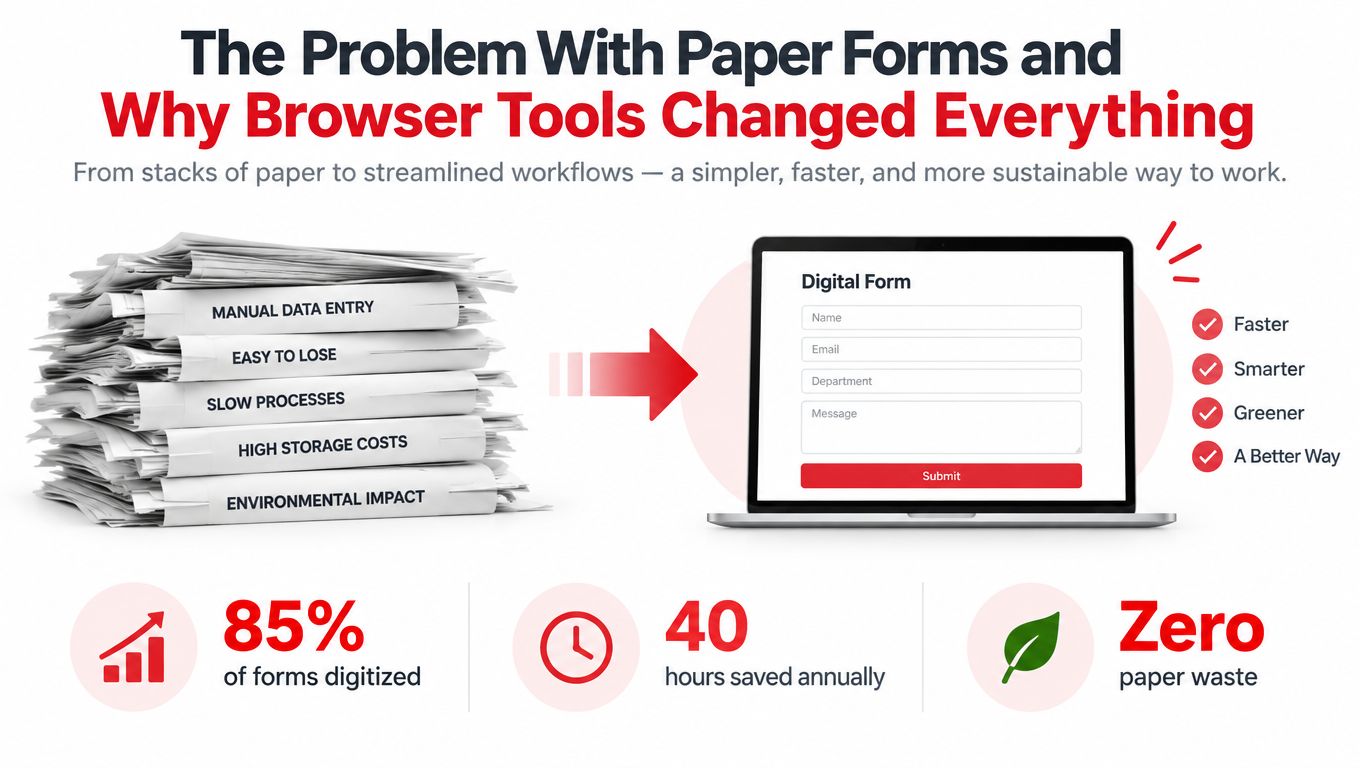
The World Bank also reports that it has financed more than 1,400 digital-government projects since 1995, showing that digital administrative services represent a sustained development priority rather than a short-lived software trend. For an individual user, the practical result is simple: completing a form in the browser can remove printing, scanning, mailing, and manual transcription from the process.
What browser completion actually changes
A browser-based tool gives you a way to open the document, enter information, add marks or signatures where supported, and download the result without installing desktop software. Some tools process the file locally in the browser, while others send it to a server for temporary processing. That distinction matters when the form contains identity information, financial details, health information, or confidential business data.
The technical gap between browser tools and desktop applications has also narrowed. Modern browsers can perform substantial document operations locally, while server-side tools can handle operations that require more processing power. The convenience is real, but it doesn't remove the need to inspect the finished file.
For a practical explanation of how browser-based PDF work fits together, see this guide to PDF work in browser tools. The essential expectation is this: online completion should reduce friction, but you still need a quality check before treating the PDF as ready for submission.
Choosing the Right Browser-Based PDF Tool for Your Workflow
Start with the file, not the brand name of the tool. A simple interactive form may only require field entry and download, while a scanned document may need OCR and manual field placement. A form that requires signing, attachments, password protection, or accessibility testing demands a broader workflow.
Check where the file is processed
Client-side processing runs inside your browser, often through WebAssembly, so the document can remain on your device. Server-side processing sends the file to a service for a temporary operation. Neither category is automatically suitable for every situation, but you should understand the difference before uploading sensitive information.
Ask these questions before opening the document:
- Does the tool require an account? An account may be useful for saved history or team workflows, but it also creates an additional place where documents or metadata may be associated with you.
- Are there usage limits or watermarks? A restriction may not matter for a single form, but it can disrupt repeated administrative work.
- Does it support the required field types? Look for text fields, checkboxes, radio buttons, dropdowns, dates, and signatures when the document uses them.
- Can it export a usable PDF? The downloaded file should retain values when reopened, not merely display temporary text on the editing screen.
- Does the service explain its security practices? HTTPS, clear retention policies, and privacy documentation are useful signals, but they don't replace your own handling rules.

Match the tool to the document
For an ordinary interactive form, avoid adding unnecessary conversion steps. OCR, format conversion, and advanced routing can create new opportunities for field loss or layout changes. Use those capabilities only when the original document requires them.
If you're comparing privacy, account requirements, supported formats, and workflow features across categories, Passpaw's selection guide can help frame the evaluation without treating every document task as identical.
PDFWix provides a browser-based PDF editor guide and supports local processing for many of its tools. Its publisher states that 22 of 24 tools run in the browser, while its Protect PDF and Unlock PDF operations run in server memory without writing files to disk. Those are product-specific capabilities, so verify that the selected operation and document type match your privacy requirements.
On a phone, prioritize clear field navigation and zoom behavior. On a desktop, prioritize field detection, keyboard navigation, export quality, and viewer compatibility. The best choice is the one that completes the document accurately with the fewest transformations.
Filling Interactive PDF Forms in the Browser Step by Step
An interactive PDF contains embedded controls, usually known as AcroForm fields. These controls store values in the document's form model, rather than placing visible text above the page. That difference determines whether your answers survive download, reopening, printing, or flattening.
Begin by opening the original file in a browser tool that supports interactive form fields. Click through the document and look for recognizable behavior, such as highlighted fields, a text cursor, selectable checkboxes, dropdown menus, or radio-button groups. If clicking produces no field response, don't assume the form is broken. It may be static and require a different workflow.
Inspect the controls before entering answers
Move through the document in visual order, then press Tab repeatedly. This reveals whether the fields have a sensible sequence and whether any controls are skipped. A logical tab order matters for keyboard users, but it also helps you discover fields that are easy to miss because they're positioned away from the main reading flow.
Pay attention to the intended control type:
- Text fields may impose character, date, or numeric rules.
- Checkboxes usually represent independent selections.
- Radio buttons normally represent one choice within a group.
- Dropdowns restrict answers to predefined values.
- Signature fields may require a separate signing action rather than ordinary text entry.
Don't type a date based only on habit. Check the format shown by the form, because a value that looks correct to you may be rejected or interpreted differently by the recipient's system. Required fields, calculated values, and grouped choices deserve the same inspection.
For a concise explanation of how these controls behave, use this resource on PDF form fields. Understanding the field type prevents a common mistake, selecting a checkbox when the form expects a single radio-button choice, or entering text into a visual area that isn't a real field.
Confirm that values are stored
A visible answer isn't proof that the PDF contains a stored value. Some editing interfaces place a text overlay on the page. It looks correct while you work, but the text may not be embedded in the AcroForm structure and can disappear when the file is flattened or opened elsewhere.
After completing the form, save a separate copy and download it. Close the editing tab, reopen the downloaded file in another PDF viewer, and inspect every answer. Check calculated fields, selected controls, dates, and signatures separately. If a value disappears, the problem is with the export or field handling, not with your typing.
Practical rule: Never submit a PDF you haven't closed, reopened, and checked outside the editing screen.
Accessibility provides another useful quality signal. Each field should have an understandable label or tooltip, a form tag, and a logical tab order. If you can't reach a control with Tab, or you can't tell what it asks for without relying on its visual position, the form may be difficult or impossible for a screen-reader or keyboard user to complete.
Working With Static or Scanned PDF Forms That Lack Interactive Fields
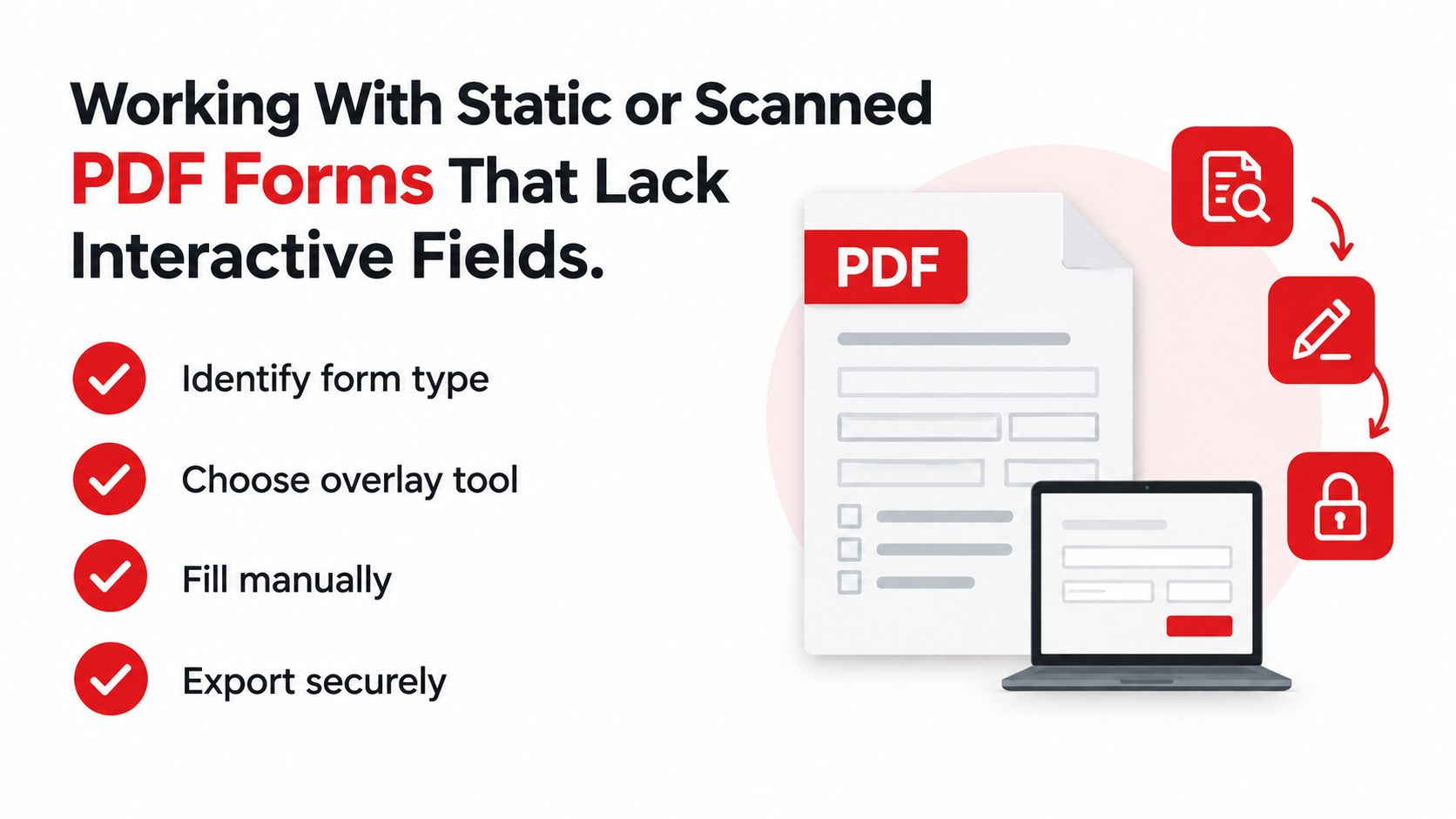
A static PDF contains page artwork rather than usable form controls. It may show lines, boxes, and labels, but clicking those areas doesn't create a cursor or highlight a field. Scanned documents are a common example, although a digitally created PDF can also be static if its author never added interactive controls.
Test the document before choosing a tool. Click several obvious input areas, press Tab, and try selecting a dropdown or checkbox. If nothing responds, inspect the file as a static page. Continuing to click random locations won't create the underlying field structure.
Use OCR when the document needs structure
OCR creates a searchable text layer from a scanned image. In some workflows, it can also help identify likely form regions, but you still need to inspect the results. Poor scan quality, skewed pages, unusual fonts, complex tables, and handwritten content can reduce recognition accuracy.
A reliable sequence is:
- Preserve the original. Keep an untouched copy in case the converted version changes the layout.
- Run OCR. Create a text layer or use a workflow that detects potential input areas.
- Review the page visually. Compare recognized text and suggested fields with the original labels and boxes.
- Overlay the needed controls. Add text, check, date, or signature fields in the precise locations.
- Test the export. Reopen the finished document and verify alignment and stored values.
The PDFWix explanation of OCR provides useful background on why recognition and field creation are separate concerns. OCR can make a page searchable, but it doesn't guarantee that every visible line has become a correctly labeled interactive field.
Know when manual overlay is the wrong answer
Manual text placement can work for a short, straightforward form with clear boxes and predictable spacing. It becomes fragile when the document has dense tables, repeated fields, small writing areas, multilingual text, or handwritten sections. A slight shift in font size or alignment can make the result look careless even when the information is accurate.
If the recipient accepts an HTML form, that route may be safer for mobile use and assistive technology. If the recipient requires the original PDF layout, create only the fields you need, keep the original file, and check the result at high zoom. Don't flatten until you know the recipient needs a non-editable copy and the stored information has been verified.
Adding Signatures and Preparing Forms for Safe Submission
Typing answers completes only part of many administrative workflows. A form may also require a declaration, consent, authorization, initials, date, or legally meaningful signature. Treat those elements as separate controls, even when they appear beside ordinary text fields.
Place the signature only in the designated area and check that it doesn't cover labels, instructions, or nearby fields. Confirm the associated date, initials, and signer details independently. If the form requests attachments, verify that the files are included in the required format and that the recipient's submission process accepts them alongside the completed PDF.
For a practical walkthrough of adding a signature, see this guide to signing a PDF. A typed name may be sufficient for one workflow and inadequate for another, so follow the recipient's instructions rather than assuming every electronic mark has the same legal or operational effect.
Keep working and submission copies separate
The safest file strategy is simple:
- Original copy: Never edit this version.
- Working copy: Keep fields editable while reviewing and correcting information.
- Submission copy: Export a separate version after validation.
- Archive copy: Preserve the submitted version and any transmission confirmation according to your organization's policy.
Flattening turns interactive content into page content. That can prevent accidental edits and make the document appear consistent, but it can also remove field behavior and make later corrections difficult. If you flatten before checking the values, you may create a polished-looking file that no longer contains usable form data.
Electronic signatures are increasingly connected to broader contract workflows. A 2026 industry-statistics compilation projects that 70% of organizations will use electronic signatures as their primary contract-management method by 2025, and reports an average 40% reduction in contract-processing time among companies using electronic signatures. Because those figures are industry-reported projections and survey findings about signatures, not PDF form filling alone, they should be treated as directional context rather than a guarantee for your document.
The same compilation reports that electronic signatures were used for sales contracts by 55% of organizations in 2024, compared with 35% in 2020, a 20-percentage-point increase over that period. The practical lesson is not that every PDF needs a signature platform. It's that completion, approval, and signing increasingly happen in one electronic chain, so your validation process must cover all three.
Before sending the file, reopen the exported copy, inspect the signature and date, check attachments, and confirm that the receiving organization can read the result. If the document contains sensitive data, use the recipient's approved channel and don't send an unprotected copy through an informal route.
Troubleshooting Common PDF Form Problems and Accessibility Issues
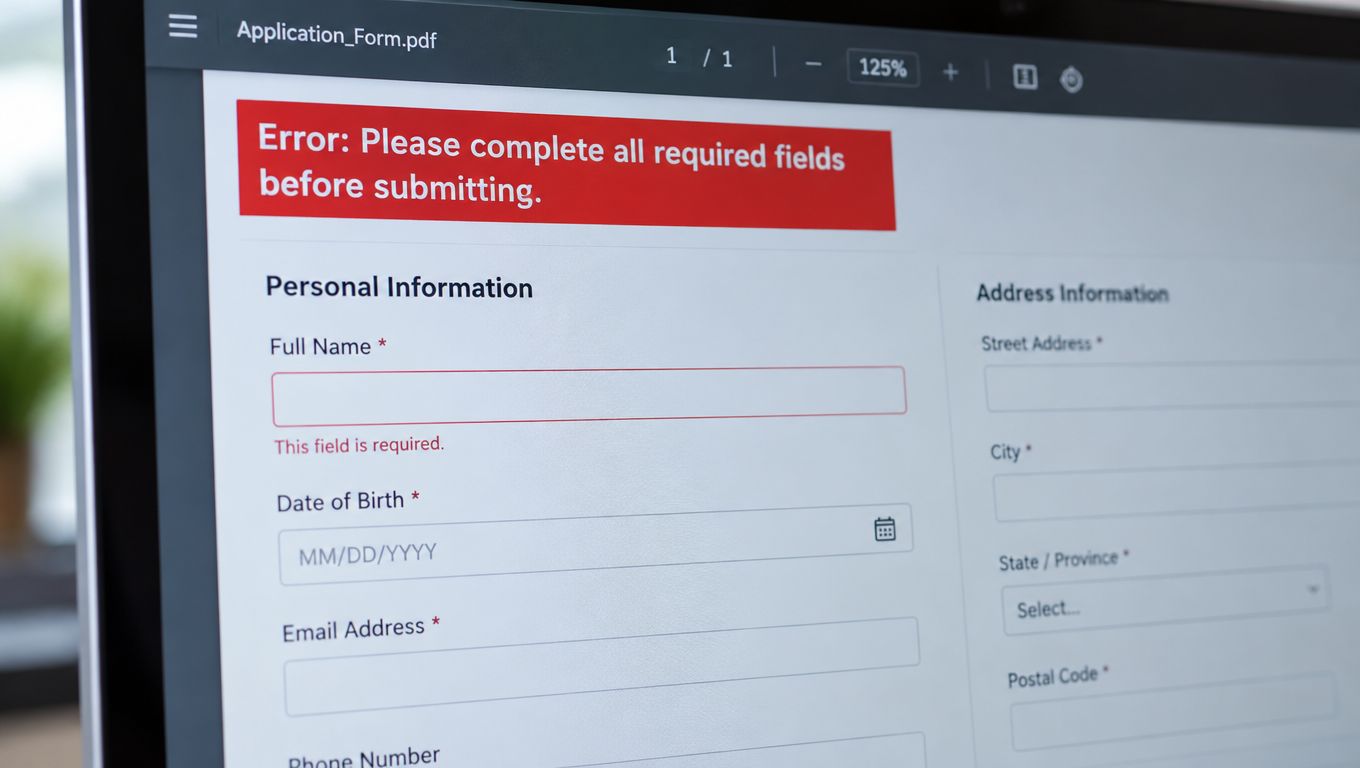
A PDF can look complete and still fail at submission. The most dangerous errors are often invisible: a value appears on screen but isn't stored, a field disappears after flattening, or a keyboard user can't reach a required control.
Diagnose the failure instead of repeating the entry
Use a controlled check:
- Tab through every field. Note skipped controls, illogical order, and fields that can't receive focus.
- Reopen the download. Confirm that every value remains visible and stored.
- Test another viewer. A file that works in one viewer may render differently elsewhere.
- Inspect at high zoom. Look for clipped text, misaligned overlays, and signatures covering instructions.
- Check control semantics. Make sure radio groups, checkboxes, dropdowns, dates, and calculated fields behave as intended.
- Review labels and instructions. A screen-reader user should be able to identify each field without guessing from its position.
A successful export isn't the same as a successful form. The recipient must be able to read, navigate, and process the document you send.
Accessibility is also a decision point, not a final decoration. Government guidance warns that PDFs often perform poorly with assistive technologies, browsers, and mobile devices, and recommends HTML alternatives where possible. The UK Government Digital Service reports that PDF-based forms are generally inaccessible, difficult on smaller screens, and average about 8 minutes slower to process than online forms for the relevant workflows, as described in its guidance on publishing accessible documents.
Decide whether the PDF should be used at all
Choose an HTML form when the recipient provides one and the process involves frequent mobile use, complex validation, or assistive technology. Stay with the PDF when the organization requires that exact document layout, the form contains an approved signature area, or the submission system is designed specifically for PDF files.
For documents you create or distribute, accessibility requires more than readable text. Official guidance covers logical structure, tags, meaningful properties, contrast, alternative text, labels, keyboard access, and testing with assistive technology. Teams improving the wider accessibility of their digital properties may also find this resource on making your site WCAG compliant useful for broader implementation context.
A practical release gate is to reject the file if any required field can't be reached with Tab, lacks an understandable label, loses its value after reopening, or changes appearance between viewers. Keep the editable working copy, create the final submission copy only after testing, and don't assume that visual completeness proves technical correctness.
PDFWix lets you fill interactive AcroForm fields in a browser, add text and marks to flat PDFs, apply signatures, and optionally flatten a validated document for submission. Visit PDFWix to complete your form without installing software, then reopen the downloaded file and verify every field before sending it.