
You've got a lecture PDF, but your assignment only needs the reading on pages 12 through 18. Or you're preparing an HR packet and need the signed sheets without sending the rest of the employee's paperwork. The task sounds simple until you have to decide which pages to select, where to save them, and whether the original will change.
Learning how to extract pages from a PDF on Mac starts with a useful distinction: you can copy selected pages into another document, or regenerate those pages through Print. Preview handles both without another installation. A browser extractor offers another route when typing a list is easier than selecting thumbnails.
Table of Contents
- Pick the Right Way to Pull Pages on a Mac
- Extract a Selected Range in Preview
- Extract Mixed Pages in the Browser
- Confirm the Original PDF Stays Intact
- Fix the Mistakes That Ruin an Excerpt
- Save the Excerpt and Leave the Source Alone
Pick the Right Way to Pull Pages on a Mac
Preview drag, Print to PDF, and browser extract compared
| Method | Best for | Source file | How the new file is named |
|---|---|---|---|
| Drag thumbnails from Preview | One page, a Shift-click range, or Command-clicked pages | Left unchanged; a separate PDF is created | macOS creates the file where you drop it |
| File > Print > Save as PDF | A continuous range such as pages 12–18, including a chosen folder | A new file if you do not reuse the source name | You set the filename and destination in the save dialog |
| PDFWix Extract Pages in the browser | Mixed lists such as 1-3, 7, 10-12 |
Original stays put when you download a separate result | Browser download; rename it before filing |
For the lecture example, either Preview route works. Dragging is convenient when you can recognize the start and end of the reading in the sidebar. Print is useful when you already know the range and want to set the output name and destination before saving.
Shift-click selects a continuous run of thumbnails; Command-click selects separate pages. That difference matters when your excerpt needs a contract section plus a signature sheet rather than one uninterrupted passage.
Dragging copies pages; Print rebuilds them
Thumbnail dragging copies the selected pages' structure into a new document. Print > Save as PDF regenerates the same pages from their printed appearance, so the output reflects what a printer would see rather than the file's underlying objects.
That distinction explains the failure mode to watch for. A page can look right on screen while losing interactive behavior, so encrypted documents, damaged files, unusual embedded fonts, and complex forms deserve extra care on the Print route. Open the result and test a link or form field before you send it.
Extraction keeps the pages as pages. If you need editable text from scanned sheets rather than a smaller PDF, Zemith's guide to OCR methods for accurate text extraction covers that separate task.
Choose by the work you need
For instructions that aren't specific to macOS, use the general guide to extracting pages from a PDF. If your real task includes rearranging the retained sheets, organizing PDF pages fits better than repeatedly extracting new excerpts.
Before choosing, write down what the recipient needs: a continuous section, scattered signed pages, or an excerpt with working interactive elements. That one line keeps you from selecting pages first and discovering the wrong output requirements afterward.
Practical rule: Stay in Preview when the file should never leave the Mac; use the browser tool when typing a mixed page list is faster than clicking thumbnails.
Extract a Selected Range in Preview
Open the PDF in Preview itself. A browser tab or Finder Quick Look window can display the document, but only Preview gives you the thumbnail sidebar this method depends on. If double-clicking opens another application, use the file's Open With menu and choose Preview.
Preview offers two ways to pull a range, and they do different jobs. Dragging thumbnails out of the sidebar copies the selected pages into a new file. The Print route rebuilds those pages through Save as PDF, which lets you name the output in the same step. Both run entirely on the Mac, with no extra app, subscription, or account.
The visual sequence looks like this:
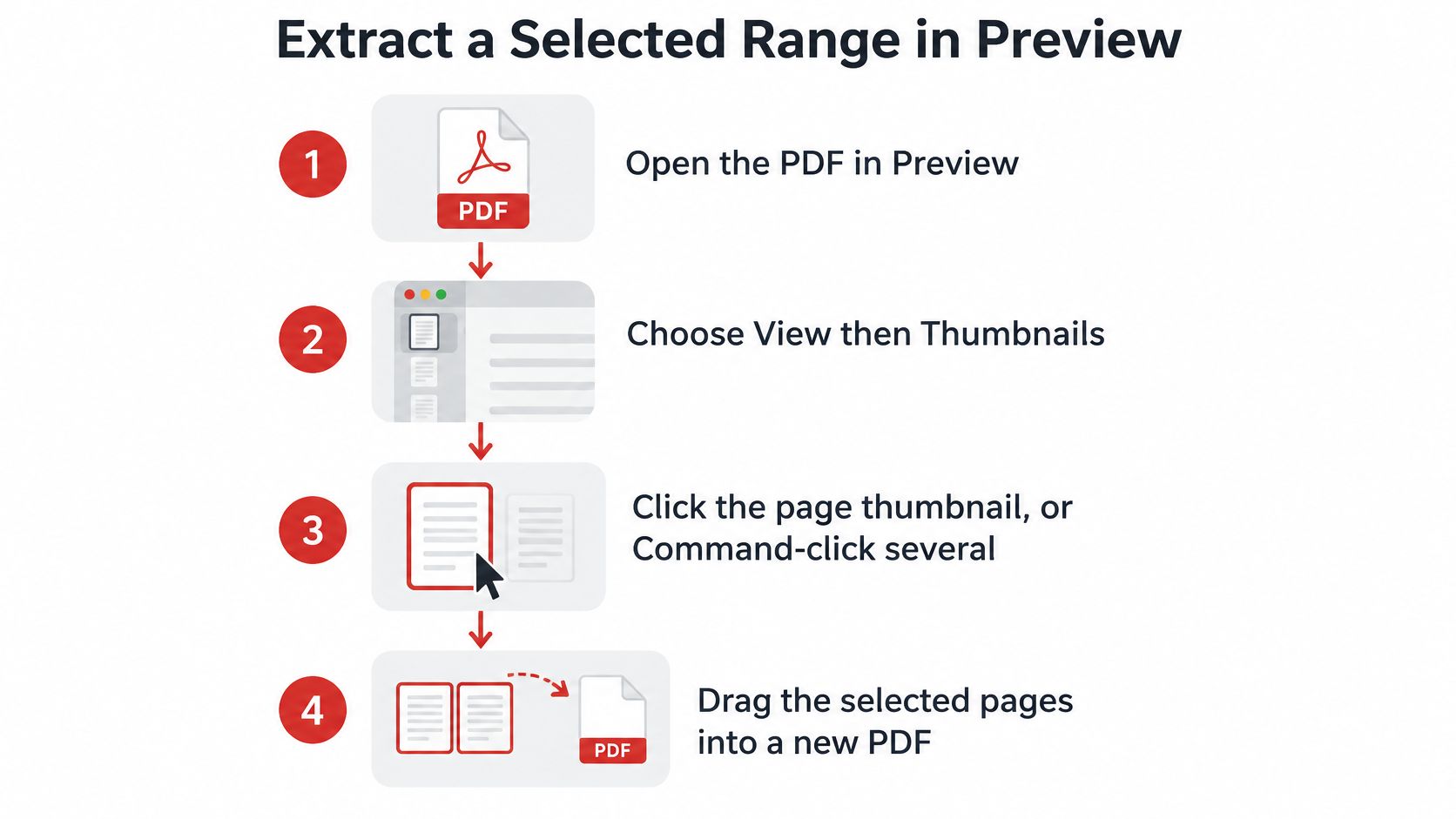
Select the pages in the sidebar
Open the PDF in Preview. Check the document's name in the title bar so you're working from the intended packet, rather than an older downloaded copy.
Choose View > Thumbnails. The sidebar shows miniature versions of every page. Make your selection there, because highlighting text in the main document selects words rather than pages.
Click the thumbnail you want. For a single-page excerpt, that is the entire selection step. Check that the thumbnail itself is highlighted.
For a continuous range, click the first thumbnail, hold Shift, and click the last. To keep pages 5 through 12, select the thumbnail for page 5 and Shift-click page 12. Inspect the highlighted run before moving it.
For separated pages, hold Command while clicking each thumbnail. Select pages 2, 4, and 5 individually, for example. Shift would sweep up the sheets in between, so keep holding Command for scattered picks.
Drag the highlighted thumbnails to the Desktop or a Finder folder. Start the drag on a selected thumbnail and drop it into a clear area of the destination. macOS creates a separate PDF containing the selected pages while the open document keeps every sheet.
That last detail is worth checking as you go. A student pulling one assignment from a course packet, a researcher collecting cited pages, or anyone preparing a contract excerpt for review can confirm it with a glance at the sidebar afterward: every thumbnail should still be in place, in the original order.
Use Print when you want to name the output while saving
Leave the intended pages selected and choose File > Print. In the dialog, choose the selected-pages option when available, or enter the continuous range in the Pages controls. A sidebar selection does not always carry into the dialog, so confirm what it plans to print.
Open the PDF menu and choose Save as PDF. The job produces a saved file; nothing travels to a physical printer.
Enter a new filename and choose a destination folder. A descriptive name such as
lecture-excerpt.pdfserves you better than the source document's name, which risks confusion with the original.Open the saved PDF and count its pages before sending it. Because Print regenerates the pages rather than copying them, confirm the excerpt begins and ends where you intended, and click through any link or form field the recipient relies on.
Apple's Preview guidance describes printing selected sidebar pages, including nonadjacent selections. The print controls can look different across macOS versions, so trust the preview pane inside the dialog over the selection you made before opening it.
Extract Mixed Pages in the Browser
A scattered keep-list can be easier to type than to build with Command-click. For example, a freelancer might need the proposal overview, a pricing section, and a final approval sheet from a longer packet.
You can extract selected PDF pages by entering individual page numbers and ranges together. The documented example, 1-3, 7, 10-12, keeps the opening range, the standalone middle page, and the closing range.
The extractor's page shows the browser workflow:
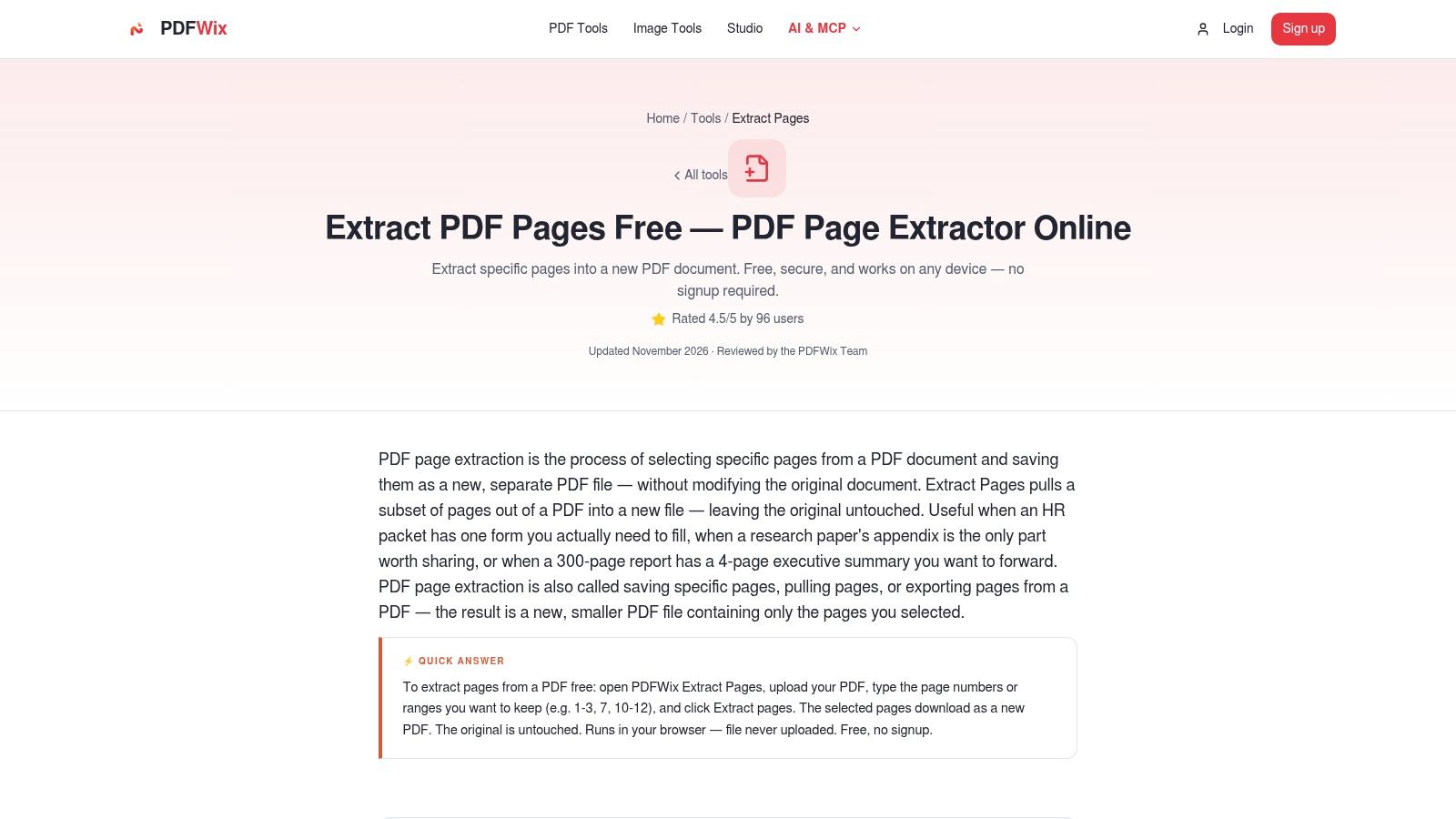
Enter the pages you want to keep
Open the extractor and provide your PDF. Choose the source document deliberately, particularly if your Downloads folder contains several versions.
Enter the page numbers or ranges to retain. Separate entries with commas. A lecture excerpt might use
12-18; a signature-page selection might use2, 4, 5. These are keep-lists, not instructions to remove those pages.Choose Extract pages. The documented control creates the new PDF from your requested selection.
Download the result and rename it before filing. A name such as
contract-pp-12-18.pdfidentifies the contents more clearly than an anonymous download name.
Be careful about document positions versus printed page labels. A cover sheet, contents page, or introductory material can make the PDF's physical page position different from the number printed on the page. Locate the intended sheet visually before entering a long list.
For a walkthrough in video form, use the demonstration below:
Read the result as a document, not just a download
For the documented mixed-list example, expect seven pages, not six: the first range contributes three, the standalone entry contributes one, and the final range contributes three. A hypothetical 12-18 selection also contains seven pages because both endpoints are included.
The count alone isn't enough. Open the standalone sheet and confirm that it's the signature, citation, or approval page you meant to retain, rather than a nearby sheet with a similar layout.
Readers working on another device can use the guide to extracting specific pages from a PDF rather than translating the Preview instructions. If the downloaded document contains the right sheets but runs backward, follow the separate guide to reversing PDF page order instead of guessing at a different range expression.
Confirm the Original PDF Stays Intact
Preservation starts before extraction. A separate output is useful, but a working duplicate also protects you from accidentally editing the source while selecting, rotating, or rearranging pages.
Apple's instructions for copying PDFs in Preview specify File > Duplicate, followed by File > Save to name and store the copy. Apple also documents File > Export for creating a copy in another format; that's distinct from selecting pages to extract.
Use this preservation sequence before handling an important packet:
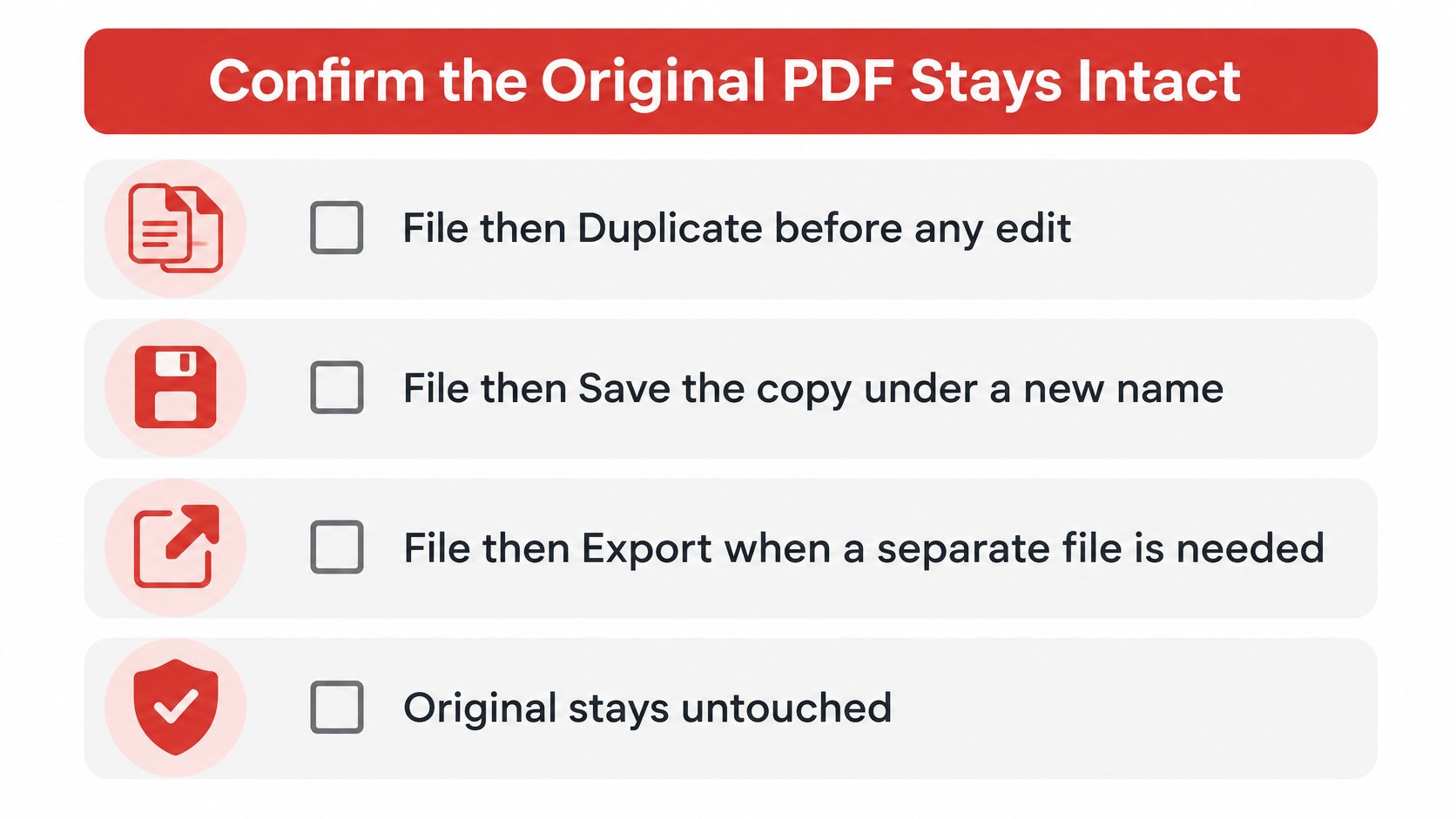
Run a check on both files
Record the source before working. Note its filename and page count, then make the duplicate. Save that working copy under a clearly different name.
Extract from the working copy. Give the excerpt its own filename as well. If a save dialog asks whether you want to replace an existing file, stop and inspect the destination.
Reopen the original and the excerpt. Compare the original's page count with your recorded count. Confirm that its opening, closing, and relevant middle pages are still present.
Compare the excerpt with the keep-list. Count the output pages, enlarge its thumbnails, and inspect the first and last retained sheets against the source. Check distinctive headings, signatures, or section boundaries rather than relying only on printed page numbers.
Test content and behavior. Search for a distinctive phrase that should appear and another from an excluded confidential section. Then inspect the page contents visually, because search won't reliably check image-only scans.
Try an existing link or form field. If the source contains internal navigation or fillable fields, test the corresponding feature in the excerpt before treating it as ready to distribute.
Apple's printing guidance describes page-range and selected-page workflows, not a benchmark that supports a universal success-rate claim. A visually matching page isn't proof of identical behavior, especially after Print > Save as PDF.
Keep a short record for sensitive excerpts
For legal exhibits or HR paperwork, record the source filename, selected page identifiers, output filename, and the person who confirmed the result. Where your audit process requires it, include an output hash so reviewers can identify the exact checked file.
Don't email an excerpt just because it opens. Confirm that it contains what the recipient needs and excludes what they mustn't receive.
If you need to remove unwanted sheets from a working document, use the separate instructions for deleting a page from a PDF on Mac. Extraction and deletion solve different tasks, even when the final documents look similar.
Fix the Mistakes That Ruin an Excerpt
The most consequential mistake is reusing the source filename in the same folder. If you accepted a replacement prompt, the excerpt may now occupy the original's location. Restore the source from the untouched duplicate or your normal backup, then save the excerpt under a distinct name.
Pause before editing anything. Establish which copy still holds the complete document first, then do all repair work on a duplicate of that copy so the surviving original stays untouched.
How you fix a problem also depends on how the excerpt was made. A copied excerpt preserves the original page objects, so its faults are usually selection faults. An excerpt created through Print > Save as PDF regenerates each page, so appearance problems there trace back to the print preview settings rather than the source file.
Correct selection and range errors
| Symptom | Concrete correction |
|---|---|
| The excerpt contains a neighboring sheet | Clear the sidebar selection, make page identifiers visible, and Command-click the intended thumbnails again |
| A continuous range is short or otherwise wrong | Reopen File > Print, explicitly enter the intended range, and inspect the print preview before saving |
| The output contains the whole document | Change the Print dialog from all pages to the required range or selected-pages option |
| The right sheets appear in an unexpected sequence | Inspect the output's thumbnail order and correct the sequence before distribution |
A short excerpt can have several causes. You may have missed an endpoint, used a printed page label instead of its document position, or clicked a different thumbnail after scrolling. An All Pages setting explains an oversized result; a range that is short by one sheet usually traces back to the endpoints you typed.
Sequence deserves its own check. The order of your clicks is a poor predictor of the output order, so inspect the actual thumbnail sequence in the saved file. In a legal exhibit, a signature page that lands away from its related terms can confuse the reader even when every sheet is technically present.
If a retained sheet comes out sideways rather than missing, use the guide to rotating a PDF on Mac. Re-extracting the same selection will leave the orientation exactly as it was.
Separate access problems from extraction problems
A password-protected PDF must first be opened with a password you are authorized to use. If you lack it, ask the document owner for access or for an authorized excerpt. Extraction is a copying task, and it stays that way: a restricted file remains restricted however you select its pages.
A file that refuses to open at all may have damaged internal structure. Run repair as a separate operation on a copy, then check the recovered pages before attempting extraction again. Treat the repaired result as provisional: some damaged PDFs come back fully readable, while others return partial content that still needs a page-by-page inspection.
- Scanned sheets remain images. Extracting them keeps them as images, so their text stays unsearchable until you run OCR on the output.
- Forms need functional checks. Open the excerpt and try the fields the recipient will use.
- Odd fonts need visual inspection. Look for missing characters, substitutions, and clipped text.
- Internal links need destination checks. A link may refer to a page you deliberately excluded.
Before sending: Fix the specific symptom, then reopen the newly saved output. A completed save only confirms the file was written, so let the reopened excerpt show you whether the correction worked.
Save the Excerpt and Leave the Source Alone
Once both files pass inspection, treat the last step as a controlled handoff. Put the checked excerpt in the folder where you assemble attachments or submission files, and return the original packet to its source location unchanged. Before you send anything, reopen the source once and confirm it still has the full page count and expected order; that quick look proves the excerpt copied pages or regenerated them through Print without consuming the original.
File the version the recipient should receive
- For a local continuous range, send the checked Preview output, whether you created it by dragging thumbnails or saving through Print.
- For a mixed keep-list, send the renamed browser download rather than the original packet or an earlier trial.
- Use page identifiers in the filename. Names such as
lecture-pp-12-18.pdfandexhibit-pp-2-4-5.pdfmake the intended scope visible without opening the attachment. - Retain the working duplicate temporarily. Delete it after the student, reviewer, or HR recipient confirms the packet, subject to your organization's retention requirements.
A request for every page as a separate file belongs to a split job. The PDFWix split tool can extract selected pages into a new file or split all pages into individual files, so store the source duplicate before starting that separate job.
If the recipient later wants several excerpts joined into one packet, follow the guide to merging PDF files on Mac and keep the same order checks you used here.
Finish with a simple arrangement: one clearly named excerpt in the delivery folder, one untouched source in its original location, and one working duplicate held only as long as needed. When you are ready to run the same workflow on a new packet, visit PDFWix, then name the output and inspect it before sending.