
You've finished a report, contract, or proposal and need to send it in the next few minutes. The Word file looks perfect on your screen, but the recipient may open it on another device, see different pagination, or struggle to move through it with assistive technology. Knowing how to make a Word file to PDF is therefore about more than clicking a file-format dropdown. The conversion route affects layout, searchability, accessibility, privacy, and image quality.
Table of Contents
- Why Your Export Method Matters More Than You Think
- Saving and Exporting in Microsoft Word Desktop
- Converting Documents in Word for the Web
- Using Privacy-First Browser Converters
- Fixing Broken Layouts and Missing Fonts
- Choosing the Right Workflow for Your Document
Why Your Export Method Matters More Than You Think
A PDF was designed to keep a document's appearance consistent across computers, operating systems, and printers. Adobe introduced PDF in 1993 for that purpose, and the format later became an open international standard through ISO 32000-1:2008, supporting consistent exchange and viewing across platforms. You can read the background in this overview of PDF standardization and its history.
That history explains why a properly exported PDF usually preserves page dimensions, fonts, images, and pagination more reliably than an editable Word file. It also explains why the conversion method matters. A native export creates a document intended for structured exchange, while a print-based route can behave more like a flattened page image.
Practical rule: Choose the conversion method according to the document's risk, not just the speed of the click.
For a simple internal memo, speed may be the priority. For a signed agreement, official record, or public-facing report, you'll also need to consider whether the PDF remains searchable, whether links work, whether headings create usable navigation, and whether sensitive content stays private. A visually accurate file can still be difficult for a screen reader to interpret.
Before exporting, decide which of these outcomes matters most:
- Fast sharing: Use Word's built-in export when the source file is already clean.
- Layout control: Use desktop Word and inspect the result page by page.
- Privacy: Prefer a local workflow that doesn't require sending the document to a remote server.
- Accessibility: Structure the Word file first, then export with document tags enabled.
- Smaller output: Optimize only after checking that image and print quality remain acceptable.
A useful distinction is covered in this guide to what an optimized PDF means. Optimization shouldn't be treated as automatic compression. It should mean producing a file that meets its purpose without sacrificing readability, navigation, or confidentiality.
Saving and Exporting in Microsoft Word Desktop
Desktop Word gives you the clearest control over the final PDF. Use the native Save As or Export command rather than printing the document to a PDF printer, especially when the file contains headings, hyperlinks, tables, bookmarks, or alternative text.
Prepare the Word document first
Run Word's Accessibility Checker before exporting. Resolve missing alternative text, unclear link labels, poorly structured tables, and heading problems while the source is still editable. Apply Word's built-in Heading styles instead of making text look like a heading by enlarging it or applying bold formatting manually.
Check the document for tracked changes and comments as well. If the recipient shouldn't see internal review activity, accept or reject changes and remove comments before creating the final file. Keep the original .docx separately so future edits don't require reconstructing the document from the PDF.
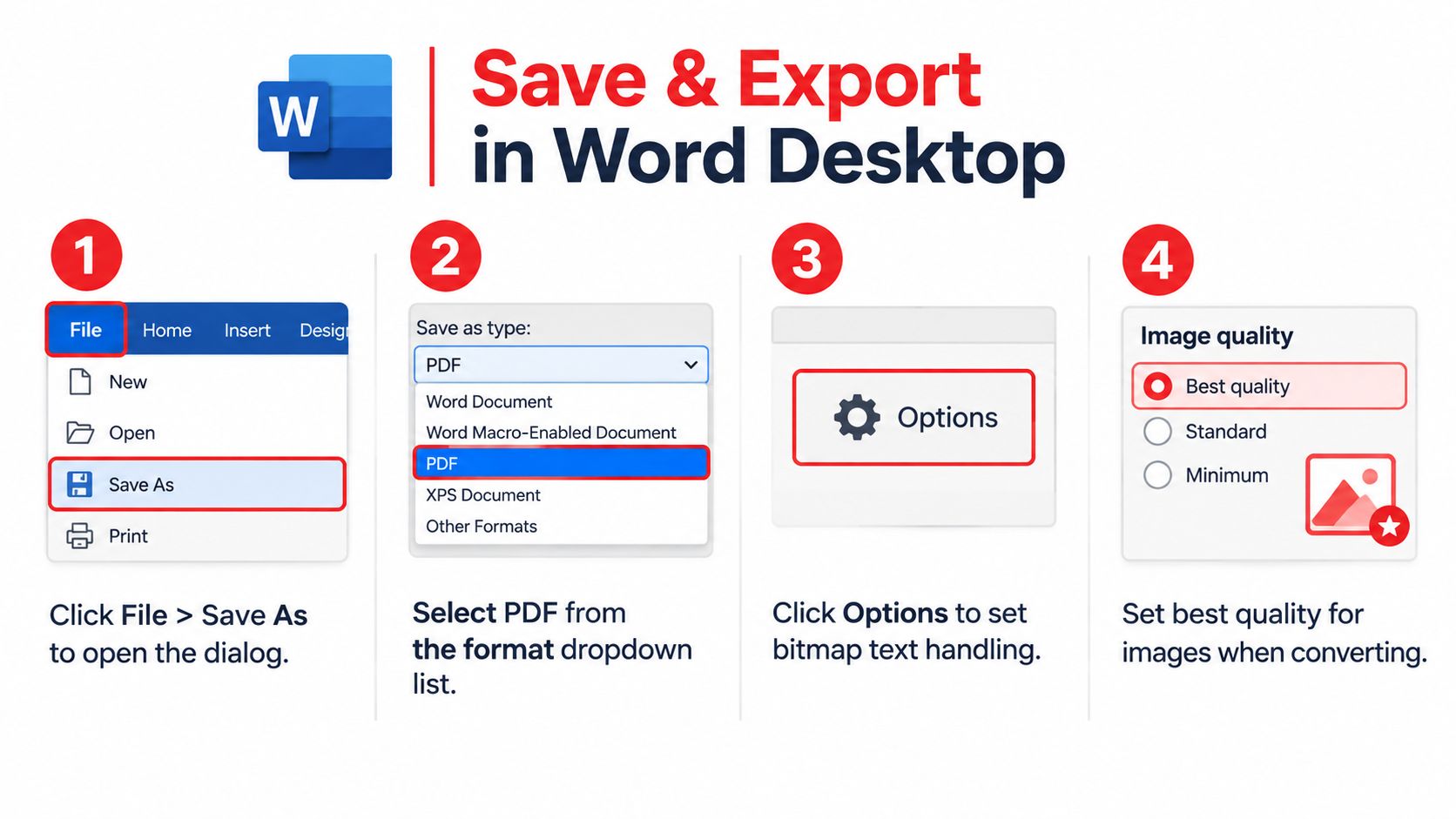
Use the native PDF settings
In desktop Word, follow this path:
- Select File, then choose Save As or Save a Copy.
- Select PDF (*.pdf) from the file-type menu.
- Choose Standard, described as publishing online and printing, when print clarity matters.
- Open Options and enable Create bookmarks using Headings.
- Select Document structure tags for accessibility.
- Choose the page range and markup settings that match the version you intend to share.
- Save the PDF, then open it outside Word for a final inspection.
Microsoft identifies tags, headings, tables of contents, hyperlinks, bookmarks, and image alt text as important parts of an accessible PDF. The company's desktop PDF saving guidance also distinguishes Standard publishing from Minimum size. Minimum size can be useful when a smaller file is more important than maximum image quality, but it isn't the default choice for a polished print document.
Printing to PDF is a poor substitute when structure matters. It may preserve what the page looks like while losing tags, logical reading order, bookmark relationships, or other interactive information. If file size is the problem, compress the exported PDF deliberately and inspect the result using a controlled PDF compression workflow, rather than changing the export route blindly.
Converting Documents in Word for the Web
Word for the Web works well when you're collaborating online, using a temporary workstation, or need a straightforward PDF without desktop Word. Its main advantage is convenience. You can open the document in a browser, make the necessary edits, and download a fixed copy without installing software.
Open the document, select File, choose Export, and then select Download as PDF. If you need reviewer comments included, use the option that downloads the PDF with comments. Choose carefully, because a clean client copy and an annotated internal review copy serve different purposes.
The browser workflow is a sensible choice for documents with ordinary paragraphs, headings, uncomplicated tables, and standard images. It's less suitable when the file depends on specialized fonts, intricate section layouts, precise page breaks, embedded objects, or unusual pagination. Browser-based rendering can differ from the desktop application, so don't assume that a document that looks correct in the editing window will produce the exact result you expect.
Check the output before sending
After downloading, open the PDF in a separate viewer and inspect:
- Page breaks: Look for headings stranded at the bottom of a page or tables split in awkward places.
- Fonts: Confirm that the typeface, spacing, and special characters look correct.
- Links: Test important hyperlinks instead of assuming they survived conversion.
- Comments and markup: Make sure the selected download option matches the intended audience.
- Images: Check that logos, diagrams, and screenshots remain sharp enough to read.
- Navigation: For longer files, verify that headings or bookmarks provide a sensible route through the document.
When the file is a formal deliverable, sync it back to the desktop version if the web export produces a questionable result. The browser is convenient, but convenience doesn't replace a final visual and structural review.
Using Privacy-First Browser Converters
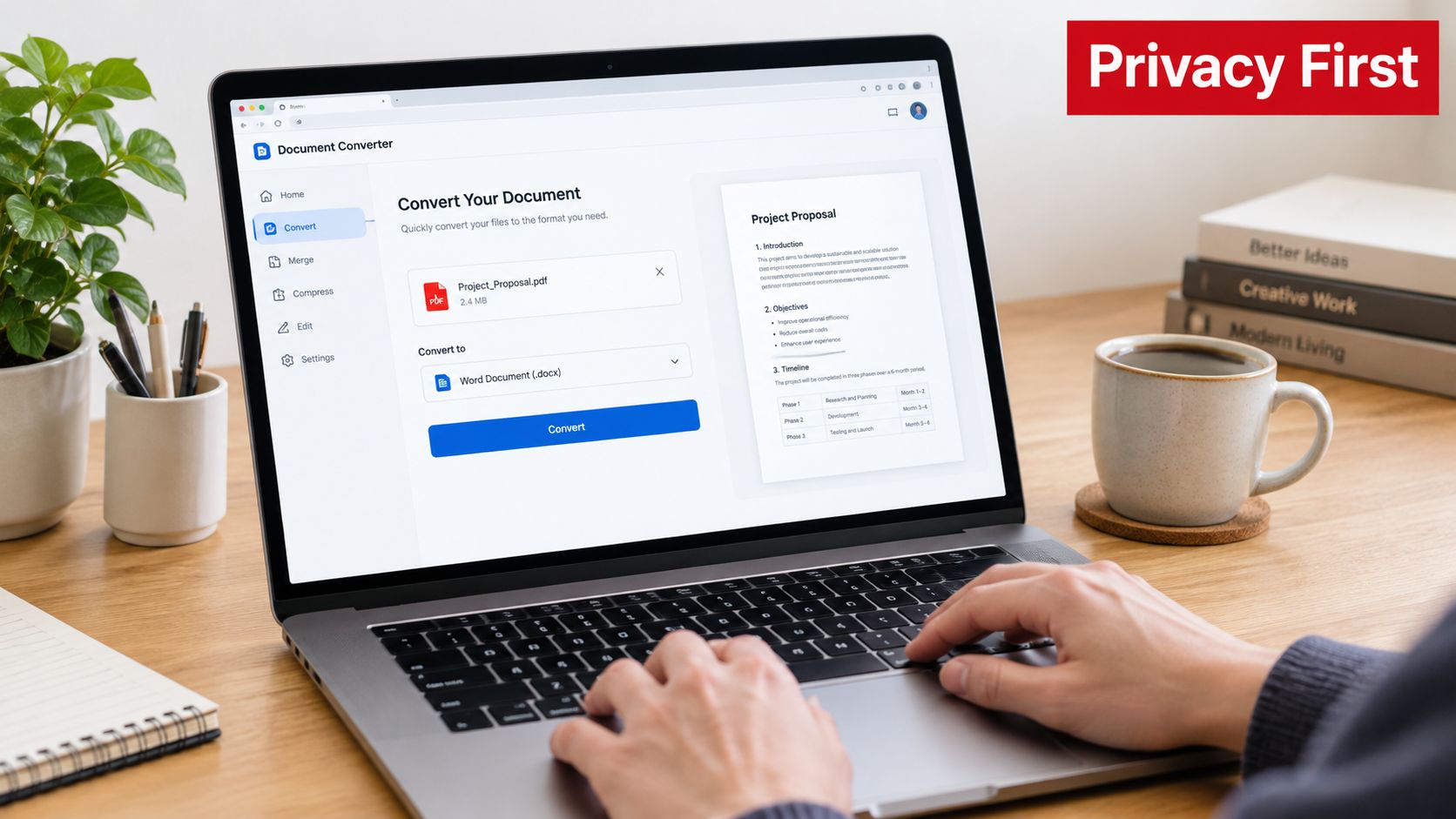
Sometimes Word isn't installed, the source file is on a phone or borrowed computer, or you need a quick conversion without creating an account. A browser converter can be useful in that situation, but the privacy model matters more than the interface.
Traditional online converters may require you to upload a document to a server before processing it. That creates an exposure point for contracts, employee records, customer information, unpublished reports, and other confidential material. A client-side converter processes the file in the browser, so the document can remain on your device instead of being transmitted for conversion.
PDFWix is one browser-based option that supports Word-to-PDF conversion, along with other document operations. Its publisher describes most of its tools as running in the browser through WebAssembly, while its server-side protection functions process files in memory without writing them to disk. Review the practical considerations in this guide to whether online PDF tools are safe.
A privacy-focused conversion routine
Use this process for a quick local job:
- Open the converter in a modern browser.
- Drag the
.docor.docxfile into the conversion area. - Start the Word-to-PDF conversion.
- Download the resulting PDF.
- Close the browser tab and remove temporary copies from shared devices.
- Open the PDF and verify its content before distribution.
Client-side processing reduces the need to upload the source file, but it doesn't eliminate every risk. A browser can still display documents on a shared screen, a downloaded file can remain in a downloads folder, and a compromised device can expose local files. Use a trusted device, avoid saving confidential files to public folders, and check the site's processing description before using any browser service for sensitive material.
The trade-off is control. A local browser converter can be fast and private, but it may offer fewer controls than desktop Word for bookmarks, page ranges, complex accessibility tags, or specialized layout behavior. Use it for routine conversions, then choose desktop export when the document has strict structural or publication requirements.
Fixing Broken Layouts and Missing Fonts
Most conversion failures begin in the Word source, not in the PDF itself. A document built with manual spaces, repeated line breaks, floating text boxes, or inconsistent paragraph settings is harder to export predictably than one built with styles and deliberate layout rules.
When fonts change
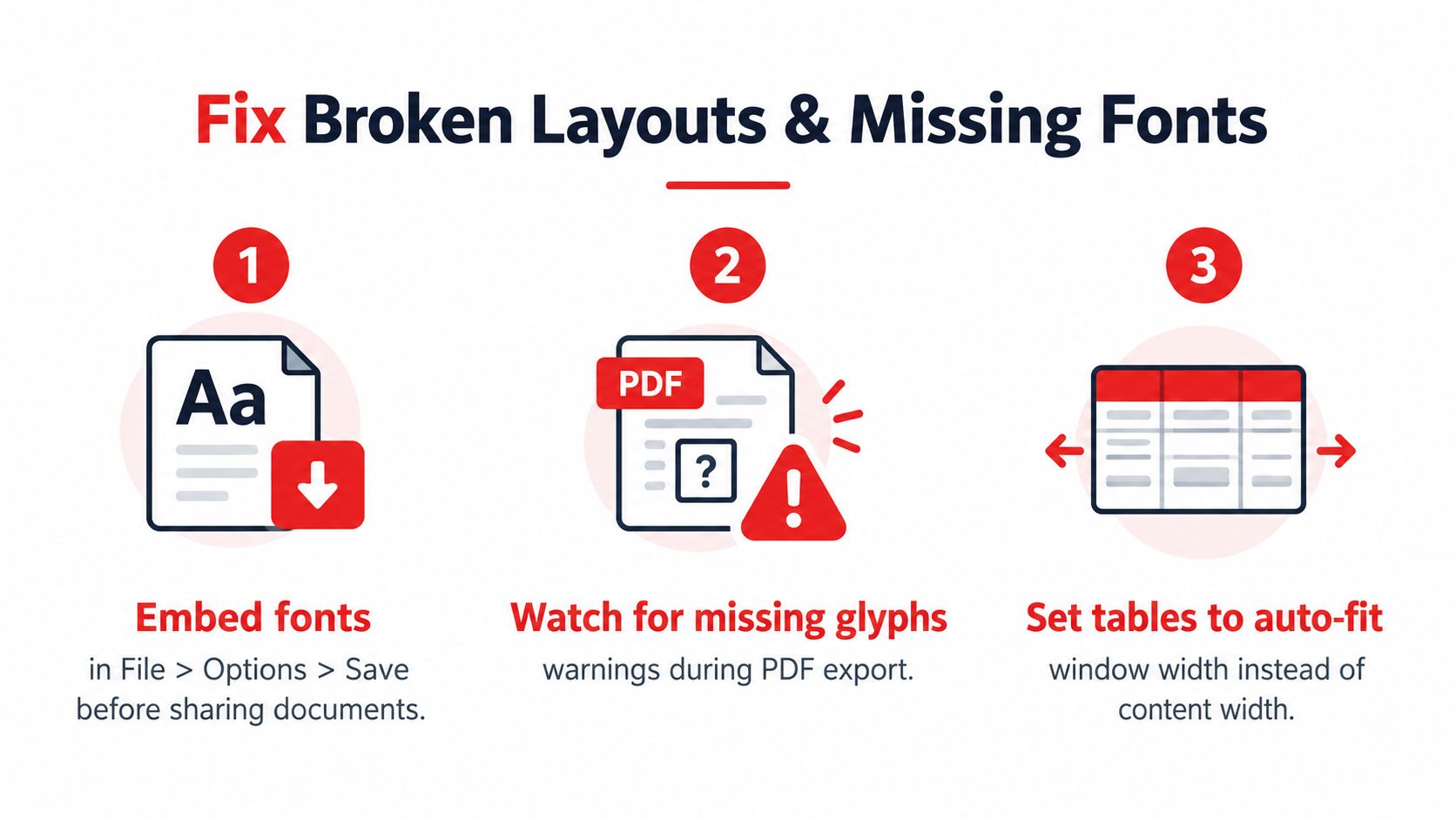
A font substitution can alter line lengths and push text onto a new page. It can also replace symbols or special characters with empty boxes. Use common, properly licensed fonts where possible, and check Word's font settings if the document relies on a less widely available typeface.
If a font isn't embedded or available to the conversion engine, the PDF may use a substitute. Compare the exported file with the original, especially in headings, tables, footnotes, form fields, and pages containing symbols. Don't judge only the first page. A missing glyph can appear much later in the document.
When tables and page breaks fail
Tables often overflow because their width is larger than the printable area, or because a column is sized to its content instead of the page. Adjust the table to fit the window, reduce unnecessary cell padding, and avoid forcing long unbroken strings into narrow columns. For complex layouts, separate the content into controlled sections rather than using a table as a general-purpose page design tool.
Use paragraph controls to keep headings with the following paragraph and prevent short lines from being stranded at the top or bottom of a page. Section breaks can isolate a wide table or a different header and footer without disturbing the rest of the document.
Check structure, not just appearance
A PDF can look correct and still have a confusing reading order. Tagged PDF structures allow assistive technologies to interpret headings, lists, tables, and reading sequence instead of treating each page as an unstructured visual surface. Adobe explains the role of logical structure and tagged PDFs in its PDF accessibility guidance.
Before exporting, apply real heading styles, add descriptive alt text to meaningful images, use simple tables with header rows, and avoid communicating information through color alone. After exporting, test keyboard navigation, select and copy text from different sections, and inspect whether headings and links behave as expected.
A PDF isn't finished when the pages look right. It's finished when the content can be found, read, navigated, and reused as intended.
If the exported file opens blank, contains missing content, or shows broken pages, first reopen the source document and check whether the problem exists there. Then try a native export, remove unstable objects, and verify the result again. This troubleshooting guide for blank PDF files can help you isolate whether the failure comes from rendering, file handling, or the source document.
Choosing the Right Workflow for Your Document
Use desktop Word when the document has complex formatting, accessibility requirements, formal bookmarks, or demanding print specifications. Use Word for the Web when collaboration and convenience matter more than fine-grained layout control. Use a privacy-first browser converter when you need a local, no-install workflow for a routine file and the document doesn't require extensive export configuration.
Before sending, run this short pre-flight check:
- Content: Confirm that comments, tracked changes, and internal notes are gone.
- Layout: Review every page, including tables, headers, footers, and signature areas.
- Text: Search the PDF for key terms and test copy and paste.
- Navigation: Check headings, bookmarks, links, and reading order.
- Accessibility: Confirm that the source uses styles, alt text, table headers, and structure tags.
- Privacy: Remove unnecessary metadata and temporary copies from shared devices.
- File size: Reduce size only after confirming that images and text remain usable.
For follow-up edits, use a browser-based PDF editor app when you need to annotate, organize, or adjust the finished file without returning to Word. The reliable habit is simple: export with the right method, inspect the actual PDF, and keep the editable source.
PDFWix provides browser-based tools for converting, merging, compressing, editing, signing, and securing PDFs, with many operations designed to run locally in your browser. Visit PDFWix to convert a Word file without installation, then verify the resulting document before you share it.