
You've opened a signed contract just before a deadline. The signature looks right, and the reader shows a reassuring banner, but you still need to know whether the agreement changed and whether the person named in the signature is someone you can trust.
Learning how to verify a digital signature in PDF files means looking past that banner. Keep separate results for byte integrity, post-signature changes, certificate trust, and revocation or timestamp evidence. Those results tell you much more than the handwriting on the page.
Table of Contents
- What a Valid PDF Signature Actually Proves
- How to Check the Signature in Each Viewer
- How to Read the Certificate and Trust Chain
- When a Green Check Still Leaves Changes
- Record a Check You Can Repeat
- Decide Whether You Can Rely on the Signed PDF
What a Valid PDF Signature Actually Proves
Say a supplier emails a signed agreement and asks you to approve payment. You can see their name beside a signature graphic, but that appearance doesn't tell you whether the payment terms are protected or who controlled the signing credential.
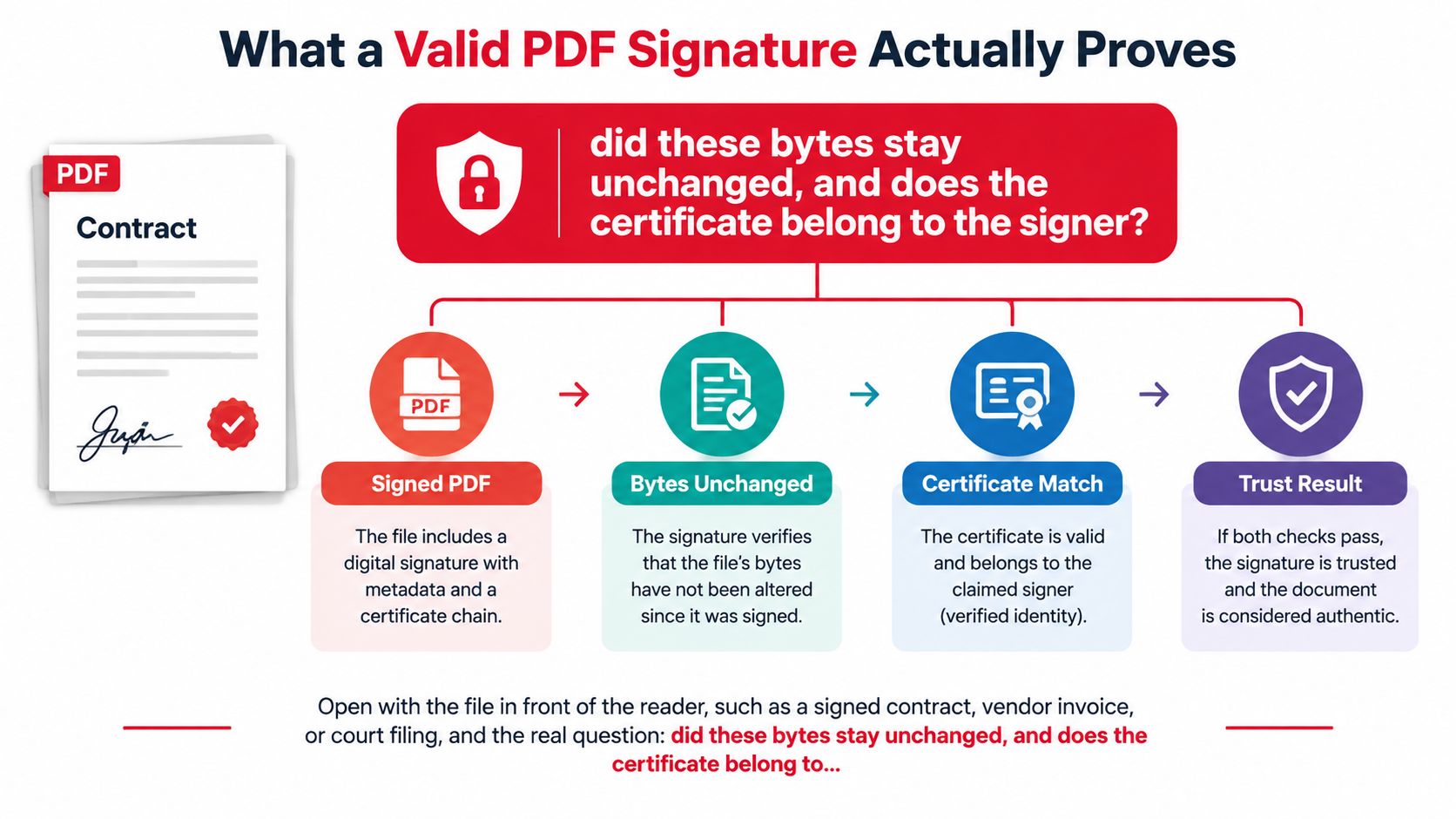
A certificate-based digital signature provides evidence you can verify. It is not just an image placed over the document.
The checks behind the appearance
The ETSI PAdES specification describes document-digest comparison and certificate-path validation, including the path rules in RFC 5280, certificate validity at the relevant signing time, and revocation checking. The reader calculates a digest, a cryptographic fingerprint, from the signed content and compares it with the digest protected by the signature.
Changing protected content produces a different digest, so the integrity check fails. The reader also tests the signature using the public key in the signer's certificate.
That successful calculation isn't the end of the identity check. The reader must establish whether the certificate connects to an authority it trusts and whether the credential was trustworthy at the applicable time.
What you can conclude
A sound technical assessment establishes that:
- The signed bytes remain unchanged. This applies to the content covered by that signature, not automatically to every later revision.
- The public key is bound to the claimed signer. The certificate provides that binding, subject to its identity details and issuance policy.
- The credential was trustworthy at the applicable time. Certificate status and reliable time evidence matter alongside the signature calculation.
A typed name, scanned handwriting, or pasted signature image doesn't establish these conclusions. Our explanation of what a PDF digital signature is helps distinguish a visible electronic mark from a certificate-based signature.
Practical rule: Start with the original attachment, not a screenshot or a printed copy.
Printing to a new PDF generally discards the original cryptographic signature. Exporting through an editor that rebuilds the file can also remove or invalidate it, even if the pages look identical.
Downloading or copying the original file without changing its contents is different. Keep that unchanged file as your verification copy, and avoid editing it while you investigate.
How to Check the Signature in Each Viewer
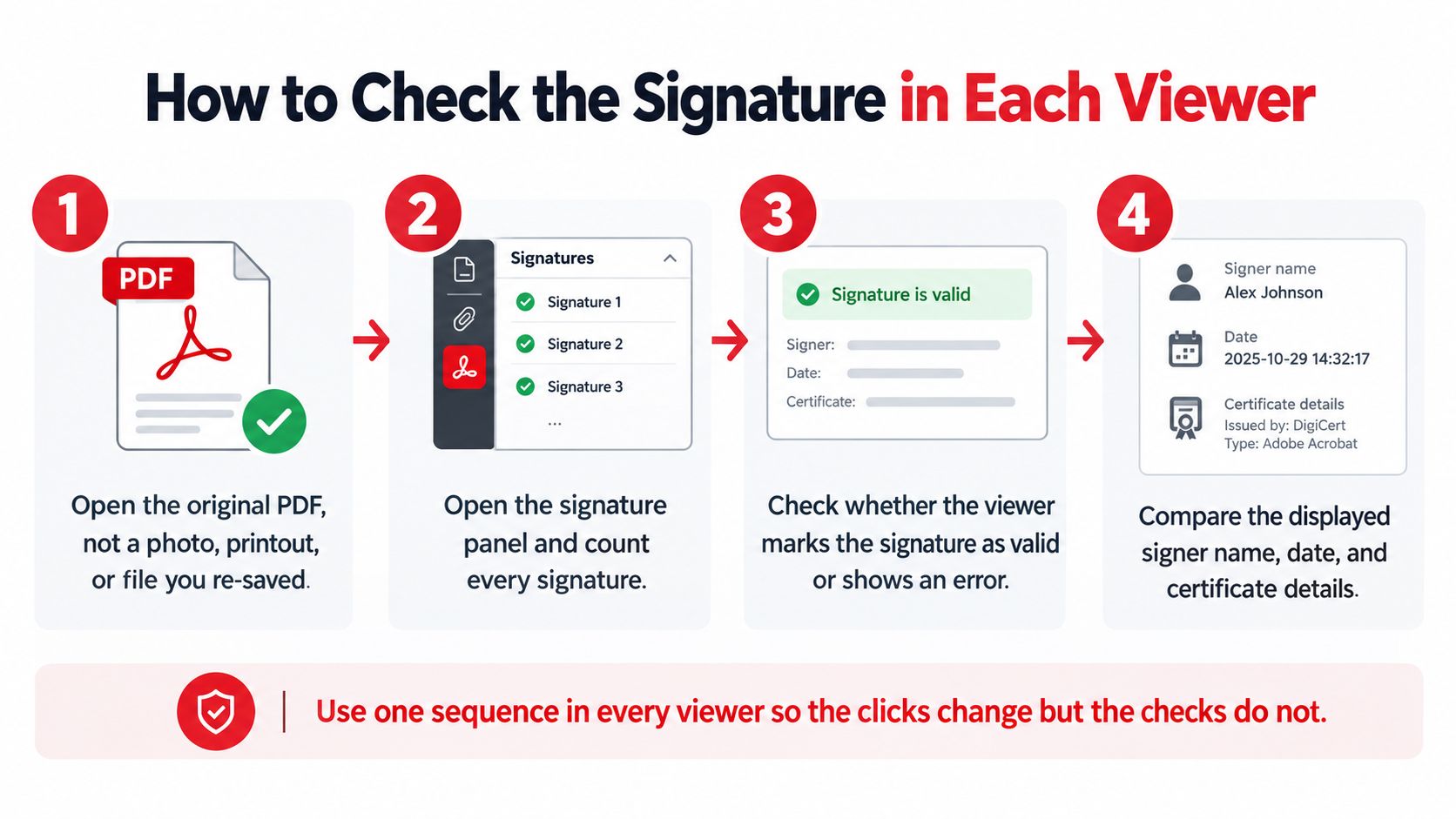
Use the same review sequence wherever you open the document. Menu names can change between applications and versions, but your questions shouldn't.
Follow a consistent review sequence
- Open the original PDF. Use the downloaded attachment, not a photo, printout, or regenerated PDF. If the document won't open, resolve that problem before attempting signature validation.
- Open the signature panel. Expand every signed field and distinguish completed signatures from empty signing spaces. Don't assume the visible signature on the last page is the only one.
- Read the integrity result. Look for an explicit statement about whether the signed content is intact. An altered or corrupted signature needs investigation, not a visual comparison alone.
- Open signer details. Copy the signer name, certificate issuer, and displayed signing time. These are different fields with different meanings.
- Inspect the certification path. Check whether the path reaches a root the application already trusts. A certificate displayed inside the PDF isn't automatically a trusted certificate.
- Review status and time evidence. Open revocation and timestamp details where available. Record missing or inconclusive evidence rather than treating it as a pass.
A file-opening failure isn't a signature verdict. The Cloudvara guide to PDF opening problems is useful when you need to separate a download, file association, or reader problem from a validation problem.
Where signature status shows up by viewer
| Viewer | Where to look | What a useful pass shows | Limit |
|---|---|---|---|
| Dedicated desktop PDF reader | Signatures panel and signature properties | Integrity status, signer, certificate path, and revocation or timestamp when available | Relies on installed trust anchors and an up-to-date reader |
| Browser viewer with signature support | Signature banner and certificate details on supported files | Integrity result plus signer and issuer | May provide limited revision history and revocation detail |
| Basic browser PDF view | Built-in document display | The file opens; a signature banner may be missing | No banner isn't proof the file is unsigned |
| Standards-based web or desktop validator | Validation report for each signature field | Separate results for digest, chain, signing time, and revocation | Upload only if the file is allowed to leave the device |
In a dedicated reader, open the signatures sidebar, select a signature, and look for its properties or validation details. From there, open the signer's certificate and certification path rather than stopping at the summary icon.
Browser support is less predictable. If the browser supplies only a page display, download the original and open it in a signature-capable desktop reader; don't interpret the missing controls as a failed signature.
A standards-based validator is useful when you need an exportable report. For confidential contracts, personnel records, or court materials, use a local validator unless your organization permits uploading the document.
Don't manufacture a trusted result
A reader may report an intact signature but an untrusted signer because it doesn't recognize the certificate's root. That result calls for identity verification, not an immediate change to trust settings.
Only add a certificate or root through the reader's trust-management controls after independently confirming it. Use an authenticated issuer directory or your organization's administrator, and verify sender details through a known contact channel.
Importing an unfamiliar certificate merely to remove a warning changes your settings. It doesn't establish who signed the agreement.
How to Read the Certificate and Trust Chain
The certificate panel can look intimidating because it mixes names, dates, technical permissions, and trust decisions. Read it like an identity record, not like a single approval stamp.
Before interpreting the name, make sure the validator has successfully checked the signed content. The ETSI PDF signature validation guidance separates signed-byte verification from certificate-path validation and calls for checking certificate usage, signing-time validity, and revocation.
Read the identity fields in order
Start with Subject, the identity named by the certificate. Compare it with the person or organization you expected, not just the name printed beside the visible signature.
Next read Issuer, the authority that issued that certificate. The issuer isn't necessarily the signer's employer, and a familiar-looking issuer name isn't enough without a valid trust path.
Check Key Usage and any related restrictions. The credential must be suitable for the signing operation, and the validator should evaluate relevant certificate policies rather than merely display the certificate.
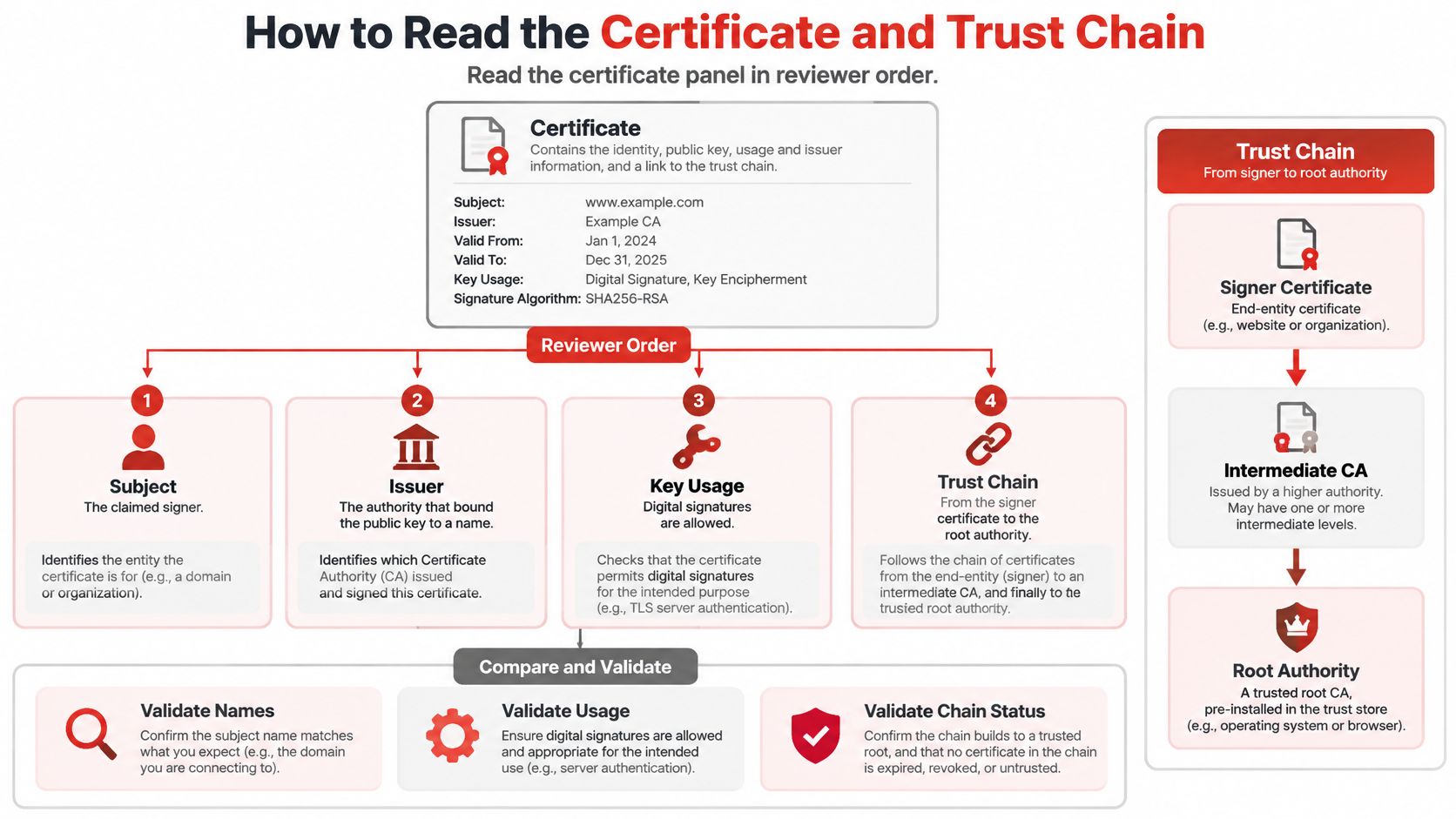
Follow the certification path from the signer through any intermediate authorities to the trusted root. A missing intermediate may prevent path building; an untrusted root means the reader hasn't established an acceptable identity chain.
For example, a supplier might send a mathematically intact signature made with a self-issued certificate. That establishes use of the corresponding private key, but it doesn't independently establish that the key belongs to your supplier.
Separate expiry, revocation, and missing evidence
Compare the certificate's validity period with a trustworthy signing-time reference, not with today. A credential that expired after signing may still support a valid historical signature.
The displayed signing date might come from the signer's computer. A trusted timestamp provides stronger evidence that the signature existed at a particular time, although it also needs validation.
Revocation deserves its own entry:
- Good: The available status evidence supports a non-revoked result for the relevant assessment time.
- Revoked: Inspect the revocation time and validation explanation before relying on the document.
- Unknown: The validator lacks sufficient evidence, perhaps because it couldn't obtain a certificate revocation list or an online status response.
An untrusted certificate and a revoked certificate are different problems. Neither should disappear into a general note that the signature looked fine.
Finish with a short record showing byte integrity, later-change classification, certificate trust, and status or time evidence. If the certificate names the wrong person, don't try to solve that by changing a visible signature.
When preparing your own document, distinguish placing a mark from applying a certificate-based signature. The guide to signing PDF documents explains the signing workflow; your recipient's trust requirements still determine which method is appropriate.
When a Green Check Still Leaves Changes
A green banner doesn't necessarily mean the signer approved every detail you currently see. The signature may protect an earlier revision, while the file contains later additions.
PDF applications can append incremental updates rather than rewrite the signed content. Those additions might contain a comment, a completed form field, or another signature, so intact signed bytes and a changed current document can coexist.
Compare the signed revision with the current file
University research summarized by TechTarget found attacks that fooled some PDF viewers into accepting manipulated content, exposing implementation weaknesses rather than a failure of signature mathematics. That distinction matters: a reassuring interface is only useful if the application correctly analyzes what it displays.
Select the signature and look for a command to view its signed version or revision. Open that version without replacing your original file, then use the validator's change analysis to identify additions made afterward.
For a contract, inspect payment instructions, totals, party names, and operative clauses. Visual comparison helps you understand the consequences, but it doesn't replace the validator's byte-level and permission checks.
Signature statuses and what to do next
| Status you see | What it actually means | What to do |
|---|---|---|
| All signatures valid | The digest matched and this viewer trusted the chain it checked under its validation settings | Still open time, revocation, and changes after signing |
| Document modified | The current file differs from the signed revision; the message alone doesn't establish whether signed bytes were damaged | List the changes and separate allowed form fills from altered pages |
| Untrusted or self-signed certificate | The math can succeed without a trusted identity | Don't treat the signer as independently identified |
| Revocation unknown | The viewer lacks sufficient status evidence, possibly because a status service couldn't be reached | Recheck online or assess suitable embedded historical evidence |
| Certificate expired | Expiry concerns a validity period, not automatically the signing moment | Compare expiry with trustworthy time evidence |
| Valid in one viewer only | Trust stores, validation settings, or signature support may differ | Recheck in another standards-based tool before relying on the file |
An allowed update must satisfy the document's signing permissions and the applicable validation rules. A form field completed where completion was permitted isn't equivalent to replacing a page containing the agreed price.
Likewise, a later signature can be legitimate without proving that the earlier signer approved everything introduced afterward. Check each signer against the revision that signature covers.
Respond to unexplained changes
Don't label every modification fraudulent, but don't dismiss unexplained edits either. Compare the received attachment with the file you're reviewing and ask the sender to explain substantive differences through a known communication channel.
If the reader provides only a vague warning, use an up-to-date standards-based validator with explicit revision analysis. Preserve both the original PDF and the resulting report, including any disagreement between tools.
Removing a signature isn't a troubleshooting step. If you need a fresh signing copy, understand the consequences of removing a digital signature from a PDF and work on a separate document rather than altering your evidence copy.
Record a Check You Can Repeat
A colleague should be able to take your saved file and understand exactly what you checked. A screenshot of a green icon doesn't capture the validation conditions, certificate details, or uncertainty behind the result.
Build a usable verification record
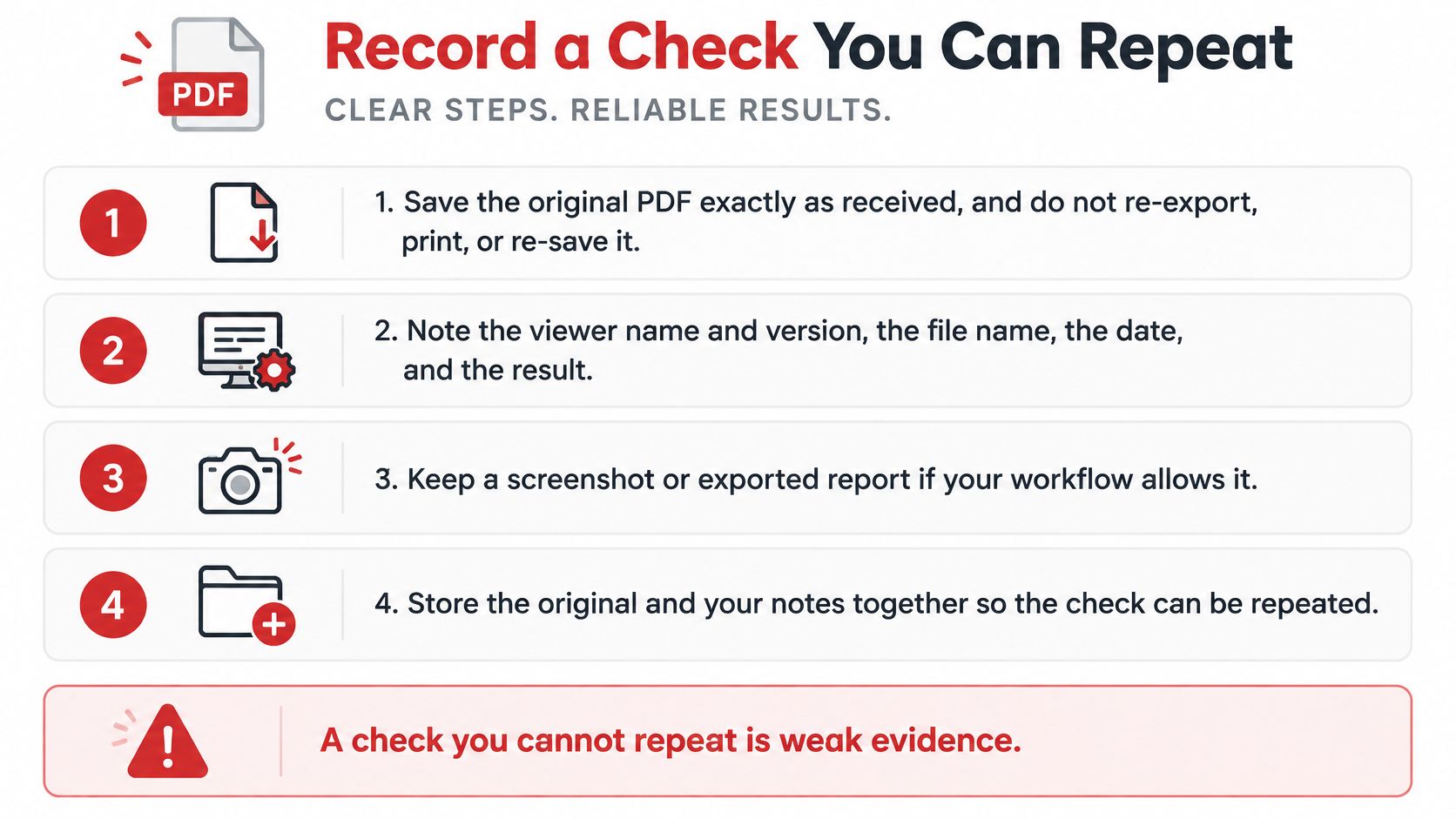
- Preserve the original. Save the PDF exactly as received, with its filename and delivery context. Don't re-export, print, or overwrite it during review.
- Record the environment. Note the reader or validator name and version, the check date and time, and the trust store or trusted list used. Include relevant validation settings.
- Capture each signature result. Record the signature field identifier, integrity conclusion, signed revision, and any detected post-signature changes.
- Save certificate details. Include the subject, issuer, serial number, path to the root, and key usage. These details help distinguish certificates with similar display names.
- Identify the time source. Specify whether the time came from a validated timestamp or a signer-supplied value. Preserve the timestamp validation result, not just its displayed date.
- Record certificate status. Write good, revoked, or unknown, together with the relevant evidence time and your check time. Preserve the explanation when a check couldn't complete.
- Export the evidence. Save the validator's report beside the original and your notes. A screenshot can supplement the report, but it shouldn't replace a detailed export when one is available.
Preserve evidence for later review
You don't need the signer's secret credential to repeat verification. NIST's Digital Signature Standard describes the public-key model: the signer generates a signature with a private key, and the verifier tests it using the corresponding public key.
Historical validation needs more than that public key, however. Certificates, revocation evidence, and timestamps help establish whether the signature was trustworthy at the relevant time.
Long-term PAdES profiles preserve this supporting material, while the archival profile adds timestamp protection intended to support continued validation. That isn't a promise of permanent validity without maintenance: algorithms, archival timestamps, and validation policies can still require attention.
Without suitable historical evidence, a later review may be inconclusive even though an earlier review succeeded. An unavailable status service shouldn't force a future reviewer to guess what your reader established.
Evidence habit: Keep the file, the validation report, and the explanation of any unresolved result together.
Keep technical and legal conclusions separate
Technical validation doesn't automatically prove contractual intent, signing authority, or enforceability. A valid certificate belonging to an employee doesn't, by itself, establish that the employee could commit the organization.
The ETSI signature validation specification addresses integrity, trust, relevant time, and status checks; those technical checks don't by themselves determine legal effect. Legal classification and evidential weight require the applicable jurisdiction's rules and the surrounding transaction evidence.
Use consistent electronic signature best practices to preserve approvals, signing context, and records alongside the cryptographic evidence.
Decide Whether You Can Rely on the Signed PDF
Rely on the document only when the verification results meet the needs of the transaction. A routine internal acknowledgment and a disputed payment instruction don't call for the same tolerance of missing evidence.
For ordinary sharing, a defensible result combines intact signed content, an acceptable identity chain, sufficient certificate-status evidence, and understood later revisions. The signer also needs to be the person whose approval you require.
Choose a decision, not just a status
- Proceed: Your validation record supports the expected signer and document revision, with no unresolved change or status issue material to the transaction.
- Pause: Identity remains untrusted, relevant time can't be established, or a high-stakes document has an unknown revocation result.
- Escalate: Validators disagree, substantive content changed unexpectedly, or you need a legal determination about authority or enforceability.
Pick the next action that addresses the actual gap. If a browser supplied no signature controls, repeat the review in a dedicated signature-capable reader.
If identity is the problem, ask the sender for a certificate-based signature that chains to a trust anchor your organization accepts. A public anchor isn't the only acceptable arrangement; an authenticated organizational trust system may also be appropriate.
If the terms themselves are unclear, signature validation won't interpret them for you. LegesGPT's legal document review AI can assist with reviewing document language, but it doesn't replace cryptographic verification or jurisdiction-specific legal advice.
Adding your signature is a separate job
Our Sign PDF tool lets you draw, type, or upload a signature on your own document, or request electronic signatures from others. That visible appearance isn't a substitute for certificate, time, and revocation evidence when a recipient requires cryptographic validation.
Read the guide to the legal context of electronic signatures before choosing a signing method for a consequential agreement. Decide what evidence the recipient needs before creating the final signing copy.
Keep the received original regardless of your decision. If you request a corrected document, preserve the earlier version and its report so the reason for replacement remains clear.
Your final note should say whether you accepted the PDF, requested a fresh signature, or referred it for further review, and why. That's a much stronger conclusion than recording only the color of a banner.
PDFWix offers browser-based tools for preparing and signing PDFs without signup or added watermarks. Our browser-based Sign tool processes your document locally, so the file isn't uploaded during that processing. Visit PDFWix when you're ready to prepare your own signing copy, and keep received signed originals untouched for verification.