
You're looking at a spreadsheet of names, amounts, and dates, and a letter that still reads the same for every row. HR needs offer letters. A clinic needs visit summaries. Finance needs invoices before the batch goes out. The job is mail merge into PDF: one personalized file per person, checked before anyone receives it.
I would treat that batch as a data check first and a formatting job second. A blank where a name should sit, two files sharing one name, or a second send of the same letter costs more than the minutes you save by rushing the export. The word processor fills the template. A PDF tool only enters after those files exist, and only if someone needs them joined.
Table of Contents
- Mail Merge and PDF Merge Are Different Jobs
- Choosing Between Word and LibreOffice Writer
- Run the Mail Merge to PDF and Split One File per Recipient
- Fix Merge Errors and Accessibility Gaps Before Sending
- Combine Finished PDFs With PDFWix When One File Is Needed
Mail Merge and PDF Merge Are Different Jobs
Joining PDFs is not mail merge, and treating the two clicks as the same job is how batches go out wrong. Mail merge fills one template with values from each spreadsheet row. PDF merge joins files that already exist and does not change what is on those pages.
Microsoft's mail merge guide describes Word as a data-driven process. A main document holds placeholders called merge fields. A connected data source supplies the values. The completed merge generates a personalized version for every record. Excel workbooks and Outlook contact lists are the usual sources. For Excel, Microsoft recommends keeping all merge data on the first worksheet, matching column names to the fields in Word, finishing spreadsheet edits before you connect the file, and formatting percentages, currencies, and postal codes so Word can read them. The sheet is the record source for each personalized PDF, not a list of attachments.
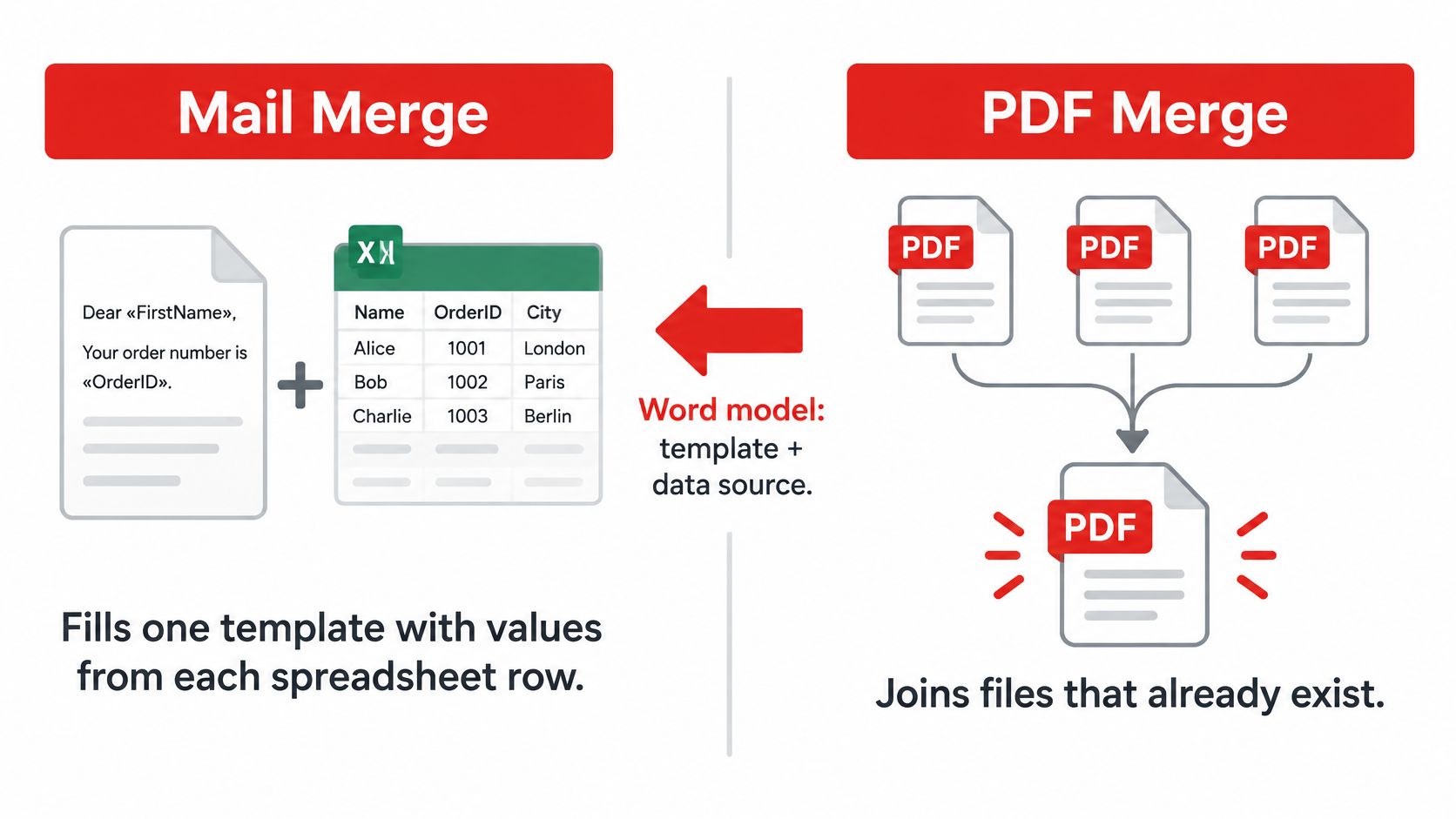
| Task | Mail merge in Word or LibreOffice | PDF merge with PDFWix |
|---|---|---|
| Input | A template with merge fields and a spreadsheet of records | Two or more finished PDF files |
| Output | One personalized document per row | One combined PDF in the page order you choose |
| Changes per file | Names, amounts, dates and other field values | Nothing; each source page is kept as it is |
| Where it happens | Before export, inside the word processor | After the PDFs exist, as a final organizing step |
Merge PDF does not insert fields and does not read spreadsheet rows, so it only belongs after the personalized PDFs exist. If you already hold finished files and only need them combined, how to merge PDF files into one covers that organizing step. This article is about producing the files first. Turning the sheet itself into a single PDF, with no letter template, is a different task again, covered by a CSV file to PDF converter.
If values still need filling into a template, you need mail merge. If you already hold the finished files and want one file, skip to combining.
Choosing Between Word and LibreOffice Writer
Pick the word processor your team already has open, then match the data source to that tool. Switching apps mid-batch to chase a feature usually creates a second template you forget to update.
Word suits people who already keep the list in Excel or Outlook. Indian Health Service training notes on Word mail merge walk through a practical path. Connect the workbook with Mailings, Select Recipients, Use an Existing List, choose the worksheet, insert fields such as names or invoice numbers, and use Preview Results to step through records one by one. Finish & Merge then offers Print Documents and Send E-mail Messages. In Edit Recipient List you can clear individual checkboxes, so a test run can cover ten rows instead of the whole sheet.
LibreOffice Writer suits an open-source desk, or data that already lives in a Writer document or a database such as MySQL. The LibreOffice Writer mail merge chapter sets a clear sequence. Create and register a data source, then build form letters, labels, or envelopes, and optionally save the merged output as an editable file instead of printing it at once. Sources can be spreadsheets, text files including Writer documents, or databases such as MySQL. Open the wizard from Tools, Mail Merge Wizard. On the Mail Merge toolbar, Edit Individual Documents creates one merged document with page breaks between recipients. Writer performs the field substitution. Export to PDF is the later file-format step, and the same documentation lists PDF as a document-attachment format.
| Feature | Microsoft Word | LibreOffice Writer |
|---|---|---|
| Data source | Excel workbook or Outlook contacts | Spreadsheets, text files, Writer documents or databases such as MySQL |
| Starting point | Mailings, Select Recipients, Use an Existing List | Tools, Mail Merge Wizard |
| Recipient control | Clear checkboxes in Edit Recipient List to skip rows | Filter or trim the registered data source so only chosen rows are available |
| Batch output | Finish and Merge options such as Print Documents and Send E-mail Messages | Edit Individual Documents creates one document with page breaks between recipients |
| PDF export | Export the merged result to PDF | Export the merged output to PDF |
Neither tool produces one PDF per recipient by default. You get a merged document, then you export it. The click path for that Word export is in how to save as a PDF file in Word.
Keep the spreadsheet identical if you ever compare the two apps on the same letter. A mismatch in a date format will look like a software bug when it is only a cell format.
Run the Mail Merge to PDF and Split One File per Recipient
A finished-looking PDF can still be one long file with everybody in it. Individual delivery needs a split, or a generation that already wrote one file per row, plus a manifest you can audit.
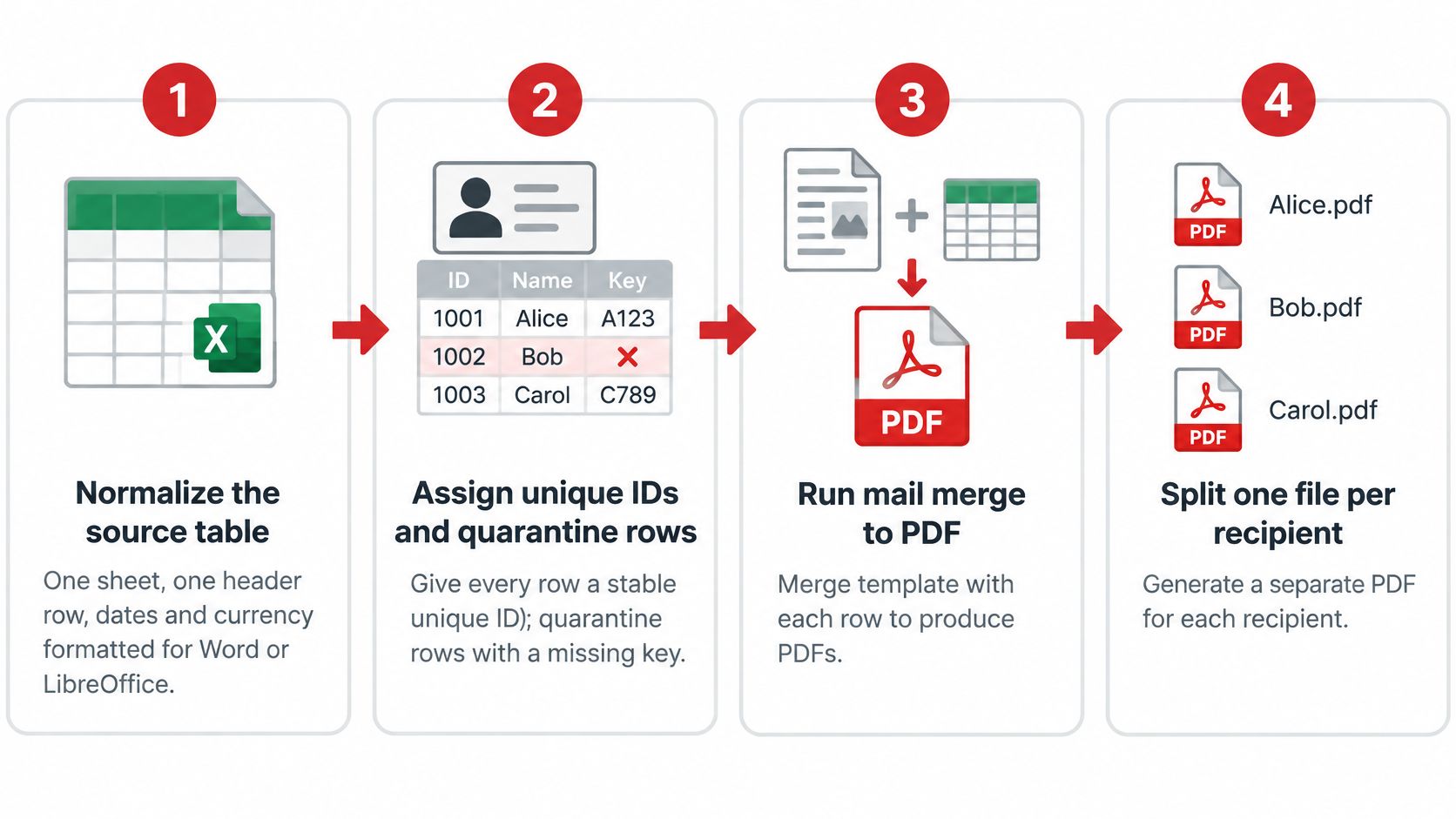
Microsoft's rules for a mail merge confirm that merge fields pull values from the data source and that conditional rules customize content. The same guidance treats preview as the moment to catch field placement, missing values, and formatting errors, before you generate the batch. Microsoft's docs and support discussions also treat creating individual PDFs, and splitting after the merge, as separate requirements. A single merged PDF does not automatically give you one addressable file per recipient.
Build the pipeline
- Normalize the source table. Use one sheet, one header row, and dates and currency formatted the way the word processor reads them. A header that differs by one character leaves a blank in the output.
- Give every row a stable unique ID. Quarantine rows with a missing ID, an invalid date, a malformed email, or characters that are unsafe in a filename. Do this before you connect the file.
- Connect the workbook and insert a merge field for each value you will check later, such as name, invoice number, and amount.
- Add conditional rules only for optional content, such as a late-fee paragraph. A rule that hides a required block will also hide the person.
- Preview two records on purpose. Use one with the longest expected name, address, currency value, date, and optional-field combination, and one with missing data. Microsoft recommends that preview before you complete the merge.
- Generate the merged document and keep the editable version. Do not overwrite the template.
- Export to PDF, then split at record boundaries so each recipient starts cleanly and the page count lines up with the row count. For a few dozen records, a PDF editor is practical. For hundreds, a script or batch splitter is more reliable. The checks in an online PDF splitter are the same either way. Confirm each piece, don't trust the page break you hoped was there.
- Name each file from the sanitized record ID, such as
0042-invoice.pdf, not the person's display name. Write a manifest that maps each record ID to its file and page number. - Leave the original merged file and the spreadsheet unchanged. Fixes belong in a copy, so you can see what the first run produced.
Investor and client statements are a common case where one template must become one file per row, with a trail of which row produced which PDF. A CEFCore investor reporting overview is a useful picture of why that trail matters once the files leave your desk.
The check before anyone is copied
Open three files at random. Confirm the name, date, and amount against the sheet. Then compare the manifest total with the spreadsheet row count. If those two numbers disagree, stop. A short count means a skipped row or a failed split, not a file you should email.
Fix Merge Errors and Accessibility Gaps Before Sending
Ten files fail in a batch of two hundred. Someone reruns the whole send. The ten that already went out go out again, same amounts, same people. That duplicate is the expensive failure. A clean-looking PDF does not prove the right recipient got the right values.
| Symptom | Likely cause | Fix |
|---|---|---|
| Blank text where a name or amount should be | Column header differs from the field name, or the cell is empty | Match headers exactly and fill or flag the blank row before merging |
| Page count one short of the row count | A row was skipped by a cleared checkbox or a conditional rule | Check Edit Recipient List, then count PDF pages against records |
| Two outputs share one filename | Filenames built from display names | Generate filenames from sanitized record IDs |
| A recipient received the document twice | Re-running the send after a partial batch | Keep a manifest of sent IDs and resend only missing records |
| Headings or reading order broken in some PDFs | Field values or conditional content changed the structure | Test long-name and empty-field records, then check tags and reading order |
A partial batch is where the duplicate usually starts. Treat the manifest of sent IDs as the gate for the rerun: resend only the records missing from it. If those files go out by email, deliverability basics are worth reading before a large run, because a second blast of the same attachment is both a privacy problem and a sending problem.
A file that looks right can still fail a reader
A correctly generated PDF can still fail the reader. Layout can look finished while tagged headings, logical reading order, alternative text, bookmarks, and machine-readable text are missing, so a screen reader cannot follow the record.
For consumer-facing or public documents, put accessibility on the pre-send check. I recommend running it as a validation step against the manifest, not a visual skim of one tidy sample.
Check tags on the long-name record, a record with an empty optional field, and a missing-data record. Field values can disrupt reading order. Untagged tables stay untagged. Conditional content can leave an empty heading. If you must fix structure after generation, a tagged template alone will not finish the job.
Heavy image-only pages are a related trap. An optimized PDF that has been flattened into pictures may look sharp and still be unreadable to a screen reader.
Test the awkward records. The short, complete sample is the one least likely to break structure.
Combine Finished PDFs With PDFWix When One File Is Needed
Use a combined file for a submission or review pack that needs one document. Keep each recipient's PDF as a separate deliverable, matched to its row in the batch manifest.
Put the files together
- Open each personalized PDF and confirm it is the right version and page order. A stale export from yesterday's template will merge just as cleanly as the correct one.
- Open PDFWix Merge PDF.
- Add the files and drag them into the required order. No desktop PDF software is needed. The output has no watermark or file size limit.
- Merge, download the combined PDF, and compare its page count with the total pages in the source files. Keep the originals so you can rebuild the pack if a file is missing or out of order.
PDFWix's merge tool runs in the browser, so files are not uploaded for processing. Review the tool's file-handling information before working with sensitive documents.
Keep the batch traceable
A combined pack can be in the right order and still be hard to audit. In HR, legal, education, healthcare, and finance, each file may contain confidential information. A per-recipient manifest helps you check that every spreadsheet row produced the intended PDF and that no file was duplicated or missed.
- Use pseudonymous row IDs in filenames, not full names or account numbers.
- Keep contact data out of the document body when the letter does not need it.
- Record counts and checksums for each batch, and quarantine any file that fails the count.
- Set retention and deletion rules for originals, combined copies, and mail attachments, then follow them.
The reviewer gets the combined pack; each person listed in the spreadsheet gets the PDF matched to their row.
PDFWix is a free browser toolkit for organizing PDFs, including merging checked files into one pack. After confirming the files and their order, use PDFWix to combine them without adding a watermark.