
You've merged two scan batches or two exports of the same agreement, and now the PDF runs longer than it should. Page 6 appears, then appears again. A cover sheet shows up twice. Before you send it, you need to Remove Duplicate Pages from PDF files without deleting the one copy that carries initials, a stamp, or a cleaner scan.
That last part is the task. Deleting pages is easy. Deciding which pages are duplicates is a judgement call, and no button makes it for you.
Table of Contents
- How to Remove Duplicate Pages from a PDF
- Tell True Duplicates From Pages That Only Look Alike
- Keep Intentional Repeats and Scans With No Text
- Fix Mistakes When a Page Is Missing or Out of Order
- Verify the Cleaned PDF and Decide Whether to Send It
How to Remove Duplicate Pages from a PDF
Start with the honest limit. The tool doesn't detect duplicates for you. It removes the pages you select, nothing more. Your job is the visual check first, then a deliberate deletion you can explain afterward.
That's not a flaw in the workflow. It's how page removal is built. Adobe's documented page-management workflow requires opening the PDF, selecting page thumbnails, and deleting the chosen pages, with multiple pages specified using comma-separated page numbers such as 2 and 4 or a continuous range such as 6–8, and it states that at least one page must remain. Confirm that same range format and remaining-page rule in the live interface you're using before you rely on it.
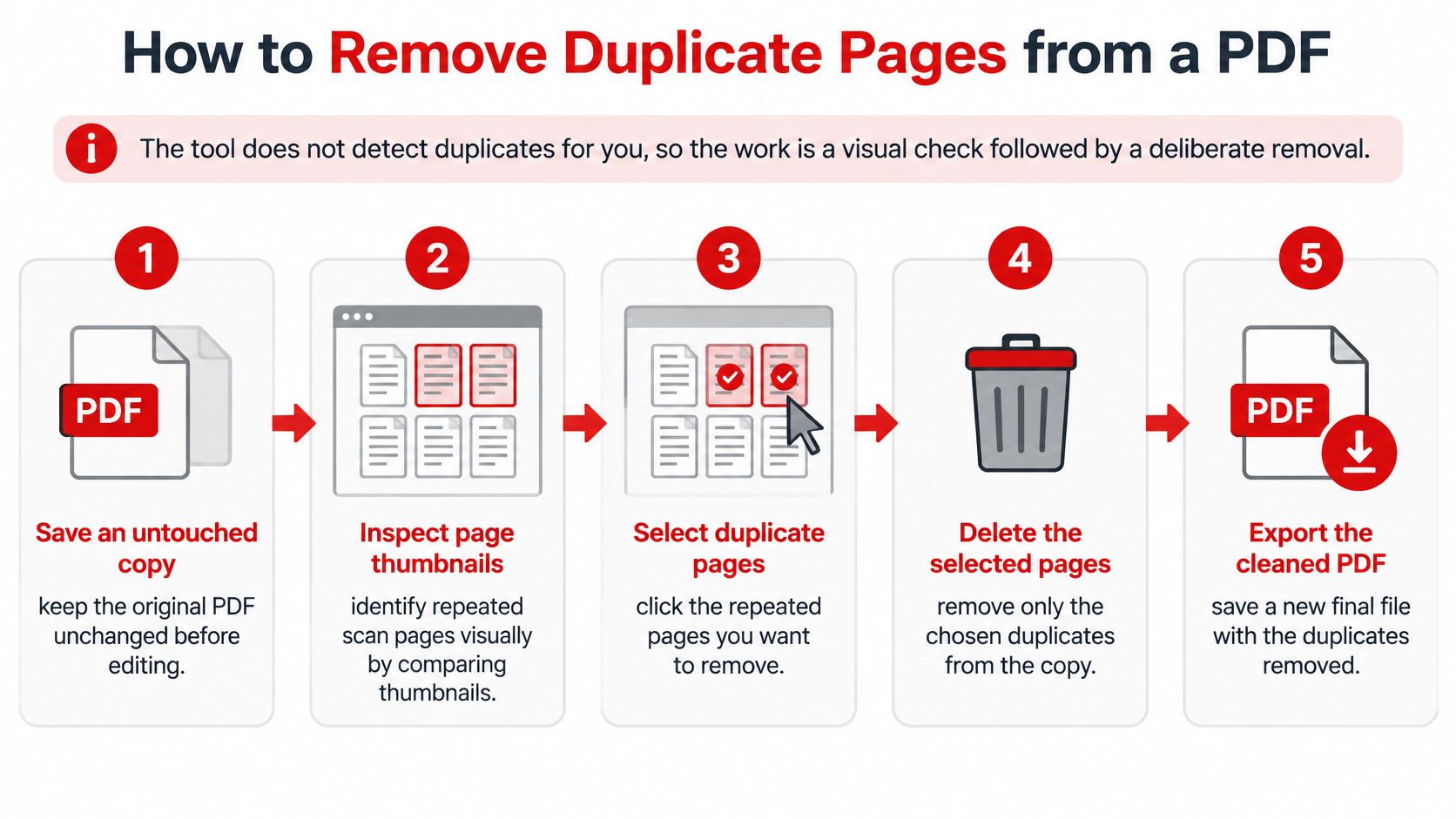
Work From a Copy, Not Your Only File
- Save an untouched original. Duplicate the file and name it clearly, something like
agreement-original. Every recovery step later depends on this copy staying unchanged. - Open the working copy in the tool. Use the PDFWix page removal tool for deleting selected pages and switch to a thumbnail view large enough to read headers, printed page numbers, and scan edges. Small thumbnails hide exactly the details that matter.
- List suspected pairs before deleting anything. Write down each pair by position in the file, for example pages 6 and 8 both look like section 5. Note which copy you'd keep and why.
- Open each pair at full size. Two thumbnails can look identical while one copy is skewed, darker, or missing a stamp in the corner. I would never delete from thumbnails alone when the file will be submitted or signed.
- Enter only the confirmed duplicates. Use commas for single pages and a hyphen for a continuous run, then check the selection against your written list before you confirm.
- Check the remaining count. A PDF can't be emptied, and the count after removal should match your expected total before you download.
- Download under a new name. Keep the original and your removal list together with the cleaned file.
Where People Usually Slip
The common mistakes are boring, which is why they keep happening. Working on the only copy turns a wrong click into a rebuild. Typing a range one page short, like 6-7 instead of 6-8, leaves a duplicate in place and shifts nothing, so you may not notice until someone else reads it.
If you're rebuilding from separate source files rather than cleaning one merged file, the PDF page organizer for reordering and deleting pages before saving lets you drop repeats before the combined file exists. Either route ends the same way. You should be holding a cleaned file, an untouched original, and a short list of exactly which page numbers you removed.
Tell True Duplicates From Pages That Only Look Alike
| Duplicate Type | Visual Sign | Check Before Deleting | Usually Safe to Remove? |
|---|---|---|---|
| Exact copy | Same text, layout, page number and scan edges | One full-size preview to confirm | Yes, after one check |
| Near-duplicate scan | Same content with skew, shifted margins or different contrast | Look for stamps, signatures or handwriting on each copy | Keep the cleaner scan |
| Same content, different header or page number | Body matches while footer or numbering differs | Confirm which numbering the document needs | Only if numbering is not needed |
| Text-free scan | Blank-looking or image-only pages that appear alike | Inspect full size for faint marks before judging | Not until inspected |
Use the table while you're looking at thumbnails, not after. An exact copy matches in the body, the margins, and the little imperfections along the scan edge. One full-size check usually settles it.
A near-duplicate scan is trickier because the content matches but the capture doesn't. One copy may sit straighter or read more clearly. Keep the cleaner scan, but only after you've checked the copy you're dropping for handwriting, a date, or a stamp that the cleaner version lacks. Cleanliness doesn't outrank completeness.
Why Your Eyes Beat Extracted Text Here
A Science.gov summary of document-retrieval testing reported results from 171 documents where the image-based duplicate-detection method achieved average 11-point precision of 98.9%, compared with 97.7% for the text-based method, and it notes image-based methods perform better when documents contain little or no high-quality machine-readable text. For your manual check, that supports judging thumbnails and full-page renderings instead of trusting copied text.
Comparing two whole files is a separate task from judging repeated pages inside one document. If you hold two versions of a file and need to spot content differences between them, the guide to comparing PDF files online covers that file-level pass.
Working rule: If two pages differ in any mark, date, or signature, they're not duplicates until a reader proves otherwise.
Pages where the body matches but the footer differs need a decision, not a deletion. If the document will be cited by its printed numbering or Bates numbers, the copy with the right footer is the one to keep, even if the other scan looks nicer. When neither copy carries the numbering the record expects, leave the pair alone and flag it for a closer look.
Keep Intentional Repeats and Scans With No Text
Some repeated pages are there on purpose. An exhibit cover sheet may precede every exhibit in a legal bundle. A certification page may need to appear once per signatory. An onboarding pack may repeat the same acknowledgement after every section because each section gets signed separately.
Test each repeat with one question. Does the page need to recur at this position, or did a scanner or merge create the copy by accident? If a form, bundle, or submission format expects the page at a set position, keep it. If nothing in the document's structure calls for it, it's probably a batching accident.
The Image-Only Trap
Automatic cleanup gets dangerous with scans that carry no text layer, for the reason covered in the previous section. Research on image reuse in Digital Scholarship in the Humanities on perceptual hashing supports comparing image fingerprints and their Hamming distance to detect visually similar material rather than only exact matches, which underlines why visual evidence matters more than extracted text for scans.
The worst case is a process that removes every image-only page after the first. Run unchecked on a fully scanned document, it can destroy the entire file in one pass, because each page registers as a repeat of the one before it.
Avoid that outcome with a slower routine:
- Group suspected matches first. Collect the candidates, then judge them as a set instead of deleting as you scroll.
- Open them side by side at full size. Look specifically for signatures, handwriting, dates, and stamps, since those are the differences thumbnails hide.
- Treat any visible difference as decisive. A faint initial in a corner means the pages aren't interchangeable.
If you want searchable text before comparing scans, run PDFWix's PDF OCR tool on a copy first, then compare the extracted text. OCR helps, but it still won't catch a stamp or a signature, so keep the visual check as your final step.
The decision line is simple. Keep a repeated page when its position or content serves a purpose. Remove it only when it's a batching accident.
Fix Mistakes When a Page Is Missing or Out of Order
| Problem | Likely Cause | Fix |
|---|---|---|
| Wrong page removed | Thumbnail selected by mistake | Return to the original copy and repeat the removal |
| Gap in the sequence | Range typed short, such as 6-7 instead of 6-8 | Compare page counts and redo from the original |
| Pages out of order | Pages dragged while reviewing | Reorder from the original using noted page numbers |
| Bookmark points to wrong page | Page removed above the bookmark target | Recreate the bookmark in the cleaned file |
Every fix in that table starts from the original. That's deliberate. A damaged copy should never be the starting point for a second attempt, because you'd be guessing which of its faults came from the first pass and which you're adding now.
If the sequence itself got scrambled rather than shortened, the guide to reversing PDF page order covers order problems as their own task. Don't try to fix ordering and duplication in the same blind pass. Restore the order from the original first, confirm it reads correctly, then remove duplicates as a separate step.
Keep an Audit Trail of What You Removed
For legal, HR, or academic files, someone may later ask why a page disappeared. The PDFWix split tool lets users extract selected pages as a new file or split all pages into individual files, so you can pull the removed duplicates into their own small file before you delete them from the working copy. Pair that file with a short note listing the page numbers removed, which copy you kept, and why.
That takes a minute and saves an argument. Without it, all anyone can see is a shorter file and your memory of what used to be in it.
Once you've sent a cleaned file, your removal list is the only evidence the deletion was deliberate.
Verify the Cleaned PDF and Decide Whether to Send It
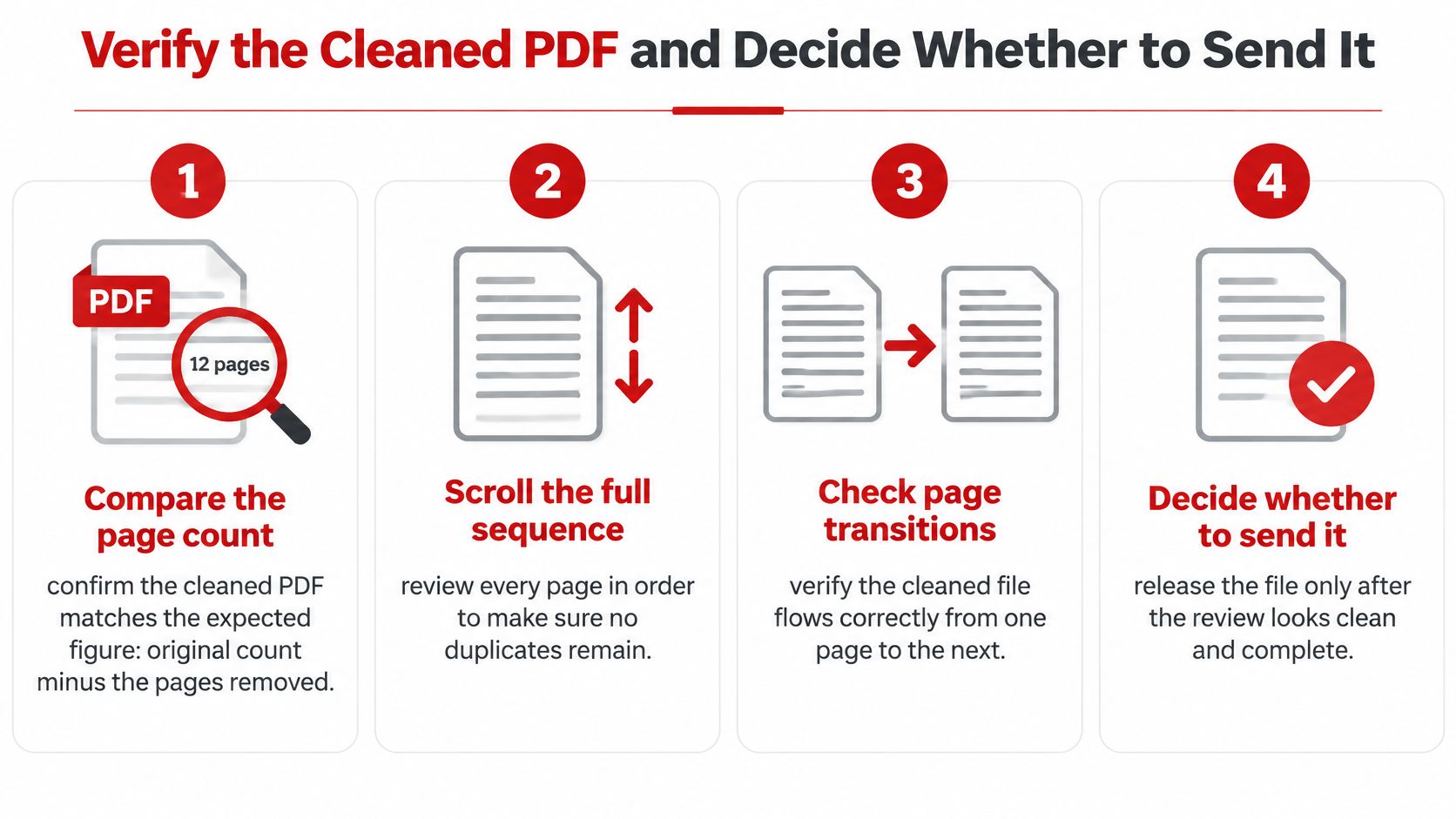
Run this checklist on the cleaned file, never on the original. The removal step deletes pages. It doesn't verify that anything pointing at those pages still works.
That gap is well known. Adobe's community guidance on finding duplicate pages confirms automatic duplicate detection is not built into Acrobat and recommends visual inspection and manual deletion, which leaves the verification work entirely to you.
The Verification Checklist
- Compare the page count. It should equal the original count minus the pages on your removal list. If the arithmetic doesn't match, stop there.
- Scroll the full sequence at readable size. Look for gaps, swapped pages, or a page that still appears twice. Check the joins where pages were removed, since that's where a missing transition shows.
- Open every bookmark and internal link. A page removed above a bookmark target can shift where destinations land, so click through rather than trusting the panel.
- Confirm signatures, form fields, and annotations stayed put. Each one should still sit on its page and refer to the right content. If a signature's status looks wrong after editing, that's a separate problem with its own handling.
- Check page numbers and Bates numbers run in sequence. If the printed numbering now needs redoing, follow the complete guide to numbering pages in a PDF rather than typing numbers page by page.
- Check tags and reading order if the file must be accessible. Removing a page can leave structure pointing at content that no longer exists.
- Review comments before deleting any. A comment may explain why a repeated page existed. The guide to removing comments from a PDF treats that as its own decision, which it is.
Don't confuse this cleanup with removing blank pages. A faint scan can look blank at thumbnail size, and the guide to removing blank pages from a PDF covers that distinct check. Judging a page blank and judging it a duplicate are two different calls.
PDFWix outputs files exactly as uploaded plus the requested change, with no watermarks ever stamped on files. That means the output reflects your selection, nothing added and nothing fixed. If you selected the wrong copy, the file will faithfully keep the wrong copy.
The Go or No-Go Test
Send the cleaned file when all of these hold. The count matches. Every key page is present once, in the right order. Signatures, links, and numbering survived. If you're assembling something longer from cleaned sections, say you want to turn an outline into an ebook, this same page-by-page verification is what keeps repeated front matter or duplicated chapters out of the final build.
If any check fails, don't patch the cleaned file. Go back to the untouched original and remove pages one at a time, checking the result after each removal instead of deleting a batch. It's slower, and it tells you exactly which deletion broke what.
A smaller PDF is not automatically a better PDF.
Removing a repeat can improve readability while breaking evidentiary context or accessibility, especially when the repeated page anchored an exhibit or a signed section. Confirming a true duplicate, and standing behind that call, remains your responsibility. The tool only carried out your selection.
Open your working copy, check each suspected pair at full size, and remove only the pages you've confirmed twice. PDFWix gives you the browser tools to delete, reorder, split, and renumber pages for free with no watermarks, so you can finish the cleanup and the verification in one place.