
A freelancer sends a proposal to print, but the pages come out with awkward margins. A student uploads an assignment that looks too small on a reviewer's screen. An HR team needs onboarding forms to fit a fixed template without shifting fields. In each case, the file is a PDF, but the problem may be page size, content scale, or how the document is meant to be read.
Before you resize PDF pages, identify the job the finished file needs to do. Print preparation is about matching a paper size and getting reliable output. Screen reading is about making content usable in a PDF viewer, especially on a phone. E-book or e-pub delivery may call for reflow or a content redesign rather than a change to fixed page dimensions.
Changing a page's physical dimensions changes the canvas. Scaling adjusts the content within that canvas, while cropping removes part of the visible page. Those operations solve different problems. Making a page bigger won't automatically make its text easier to read if the content remains small.
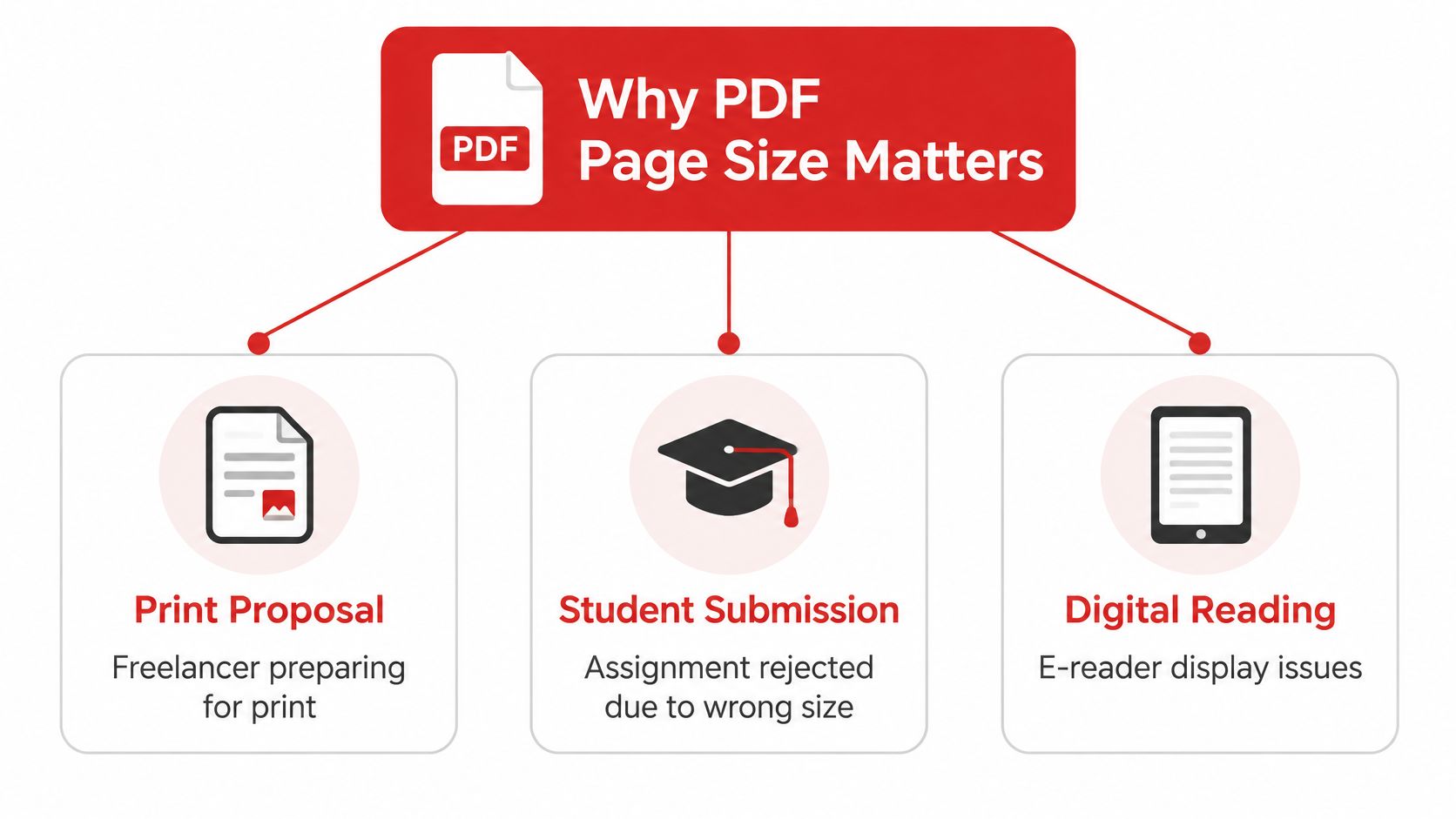
Table of Contents
- Why PDF Page Size Matters More Than You Think
- How PDF Measures Pages and Why It Changes Everything
- Resizing Pages Step by Step in a Browser-Based Tool
- Resize vs Scale vs Crop Choosing the Right Tool
- Matching Page Size to Print, Screen, and E-Pub Targets
- Privacy, Metadata, and Accessibility What Resizing Can Break
- Quick Reference and the Final Resizing Checklist
Why PDF Page Size Matters More Than You Think
Start by checking the destination's requirements. If a printer or submission portal specifies a page size, your task is likely to make the PDF's pages match that specification. If someone struggles to read the file on a phone, changing the paper dimensions may not help. They may need a reflowable document, a redesigned layout, or a better way to zoom.
For print, consider whether the page dimensions should change or whether the content only needs to sit differently on the existing page. A proposal designed for one paper standard may need a new canvas for another. But if the problem is excess whitespace around a scanned page, cropping may be the better fix. Choosing the wrong operation can turn a straightforward job into rework.
Name the intended output first
A practical way to decide is to ask:
- Will it be printed? Match the requested paper size, then inspect margins and printer settings.
- Will it be read on screen? Check text size and navigation, not only page dimensions.
- Will it become an e-book? Confirm whether the delivery format expects fixed pages or content that can reflow.
The distinction matters because PDFs generally preserve a fixed page layout instead of rearranging content for each screen. A larger page can still contain text that's too small to read comfortably. And changing the page size alone won't turn a fixed-layout document into a responsive one.
Practical rule: Decide whether the problem is the canvas, the content placement, or the reading experience before opening a resizing tool.
How PDF Measures Pages and Why It Changes Everything
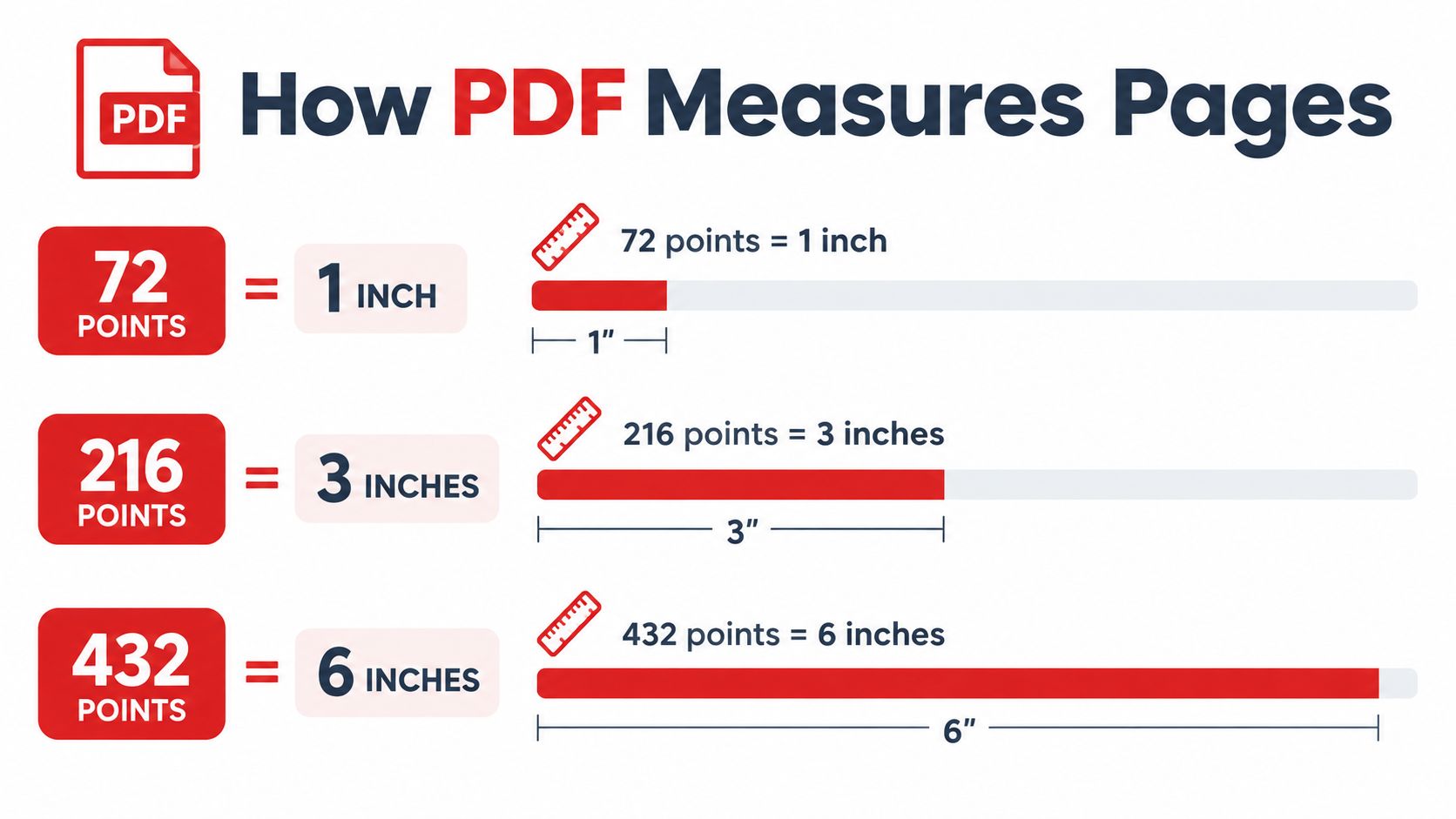
PDF pages use a standardized coordinate system rather than a measurement tied to a particular screen or printer. The basic page-space unit is the point, and 72 points equal 1 inch. That makes a PDF's dimensions precise enough to translate consistently into physical measurements.
For example, A4 measures approximately 595 × 842 points, or 210 × 297 millimeters and 8.27 × 11.69 inches. US Letter measures 612 × 792 points, or 216 × 279 millimeters and 8.5 × 11 inches. Letter is about 6 millimeters wider and 18 millimeters shorter than A4, so converting between them can't preserve every edge and proportion at once without a trade-off. These dimensions and conversions are described in the history of PDF and its page-size conventions.
What happens when sizes don't match
When a whole page is fit proportionally to a different paper size, the shapes of the two pages don't line up exactly. A tool may leave margins around the content, crop edges, or stretch the layout if you choose settings that don't preserve proportions. That's why a target size alone isn't enough. You need to know the source dimensions and what you want the resize operation to prioritize.
PDF's standardization is part of why its geometry works across software and borders. Adobe introduced PDF in 1993, and ISO published PDF 1.7 as an international standard in 2008, shifting control of the core specification into an international standards process. The standard helps make it possible to exchange documents while retaining defined page dimensions and graphics; the history is outlined in this PDF specification overview.
If a document combines pages of different sizes, check how those pages will behave together before changing them. Planning around PDFs with different page sizes can help you anticipate layout issues when pages need to be kept together.
Resizing Pages Step by Step in a Browser-Based Tool
A browser-based resize workflow is usually straightforward, but the settings deserve attention. PDFWix's Change PDF Page Size tool lets users choose standard formats, set custom dimensions, and decide how content should fit the new canvas. Its browser-based PDF tools include WebAssembly processing, though it's still sensible to verify how a particular operation handles your file before using it for sensitive work.
Set the target and fit behavior
The workflow generally follows this sequence:
- Open the resize tool and select the file. Use the upload control or drag the PDF into the browser window. If you're handling a multi-page file, check whether the tool applies the change to all pages or lets you select pages or ranges.
- Choose a preset or enter dimensions. Pick a listed paper size, such as A4 or Letter, when the recipient specifies a standard. For a custom template, enter the required width and height in the available unit.
- Select how the content should fit. A fit option keeps the whole page visible and may leave margins. Fill uses the available canvas but can crop content. An exact or proportional option aims to preserve the original relationship between width and height, so inspect the preview for empty space or clipping.
- Run the resize and download the revised PDF. Open the output in a PDF reader and confirm the dimensions, page count, and visible content before sending it.
Don't treat a preview as the final check. Look at pages with different layouts, especially forms, tables, and pages with content close to the edge. If your work involves classroom materials, standards-aligned planning resources can help you think through how documents will be used alongside other learning materials.
If local processing matters, review the tool's behavior rather than relying on a general promise. The guide to PDF tools that work without uploading explains what to look for when assessing browser-based processing.
Resize vs Scale vs Crop Choosing the Right Tool
Resize, scale, and crop can all change how a PDF looks, but they don't do the same thing. Resize changes the page canvas. Scale changes the size of the content. Crop hides or removes material at the edges, depending on how the PDF is edited. Choose based on what's wrong with the file, not on which control sounds closest to the task.
| Method | What It Changes | Best For | Watch Out For |
|---|---|---|---|
| Resize | The page dimensions | Matching a template or paper standard | Content can look small on the new canvas |
| Scale | The size of page content | Shrinking content to fit a smaller page | Text or graphics can move beyond printable areas |
| Crop | The visible page edges | Trimming scan borders or focusing on a region | Cropping may remove content you need |
Pick the operation that preserves what matters
Suppose you have an A4 document for a client who needs Letter pages. Resize is the right starting point, but you'll need to decide whether to preserve all content with margins or let the tool crop the edges. If a booklet layout needs to fit on A5, scaling can reduce the content proportionally, but check that text remains readable and that nothing drifts outside the printable area.
A scanned document with dark borders or scanner shadows is a different problem. Cropping can trim those edges without changing the intended scale of the remaining page. If cropping is the right approach, crop PDF pages to remove only unwanted margins, then inspect the result to confirm no notes, stamps, or marks were cut off.
Resize changes the page. Scale changes what's on the page. Crop changes what you can see.
A common failure is choosing resize when the actual aim is to make small text more legible. The canvas gets larger, but the text's relationship to the page may not improve. Another is using fill without checking the edges, then discovering that a signature field, page number, or footnote has disappeared. Review the affected content before treating the PDF as ready.
Matching Page Size to Print, Screen, and E-Pub Targets
The right page setup depends on where the PDF is going. A file prepared for a printer has different practical demands from one read on a phone or converted for an e-book. Choose the destination first, then decide whether to resize, scale, crop, or redesign.
For print
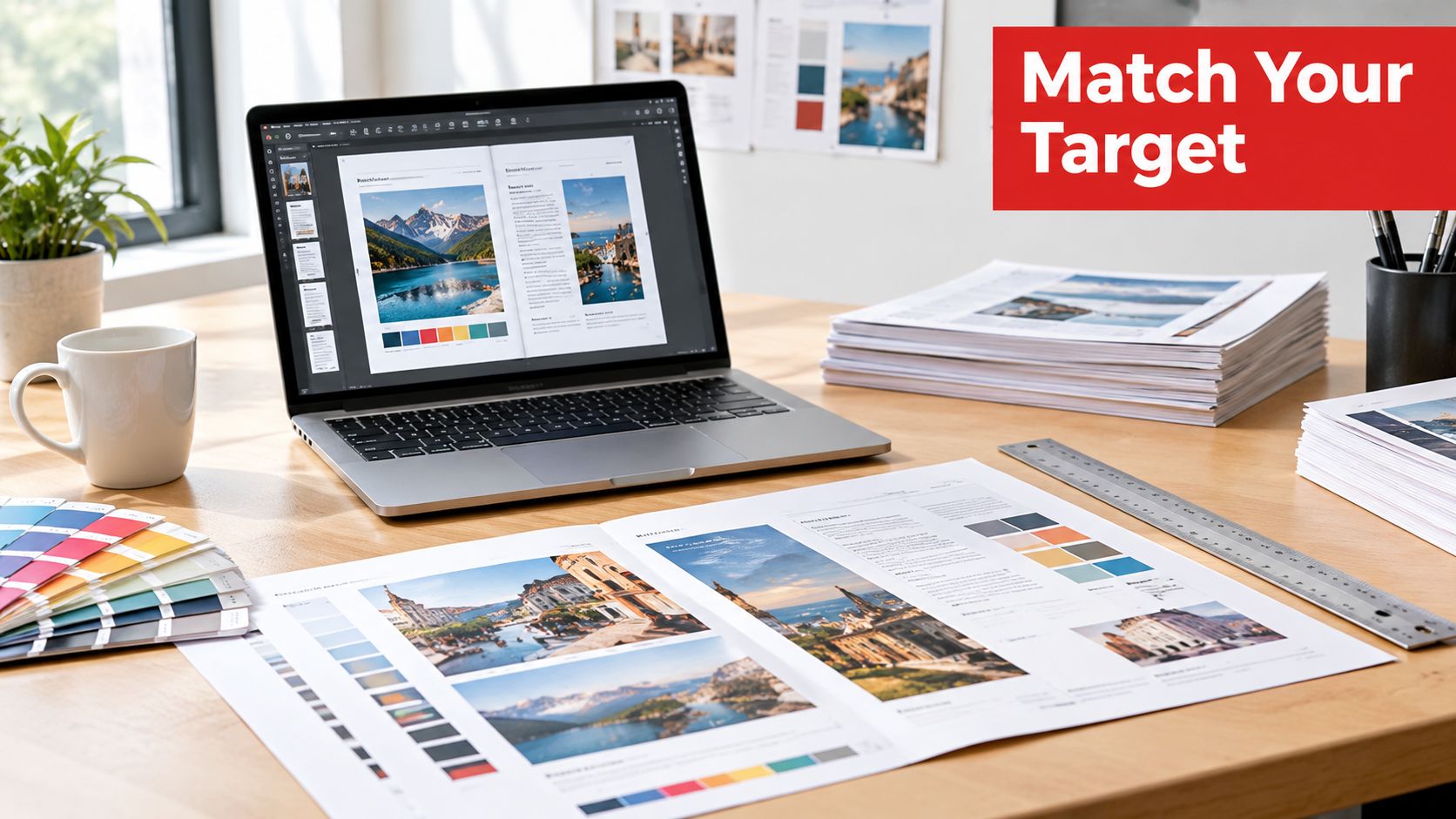
Ask the printer or production team for the required finished page size, margins, and any bleed specifications. Don't assume the page dimensions alone settle print readiness. Check that important text and marks aren't too close to the edge, and review the print dialog's options, such as fit or actual size. A printer setting that scales the page again can undo the sizing you carefully set in the PDF.
Color handling and image resolution may also matter for professional output, but they can't be fixed by changing the page dimensions. Confirm the production requirements before resizing, especially if the file is being prepared for a formal print run.
For screens and e-pub delivery
A PDF viewer displays fixed pages, so a phone reader may need to zoom and scroll even when the page dimensions are correct. Shrinking the page can make it fit more comfortably on screen, but it doesn't automatically improve the text's accessibility or cause the layout to adapt. If readers need flexible text sizes, consider whether a reflowable source document or a redesigned layout is more appropriate.
E-pub workflows often extract or rearrange content, so fixed PDF dimensions may matter less than clean structure and selectable text. Check headings, tables, and reading order in the destination format rather than assuming the PDF's page size will carry over unchanged.
Choose the destination first. A print-ready page, a phone-friendly reading experience, and an e-book source aren't interchangeable deliverables.
If you're preparing a batch of print files, confirm that every document is set up as intended before sending them together. This guide to printing several PDF files at once can help with the next step in that workflow.
Privacy, Metadata, and Accessibility What Resizing Can Break
A resizing tool's privacy language isn't a substitute for checking what happens to your file. Processing may happen in the browser or on a remote server, and those approaches carry different exposure risks. HTTPS protects data while it's being transmitted, but it doesn't by itself tell you how a server processes or retains a document.
Verify the processing path
For a practical check, open your browser's developer tools and select the Network panel before resizing a non-sensitive test PDF. Run the operation and look for an upload request that appears to contain the document. If a request roughly matching the PDF's size is sent to a server, the file is being transmitted; if no such upload appears, that's evidence the operation may be local, but don't treat one test as a guarantee about every tool or feature.
Before sharing the output, inspect its metadata. A PDF can carry information such as an author name, file path, or timestamps. Decide whether that information should remain, and use an appropriate metadata review or removal process if it shouldn't.
For sensitive documents, secure handling matters beyond resizing. These practical tips for secure faxing offer related guidance for protecting information when documents move through another delivery channel.
Check the document's integrity and accessibility
Resizing can affect more than what you see on the page. Afterward, check whether digital signatures, form fields, annotations, bookmarks, and tags still work as expected. A change that flattens or alters interactive content can make a document harder to use, even if every page looks visually acceptable.
Physical page size also doesn't establish accessibility. A usable PDF depends on features such as tagged structure, logical reading order, alternative text, form labels, and contrast. Zooming can make text larger, but it can also force horizontal scrolling. Reflow depends on the document's structure and may change how tables, columns, code, and transcripts appear. Resizing alone can't guarantee WCAG or PDF/UA compliance; the PDF accessibility guidance describes the separate role of accessibility support and reflow.
Use an accessibility review for PDFs as a separate check, especially for materials that students, employees, or members of the public need to read with assistive technology.
Quick Reference and the Final Resizing Checklist
Keep the workflow simple. Before sharing a resized file, run through this checklist:
- Confirm the destination. Decide whether the PDF is for print, screen reading, or e-pub delivery.
- Choose the right operation. Resize the canvas, scale the content, or crop unwanted edges.
- Process with privacy in mind. For a sensitive file, verify whether it's transmitted or handled locally instead of relying only on a deletion promise.
- Inspect the output. Confirm page dimensions and check signatures, forms, annotations, bookmarks, and accessibility structure.
- Review metadata. Remove information that shouldn't travel with the document.
A few symptoms point to predictable mistakes. If content looks too small, the page may have changed while the content didn't scale as intended; adjust the fit behavior or redesign for the target reading experience. If text shifts outside the printable area, scaling may have exceeded the safe area; inspect margins and reduce the scale or choose a different fit method. If accessibility tags disappear, the conversion may have altered the PDF's structure; return to a version that preserves tags and verify reading order with an accessibility check.
Don't distribute a PDF immediately after the resize completes. Open it, inspect pages with different layouts, and test any interactive or accessibility features people depend on. For routine work, prefer a process that keeps sensitive files local when possible, and verify that claim before using it for confidential material.
PDFWix offers browser-based tools for resizing and other common PDF tasks, including options for standard or custom page sizes. Visit PDFWix to resize a document, then inspect the downloaded PDF before printing or sharing it.