
A permissions password can sometimes be removed from an accessible PDF, but a forgotten document-open password cannot be bypassed through ordinary decryption. PDF security has evolved from 40-bit encryption to 128-bit RC4, 128-bit AES, and 256-bit AES, so the protection type matters more than the lock icon you see.
You may be facing a familiar frustration: the PDF opens, but copying text is disabled, or printing is blocked just when you need a paper copy. In another situation, the file may refuse to open at all and ask for a password you no longer remember. Both situations are often described as trying to “unprotect PDF without password,” yet they aren't the same technical problem.
The safest first step is diagnosis. Find out whether you're dealing with a permissions restriction on an accessible document or a document-open password that encrypts the file itself. That answer determines what you can do, what information you'll need, and when the right solution is to contact the document owner.
Table of Contents
- Understanding Why Unprotect PDF Without Password Is Not One Thing
- The Two PDF Password Scenarios Most Guides Miss
- When You Have the Password Legitimate Permission Removal Methods
- Why Unlocking Without a Password Fails on Modern Encrypted PDFs
- Legal and Ethical Boundaries Around Unprotecting PDFs
- Practical Approaches Based on Your Specific PDF Situation
- Key Takeaways for Responsible PDF Unprotecting
Understanding Why Unprotect PDF Without Password Is Not One Thing
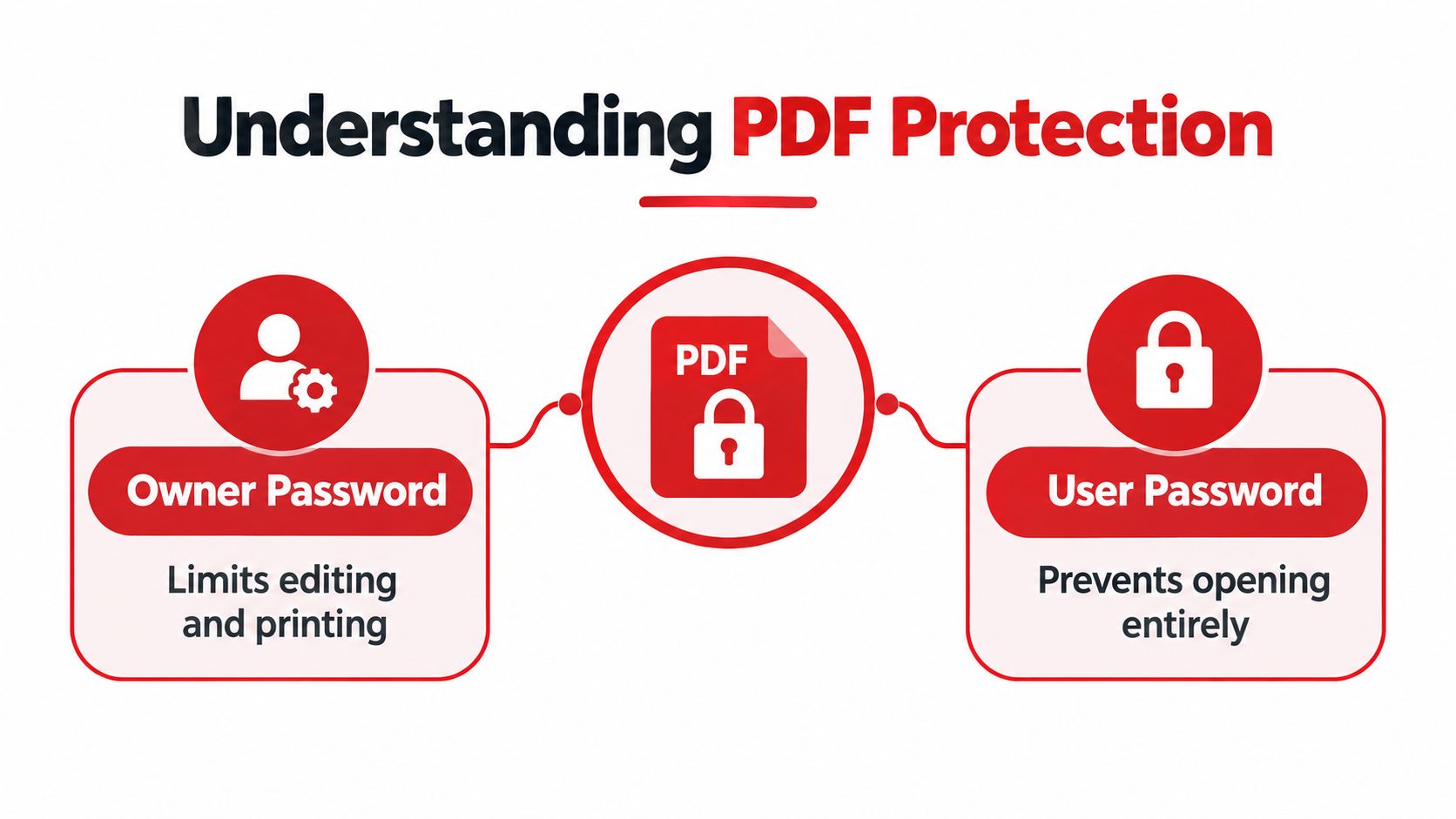
A locked PDF usually uses one of two controls. A document-open password, sometimes called a user password, prevents you from viewing the file until you enter the correct credential. A permissions password, sometimes called an owner password, controls actions such as printing, copying, editing, commenting, or changing security settings while often allowing the document to open normally.
That distinction changes the entire workflow. If you can read the pages but can't copy a paragraph, the file is accessible and the restriction concerns permissions. If a password prompt appears before any page is displayed, the document is encrypted for access. Trying a method designed for the first situation won't solve the second.
Start with the visible symptom
Use this simple rule before choosing a tool:
- The PDF opens normally: Inspect its security settings. You may be dealing with permissions that restrict copying, printing, or editing.
- The PDF won't open: Treat it as an encryption and credential-recovery problem, not an ordinary editing lock.
- The PDF opens in one viewer but behaves differently in another: Check the document's actual security settings and accessibility permissions rather than relying on a lock icon.
Adobe's historical PDF security timeline records that passwords and encryption entered PDF in 1994. Early implementations used 40-bit encryption, while later Acrobat generations supported 128-bit RC4, 128-bit AES, and 256-bit AES. This progression explains why old and modern files may behave differently, but it doesn't turn a forgotten open password into a routine editing restriction.
If the file opens and you own it or have authorization to modify it, review the permitted actions and security method before making a copy. Guidance on protecting a PDF can also help you understand the settings that created the restriction in the first place.
The Two PDF Password Scenarios Most Guides Miss
Many users see a disabled copy command and assume the PDF is fully locked. In reality, a permissions-protected file may display every page without requesting a password. The password governs what you can do with the document, not necessarily whether you can view it.
A document-open password works differently. It protects access to the encrypted file, so the reader must authenticate before the document's contents become available. You can't treat that prompt as if it were a disabled print button.
Follow the decision path
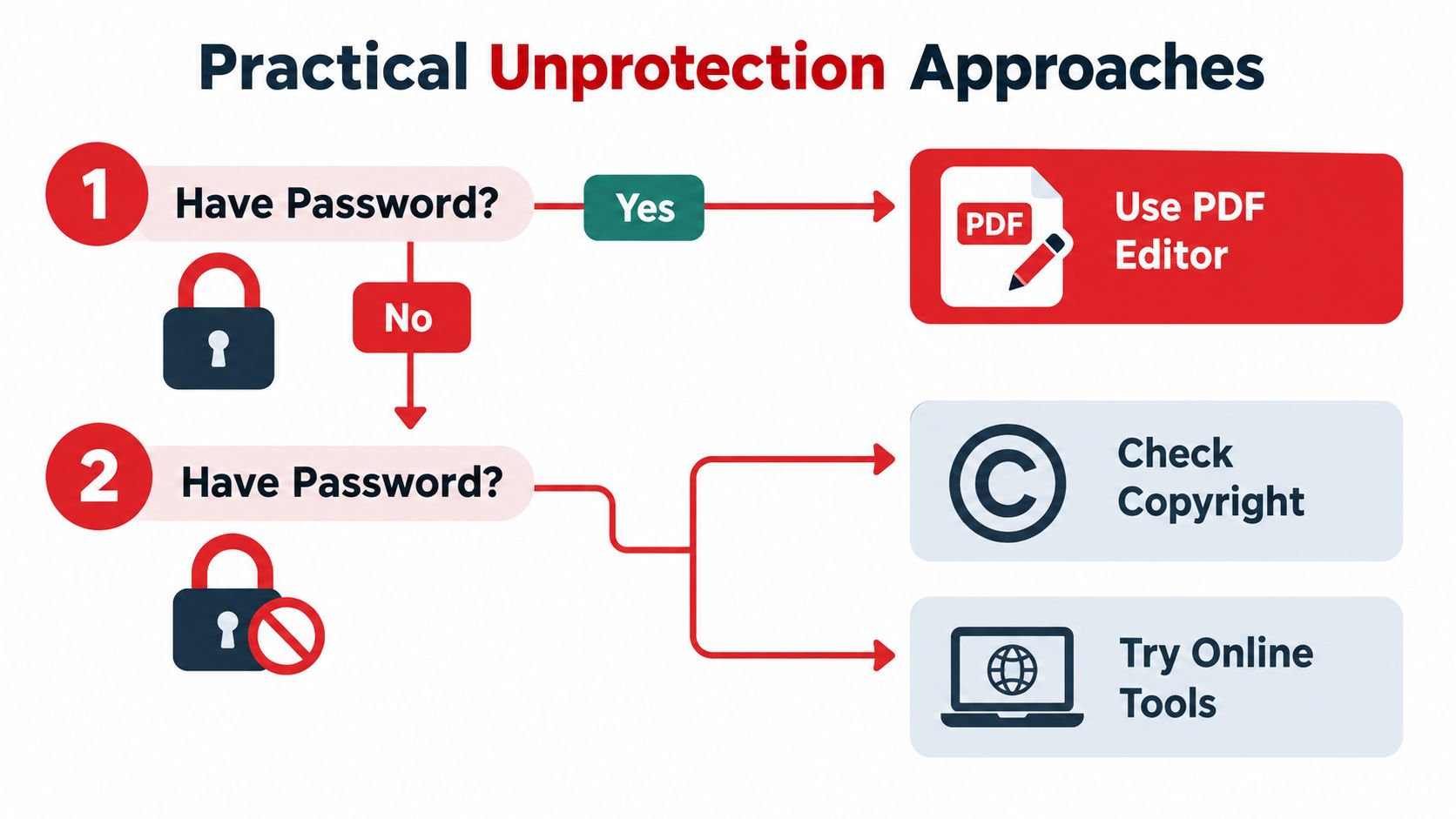
Ask the following questions in order:
- Can you see the document pages? If yes, continue to the security settings and identify which actions are restricted.
- Are copying, printing, or editing disabled? Those are typical permissions controls.
- Does the file request a password before displaying anything? That indicates a document-open password.
- Do you know the applicable password and have authority to remove the protection? If not, stop looking for a standard removal workflow and contact the owner.
Adobe's PDF security documentation separates the document-open password from the permissions password. It also states that a PDF secured with a password required to open can't be processed by its PDF Services API. That limitation follows from the encryption boundary: a service can't work on document contents it can't first decrypt.
Diagnostic rule: If you can read the PDF, investigate permissions. If you can't open it, investigate authorized access and password recovery.
This is why a general search for how to unlock a password-protected PDF can produce confusing advice. Some pages describe removing restrictions from an already readable file, while others discuss recovering a credential for an inaccessible document. Those workflows shouldn't be merged into one promise that every PDF can be opened without a password.
When You Have the Password Legitimate Permission Removal Methods
When you know the applicable password, removing protection is normally a file-conversion task rather than a password-cracking exercise. The application authenticates the security settings, reads the encrypted objects, and writes a new PDF without the selected encryption or restrictions.
The same principle applies in command-line processing. The qpdf documentation for --decrypt describes creating an unencrypted output from an encrypted input. The option doesn't discover or crack a password. Encrypted files generally require the password to be supplied separately.
A responsible workflow
For a PDF you own or are authorized to change:
- Preserve the original. Keep the protected source unchanged so you can return to it if the output has a formatting or accessibility issue.
- Identify the security mode. Confirm whether the file opens and whether the restriction concerns printing, copying, editing, or another action.
- Authenticate. Supply the permissions password or document-open password when the application requests it.
- Generate a separate output. Remove only the protection you no longer need, rather than altering unrelated document settings.
- Check the result. Open the new file, test the intended action, and review its pages, forms, links, and accessibility behavior.

Encryption strength still matters. Adobe documentation covers AES-128 and AES-256 protection, with permissions that can govern printing, editing, copying, and form actions. Older 40-bit or RC4-protected files are historically weaker than modern AES-protected files, but “weaker” doesn't mean that bypassing someone else's document is authorized or appropriate.
A browser-based workflow can be convenient for an authorized, accessible file, but privacy controls matter. Avoid unnecessary retention, and prefer processing that minimizes copies of the source and decrypted intermediate. If you already have the credential, unlocking a PDF with its password is a very different task from trying to recover an unknown secret.
Why Unlocking Without a Password Fails on Modern Encrypted PDFs
A document-open password doesn't merely hide a menu command. It encrypts the document so the contents can't be read before authentication. A tool that has never received the correct credential has no ordinary decryption step to perform because the protected objects remain unreadable.
That is why exporting, editing, or re-saving the file generally works only after the PDF has opened. A viewer may be able to display a permissions-protected document and create a new representation under authorized circumstances, but it can't use the same route to open a file that is encrypted from the start.
Browser processing and server processing have the same boundary
The location of the tool doesn't change the security model. A browser application may process an accessible PDF locally, while a server application may process a submitted file in memory. Both still need a valid credential when cryptographic authentication is required.
After successful authentication, the system can validate the password, decrypt the document objects, and generate a new output. Without that authentication, an ordinary decrypt operation isn't password discovery. It won't transform an unknown open password into a readable file just because the PDF was uploaded somewhere else.
Adobe explains that removing permissions security requires the permissions password and recommends contacting the document author when that password is unknown in its guidance on securing PDFs with passwords. That is a practical boundary, not a lack of imagination by a particular application.
A service can reserialize a document after successful authentication. It can't honestly describe that process as recovery of an unknown open password.
Modern encryption reinforces the boundary. The move from early 40-bit protection toward 128-bit and 256-bit AES means current files are designed to prevent access without the correct credential. If you're comparing encryption concepts across document and transport security, this resource on AES and TLS options provides useful context, but neither concept changes the need for authorized access.
If the file opens but editing remains blocked, you may be dealing with permissions rather than encryption. A guide to editing a protected PDF should therefore begin with security diagnosis, not with a promise to defeat an unknown password.
Legal and Ethical Boundaries Around Unprotecting PDFs
Technical possibility and permission aren't the same thing. You might be able to view a document, copy its visible text, or create a new representation, but that doesn't automatically give you the right to remove the creator's restrictions or redistribute the result.
The relevant question is simple: Do you own the PDF, or are you authorized to modify it? Authorization may come from the creator, an employer, an instructor, a client, or an administrator responsible for the document. If you can't establish that permission, request an unrestricted copy or ask the issuer to perform the change.
Accessibility deserves separate attention
Security settings can affect more than copying and printing. The W3C guidance on PDF accessibility and security explains that PDF permissions can control whether content is available through standard accessibility APIs, including screen readers.
That creates a difficult situation for disabled users and organizations. Removing protection carelessly may damage document structure or create a compliance problem, while leaving a restriction in place may prevent assistive technology from accessing the content. The right response isn't always to strip every setting.
Adobe documents an exception in which a registered trusted assistive-technology product may read content despite some security settings. Other restrictions, including printing, copying, extraction, commenting, and editing, can remain active. That means a user who needs screen-reader access may need an accessibility-capable reader or an accessible source file rather than a completely unprotected copy.

Treat the document as governed information
Before changing security, consider:
- Ownership: Is the content yours to alter and share?
- Confidentiality: Does the PDF contain personal, legal, educational, workplace, or financial information?
- Accessibility: Will the output remain usable with keyboard navigation, text-to-speech, and other assistive technology?
- Integrity: Will removing restrictions make it easier for someone to modify or misrepresent the document?
- Recordkeeping: Do you need to preserve the original protected version for audit or contractual reasons?
An accessible PDF isn't automatically yours to republish, and a protected PDF isn't automatically inaccessible. Responsible handling respects both the creator's controls and the reader's ability to use the content. For documents that require approval or signing, understanding electronic signatures and their legal role can also help you avoid treating security removal as a substitute for proper authorization.
Practical Approaches Based on Your Specific PDF Situation
Your next step depends on what happens when you open the file. Don't begin with a tool name. Begin with the document state, the password you have, and the authority you hold.
The file opens and you know the password
Use the permissions-removal path. Open the PDF in an authorized editor, inspect its security settings, enter the applicable credential, and export a new copy. Keep the original, then test printing, copying, editing, forms, links, and accessibility in the output.
This is the cleanest scenario because authentication has already occurred. The application isn't guessing a secret. It's applying a permitted change to a document you can access.
The file opens but you don't know the permissions password
Start by asking the owner for the password or for a version with the needed permission already granted. Some readers may still display the content because permissions restrictions and viewing access are separate, but that doesn't mean you have permission to defeat the owner's settings.
If the document is sensitive, don't upload it to an unknown service merely to test whether it can remove a restriction. Use an authorized workflow with clear retention and processing rules, and verify that the resulting copy hasn't lost tags, form behavior, or other features.
The file won't open and the document-open password is unknown
This is an access-recovery path, not a permission-removal path. Search your approved password manager, check the message or workflow through which the PDF was delivered, and contact the issuer for the credential or an unrestricted replacement.
If you created the file, look for an earlier source document or a protected copy whose password you can verify. Avoid treating brute-force attempts or password-cracking services as a routine solution. They may be ineffective against modern encryption, expose confidential material, or exceed your authority to access the file.
Choose the path from the symptom: readable but restricted means permissions management; unreadable means authorized credential recovery.
Browser-based processing can reduce exposure when the workflow is designed to avoid unnecessary storage, but privacy isn't a substitute for authorization. A removal function should identify the PDF's security dictionary first, request a password where cryptographic authentication is required, and never present permission bypass as recovery of an unknown secret.
Key Takeaways for Responsible PDF Unprotecting
A student receives a readable course handout but can't copy a quotation. That points to a permissions restriction. An employee receives a PDF that stops at a password prompt before showing a page. That points to document encryption. The visible lock may look similar, but the correct response is different.
Keep this checklist nearby:
- If the file opens, inspect permissions before assuming the document is fully encrypted.
- If the file won't open, obtain the document-open password or request a replacement from the owner.
- If you know the credential, authenticate first, then create a separate unprotected copy.
- If you don't have authorization, don't attempt to bypass the protection.
- If accessibility matters, test screen-reader access and preserve the original document.
- If the PDF is confidential, choose processing that limits retention and unnecessary copies.
The honest answer to “can I unprotect PDF without password?” is conditional. An accessible file may allow an authorized permissions workflow, while an inaccessible, modern encrypted file requires the correct credential. Knowing which situation you're in saves time and keeps the document, its owner, and its readers protected.
PDFWix provides browser-based tools for authorized PDF tasks, including protection removal when the document and credentials allow it, with processing designed to limit file exposure. Visit PDFWix to inspect the available PDF workflow and choose the appropriate tool for your document.