
You emailed a finished contract, and it came back with a paragraph changed. Or you're about to send a completed form and want the answers to stay put. For most readers, the fastest practical approach is to flatten completed fields and annotations, then apply a permissions password. Add a digital signature when you also need evidence that the file hasn't changed.
The useful question isn't just “How do I make a PDF non editable?” It's what you need to prevent: casual changes, moving form answers, disclosure of sensitive content, or undetected tampering. Each needs a different control.
Table of Contents
- Pick the Lock That Matches Your Goal
- Flatten Forms and Annotations Before You Lock
- How to Set a Password and Permissions
- Redacting Content and Saving Read-Only Copies
- Proving Nobody Changed the File
- Verify the Lock Before You Send It
Pick the Lock That Matches Your Goal
A recipient may need to read a PDF, fill in fields, or check that a signed copy has not changed. Choose the control for the job: an opening password, editing restrictions, flattened content, redaction, or a digital signature. Each control solves a different problem, so pick by goal.
Which lock fits which goal
| Goal | Method | What it stops | What it does not stop |
|---|---|---|---|
| Discourage casual edits | Set an owner password with editing restricted in PDFWix Protect PDF | Editing in compliant viewers; copying and printing if those permissions are also restricted | Screenshots, retyping, and OCR |
| Lock form answers and comments | Flatten completed fields and annotations | Changing answers through form fields or moving comments as annotations | Copying visible text or editing page content with other tools |
| Remove sensitive content | Use PDFWix Redact, which rasterises the page | Recovering removed text or images from the processed page | Disclosure from other copies, attachments, or metadata |
| Detect tampering | Apply a certificate-based digital signature to the final file; this differs from an electronic signature added through PDFWix Sign | Changes passing unnoticed during proper signature validation | Viewing or copying the content |
An owner password restricts operations such as editing, while a user password is required to open the file. Compatible viewers can enforce permission settings, so an owner password discourages ordinary edits rather than making alteration impossible. PDFWix Protect PDF can set an owner password, a user password, or both.
A blacked-out account number needs permanent removal. A disputed contract needs verifiable integrity. Those goals call for different controls, not a stronger editing password.
Choose what recipients still need
A completed application can usually lose its interactive fields; an application awaiting answers cannot. Knowing how PDF form fields work helps distinguish visible page content from the interactive controls layered over it.
Practical rule: Keep fields recipients still need, flatten completed content, restrict unnecessary actions, require an opening password for confidential files, and use a verifiable signature when integrity matters.
A blank form still needs its fields. Preserve them, and restrict changes to the surrounding document instead. A lock should protect the file without blocking its intended use.
Flatten Forms and Annotations Before You Lock
Say you've prepared a lease with the tenant's details filled in, but the tenant still needs to sign. Flattening everything immediately can remove the empty signature field along with the completed answers. You've created a finished-looking document that can no longer follow the intended signing process.
Flattening converts selected interactive elements into ordinary page content. It doesn't automatically mean converting every page into an image, and it shouldn't be confused with a command that merely flattens transparency.
A safe flattening routine
- Save a separate working copy. Keep the editable source and original PDF. Give the outgoing copy a name that distinguishes it from the master.
- Complete the fields that are ready to become permanent page content. Remove unwanted fields rather than leaving unnecessary interactive controls behind.
- Flatten completed fields and approved annotations. Include final stamps, highlights and comments that must remain visible. Delete internal review notes instead of baking them into the document.
- If your software lacks a suitable flatten command, print to PDF as a fallback. Check the print settings first because annotations may be excluded, and links, bookmarks, tags or interactive features may disappear.
- Inspect the result page by page. Check long field answers, accented characters, table text, page numbers and anything near a page boundary. A field can display correctly onscreen but print with clipped text.
Use the PDF flattening guide to choose the workflow that matches the content you're fixing in place.
Keep unfinished work interactive
For a lease awaiting signatures, preserve the required signing fields or prepare a separate signing copy. Once everyone has completed the document, retain the signed original with its validation information rather than printing or flattening it again.
A scanned page also isn't locked by default. Although its visible content may already be an image, someone can replace the image, cover part of it or reconstruct the text.
Flattening removes convenient interactive editing. It doesn't establish who created the document or prove that its contents are authentic.
If accessibility matters, prefer a workflow that preserves document structure. Rasterising an otherwise accessible document creates extra remediation work.
How to Set a Password and Permissions
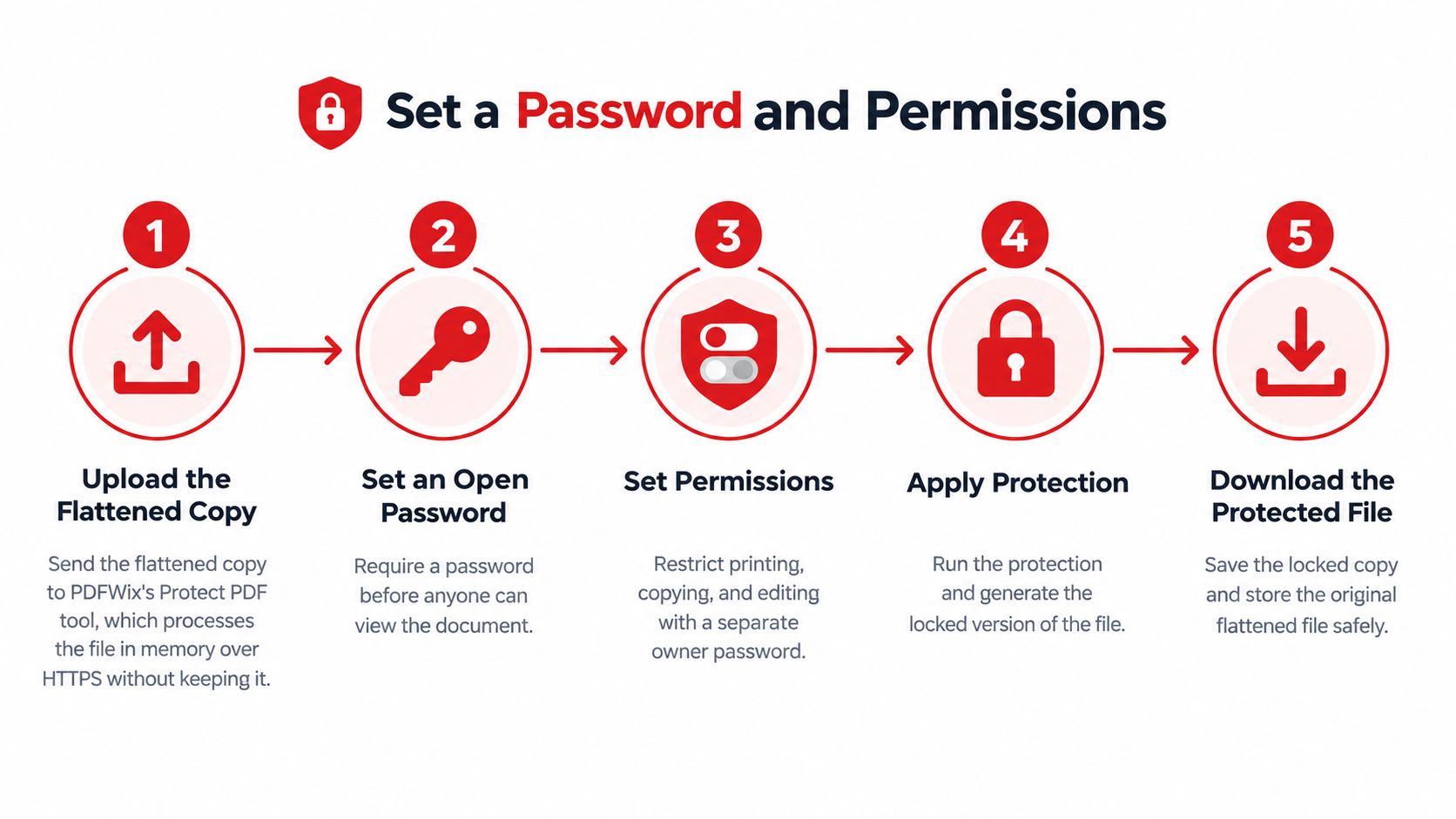
An owner password and an opening password do different jobs. The owner password restricts actions such as editing, printing and copying. The opening password is required before a recipient can view the PDF. Choose based on what the recipient needs to do, not whether the file should feel “locked.”
Apply only the restrictions you need
- Upload the prepared copy. PDFWix sends Protect PDF files over HTTPS to a server worker, processes them in memory and discards them when the request ends. Files aren't written to disk.
- Set an owner password and restrict editing, printing or copying only when those limits suit the recipient's task. Keep the password in a password manager.
- Add an opening password for confidential material. PDFWix supports AES-256 password protection. Send the opening password through a separate channel, not alongside the attachment.
- Apply protection and download the result with a clear filename. Keep the unprotected working copy in controlled storage, separate from the outgoing email folder.
The PDF password-locking guide explains how to set an opening password or restrict document actions.
Choose compatible security settings
For a completed document, set Changes Allowed to None if your PDF tool offers that option. If recipients need to fill fields or sign, allow the relevant action instead. Restricting every operation can block legitimate work, so match each setting to the document's purpose.
Before sending, open the protected copy and check that the required password works and the intended actions are restricted. Confirm that anyone expected to complete fields or sign can still do so. Keep the working copy separate.
Redacting Content and Saving Read-Only Copies
Drawing a black rectangle over a salary, address or account number isn't redaction. The original content may remain underneath, available through selection, extraction or removal of the covering shape. A convincing appearance is not evidence of removal.
Use redaction when the recipient must never receive the underlying information. Do that before applying permissions or signing the finished document.
Remove the content, then investigate the output
- Find every occurrence. Search for names, account numbers and other sensitive terms, including spelling variants, shortened forms and repeated headers. Inspect scanned pages visually because an ordinary text search may miss them.
- Mark the complete sensitive area, not just the characters you can easily select. Include labels or nearby details if they reveal the same information indirectly.
- Apply the redaction. Our redaction workflow rasterises the page, removing the underlying text rather than merely placing a cover over it. Save the result as a separate release copy.
- Search the new file for the removed terms and attempt to copy from the affected area. Inspect the rendered pages closely for missed characters and fragments.
- Review the rest of the document container. Check metadata, bookmarks, comments, attachments and embedded files. A clean page doesn't guarantee that a person's name has disappeared from every location.
The online PDF redaction guide explains the page-level workflow. Rasterisation can increase file size and remove searchable text; if you add OCR afterward, process only the already-redacted output and inspect it again.
We don't support certified redaction. For filings subject to a prescribed redaction procedure, use a workflow accepted by the receiving organization rather than assuming a visual check satisfies its requirements.
An archive copy isn't an editing lock
PDF/A is designed for long-term preservation, not to make a document impossible to edit. It generally excludes encryption, so don't treat conversion to PDF/A as either password protection or a substitute for tamper evidence.
Keep an archival copy when future readability matters. Control access through the storage system, and use signatures or retained checksums where your records process requires integrity verification.
Removing information and controlling distribution solve different problems. You may need both.
For the distribution side, Bizbe, Inc.’s secure document sharing advice from Bizbe is a useful companion when deciding how recipients should access the release copy. No sharing restriction can recall information someone has already received.
Proving Nobody Changed the File
An HR team emails an offer letter. Later, the candidate and employer disagree about the salary in the attachment. An editing password controls certain actions, while a digital signature can help establish whether the signed document changed and which version was signed.
A certificate-based digital signature ties the document's signed state to a cryptographic signing credential. Readers can validate that connection rather than relying on the appearance of a handwritten name.
What verification establishes
Signing software calculates a cryptographic hash of the document and uses the signer's private key to create a signature. Verification checks the signed content using the corresponding public key.
NIST's Digital Signature Standard describes digital signatures as a way to authenticate a signer and detect unauthorized modification. In a PDF, validation should also identify the signed revision and any later changes, including changes the signature permits.
This matters when a document is set up for multiple signatures. A viewer can report a valid earlier signature while showing later permitted additions. Check the validation details, not just the green icon.
Finish, protect, then sign
For a completed release, use this order:
- Finish the content. Resolve comments and complete fields that should be finalized, while preserving anything needed for signing.
- Apply the intended permissions and access protection.
- Sign the final protected version. Follow the signing-order guidance in the password section, and validate the signature afterward.
- Modify a disposable copy to confirm that the viewer identifies the change.
The digital signature guide explains how cryptographic verification differs from an electronic signature placed on a page. A drawn signature image shows intent on the page but carries no cryptographic check.
Protect the private key carefully. Someone able to use your signing credential may create signatures attributed to you. A self-signed certificate can support an integrity check, but recipients won't automatically trust the identity it claims. A trusted certificate and appropriate identity checks strengthen that connection.
For commercial paperwork, keep agreed details consistent in the final record. AurenWell's advice on keeping quotes and final bills aligned complements signing by helping teams establish which details belong in that record. A signature can verify a signed document's integrity, but it cannot establish that the amount was correct.
Verify the Lock Before You Send It
A greyed-out edit button proves only that the current viewer has disabled that command. It doesn't confirm every restriction, show whether sensitive text remains or establish that the intended recipient can complete the document.
Test the downloaded release copy, not the working file still open in your editor. Close it first so you aren't accidentally testing a session that already has owner-level access.
Test restrictions and required actions
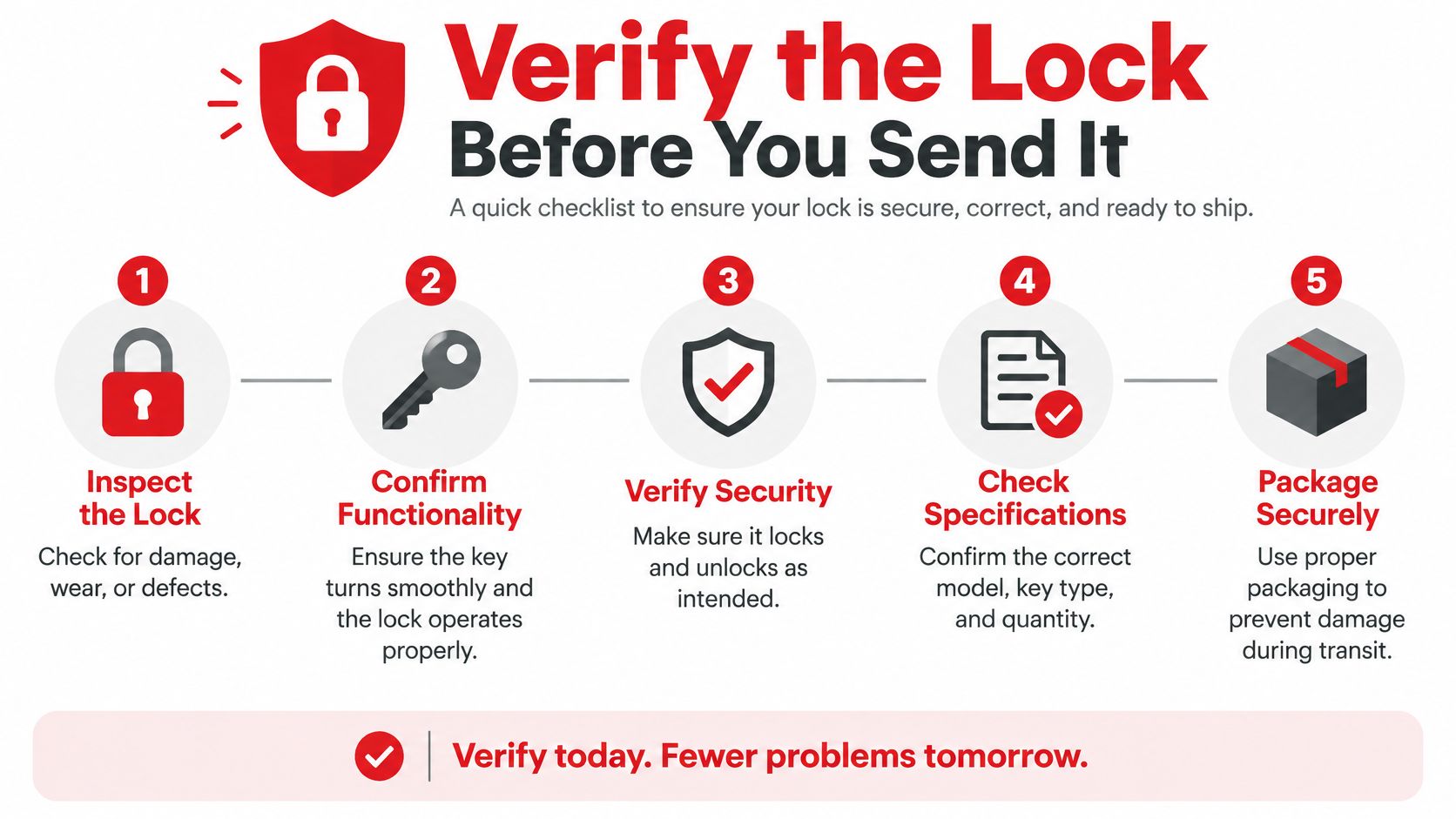
- Open it in independent viewers. Use a desktop reader and a browser viewer, then try the recipient's likely device if it's available. Confirm whether an opening password is requested as intended.
- Attempt representative actions: change text, add a note, insert a page, copy content and fill a field. Record which actions should succeed and which should fail.
- Inspect document security properties. Check the reported restrictions against your intended settings. An absent editing toolbar isn't a substitute for inspecting permissions.
- Test accessibility with a screen reader and an authorized text-extraction workflow. Check headings, reading order, form labels and meaningful content, not merely whether the file opens.
- Validate signatures. Review the signer, trust status, signed revision and any reported changes. Keep the original signed file rather than a printed derivative.
Fix restrictions that block legitimate use
A form that nobody can complete has failed its workflow, even if every restriction works. Preserve form filling and signing when those actions are required, and avoid unnecessarily blocking assistive-technology access.
W3C's PDF accessibility guidance addresses tagged documents and permissions that keep content available to assistive technologies. If the output loses tags or reading order during processing, repair the accessible source or choose a different export route.
Send-it test: The recipient can do everything required, cannot perform the ordinary changes you intended to restrict, and can validate any signature you're relying on.
For example, an onboarding packet may need editable answer fields and signature fields while its policy pages remain protected. A completed invoice may need printing and accessible text, but no annotations or page assembly. Choose restrictions around those tasks rather than disabling every available option.
Keep the right records
Retain the editable source, the prepared unsigned copy where needed, and the exact protected or signed file you sent. Label them clearly so a later correction starts from the master rather than from a reconstructed release copy.
Store passwords securely and record who received access, without putting passwords into a broadly shared document log. Send the release copy only after these checks succeed, and keep any required validation record alongside it.
PDFWix offers free browser-based PDF tools with no signup and no added watermarks, including protection, redaction and electronic signing. Visit PDFWix to prepare your release copy, apply the controls your document needs and download it for final verification.