
If the PDF has selectable text, use a browser editor for small changes or convert it to Word for broader rewriting. If it's a scan, run OCR first; the right method depends on what's inside the file.
You may be trying to fix a typo before sending a contract, update a proposal, or make a paper form usable on screen. The quickest route depends less on the file extension than on its contents. A PDF can contain selectable text, page images, interactive fields, or a mixture of them, and each calls for a different kind of editing.
Table of Contents
- Why Making a PDF Editable Is Not One-Size-Fits-All
- Converting a PDF to Word for Full Text Editing
- Editing PDFs Directly in Your Browser
- Making Scanned PDFs Editable with OCR
- Preserving Layout and Protecting Privacy While Editing
- Choosing the Right Method for Your Situation
- Putting It All Together and Final Takeaways
Why Making a PDF Editable Is Not One-Size-Fits-All
A colleague sends you a PDF and asks for a quick correction. You click where the change should go, but nothing happens. Try selecting a sentence instead. If you can highlight and copy the words, the page has a text layer. If you can only select the whole page as one image, it's likely a scan. If the document has boxes designed for entering information, your task may be form filling rather than editing the underlying text.
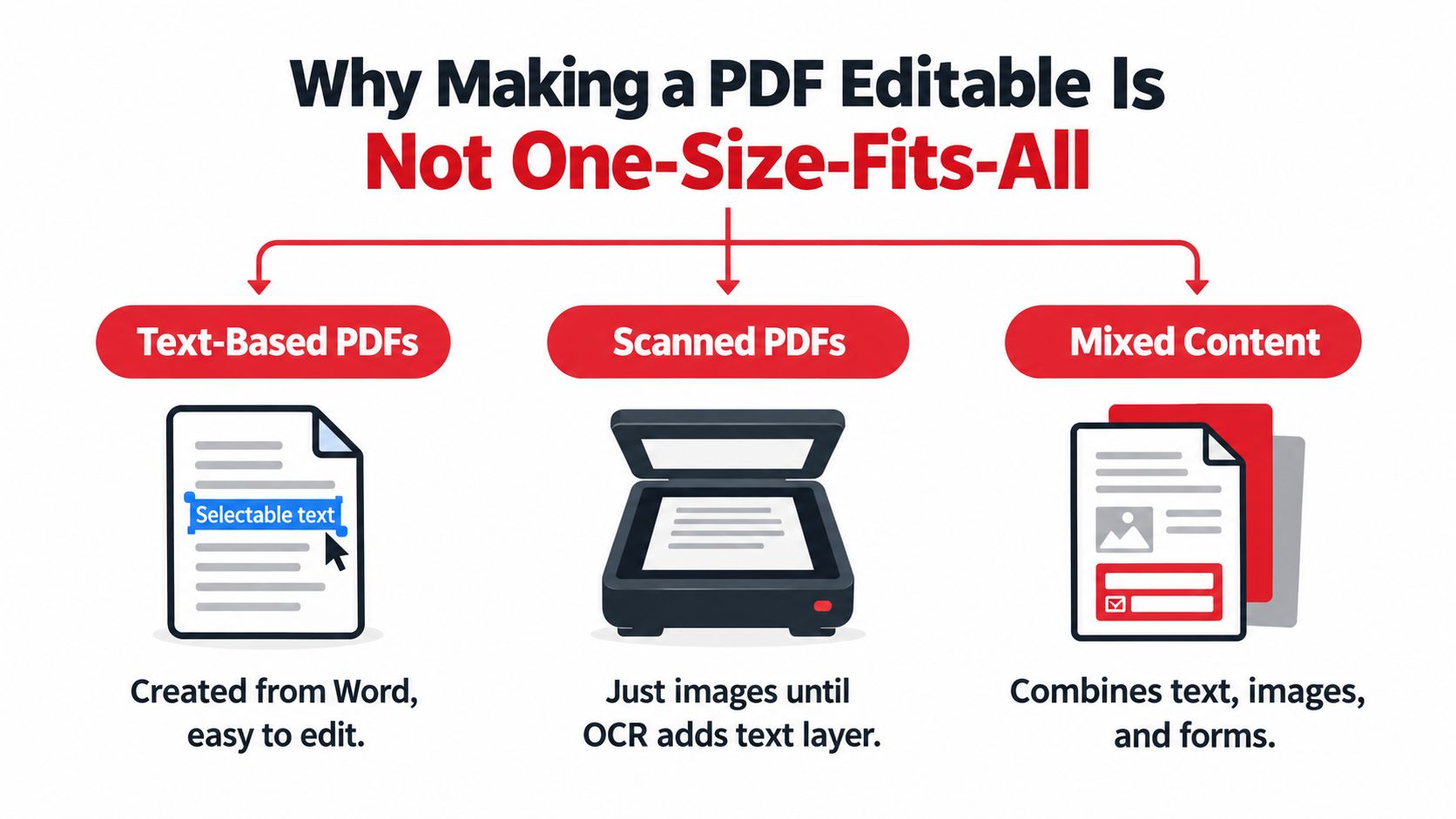
That simple selection test can save time. A text-based PDF may be edited directly or converted for a larger rewrite. A scanned page needs OCR, or optical character recognition, to create a text layer. A form may already have fields you can fill, or it may need new interactive fields added.
PDFs have evolved beyond fixed page reproductions. Adobe first defined and released the PDF specification in 1993. PDF 1.3 introduced the ability to represent a document's logical structure, and later versions added features such as forms and accessibility support. Adobe submitted control of the specification to ISO in 2007, and ISO published an international standard in July 2008. Those changes help explain why a PDF might contain structured text, images, vector objects, annotations, and form fields, or just an image of a page. Adobe's overview of PDF accessibility and the format's development provides useful context. For a closer look at extracting text from a document, see this Zemith PDF conversion guide.
If the file is meant to collect responses, use a workflow designed for fields rather than treating the page as plain text. This guide to filling in PDF forms can help you identify that route.
Converting a PDF to Word for Full Text Editing
Word conversion makes sense when you need to restructure or rewrite substantial text, not just place a correction over an existing page. It tends to work best with a clean text layer and a straightforward layout. A PDF with columns, precise spacing, complex tables, or unusual fonts may convert into a document that needs substantial repair.
The reason is structural. A PDF preserves how a page looks, but its text and visual elements may not correspond to the flowing paragraphs and styles expected in a word processor. Even when the text is selectable, the conversion process has to interpret where paragraphs, headings, columns, and images belong. Image-only scans need OCR before a word processor can work with the text at all.
A practical conversion workflow
- Start with a copy. Keep the original PDF unchanged so you can compare the final layout against it.
- Convert, then inspect. Check page breaks, headings, tables, headers, footers, and image placement before editing. Don't assume the converted file is faithful just because the text appears.
- Make the edits in the format that fits the job. Use the Word document if you're rewriting or reorganizing. If you're changing a small item and the layout is already right, a direct PDF edit may preserve the page more reliably.
- Export and review. Save the edited document as a PDF, then inspect the exported version at normal reading size and search for key text.
Conversion quality depends on the source. Clean, selectable text is usually the easiest to work with. Complex layouts take more checking, and a scan requires recognition before conversion can create editable words. For further guidance on that process, consult this PDF-to-Word document guide.
Editing PDFs Directly in Your Browser
For a typo, a logo, an annotation, or a short addition, editing directly on the PDF can be simpler than converting the whole document. A browser-based editor can place text, images, shapes, highlights, or handwritten marks on a page without rebuilding the document as a word-processing file. That's especially useful when the existing layout should stay intact.
A freelancer finishing a proposal might need to update a price table and replace a logo before sending the file. If the text layer is accessible and the change is small, a direct edit can avoid the layout shifts that sometimes come with conversion. But covering existing text and placing new text over it is an overlay, not a rewrite of the original underlying text. Check the result at normal size and make sure the old content isn't still visible or selectable underneath.
Keep the workflow simple
- Open the PDF in an editor that supports the kind of change you need.
- Add or adjust the content. Use text for a short correction, an image for a replacement graphic, or annotations for comments and markup.
- Download and verify the saved file. Reopen it, check the edited area, and confirm that the page still looks right.
Privacy deserves equal attention. With a client-side editor, processing takes place in your browser and the file stays on your device. PDFWix offers browser-based editing for adding text, images, shapes, highlights, and freehand annotations, with processing that runs locally. That can suit sensitive documents when the specific tool's processing method meets your requirements. For more detail on choosing a browser editor, see this guide to a PDF editor in your browser.
Making Scanned PDFs Editable with OCR
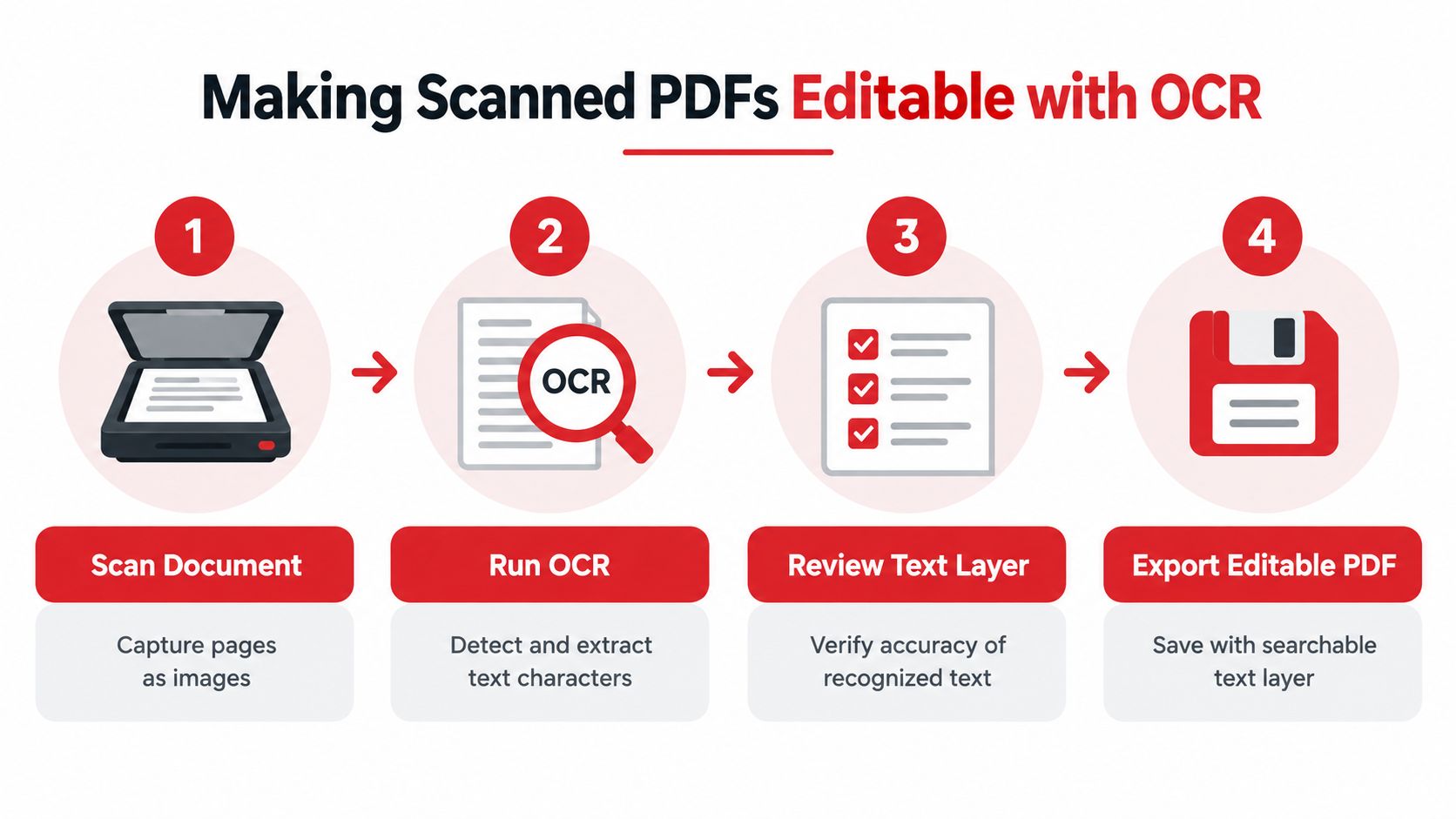
A scanned PDF is a picture of a page, not a document whose words you can edit. OCR analyzes the image and creates a text layer, making recognized words searchable and selectable. That layer is a starting point, not proof that the text is correct.
Run OCR, then check the output
First, test pages individually. A mixed PDF may contain selectable text on some pages and image-only scans on others. Run OCR on the pages that need it, using the highest practical scan quality. Where possible, preserve the original page image as a visual reference beneath or alongside the recognized text.
Then validate the result page by page. Search for a distinctive word, copy and paste passages into a separate document, and compare names and numbers character by character. Inspect tables, columns, footnotes, and rotated text; these are easy places for recognition or reading order to go wrong.
OCR can struggle with degraded images, unusual fonts, skew, low contrast, and complex layouts. A page can look unchanged while the text layer contains mistakes, so don't edit or distribute the recognized text until you've reviewed it. Font and character encoding matter too: if the mapping between visible glyphs and Unicode characters is missing or incorrect, copied text can be unintelligible even when the page looks fine. Adobe's PDF accessibility overview explains why checking the underlying text matters.
For records that matter: Keep the original scan and a copy documenting OCR corrections. Have a person review every material field in legal, financial, or regulated documents rather than assuming the recognition is reliable.
If your workflow also involves managing digitized records, this Italian-language resource on document dematerialization for audit managers offers related context. For practical instructions on the editing process, use this guide to editing a scanned document.
Preserving Layout and Protecting Privacy While Editing
A document can contain editable text and still be difficult to use. If a screen reader can't identify headings, follow a logical reading order, or interpret tables and form fields, selecting text alone hasn't made the document accessible. OCR creates a text layer, but it doesn't automatically add meaningful structure or alternative text.
That distinction matters for organizations that provide digital documents to the public. The DOJ Title II rules require covered public entities' web content and conventional electronic documents, including PDFs, to meet WCAG 2.1 Level AA, with compliance deadlines depending on the population served. The W3C technique for PDF7 describes using structure elements to identify headings in PDF documents. For a document intended for assistive technology, check reading order, headings, language metadata, tagged tables, and form labels, not only whether words can be selected.
Check the file before sharing
- Compare the layout. Review page dimensions, margins, tables, headers, and footers after editing or conversion.
- Verify the text. Confirm that copied text is readable and that names, figures, and special characters match the source.
- Check the document structure. If people will use assistive technology, review tags, reading order, headings, tables, and fields.
- Match processing to sensitivity. Client-side processing keeps the document on your device, while server-side processing requires an upload. Check how a tool handles files before using it for confidential legal, HR, or financial material.
A page that looks right isn't necessarily a document that reads right. Verify both the visual layout and the text and structure behind it.
Choose the lightest workflow that preserves the parts of the document that matter. For advice on assessing privacy in browser-based workflows, see this guide to online PDF tool safety.
Choosing the Right Method for Your Situation
Start with the task, not the tool. If you only need to add a short note or correct a small area, direct editing avoids unnecessary conversion. If you need to rewrite or reorganize the document, Word conversion gives you a more natural workspace, but plan to inspect the layout afterward. Scanned pages call for OCR and careful review, while forms need fillable fields rather than text overlays.
| Scenario | Best Method | Time | Privacy | Main Trade-off |
|---|---|---|---|---|
| Small change to selectable text | Direct browser editing | Usually the quickest option | Client-side processing can keep files on the device | Overlays may not change underlying text |
| Extensive rewriting or restructuring | Convert to Word | More review and cleanup | Depends on how the conversion is processed | Layout may shift |
| Image-only scanned pages | OCR, followed by verification | Includes recognition and review | Depends on where processing occurs | Recognition errors require correction |
| Entering information into a form | Fill existing fields or add form fields | Quick if fields are already present | Check the tool's processing method | Plain text edits don't create interactive fields |
Mixed files need a page-by-page approach. You may be able to edit text directly on one page and need OCR on another. If a file is password-protected or damaged, resolve that access or repair issue before choosing an editing method; otherwise, you may mistake a file problem for an editing limitation.
Accessibility can change the answer. If the document must work for people using assistive technology, don't stop when the words become selectable. Check structure and reading order as part of the job, and choose processing that fits the document's confidentiality requirements. The most dependable workflow balances the smallest necessary edit, a verified result, and privacy appropriate to the file.
Putting It All Together and Final Takeaways
Making a PDF editable becomes manageable once you identify what the file contains and what you need to change. Use a browser editor for a small adjustment, convert to Word for substantial rewriting, use OCR for scans, and choose form-field editing when people need to enter responses.
Before you start, ask three questions: Can I select the text? Do I need to change the content, fill fields, or improve accessibility? Does the document's sensitivity call for client-side processing? Then choose the least disruptive method and review the saved PDF before sharing it.
For an immediate task, try selecting a sentence, confirm whether the page is a scan or a text-based document, and make a copy of the original. After editing, check the layout and test the text or fields that matter. If accessibility is required, verify document structure as well as appearance.
Use PDFWix to edit PDF pages in your browser by adding text, images, shapes, highlights, and annotations. Choose the method that fits your file, then visit PDFWix to make the change and check the finished document before you share it.